Forum Discussion

Adjusting Premade Template - Textboxes to calculate table info
- Mar 30, 2022
AnnabelleMay I'm sure mathetes won't mind if I add some comments. You can customise this template, though it will require quite a bit of manual "labour". And depending on your skills (you mention to be a newbie) that might be a challenge.
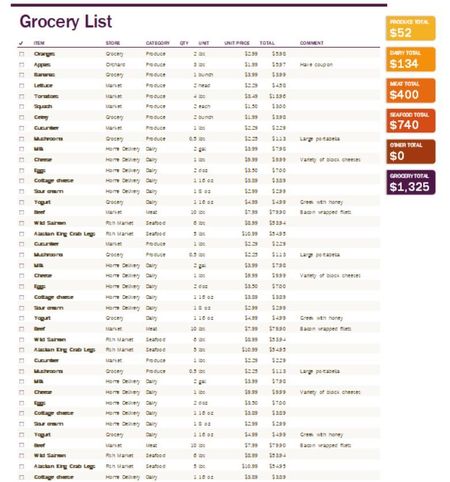
The template is driven by calculations on a hidden sheet called "calculations". When ever you type a Category in the shopping list it will include in a list that will be used to sum the totals by category. But, beware, if you miss-spell a category name you'll end up with two separate ones. Not very smart, I would say. Leaving the Category empty will place the product in "Other". Then it goes through several steps to rank all categories by amount and sort them in descending order, but these formulae contain hard-coded numbers that you need to change yourself if you have added a category.
The fancy shapes in the list on the right-hand side are linked, again by hard-coded references, to the ranked list of amounts per category in the calculations sheet. And the shapes intend to be displayed in ascending order. If the number of categories changes you'll have to be very careful that you add shapes in the correct place with the correct reference to the calculation sheet for both the category name and the amount. Increasing the number of decimals, by the way is done by changing the formulae in column L of the calculation sheet to round to 2 decimals.
Confused? I'm not surprised. This template works just fine, although it's not very well designed, if you stick to its initial set-up. Use no more that 4 named categories, group everything else in Other by leaving the category blank. This will then fill the 6 shapes correctly (4 named, 1 other and 1 for the total) without having to change the formulae.
I attached the template that has one extra category "Chilled". I just changed the one on row 7. Also adjusted the amounts in the shapes to display two decimals.
As a final recommendation I would suggest you learn about Data Validation and Pivot Tables and ditch this template. True, the end result may not be as colourful as the template, but it will be a lot easier to maintain. Added an example of a simple pivot table in the file.


What is the template? Where did you get it? Can you provide a link to the original? Images don't tell us what is in the formulas or how the whole thing is structured. Unfortunately, a lot of templates are not amenable to user changes. But if you can tell us where this is from, ideally giving a link to the original, we may be able to look into it.

- Riny_van_EekelenMar 30, 2022Platinum Contributor
AnnabelleMay I'm sure mathetes won't mind if I add some comments. You can customise this template, though it will require quite a bit of manual "labour". And depending on your skills (you mention to be a newbie) that might be a challenge.
The template is driven by calculations on a hidden sheet called "calculations". When ever you type a Category in the shopping list it will include in a list that will be used to sum the totals by category. But, beware, if you miss-spell a category name you'll end up with two separate ones. Not very smart, I would say. Leaving the Category empty will place the product in "Other". Then it goes through several steps to rank all categories by amount and sort them in descending order, but these formulae contain hard-coded numbers that you need to change yourself if you have added a category.
The fancy shapes in the list on the right-hand side are linked, again by hard-coded references, to the ranked list of amounts per category in the calculations sheet. And the shapes intend to be displayed in ascending order. If the number of categories changes you'll have to be very careful that you add shapes in the correct place with the correct reference to the calculation sheet for both the category name and the amount. Increasing the number of decimals, by the way is done by changing the formulae in column L of the calculation sheet to round to 2 decimals.
Confused? I'm not surprised. This template works just fine, although it's not very well designed, if you stick to its initial set-up. Use no more that 4 named categories, group everything else in Other by leaving the category blank. This will then fill the 6 shapes correctly (4 named, 1 other and 1 for the total) without having to change the formulae.
I attached the template that has one extra category "Chilled". I just changed the one on row 7. Also adjusted the amounts in the shapes to display two decimals.
As a final recommendation I would suggest you learn about Data Validation and Pivot Tables and ditch this template. True, the end result may not be as colourful as the template, but it will be a lot easier to maintain. Added an example of a simple pivot table in the file.
- mathetesMar 31, 2022Gold Contributor
I don't mind when you chime in, not at all.
And I'm going to follow-up by sending the link to that Template, and to this thread, to the department in Microsoft that publishes these.
- mathetesMar 31, 2022Gold Contributor
Unfortunately, that template--I discovered--is NOT one published by Microsoft. So it can't be improved by them. So, AnnabelleMay , you're kind of on your own in following the recommendations from Riny_van_Eekelen