Forum Discussion

Adding existing VBA/Macro in Private Function to new Workbook
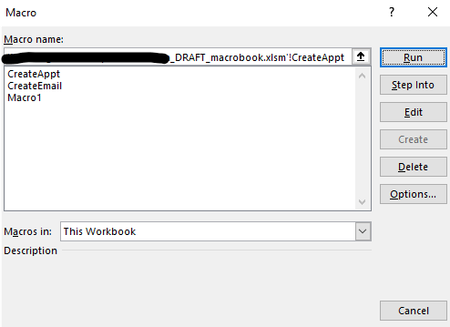

The macro should be in a standard module created by selecting Insert > Module in the Visual Basic Editor.
Code in the worksheet modules and in ThisWorkbook (both under Microsoft Excel Objects) won't be listed in the Macros dialog.

Great! Thanks for that help. I created a new module and pasted the existing Macro code there. When I select to 'Run' the Macro, it is prompting me to name it, but wouldn't that cause it to be listed in the dialog?
- HansVogelaarFeb 07, 2025MVP
Oh wait - I should have seen that!
A macro is a procedure (Sub) without arguments. Your code is a function, not a procedure! Moreover, it has an argument ws. So you cannot run it as a macro.
I apologize for missing that.
- burnskrlFeb 07, 2025Tin Contributor
Do you have a suggestion on how I might be able to get it to run in my new workbook even though it isn't a macro? Is there a way to have functions run? My guess is yes, but I am still new to this level of Excel, so it is a bit over my head at the moment. Happy to learn though!!
- HansVogelaarFeb 08, 2025MVP
You could change the code as follows:
Public Const sRngName = "PT_Notes"

Public Sub Check_Setup()
    Dim ws As Worksheet
    Dim rNotes As Range, i As Long
    Dim PT As PivotTable, ptField As PivotField
    Dim tblNotes As ListObject
    Dim wsSave As Worksheet

    Set ws = ActiveSheet
'---Check if not exactly one PT on Worksheet- exit
    If ws.PivotTables.Count <> 1 Then GoTo StopNotes
    Set PT = ws.PivotTables(1)

'---Check if not Compact Report layout- exit
    For Each ptField In PT.RowFields
        If Not ptField.LayoutCompactRow Then GoTo StopNotes
    Next ptField

'---Check if Named Range "PT_Notes" doesn't exist- define it
    If Not NameExists(sRngName, ws.Name) Then
        With PT.TableRange1
            Set rNotes = Intersect(PT.DataBodyRange.EntireRow, _
                    .Resize(, 1).Offset(0, .Columns.Count))
        End With
        Set rNotes = rNotes.Resize(rNotes.Rows.Count _
            + PT.ColumnGrand)
        ws.Names.Add Name:=sRngName, RefersTo:=rNotes
        Call Format_NoteRange(rNotes)
    End If

'---Check if "|Notes" Worksheet doesn't exist- add it
    If Not SheetExists(ws.Name & "|Notes") Then
        Set wsSave = ActiveSheet
        Sheets.Add
        ActiveSheet.Name = ws.Name & "|Notes"
        wsSave.Activate
    End If

'---Check if Notes DataTable doesn't exist- add it
    With Sheets(ws.Name & "|Notes")
        On Error Resume Next
        Set tblNotes = .ListObjects(1)
        If tblNotes Is Nothing Then
            .Cells(1) = "KeyPhrase"
            .Cells(1, 2) = "Note"
            Set tblNotes = .ListObjects.Add(xlSrcRange, _
                .Range("A1:B2"), , xlYes)
        End If
    End With

'---Check if any PT fields are not Table Headers - add
    With tblNotes
        For Each ptField In PT.RowFields
            If IsError(Application.Match(ptField.Name, .HeaderRowRange, 0)) Then
                .ListColumns.Add Position:=2
                .HeaderRowRange(1, 2) = ptField.Name
            End If
        Next ptField
    End With
    Exit Sub

StopNotes:
    If NameExists(sRngName, ws.Name) Then
        Application.EnableEvents = False
        Call Clear_Notes_Range(ws)
        ws.Names(sRngName).Delete
        Application.EnableEvents = True
    End If
End Sub
Make sure that the other functions and procedures called by this macro are present in the workbook (Clear_Notes_Range, Format_NoteRange, NameExists and SheetExists)