Forum Discussion

** HELP ** Conditional Formatting
- Sep 20, 2023
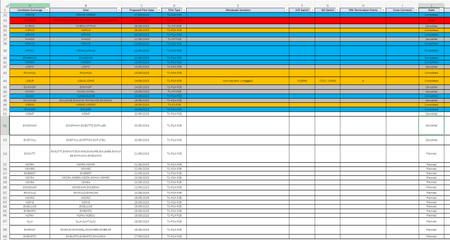
Select all the rows that you want to format this way.
I'll assume that row 2 is the top row in the selection.
The active cell in the selection should be in that top row.
On the Home tab of the ribbon, click Conditional Formatting > New Rule...
Select 'Use a formula to determine which cells to format'.
Enter the formula=OR($J2="Complete",$J2="Completed")
Click Format...
Activate the Fill tab.
Select blue as highlight color.
Click OK, then click OK again.Repeat these steps, but with the formula
=$J2="Cancelled"
and grey as fill color.
Finally, repeat them again with
=$J2="Failed"
and red.

Select all the rows that you want to format this way.
I'll assume that row 2 is the top row in the selection.
The active cell in the selection should be in that top row.
On the Home tab of the ribbon, click Conditional Formatting > New Rule...
Select 'Use a formula to determine which cells to format'.
Enter the formula
=OR($J2="Complete",$J2="Completed")
Click Format...
Activate the Fill tab.
Select blue as highlight color.
Click OK, then click OK again.
Repeat these steps, but with the formula
=$J2="Cancelled"
and grey as fill color.
Finally, repeat them again with
=$J2="Failed"
and red.
