Forum Widgets
Latest Discussions

DebugView v. 5.0 freezes
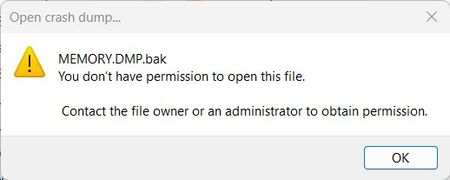
It appears that if the file C:\Windows\MEMORY.DMP exists, DebugView/UI will freeze completely if permission to open/read the file hasn't been granted. DebugView is also incapable of telling what it's trying to do at the time (ie. trying to process a crash dump file). Running DebugView under a non-Administrative account & trying to process a renamed crash dump file yields the following error message:ziczacApr 11, 2026Copper Contributor5Views0likes0Comments roark_hApr 08, 2026Copper Contributor24Views0likes0Comments
RDCMan v3.1: Recent Built-In Group Not Working
I am using Remote Desktop Connection Manager v3.1 (on Windows 11 Enterprise, 24H2) and have found the following two issues... The "Recent" Built-In Group doesn't work...the recently connected servers do not appear in this group (this fails for my colleague too). If you click on the URL shown in the "About" Dialogue box then RDCMan errors and then crashes! (Again, this too fails for my colleague). Many thanks! LeeleewilmottNov 04, 2025Copper Contributor214Views0likes0Comments
Autologon v3.10 fails to set password for Server 2025
When attempting to setup AutoLogon for Windows Server 2025, the AutoAdminLogon, DefaultDomainName, DefaultUserName are all set, though it does not appear to be setting the encrypted password correctly where ever autologon stores that value. I have tested it working successfully on Windows Server 2022.BGleasonOct 07, 2025Copper Contributor74Views0likes0CommentsHow to check the certificate when using RDCMan 3.1
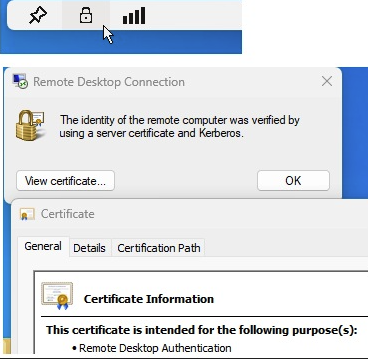
Hi all, Is there an easy way to check the Certificate used within RDCMan 3.1 tool, while remoting to different servers? I'm struggling to find this option, not sure if it even exists... Thanks.SokratisZotosAug 19, 2025Brass Contributor59Views0likes0Comments
SYSinternal Help needed
I have TCPview installed and whois with the Microsoft SYSinternal Suite app, and when I right-click to use whois in TCPview my computer gives me an error: Cannot resolve names or use local names. I'm pretty confident my network has been hacked into, and I need this program to work, I've been playing video games between 2 steam accounts where I've been tracked into every match I enter. When I try to run the Whois command prompt it doesn't load.Tc27Apr 26, 2025Copper Contributor69Views0likes0Comments
Two issues with AutoRuns 14.11
Hi, For AutoRuns 14.11: 1. At the folder of C:\Users\username\AppData\Roaming\Microsoft\Windows\Start Menu\Programs\Startup I have an .LNK file with link to the patch of Windows Task Manager, C:\Windows\System32\Taskmgr.exe, but it is not shown in AutoRuns at all, mostly not the logon tab and it is not found when you search for it, not even when loading it as admin. Looks like a bug. 2. I also have an object there that is an .LNK file, but it is not linked to an executable, but it is a definition to launch the WhatsApp application, the link is disabled/blocked for a editing, looks something like "5319275A.WhatsAppDesktop_2.2342.7.0_x64__cv1g1gvanyjgm". So AutoRuns naturally marks its line with yellow background an the "Image Path" column states "File not found: .exe", which is technically true, but it will be wiser to consider to not showing a warning, since the object works OK and does launch the app, so it will better to mark it as windows app store object valid object. Thank you.eitancaspiAug 16, 2024Copper Contributor473Views0likes0Comments
Issue with Autoruns v14.11 – Offline System Registry Hives Not Unmounted
When using the Analyze Offline System option leaves registry hives mounted, risking system corruption. Steps to Reproduce: Open Autoruns v14.11. Use File > Analyze Offline System. Close AutoRuns. Observe that registry hives remain mounted after the process has terminated. (Regedit.exe > HKLM > autoruns.software / autoruns.system / autoruns.user) Impact: Can render the offline system unbootable. Prevents you from using Analyze Offline System again as the HKLM\autoruns.* mountpoints are already in use. Workaround: Use v13.100, which works correctly.firepark32Aug 07, 2024Copper Contributor371Views1like0Comments
Loss of default Route when turning on VPN
When I use my FortiClient VPN to connect remotely, Windows loses my local internet connection. I have used an elevated Command Prompt to try and adjust the default route to remedy. Any advice ? Here is the process I am using: Open a cmd window with administrator privileges. You need them to add/delete routes later on. before you connect the vpn execute a "route print" in there and look for the Target "0.0.0.0" - this is your default route. Note down the ip in the column "gateway" there. Connect the vpn and then execute "route print" in the cmd again. You should notice that the gateway (and interface) for the default route has changed. Als note down that gateway ip. Then do a "route delete 0.0.0.0" (I think "route delete default" might do as well but not sure). Then do a "route add 0.0.0.0 MASK 0.0.0.0 <gateway ip you noted down before connecting vpn>" At this point you should regain internet connectivity again. To still be able to reach to your company servers you might have to analogously add a static route to the company subnet with correct subnet mask and the gateway you noted after connecting the vpn. You don't need to enter interface or metric here.MikeM275Aug 06, 2024Copper Contributor556Views0likes0Comments