zoom level
6 TopicsZoom in or out of forms, tables, and queries when in Form View or Datasheet View
Access now lets you zoom in and out when you’re working with forms, tables, and queries in Form View or Datasheet View. Zoom in for a closer look at your data or zoom out to see more on screen at once. You can adjust the zoom level using the Zoom button on the ribbon, the zoom slider on the status bar, or keyboard shortcuts. Zoom is also available in Print Preview for reports. Zoom isn’t supported in Report View or Design View. This feature is available in Access for Microsoft 365, version 2605 and later. Choose a magnification setting from the ribbon On the Home tab, select Zoom and choose one of the following options: 50%, 75%, 125%, 150%, 175%, 200%, or 500%. To return the view to 100% zoom, click Zoom 100%. If you prefer to use the keyboard, you can press Ctrl + Alt + 0 (zero). Use the zoom slider to quickly zoom in or out On the status bar in the lower right-hand corner of Access, select the zoom slider. Slide to the percentage zoom setting that you want. Press – or + to zoom in gradual increments. Use zoom keyboard shortcuts or mousewheel To zoom in, press Ctrl + Alt + Plus (+). To zoom out, press Ctrl + Alt + Minus (-). To return to 100% magnification, press Ctrl + Alt + 0 (zero). To use the mousewheel and scroll to zoom in or out, press Ctrl + mousewheel. Change your default zoom percentage Access doesn't save zoom settings on closing and reopening a form. Instead, it opens your form using the default zoom setting. To set your zoom default percentage, choose File > Options > Current Database > Application Options and choose the Default Zoom setting. Note Content inside of ActiveX controls, such as the text in a TreeView control, doesn't resize when zoomed. Zooming in Access only affects Access-native controls. If a form uses ActiveX controls, consider replacing them with native Access controls so they scale with the rest of the form.1.1KViews4likes10Comments
New feature: Smooth pinch-style zooming using mousewheel.
I really miss the smooth zooming that you get from pinch gestures on touchpad or touchscreen when using my desktops that have only a mouse with a wheel. The Ctrl+wheel style zooming has its place but 90% of the time if you just want to quickly enlarge and image or focus on a part of the page with small text the fast and smooth zoom-in-read then zoom-out of pinch style is so much nicer. With a mouse wheel that is smooth itself like my Logitech ones it would be a nice smooth action all round. Could Alt+wheel be used to trigger the smooth zoom? Leaving the current Ctrl+wheel one unchanged for people who are used to it.5.2KViews3likes3Comments
Windows 10 Photo Bug? - Image Magnification Issues
Hello, Some Context of Problem Due to covid, my assessors have requested that I submit my evidence of coursework as attachments, within a limitation of submitting 15 files. Because some of this evidence has to be screen grabbed, the limitations of copy/pasting them inside a word document would limit the viewable resolution (text heavy therefore lots of small font), as well as word processors default with page breaks, margins etc. Therefore I saved my evidence as .jpgs for reasons explained below. I purchased screen manipulation software https://www.techsmith.com/, to stitch my evidence together to meet the maximum 15 pieces of evidence requirements, whilst also being able to annotate my work, another requirement set by my assessors. Issues With Viewing .jpgs Using Windows 10 Photos When my .jpg files were compiled and completed, I was able to zoom in with the Windows 10 Photos app, and scroll with a high fidelity of resolution, back at the end of June 2021 when I last properly revisited them. However due to waiting for the new academic year, my files could not be reviewed until now (October 2021). It seems Windows 10 Photos can't magnify up to 100% anymore, or view the files zoomed in to the degree I used to, which has prompted my assessors (who are likely using Windows 10 systems also) to be having the same issue (possibly?), but probably assume an caused at my end, and would not know this might be affecting other Windows 10 computers, if it is. May I ask if anyone else is having issues with magnifying .jpgs with Windows 10 Photos, that can't reach 100%, or is anyone aware of a bug with the Photo software? Troubleshooting Using Other Image Viewers I've saved the .jpgs to my Google drive, and can view them at close up without issues using the web image viewer, and have even downloaded software to bring back the previous Windows Photo Viewer (for Windows 7/8), which works fine also. Uninstalling / Reinstalling Photos App I have uninstalled and reinstalled the Photos app also, but to no avail. Perhaps if the app has been updated recently or the past few months, the update has caused this bug to occur (if it is not just me). Lastly This issue will really only be noticeable to others if they have a long or large file .jpg file, which is an unusual method of recording evidence. Thanks for your patience reading this.2.2KViews1like1CommentZoom level on multiple windows
I am MS Edge user and require about 3 monitors with multiple windows up. There are some windows that require a bigger zoom level for example 145%, and other windows where a zoom level of 105% is needed, however, when one window has its zoom level changed, all the other windows change to that % as well when I click a button within the unchanged window. Is anyone else having this issue? Is it possible for specific windows to change zoom levels without affecting the others? Or could this be in relation to the applications that I am using accessed by MS Edge?3.8KViews1like1CommentBug with default zoom level in Edge
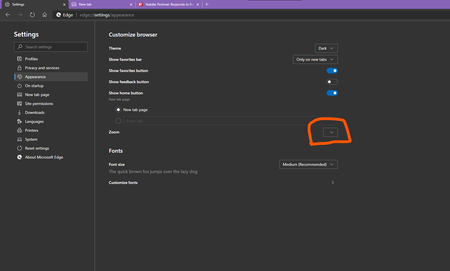
This is what I'm referring to Whenever I fresh install Edge on a computer, the zoom level in Edge settings is blank. I've tested it with: Edge 80 Version 80.0.361.54 (Official build) (64-bit) And Edge Version 82.0.425.0 (Official build) canary (64-bit) on Windows 10 build 19041.84 (slow ring) and Windows 10 build 19564 (fast ring) Those Windows installations were fresh when I tested it. display driver was already installed prior to Edge installation. monitor resolution is 1920x1080 and Windows scaling was set to 100% recommended by Windows. so even though the zoom level is blank at first, I can still figure out what zoom level Edge has automatically set for itself by zooming in/out in a web page and it is sometimes 130% and 125%.Solved3.6KViews0likes2Comments