wsusscn2.cab
2 Topics
Delivery Optimization breaking Windows 11 update downloads?
We started seeing Delivery Optimization–related issues with Windows updates after upgrading devices to Windows 11 24H2. In our SCCM environment, Windows updates begin downloading but consistently fail or stall partway through the download. In many cases, the download restarts multiple times and eventually errors out. This behavior is consistent across multiple devices and different boundaries. These same devices were patching normally prior to the 24H2 upgrade. Since moving to 24H2, patching has become unreliable, especially for larger updates. From what we’re seeing, this doesn’t look like a traditional content or boundary issue. It feels like Delivery Optimization is failing mid-transfer or not resuming downloads correctly after the OS upgrade. So far we’ve checked the following: - Boundaries and boundary groups are unchanged - Content is available and distributed correctly on DPs - No recent SCCM site or infrastructure changes - Network connectivity looks normal On the client side, we’ve been reviewing: - DataTransferService.log (downloads start but fail or restart mid-way) - DeliveryOptimization logs (showing repeated retries / stalled transfers) - CAS.log and LocationServices.log (content location looks normal) - WUAHandler.log (update detection looks fine) Overall, detection and policy seem healthy — the issue appears during the actual download phase. Has anyone else seen Delivery Optimization downloads stall or fail during Windows patching after upgrading to Windows 11 24H2? If so, did you find a specific DO setting, policy change, or workaround that stabilized patching?114Views0likes2Comments
Download and Install Windows Updates offline using the wsusscn2.cab file and Windows Update API
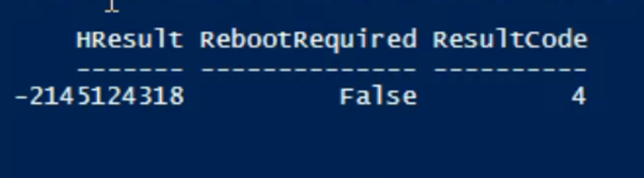
Hi, I'm trying to find a way to install Windows Updates (CAB files) on offline Windows 10 V1809 computers. Overall the process I'm trying to automate is: 1. Scan for missing Windows Updates on the computer and download all missing Windows Updates 2. On an offline computer - install the Updates. I'm using the wsusscn2.cab file as described here: https://learn.microsoft.com/en-us/windows/win32/wua_sdk/using-wua-to-scan-for-updates-offline to search the updates, download them, and then try to install them. I manage to search and download the updates, but I encounter this error when trying to install: When -2145124318 in Hex is: 0x80240022 This error code = WU_E_ALL_UPDATES_FAILED Operation failed for all the updates. How can I fix my code to successfully install this updates? Here is the code I'm using: #Search for Windows Updates: # Load the Windows Update Agent COM object $UpdateSession = New-Object -ComObject Microsoft.Update.Session $UpdateServiceManager = New-Object -ComObject Microsoft.Update.ServiceManager #Load the wsusscn2.cab file that enables offline Updates instllation: $UpdateService = $UpdateServiceManager.AddScanPackageService("Offline Sync Service", "c:\wsusscn2.cab") # Create a searcher for available updates $UpdateSearcher = $UpdateSession.CreateUpdateSearcher() # Search for updates in the SoftwareDistribution folder: #The ServerSelection enumeration defines values that describe the type of server to use for an update search operation. # ssOthers: Search another server, to be specified by other means $updateSearcher.ServerSelection = 3 # ssOthers $UpdateSearcher.ServiceID = $UpdateService.ServiceID $Criteria = "IsInstalled=0 and Type='Software'" $SearchResult = $UpdateSearcher.Search($Criteria) $Updates = $SearchResult.Updates if ($SearchResult.Updates.Count -eq 0) { write-Host "There are no applicable updates" } #Download the Windows Updates (to SoftwareDistribution): $SearchResult = $Updates # Create a Windows Update Session $Session = New-Object -ComObject Microsoft.Update.Session # Create a Windows Update Downloader: $Downloader = $Session.CreateUpdateDownloader() $Downloader.Updates = $SearchResult #Download updates to C:\Windows\SoftwareDistribution $Downloader.Download() #Install the Windows Updates from SoftwareDistribution: # Create the Installer Object: $installer = New-Object -ComObject Microsoft.Update.Installer $Installer.Updates = $Updates #Install updates: $Result = $Installer.Install() Thanks, Ann10KViews0likes1Comment