windows server
2920 Topics
Windows server 2022 is not updating with latest patch KB5126655
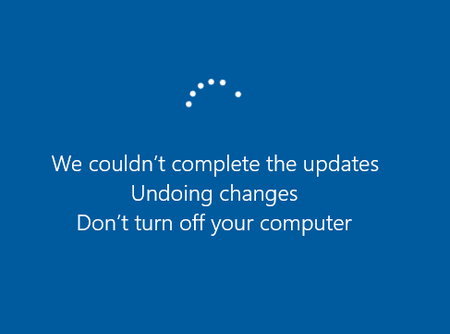
Windows server 2022 is not updating with latest patch KB5126655. However, successfully installed 2026-10 Cumulative update for .Net framework. Last successful Cumulative update for the operating system version 21H2 is 2026-06. Try to update the latest patch manually, the server is rolling back the patch.33Views0likes0CommentsQuick machine recovery is now supported on Windows Server 2025
Quick machine recovery is now available for Windows Server 2025. Quick machine recovery can help servers recover from critical boot failures by using Windows Recovery Environment (WinRE) to search Windows Update for an applicable remediation. Recovery is dependent on an applicable remediation being available. On Windows Server 2025, quick machine recovery is disabled by default. Administrators can use Group Policy to enable and configure the capability for servers in their environment. Rollout schedule Quick machine recovery is available for Windows Server 2025 editions with the October 2026 security update or later installed. Impact on your organization There is no change to the default recovery behavior for Windows Server 2025 after installing the update because Quick machine recovery is disabled by default. If you choose to enable this feature, you can then use cloud remediation to retrieve and apply targeted remediations through Windows Update when a server encounters a critical boot failure. Administrators can also configure automatic remediation, which allows the server to check for an available cloud-based remediation without user interaction. Configure quick machine recovery by using Group Policy - Windows Server | Microsoft Learn Quick machine recovery | Microsoft Learn42Views0likes0CommentsTroubleshoot Hyper-V guarded fabrics and shielded VMs
Use this FAQ when a guarded fabric can't be deployed, a host can't attest, a shielded virtual machine (VM) can't be provisioned or started, or an operation such as migration, servicing, or recovery fails. It accompanies the Microsoft Learn module: https://learn.microsoft.com/en-us/training/modules/guarded-fabric-shielded-virtual-machines/ Warning Don't use TPM clearing, an unrelated new or local KP, disabled Secure Boot or CI, a weaker attestation mode, certificate-validation bypasses, or copied owner private keys as generic troubleshooting fixes. Don't delete protected VM state or checkpoint files to make an error disappear. These actions can weaken the trust boundary or permanently remove access to encrypted data. In this FAQ Why can't I install or prepare the platform? Why does HGS deployment or service operation fail? Why can't hosts or owners reach the correct HGS service? Why do certificate enrollment, import, or private-key operations fail? What do HGS client attestation results mean? Why does a TPM-trusted host fail a specific security check? Why do code integrity policy changes break the host? Why do host-key or legacy AD-based attestation fail? Why does attestation pass but a VM still can't obtain its keys? Why do template preparation or image validation fail? Why do shielding-data creation and VM provisioning fail? Why can't the owner access the guest or confirm its protection? Why do live migration, cluster placement, or failover fail? Why do servicing, key rollover, or retirement cause an outage? Why does withdrawing trust not immediately contain an incident? What fails when HGS or a site is unavailable? Why do backups or disaster recovery fail? Why does Windows guest BitLocker recovery fail? How do I recover from TPM failures or an offline CA? Why are diagnostics inconclusive or misleading? Why can't I install or prepare the platform? Resolve platform failures before investigating HGS policy. A feature name appearing in a script doesn't establish that the target system supports it. Failure mode or symptom Likely causes Resolution overview HostGuardian isn't available or the host can't become guarded. The Hyper-V host runs an unsuitable Windows Server edition or release. Use a supported Datacenter edition for guarded Hyper-V hosts. Don't confuse this requirement with HGS servers, whose role is available in Standard and Datacenter. Check the Windows Server 2025 edition inventory. The HGS role is installed on a Hyper-V host, but attestation support is missing. HostGuardianServiceRole was confused with the host-side HostGuardian feature. Install the correct host features on the guarded host and deploy HGS on its separately administered servers. Installing the HGS role doesn't enroll the local Hyper-V host or shield its VMs. A required cmdlet, module, or wizard is missing. Missing RSAT/provisioning tools, wrong machine or PowerShell environment, unsupported parameter, or incomplete feature installation. Check Get-WindowsFeature , Get-Command , module source/version, and installed help on the machine that performs that stage. Install the documented tools there. Don't move owner secrets to a host just because the host has more tools. A graphical shielding-data or template wizard won't run on Server Core. The workflow assumes a local Desktop Experience interface. Use the supported PowerShell workflow or a trusted Desktop Experience management system with the required tools. Server Core support for HGS and Hyper-V doesn't imply every graphical preparation tool is available locally. Features or protection settings are configured, but don't take effect. A required restart hasn't occurred, Group Policy hasn't applied, or a policy is configured but not running. Complete the approved maintenance restart and check effective policy and running security services. Distinguish Win32_DeviceGuard configured values from running values. Drain workloads first where necessary. TPM-trusted prerequisites or virtualization startup fail. Missing/disabled TPM 2.0, SLAT, IOMMU, hardware virtualization, UEFI boot, or Secure Boot; incompatible firmware or drivers. Verify actual firmware settings and supported hardware, not only specifications. TPM mode requires UEFI 2.3.1 or later and the relevant protections to function. Replace unsuitable hardware or use a separately approved architecture; don't silently lower assurance. Enabling Host Guardian support or HVCI causes a stop error or device failure. A driver or device is incompatible with virtualization-based code integrity. Keep the host out of placement, preserve the crash evidence securely, and use the supported rollback or recovery path. Obtain compatible OEM firmware/drivers and test the security configuration before returning the host to service. A copied example fails with a particular guest, device, nested-virtualization, or management combination. Support was inferred from ordinary Hyper-V support or an older example. Verify the exact build, guest OS, protection policy, device feature, and operation. Use an explicitly supported combination. A successful unshielded-VM test isn't support evidence for the shielded equivalent. References Guarded-host prerequisites: https://learn.microsoft.com/windows-server/security/guarded-fabric-shielded-vm/guarded-fabric-guarded-host-prerequisites Windows Server edition comparison: https://learn.microsoft.com/windows-server/get-started/editions-comparison?view=windows-server-2025&preserve-view=true Guarded-host troubleshooting: https://learn.microsoft.com/troubleshoot/windows-server/virtualization/troubleshoot-guarded-hosts Get-HgsTrace: https://learn.microsoft.com/powershell/module/hgsdiagnostics/get-hgstrace?view=windowsserver2025-ps&preserve-view=true Test-HgsClientConfiguration: https://learn.microsoft.com/powershell/module/hgsclient/test-hgsclientconfiguration?view=windowsserver2025-ps&preserve-view=true Why does HGS deployment or service operation fail? The HGS cluster supplies attestation and key protection. It is separate from the Hyper-V cluster that provides workload availability. Failure mode or symptom Likely causes Resolution overview The role installs, but no working HGS forest or service exists. Role installation was mistaken for forest creation and HGS initialization. Complete the documented Install-HgsServer and Initialize-HgsServer stages, with the correct identity, certificates, and restart boundaries. Inspect Get-HgsServer ; a successful role installation alone isn't completion. New-forest setup or domain-controller promotion fails. Incorrect starting domain membership, DNS/network configuration, permissions, name conflicts, or an incomplete previous attempt. Review deployment and AD DS events, correct the actual prerequisite, and follow the supported installation/recovery path. Don't experiment by deleting AD or cluster objects. Preserve DSRM recovery credentials separately. HGS can't be deployed correctly in an existing forest. Attempted deployment in a child domain, inadequate privileges, or unsuitable bastion-forest design. Deploy in the existing forest's root domain using the documented prerequisites. If the forest isn't an isolated, highly privileged security boundary, redesign rather than accepting fabric-administrator control over HGS. An additional HGS node won't join or initialize. The new node can't resolve the existing forest, credentials can't join/promote it, a reboot is outstanding, or the existing-node address is wrong. Restore domain connectivity and authorized enrollment, then initialize against a reachable existing HGS node. Verify domain, cluster, and HGS membership rather than assuming one implies the others. HGS fails after losing a node or during maintenance. Insufficient healthy nodes, quorum or cluster-network failure, insufficient remaining capacity, or a shared failure domain. Restore cluster communications and healthy capacity using the approved cluster recovery plan. Service one node at a time. Don't force quorum or remove cluster state without a recovery decision and evidence. Requests intermittently fail through a healthy-looking service name. One HGS node has stale policy, broken TLS, unusable keys, a failed application pool, or an HSM access problem. Correlate failures with the responding node. Exercise attestation and key release on every node while preserving service-name validation. Repair or safely remove the failing node from service; one successful clustered request isn't sufficient. The KPS application pool can't use its service identity. HGS node computer accounts can't retrieve the gMSA password, AD replication is unhealthy, or service identity configuration changed. Repair the specific gMSA retrieval permissions and AD/service configuration. Separately check private-key permissions. Don't replace the gMSA with a broad administrator account. KPS returns HTTP 500 with a required-privilege or security-audit-source error. The HGS gMSA lacks Generate security audits ( SeAuditPrivilege ), often after security-policy hardening. Restore the documented user right through the controlling policy on every HGS node. Preserve required default principals as well as the gMSA: assigning this right replaces, rather than appends to, the existing list. A JEA reviewer can't connect or can't run a requested command. Wrong microsoft.windows.hgs endpoint, incorrect role membership, WinRM authentication/listener failure, or a command outside the delegated role. Repair the endpoint and authenticated remoting path. Use reviewer access for inspection and the authorized HGS administrator role for changes. A reviewer being unable to edit policy is expected, not grounds for granting Domain Admins. The entire fabric can't start after a power or site outage. Virtualized HGS, DNS, identity, or backup-access services depend on shielded VMs that need the unavailable HGS. Restore an independently bootable recovery path. Place essential recovery services and credentials outside that circular dependency. A production architecture must be able to start its security dependencies before protected workloads. HGS becomes slow or times out during a restart wave. Simultaneous attestation/key-release demand, HSM latency, resource exhaustion, or too much capacity removed for maintenance. Measure the constrained resource, restore capacity, and stagger starts or maintenance. Validate latency and key access under representative load. Longer timeouts alone don't repair unavailable keys or failed attestation. References HGS troubleshooting: https://learn.microsoft.com/troubleshoot/windows-server/virtualization/troubleshoot-guarded-fabric-hgs Managing HGS: https://learn.microsoft.com/windows-server/security/guarded-fabric-shielded-vm/guarded-fabric-manage-hgs HGS deployment prerequisites: https://learn.microsoft.com/windows-server/security/guarded-fabric-shielded-vm/guarded-fabric-prepare-for-hgs Why can't hosts or owners reach the correct HGS service? Check transport and service identity before changing host trust. The host's Attestation and KeyProtection URLs and the owner's metadata URL serve different operations. Failure mode or symptom Likely causes Resolution overview The HGS service name doesn't resolve or resolves to the wrong nodes. Missing/stale DNS records, incorrect conditional forwarders, wrong DNS suffix, or use of a node name instead of the distributed service name. Correct authoritative records and forwarding, then verify resolution from each affected host and owner-management system. Don't use an IP-address URL to bypass a TLS-name failure. TCP 443 or required deployment/domain traffic is blocked. Routing, firewall, VLAN, network ACL, or segmentation changes. Restore only the required documented flows for HGS, AD DS, cluster operation, and management. Opening HTTPS alone doesn't satisfy forest creation, replication, gMSA, or cluster dependencies. TCP succeeds but HTTPS authentication fails. Expired/not-yet-valid TLS certificate, service-name/SAN mismatch, wrong binding, missing private key, or an untrusted chain. Correct the endpoint certificate and binding on the affected nodes, validate time, and distribute the verified public trust chain to clients. Retain name and chain validation. TLS identity is separate from HGS guardian authorization. TLS works on one computer but not another. CA trust was deployed only in the HGS forest, an intermediate was put in the root store, or client policy hasn't applied. Install verified roots and intermediates in their correct local computer stores using the appropriate domain or owner policy. HGS-forest Group Policy doesn't configure hosts in another forest or independent owner systems. Chain validation is slow or fails despite the root being installed. Required intermediate discovery, CRL, or AIA endpoints are unavailable; certificate dates or trust policy are wrong. Repair the relevant PKI publication and network paths and inspect chain-validation errors. Don't globally disable revocation checks. HGS service-key revocation semantics aren't a reason to ignore TLS trust failures. A service URL returns an unexpected page, 404, or the wrong service. Incorrect protocol/path, wrong HGS instance, or proxy/routing configuration. Compare client settings with the intended Get-HgsServer output and use the correct /Attestation and /KeyProtection paths. Confirm the intended organization and guardian keys before accepting metadata. Requests fail only through an inspection, load-balancing, or WAN path. The intermediary changes protected traffic, routes to unhealthy nodes, or introduces an unsupported TLS/proxy configuration. Compare with an approved direct service path, preserve errors, and correct the intermediary design. VMM specifically documents provisioning failures when packets are modified in transit. Don't weaken message validation to accommodate rewriting. HGS breaks after HTTPS hardening. The required HTTP IIS binding was removed, or TLS settings became incompatible with the client stack. Restore the supported HGS binding configuration; retain HTTP binding as documented while using approved network controls for access restrictions. Investigate protocol compatibility separately. Don't re-enable obsolete TLS versions as the default fix. Health certificates appear expired or not yet valid; Kerberos also fails. Time drift among hosts, HGS nodes, domain controllers, or the management system. Restore trusted time synchronization first. If HGS's internally managed attestation signer remains invalid, follow its documented renewal-task procedure. That certificate isn't the administrator-provided KPS signing certificate. Hosts contact an old service or lose fallback after a configuration edit. Stale endpoints or a Set-HgsClientConfiguration call omitted the fallback parameters. Inspect all four endpoint values and restore the approved primary/fallback pairs. Omitting fallback parameters clears that configuration. Recheck both services' policies and keys; URL configuration doesn't synchronize them. References HGS certificates and HTTPS: https://learn.microsoft.com/windows-server/security/guarded-fabric-shielded-vm/guarded-fabric-obtain-certs Set-HgsServer: https://learn.microsoft.com/powershell/module/hgsserver/set-hgsserver?view=windowsserver2025-ps&preserve-view=true HGS troubleshooting: https://learn.microsoft.com/troubleshoot/windows-server/virtualization/troubleshoot-guarded-fabric-hgs Fallback configuration: https://learn.microsoft.com/windows-server/security/guarded-fabric-shielded-vm/guarded-fabric-manage-branch-office Why do certificate enrollment, import, or private-key operations fail? Identify the certificate's purpose before repairing it: HGS signing, HGS encryption, HTTPS, host-key identity, owner identity, template signing, and guest endpoint identity aren't interchangeable. Failure mode or symptom Likely causes Resolution overview A standalone CA request stays pending or no certificate file is returned. Administrative approval is required; submission was mistaken for issuance. Record the request ID, have the CA administrator authenticate and approve the request, and retrieve the issued certificate. Don't repeatedly generate new keys while waiting for approval. Certificate enrollment fails with a template or CA configuration error. An enterprise-template procedure was applied to a standalone CA, the ComputerName\CAName value is wrong, or enrollment access is unavailable. Use the correct CA and enrollment workflow. Standalone CAs don't use certificate templates; put the required properties in the request and have the CA administrator review the issued result. HGS rejects a signing/encryption certificate or crypto operations fail. Legacy CSP rather than KSP, unsuitable algorithm/key size, missing usages, or a vendor provider mismatch. Obtain the documented HGS certificate profile: KSP, RSA of at least 2048 bits, required signing/data-encipherment usages and Server Authentication EKU. Verify the issued certificate rather than assuming the request was honored. Certificate acceptance succeeds but the private key is absent. Only a public .cer was imported, acceptance occurred on a different computer from the request, or the original key was lost. Accept against the original request/key or restore an approved PFX/provider-backed key. A public certificate can't recreate its private key. Reissuing with a different key is a rollover, not recovery of the original. PFX import or export fails. Wrong password, damaged file, inaccessible path/store, missing private key, or intentionally nonexportable/HSM-backed key. Verify the intended artifact and authorization. Use the original protected PFX/password or the provider's supported provisioning and recovery method. Don't try to make a nonexportable key exportable as an incident shortcut. A certificate shows HasPrivateKey , but HGS can't use it. The gMSA lacks access, the provider can't open the key, or the key is available only under another identity. Verify actual cryptographic use under the HGS service identity and repair the minimum private-key/provider permissions. Key association, file access, and successful service use are separate checks. A new HGS node has certificate objects but can't release keys. Thumbprint-referenced private keys weren't installed or authorized on that node. Provision the original private-key access on every node. PFX-provided HGS keys can replicate; thumbprint references don't replicate their private keys. Test each node before admitting traffic. HSM-backed operations fail or become intermittent. HSM outage, network/session failure, missing KSP/driver, inaccessible key set, authorization change, or HSM capacity exhaustion. Use the vendor-supported health and recovery procedures, restore the correct key set, and verify node and gMSA access. Don't create unrelated replacement keys or export keys into an unapproved software store. HTTPS fails after adding a node or renewing certificates. TLS certificates/bindings were assumed to replicate with HGS service keys. Configure the approved TLS identity and private-key access on each node. Test service-name and chain validation from hosts. TLS deployment and HGS signing/encryption-key replication are different processes. A service or host-key certificate expires, but authorization continues. Expiry was incorrectly treated as key withdrawal. This can be expected: HGS uses its signing/encryption certificates as key containers, and host-key attestation registers the public key rather than enforcing certificate expiry. Explicitly retire the relevant service key or host registration. TLS expiry still affects transport. Importing guardian metadata fails even though the service still uses those keys. Owner-side certificate checks reject an expired or untrusted guardian certificate. Authenticate the fabric and keys independently, repair trust or obtain appropriate updated metadata/certificates through an approved process. Don't normalize untrusted-root/expiry bypasses. Import-time validation and HGS's use of registered keys have different semantics. Old VMs fail after a certificate was renewed with the same subject. Renewal generated a new key pair; the subject stayed the same but cryptographic identity changed. Recover the original uncompromised key if available, or perform owner-authorized existing-KP updates as a planned rollover. Inventory retained backups and PDKs before retiring the old key. References Obtain certificates for HGS: https://learn.microsoft.com/windows-server/security/guarded-fabric-shielded-vm/guarded-fabric-obtain-certs Certificate and gMSA troubleshooting: https://learn.microsoft.com/troubleshoot/windows-server/virtualization/troubleshoot-guarded-fabric-hgs HGS key management: https://learn.microsoft.com/windows-server/security/guarded-fabric-shielded-vm/guarded-fabric-manage-hgs Create a host key: https://learn.microsoft.com/windows-server/security/guarded-fabric-shielded-vm/guarded-fabric-create-host-key What do HGS client attestation results mean? Inspect AttestationStatus , AttestationSubStatus , the service contacted, and the event timeline together. Don't equate a previously successful result with a fresh test of the current configuration. Result Interpretation Resolution overview NotConfigured The client isn't configured for HGS-backed attestation/key protection; it can be in local mode. Configure the approved HGS endpoints and retest. Local vTPM operation isn't proof of guarded-fabric protection. Unknown No usable attestation result is available, commonly because attestation hasn't yet been attempted. Check configuration, initiate a fresh supported client test, and collect diagnostics. Don't treat the absence of a rejection as acceptance. TransientError A networking, service, or other temporary failure prevented completion. Correlate DNS, TLS, IIS, HGS-node health, and timing. Retry after the underlying condition is repaired rather than repeatedly re-enrolling the host. Expired A previously issued health certificate is no longer valid. Check clocks and service reachability, then obtain fresh attestation. Investigate renewal failures if the condition recurs. UnauthorizedHost The presented identity isn't admitted under the active mode. Compare the actual TPM identity, host public key, or legacy AD group identity with the applicable registration. An AD-group membership repair is relevant only to AD-based attestation. TpmError The host couldn't complete TPM-related attestation work. Review TPM, firmware, and measured-boot evidence; check TPM readiness and OEM updates. Don't clear or replace the TPM before assessing protected-state and recovery consequences. InsecureHostConfiguration One or more enabled host security requirements aren't satisfied. Follow the actual substatus and verify effective host state. Correct unintended drift or approve a justified policy/evidence change; don't disable every failed check. Passed but the VM still fails Host admission succeeded; VM guardian authorization, provisioning, guest encryption, and migration authentication weren't thereby proven. Move to the failing later layer. Inspect KPS and the VM's existing KP for key-release errors, or provisioning/guest/migration evidence for later failures. References Attestation status and substatus reference: https://learn.microsoft.com/troubleshoot/windows-server/virtualization/troubleshoot-guarded-hosts Why does a TPM-trusted host fail a specific security check? The following substatuses describe the physical Hyper-V host, not the guest vTPM. Confirm the exact spelling and policy behavior on the installed build. Failure mode or substatus Likely causes Resolution overview TPM registration reports a missing or untrusted endorsement-key certificate. Export wasn't elevated, the OEM didn't provision the certificate as expected, or HGS lacks the TPM manufacturer's trust chain. Export the identifier with appropriate privileges, investigate missing certificates with the OEM, and install verified manufacturer roots/intermediates in TrustedTPM_RootCA and TrustedTPM_IntermediateCA on every HGS node. The HGS TLS CA isn't the TPM manufacturer CA. A replacement host or TPM isn't recognized. Enrollment describes the old physical TPM, even if the hostname is unchanged. Verify the new hardware's provenance and security configuration, enroll its actual identity, and withdraw the retired identity from all applicable HGS services. Don't reuse another host's identifier file. SecureBoot Secure Boot isn't enabled or the required boot trust configuration isn't in use. Enable Secure Boot with the Microsoft Secure Boot template. Investigate incompatible or revoked boot components; don't repair by leaving Secure Boot disabled. SecureBootSettings Current measurements don't match approved baselines, including after firmware, DBX, boot-authority, or debug-setting changes. Explain the measurement change. Roll back unintended drift or capture and approve a new baseline from a verified configuration. Use a baseline appropriate to that hardware/firmware class. VirtualSecureMode VBS isn't running, despite possible policy configuration. Check firmware virtualization, platform protections, effective policy, hypervisor startup, driver compatibility, and required restart. Verify the running protected environment before reattestation. HypervisorEnforcedCodeIntegrityPolicy Hypervisor-enforced code integrity isn't active or isn't enforced as required. Correct HVCI configuration and incompatible components, activate the intended policy, and verify runtime state. An audit-only policy or a registry setting alone doesn't prove enforcement. CodeIntegrityPolicy The active CI policy is missing, stale, or not registered with HGS in the expected form. Compare the deployed policy and registered approved unsigned binary. Activate the intended enforced policy and register its matching measurement through change control. See the next section for policy-deployment failures. Iommu IOMMU/DMA protection is unavailable, disabled, or not required by the host's VBS configuration. Enable supported hardware and the required VBS DMA protection; replace unsuitable hardware if necessary. Disabling the HGS requirement changes the threat model. PagefileEncryption Host paging-file encryption isn't enabled as required. Apply the supported encrypted-paging configuration and any required restart, then reattest. This check concerns host paging data, not guest BitLocker volumes. FullBoot The host resumed from sleep or hibernation rather than completing the required full boot. Arrange a controlled full restart with workloads drained. Verify the restart path instead of repeatedly resuming the host. HibernationEnabled Host hibernation configuration doesn't meet admission policy. Apply the approved no-hibernation configuration and restart. Don't relax the policy merely to preserve a sleep/resume operational practice. DumpsEnabled Dumps are enabled while policy requires them disabled. Disable the disallowed dumps. If operational requirements justify encrypted dumps instead, use an explicitly approved HGS dump-policy design rather than an ad hoc exception. DumpEncryption Dumps are permitted but not encrypted as required. Disable dumps or configure supported dump encryption according to policy. Protect diagnostic collection as potential tenant-sensitive material. DumpEncryptionKey The host encrypts dumps with a key that HGS doesn't recognize. Use an approved dump-encryption key and register its correct hash/policy with HGS. Preserve the independent private-key recovery authority needed to read an authorized dump. TcgLogVerification Measured-boot log retrieval/verification fails because of firmware, TPM, hardware, or an outdated PXE network boot program. Collect TPM/boot evidence, review boot order, update approved firmware and PXE components, and involve the OEM where necessary. Don't register an unverifiable log as an accepted baseline. BitLocker An enabled HGS host-BitLocker policy isn't satisfied. Verify and restore the required protection of the host OS volume. This policy is disabled by default and is independent of guest encryption. Don't change it without the HGS policy owner's decision. All artifacts seem present, but attestation still fails or unexpectedly uses an older version. Incompatible identity/baseline/CI artifact versions, a version setting retained during upgrade, or matching legacy artifacts that permit fallback. Inventory actual versions and installed command interfaces. Establish a complete approved version-2 path, then retire unapproved version-1 artifacts. Don't invent a version parameter or downgrade to bypass endorsement validation. Failure follows TPM clearing, security reset, or replacement even though the server still boots. TPM-protected or VBS identity material changed; previously sealed state or offline caches aren't usable. Recover host security configuration and re-establish online attestation/key release under the approved identity. Use independent recovery material for affected encrypted host data. A TPM reset isn't a harmless inventory operation. References Guarded-host security checks: https://learn.microsoft.com/troubleshoot/windows-server/virtualization/troubleshoot-guarded-hosts TPM artifact capture and versions: https://learn.microsoft.com/windows-server/security/guarded-fabric-shielded-vm/guarded-fabric-tpm-trusted-attestation-capturing-hardware Trusted TPM roots: https://learn.microsoft.com/windows-server/security/guarded-fabric-shielded-vm/guarded-fabric-install-trusted-tpm-root-certificates HGS attestation policies: https://learn.microsoft.com/windows-server/security/guarded-fabric-shielded-vm/guarded-fabric-manage-hgs Why do code integrity policy changes break the host? App Control for Business code integrity controls what can run. HGS checks whether the host is using an approved policy; it doesn't certify that every allowed program is safe. Failure mode or symptom Likely causes Resolution overview An approved driver, backup agent, or management tool is blocked. Missing allow rules, an overly narrow rule, or an update invalidated a hash rule. Examine CodeIntegrity events and verify the publisher/package. Update only the necessary approved rules, validate in audit on a reference system, and deploy/register the enforced policy through change control. No audit events appear, but enforcement later breaks workloads. The audit policy wasn't active, or the test didn't exercise the relevant workload. Verify the policy is active after deployment/restart, then exercise backup, management, drivers, servicing, and recovery. An empty log without representative activity isn't evidence of compatibility. HGS rejects a host after a signed CI policy is registered. The signed wrapper or a different binary was supplied instead of the matching unsigned measured policy. Register the correct unsigned form corresponding to the deployed signed policy. Don't remove signed-policy protection from the host merely to simplify registration. CI deployment reports a missing provider or policy-format error. The single-policy update provider isn't available, or the tool, file format, and target build don't match. Verify the installed provider/tool and supported policy format. Validate both local enforcement and HGS measurement; support for CiTool or multiple policies alone doesn't prove that a particular HGS combination works. A policy file was updated, but the host still presents the old policy. Deployment targeted the wrong location, activation failed, a restart is required, or signed update rules rejected the change. Inspect the active policy and deployment events. Use the supported activation/update procedure and required restart. Don't repeatedly register different HGS artifacts to conceal an inactive host policy. A signed policy prevents boot or can't be replaced. Required boot components were blocked, the authorized update signer is unavailable, or signed-policy recovery wasn't prepared. Use the approved signed-policy recovery/update process with retained signing authority and recovery access. Preserve evidence and restore a known-good policy; don't arbitrarily delete EFI or protected policy files. Attestation passes with an unexpectedly permissive software configuration. A broad publisher rule, audit policy, obsolete policy, or other unintended admission artifact remains accepted. Review enforcement and policy scope, remove unapproved artifacts after impact analysis, and test rejection of a representative unapproved configuration. A Passed result can expose a policy-design failure rather than prove strong protection. References TPM and CI preparation: https://learn.microsoft.com/windows-server/security/guarded-fabric-shielded-vm/guarded-fabric-tpm-trusted-attestation-capturing-hardware Deploy App Control policies: https://learn.microsoft.com/windows/security/application-security/application-control/app-control-for-business/deployment/deploy-appcontrol-policies-with-script HGS policy management: https://learn.microsoft.com/windows-server/security/guarded-fabric-shielded-vm/guarded-fabric-manage-hgs Why do host-key or legacy AD-based attestation fail? Host-key possession, AD group membership, and TPM-backed measured health are different admission mechanisms. HGS has one active attestation mode. Failure mode or symptom Likely causes Resolution overview A host key was registered, but the host is still rejected. HGS is using another mode, the client presents another key, or the required version isn't active. Compare HGS mode/version with the host's actual public key and registration. Stage a service-wide mode change only after all affected clients are ready; registration doesn't switch the mode. Host-key attestation fails after rebuild, rotation, or inventory scripting. The local key was regenerated, lost, or replaced without enrolling the new identity. Identify the intended key and its provenance. Enroll an approved replacement on every applicable HGS service and withdraw the old registration. Don't run key-generation commands as read-only inventory. A custom host-key certificate can't be used. Missing/unusable private key, wrong provider permissions, or an unsuitable certificate profile. Verify the documented host-key profile and private-key usability. Custom certificates require the appropriate RSA key, Client Authentication EKU, and Digital Signature usage; don't substitute the KPS or TLS certificate blindly. A host with unapproved drivers still passes host-key attestation. Key possession was mistaken for measured-health validation. This is a design limitation, not a driver-detection bug. Use TPM-trusted attestation when measured boot and CI assurance are required. Don't describe a host-key success as evidence of a clean software state. Removing one hostname doesn't reliably deauthorize a host, or an expired certificate still works. Another registration refers to the same key, the key is shared/copied, or certificate expiry was mistaken for withdrawal. Identify and withdraw the actual public-key authorization everywhere. Assess every host holding that private key and move to distinct protected identities. Validate the installed removal interface; don't guess a cmdlet or policy name. Many hosts fail after switching attestation modes. Required artifacts weren't staged, mode changes haven't reached all nodes, or clients are incompatible. Inspect mode on each node and the client population. Complete the approved transition or controlled rollback, then collect fresh results. Don't delete the old enrollment before the approved replacement path is proven. A legacy AD-authorized host is rejected after group or domain changes. Wrong registered group SID, stale computer-account group membership, failed required trust, or DNS/Kerberos/time failure. Repair the documented AD-based trust and group path, refresh machine membership as required, and retest. Recreating a group with the same name doesn't preserve its SID. This isn't a fix for TPM or host-key mode. A workgroup host is rejected solely because it isn't in the HGS domain, or AD mode is assumed removed. Domain requirements or deprecation were misinterpreted. TPM and host-key attestation don't require joining the HGS forest. Diagnose actual admission evidence. AD-based attestation is deprecated, not automatically removed; maintain only required legacy use and plan a supported migration. References Host-key preparation: https://learn.microsoft.com/windows-server/security/guarded-fabric-shielded-vm/guarded-fabric-create-host-key Attestation-mode transitions: https://learn.microsoft.com/windows-server/security/guarded-fabric-shielded-vm/guarded-fabric-upgrade-to-2019 HGS management: https://learn.microsoft.com/windows-server/security/guarded-fabric-shielded-vm/guarded-fabric-manage-hgs Why does attestation pass but a VM still can't obtain its keys? Investigate KPS, the VM's existing KP, and guardian identities. A host may be eligible to run some owners' VMs while correctly being denied access to others. Failure mode or symptom Likely causes Resolution overview One VM fails while other shielded VMs start on the same host. Its KP doesn't authorize the available fabric keys, an old key was retired, or the VM's protected state is inconsistent. Preserve the current KP and compare its guardian identities with KPS keys and the recent change record. The owner authorizes any KP update; HGS administrators restore approved service-key usability. A VM fails only at a recovery site or new destination. The destination passes attestation but its fabric guardian isn't authorized by that VM. Have the owner grant the approved recovery guardian access to the existing KP, preserving its secret. Configure future PDKs separately. Storage access and host admission don't authorize the destination. KPS reports an unwrap/key-protection failure for many VMs. Wrong KPS endpoint, unavailable signing/encryption keys, disabled keys, invalid health evidence, or a service/private-key failure. Correlate KPS and client events, validate fresh attestation, and check the complete required key set on every node. Don't weaken attestation or copy owner keys to hosts. Updating a PDK or making HGS keys primary doesn't repair an existing VM. Those operations don't rewrite the deployed VM's KP. Use the owner-authorized grant/revoke workflow on the existing KP. Treat the PDK as a future-provisioning artifact and retain the original PDK for its recovery role. Owner guardian creation or KP changes fail with missing-key/access errors. Only public metadata is present, the wrong certificate store or identity is used, or owner private-key access is missing. Restore and authorize the matching owner keys on the owner-controlled management system. Validate actual use, not just HasPrivateKey . Fabric-administrator membership isn't owner authority. A KP export can't be parsed or fails after a file transfer. Binary data was formatted as text, truncated, overwritten, or confused with another VM's KP. Retrieve an authentic lossless byte export and preserve its VM/version association. Keep protected originals and authenticated handoffs. Don't reconstruct bytes from a console display. A returned KP is stale or conflicts with the VM's current state. The VM started during the exchange, another operator changed it, or the wrong export/return pair was used. Stop the exchange and reconcile current state under owner control. Keep the VM off for the complete approved update and use distinct artifact names. Don't apply a stale result simply because the command accepts bytes. Grant succeeds but required revocation or export fails. An incomplete workflow left a partial or old staged return file. Treat the whole change as failed. Don't transfer a grant-only result when revocation was required. Preserve the original and create a new fully verified return artifact only after every required operation succeeds. A VM becomes inaccessible after attaching a new or local KP. The unrelated KP doesn't preserve the secret associated with existing vTPM/protected state, or authorization was weakened. Stop further changes. Use an approved matching rollback KP/consistent backup or owner recovery path. Last-known-good rollback is appropriate only if it doesn't restore withdrawn trust. A new PDK KP isn't a repair for an existing VM. Guardian names match, but authorization still fails. Friendly names or certificate subjects were mistaken for cryptographic identity; metadata came from another fabric or predates rollover. Compare authenticated signing/encryption key identities and the actual KP content. Obtain approved metadata independently of its filename or display name and authorize the intended keys. Owner keys are lost while some VMs continue to run. Current KPS authorization still works, but owner update/recovery authority is unavailable. Preserve running availability and remaining recovery options while retrieving independent owner-key backups. Plan owner-authorized recovery/reprotection if possible. Continued operation isn't proof that future KP updates or disaster recovery remain possible. A KP exchange fails while reading or writing its staging files. The directory exists only on the other computer, a file occupies the directory path, permissions are wrong, an output name is already in use, or another operator changed the staged artifact. Prepare and restrict the host-side and owner-side directories independently. Use unused filenames, preserve original exports, coordinate concurrent access, and stop on every failed read/write. Don't overwrite a retained KP or send an unverified partial file. Also see the module's existing-KP exchange procedure. References HGS key rollover: https://learn.microsoft.com/windows-server/security/guarded-fabric-shielded-vm/guarded-fabric-manage-hgs Grant KP access: https://learn.microsoft.com/powershell/module/hgsclient/grant-hgskeyprotectoraccess?view=windowsserver2025-ps&preserve-view=true Revoke KP access: https://learn.microsoft.com/powershell/module/hgsclient/revoke-hgskeyprotectoraccess?view=windowsserver2025-ps&preserve-view=true Why do template preparation or image validation fail? The publisher prepares and signs the template; the owner decides whether to trust it. Signature integrity isn't a substitute for approval of the image's contents. Failure mode or symptom Likely causes Resolution overview Protect-TemplateDisk rejects the disk or the Windows template can't boot correctly. Wrong VM generation, MBR rather than GPT, dynamic guest disk, unsuitable partitions, or wrong Windows-volume filesystem. Prepare the supported generation 2 Windows layout: GPT, a basic guest disk, correct EFI/boot partitions, and an NTFS Windows volume. A dynamically expanding VHDX is not a Windows dynamic disk. Don't format the EFI system partition as NTFS. Specialization fails across every VM from a template. The source wasn't generalized, Windows updates/setup are incomplete, or a required guest component is missing. Repair and validate the retained servicing source, complete supported generalization, and create a fresh protected copy. Don't repair the sole signed template in place. Template signing fails. Missing or inaccessible publisher private key, wrong certificate/profile, unsuitable preparation tools, or an inaccessible disk. Verify the publisher's approved signing identity, key usability, tools, and disk access. Keep publisher private keys in the publisher-controlled preparation environment. Template protection is interrupted or runs out of space. Insufficient storage, file locks, I/O failure, or process interruption during an in-place transformation. Preserve evidence and the failed copy, correct the dependency, and restart from the known-good unprotected servicing source. Don't distribute a partially transformed disk with an old catalog. A protected template fails when booted as an ordinary VM. A secure-provisioning template was used as a normal boot disk. Use the supported shielded provisioning path. For servicing, return to the unprotected source. Booting the protected template as an ordinary VM isn't a supported validation method. The PDK and VSC aren't applicable to each other. Wrong template identity, publisher, version rule, catalog, or PDK type. Compare the owner's approved template identity and exact version semantics. Supply the correct signed artifacts or obtain approval for a new version. Don't broaden acceptance merely to eliminate the mismatch. Applicability passes, but actual provisioning rejects the disk. The supplied VHDX changed after signing or doesn't correspond to the catalog. Quarantine the disk, investigate substitution or corruption, and obtain the authentic protected image. Retest actual disk validation, not just the PDK/VSC relationship. A signed image or later accepted version contains unapproved software. Publisher compromise, weak source-image review, or overly broad future-version trust. Contain affected deployments, investigate the publishing authority, and rebuild from approved sources. Tighten version/publisher approval and rotate affected secrets. A valid signature doesn't establish that the software is benign. References Windows shielded template preparation: https://learn.microsoft.com/windows-server/security/guarded-fabric-shielded-vm/guarded-fabric-create-a-shielded-vm-template Owner shielding-data preparation: https://learn.microsoft.com/windows-server/security/guarded-fabric-shielded-vm/guarded-fabric-tenant-creates-shielding-data Why do shielding-data creation and VM provisioning fail? Keep PDK creation, template validation, VM configuration, and guest specialization separate. A visible VM object or returned helper object isn't proof of successful provisioning. Failure mode or symptom Likely causes Resolution overview PDK creation fails or required guardian/qualifier inputs are missing. Missing owner keys/tools, wrong guardian selection, malformed input, inaccessible files, or a new-template/existing-VM parameter-set mismatch. Use the correct workflow on the trusted owner system, validate all inputs, and select the intended owner, fabrics, and image qualifiers. Preserve the original encrypted package after creation. Provisioning can't read the PDK, VSC, template, or specialization file. Wrong path, file permissions, incomplete transfer, corrupt artifact, or inaccessible library/share. Restore authenticated intact artifacts and minimum required read/write access for the provisioning identity. Check storage locally and remotely. Don't grant broad access to plaintext owner files. New-ShieldedVM isn't found or behaves differently from the example. Missing/unapproved GuardedFabricTools version, command shadowing, dependency mismatch, or unsupported target-build behavior. Verify command source and the reviewed package version, including nested modules and installed interfaces. The module's pinned 1.1.1 example isn't evidence of universal Windows Server 2025 compatibility. Don't bypass execution policy or import an unreviewed replacement. A generation 2 VM exists but isn't actually shielded or fully provisioned. Only New-VM , vTPM enablement, or state-encryption settings were applied; the owner's policy and initialization were omitted. Use a validated complete orchestration that applies the PDK-derived policy/KP and secure provisioning. Inspect resulting firmware/security state and provisioning status. Don't invent a Set-VMSecurity -ShieldingRequested parameter. VM creation or template copy fails before specialization. Insufficient disk space or memory, invalid path, conflicting VM name, missing virtual switch, permissions, or storage failure. Correct the specific capacity/configuration issue and reconcile partial artifacts before retrying. The example CPU/memory values aren't capacity recommendations for every workload. Specialization hangs or Windows setup reports an input error. Invalid unattend XML, missing placeholder, invalid product key, unsupported setup setting, or script failure. Validate the owner's answer file and supplied values against the target image. Reproduce with nonsecret test data in an isolated owner-approved lab. Correct the PDK for a controlled new attempt; don't downgrade a production VM's policy for console access. Computer naming, networking, or enrollment fails during setup. FSK tokens don't match owner-approved placeholders, address/DNS data is wrong, duplicate names/IPs exist, or domain-join credentials/connectivity fail. Reconcile exact placeholders and the intended network/identity services. Keep credentials inside owner-controlled encrypted inputs, not fabric-readable specialization values. A guest setup script or endpoint certificate isn't installed. A file referenced by the answer file wasn't included in the PDK, the path is wrong, or required secret access isn't available. Have the owner correct package contents, paths, and setup logic. Verify the resulting guest endpoint identity. Don't expose private certificates to the fabric to work around packaging errors. A helper returns without an unambiguous success result. An asynchronous job is still running, failed, or wasn't correctly tracked. Inspect Get-ShieldedVMProvisioningStatus and its error details until the outcome is clear. A missing job/status object, running VM, or object returned by a helper isn't a success criterion. A retry fails because the VM already exists or has partial protected state. Creation/initialization was rerun blindly against an interrupted deployment. Isolate the failed instance, preserve logs and artifacts, and use the workflow's supported cleanup/retry procedure under change control. Don't overwrite a working VM, its disks, or its KP. Existing-VM conversion fails or leaves encryption incomplete. A new-template recipe was reused; generation, disk layout, guest, helper, or conversion prerequisites aren't satisfied. Take a recoverable backup and use a supported conversion path with owner approval and downtime. Verify actual volume encryption. Adding a vTPM alone neither encrypts existing disks nor removes old plaintext copies. Newly provisioned VMs share credentials or unintended identities. A reusable PDK/answer file hard-codes per-VM secrets or names. Stop further deployment, repair the owner-controlled identity/credential lifecycle, and rotate affected credentials. Reissue approved packages. Successful provisioning can still represent a serious configuration failure. References Create shielding data: https://learn.microsoft.com/windows-server/security/guarded-fabric-shielded-vm/guarded-fabric-tenant-creates-shielding-data Create a shielded VM with PowerShell: https://learn.microsoft.com/windows-server/security/guarded-fabric-shielded-vm/guarded-fabric-create-a-shielded-vm-using-powershell ShieldedVMProvisioning reference: https://learn.microsoft.com/powershell/module/shieldedvmprovisioning/?view=windowsserver2025-ps&preserve-view=true GuardedFabricTools package: https://www.powershellgallery.com/packages/GuardedFabricTools/1.1.1 Why can't the owner access the guest or confirm its protection? Once provisioning and key release succeed, distinguish network access, guest authentication, guest boot, and encryption state. The fabric operator and the guest administrator aren't the same security identity. Failure mode or symptom Likely causes Resolution overview The VM runs but RDP, WinRM, or SSH is unreachable. Wrong virtual switch/VLAN, address, DNS, route, guest firewall, disabled listener, or incomplete guest setup. Fabric administrators check the external path; the owner checks guest services and firewall/configuration. Restore the intended management endpoint without changing the KP or exposing guest secrets. The endpoint responds but authentication fails. Wrong, expired, locked, or unauthorized guest credentials; domain/time failure; incompatible authentication configuration. Repair guest/domain identity under owner authority and use a supported authentication method. Fabric membership isn't a guest credential bypass. RDP/WinRM certificate or SSH host-key identity doesn't match expectations. Wrong endpoint, stale deployment identity, certificate renewal/configuration failure, or possible interception. Stop trusting the session until the owner verifies the endpoint through an independent channel. Repair the correct identity and trust configuration; don't routinely dismiss warnings or accept replacement keys blindly. Basic console, debugging, disk inspection, or a security-weakening edit is blocked. The VM's shielded policy intentionally restricts fabric-administrator access. Treat the block as expected protection. Use owner-authenticated guest management or a documented owner recovery path. Don't replace the policy with encryption-supported mode as a routine operational fix. Enhanced Session Mode or PowerShell Direct isn't available. Unsupported host/guest combination, missing guest configuration, owner restrictions, or absent guest credentials. Check version-specific support and owner policy. Where supported, these paths still require guest authentication; their existence doesn't grant an administrator a way around owner authorization. Windows starts only to a BitLocker recovery prompt. Guest boot measurements or vTPM/protected state changed, a recovery condition occurred, or restored state doesn't match. Preserve the recovery point and use the owner's valid OS-volume recovery mechanism. Diagnose guest changes separately from host attestation. Don't reset the vTPM to bypass recovery. A vTPM is enabled, but the OS volume isn't protected. Provisioning didn't complete, BitLocker wasn't enabled, encryption is incomplete, or protection is suspended. The owner inspects volume status, encryption percentage, and protection status inside the guest, then repairs the supported encryption configuration and escrow. Host-side security properties don't prove guest encryption. A data disk is unencrypted or can't unlock after restart/restore. OS-volume shielding was assumed to cover data volumes, or data-volume protectors/normal-unlock dependencies weren't preserved. Establish and verify an owner-controlled encryption, unlock, and recovery policy for every data volume. Escrow the matching recovery material. The OS disk's shielded recovery key isn't a data-disk key. An application is compromised or traffic is readable despite shielding. Guest malware, vulnerable applications, stolen owner credentials, or unencrypted application traffic lie outside the host-isolation guarantee. Apply guest/application incident response, patching, authorization, and network encryption. Host attestation doesn't attest guest application behavior, and encrypted migration doesn't encrypt ordinary workload traffic. An encryption-supported or ordinary VM doesn't meet the malicious-admin requirement. VM policy was confused with host eligibility, BitLocker, or vTPM enablement. Reassess the required protection and use an approved shielding/reprotection workflow where supported. Verify existing copies and exposed secrets. Enrolling a host doesn't upgrade every VM's policy. References Guarded-fabric protection boundaries: https://learn.microsoft.com/windows-server/security/guarded-fabric-shielded-vm/guarded-fabric-and-shielded-vms Shielding-data guest configuration: https://learn.microsoft.com/windows-server/security/guarded-fabric-shielded-vm/guarded-fabric-tenant-creates-shielding-data Version-specific management improvements: https://learn.microsoft.com/windows-server/get-started/whats-new-in-windows-server-2019#troubleshooting-improvements Why do live migration, cluster placement, or failover fail? Check both ordinary Hyper-V dependencies and the destination's guarded-fabric eligibility. Neither source-host success nor a healthy HGS cluster proves that a particular destination can run the VM. Failure mode or symptom Likely causes Resolution overview The destination rejects a shielded VM. It fails attestation, can't reach an authorized KPS, lacks the required features, or its guardian isn't in the VM's KP. Validate the destination independently and repair the exact admission/key-release issue. Don't copy owner or HGS private keys onto destination hosts; generic local-vTPM certificate-copy advice isn't an HGS repair. Migration breaks after upgrading to Windows Server 2025. Credential Guard prevents the CredSSP delegation path previously used by live migration. Configure supported Kerberos constrained delegation or resource-based constrained delegation with the AD administrator. Keep Credential Guard enabled. Changing VirtualMachineMigrationAuthenticationType alone doesn't configure AD delegation. Kerberos migration fails with access/delegation errors. Missing/duplicate SPNs, wrong service/account scope, delegation restrictions, DNS/time problems, or an unsuitable initiating identity. Correct the specific Kerberos and constrained-delegation design for migration and, when needed, storage services. Test from the actual initiating identity. Don't enable unconstrained delegation as a generic repair. Migration fails only from a remote management session. The authentication path requires delegation that the remote workflow doesn't supply. Compare local and remote initiation under the approved design and repair supported delegation. Don't assume host attestation supplies credentials for the management second hop. Migration reports processor or VM configuration incompatibility. CPU-feature differences, incompatible firmware/settings, or a VM configuration version newer than the destination supports. Choose a compatible destination or a supported planned compatibility setting. Treat configuration-version upgrades as potentially irreversible for return migration. Don't assume a compatibility switch handles every CPU/vendor difference. Transfer stalls, times out, or stops after starting. Migration-network failure, inadequate bandwidth, packet loss, firewall restrictions, overloaded storage, or concurrency/capacity limits. Identify and repair the failing path or resource, reduce contention, and test at representative load. Preserve state/migration encryption rather than disabling it for throughput. VM storage isn't available at the destination. Missing shared-storage/CSV access, incorrect SMB/storage permissions, absent storage-move parameters, or an unsupported disk/device arrangement. Restore supported destination storage access or use the correct storage-migration workflow. Don't copy an active VHDX and treat it as a consistent VM transfer. Migration succeeds but the workload loses network access. Destination virtual switches, VLANs, network mappings, or guest addressing differ. Correct destination networking and verify owner access and application health. A completed compute move doesn't prove network continuity. Cluster failover can't start the VM even though HGS is healthy. The VM role isn't configured correctly, no eligible node/capacity exists, cluster quorum is lost, or shared resources are unavailable. Repair the workload cluster and placement policy. Registering a clustered VM role adds availability management, not shielding. The Hyper-V cluster and HGS cluster need independent health checks. Resume/import fails with saved-state incompatibility. The saved state is incompatible with the destination build/CPU or the restore set is damaged. Preserve a consistent backup and assess a supported owner-approved cold-start path. Discarding saved memory can lose unsaved work; don't delete vTPM, KP, protected configuration, or disk-chain files as a generic fix. Replica failover or failback fails. Destination host/key authorization wasn't maintained, storage/network mapping differs, or a previously trusted site was withdrawn. Revalidate the selected replica's KP, destination attestation, keys, current policies, and application consistency in isolation. Test failback as a separate operation; replication success alone isn't proof of recoverability. Drain/migration fails while a backup or checkpoint operation is active. A VM is in an incompatible transitional state, a backup lock is held, or checkpoint processing is stuck. Coordinate with the backup product and inspect VMMS/cluster/backup events. Complete or recover the supported operation before retrying. Don't manually delete checkpoint chains or restart shared services without assessing other VMs. Also see the module's destination-eligibility and protected-state guidance. References Credential Guard and Windows Server 2025 migration: https://learn.microsoft.com/windows/security/identity-protection/credential-guard/considerations-known-issues#live-migration-with-hyper-v-breaks-when-upgrading-to-windows-server-2025 Hyper-V migration setup: https://learn.microsoft.com/windows-server/virtualization/hyper-v/deploy/set-up-hosts-for-live-migration-without-failover-clustering Why do servicing, key rollover, or retirement cause an outage? Security evidence and cryptographic dependencies survive beyond the change window. Test both the current workload population and retained recovery points. Failure mode or symptom Likely causes Resolution overview An approved firmware, driver, OS, or Secure Boot update causes rejection. The intended change altered measured evidence or CI rules without coordinated approval/registration. Verify the actual update, stage matching approved artifacts, reattest, and start a protected test workload. Don't authorize unexplained measurements just because the change window was approved. Older hosts fail after HGS policy activation. New checks were activated before all hosts supplied the required evidence. Follow the module's cumulative-update order: guarded hosts first, then HGS nodes, then any separately required policy activation. For OS-version upgrades, use the specific compatibility matrix rather than assuming the same order. OS-version upgrade breaks mixed-version operation. Unsupported host/HGS combinations, old attestation versions, or configuration-version changes. Validate the exact source, target, and intermediate combinations. Stage the supported upgrade sequence and rollback boundaries. An older Windows Server upgrade article isn't blanket approval for every later release combination. New VMs work after key rollover, but older VMs or backups fail. Old KPs/PDKs authorize retired keys, and primary-key selection didn't update them. Restore an approved uncompromised recovery path or have owners update existing KPs. Inventory checkpoints, replicas, backups, and future-provisioning packages before disabling old keys. Some requests fail immediately after new keys become primary. The new key's private half or permissions weren't provisioned on every node. Restore consistent key access on all nodes before completing the transition. Test actual key release; public metadata publication alone doesn't prove usable private keys. An obsolete or weaker host configuration still passes after rollout. Temporary old baselines, CI policies, host registrations, or legacy versions were never retired. End the approved overlap window, withdraw obsolete artifacts with dependency review, and test fresh rejection. Don't keep a permanent weaker fallback simply to avoid documenting exceptions. Retirement destroys service availability or recovery capability. The last usable HGS key/node, required domain service, owner-key copy, or backup dependency was removed too early. Stop retirement, recover approved material where possible, and complete dependency-aware decommissioning. Clear-HgsServer and Uninstall-HgsServer have different domain/cluster consequences and aren't general reset commands. References HGS patching, key management, and decommissioning: https://learn.microsoft.com/windows-server/security/guarded-fabric-shielded-vm/guarded-fabric-manage-hgs Version-specific upgrade guidance: https://learn.microsoft.com/windows-server/security/guarded-fabric-shielded-vm/guarded-fabric-upgrade-to-2019 Why does withdrawing trust not immediately contain an incident? Trust-policy changes affect future authorization decisions. They don't erase already released secrets, stop every running workload, or rewrite historical backups. Failure mode or symptom Likely causes Resolution overview A deauthorized host continues running a shielded VM. The VM already obtained keys; existing health evidence or eligible cached material may remain relevant. Isolate the host and its management/network access under the incident plan, block placement, preserve evidence, and recover on clean infrastructure. Verify future rejection separately from immediate containment. A withdrawn host is still admitted elsewhere. Only primary HGS was updated, another registration/version remains, or a shared host key is still trusted. Inventory every applicable HGS service and actual identity, including fallback and legacy artifacts. Withdraw the correct identity everywhere and test fresh attestation. Don't remove a shared baseline to target one host. HGS or its signing/encryption keys are compromised. An attacker can alter admission or use the fabric's key-protection authority. Rebuild from clean administrative authority, review policy, establish clean keys, and have owners withdraw compromised guardians from existing KPs and future PDKs. Don't blindly restore unreviewed HGS state. An owner guardian key is compromised. The attacker has owner-level authority affecting that ownership group. Assess all dependent workloads and copies. Establish clean owner recovery/reprotection authority through a validated process and rotate exposed guest secrets. Rotating only HGS keys doesn't repair owner-key compromise. A publisher/template-signing key is compromised. Malicious images can be signed as an approved publisher. Stop new provisioning from the affected trust, preserve evidence, rebuild approved images, and revise owner-approved catalogs/version rules and publishing keys. Investigate already deployed images rather than merely re-signing them. Plaintext answer files, PFX passwords, owner keys, or decrypted recovery keys are exposed. Insecure staging, shared folders, transcripts, support bundles, or backup access. Restrict and preserve evidence through incident response, assess which secrets were disclosed, rotate/reprotect as required, and remove unauthorized copies under policy. Deleting one working file doesn't undo exposure. Rotating keys doesn't eliminate the exposure. Plaintext, old KPs, old keys, credentials, or backups were already copied. Assess the full exposure window and affected copies. Reprotect data and rotate guest/application secrets where required. Wrapping-key rotation isn't retroactive erasure. Shielding doesn't prevent deletion, outage, or hostile administration of the whole design. Fabric administrators retain availability control, or HGS/owner/publisher roles aren't genuinely separated. Protect backup retention and independent recovery, enforce administrative separation, and treat collapsed authority as a design failure. Shielding isn't an availability guarantee or protection from every trusted authority. Also see the module's compromise-response unit. References HGS separation of duties and key management: https://learn.microsoft.com/windows-server/security/guarded-fabric-shielded-vm/guarded-fabric-manage-hgs Protection boundaries: https://learn.microsoft.com/windows-server/security/guarded-fabric-shielded-vm/guarded-fabric-and-shielded-vms What fails when HGS or a site is unavailable? Distinguish a running VM from a cold start. A currently running workload doesn't demonstrate that it can restart, migrate, or recover after another failure. Failure mode or symptom Likely causes Resolution overview Running VMs survive an HGS outage but cold starts fail. Running VMs already have usable material; new starts lack an available authorized release path or eligible cache. Restore primary/fallback HGS or use previously established eligible offline operation. Avoid unnecessary VM/host restarts until dependencies are understood. Don't replace the KP. Fallback URLs are configured, but the recovery HGS rejects the host or VM. Enrollment, policies, keys, TLS trust, or KP authorization weren't maintained independently. Repair the missing approved dependency on the recovery service and host. Distinct fabric keys require owner authorization for that guardian; endpoint configuration doesn't copy policy or keys. Fallback doesn't override a primary security rejection. Availability fallback was mistaken for a way around failed trust checks. Correct the actual security condition. Don't design recovery HGS to accept hosts specifically rejected by primary policy. Fallback is for an unreachable/unresponsive service, not a weaker admission route. Offline caching is enabled, but the VM won't start offline. The host/VM never obtained eligible cacheable material, the build isn't supported, or the VM was only guest-restarted. While HGS is available, perform the required full VM shutdown and start under the approved caching policy, then test an isolated outage. Enabling the service flag alone doesn't populate every VM's cache. Offline startup worked before servicing but fails afterward. CI, Secure Boot, VBS identity, or other security-state changes invalidated the cache. Restore online attestation and obtain new eligible material after the approved change. Don't attempt to carry an old cache across a changed security identity. A cache on one host doesn't help another host or recovery site. Offline material is host-, VM-, and security-state-specific rather than portable recovery authority. Provide the destination with its own valid online authorization and any approved cache eligibility. Full-site recovery requires independent keys and VM backups, not copies of a lost host's cache. Operators expect a host restart to work offline in every case. Cache eligibility was inferred from a prior VM-only start rather than the exact reboot/security-state scenario. Test the intended restart and servicing cases. Maintain online recovery capacity for cases that invalidate eligibility; don't promise offline operation solely from a configuration flag. Disabling caching or withdrawing trust is expected to erase cached secrets immediately. Service policy was confused with deletion of material already released to another system. Apply explicit containment and assess cached/running-state exposure. Use caching only after approving its availability-versus-revocation tradeoff. References Fallback HGS and offline operation: https://learn.microsoft.com/windows-server/security/guarded-fabric-shielded-vm/guarded-fabric-manage-branch-office Why do backups or disaster recovery fail? Recover the authorization, keys, and protected state needed by the selected recovery point. A recent VHDX isn't necessarily a recoverable shielded VM. Failure mode or symptom Likely causes Resolution overview VM backups exist, but recovery operators can't access them. Backup identity, DNS, MFA/secret access, repository decryption keys, or storage depends on the failed fabric. Restore independent recovery authority and infrastructure first. Keep tested access to encrypted off-site/offline or immutable copies outside routine fabric control. HGS state import fails. Wrong export password, damaged/incomplete file, uninitialized destination, incompatible build, or unresolved import errors. Verify the protected export, initialize a supported clean HGS destination, and inspect each reported error. Reconcile duplicates deliberately; don't assume a command returning some objects means full restoration. HGS import succeeds but key release still fails. The export contains public references, not the thumbprint-referenced/HSM private keys. Restore the original private keys through their independent recovery method and authorize every node. HGS state import can't reconstruct missing nonexported keys. HGS restores without working DNS, TLS, AD identity, or JEA. Those dependencies were assumed to be part of the HGS state export. Recreate the service identity, domain/cluster configuration, administration, and TLS endpoints as required. Restore legacy AD host-group membership separately; an HGS export preserves group SIDs, not membership. Review policy and then test client attestation and actual VM key release. The restored HGS service admits retired hosts or uses compromised keys. An old or unreviewed export restored historical trust. Review all imported identities, versions, policies, and keys before exposing the service. Remove withdrawn trust under the incident/recovery plan. A usable backup isn't automatically an approved security configuration. Rebuilding HGS with the old certificate names doesn't unlock existing VMs. The new certificates contain different keys. Restore the original uncompromised key material or use surviving owner authority to authorize clean replacement keys in existing KPs. Names can't recreate cryptographic continuity. A disk-only restore can't start the protected VM. VM configuration, KP, vTPM/protected state, or checkpoint-chain dependencies weren't backed up. Restore a supported consistent whole-VM set. If that set is unavailable, assess the separate owner-authorized guest-volume recovery path. Attaching the VHDX to a new VM isn't equivalent to restoring it. A restored VM has BitLocker or state-consistency errors. Disks, configuration, KP, vTPM state, or differencing-disk parents come from different points in time. Recover a consistent known-good set without editing the originals. Preserve disk-chain relationships and use supported backup tooling. Don't mix state files to see which combination boots. A pre-rollover backup can't start or authorizes a compromised guardian. Its KP still depends on historical keys and permissions. Inspect in isolation. Use an approved retained uncompromised key or clean owner-authorized recovery/reprotection. Never re-enable a compromised guardian in production solely for convenience. Backup succeeds but application/item-level restore fails. Crash consistency was mistaken for application consistency, or the product lacks the required shielded-VM/guest-aware support. Verify product/version/operation support and use owner-authorized guest credentials where required. Test application recovery and data integrity, not only successful VM boot. A checkpoint or replica doesn't provide an independent recovery copy. It shares storage, administrative control, chain dependencies, or unavailable keys with production. Maintain separately protected backups and test full restoration. Checkpoints and replication can support recovery operations but don't replace independent retention or recoverable keys. Recovery exceeds RTO or loses more data than the RPO allows. Security dependencies are older than VM backups, retrieval was never rehearsed, or the recovery site lacks capacity/network mappings. Define and test RPO/RTO for HGS, owner keys, KPs, original PDKs, VM state, and applications together. Refresh the recovery inventory after policy/key changes and rehearse dependency-ordered recovery. Recommended order: recover clean authority and backup access; restore power, networks, DNS, time, and required identity services; rebuild/restore HGS and keys; establish eligible hosts/storage; restore consistent VMs; then have owners validate guest and application health. Also see the module's artifact-custody and recovery units. References HGS backup and recovery: https://learn.microsoft.com/windows-server/security/guarded-fabric-shielded-vm/guarded-fabric-manage-hgs Why does Windows guest BitLocker recovery fail? This is an owner-controlled guest-volume operation, not HGS service restoration. Work on an isolated consistent copy and preserve the original recovery point. Failure mode or symptom Likely causes Resolution overview Save-ShieldedVMRecoveryKey can't find the expected material. Wrong disk, damaged/inaccessible data, or a VM outside the documented eligibility. Select the Windows guest's OS disk and verify provenance. The documented mechanism requires a Windows shielded VM deployed with a PDK created on Windows Server version 1709 or later. Use another valid owner-escrowed protector if this path doesn't apply. Extraction works, but Unprotect-ShieldedVMRecoveryKey fails. Wrong/or newly generated PDK, missing matching owner private keys, or private-key access failure. Retrieve the original deployment PDK and usable matching owner keys on the trusted recovery computer. A replacement file with the same name or an HGS backup isn't equivalent. The recovered file isn't accepted as a typed recovery password. The output is a decrypted .bek key file, not necessarily a numerical recovery-password string. Use the supported BitLocker recovery procedure that accepts the key file for the matching OS volume. Protect the decrypted file as plaintext recovery authority. The OS recovery key doesn't unlock an encrypted data volume. The material is specific to the OS volume; data volumes have independent protectors. Retrieve that data volume's owner-escrowed recovery material. Don't overwrite or remove its protectors while searching for a working key. A correct key doesn't restore a healthy workload. The filesystem/application is damaged, the disk chain is incomplete, or the recovery point is inconsistent. Recover the best consistent backup and use supported volume/application repair on copies. Decryption establishes access, not data integrity or application consistency. Original owner authority and all valid recovery protectors are unavailable. Irrecoverable key loss or destruction of the only consistent recovery artifacts. Exhaust independently retained legitimate recovery sources and assess whether another authorized path remains usable. If none exists, data can be permanently unrecoverable. Fabric-administrator access, new certificates, or a new vTPM don't provide a bypass. After recovery, restore the intended encryption and authorization, validate owner access, and remove temporary decrypted material according to the approved handling policy. References Save-ShieldedVMRecoveryKey: https://learn.microsoft.com/powershell/module/shieldedvmdatafile/save-shieldedvmrecoverykey?view=windowsserver2025-ps&preserve-view=true Unprotect-ShieldedVMRecoveryKey: https://learn.microsoft.com/powershell/module/shieldedvmdatafile/unprotect-shieldedvmrecoverykey?view=windowsserver2025-ps&preserve-view=true How do I recover from TPM failures or an offline CA? Use these recovery sequences when a Hyper-V host or HGS server reports TPM errors, a server stops at BitLocker recovery after a hardware change, or an unavailable certification authority (CA) blocks certificate operations. The host TPM, HGS guardian keys, and CA signing keys have different recovery dependencies. Replacing one doesn't recreate another. How do I recover when a Hyper-V host's TPM fails? Symptoms can include TpmError , a missing or not-ready TPM, or a host BitLocker recovery prompt. Firmware configuration, driver problems, and TPM lockout can resemble hardware failure. Confirm the cause with the server OEM rather than treating every attestation failure as a failed chip. The host's physical TPM is separate from each guest's vTPM. Protect running workloads and collect evidence. Stop new placement on the affected host. Preserve running VMs where safe; don't restart them merely to test the fault. On the affected host, inspect Get-Tpm , Get-HgsClientConfiguration , and TPM, BitLocker, and HostGuardian events. Record recent firmware, motherboard, boot, and policy changes. Retrieve recovery material before hardware changes. Obtain the host's escrowed BitLocker recovery password or other valid recovery protector, plus recovery material for any separately encrypted host data volumes. Preserve accessible, consistent VM backups and their configuration, KPs, vTPM/protected state, disks, and checkpoint relationships. A guest's BitLocker recovery key doesn't unlock the host's encrypted volume. Recover workload availability on an eligible host. If supported migration can still complete, move workloads to a healthy guarded host that passes attestation and can obtain keys authorized by each VM's existing KP. Otherwise, use a supported cluster-failover or consistent whole-VM restore workflow. Don't assume live migration can succeed after the TPM fault. Physical TPM failure doesn't, by itself, permanently bind an intact shielded VM to the failed host. Repair or replace the failed platform component. Follow the OEM's supported hardware and firmware procedure. Use the host recovery protector if BitLocker blocks access. After repair, restore the required TPM 2.0, UEFI, Secure Boot, VBS, and enforced CI configuration. Complete the supported BitLocker post-recovery process so protection uses the intended TPM; verify protection is active and recovery material is escrowed before returning the host to production. Don't leave BitLocker suspended. Register a replacement TPM as a new identity. If the TPM was replaced, capture its actual platform identifier with Get-PlatformIdentifier and have the HGS administrator register it on every applicable primary and fallback HGS deployment. Verify the replacement TPM's endorsement-certificate chain. Reuse existing approved baselines and CI policies only when they still match; approve new artifacts only for an explained configuration change. An old identifier export isn't a backup of the original TPM's private keys. Withdraw the retired host identity without deleting shared baselines or weakening attestation. Prove recovery before resuming placement. Restore the correct primary and fallback endpoints if the host was rebuilt, then obtain fresh attestation with Test-HgsClientConfiguration . Test a controlled shielded-VM cold start and have the owner verify guest access, encryption, and application health. Don't rely on the failed host's old offline cache. Where caching is approved, establish new eligibility with the required full VM shutdown and start while HGS is available. Recovery limit: If the only VM copy is on an encrypted host volume and neither a valid host-volume recovery protector nor an independent backup is available, HGS can't unlock that host volume for you. If only a guest disk survives, assess the separate owner-authorized guest-volume recovery path; creating a new vTPM or KP isn't equivalent to recovering the original VM. References Guarded-host and TPM troubleshooting: https://learn.microsoft.com/troubleshoot/windows-server/virtualization/troubleshoot-guarded-hosts TPM identity registration and baseline capture: https://learn.microsoft.com/windows-server/security/guarded-fabric-shielded-vm/guarded-fabric-tpm-trusted-attestation-capturing-hardware BitLocker recovery and post-recovery tasks: https://learn.microsoft.com/windows/security/operating-system-security/data-protection/bitlocker/recovery-process Offline key-material caching requirements: https://learn.microsoft.com/windows-server/security/guarded-fabric-shielded-vm/guarded-fabric-manage-branch-office How do I recover when an HGS server's TPM fails? First establish whether the error concerns the HGS server itself or a Hyper-V host trying to attest. HGS operating in TPM-attestation mode validates the Hyper-V hosts' TPM evidence; that setting doesn't automatically store HGS guardian keys in the HGS server's TPM. This module creates HGS certificates with the Microsoft Software Key Storage Provider. A local TPM failure can prevent the server's BitLocker-protected OS from unlocking or affect other TPM-protected credentials, but it doesn't automatically destroy those software-backed HGS keys. Determine the outage scope. Check individual HGS nodes, not just the service name. Keep healthy nodes serving requests and use the approved maintenance procedure to keep an unusable node out of the service path. Preserve quorum, DNS, and remaining capacity. Avoid unnecessary guarded-host or VM restarts while the available key-release paths are reduced. Secure the available recovery material. Retrieve the affected HGS server's own BitLocker recovery protector before resetting or replacing its TPM. From a healthy HGS node, preserve an up-to-date Export-HgsServerState backup and its password through the approved custody process. Also locate the original HGS private-key backups or HSM recovery capability and the separately maintained TLS material. If no node is available, use the independently retained backups. Repair the node or replace it in the surviving cluster. Recover OS access and repair the hardware through the OEM-supported process, then restore the server's BitLocker protection. If the node can't be repaired, follow the documented procedure to add a replacement HGS node to the surviving deployment. In this module, HGS nodes are domain controllers: coordinate domain-controller replacement and AD health rather than blindly rolling back a server disk image. Losing one node doesn't require rebuilding the entire HGS forest or changing every VM's guardian. Use HGS disaster recovery if the entire cluster is lost. Reestablish the required clean identity, DNS, time, and administration dependencies; install and initialize a replacement HGS deployment; then use Import-HgsServerState with the approved export and its password. Review restored host identities, baselines, CI policies, and withdrawals before admitting workloads. Prefer the documented HGS rebuild-and-state-restore procedure over assuming a whole-server image reconstructs the distributed service. Restore usable keys on every node. PFX-based keys can be restored from the HGS export and replicated by HGS. Thumbprint-referenced and HSM-backed private keys require their separate restoration or provider-access procedure and gMSA permissions on each node. Restore TLS certificates and bindings separately; they aren't supplied by the HGS state export. Preserve the original, uncompromised fabric key identities when possible. Neither a new certificate with the old subject nor a replacement TPM recreates a lost private key. Validate the complete service and refresh backups. Confirm AD, gMSA, DNS, TLS, and HGS health, including actual private-key use on every node. Run HGS diagnostics, obtain fresh host attestation, and test key release with a controlled shielded-VM cold start. Have the owner verify the workload, then restore the intended node redundancy and take a new protected HGS export. Recovery limit: If all usable copies of the required HGS private keys are lost, use another fabric guardian already authorized by the VM's KP, or have the owner use surviving owner keys to authorize replacement fabric keys in the existing KP. Preserve its secret and keep the VM off throughout that exchange. A new PDK doesn't repair deployed KPs. Without an authorized key path, owner authority, or valid guest recovery material, some VM data can be permanently unrecoverable. References HGS prerequisites and deployment model: https://learn.microsoft.com/windows-server/security/guarded-fabric-shielded-vm/guarded-fabric-prepare-for-hgs Single-node and complete-cluster HGS recovery: https://learn.microsoft.com/windows-server/security/guarded-fabric-shielded-vm/guarded-fabric-manage-hgs#backing-up-and-restoring-hgs HGS private-key storage, replication, and replacement: https://learn.microsoft.com/windows-server/security/guarded-fabric-shielded-vm/guarded-fabric-manage-hgs#key-management BitLocker recovery for the HGS server: https://learn.microsoft.com/windows/security/operating-system-security/data-protection/bitlocker/recovery-process How do I maintain or recover the fabric when the CA is offline? An unavailable certificate-issuance service, an intentionally offline root CA, and an unreachable certificate-validation endpoint aren't the same failure. Existing certificates don't become invalid merely because the issuing service is stopped. HGS doesn't need a newly issued certificate for every VM start, and its signing/encryption key-container certificates have different expiry and revocation semantics from TLS certificates. HTTPS and other certificate consumers can still fail when certificate validity, chain building, or required revocation checks fail. Identify which CA and operation are affected. Determine whether the CA is an offline root used during controlled signing operations or an issuing CA needed for pending requests and renewals. This module uses a standalone CA; don't assume enterprise certificate templates or autoenrollment apply. If existing HGS operations still work, preserve availability while arranging the required CA operation rather than replacing working guardians. Separate issuance from certificate validation. From the affected host or management network, check certificate dates, trusted roots and intermediates, service-name matching, and time. Inspect the exact authority information access (AIA) locations and certificate revocation list (CRL) distribution points (CDPs) embedded in the affected certificate chain. A running CA doesn't prove those locations work, and a stopped CA doesn't make separately hosted publication endpoints unavailable. Restore the publication path when chain or revocation retrieval fails. Repair DNS, network access, web or directory publication, and the transfer of the correct CA certificates and signed CRLs. An existing valid CRL can be served without keeping the CA's signing service online. If a required CRL has expired, the responsible CA must publish a new signed CRL; repair parent-CA publication dependencies as needed. For an offline root, use the approved controlled startup, signing, and transfer process, then return it offline. Keep any required base and delta CRLs consistent. Don't disable revocation checking or change clocks to conceal expiry. Repair an unexpectedly unavailable issuing CA. Have the CA administrator inspect the AD CS service ( CertSvc ), events, storage, database/log access, and signing-key or HSM availability. Correct the identified dependency under the CA's recovery procedure. Restoring an HTTP CDP alone doesn't restore issuance, and repeatedly restarting the service won't recreate a missing signing key or repair a damaged database. Restore the original CA if its server is lost. Use the supported AD CS restoration/migration procedure with the original CA identity, CA certificate and private keys, database and logs, registry configuration, and CAPolicy.inf where used. Restore HSM access and any applicable AD dependencies separately. Match the standalone/enterprise and root/subordinate CA types. Prevent the old and replacement servers from operating independently as the same CA. Keep the AIA/CDP locations referenced by existing certificates available; changing extensions on the new server affects only newly issued certificates. Complete pending issuance and required renewals. Retain each outstanding request and its matching private key, obtain the approved issued certificate, and accept it on the system holding that key. Renew expired TLS or CA certificates through the appropriate PKI procedure, distribute the required public trust chain, and update TLS bindings on each HGS node. Restoring the CA or replacing a TLS certificate doesn't, by itself, require changing HGS guardian keys. If fabric signing/encryption key pairs really change, use the owner-authorized existing-KP workflow rather than assuming a same-name certificate preserves access. Verify service continuity before closing the outage. Test permitted enrollment/renewal, chain building, and revocation retrieval from representative client networks using both existing certificates and an approved test certificate. Confirm fresh HGS attestation and a controlled VM key-release test. Monitor certificate and CRL expiry and verify publication before the next planned offline period. A deliberately offline root can remain offline between its scheduled operations while its publication endpoints stay available. Recovery limit: If the CA signing key is irretrievably lost, a replacement CA with the same name can't issue certificates or fresh CRLs under the original key. Plan a controlled trust-chain transition and affected-certificate replacement. A CA backup doesn't normally contain the HGS private keys generated on HGS nodes; preserve and recover those keys independently. References CA backup and restoration/migration: https://learn.microsoft.com/windows-server/identity/ad-cs/migrate-certification-authority CRL publication, offline-root operation, and CDP recovery: https://learn.microsoft.com/windows-server/identity/ad-cs/operate-certificate-revocation-crl-cdp PKI design, AIA, and CDP requirements: https://learn.microsoft.com/windows-server/identity/ad-cs/pki-design-considerations HGS signing/encryption certificate expiry and revocation behavior: https://learn.microsoft.com/windows-server/security/guarded-fabric-shielded-vm/guarded-fabric-manage-hgs#renewing-or-replacing-keys Why are diagnostics inconclusive or misleading? Missing or stale evidence can delay recovery and hide trust failures. Collect enough information to identify the layer without disclosing the secrets that layer protects. Failure mode or symptom Likely causes Resolution overview A requested event channel is absent or has no events. Wrong computer/channel/build, disabled logging, incorrect time window, insufficient access, or no attempt occurred. Discover installed HostGuardian, CodeIntegrity, VMMS, worker, and cluster channels under the correct authority. Correlate timestamps and generate an approved diagnostic attempt. Don't suppress errors and label an empty result healthy. Monitoring is green while cold starts or key release fail. Monitoring tests only TCP, one node, a running VM, or a previously cached result. Monitor the full authorized path: fresh attestation, key usability on each node, controlled cold starts, fallback readiness, and recoverability. Keep synthetic tests isolated and non-destructive. Events across systems appear contradictory. Clock drift, stale status, different responding HGS nodes, mixed modes/versions, or unrelated attempts. Align the timeline, operation/VM identity, endpoint, node, and change record. Retain the original output alongside the interpretation. Logs disappeared after compromise or rollback. Evidence existed only on an affected host, retention was too short, or restoration replaced local logs. Forward and retain security events outside routine fabric control and preserve evidence before remediation. Missing evidence doesn't prove that no compromise occurred. A diagnostic bundle contains keys or tenant secrets. Transcripts captured PFX passwords, recovery protectors, answer files, private keys, or sensitive configuration. Restrict the bundle immediately, apply the incident-handling process, and produce a sanitized minimum necessary copy for support. Don't paste decrypted .bek files or private-key material into tickets. No listed cause explains the failure. A product defect, hardware fault, vendor integration, or unmodeled combination requires deeper investigation. Capture a minimal reproduction on a supported isolated system, correlate version-specific release notes, and escalate with evidence. Don't fabricate an error-code interpretation or progressively disable protections until the symptom disappears. References HGS diagnostics: https://learn.microsoft.com/powershell/module/hgsdiagnostics/get-hgstrace?view=windowsserver2025-ps&preserve-view=true HGS event monitoring: https://learn.microsoft.com/windows-server/security/guarded-fabric-shielded-vm/guarded-fabric-manage-hgs Guarded-host troubleshooting: https://learn.microsoft.com/troubleshoot/windows-server/virtualization/troubleshoot-guarded-hosts243Views1like2Comments
Users "Status" fields blank on RDS with Windows Server 2025
Hi, we have two RDS Server with Windows Server 2025 installed (In-Place Upgrade from Server 2019). In Task-Manager under the "Users" Tab all fields of the "Status" row are blank. We cant see if a user is connected or disconnected. In cmd with "query user" it works. Someone else discovered this problem?1.6KViews3likes7CommentsIntroducing the Windows NVMe-oF Initiator Preview in Windows Server Insiders Builds
What Is NVMe-over-Fabrics? NVMe-over-Fabrics (NVMe-oF) extends the NVMe protocol—originally designed for local PCIe-attached SSDs—across a network fabric. Instead of using legacy SCSI-based protocols such as iSCSI or Fibre Channel, NVMe-oF allows a host to communicate directly with remote NVMe controllers using the same NVMe command set used for local devices. In this Insider build, Windows Server supports: NVMe-oF over TCP (NVMe/TCP), allowing NVMe-oF to run over standard Ethernet networks without specialized hardware. NVMe-oF over RDMA (NVMe/RDMA), enabling low-latency, high-throughput NVMe access over RDMA-capable networks (for example, RoCE or iWARP) using supported RDMA NICs. Why NVMe-oF on Windows Server? For Windows Server deployments, NVMe-oF builds on the same principles as Native NVMe support: helping you reduce protocol overhead, improve scalability, and better align your storage stack with modern hardware. For Windows Server customers, NVMe-oF offers: Lower overhead networked storage access — NVMe-oF has less protocol overhead than iSCSI, helping extract the performance of modern NVMe devices while preserving the parallelism and efficiency of NVMe. Flexible infrastructure choices — NVMe-oF supports both TCP and RDMA transports, allowing customers to choose between standard Ethernet-based deployments or low-latency RDMA-capable networks based on their infrastructure and performance goals. A forward-looking storage foundation — NVMe-oF is designed to scale across multiple controllers, namespaces, and queues, making it a strong foundation for future disaggregated and software-defined storage architectures. This Insider release represents the first step in bringing NVMe-oF capabilities natively to Windows Server. What’s Included in This Insider Release In this Windows Server Insider build, you can evaluate the following NVMe-oF capabilities: An inbox NVMe-oF initiator with NVMe/TCP and NVMe/RDMA support A new command-line utility, nvmeofutil.exe, for configuration and management Manual configuration of discovery and I/O connections Automatic exposure of NVMe namespaces as Windows disks once connected Note: PowerShell cmdlets are not available yet. All configuration is performed using nvmeofutil.exe. Getting Started with nvmeofutil.exe To start evaluating NVMe-oF in this build, you’ll use nvmeofutil.exe, the command-line utility included with supported Windows Server Insider builds. 1. Install the Latest Windows Server Insiders Build Ensure you are running a Windows Server Insiders build that includes: The inbox NVMe-oF initiator with NVMe/TCP and NVMe/RDMA support The nvmeofutil.exe utility 2. Open an Elevated Command Prompt All NVMe-oF commands must be run from an administrator command prompt. 3. List Available NVMe-oF Initiator Adapters nvmeofutil.exe list -t ia This command displays the available NVMe-oF initiator adapters on the system. 4. Enumerate Host Gateways nvmeofutil.exe list -t hg -ia <AdapterNumber> Host gateways represent transport-specific endpoints, such as NVMe/TCP over IPv4. 5. Configure an I/O Subsystem Port Tip: You’ll need three values from your target configuration: the Subsystem NQN, the target IP/DNS, and the TCP port. If you haven’t set up a target yet, see the Target Setup section below for a quick Linux-based configuration and where to find these values. nvmeofutil.exe add -t sp -ia <Adapter> -hg <HostGateway> -dy true -pi <PortNumber> -nq <SubsystemNQN> -ta <TargetAddress> -ts <ServiceId> This defines the connection parameters to the remote NVMe-oF target. 6. Connect and Use the Namespace nvmeofutil.exe connect -ia <Adapter> -sp <SubsystemPort> Once connected, the NVMe namespace appears as a disk in Windows and can be partitioned and formatted using standard Windows tools. Target Setup (Recommendations for Early Evaluation) If you plan to evaluate NVMe-oF with an existing storage array, check with your SAN vendor to confirm support and get configuration guidance. Where possible, we also encourage you to validate interoperability using your production storage platform. For early evaluation and lab testing, the simplest and most interoperable option is to use a Linux-based NVMe-oF target, as described below. To evaluate the inbox Windows NVMe-oF initiator in this Insider release, you’ll need an NVMe-oF target that can export a block device as an NVMe namespace over TCP. Recommended: Linux kernel NVMe-oF target (nvmet) over TCP For early testing, the simplest and most interoperable option is the Linux kernel NVMe target (“nvmet”). It’s straightforward to stand up in a lab and is widely used for basic NVMe-oF interoperability validation. Lab note: The example below uses “allow any host” to reduce friction during evaluation. In production environments, you should restrict access to specific host NQNs instead. What You’ll Need A Linux system (physical or VM) A block device to export (an NVMe SSD, SATA SSD, a virtual disk, etc.) IP connectivity to your Windows Server Insider machine A TCP port opened between initiator and target (you’ll choose a port below) VMs are fine for functional evaluation. For performance testing, you’ll want to move to physical hosts and realistic networking later. Option A — Configure nvmet Directly via configfs (Minimal, Copy/Paste Friendly) On the Linux target, run the following as root (or with sudo). This configures one NVMe-oF subsystem exporting one namespace over NVMe/TCP. 1) Load kernel modules and mount configfs sudo modprobe nvmet sudo modprobe nvmet-tcp # Required for nvmet configuration sudo mount -t configfs none /sys/kernel/config 2) Create a subsystem (choose an NQN) and allow host access Pick a subsystem name/NQN. Use a proper NQN format to avoid collisions on shared networks (example shown). SUBSYS="nqn.2026-02.com.contoso:win-nvmeof-test" sudo mkdir -p /sys/kernel/config/nvmet/subsystems/$SUBSYS # Lab-only: allow any host to connect echo 1 | sudo tee /sys/kernel/config/nvmet/subsystems/$SUBSYS/attr_allow_any_host > /dev/null 3) Add a namespace (export a local block device) Choose a block device on the target (example: /dev/nvme0n1). Be careful: you are exporting the raw block device. DEV="/dev/nvme0n1" # <-- replace with your device (e.g., /dev/sdb) sudo mkdir -p /sys/kernel/config/nvmet/subsystems/$SUBSYS/namespaces/1 echo -n $DEV | sudo tee /sys/kernel/config/nvmet/subsystems/$SUBSYS/namespaces/1/device_path > /dev/null echo 1 | sudo tee /sys/kernel/config/nvmet/subsystems/$SUBSYS/namespaces/1/enable > /dev/null 4) Create a TCP port (listener) and bind the subsystem Choose: TRADDR = the Linux target’s IP address on the test network TRSVCID = the TCP port (commonly 4420, but you can use any free TCP port) PORTID=1 TRADDR="192.168.1.92" # <-- replace with target IP TRSVCID="4420" # <-- TCP port sudo mkdir -p /sys/kernel/config/nvmet/ports/$PORTID echo -n $TRADDR | sudo tee /sys/kernel/config/nvmet/ports/$PORTID/addr_traddr > /dev/null echo -n tcp | sudo tee /sys/kernel/config/nvmet/ports/$PORTID/addr_trtype > /dev/null echo -n $TRSVCID | sudo tee /sys/kernel/config/nvmet/ports/$PORTID/addr_trsvcid > /dev/null echo -n ipv4 | sudo tee /sys/kernel/config/nvmet/ports/$PORTID/addr_adrfam > /dev/null # Bind subsystem to port sudo ln -s /sys/kernel/config/nvmet/subsystems/$SUBSYS \ /sys/kernel/config/nvmet/ports/$PORTID/subsystems/$SUBSYS 5) Quick validation (optional, from any Linux host with nvme-cli) If you have a Linux host handy, nvme discover will confirm the target is advertising the subsystem and will show the subnqn value you’ll use from Windows. sudo nvme discover -t tcp -a 192.168.1.92 -s 4420 Mapping the Target Values to Your Windows nvmeofutil.exe Steps In your Windows steps, you already define the key connection parameters in the Subsystem Port add/connect flow. Use these mappings: SubsystemNQN (-nq) → the subsystem name/NQN you created (example: nqn.2026-02.com.contoso:win-nvmeof-test) TargetAddress (-ta) → the Linux target IP address (example: 192.168.1.92) ServiceId (-ts) → the TCP port you used (example: 4420) Option B — If You Prefer a Tool-Based Setup: nvmetcli If you’d rather not manipulate configfs directly, nvmetcli provides an interactive shell and can save/restore configurations from JSON (useful for repeating the setup across reboots in a lab). At a high level, nvmetcli can: Create subsystems and namespaces Configure ports (including TCP) Manage allowed hosts (or allow any host in controlled environments) Save/restore configs (for example, /etc/nvmet/config.json) Optional (Advanced): SPDK NVMe-oF Target If you already use SPDK or want to explore higher-performance user-space targets, SPDK’s NVMe-oF target supports TCP and RDMA and is configured via JSON-RPC. For early evaluation, the Linux kernel target above is usually the quickest path. Known Limitations As you evaluate this early Insider release, keep the following limitations in mind: Configuration is CLI-only (no GUI or PowerShell cmdlets yet) No multipathing Limited recovery behavior in some network failure scenarios These areas are under active development. Try It and Share Feedback We encourage you to try NVMe-oF in your lab or test environment and share your experience on Windows Server Insiders Discussions so the engineering team can review public feedback in one place. For private feedback or questions that can’t be shared publicly, you can also reach us at nvmeofpreview@microsoft.com. We look forward to your feedback as we take the next steps in modernizing remote storage on Windows Server. — Yash Shekar (and the Windows Server team)
Hyper-V Ubuntu VM: Memory Demand Different at Hyper-V and OS Level
Hello all, Looking for advice and insight for a strange problem we are experiencing. We have a cluster of Windows Server 2025 hosts, on which we are using Hyper-V manager to run mostly Windows VMs. To access these VMs, we are using Apache Guacamole which is hosted on a Ubuntu VM on our cluster. We originally assigned 32GB memory to this VM. Recently, we have noticed an increased memory demand for this VM at the Hyper-V level which prompted us to increase the assigned memory of the VM to 64GB. Despite this, the memory demand has continued rising despite no apparent change in the usage of Guacamole. When logging into the VM and observing the memory usage here, the VM is using no where near the amount that is assigned. As shown in the attached images which were taken at the same time: Memory Demand Hyper-V Level (And seems to be continuing to increase...): Memory Demand OS Level: This morning, the memory demand spiked to 95GB on Hyper-V but at OS level was only 12GB and we were forced to restart the VM. The biggest concern is where this discrepancy is coming from and the potential unnecessary disruptions that will be caused from having to restart/rebuild the VM. Has anyone experienced this sort of issue before and found a fix? Can anyone suggest how to debug this issue? TIA57Views0likes0Comments
Windows Server 2025 Standard - failing to load sign in screen
Hello all Has anyone come across an issue with login into their Win Svr 2025 Standard via the GUI or RDP? Had a good google and can't see much of info out there but since last week I lost the ability to RDP or even locally sign into my server running Hyper-V, VMs work fine. When connecting via RDP the session is initiated - get past credential prompt and cert warning but never gets to establish the session. Since the server is hosted on prem, I was able to pop down to the comms room but when I tried to login via GUI after hitting Ctrl+Alt+Del loading screen comes up but never follows through to display username and password textboxes. Since this is a production system I can't just reboot the whole lot. In the meantime, I've tried restarting both WinLogon.exe and LogonUI.exe processes via CIMSession both were showing twice and after terminating each the number of processes come down to 1 but still no joy signing in. Any ideas community? New to the community so apologies in advance if I posted in the wrong place. Best wishes Michal428Views1like4CommentsI have an complicated problem for Windows Update in Windows Server 2016
Starting from Last April , when install Tuesday Patches , it's completed successfully but undo any change after reboot, when check Staged , I have find a lot of packages has stuck on Staged , I have remove all of them and install KB5123239 using Download KB , but the same issue still existing, and trying to install it using CAB file , but the same issue still existing, and trying to reinstall it after uninstall the EDR , but the problem still existing otherwise , after reboot and check installed updates, I have find this KB it's shown as it's installed List of all Staged Pacakges : I have follow the below technote to remove them https://learn.microsoft.com/en-us/troubleshoot/windows-server/installing-updates-features-roles/error-0x800f0922-installing-windows-updates and then trying to install it using cab file anyway, I'm trying to Exclude Drivers in updates. After Undo changes (first picture above )after reboot, the control panel was shown this KB !!! this KB is related to patch in 2024 , and I'm already remove all staged packages !!! BR, Hazem Mohamed183Views0likes1Comment