windows insider
116 Topics
Windows 12 as far as i know?
As per this thread created, i got some information about Windows 12, which is: Windows 12 is coming about late 2024 or early 2025. Windows 12 is possibly already show up on Canary Channel although it is not officially confirmed. Several news sources say that HP give a hint if around October 2024, the Windows 11 version 24H2 (or Windows 11 2024 Update) is released, while HP is keep silent about Windows 12, which is possibly Windows 12 will be delayed a bit later after Windows 11 24H2 released. System requirements for Windows 12 is definitely higher than Windows 11. Windows 12 still require TPM 2, Secure Boot support, and processor that capable to use hardware accelerated VBS properly, such as processor that released on 2018 and later. Windows 12 require minimum 8 GB of ram and possibly still same 64 GB disk space, while SSD is becoming a mandatory. Actually, Windows 12 require special hardware named NPU (Neural Processing Unit) for all features in Windows 12 is working properly, but since the NPU is still very expensive to acquire (or basically you need an Intel Core Ultra 5 125U at least), so these requirements should be optional. Information about whether Windows 12 will be a subscription based operating system or not is still unclear, but most speculation says that Windows 12 is not required to subscribe to use. That's it from me. If you got any more further information about Windows 12, you can share here. Thanks to XDA that give me a big overview about Windows 12.1MViews7likes91CommentsWindows 8.1 ISO download for 64 and 32 bit
We have a couple of Windows 7 laptops and desktop PCs to upgraded to Windows 8.1 for software testing. It seems Microsoft no longer hosts the Windows 8 or Windows 8.1 ISO file. What is the best place to let me download Windows 8.1 ISO file now? Safety is our first priority as we will run some corporate based apps on these machine.187KViews7likes13CommentsBeta and Dev Channels options are not showing up (Windows 10)
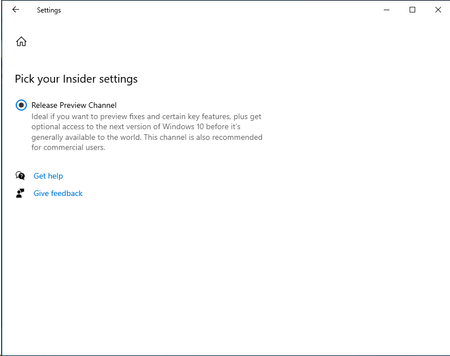
Note: This question is nothing related to Windows 11. I have installed the below Windows 10 Insider ISO (Version 20H2 (OS Build 19042.1052))on my Hyper-V virtual machine. When I go to Windows Insider Settings, I only see the Release Preview Channel, as shown below. Why is Beta and Dev Channels not getting shown? Can someone help me why such behavior? Thanks, Kamlesh43KViews0likes18CommentsAdd a Blur tool to the Snip & Sketch
There are many times when we need to take a screenshot and show it to someone but it contains other info, sensitive or personal, so we have to draw on them with colors and it makes it look ugly. please add a blur tool so we can be able to blur those details. also be able to change the thickness of blur tool. Please Upvote this feedback on Feedback hub app: https://aka.ms/AA6zag932KViews29likes9Comments
Windows Defender Application Guard inside Windows Security App
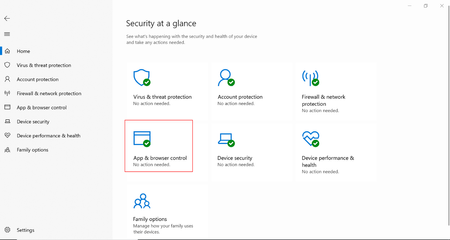
Windows Defender Application Guard is designed to prevent attacks on local machines and from expanding malicious activity throughout a corporate network. If you are interested in learning more about Application Guard and how to install it in standalone mode, please see our previous blog. In the upcoming Windows release (Build 17691+), we have built an interface to configure Windows Defender Application Guard inside the Windows Security app. This allows users to configure Application Guard or check the administrator’s configuration of Application Guard at the same place as other Windows security features. The four settings that can be configured for Application Guard in the Windows Security app are: Save data Copy and paste Print files Advanced graphics Standalone users with devices that meet the minimum requirements will see Application Guard in the Browser & apps control section in Windows Security. From there, users can invoke the installation of this feature and configure its settings. When devices fall below the minimum spec, users will be alerted of this in the configuration page for Application Guard. Managed users can see how their administrators have configured their settings to have a better understanding of how they can operate between an Application Guard container and their host system. Here’s how users can configure or check their Application Guard status: Install and configure Go to the Windows Security app and select “App & browser control.” Select “Install Windows Defender Application Guard” under Isolated Browsing. Check the “Windows Defender Application Guard” box and Install from the Turn Windows features on or off screen and click OK. Restart your device. Return to the Windows Security app and select “App & browser control.” Select “Change Application Guard settings” to configure the settings. View managed Application Guard settings Go to the Windows Security app and select “App & browser control.” Select “Change Application Guard settings” to view the settings. Review the configurations set by your administrator. We encourage Windows Insiders to use the Windows Security app to configure and view Application Guard settings. Your feedback, suggestions, and telemetry will help us to improve Application Guard’s user experience. Feedback Hub link: Launch Windows Feedback for Microsoft Edge\Application Guard23KViews0likes3Comments
A Vision for Windows 12: Familiar Power Meets Modern Innovation
Dear Microsoft Windows Development Team and Community Hub, With the inevitable speculation around Windows 12, I wanted to share a comprehensive vision for the next iteration of Windows. The goal is to blend the best elements of past versions with modern needs, creating a truly powerful and personalizable operating system. Here’s what many users like myself are hoping to see: 1. A Revitalized Start Menu & Screen Fresh, Resizable Layout: A clearly divided Start Menu with dedicated zones: Account Area (top-left), Shortcut Area (far left for common folders), List Area (pinned, most-used, and suggested apps), and a Pinned Tiles Area (right side, four-column layout). It should be resizable by dragging its edges. Full-Screen Start Screen Option: A return of the full-screen Start that combines the easy-to-browse list from Windows 7 with the dynamic Windows 8.1-style Live Tiles, supporting both horizontal and vertical arrangements. Enhanced Tile Flexibility: Tiles in five sizes (small, medium, long, wide, large, tall) with smooth resizing animations. New customization options should include colorful, gradient, light, dark, transparent, and semi-transparent tones. Migration Friendly: When upgrading from Windows 7, 8.1, 10, or 11, all pinned apps and websites should automatically migrate. Copilot Integration: A dedicated, prominent Copilot Tile to highlight the AI assistant's role, perhaps with a new rainbow effect for visual flair. 2. A More Functional Taskbar & Search Comprehensive Taskbar: Featuring the Cortana icon, mobile devices, Start, Search, Task View, Chat, applications, and the system tray. Prominent Search Box: The search box should be more prominent, changing from a circle to a rectangular shape, serving as a stronger entry point. Flexible Search Menu: The search interface should be highly adjustable and consistent with the new Start menu's style. 3. Personalized User Experience Lock Screen Customization: Options for left or center-aligned date and time. New photo effects that highlight the main subject, allowing it to overlay the time. Windows Hello: Facial recognition that works while wearing a mask. Enhanced Widgets: Desktop Pinning: Widgets should be pinnable anywhere on the desktop, not just in a sidebar. Full-Screen Widgets Board: A full-screen mode with a widget panel on the left and news/feeds on the right, supporting up to six columns. New Widgets: Introduction of a 'Calendar', 'People', 'Microsoft Edge', 'Cortana Suggestions', and a dedicated 'Microsoft Store' widget. 4. Peak Productivity & Multitasking Task View & Virtual Desktops: A return to the mature Windows 10 experience, allowing windows to be dragged directly to other desktops in Task View. Timeline Returns: The Timeline feature should come back, including cross-device history. Classic Alt+Tab: The Windows 10 Alt+Tab window switcher experience should be restored. Supercharged Snap Assist: Enhanced Snap Layouts supporting up to 8 segments for large screens, with specific, intelligent layouts for ultrawide (21:9, 32:9) monitors. 5. Application & Ecosystem Evolution App Updates: New versions of Mail, Calendar, and People. The new Outlook app should fully support popular third-party email services like QQ, 163, and 126. A New Cortana: Multilingual support with the return of consumer skills (music control, smart home, third-party skills). It could be offered in two visual forms and power the 'Cortana Suggestions' widget. Screenshot Tool Upgrade: Should support full-screen recording. Media Player: The return of an appearance selector and support for live tiles. Microsoft Store Revamp: UWP Return: High-quality UWP and classic Metro apps should return to the store, with PWAs transitioning to UWP. Gaming Expansion: Addition of dedicated PlayStation and Nintendo Switch apps, including a Nintendo game section. 6. Visual & Nostalgic Enhancements Refined Aesthetics: Improved window transparency with a new glass effect, rounded rectangle system avatars, and a new top bar (weather, system tray, time). Dynamic wallpaper effects would be a welcome addition. Keep the Win11 Sound: The Windows 11 startup sound is great and should be retained. The "Bold Strategy" – Legacy Feature Return: To satisfy power users and nostalgia, consider the large-scale return of beloved features like MSN apps, Windows 7 Desktop Gadgets, Windows Media Center, Groove Music, HomeGroup, a significantly enhanced Tablet Mode, and Windows Ink Workspace. 7. Hardware, Compatibility & Core System Broad Controller Support: Native compatibility with DualShock 4/5, Joy-Con, and others. Android Subsystem (WSA) Return: WSA should return with a focus on fixing previous pain points, especially full-screen landscape app support. Separated Notification Center: The Notification Center and Calendar quick actions should be separated for a cleaner interface. "Next-Gen PC" Promise: Windows 12 should deliver on larger storage, longer battery life, more power, and enhanced security/stability. Enhanced Backup & Transfer: Windows Backup should expand to more regions and add support for backing up personal files and apps to external drives, including migration from old PCs or to new hard drives. 8. Core Versioning & Hardware Requirements A Fresh Start: Version 26H1, with an internal OS version reset to 12.0.0.0. Tiered Editions: Windows 12e (for education, 2GB RAM), Windows 12 (mainstream, 4GB RAM, removing strict TPM restrictions), and Windows 12 Ultra (flagship, 8GB RAM, unlocking all AI and performance features). Extensive Free Upgrade Path: A critical strategy, offering free upgrades from Windows 11 (including SE), Windows 10 (including S), Windows 8/8.1 (including RT), and Windows 7. Doubled Support Lifecycle: Home/Pro/Workstation: 24 months → 48 months. Enterprise/Education/IoT: 36 months → 72 months. In summary, we envision a Windows 12 that isn't afraid to learn from its rich history while pushing forward with modern innovation. It should be a system that respects user choice, empowers productivity, and welcomes everyone from legacy users to those with the latest hardware. If you like this vision and want to support it, you can upvote it here: https://aka.ms/AAylqhw Thank you for considering this feedback. Sincerely, A Passionate Windows User11KViews1like10Comments
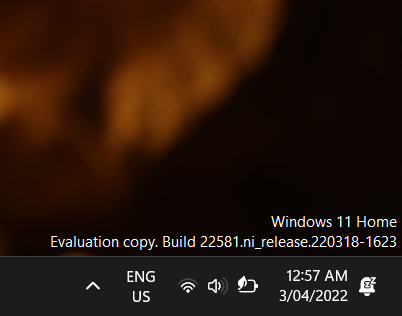
Windows 11 Home Evaluation copy Build 22581 ni_release220318-1623
- Why I am getting the below on the bottom corner of my desktop background? Windows 11 Home Evaluation copy Build 22581 ni_release220318-1623 - Is there a way to leave the Windows insider program without doing a clean install?9.4KViews2likes7CommentsCan't move Sticky Note apps's window, it's stuck on the screen | WIF build 19582
Windows 10 insider fast ring build 19582 Can't move Sticky Note apps's window, it's stuck on the screen, restarting computer doesn't fix it. neither the main sticky notes list nor individual sticky notes can't be moved or dragged to anywhere on the screen. Posted this on Feedback hub app and added a problem repro to it: https://aka.ms/AA7pp6vSolved9.2KViews0likes9Comments