windows 11
4 TopicsIntroducing RDMA over USB4® on Windows: run larger local AI models across PCs
Many of today's most capable open weight AI models don't fit in a typical PC's memory. When a model is too big for one machine, the usual options are to shrink it, send the work to the cloud, or build a server-class cluster with specialized networking hardware. Today we're announcing a developer preview of RDMA over USB4® on Windows. Connect two or more USB4-capable Windows PCs with USB4 cables, and you can split one model across them, combining their memory and GPU compute. There's no RDMA network adapter to buy, no switch to configure, and no third-party driver to install. It's part of building Windows for hybrid intelligence, where AI work runs on your PC or in the cloud, wherever it fits best. RDMA over USB4 extends what you can run locally, from one PC to a small cluster on your desk. At a glance: Run models that don't fit on one PC. Split one model across two or more PCs connected with USB4 cables, and use their combined memory and GPU compute. Keep the RDMA API you know. Applications use NetworkDirect, the RDMA API Windows already uses with datacenter network adapters. Build on open source. A new NetworkDirect provider for USB4 and a llama.cpp-based testbed are open source. Developer preview coming soon. The developer preview is coming soon to Windows Insiders in the Experimental channel (Future Platforms). Why RDMA, and why USB4® Remote Direct Memory Access (RDMA) moves data directly between the memory of two systems, bypassing most of the traditional networking stack. That gives low latency and low CPU overhead, which is why RDMA is a staple of datacenter storage and distributed computing. Windows has supported RDMA for years through NetworkDirect , a transport-agnostic RDMA interface, but until now only with dedicated RDMA network adapters for Ethernet and InfiniBand today. Those adapters are built mainly for servers and are rarely found in consumer or developer PCs. Meanwhile, many of today's widely available AI PCs already have USB4® ports, and Windows 11 already supports host-to-host networking over USB4 through its in-box USB4® connection manager. Many Windows PCs already offer USB4-capable connectivity through Thunderbolt™ 4 and Thunderbolt™ 5 ports. Systems meeting the preview requirements can participate. When you split a model across PCs with tensor parallelism, the PCs exchange data many times for every token they generate. At that point latency, more than bandwidth, sets the pace. In our measurements between two PCs, RDMA over USB4® cut round-trip latency for small messages to about 28–50 µs, roughly 4x lower than Ethernet (UDP) over the same USB4® link. RDMA brings communication latency down to the same low level at both 40 Gbps and 80 Gbps, while 80 Gbps provides twice the bandwidth. Figure 1. Round-trip latency by message size, RDMA compared with Ethernet over the same USB4® link (lower is better). What's in the developer preview RDMA over USB4® transport. Updated in-box USB4 drivers plus a NetworkDirect provider, so applications use the standard Windows NetworkDirect API with a new NetworkDirect provider for USB4. The provider, samples and link-test tools are open source and available here: https://aka.ms/usb4-rdma-nd-provider Preview hardware. USB4-capable PCs meeting the preview requirements (see What you need) can set up an RDMA-based peer-to-peer link.* An inference testbed. A fork of llama.cpp whose RPC backend runs over NetworkDirect instead of TCP, with tensor-parallel changes that split a model across PCs. We chose llama.cpp to demonstrate the preview, and we expect other frameworks to be able to adopt the same NetworkDirect APIs. You can find this code here: https://aka.ms/usb4-rdma-llama-cpp-sample Windows Insider Program, Experimental Channel (Future Platforms) Build with RDMA support, coming soon. This blog will be updated in coming weeks once available. RDMA over USB4 is off by default; you turn it on with a registry key and test signing (see Get started). * For the best performance, use PCs with USB4 ports at 40 Gbps or faster, enough ports to connect every PC directly, and plenty of unified memory, memory bandwidth and GPU compute. We've tested the preview on select PCs with AMD Ryzen™ AI Max series processors, in clusters of up to three PCs, and on Intel® Core™ Ultra Series 3 processor-based PCs with Thunderbolt™ 4 connectivity in clusters of up to four PCs. These are the platforms we've tested so far, not the only ones that work. How it works USB4® can link two PCs directly as separate domains, the same host-to-host connection Windows already uses for USB4 networking. RDMA over USB4 builds a faster path on that foundation: The Windows USB4 connection manager sets up a peer-to-peer tunnel between each pair of PCs. A new RDMA provider implements RDMA in software on the USB4 host router's DMA rings. It maps RDMA operations such as send and receive, with their queues and completions, onto those rings, so data moves between registered memory regions without extra software copies. Each RDMA link uses two pairs of high-performance DMA rings, one for data and one for control. The number of rings and USB4 ports on your PC sets the limit for the largest cluster you can build. Applications reach it through NetworkDirect, so a framework that speaks NetworkDirect doesn't need to know it's running over USB4. Links run on USB4 ports managed by Windows with Kernel DMA Protection. Figure 2. The RDMA over USB4® stack on Windows Early results For the demonstrated workloads, the transport is no longer the bottleneck. Results depend on the model, the framework build and each platform's memory and GPU. Here's what some of our silicon partners are seeing with their configurations on our preview. Models shown are examples only; any model can be used. AMD Ryzen™ AI Max In our lab, with AMD's latest llama.cpp optimizations, three mini-PCs with AMD Ryzen™ AI Max processors, Radeon™ 8060S graphics and 128 GB of unified memory each, connected in a USB4® 40 Gbps full mesh, run Qwen3-235B-A22B, a 235-billion-parameter mixture-of-experts model, at about 18.5 tokens per second with 4-bit quantization. On its own three-PC setup, AMD has measured 21.98 tokens per second decode and 117.98 tokens per second prompt processing. Table 1. RDMA over USB4® on three mini PCs with AMD Ryzen™ AI Max+ 395 processors. Measured by Model and quantization Context depth / generated tokens Decode speed Prompt processing AMD Qwen3-235B-A22B, 4-bit (Q4_K_M) 1,600 / 2,048 21.98 tokens/s 117.98 tokens/s "At AMD, we believe clustering is a critical part in a developer's experience to unlocking new possibilities for local AI and high-performance compute. We're excited to be working alongside Microsoft to support their new RDMA over USB4 driver to enhance the experience." - Andrej Zdravkovic, Senior Vice President and Chief Software Officer, AMD Intel® Core™ Ultra Series 3 Intel has measured GPT-OSS-120B, an open-weight model with about 120 billion parameters that doesn't fit in a single 64 GB PC, on three and four Intel® Core™ Ultra Series 3 processor-based PCs with Thunderbolt™ 4 connectivity and 64 GB of memory at 9,600 MT/s each, connected in a full USB4® mesh. With three PCs, it generates about 49 tokens per second at a 1K-token context, and about 54 tokens per second with four. Table 2. RDMA over USB4® on three and four PCs with Intel Core Ultra Series 3 processors running GPT-OSS-120B, as measured by Intel PCs Context Time to first token Decode speed 3 1K 1.1 s 49.4 tokens/s 4 1K 1.2 s 54.2 tokens/s 3 2K 2.9 s 49.4 tokens/s 4 2K 3.2 s 51.7 tokens/s The RDMA over USB4 layers are doing their job. Further performance improvements depend on the model, framework, platform and communication pattern. That's work we want to do in the open with the community, which is why the preview ships with a testbed you can build on. Intel's llama.cpp implementation, optimized for Intel platforms and built on the Vulkan backend, is available on GitHub. See it in Action If the player doesn't load, open the video in a new window: Open video What you need Two or more USB4-capable Windows PCs with USB4 ports managed by Windows. 40 Gbps ports work; 80 Gbps ports, such as Thunderbolt™ 5, offer twice the nominal link rate, which can help bandwidth-heavy workloads such as long-context prompts. Enough USB4 ports: to connect N PCs, each PC needs N-1 USB4 ports. A three-PC cluster needs two ports on each PC. One USB4 cable for every pair of PCs, connected directly. Don't daisy-chain: performance drops sharply. Enough unified memory, memory bandwidth and GPU compute across the cluster for the model you want to run. The same RDMA-enabled Windows Insider build (see below), preview drivers and NetworkDirect provider version on every PC. Get started Once the preview is available, we'll provide the required Windows build and update the setup instructions below. The new RDMA over USB4 NetworkDirect provider, and sample code are available today so developers can get their applications ready to support RDMA over USB4. In the meantime, watch our demonstration at Microsoft Ignite to see RDMA over USB4 running distributed AI workloads across multiple Windows PCs. Install the required Windows Insider build (coming soon). Join the Windows Insider Program and install the preview-enabled build from the Experimental Channel (Future Platforms) on each PC. Enable RDMA over USB4. Open Command Prompt as administrator and run following 2 commands: reg add HKLM\SYSTEM\CurrentControlSet\Services\Usb4HostRouter\Parameters /v EnableInterDomainRdma /t REG_DWORD /d 1 /f bcdedit /set testsigning on Restart each PC. Test signing requires Secure Boot to be turned off in your PC's firmware settings. When you're done with the preview, run bcdedit /set testsigning off and turn Secure Boot back on. Connect the PCs. Use USB4 cables to connect the PCs directly in a full-mesh topology, with one cable between each pair. Configure networking. Give each USB4 network interface a static IPv4 address, with each connection on its own subnet More details in: https://aka.ms/usb4-rdma-nd-provider Check each link with ‘ndping’. Additional tools and instructions can be found here : https://aka.ms/usb4-rdma-nd-provider Build the llama.cpp fork with the Vulkan backend and RPC enabled. More details: https://aka.ms/usb4-rdma-llama-cpp-sample Use a model of your choice, for our demonstration we used the following: openai/gpt-oss-120b · Hugging Face Qwen/Qwen3-235B-A22B · Hugging Face Known limitations in this preview The transport doesn't retry. If a NetworkDirect connection drops, your application needs to re-establish it. Use direct cables in a full mesh; daisy-chained topologies perform poorly. Firewall: allow traffic on the USB4 network interfaces RDMA applications need to properly align memory buffers for data transfers The preview requires test signing, so use dedicated test PCs rather than your everyday device. Try it and tell us what you think This is a developer preview, and what you tell us decides where it goes next. We're exploring: Bringing RDMA over USB4 to more PCs and silicon partners, and to a future Windows release, based on what we learn from this preview. Working with partners and the open-source community to advance distributed AI frameworks, while exploring how Windows ML and the DirectX Compute Graph Compiler can bring unified ecosystem - Windows native, multi-PC AI execution to Windows, unlocking the potential of heterogeneous compute across connected devices with deep OS Integration File feedback in Feedback Hub (Win + F) under "Buses - Lower Power Buses, USB controllers or hubs, UART, HID", or open issues on the ND provider repo. (https://aka.ms/usb4-rdma-nd-provider). This work comes from close engineering collaboration with AMD and Intel and from the Windows USB4, networking, and AI platform teams. Models shown are examples only; any model can be used. USB4 is a trademark of USB Implementers Forum. AMD, Ryzen™ and Radeon are trademarks of Advanced Micro Devices, Inc. Intel, Intel Core, and Thunderbolt are trademarks of Intel Corporation or its subsidiaries. This article is not endorsed by or affiliated with USB-IF.5.1KViews5likes4CommentsUSB Type-C Notifications in Windows: What OEMs Need to Know
Windows 11 includes built-in USB Type-C troubleshooting notifications designed to help users identify and resolve issues like slow charging, unsupported accessories, and faulty connections. These notifications are part of a broader effort to improve device reliability and user experience. While our previous post focused on the user experience, this update is for OEMs highlighting what’s required to ensure these notifications function correctly on your platforms. Why Notifications Might Not Appear USB Type-C notifications rely on accurate platform configuration. If notifications aren’t showing up, it’s often due to: Missing or incorrect ACPI markup: Windows uses ACPI descriptors to identify USB Type-C ports and their capabilities. If the port isn’t correctly marked as user-accessible or Type-C, notifications may not trigger. Incorrect connector type reporting: Mislabeling a Type-A port as Type-C (or vice versa) can lead to unexpected behavior or missed alerts. Internal vs. external port confusion: Ports marked as internal may suppress notifications even if they’re physically accessible to users. Validation and Testing To ensure compatibility: Use the Windows Hardware Lab Kit (HLK) to validate USB port descriptors. Confirm that _UPC (USB Port Capabilities) and _PLD (Physical Location of Device) ACPI methods are correctly implemented. Test with various charging scenarios, including underpowered chargers and hubs, to verify that notifications appear as expected. The link below has a table of the notifications and expected behaviours. Security Considerations Some OEMs may choose to disable data over USB Type-C in untrusted environments. If implementing such features: Ensure the policy applies only to externally accessible ports. Consider offering user toggles for data disablement. Validate that disabling data doesn’t interfere with critical internal devices (e.g., touchpad, keyboard). Recommendations for OEMs Audit ACPI descriptors and USB Device-Specific Method for all USB ports. See https://learn.microsoft.com/en-us/windows-hardware/drivers/bringup/usb-device-specific-method---dsm-#function-7-query-if-_upc-supports-usb-c-port-capabilities-as-defined-in-acpi-specification-65 Validate notification behavior across all supported configurations. Coordinate with Microsoft WHCP to ensure new platforms meet testing requirements. Document exceptions clearly if certain ports or configurations are unsupported. Learn More For technical details and troubleshooting guidance, refer to the official documentation: https://learn.microsoft.com/windows-hardware/drivers/usbcon/usb-type-c-troubleshooting-notifications1.3KViews1like0CommentsExploring USB4 in Windows Device Portal
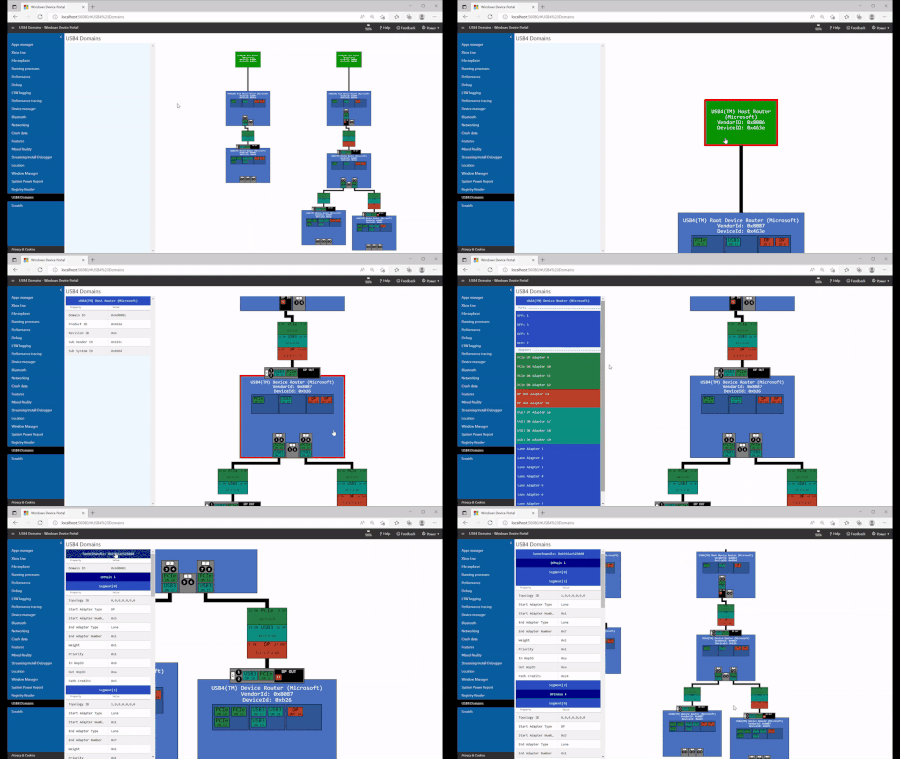
Overview USB4™ brings high-speed connectivity and advanced tunneling capabilities to modern Windows devices. To help developers and IT professionals visualize and manage USB4 topologies, Windows provides the USB4 domain viewer via the Windows device portal. Key Features of the USB4 Domain Viewer Topology Visualization Displays USB4 host routers (in green) and device routers (in blue). Supports click-and-drag navigation and zooming for detailed inspection. Automatically updates as the topology changes. Host Router Details Each host router includes Name, VendorId, and DeviceId. Selecting a router reveals additional details in the sidebar. Device Router Details Shows adapters and ports, distinguishing in-use adapters from unused ones. Selecting an adapter highlights it with a red circle for quick identification. Tunnel Visualization Tunnels between device routers are illustrated clearly. Each tunnel uses a colon-separated unique ID (e.g., 8:1:1:9) for easy reference. Context-Specific Sidebar Updates dynamically based on selected elements (routers, adapters, tunnels). Allows collapsing or expanding details for streamlined viewing. Why It Matters The USB4 Domain Viewer simplifies troubleshooting and topology analysis for OEMs, IHVs, and developers. By providing real-time visualization and granular details, it accelerates debugging and ensures compliance with USB4 standards. Getting Started Access the USB4 Domain Viewer through the Windows Device Portal on supported devices. For more details, visit the official Microsoft Learn documentation. © 2025 Microsoft. USB4®, USB Type-C® and USB-C®, USB 2.0 Type-C™ are registered trademarks of USB Implementers Forum, Inc. Thunderbolt™ is a trademark of Intel Corporation. This article is not endorsed by or affiliated with USB-IF.1KViews0likes0CommentsUSB Driver Documentation Updates on UCSI, USB4 Testing
Over the past few months, we've been running a freshness pass across the USB driver documentation on Microsoft Learn and the USB4 design guidelines. The goal is straightforward: make sure the docs match the current Windows 11 driver stack, read clearly, and get you to the answer faster. Here's what changed. USB4 required testing: new Basic Validation Tests The USB4 ecosystem has grown significantly. As the number of USB4 router implementations grows, so does the need for a clear, repeatable validation baseline. We added a new Basic Validation Tests section to the USB4 Required Testing page. The existing page already listed the recommended end-to-end test scenarios: driver verifier, domain power-down, wake replay, interdomain connections, and so on. What was missing was a concise set of smoke tests that OEMs and IHVs could run quickly to catch regressions in incremental USB4 firmware and driver updates without needing a full test pass. The new section fills that gap with nine concrete test scenarios: USB4 HLK Tests: run all System.Fundamentals.SystemUSB.USB4.* and Device.BusController.USB4.* tests. Basic Enumeration: attach a USB4 dock and a Thunderbolt 3 dock, each with a display, USB3 storage, and USB2 input. Verify clean enumeration in Device Manager, functional input, file copy, and display extension. Display: verify two 4K displays at 60 Hz concurrently, both tunneled through a USB4 dock and directly via DisplayPort Alt Mode. Camera (Isochronous) Streaming: stream from a USB3 camera through a USB4 dock for at least one minute with no visible glitches. System Standby: attach a full dock topology, cycle standby five times with 30-second to 2-minute waits, and verify all devices survive each transition. System Reboot: same topology, same verification, but with a full reboot instead of standby. System Hibernate: same again, with hibernate. Minimal Compatibility and Interoperability: test at least 3 display models and at least 10 USB4 dock or device models spanning Intel Thunderbolt 4, Intel Thunderbolt 5, Via USB4, Asmedia USB4, Realtek USB4, Intel Thunderbolt 3 Titan Ridge, and Intel Thunderbolt 3 Alpine Ridge. Basic Plug/Unplug with USB4 Switch: configure the USB4 Switch with a USB4 dock on port 1 and a Thunderbolt 3 dock on port 2, run ConnExUtil.exe /cxstress for a minimum of 15 minutes (24+ hours for long-term stability), then verify the port still enumerates and charges after the test. Each test includes explicit pass criteria: no yellow bangs, no visual glitches, expected resolution and refresh rates confirmed in the Advanced Display settings. The interoperability test (test 8) is particularly important as USB4 matures: it ensures your platform works across the full range of silicon vendors, not just the one on your bench. If you're validating USB4 firmware or driver updates and need a quick confidence check before a broader test pass, this is the list to start with. UCSI driver docs: cleaned up and refocused on Windows 11 The UCSI driver article got a thorough refresh: updated architecture diagram, clearer UCSI 2.0 _DSM backward-compatibility guidance, reformatted UCSIControl.exe test instructions with proper inline code for registry paths, and consistent code-style formatting across the DRP role detection and charger mismatch example flows. We also removed outdated Windows 10 Mobile references so the article now focuses exclusively on Windows 10 desktop and Windows 11. USB generic parent driver (Usbccgp.sys): plain language rewrite The Usbccgp.sys article, the starting point for anyone building composite USB devices, was rewritten for clarity. We simplified jargon-heavy sentences, expanded abbreviations on first use (e.g., "information (INF) file"), updated cross-references to sentence case per the Microsoft Learn style guide, and added customer-intent metadata for better search discoverability. Community fix: interrupt endpoint direction Here's a small one that matters more than it looks. In the How to send a USB interrupt transfer (UWP app) article, the Interrupt IN transfers section incorrectly stated that HID devices like keyboards "support interrupt OUT endpoints." Endpoint direction is fundamental (IN means device-to-host, OUT means host-to-device) and getting that wrong in official documentation can send you down entirely the wrong debugging path. A community contributor spotted the error and submitted the fix. It now correctly reads "interrupt IN endpoints." If you've ever stared at a USB trace wondering why your interrupt transfer wasn't behaving, this might have been part of the confusion. Thank you to everyone who submits pull requests. This is exactly the kind of contribution that makes the docs better for all of us. What's next These updates are part of a broader freshness initiative across the Windows Hardware driver documentation. If you spot something that looks outdated or confusing, our documentation is open source. Submit a PR on the windows-driver-docs GitHub repository. You can also drop a comment below.500Views0likes0Comments