windows 11
3 TopicsUSB Driver Documentation Updates on UCSI, USB4 Testing
Over the past few months, we've been running a freshness pass across the USB driver documentation on Microsoft Learn and the USB4 design guidelines. The goal is straightforward: make sure the docs match the current Windows 11 driver stack, read clearly, and get you to the answer faster. Here's what changed. USB4 required testing: new Basic Validation Tests The USB4 ecosystem has grown significantly. As the number of USB4 router implementations grows, so does the need for a clear, repeatable validation baseline. We added a new Basic Validation Tests section to the USB4 Required Testing page. The existing page already listed the recommended end-to-end test scenarios: driver verifier, domain power-down, wake replay, interdomain connections, and so on. What was missing was a concise set of smoke tests that OEMs and IHVs could run quickly to catch regressions in incremental USB4 firmware and driver updates without needing a full test pass. The new section fills that gap with nine concrete test scenarios: USB4 HLK Tests: run all System.Fundamentals.SystemUSB.USB4.* and Device.BusController.USB4.* tests. Basic Enumeration: attach a USB4 dock and a Thunderbolt 3 dock, each with a display, USB3 storage, and USB2 input. Verify clean enumeration in Device Manager, functional input, file copy, and display extension. Display: verify two 4K displays at 60 Hz concurrently, both tunneled through a USB4 dock and directly via DisplayPort Alt Mode. Camera (Isochronous) Streaming: stream from a USB3 camera through a USB4 dock for at least one minute with no visible glitches. System Standby: attach a full dock topology, cycle standby five times with 30-second to 2-minute waits, and verify all devices survive each transition. System Reboot: same topology, same verification, but with a full reboot instead of standby. System Hibernate: same again, with hibernate. Minimal Compatibility and Interoperability: test at least 3 display models and at least 10 USB4 dock or device models spanning Intel Thunderbolt 4, Intel Thunderbolt 5, Via USB4, Asmedia USB4, Realtek USB4, Intel Thunderbolt 3 Titan Ridge, and Intel Thunderbolt 3 Alpine Ridge. Basic Plug/Unplug with USB4 Switch: configure the USB4 Switch with a USB4 dock on port 1 and a Thunderbolt 3 dock on port 2, run ConnExUtil.exe /cxstress for a minimum of 15 minutes (24+ hours for long-term stability), then verify the port still enumerates and charges after the test. Each test includes explicit pass criteria: no yellow bangs, no visual glitches, expected resolution and refresh rates confirmed in the Advanced Display settings. The interoperability test (test 8) is particularly important as USB4 matures: it ensures your platform works across the full range of silicon vendors, not just the one on your bench. If you're validating USB4 firmware or driver updates and need a quick confidence check before a broader test pass, this is the list to start with. UCSI driver docs: cleaned up and refocused on Windows 11 The UCSI driver article got a thorough refresh: updated architecture diagram, clearer UCSI 2.0 _DSM backward-compatibility guidance, reformatted UCSIControl.exe test instructions with proper inline code for registry paths, and consistent code-style formatting across the DRP role detection and charger mismatch example flows. We also removed outdated Windows 10 Mobile references so the article now focuses exclusively on Windows 10 desktop and Windows 11. USB generic parent driver (Usbccgp.sys): plain language rewrite The Usbccgp.sys article, the starting point for anyone building composite USB devices, was rewritten for clarity. We simplified jargon-heavy sentences, expanded abbreviations on first use (e.g., "information (INF) file"), updated cross-references to sentence case per the Microsoft Learn style guide, and added customer-intent metadata for better search discoverability. Community fix: interrupt endpoint direction Here's a small one that matters more than it looks. In the How to send a USB interrupt transfer (UWP app) article, the Interrupt IN transfers section incorrectly stated that HID devices like keyboards "support interrupt OUT endpoints." Endpoint direction is fundamental (IN means device-to-host, OUT means host-to-device) and getting that wrong in official documentation can send you down entirely the wrong debugging path. A community contributor spotted the error and submitted the fix. It now correctly reads "interrupt IN endpoints." If you've ever stared at a USB trace wondering why your interrupt transfer wasn't behaving, this might have been part of the confusion. Thank you to everyone who submits pull requests. This is exactly the kind of contribution that makes the docs better for all of us. What's next These updates are part of a broader freshness initiative across the Windows Hardware driver documentation. If you spot something that looks outdated or confusing, our documentation is open source. Submit a PR on the windows-driver-docs GitHub repository. You can also drop a comment below.376Views0likes0CommentsExploring USB4 in Windows Device Portal
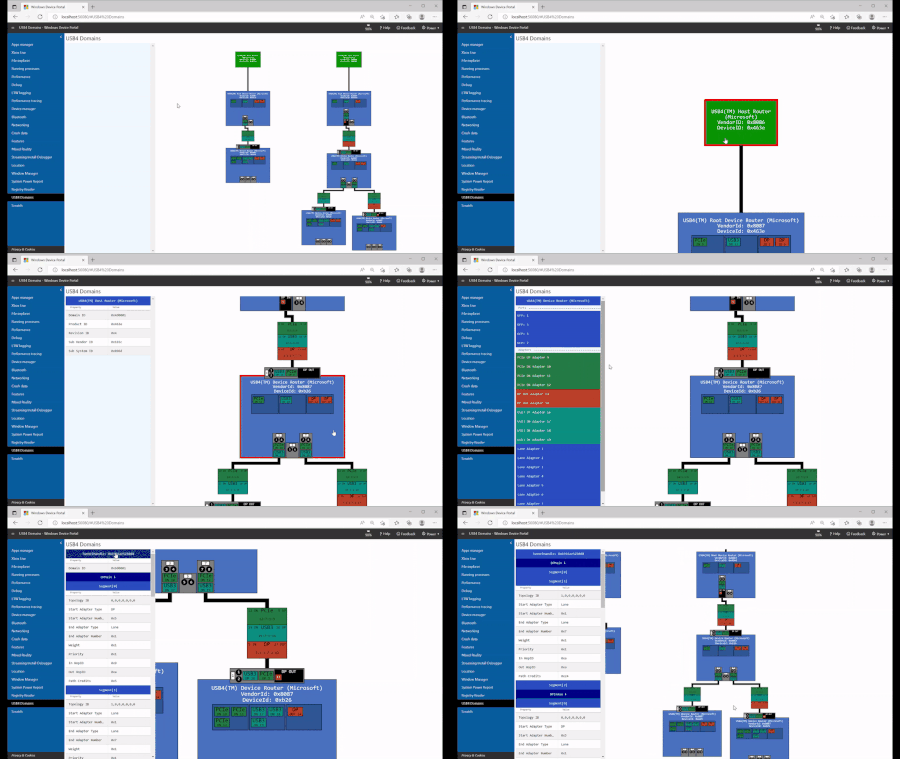
Overview USB4™ brings high-speed connectivity and advanced tunneling capabilities to modern Windows devices. To help developers and IT professionals visualize and manage USB4 topologies, Windows provides the USB4 domain viewer via the Windows device portal. Key Features of the USB4 Domain Viewer Topology Visualization Displays USB4 host routers (in green) and device routers (in blue). Supports click-and-drag navigation and zooming for detailed inspection. Automatically updates as the topology changes. Host Router Details Each host router includes Name, VendorId, and DeviceId. Selecting a router reveals additional details in the sidebar. Device Router Details Shows adapters and ports, distinguishing in-use adapters from unused ones. Selecting an adapter highlights it with a red circle for quick identification. Tunnel Visualization Tunnels between device routers are illustrated clearly. Each tunnel uses a colon-separated unique ID (e.g., 8:1:1:9) for easy reference. Context-Specific Sidebar Updates dynamically based on selected elements (routers, adapters, tunnels). Allows collapsing or expanding details for streamlined viewing. Why It Matters The USB4 Domain Viewer simplifies troubleshooting and topology analysis for OEMs, IHVs, and developers. By providing real-time visualization and granular details, it accelerates debugging and ensures compliance with USB4 standards. Getting Started Access the USB4 Domain Viewer through the Windows Device Portal on supported devices. For more details, visit the official Microsoft Learn documentation. © 2025 Microsoft. USB4®, USB Type-C® and USB-C®, USB 2.0 Type-C™ are registered trademarks of USB Implementers Forum, Inc. Thunderbolt™ is a trademark of Intel Corporation. This article is not endorsed by or affiliated with USB-IF.759Views0likes0CommentsUSB Type-C Notifications in Windows: What OEMs Need to Know
Windows 11 includes built-in USB Type-C troubleshooting notifications designed to help users identify and resolve issues like slow charging, unsupported accessories, and faulty connections. These notifications are part of a broader effort to improve device reliability and user experience. While our previous post focused on the user experience, this update is for OEMs highlighting what’s required to ensure these notifications function correctly on your platforms. Why Notifications Might Not Appear USB Type-C notifications rely on accurate platform configuration. If notifications aren’t showing up, it’s often due to: Missing or incorrect ACPI markup: Windows uses ACPI descriptors to identify USB Type-C ports and their capabilities. If the port isn’t correctly marked as user-accessible or Type-C, notifications may not trigger. Incorrect connector type reporting: Mislabeling a Type-A port as Type-C (or vice versa) can lead to unexpected behavior or missed alerts. Internal vs. external port confusion: Ports marked as internal may suppress notifications even if they’re physically accessible to users. Validation and Testing To ensure compatibility: Use the Windows Hardware Lab Kit (HLK) to validate USB port descriptors. Confirm that _UPC (USB Port Capabilities) and _PLD (Physical Location of Device) ACPI methods are correctly implemented. Test with various charging scenarios, including underpowered chargers and hubs, to verify that notifications appear as expected. The link below has a table of the notifications and expected behaviours. Security Considerations Some OEMs may choose to disable data over USB Type-C in untrusted environments. If implementing such features: Ensure the policy applies only to externally accessible ports. Consider offering user toggles for data disablement. Validate that disabling data doesn’t interfere with critical internal devices (e.g., touchpad, keyboard). Recommendations for OEMs Audit ACPI descriptors and USB Device-Specific Method for all USB ports. See https://learn.microsoft.com/en-us/windows-hardware/drivers/bringup/usb-device-specific-method---dsm-#function-7-query-if-_upc-supports-usb-c-port-capabilities-as-defined-in-acpi-specification-65 Validate notification behavior across all supported configurations. Coordinate with Microsoft WHCP to ensure new platforms meet testing requirements. Document exceptions clearly if certain ports or configurations are unsupported. Learn More For technical details and troubleshooting guidance, refer to the official documentation: https://learn.microsoft.com/windows-hardware/drivers/usbcon/usb-type-c-troubleshooting-notifications1.2KViews1like0Comments