virtual machine
365 TopicsStep-By-Step: Enabling Hyper-V for Use on Windows 11
Want to use Hyper-V on Windows 11? Hyper-V is a virtualization technology that is valuable not only for developers and IT Professionals, but also for college and university students. This step-by-step guide will show you how to enable Hyper-V on your Windows 11 machine.1.3MViews12likes36CommentsLogin to Windows virtual machine in Azure using Azure AD authentication (and the pitfalls)!
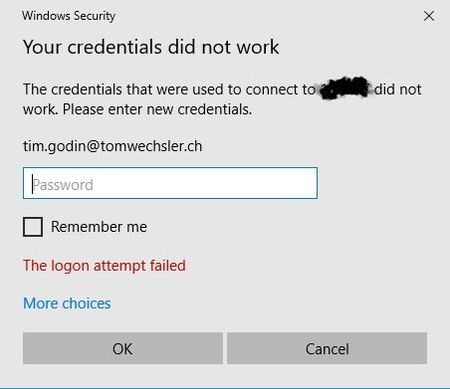
Dear Microsoft Azure Friends, This article is about the login to Windows virtual machine in Azure using Azure Active Directory authentication and what needs to be considered in the process. This article describes the procedure. So far, everything is actually in perfect order. https://docs.microsoft.com/en-us/azure/active-directory/devices/howto-vm-sign-in-azure-ad-windows So I have worked through the steps and now I want to log on to the virtual machine with an Azure Active Directory account. Why does this error message appear now? Have I done something wrong? I am going through all the steps again. No fits. So I take another close look at the article and discover the following: But that's exactly not the case with me. I want to connect from my local system which is not registered or joined in Azure. Let's take it one step at a time. First of all, I create a group in Azure Active Directory. This will contain the account I will use later for the login. ATTENTION: Use the appropriate Windows OS => Windows Server 2019 Datacenter edition and later or Windows 10 1809 and later Next I create a new virtual machine with the default settings (including a public IP address and yes this is not good, but this demo absolutely OK). Except for Management I set the following settings. If you want to work with an existing virtual machine you need to install the extension. You can do this with the Azure Cloud Shell, in a Bash terminal. az vm extension set \ --publisher Microsoft.Azure.ActiveDirectory \ --name AADLoginForWindows \ --resource-group YourResourceGroup \ --vm-name YourVM After the virtual machine is created we need to work with Role based Access Control RBAC. There are two roles that can be used. Virtual Machine Administrator Login or Virtual Machine User Login If you need local admin rights you need the first role. If you want to log in as a standard user, you can work with the second role. Now we connect to the virtual machine using RDP, but ATTENTION, I use the account I created when I created the virtual machine (not an Azure AD account). In the virtual machine I start the command prompt and use dsregcmd /status. The machine is Azure AD Joined. In the virtual machine, navigate to Start and invoke "run". Type sysdm.cpl and navigate to the Remote tab. Remove the "Allow connections..." option and click "Select Users". When you click on "Locations" you will immediately see that you cannot select an account from Azure AD. We need the command prompt for this. Start the command prompt with elevated privileges and enter the following (customized with your information, of course). net localgroup "remote desktop users" /add "AzureAD\Email address removed" Go back to the Azure Portal to your virtual machine. Download the RDP connection file. Open this RDP file with an editor and add the following lines. enablecredsspsupport:i:0 authentication level:i:2 Now double click on the RDP connection file and now use the Azure account for login. AND BINGO, we can now log in to our virtual machine using the Azure Active Directory account! Cool! I hope this article was useful. Thank you for taking the time to read the article. Best regards, Tom Wechsler P.S. All scripts (#PowerShell, Azure CLI, #Terraform, #ARM) that I use can be found on github! https://github.com/tomwechsler34KViews8likes18CommentsUnderstanding device redirection changes in Hyper-V Virtual Machine Connection enhanced session mode
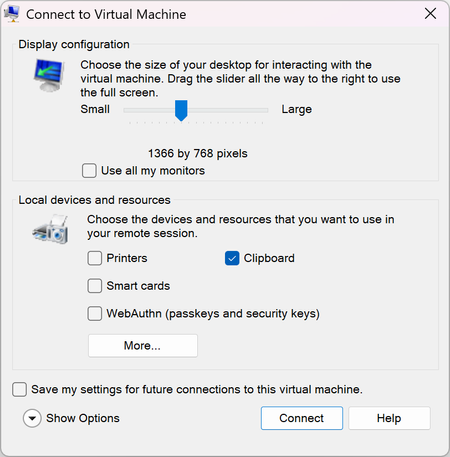
Understanding device redirection changes in Hyper-V Virtual Machine Connection Starting with the October 2026 security update, Hyper-V Virtual Machine Connection (VMConnect) changes how it shares your local devices and resources with a virtual machine (VM) when you connect in enhanced session mode. The connection dialog now shows the most sensitive resources up front, and several of them are no longer shared by default. This article explains what changed, why, and what to do. What is enhanced session mode? When you connect to a VM from Hyper-V Manager or by running vmconnect.exe, Virtual Machine Connection opens a window that shows the VM's screen. If the VM's operating system supports it, VMConnect can use enhanced session mode, which uses the Remote Desktop Protocol (RDP) over the VMBus channel between the host and the VM. Enhanced session mode adds features such as resizable displays, multiple monitors, and redirection: sharing parts of your local computer with the VM, such as your clipboard, printers, smart cards, or security keys. The dialog looks like this: Basic session mode connects to the VM's console without RDP and doesn't share these resources. This update doesn't change basic session mode. Why this changed In enhanced session mode, the VM acts as the Remote Desktop server and your computer acts as the client. Any resource you redirect is available to software running inside the VM. Before this update, VMConnect shared your clipboard, printers, smart cards, and WebAuthn (Windows Hello and security keys) with the VM by default. Smart card and WebAuthn redirection appeared only on a secondary page (Show Options > Local Resources > More...). If you connected to a VM by selecting Connect, you shared those credential channels without being shown that you did. That's a problem if the VM isn't fully trustworthy. For example, it might run untrusted software, be used for malware analysis or testing, be managed by someone else, or be compromised. Software in such a VM could: Use your redirected smart card or Windows Hello for Business credentials to authenticate as you to other systems. Send WebAuthn (passkey or security key) prompts to your computer that look legitimate, to try to get you to approve a sign-in for an attacker. Send print jobs to your local printers. Interact with the client-side components on your host that handle each redirected device. This exposes more of your host to an attacker in the guest. A VM is a security boundary. Sharing a resource across that boundary should be a choice you make, not a default you never see. IMPORTANT: Only share local resources with VMs you trust. If you don't know whether you need a resource in the VM, leave it unchecked. You can turn it on later. What changed After you install this update, when you connect to a VM in enhanced session mode, the Virtual Machine Connection dialog shows a checkbox for each of the following resources directly, without selecting Show Options: Clipboard Printers Smart cards WebAuthn (Windows Hello or security keys) The default for each local resource is now: Resource Default before this update Default after this update Where it appears after this update Clipboard On On Connection dialog Printers On Off Connection dialog Smart cards On Off Connection dialog WebAuthn (Windows Hello or security keys) On Off Connection dialog Drives Off Off Show Options > Local Resources > More... Other supported Plug and Play (PnP) devices Off Off Show Options > Local Resources > More... USB devices Off Off Show Options > Local Resources > More... Audio playback On On Show Options > Local Resources > Remote audio Audio recording (microphone) Off Off Show Options > Local Resources > Remote audio Clipboard stays on by default because copying and pasting between the host and the VM is the most common reason people use enhanced session mode. Turning it off by default would disrupt the most people. It's now shown in the dialog, so you can turn it off for any VM where you don't need it. Audio playback stays on because it only sends sound from the VM to your speakers. It doesn't give the VM access to your data or credentials. If you select Connect without changing anything, you get clipboard sharing and audio playback, and nothing else. Saved settings and when you see the dialog VMConnect can save your connection settings separately for each VM. To do this, select Save my settings for future connections to this virtual machine in the connection dialog. After the update, you see the dialog once for each VM, even if you saved settings before. Earlier saved settings were made when most of these options were hidden, so VMConnect asks you to confirm your choices again. The update never turns on a resource that you turned off. If your saved settings for a VM had a resource turned off, it stays off. After you confirm and save your choices, VMConnect uses them for later connections to that VM and doesn't show the dialog again. VMConnect shows the dialog again if a later update adds a new type of redirection. If you don't save your settings, the dialog appears each time you connect, with the defaults in the preceding table. To change saved settings for a VM, do one of the following: In Hyper-V Manager, select the VM, and then in the Actions pane, select Edit Session Settings.... Run vmconnect.exe <ServerName> <VMName> /edit. NOTE: On high-DPI displays, the connection dialog might get shorter when you select Show Options, because the extra settings move into tabs. This is expected. Understanding redirections Each redirected resource gives software in the VM access to part of your computer. For detailed descriptions of the risk of each resource type, see Understanding redirections. That article covers Remote Desktop Connection, but the risks apply equally to VMConnect enhanced sessions. The following summary covers the resources this update changes: Clipboard What it does: Shares copied text, images, and files between your computer and the VM. Risk: Software in the VM can read anything you copy on your computer while connected, including passwords. It can also put content on your clipboard that you might later paste into a local app. Printers What it does: Makes your local printers available to apps in the VM. Risk: Software in the VM can send print jobs to your printers and interacts with the printer redirection components on your computer. Smart cards What it does: Lets the VM use smart cards and Windows Hello for Business credentials on your computer. Risk: Software in the VM can use your credentials to authenticate as you, to the VM or to other systems the VM can reach. WebAuthn (Windows Hello or security keys) What it does: Lets the VM use your local passkeys, Windows Hello, and FIDO2 security keys to complete web sign-in challenges. Risk: Software in the VM can send sign-in prompts to your computer and try to get you to approve a sign-in for an attacker. TIP: When a WebAuthn request comes from a remote session, Windows says so in the sign-in prompt. If you see that and you didn't start a sign-in inside the VM, don't approve it. How to stay safe Only redirect what you need. Leave everything else unchecked. Be most careful with smart cards and WebAuthn. Turn them on only for VMs you control and trust, and only when you need to sign in from inside the VM. Turn off clipboard sharing for untrusted VMs, such as VMs you use to test unknown software or analyze malware. Use basic session mode for VMs you don't trust. In the Virtual Machine Connection window, select View, and then clear Enhanced session. Review your saved settings for VMs you connect to often, by using Edit Session Settings.... Frequently asked questions I selected Connect, and now I can't print or use my smart card or security key in the VM. What happened? Printers, smart cards, and WebAuthn are no longer shared by default. Disconnect, reconnect, and select the resources you need in the connection dialog. To keep your choice for that VM, select Save my settings for future connections to this virtual machine. To change saved settings, use Edit Session Settings... in Hyper-V Manager. Why am I seeing the connection dialog for a VM where I saved my settings? After this update, VMConnect asks you once for each VM to confirm which resources to share, because earlier choices were made when most of these options were hidden. After you confirm and save, you won't see the dialog again for that VM. Does this update affect basic session mode? No. Basic session mode doesn't redirect local resources, and its behavior doesn't change. Does this update affect connections to a VM by using Remote Desktop Connection (mstsc.exe)? No. This update changes only Virtual Machine Connection. Remote Desktop Connection has its own warnings and defaults for redirection when you open RDP files. For more information, see Understanding security warnings when opening Remote Desktop (RDP) files. Does this update affect Windows Admin Center, System Center Virtual Machine Manager, or other tools? Yes, the update is in vmconnect.exe and Microsoft.Virtualization.Client.dll. Any tools that open vmconnect.exe will see this change. Which versions of Windows get this change? The October 13, 2026 security update makes this change on the following versions: Windows 11 Windows 10 Windows Server 2025 Windows Server 2022 Windows Server 2019 Windows Server 2016 Windows Server 2012 R2 (Extended Security Updates)1.2KViews3likes0CommentsStep-By-Step: How to Create a Windows 11 VM on Hyper-V via PowerShell
This step-by-step guide outlines how to create a Windows 11 virtual machine (VM) on Hyper-V using PowerShell commands. By following these instructions, IT professionals can save time and effort by automating the process and ensuring that each VM is configured correctly. This method is particularly useful for organizations that need to deploy multiple VMs quickly and efficiently.275KViews3likes21CommentsNested Virtualization in Azure
We announced nested virtualization support coming to Azure with Dv3 or Ev3 series at //build session last month. We are excited to announce that you can now enable nested virtualization using the Dv3 and Ev3 VM sizes. We will continue to expand support to more VM sizes in the coming months. Read about it on the Azure blog.1.9KViews2likes2Comments
Cannot Connect to VMs in Windows Admin Center
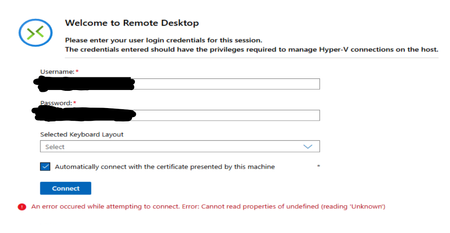
Hi all, I have 1 Server Cluster made up of 3 Server 2022 Hosts on which there is a large number of VMs running on Hyper-V. The typical process for accessing the VMs has been through Windows Admin Center, which is hosted on one of the VMs in the cluster. Around 1 week ago, it was no longer possible to connect to the VMs through Windows Admin Center as an infinite loading screen was presented. Sometimes, the following error shows up in VMConnect: The cluster and servers are still connected to WAC and all the VMs that are expected are present on WAC. Since then, the following things have been attempted: - Restart all servers - Rebuild WAC on Current VM - Build WAC on Fresh VM with the same and different network configuration, using current (2606) and previous (2511) versions of WAC - Build WAC on one of the hosts All these attempts result in the same error as seen before. Has anyone experienced this issue before? Or does anyone have any advice? Thank you in advance!Solved1.6KViews2likes13Comments