vector database
9 Topics
Ollama on HTTPS for SQL Server
Here is a quick procedure to deploy an Ubuntu container with Ollama and expose its API over HTTPS. The goal is to allow a fast deployment, even for those unfamiliar with Docker or Language Models, making it easy to set up an offline platform for generating embeddings and using Small Language Models This is particularly useful when testing SQL Server 2025 for fully on-premises environment use cases, since SQL Server only allows access to HTTPS endpoints. However, HTTP remains open for testing purposes. Please note that this example is CPU-based, as deploying with (integrated) GPU support involves additional, less straightforward steps. This example is provided solely to illustrate the concept, is not intended for production use, and comes without any guarantee of performance or security. Prerequisites To continue, you need to have Docker Desktop, WSL and SQL Server 2025 (currently Release Candidate 1) Docker Desktop Install WSL | Microsoft Learn SQL Server 2025 Preview | Microsoft Evaluation Center Create a Dockerfile First, create a working directory. In this example, C:\Docker\Ollama will be used. Simply create a file named Dockerfile (without an extension) and paste the following content into it. FROM ubuntu:25.10 RUN apt update && apt install -y curl gnupg2 ca-certificates lsb-release apt-transport-https software-properties-common unzip nano openssl net-tools RUN curl -fsSL https://ollama.com/install.sh | bash RUN curl -1sLf 'https://dl.cloudsmith.io/public/caddy/stable/gpg.key' | gpg --dearmor -o /usr/share/keyrings/caddy-stable-archive-keyring.gpg RUN curl -1sLf 'https://dl.cloudsmith.io/public/caddy/stable/debian.deb.txt' | tee /etc/apt/sources.list.d/caddy-stable.list RUN apt update && apt install -y caddy RUN mkdir -p /etc/caddy/certs RUN cat > /etc/caddy/certs/san.cnf <<EOF [req] default_bits = 2048 prompt = no default_md = sha256 req_extensions = req_ext distinguished_name = dn [dn] CN = 127.0.0.1 [req_ext] subjectAltName = @alt_names [alt_names] IP.1 = 127.0.0.1 DNS.1 = localhost EOF RUN openssl req -x509 -nodes -days 365 -newkey rsa:2048 -keyout /etc/caddy/certs/localhost.key -out /etc/caddy/certs/localhost.crt -config /etc/caddy/certs/san.cnf -extensions req_ext RUN echo "https://:443 {\n tls /etc/caddy/certs/localhost.crt /etc/caddy/certs/localhost.key\n reverse_proxy localhost:11434\n}" >> /etc/caddy/Caddyfile RUN echo "#!/bin/bash" > /usr/local/bin/entrypoint.sh && \ echo "set -e" >> /usr/local/bin/entrypoint.sh && \ echo "OLLAMA_HOST=0.0.0.0 ollama serve >> /var/log/ollama.log 2>&1 &" >> /usr/local/bin/entrypoint.sh && \ echo "caddy run --config /etc/caddy/Caddyfile --adapter caddyfile >> /var/log/caddy.log 2>&1 &" >> /usr/local/bin/entrypoint.sh && \ echo "tail -f /var/log/ollama.log /var/log/caddy.log" >> /usr/local/bin/entrypoint.sh && \ chmod 755 /usr/local/bin/entrypoint.sh ENTRYPOINT ["/usr/local/bin/entrypoint.sh"] For your information, this file allows the creation of an image based on Ubuntu 25.10 and includes: Ollama, for running the models Caddy, for the reverse proxy Creation of a certificate for the HTTPS endpoint on localhost Create the container After opening a Powershell terminal, execute the following commands: cd C:\Docker\Ollama #Build the image from the Dockerfile. docker build -t ollama-https . #Create a container based on the image ollama-https docker run --name ollama-https -d -it -p 443:443 -p 11434:11434 ollama-https #Copy the certificate created into the current Windows directory docker cp ollama-https:/etc/caddy/certs/localhost.crt . # Install the certificate in Trusted Root Certification Authorities Import-Certificate -FilePath "localhost.crt" -CertStoreLocation "Cert:\LocalMachine\Root" #Check Https (wget https://localhost).Content #Check Http (wget http://localhost:11434).Content Ollama is now running With a browser, connect to https://localhost Retrieve Models No model is retrieved when the image is created, as this depends on each use case, and for some models, the size can be substantial. Here’s a quick example for pulling an embedding model, Nomic, and a small language model, Phi3. Ollama Search docker exec ollama-https ollama pull nomic-embed-text docker exec ollama-https ollama pull phi3:mini A quick example with SQL Server 2025 A quick demonstration using the WideWorldImporters database (Wide World Importers sample database) use [master] GO ALTER DATABASE WideWorldImporters SET COMPATIBILITY_LEVEL = 170 WITH ROLLBACK IMMEDIATE GO DBCC TRACEON(466, 474, 13981, -1) GO Note: With RC1, you can use the PREVIEW_FEATURES database-scoped configuration T-SQL Declare an external model for embeddings. use [WideWorldImporters] GO CREATE EXTERNAL MODEL NomicLocal AUTHORIZATION dbo WITH ( LOCATION = 'https://localhost/api/embed', API_FORMAT = 'ollama', MODEL_TYPE = EMBEDDINGS, MODEL = 'nomic-embed-text' ) to enable semantic search capabilities on StockItems, we will create a dedicated table to store embeddings (no chunking in this example) along with a vector index optimized for cosine similarity use [WideWorldImporters] GO CREATE TABLE [Warehouse].[StockItemsEmbedding](StockItemEmbeddingID int identity (1,1) PRIMARY KEY, StockItemId int, SearchDetails nvarchar(max), Embedding vector(768)) GO INSERT INTO [Warehouse].[StockItemsEmbedding] SELECT si.StockItemID, si.SearchDetails, AI_GENERATE_EMBEDDINGS(si.SearchDetails USE MODEL NomicLocal) /* Generate embeddings from declared external model */ FROM [Warehouse].[StockItems] si GO /* Check */ SELECT * FROM [Warehouse].[StockItemsEmbedding] GO CREATE VECTOR INDEX IXV_1 ON [Warehouse].[StockItemsEmbedding] (Embedding) WITH (METRIC = 'cosine', TYPE = 'DiskANN') GO /* User Input */ DECLARE @UserInput varchar(max) = 'Which product is best suited for shipping small items?' /* and Generate embeddings for user input */ DECLARE @UserInputV vector(768) = AI_GENERATE_EMBEDDINGS(@UserInput USE MODEL NomicLocal) DECLARE @ModelInput nvarchar(max) DECLARE Payload nvarchar(max) DECLARE Response nvarchar(max) /* Similarity Search on StockItems and Model Input creation*/ SELECT @ModelInput = STRING_AGG('ProductDetails: ' + sie.SearchDetails + 'UnitPrice: ' + CAST(si.UnitPrice AS nvarchar(max)), ' \n\n') FROM VECTOR_SEARCH( TABLE = [Warehouse].[StockItemsEmbedding] as sie, COLUMN = Embedding, SIMILAR_TO = @UserInputV, METRIC = 'cosine', TOP_N = 10 ) JOIN [Warehouse].[StockItems] si ON si.StockItemId = sie.StockItemId /* Generate payload for response generation */ SELECT = '{"model": "phi3:mini", "stream": false, "prompt":"You are acting as a customer advisor responsible for recommending the most suitable products based on customer needs, providing clear and personalized suggestions. Question : ' + @UserInput + '\n\nList of Items : ' + @ModelInput + '"}'; EXECUTE sp_invoke_external_rest_endpoint @url = 'https://localhost/api/generate', @method = 'POST', = , @timeout = 230, = OUTPUT; PRINT JSON_VALUE(@response, '$.result.response') LangChain You can also have a try with LangChain. Same demo with a small difference, there is no vector index created on the vector store table. The table has been modified, but only for demonstration purposes. Reference: SQLServer | 🦜️🔗 LangChain # PREREQ #sudo apt-get update && sudo apt-get install -y unixodbc # sudo apt-get update # sudo apt-get install -y curl gnupg2 # curl https://packages.microsoft.com/keys/microsoft.asc | sudo apt-key add - # curl https://packages.microsoft.com/config/debian/11/prod.list | sudo tee /etc/apt/sources.list.d/mssql-release.list # sudo apt-get update # sudo ACCEPT_EULA=Y apt-get install -y msodbcsql18 # pip3 install langchain langchain-sqlserver langchain-ollama langchain-community import pyodbc from langchain_sqlserver import SQLServer_VectorStore from langchain_ollama import OllamaEmbeddings from langchain_ollama import ChatOllama from langchain.schema import Document from langchain_community.vectorstores.utils import DistanceStrategy #Prompt for testing _USER_INPUT = 'Which product is best suited for shipping small items?' ############### Params ########################################## print("\033[93mSetting up variables...\033[0m") _SQL_DRIVER = "ODBC Driver 18 for SQL Server" _SQL_SERVER = "localhost\\SQL2K25" _SQL_DATABASE = "WideWorldImporters" _SQL_USERNAME = "lc" _SQL_PASSWORD = "lc" _SQL_TRUST_CERT = "yes" _SQL_VECTOR_STORE_TABLE = "StockItem_VectorStore" # Table name for vector storage _MODIFY_TABLE_TO_USE_SQL_VECTOR_INDEX = True #As vector index not considered currently in langchain and structure does not match vector index requirements _CONNECTION_STRING = f"Driver={{{_SQL_DRIVER}}};Server={_SQL_SERVER};Database={_SQL_DATABASE};UID={_SQL_USERNAME};PWD={_SQL_PASSWORD};TrustServerCertificate={_SQL_TRUST_CERT}" _OLLAMA_API_URL = "https://localhost" _OLLAMA_EMBEDDING_MODEL = "nomic-embed-text:latest" _OLLAMA_EMBEDDING_VECTOR_SIZE = 768 _OLLAMA_SLM_MODEL = "phi3:mini" # Model for SLM queries ################################################################### #Define Ollama embeddings embeddings = OllamaEmbeddings( model=_OLLAMA_EMBEDDING_MODEL, base_url=_OLLAMA_API_URL ) conn = pyodbc.connect(_CONNECTION_STRING) cursor = conn.cursor() #Drop embeddings table if it exists print("\033[93mDropping existing vector store table if it exists...\033[0m") cursor.execute(f"DROP TABLE IF EXISTS Warehouse.{_SQL_VECTOR_STORE_TABLE};") print("\033[93mConnecting to SQL Server and fetching data...\033[0m") cursor.execute("SELECT StockItemId, SearchDetails, UnitPrice FROM Warehouse.StockItems;") rows = cursor.fetchall() print(f"\033[93mFound {len(rows)} records to process\033[0m") # Create documents from the fetched data documents = [ Document( page_content=row.SearchDetails, metadata={ "StockItemId": row.StockItemId, "UnitPrice": float(row.UnitPrice) # Convert Decimal to float } ) for row in rows ] conn.commit() #Creating vector store print("\033[93mCreating vector store...\033[0m") vector_store = SQLServer_VectorStore( connection_string=_CONNECTION_STRING, distance_strategy=DistanceStrategy.COSINE, # If not provided, defaults to COSINE embedding_function=embeddings, embedding_length=_OLLAMA_EMBEDDING_VECTOR_SIZE, db_schema = "Warehouse", table_name=_SQL_VECTOR_STORE_TABLE ) print("\033[93mAdding to vector store...\033[0m") try: vector_store.add_documents(documents) print("\033[93mSuccessfully added to vector store!\033[0m") except Exception as e: print(f"\033[91mError adding documents: {e}\033[0m") #Vector index not yet integrated in SQL Server VectorStore (drop auto-created nonclustered PK and generating int clustered PK if (_MODIFY_TABLE_TO_USE_SQL_VECTOR_INDEX): print("\033[93mModifying structure to create vector index...\033[0m") cursor.execute("DECLARE @AutoCreatedPK sysname, @SQL nvarchar(max);" f"SELECT @AutoCreatedPK = name FROM sys.key_constraints WHERE type = 'PK' AND parent_object_id = object_id('Warehouse.{_SQL_VECTOR_STORE_TABLE}');" f"SELECT @SQL = 'ALTER TABLE Warehouse.{_SQL_VECTOR_STORE_TABLE} DROP CONSTRAINT ' + @AutoCreatedPK + ';'" "EXEC sp_executesql @SQL;" f"ALTER TABLE Warehouse.{_SQL_VECTOR_STORE_TABLE} ADD Alt_Id int identity(1,1);" f"ALTER TABLE Warehouse.{_SQL_VECTOR_STORE_TABLE} ADD CONSTRAINT PK_{_SQL_VECTOR_STORE_TABLE} PRIMARY KEY (Alt_Id);") conn.commit() print("\033[93mCreating vector index...\033[0m") cursor.execute(f"CREATE VECTOR INDEX IV_{_SQL_VECTOR_STORE_TABLE} ON [Warehouse].[{_SQL_VECTOR_STORE_TABLE}] (embeddings) WITH (METRIC = 'cosine', TYPE = 'DiskANN');") conn.commit() #Generate prompt then answer print(f"\033[92mUser Input: {_USER_INPUT}\033[0m") context = [ { "Item": doc.page_content, "UnitPrice": doc.metadata.get("UnitPrice", None) } for doc in vector_store.similarity_search(_USER_INPUT, k=3) ] llm = ChatOllama(model=_OLLAMA_SLM_MODEL,base_url=_OLLAMA_API_URL) prompt = ( f"You are acting as a customer advisor responsible for recommending the most suitable products based on customer needs, providing clear and personalized suggestions" f"Context: {context}\n\nQuestion: {_USER_INPUT}\n\n") response = llm.invoke(prompt) print(f"\033[36m{response.content}\033[0m") Note : If using devcontainer with VSCode add "runArgs": [ "--network=host" ] to devcontainer.json to allow connections to “localhost”. Import and install the previously created certificat docker cp C:\Docker\Ollama\localhost.crt <devcontainer name>:/usr/local/share/ca-certificates/localhost.crt docker exec <devcontainer name> "update-ca-certificates" Disclaimer The sample scripts are not supported under any Microsoft standard support program or service. The sample scripts are provided AS IS without warranty of any kind. Microsoft further disclaims all implied warranties including, without limitation, any implied warranties of merchantability or of fitness for a particular purpose. The entire risk arising out of the use or performance of the sample scripts and documentation remains with you. In no event shall Microsoft, its authors, or anyone else involved in the creation, production, or delivery of the scripts be liable for any damages whatsoever (including, without limitation, damages for loss of business profits, business interruption, loss of business information, or other pecuniary loss) arising out of the use of or inability to use the sample scripts or documentation, even if Microsoft has been advised of the possibility of such damages.Build Enterprise-Ready AI Agents with the New Azure Postgres LangChain + LangGraph Connector
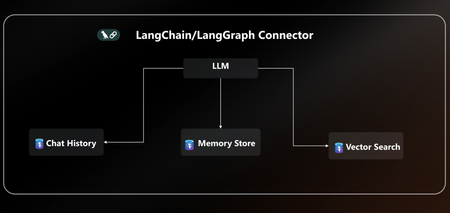
AI agents are only as powerful as the data layer behind them. That’s why we’re excited to announce native LangChain + LangGraph connector for Azure Database for PostgreSQL. With this release, Postgres becomes your single source of truth for AI agents, handling knowledge retrieval, chat history, and long-term memory all in one place. This new connector is packed with everything you need to build secure, scalable and enterprise-ready AI agents on Azure without the complexity. With EntraID authentication, DiskANN acceleration, vector store, and a dedicated agent store, you can go from prototype to production on Azure faster than ever. You can quickly get started with the LangChain + LangGraph connector today pip install langchain-azure-postgresql In this post, we’ll cover: How Azure Postgres connector for LangGraph can serve as the single persistence + retrieval layer for an AI agent New first-class connector for LangChain +LangGraph A practical example to help you get started Azure PostgreSQL as the single persistence + retrieval layer for an AI agent When building AI agents today, developers face a fragmented stack: Vector storage and search require a library, service or separate database. Chat history & short-term memory need yet another data source. Long-term memory often means bolting on yet another system. This sprawl leads to complex integrations, higher costs, and weaker security, making it hard to scale AI agents reliably. The Solution The new Azure Postgres connector for LangChain + LangGraph transforms your Azure Postgres database to the single persistence + retrieval layer for AI agents. Instead of working on a fragmented stack, developers can now: Run embeddings + semantic search with built-in DiskANN acceleration in the same database that powers their application logic. Persist chat history and short-term memory and keep agent conversations grounded via seamless context retrieval from data stored in Postgres. Capture, retrieve, and evolve knowledge over time with a built-in long-term memory without bolting on external systems. All in one database, simplified, secure, and enterprise ready. Postgres becomes the persistent and retrieval data layer for your AI agent. Built for Enterprise Readiness: LangChain + LangGraph Connector This release unlocks several new capabilities that make it easy to build robust, production-ready agents: Auth with EntraID: Enterprise-grade identity to securely connect LangChain + LangGraph workflows to Azure Database for PostgreSQL within a centrally managed security perimeter based on identity. DiskANN & Extensions: First-class support for faster vector search using pgvector combined with DiskANN indexing, enabling support for high-dimensional vectors and cost-efficient search. Additionally, helper functions ensure your favorite extensions are installed. Native Vector Store: Store and query embeddings, enabling semantic search and Retrieval-Augmented Generation (RAG) scenarios. Dedicated Agent Store: Persist agent state, memory, and chat history with structured access patterns, perfect for multi-turn conversations and long-term context. Together, these features give developers a turnkey persistence solution for building reliable AI agents without stitching together multiple storage systems. Using LangGraph on Azure Database for PostgreSQL Using LangGraph with Azure Database for PostgreSQL is easy. Enable the vector & pg_diskann Extension: Allowlist the vector and pg_diskann extension within your server configuration. Import LangChain + LangGraph connector pip install langchain-azure-postgresql pip install -qU langchain-openai pip install -qU azure-identity Login to Azure, to your Entra ID Run az login in your terminal, where you will also run the LangGraph code. az login To get started, you need to set up a production-ready vector store for your agent in a few lines of code. # 1. Auth: Securely connect to Azure Postgres connection_pool = AzurePGConnectionPool(azure_conn_info=ConnectionInfo(host=os.environ["PGHOST"])) #2. Create embeddings embeddings = AzureOpenAIEmbeddings(model="text-embedding-3-small") # 3. Initialize a vector store in Postgres with DiskANN vector_store = AzurePGVectorStore(connection=connection, embedding=embeddings) Use LangGraph to build a sample agent. Here’s a practical example that combines vector search and checkpointer inside Postgres: #4 Define the tool for data retrieval. def get_data_from_vector_store(query: str) -> str: """Get data from the vector store.""" results = vector_store.similarity_search(query) return results #5 Define the agent, checkpointer and memory store. with connection_pool.getconn() as conn: agent = create_react_agent( model=model, tools=[get_data_from_vector_store], checkpointer=PostgresSaver(conn) ) #6 Run the agent and print results config = {"configurable": {"thread_id": "1", "user_id": "1"}} response = agent.invoke( {"messages": [{"role": "user", "content": "What does my database say about cats? Make sure you address me with my name"}]}, config ) for msg in response["messages"][-2:]: msg.pretty_print() With just a few lines of code, you can: Uses the vector store backed by Postgres Enable DiskANN for semantic search Use checkpointers for short-term conversation history Learn More This is just the beginning. With native LangChain + LangGraph support in Azure PostgreSQL, developers can now rely on a single, secure, high-performance data layer for building the next generation of AI agents. 👉 Ready to start? All the code are available in the Azure Postgres Agents Demo GitHub repository. See how easy it is to bring your AI agent to life on Azure. 👉 Check out the docs for more details on the LangChain + LangGraph connector.4.3KViews3likes0CommentsAI Agents: Mastering Agentic RAG - Part 5
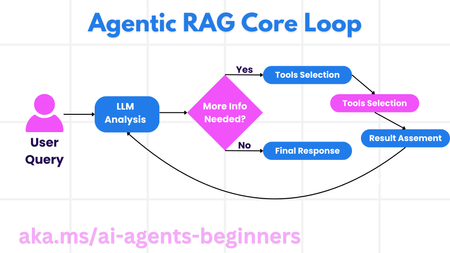
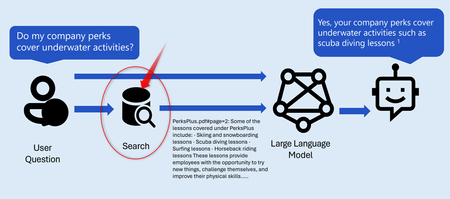
This blog post, Part 5 of a series on AI agents, explores Agentic RAG (Retrieval-Augmented Generation), a paradigm shift in how LLMs interact with external data. Unlike traditional RAG, Agentic RAG allows LLMs to autonomously plan their information retrieval process through an iterative loop of actions and evaluations. The post highlights the importance of the LLM "owning" the reasoning process, dynamically selecting tools and refining queries. It covers key implementation details, including iterative loops, tool integration, memory management, and handling failure modes. Practical use cases, governance considerations, and code examples demonstrating Agentic RAG with AutoGen, Semantic Kernel, and Azure AI Agent Service are provided. The post concludes by emphasizing the transformative potential of Agentic RAG and encourages further exploration through linked resources and previous blog posts in the series.3.8KViews1like0CommentsBuild AI Agents with Azure Database for PostgreSQL and Azure AI Agent Service
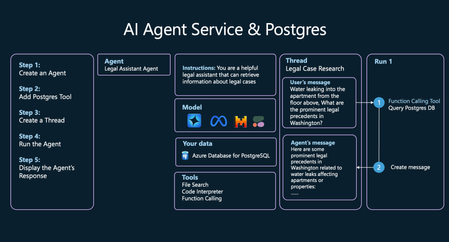
Introduction AI agents are revolutionizing how applications interact with data by combining large language models (LLMs) with external tools and databases. This blog will show you how to combine Azure Database for PostgreSQL with Azure AI Agent Service to create intelligent AI agents that can search and analyze your data. We'll use a legal research assistant as our example and walk through setup, implementation, and testing. With just a few hours of work, you can build an AI solution that would have taken weeks of traditional development. Why AI Agents Matter AI agents can improve productivity by handling repetitive, time-consuming tasks. AI agents can transform how businesses interact with their data by automating complex workflows, providing more accurate information retrieval, and enabling natural language interfaces to databases. What are AI agents? AI agents go beyond simple chatbots by combining large language models (LLMs) with external tools and databases. Unlike standalone LLMs or standard RAG systems, AI agents can: Plan: Break down complex tasks into smaller, sequential steps. Use Tools: Leverage APIs, code execution, search systems to gather information or perform actions. Perceive: Understand and process inputs from various data sources. Remember: Store and recall previous interactions for better decision-making. By connecting AI agents to databases like Azure Database for PostgreSQL, agents can deliver more accurate, context-aware responses based on your data. AI agents extend beyond basic human conversation to carry out tasks based on natural language. These tasks traditionally required coded logic; however, agents can plan the tasks needed to execute based on user-provided context. Agents can be implemented using various GenAI frameworks including LangChain, LangGraph, LlamaIndex and Semantic Kernel. All these frameworks support using Azure Database for PostgreSQL as a tool. This uses the Azure AI Agents Service for agent planning, tool usage, and perception, while using Azure Database for PostgreSQL as a tool for vector database and semantic search capabilities. Real-World Use Case: Legal Research Assistant In this tutorial, we'll build an AI agent that helps legal teams research relevant cases to support their clients in Washington state. Our agent will: Accept natural language queries about legal situations. Use vector search in Azure Database for PostgreSQL to find relevant case precedents. Analyze and summarize the findings in a format useful for legal professionals. Prerequisites Azure Resources An active Azure account. Azure Database for PostgreSQL Flexible Server instance running PG 14 or higher. With pg_vector and azure_ai extensions enabled Azure AI Foundry Project Deployed Azure GPT-4o-mini endpoint. Deployed Azure text-embedding-small endpoint. Local Setup Install Visual Studio Code. Install the Python extension. Install Python 3.11.x. Install Azure CLI.(latest version) Project Implementation All the code and sample datasets are available in this GitHub repository. Step 1: Set Up Vector Search in Azure Database for PostgreSQL First, we'll prepare our database to store and search legal case data using vector embeddings: Environment Setup: If using macOS / bash: python -m venv .pg-azure-ai source .pg-azure-ai/bin/activate pip install -r requirements.txt Windows / PowerShell python -m venv .pg-azure-ai .pg-azure-ai \Scripts\Activate.ps1 pip install -r requirements.txt Windows / cmd.exe: python -m venv .pg-azure-ai .pg-azure-ai \Scripts\activate.bat pip install -r requirements.txt Configure Environment Variables: Create a .env file with your credentials: AZURE_OPENAI_API_KEY="" AZURE_OPENAI_ENDPOINT="" EMBEDDING_MODEL_NAME="" AZURE_PG_CONNECTION="" Load documents and vectors The Python file load_data/main.py serves as the central entry point for loading data into Azure Database for PostgreSQL. This code processes sample cases data, including information about cases in Washington. High level details of main.py: Database setup and Table Creation: Creates necessary extensions, sets up OpenAI API settings, and manages database tables by dropping existing ones and creating new ones for storing case data. Data Ingestion: Reads data from a CSV file and inserts it into a temporary table, then processes and transfers this data into the main cases table. Embedding Generation: Adds a new column for embeddings in the cases table and generates embeddings for case opinions using OpenAI's API, storing them in the new column. The embedding process will take ~3-5 minutes To start the data loading process, run the following command from the load_data directory: python main.py Here's the output of main.py: Extensions created successfully OpenAI connection established successfully Cases table created successfully Temp cases table created successfully Data loaded into temp_cases_data table successfully Data loaded into cases table successfully Adding Embeddings, this will take a while around 3-5 mins... Embeddings added successfully All Data loaded successfully! Step 2: Create Postgres tool for the Agent In this step we will be configuring AI agent tools to retrieve data from Postgres and then using the Azure AI Agent Service SDK to connect your AI agent to the Postgres database. Define a function for your agent to call Start by defining a function for your agent to call by describing its structure and any required parameters in a docstring. Include all your function definitions in a single file, legal_agent_tools.py which you can then import into your main script. def vector_search_cases(vector_search_query: str, start_date: datetime ="1911-01-01", end_date: datetime ="2025-12-31", limit: int = 10) -> str: """ Fetches the cases information in Washington State for the specified query. :param query(str): The query to fetch cases for specifically in Washington. :type query: str :param start_date: The start date for the search, defaults to "1911-01-01" :type start_date: datetime, optional :param end_date: The end date for the search, defaults to "2025-12-31" :type end_date: datetime, optional :param limit: The maximum number of cases to fetch, defaults to 10 :type limit: int, optional :return: Cases information as a JSON string. :rtype: str """ db = create_engine(CONN_STR) query = """ SELECT id, name, opinion, opinions_vector <=> azure_openai.create_embeddings( 'text-embedding-3-small', %s)::vector as similarity FROM cases WHERE decision_date BETWEEN %s AND %s ORDER BY similarity LIMIT %s; """ # Fetch cases information from the database df = pd.read_sql(query, db, params=(vector_search_query,datetime.strptime(start_date, "%Y-%m-%d"), datetime.strptime(end_date, "%Y-%m-%d"),limit)) cases_json = json.dumps(df.to_json(orient="records")) return cases_json Step 3: Create and Configure the AI Agent with Postgres Now we'll set up the AI agent and integrate it with our PostgreSQL tool. The Python file src/simple_postgres_and_ai_agent.py serves as the central entry point for creating and using your agent. High level details of simple_postgres_and_ai_agent.py: Create an Agent: Initializes the agent in your Azure AI Project with a specific model. Add Postgres tool: During the agent initialization, the Postgres tool to do vector search on your Postgres DB is added. Create a Thread: Sets up a communication thread. This will be used to send messages to the agent to process Run the Agent and Call Postgres tool: Processes the user's query using the agent and tools. The agent can plan with tools to use to get the correct answer. In this use case the agent will call the Postgres tool based on the function signature and docstring to do vector search and retrieve the relevant data to answer the question. Display the Agent’s Response: Outputs the agent's response to the user's query. Find the Project Connection String in Azure AI Foundry: In your Azure AI Foundry project you will find you Project Connection String from the Overview page of the project we will use this string to connect the project to the AI agent SDK. We will be adding this string to the .env file. Connection Setup: Add these variables to your .env file in the root directory: PROJECT_CONNECTION_STRING=" " MODEL_DEPLOYMENT_NAME="gpt-4o-mini" AZURE_TRACING_GEN_AI_CONTENT_RECORDING_ENABLED="true" Create the Agent with Tool Access We will create the agent in the AI Foundry project and add the Postgres tools needed to query to Database. The code snippet below is an excerpt from the file simple_postgres_and_ai_agent.py. # Create an Azure AI Client project_client = AIProjectClient.from_connection_string( credential=DefaultAzureCredential(), conn_str=os.environ["PROJECT_CONNECTION_STRING"], ) # Initialize agent toolset with user functions functions = FunctionTool(user_functions) toolset = ToolSet() toolset.add(functions) agent = project_client.agents.create_agent( model= os.environ["MODEL_DEPLOYMENT_NAME"], name="legal-cases-agent", instructions= "You are a helpful legal assistant that can retrieve information about legal cases.", toolset=toolset ) Create Communication Thread: This code snippet, shows how to create a thread and message for the agent. The thread and message will be what the agent processes in a run. # Create thread for communication thread = project_client.agents.create_thread() # Create message to thread message = project_client.agents.create_message( thread_id=thread.id, role="user", content="Water leaking into the apartment from the floor above, What are the prominent legal precedents in Washington on this problem in the last 10 years?" ) Process the Request: This code snippet creates a run for the agent to process the message and use the appropriate tools to provide the best result. Using the tool, the agent will be able to call your Postgres and the vector search on the query “Water leaking into the apartment from the floor above”, to retrieve the data it will need to answer the question best. from pprint import pprint # Create and process agent run in thread with tools run = project_client.agents.create_and_process_run( thread_id=thread.id, agent_id=agent.id ) # Fetch and log all messages messages = project_client.agents.list_messages(thread_id=thread.id) pprint(messages['data'][0]['content'][0]['text']['value']) Run the Agent: To run the agent, run the following command from the src directory: python simple_postgres_and_ai_agent.py The agent will produce a similar result as below using the Azure Database for PostgreSQL tool to access case data saved in the Postgres Database. Snippet of output from agent: 1. Pham v. Corbett Citation: Pham v. Corbett, No. 4237124 Summary: This case involved tenants who counterclaimed against their landlord for relocation assistance and breach of the implied warranty of habitability due to severe maintenance issues, including water and sewage leaks. The trial court held that the landlord had breached the implied warranty and awarded damages to the tenants. 2. Hoover v. Warner Citation: Hoover v. Warner, No. 6779281 Summary: The Warners appealed a ruling finding them liable for negligence and nuisance after their road grading project caused water drainage issues affecting Hoover's property. The trial court found substantial evidence supporting the claim that the Warners' actions impeded the natural flow of water and damaged Hoover's property. Step 4: Testing and Debugging with Azure AI Foundry Playground After running your agent with Azure AI Agent SDK, the agent will be stored in your project, and you can experiment with the agent in the Agent playground. Using the Agent Playground: Navigate to the Agents section in Azure AI Foundry Find your agent in the list and click to open Use the playground interface to test various legal queries Test the query “Water leaking into the apartment from the floor above, What are the prominent legal precedents in Washington?”. The agent will pick the right tool to use and ask for the expected output for that query. Use sample_vector_search_cases_output.json as the sample output. Step 5: Debugging with Azure AI Foundry Tracing When developing the agent by using the Azure AI Foundry SDK, you can also debug the agent with Tracing. You will be able to debug the calls to tools like Postgres as well as seeing how to agent orchestrated each task. Debugging with Tracing: Click Tracing in the Azure AI Foundry menu Create a new Application Insights resource or connect an existing one View detailed traces of your agent's operations Learn more about how to set up tracing with the AI agent and Postgres in the advanced_postgres_and_ai_agent_with_tracing.py file on Github. Get Started Today By combining Azure Database for PostgreSQL with Azure AI Agent Service, developers can create intelligent agents that automate data retrieval, improve decision-making, and unlock powerful insights. Whether you're working on legal research, customer support, or data analytics, this setup provides a scalable and efficient solution to enhance your AI applications. Ready to build your own AI agent? Try building your own legal agent with Azure AI agent service and Postgres. 1. Setup Azure AI Foundry and Azure Database for PostgreSQL Flexible Server Setup up an AI Foundry Project and deploy models Deploy the “gpt-4o-mini” model and “text-embedding-small” models Setup Azure Database for PostgreSQL Flexible Server and pg_vector extension Allow the azure_ai extension 2. Run our end-to-end sample AI Agent using Azure Database for PostgreSQL tool 3. Customize for your use case: Replace legal data with your domain-specific information Adjust agent instructions for your specific needs Add additional tools as required Learn More Read more able Azure Database for PostgreSQL and the Azure AI Agent service. Learn more about Vector Search in Azure Database for PostgreSQL Learn more about Azure AI Agent Service4.7KViews1like0CommentsCreate your own QA RAG Chatbot with LangChain.js + Azure OpenAI Service
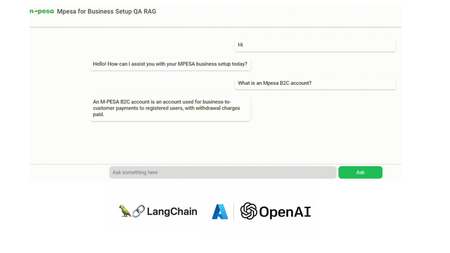
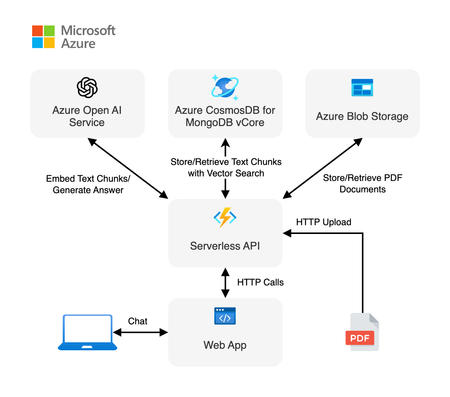
Demo: Mpesa for Business Setup QA RAG Application In this tutorial we are going to build a Question-Answering RAG Chat Web App. We utilize Node.js and HTML, CSS, JS. We also incorporate Langchain.js + Azure OpenAI + MongoDB Vector Store (MongoDB Search Index). Get a quick look below. Note: Documents and illustrations shared here are for demo purposes only and Microsoft or its products are not part of Mpesa. The content demonstrated here should be used for educational purposes only. Additionally, all views shared here are solely mine. What you will need: An active Azure subscription, get Azure for Student for free or get started with Azure for 12 months free. VS Code Basic knowledge in JavaScript (not a must) Access to Azure OpenAI, click here if you don't have access. Create a MongoDB account (You can also use Azure Cosmos DB vector store) Setting Up the Project In order to build this project, you will have to fork this repository and clone it. GitHub Repository link: https://github.com/tiprock-network/azure-qa-rag-mpesa . Follow the steps highlighted in the README.md to setup the project under Setting Up the Node.js Application. Create Resources that you Need In order to do this, you will need to have Azure CLI or Azure Developer CLI installed in your computer. Go ahead and follow the steps indicated in the README.md to create Azure resources under Azure Resources Set Up with Azure CLI. You might want to use Azure CLI to login in differently use a code. Here's how you can do this. Instead of using az login. You can do az login --use-code-device OR you would prefer using Azure Developer CLI and execute this command instead azd auth login --use-device-code Remember to update the .env file with the values you have used to name Azure OpenAI instance, Azure models and even the API Keys you have obtained while creating your resources. Setting Up MongoDB After accessing you MongoDB account get the URI link to your database and add it to the .env file along with your database name and vector store collection name you specified while creating your indexes for a vector search. Running the Project In order to run this Node.js project you will need to start the project using the following command. npm run dev The Vector Store The vector store used in this project is MongoDB store where the word embeddings were stored in MongoDB. From the embeddings model instance we created on Azure AI Foundry we are able to create embeddings that can be stored in a vector store. The following code below shows our embeddings model instance. //create new embedding model instance const azOpenEmbedding = new AzureOpenAIEmbeddings({ azureADTokenProvider, azureOpenAIApiInstanceName: process.env.AZURE_OPENAI_API_INSTANCE_NAME, azureOpenAIApiEmbeddingsDeploymentName: process.env.AZURE_OPENAI_API_DEPLOYMENT_EMBEDDING_NAME, azureOpenAIApiVersion: process.env.AZURE_OPENAI_API_VERSION, azureOpenAIBasePath: "https://eastus2.api.cognitive.microsoft.com/openai/deployments" }); The code in uploadDoc.js offers a simple way to do embeddings and store them to MongoDB. In this approach the text from the documents is loaded using the PDFLoader from Langchain community. The following code demonstrates how the embeddings are stored in the vector store. // Call the function and handle the result with await const storeToCosmosVectorStore = async () => { try { const documents = await returnSplittedContent() //create store instance const store = await MongoDBAtlasVectorSearch.fromDocuments( documents, azOpenEmbedding, { collection: vectorCollection, indexName: "myrag_index", textKey: "text", embeddingKey: "embedding", } ) if(!store){ console.log('Something wrong happened while creating store or getting store!') return false } console.log('Done creating/getting and uploading to store.') return true } catch (e) { console.log(`This error occurred: ${e}`) return false } } In this setup, Question Answering (QA) is achieved by integrating Azure OpenAI’s GPT-4o with MongoDB Vector Search through LangChain.js. The system processes user queries via an LLM (Large Language Model), which retrieves relevant information from a vectorized database, ensuring contextual and accurate responses. Azure OpenAI Embeddings convert text into dense vector representations, enabling semantic search within MongoDB. The LangChain RunnableSequence structures the retrieval and response generation workflow, while the StringOutputParser ensures proper text formatting. The most relevant code snippets to include are: AzureChatOpenAI instantiation, MongoDB connection setup, and the API endpoint handling QA queries using vector search and embeddings. There are some code snippets below to explain major parts of the code. Azure AI Chat Completion Model This is the model used in this implementation of RAG, where we use it as the model for chat completion. Below is a code snippet for it. const llm = new AzureChatOpenAI({ azTokenProvider, azureOpenAIApiInstanceName: process.env.AZURE_OPENAI_API_INSTANCE_NAME, azureOpenAIApiDeploymentName: process.env.AZURE_OPENAI_API_DEPLOYMENT_NAME, azureOpenAIApiVersion: process.env.AZURE_OPENAI_API_VERSION }) Using a Runnable Sequence to give out Chat Output This shows how a runnable sequence can be used to give out a response given the particular output format/ output parser added on to the chain. //Stream response app.post(`${process.env.BASE_URL}/az-openai/runnable-sequence/stream/chat`, async (req,res) => { //check for human message const { chatMsg } = req.body if(!chatMsg) return res.status(201).json({ message:'Hey, you didn\'t send anything.' }) //put the code in an error-handler try{ //create a prompt template format template const prompt = ChatPromptTemplate.fromMessages( [ ["system", `You are a French-to-English translator that detects if a message isn't in French. If it's not, you respond, "This is not French." Otherwise, you translate it to English.`], ["human", `${chatMsg}`] ] ) //runnable chain const chain = RunnableSequence.from([prompt, llm, outPutParser]) //chain result let result_stream = await chain.stream() //set response headers res.setHeader('Content-Type','application/json') res.setHeader('Transfer-Encoding','chunked') //create readable stream const readable = Readable.from(result_stream) res.status(201).write(`{"message": "Successful translation.", "response": "`); readable.on('data', (chunk) => { // Convert chunk to string and write it res.write(`${chunk}`); }); readable.on('end', () => { // Close the JSON response properly res.write('" }'); res.end(); }); readable.on('error', (err) => { console.error("Stream error:", err); res.status(500).json({ message: "Translation failed.", error: err.message }); }); }catch(e){ //deliver a 500 error response return res.status(500).json( { message:'Failed to send request.', error:e } ) } }) To run the front end of the code, go to your BASE_URL with the port given. This enables you to run the chatbot above and achieve similar results. The chatbot is basically HTML+CSS+JS. Where JavaScript is mainly used with fetch API to get a response. Thanks for reading. I hope you play around with the code and learn some new things. Additional Reads Introduction to LangChain.js Create an FAQ Bot on Azure Build a basic chat app in Python using Azure AI Foundry SDK681Views0likes0CommentsScalable Vector Search with DiskANN - Available to all Azure Database for PostgreSQL
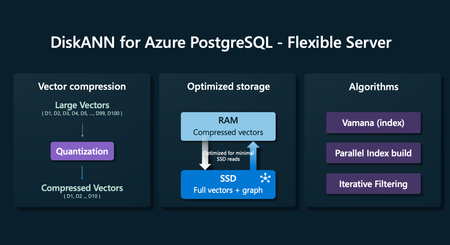
We’re thrilled to announce the public preview of DiskANN on Azure Database for PostgreSQL is now open! No sign-up needed — it's available to all Azure Database for PostgreSQL customers right now. Based on your valuable feedback from our initial release in October, we've supercharged DiskANN with parallel index build for improved performance, numerous bug fixes, and enhanced stability. DiskANN enables developers to perform highly accurate and efficient vector searches on large vector datasets, making it an ideal solution for scaling Generative AI applications. Try DiskANN today and elevate your AI projects to the next level! What is DiskANN? Developed by Microsoft Research and used extensively at Microsoft in global services such as Bing and Microsoft 365, DiskANN is an approximate nearest neighbor search algorithm designed for efficient vector search at scale. It provides high recall, high throughput, and low query latency essential for modern AI and RAG applications. Why use Azure Database for PostgreSQL with DiskANN Vector Index? Scalability: DiskANN is optimized for large datasets, making it ideal for handling millions of vectors. Accuracy: DiskANN uses iterative post filtering to enhance the accuracy of filtered vector search results without compromising on speed or precision. Low Latency: The DiskANN graph index construction makes it very efficient during search, minimizing the number of SSD reads to achieve high throughput and low latency. Integration: Seamlessly integrates with Azure Database for PostgreSQL, leveraging the power and flexibility of PostgreSQL. Learn more about DiskANN from Microsoft. Benefits of using a vector index in your AI application Using a vector index in PostgreSQL, such as pg_diskann, dramatically improves query performance and reduces latency for high-dimensional data applications like search engines, recommendation systems, and e-commerce websites. Unlike brute-force search, vector indexes optimize similarity searches by organizing data for efficient nearest neighbor queries using metrics like cosine similarity, Euclidean distance, or inner product. They leverage approximate algorithms, such as DiskANN, to reduce the search space, enabling sub-linear query times even for datasets with millions of vectors. On average using a Vector Index you can achieve sub-10-millisecond query times on a 1-million-row dataset, while brute-force search could take ~200 milliseconds or more, making using Vector index ideal for real-time applications. For example, an Airbnb-style platform could use vector search to match a user's query with similar properties in the database, and the index allows the system to quickly surface the most relevant listings, transforming what could be seconds-long processing into millisecond responses, ensuring a fast and personalized search experience. Using DiskANN on Azure Database for PostgreSQL Using DiskANN on Azure Database for PostgreSQL is easy. Enable the pgvector & diskann Extension: Allowlist the pgvector and diskann extension within your server configuration. Create Extension in Postgres: Create the pg_diskann extension on your database along with any dependencies. CREATE EXTENSION IF NOT EXISTS pg_diskann CASCADE; Create a Vector Column: Define a table to store your vector data, including a column of type vector for the vector embeddings. CREATE TABLE demo ( id INT GENERATED ALWAYS AS IDENTITY PRIMARY KEY, embedding public.vector(3) ); INSERT INTO demo (embedding) VALUES ('[1.0, 2.0, 3.0]'), ('[4.0, 5.0, 6.0]'), ('[7.0, 8.0, 9.0]'); Index the Vector Column: Create an index on the vector column to optimize search performance. The pg_diskann PostgreSQL extension is compatible with pgvector, it uses the same types, distance functions and syntactic style. CREATE INDEX demo_embedding_diskann_idx ON demo USING diskann (embedding vector_cosine_ops) Perform Vector Searches: Use SQL queries to search for similar vectors based on various distance metrics (cosine similarity in the example below). SELECT id, embedding FROM demo ORDER BY embedding <=> '[2.0, 3.0, 4.0]' LIMIT 5; Ready to Dive In? Use the DiskANN preview today and explore the future of AI-driven applications with the power of Azure Database for PostgreSQL! Run our end-to-end sample RAG app with DiskANN Learn More Integrating DiskANN with Azure Database for PostgreSQL enables scalable, efficient AI applications. By leveraging advanced vector search capabilities, you can enhance the performance of your AI applications and deliver more accurate results faster than ever before. Learn more about DiskANN in Azure Database for PostgreSQL Azure Database for PostgreSQL in Semantic Kernel Azure Database for PostgreSQL | 🦜️🔗 LangChain DiskANN – Microsoft Research775Views1like0CommentsIntroducing DiskANN Vector Index in Azure Database for PostgreSQL
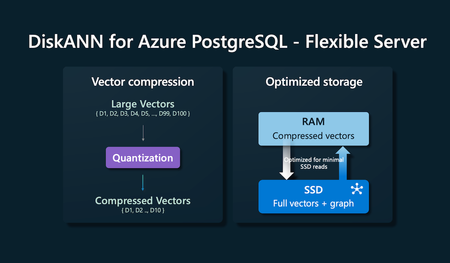
We're thrilled to announce the preview of DiskANN, a leading vector indexing algorithm, on Azure Database for PostgreSQL - Flexible Server! Developed by Microsoft Research and used extensively at Microsoft in global services such as Bing and Microsoft 365, DiskANN enables developers to build highly accurate, performant and scalable Generative AI applications surpassing pgvector’s HNSW and IVFFlat in both latency and accuracy. DiskANN also overcomes a long-standing limitation of pgvector in filtered vector search, where it occasionally returns incorrect results.9.1KViews5likes0CommentsOptimizing Retrieval for RAG Apps: Vector Search and Hybrid Techniques
In this blog we are going to dive into optimizing our search strategy with Hybrid search techniques. Common practices for implementing the retrieval step in retrieval-augmented generation (RAG) applications are; Keyword search Vector Search Hybrid search (Keyword + Vector) Hybrid + Semantic ranker10KViews3likes0Comments