updates
30 TopicsAnnouncement: Azure Logic Apps' New Data Mapper for Visual Studio Code (Preview)
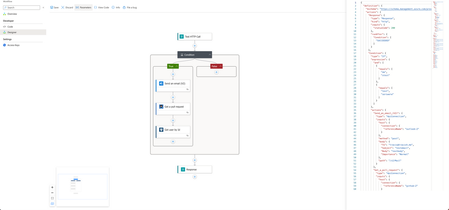
We are excited to announce the public preview of Data Mapper, Azure Logic Apps' new data mapping extension available now in Visual Studio Code. This release offers a modern and unified experience for XSLT mapping and transformation in a singular tool. 24KViews10likes24Comments
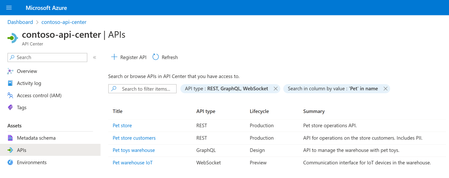
Introducing Azure API Center for Centralized API Discovery and Governance
Announcing the preview of Microsoft Azure API Center – a new Azure service and a capability of the Azure API Management platform that enables tracking APIs in a centralized location for discovery, reuse, and governance.28KViews9likes16CommentsBuilt-in gateway support for workspaces in Azure API Management
Workspaces in Azure API Management let platform teams hand off API ownership to individual API teams while keeping centralized governance. Until now, using them meant deploying a dedicated workspace gateway on the Premium tier — adding cost, operational overhead, and limiting regional availability. That requirement is going away. Workspaces can now be associated directly with the built-in gateway, and this capability is generally available. What changes Available in more tiers. Use workspaces on the built-in gateway in any API Management tier except Consumption. Available in every region. Create workspaces in any region where API Management is supported. All built-in gateway capabilities apply. Workspaces deployed with the built-in gateway inherit features that dedicated workspace gateways don't offer today, including multi-region deployments, custom hostnames, and Private Link connectivity. Availability Rolling out now to v2 tiers, with Azure portal UI support expected around July. Rollout to classic tiers (Developer, Basic, Standard, Premium) will begin by August and may take up to a few months to complete. Get started Learn more about workspaces and how to deploy them on the built-in gateway.1.9KViews3likes3CommentsWrite Logic Apps in C#: introducing the Logic Apps Standard SDK
The workflow you always wished you could write in code If you build on Logic Apps Standard, you already know the deal: the runtime is excellent at the unglamorous parts of integration - connecting to systems, retrying, scaling, keeping run history you can actually debug. What you sometimes wanted was a different front door. You're a .NET developer. You live in C#, source control, and pull requests. And for a long time, authoring a workflow meant leaving all of that behind for a visual designer and a JSON file. That's the gap the new Logic Apps Standard SDK closes. It lets you define Logic Apps Standard workflows in code - strongly typed, IntelliSense-guided C# - without giving up a single thing the runtime already does for you. What is the Logic Apps Standard SDK? The Logic Apps Standard SDK (Microsoft.Azure.Workflows.Sdk) is a NuGet package that gives you a fluent, code-first way to build workflow definitions in C#. Instead of dragging actions onto a canvas, you compose a workflow with method chaining: a trigger, then the actions that follow it, all the way to a response. Worth saying clearly, because people ask: this is a new way to define workflows - not a new runtime. The workflows you write with the SDK compile down to the same definitions and run on the same Logic Apps Standard runtime you use today. Same connectors. Same hosting. Same rich run history and monitoring. You're changing the authoring experience, not the engine underneath it. Why this matters for developers When your workflow lives in C#, it behaves like the rest of your code. A few things fall out of that almost for free: Type safety and IntelliSense - connector operations, triggers, and outputs are discoverable as you type, and the compiler catches mistakes before you run anything. Real source control and reviews - workflows diff like code, get reviewed in pull requests, and version alongside the services they orchestrate. Familiar tooling - refactor, debug with F5, and lean on the .NET ecosystem you already know. Extensibility on your terms — Compose your workflow declaratively with the fluent builder, then drop into plain imperative C# wherever a step needs logic that might be too complex to implement declaratively - loops, branching, a call into your own library, all encapsulated in a step of your workflow - without leaving the file or the language. And it isn't limited to one style of work. The SDK covers both enterprise integration workflows - the connect-systems-and-move-data scenarios Logic Apps is known for - and agentic workflows, where a conversational or autonomous AI agent drives the steps. Both are first-class in the same SDK, built from the same building blocks. There's one more angle worth calling out, because it's becoming hard to ignore: coding agents are simply better at writing imperative code than declarative JSON. And the reason is the same set of guardrails that helps you. Strong typing and a compilation step mean the code an agent produces is syntactically correct out of the gate — the type system and the compiler do the checking, so you don't have to. Layer unit tests on top and you've covered north of 90% of what matters; what's left is integration testing. Getting an LLM to the same level of accuracy against declarative JSON means building dedicated tooling to stand in for everything the compiler gives you for free. With code-first workflows, those guardrails are just there — which makes this a natural fit for an agent-assisted way of building. Getting started Everything here lives in the Logic Apps extension for VS Code. You'll want the Logic Apps Standard VS Code extension version 5.961.10 or later, which includes all the components you need to create code first workflows. Beyond that, the prerequisites are the ones you'd expect - VS Code with the Logic Apps extension, an Azure subscription you can create resources in, and a working comfort with C# and .NET. From a clean start, you're a handful of steps from a running workflow: Create the workspace — launch the Logic Apps extension and choose Create new Logic Apps workspace. Pick a folder, name the workspace and project, and when prompted for the workflow type, choose Logic Apps codeful - that's the code-first option that uses the SDK. Pick a workflow kind - name your first workflow and choose how it runs: Stateful, Autonomous agents (Preview), or Conversational agents (Preview). The agent options are where the agentic scenarios live. Enable connectors - when prompted, select Use connectors from Azure, choose your subscription and resource group, and pick Connection Keys for authentication. Managed identity is still in development, so connection keys are the way in for now. Find your way around - the project opens with Program.cs, which builds and starts the host, plus a workflow file (like workflow1.cs) where your trigger and actions are defined. The SDK compiles those definitions and runs them on the Logic Apps runtime. Run it - press F5 (or right-click Program.cs and pick Overview). The runtime starts locally and an overview page opens where you can fire triggers, watch run history, and inspect inputs and outputs. That last part is worth dwelling on: run history for SDK workflows uses the same rich visual view as designer-built ones. You author in code, but you monitor and troubleshoot exactly as you always have. A look at the capabilities Connectors and triggers Every workflow starts with a trigger and runs a series of actions. The SDK exposes both through two entry points - WorkflowTriggers and WorkflowActions - each split into BuiltIn and Managed. Built-in triggers and actions run directly in the runtime: HTTP request, recurrence, and the conversational agent trigger; actions like Compose, HTTP, Response, and custom code. Managed connectors give you the full Logic Apps connector catalog - Service Bus, SharePoint, SQL, and hundreds more - typed and ready to call. The managed surface is generated from the same connector definitions the designer uses, so the operations you know are right there: // Built-in trigger var trigger = WorkflowTriggers.BuiltIn.CreateHttpTrigger(); // Managed connector action — full catalog, strongly typed var getItems = WorkflowActions.Managed .Sharepointonline("sharepoint") .GetItems( dataset: () => "https://contoso.sharepoint.com", table: () => "orders-list-id") .WithName("GetOrders"); The fluent API streamlines the definition This is where it comes together. You compose a workflow by chaining operations with .Then(...). The shape of your code mirrors the shape of your workflow - read it top to bottom and you read the execution path. trigger .Then(validateOrder) .Then(getOrders) .Then(sendResponse); Control flow is part of the same fluent model. Built-in structures like Condition (if/else) and ForEach - along with Switch, Until, Scope, and Terminate - are just actions you chain in, each taking a small factory for the branch or loop body: var checkTotal = WorkflowActions.BuiltIn.Control.Condition( expression: () => order.Total > 1000, trueBranch: () => requireApproval, falseBranch: () => autoApprove ).WithName("CheckOrderValue"); And ForEach takes the collection to iterate and a factory that builds the body for each item: var processLines = WorkflowActions.BuiltIn.Control.ForEach( items: () => order.LineItems, actions: (item) => new WorkflowBuiltInActions() .Compose(inputs: () => $"Line: {item}").WithName("HandleLine") ).WithName("ProcessLineItems"); Need parallel branches that fan back in? The same Then pattern handles branching and join - no JSON wiring, no run-after blocks to hand-edit. Extending workflows with custom code Some logic doesn't belong in a connector or an expression - it's just code. The CustomCode action lets you drop a real C# method into the middle of a workflow. It receives a WorkflowContext, so you can read the trigger payload or any earlier action's results and return a strongly typed value the next step can use: var enrich = WorkflowActions.BuiltIn.CustomCode<string>(async (context) => { var trigger = await context.GetTriggerResults(); var order = await context.GetActionResults("GetOrders"); // your logic, your libraries, your types return "enriched"; }).WithName("EnrichOrder"); That's the escape hatch that keeps you in flow: when a step needs custom transformation, validation, or a call into your own libraries, you write a method instead of bending an expression to do something it was never meant to. Handling failures: try/catch with run-after Real workflows have to deal with things going wrong, and the SDK gives you the same try/catch shape Logic Apps has always had - expressed in code. The .Then(...) overload takes a FlowStatus[] run-after condition, so a handler runs only when the step before it ends in a status you name. Wrap the risky work in a Scope (your try), then chain a handler that runs after it Failed or TimedOut (your catch): var tryProcess = WorkflowActions.BuiltIn.Control.Scope(() => callPaymentApi.Then(saveOrder) ).WithName("ProcessPayment"); var handleFailure = WorkflowActions.BuiltIn .Compose(inputs: () => "Payment failed — compensating") .WithName("HandleFailure"); trigger .Then(tryProcess) .Then(handleFailure, runAfter: new[] { FlowStatus.Failed, FlowStatus.TimedOut }); The status set is the whole vocabulary: Succeeded, Failed, Skipped, and TimedOut. Combine them however a step needs - a cleanup action that should run no matter what can list every status; a finally is just the union. The same idea scales to fan-in. When several parallel branches converge, the per-predecessor RunAfter overload lets the join wait on each branch independently - so you can require some to succeed and tolerate others failing: leftChain .Join(rightChain) .Then(merge, runAfter: new[] { new RunAfter(leftChain, FlowStatus.Succeeded), new RunAfter(rightChain, FlowStatus.Succeeded), }); Putting it together Here's a small but complete shape - an HTTP-triggered order workflow that validates input, branches on order value, loops over line items, runs custom code, and replies. The core steps live in a Scope so a single failure handler can catch anything that goes wrong, and a clean reply only runs when the work succeeds. Notice it's all one readable chain: namespace LogicApps { using Microsoft.Azure.Workflows.Sdk; using Microsoft.Azure.Workflows.Sdk.Connectors.Msnweather; using System.Net; public class OrderWorkflow : IWorkflowProvider { /// <summary> /// Gets the HTTP request/response workflow definition. /// </summary> public FlowDefinition[] GetWorkflows() { // --- Trigger ---------------------------------------------------- var trigger = WorkflowTriggers.BuiltIn.CreateHttpTrigger(); // --- Managed connector action (full catalog, strongly typed) ---- // Reused verbatim from the confirmed stateful1.cs pattern. var getWeather = WorkflowActions.Managed.Msnweather("msnweather").CurrentWeather( location: () => "98058", units: () => unitsInput.Imperial).WithName("GetWeather"); // --- Custom code: real C# in the middle of the workflow --------- var enrich = WorkflowActions.BuiltIn.CustomCode<string>(async (context) => { var triggerResults = await context.GetTriggerResults(); var weather = await context.GetActionResults("GetWeather"); // your logic, your libraries, your types return "enriched"; }).WithName("EnrichOrder"); // --- ForEach over a collection (control flow via .Control) ------- var processLines = WorkflowActions.BuiltIn.Control.ForEach( items: () => trigger.TriggerOutput.Body["lineItems"], actions: (item) => WorkflowActions.BuiltIn .Compose(inputs: () => $"Line: {item}").WithName("HandleLine") ).WithName("ProcessLineItems"); // --- Condition (if/else) (control flow via .Control) ------------ var checkTotal = WorkflowActions.BuiltIn.Control.Condition( expression: () => true, trueBranch: () => processLines, falseBranch: () => WorkflowActions.BuiltIn .Compose(inputs: () => "Auto-approved").WithName("AutoApprove") ).WithName("CheckOrderValue"); // --- Scope groups the core steps so one handler catches failures - var processOrder = WorkflowActions.BuiltIn.Control.Scope(() => checkTotal .Then(getWeather) .Then(enrich) ).WithName("ProcessOrder"); // --- Responses -------------------------------------------------- var ok = WorkflowActions.BuiltIn.Response( responseBody: () => "Order processed").WithName("Reply"); var failed = WorkflowActions.BuiltIn.Response( statusCode: () => HttpStatusCode.InternalServerError, responseBody: () => "Order failed").WithName("ReplyFailed"); // --- Assemble --------------------------------------------------- // Happy path runs after the Scope Succeeded; the handler runs after // Failed or TimedOut. trigger .Then(processOrder) .Then(ok, runAfter: new[] { FlowStatus.Succeeded }) .Then(failed, runAfter: new[] { FlowStatus.Failed, FlowStatus.TimedOut }); return new[] { WorkflowFactory.CreateStatefulWorkflow("OrderWorkflow", trigger) }; } } } That last stretch is the best-practice shape in miniature: the happy-path Reply runs only after the Scope Succeeded, while a separate handler catches Failed or TimedOut and returns a 500 - no exception plumbing, just run-after conditions. You implement IWorkflowProvider, hand your trigger graph to WorkflowFactory as a stateful, stateless, or agent workflow, and the host registers it. Run it with F5 and the Logic Apps runtime starts locally - same as any Standard project. Before you build: preview realities I'd rather you go in clear-eyed. While the SDK is in public preview, keep these in mind: Service Provider connectors aren't supported yet - that connector type is coming in a future release. Dynamic schemas aren't supported - support is planned. Custom code supports callback methods only - inline lambdas aren't available in this version. Define and name actions before referencing them - name an action before using it as a dependency elsewhere. Managed identity authentication is in development - use connection keys for connectors in the meantime. Try it, and tell us what you think If you've ever wanted your workflows to live where the rest of your code lives - in C#, in source control, in your pull requests - this is for you. Install the Logic Apps extension for VS Code, create a Logic Apps codeful project, and build your first workflow in code. This is a preview, which means your feedback genuinely shapes where it goes - which capabilities come next, where the rough edges are. Bring issues, feature requests and feedback to our GitHub page. I read it. Let's make code-first workflows something you actually want to use. Related content Create Standard workflow projects with the SDK Logic Apps Standard SDK class library2.1KViews3likes2CommentsIntroducing gRPC API Support in Azure API Management Self-Hosted Gateway
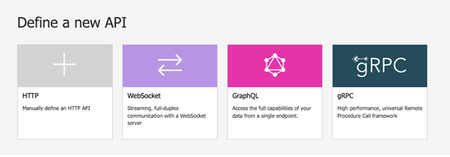
We’re excited to announce the public preview of gRPC support in Azure API Management in the self-hosted gateway. This new feature allows customers to manage their gRPC services as APIs in Azure API Management. What is gRPC? gRPC is a modern, high-performance framework that enables seamless communication between services. Leveraging HTTP/2 for transport and Protocol Buffers (protobuf) as the interface description language, gRPC facilitates lightweight, efficient communication perfect for microservices architecture. What the Preview Includes Full gRPC support. Perform unary, client streaming, server streaming, and bidirectional streaming calls. First-Class Schema Support. Import and manage gRPC services using their protobuf definitions and have Azure API Management handle the rest. Security and Compliance. Implement standard Azure API Management policies to protect your gRPC services. Unified Management. Manage gRPC APIs alongside other API in a single Azure API Management service instance. Deployment Flexibility. Securely and efficiently manage APIs on-premises, Azure, and other clouds from an API Management service instance by deploying self-hosted gateway near your backend services. Getting Started Ensure you have an active Azure subscription. If not, sign up for a free account today. Navigate to the Azure portal and create a new API Management service instance or use an existing one. Deploy a self-hosted gateway to the environment of your choice. Import your gRPC service’s protobuf definition into Azure API Management. Configure policies, monitor performance, and secure your gRPC services just like you would with any other API. For more information on using gRPC with Azure API Management, check out our documentation. We also encourage you to share your feedback using the comments below.9.6KViews3likes0CommentsUpdate To API Management Workspaces Breaking Changes: Built-in Gateway & Tiers Support
What’s changing? If your API Management service uses preview workspaces on the built-in gateway and meets the tier-based limits below, those workspaces will continue to function as-is and will automatically transition to general availability once built-in gateway support is fully announced. API Management tier Limit of workspaces on built-in gateway Premium and Premium v2 Up to 30 workspaces Standard and Standard v2 Up to 5 workspaces Basic and Basic v2 Up to 1 workspace Developer Up to 1 workspace Why this change? We introduced the requirement for workspace gateways to improve reliability and scalability in large, federated API environments. While we continue to recommend workspace gateways, especially for scenarios that require greater scalability, isolation, and long-term flexibility, we understand that many customers have established workflows using the preview workspaces model or need workspaces support in non-Premium tiers. What’s not changing? Other aspects of the workspace-related breaking changes remain in effect. For example, service-level managed identities are not available within workspaces. In addition to workspaces support on the built-in gateway described in the section above, Premium and Premium v2 services will continue to support deploying workspaces with workspace gateways. Resources Workspaces in Azure API Management Original breaking changes announcements Reduced tier availability Requirement for workspace gateways3.3KViews2likes8Comments
🚀 New in Azure API Management: MCP in v2 SKUs + external MCP-compliant server support
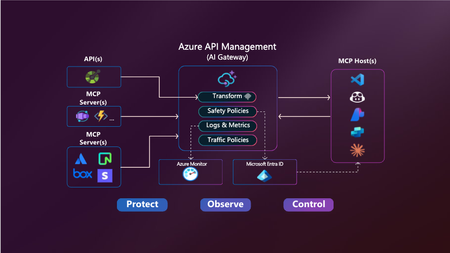
Your APIs are becoming tools. Your users are becoming agents. Your platform needs to adapt. Azure API Management is becoming the secure, scalable control plane for connecting agents, tools, and APIs — with governance built in. -------------------------------------------------------------------------------------------------------------------------------------------------------------------- Today, we’re announcing two major updates to bring the power of the Model Context Protocol (MCP) in Azure API Management to more environments and scenarios: MCP support in v2 SKUs — now in public preview Expose existing MCP-compliant servers through API Management These features make it easier than ever to connect APIs and agents with enterprise-grade control—without rewriting your backends. Why MCP? MCP is an open protocol that enables AI agents—like GitHub Copilot, ChatGPT, and Azure OpenAI—to discover and invoke APIs as tools. It turns traditional REST APIs into structured, secure tools that agents can call during execution — powering real-time, context-aware workflows. Why API Management for MCP? Azure API Management is the single, secure control plane for exposing and governing MCP capabilities — whether from your REST APIs, Azure-hosted services, or external MCP-compliant runtimes. With built-in support for: Security using OAuth 2.1, Microsoft Entra ID, API keys, IP filtering, and rate limiting. Outbound token injection via Credential Manager with policy-based routing. Monitoring and diagnostics using Azure Monitor, Logs, and Application Insights. Discovery and reuse with Azure API Center integration. Comprehensive policy engine for request/response transformation, caching, validation, header manipulation, throttling, and more. …you get end-to-end governance for both inbound and outbound agent interactions — with no new infrastructure or code rewrites. ✅ What’s New? 1. MCP support in v2 SKUs Previously available only in classic tiers (Basic, Standard, Premium), MCP support is now in public preview for v2 SKUs — Basic v2, Standard v2, and Premium v2 — with no pre-requisites or manual enablement required. You can now: Expose any REST API as an MCP server in v2 SKUs Protect it with Microsoft Entra ID, keys or tokens Register tools in Azure API Center 2. Expose existing MCP-compliant servers (pass-through scenario) Already using tools hosted in Logic Apps, Azure Functions, LangChain or custom runtimes? Now you can govern those external tool servers by exposing them through API Management. Use API Management to: Secure external MCP servers with OAuth, rate limits, and Credential Manager Monitor and log usage with Azure Monitor and Application Insights Unify discovery with internal tools via Azure API Center 🔗 You bring the tools. API Management brings the governance. 🧭 What’s Next We’re actively expanding MCP capabilities in API Management: Tool-level access policies for granular governance Support for MCP resources and prompts to expand beyond tools 📚 Get Started 📘 Expose APIs as MCP servers 🌐 Connect external MCP servers 🔐 Secure access to MCP servers 🔎 Discover tools in API Center Summary Azure API Management is your single control plane for agents, tools and APIs — whether you're building internal copilots or connecting external toolchains. This preview unlocks more flexibility, less friction, and a secure foundation for the next wave of agent-powered applications. No new infrastructure. Secure by default. Built for the future.4.1KViews2likes3CommentsAnnouncing the availability of TLS 1.3 in Azure API Management in Preview
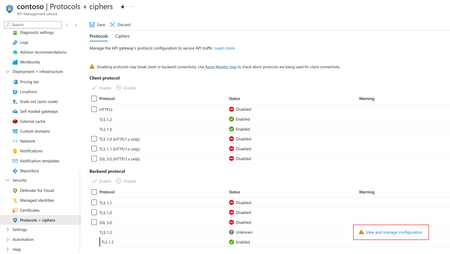
TLS 1.3 is the latest version of the internet’s most deployed security protocol, which encrypts data to provide a secure communication channel between two endpoints. TLS 1.3 support in Azure API Management is planned to rollout during the first week of February 2024. The rollout will happen in stages, this means some regions will get it first as we roll out globally.24KViews2likes6Comments