troubleshooting
13 TopicsLessons Learned #558: What an Execution Plan XML Can Tell Us in Azure SQL Database
During a performance investigation in Azure SQL Database, we requested the execution plan to understand what the query was doing. While reviewing the evidence, the customer asked a broader question: when you open the XML of an execution plan, what do you usually look for? It was a useful question. The graphical plan helps us follow the flow of data, but the XML contains details about parameters, statistics, warnings and execution that can explain why the query behaved as it did. I do not read every attribute. I start with a few checks that help connect the customer symptom to the work performed by the query. In this article, I will walk through those checks: the type of plan, parameter values, estimated versus actual rows and statistics, missing indexes and implicit conversions, and reasons for a serial plan. The XML fragments below are simplified examples that use invented values or are adapted from examples discussed in previous articles in the Lessons Learned troubleshooting series. First check whether the plan contains execution evidence Plan What we can inspect Estimated plan Optimizer choices and estimates; the query has not executed Actual plan Plan plus available counters and warnings from that execution Cached or Query Store plan Compiled plan; normally no operator actuals for the incident For the checks involving actual rows, I request an actual execution plan. In SSMS, use Include Actual Execution Plan, or capture it using SET STATISTICS XML. Choose one method. The latter executes the query and returns its plan. The account needs the permissions to run the statement and SHOWPLAN permission. SET STATISTICS IO ON; SET STATISTICS TIME ON; SET STATISTICS XML ON; -- Execute the SELECT being investigated here. SET STATISTICS XML OFF; SET STATISTICS TIME OFF; SET STATISTICS IO OFF; Save the plan as a .sqlplan file and keep the Messages output. Record when it was captured, the parameters and the reported symptom. An execution captured later may not represent the incident. Review query literals, parameter values and object names before sharing the file. Check the right statement and its parameters A procedure or batch may contain several statements. I locate the relevant StmtSimple and its QueryPlan before interpreting a warning. StatementId and operator NodeId help keep the observations attached to the correct statement and operator; NodeId is not a stable identifier across different compilations. Next, I look at ParameterList. When available, it shows both the value used when the plan was compiled and the value used during the captured execution. <ParameterList> <ColumnReference Column="@CustomerId" ParameterDataType="int" ParameterCompiledValue="(42)" ParameterRuntimeValue="(900)" /> </ParameterList> Here, the plan was compiled with CustomerId 42 and executed with CustomerId 900. If one customer has a few orders and another has thousands, I would compare their data distribution and actual plans. Different values are a reason to investigate parameter sensitivity; they do not prove that plan reuse caused the problem. A missing runtime value means this capture did not provide it. It does not mean the runtime value was the same as the compiled value. Also, eligible queries can intentionally use different plan variants through Parameter Sensitive Plan optimization. Make the comparison match the application If the query is slow in the application but fast in SSMS, I compare the SQL text, parameter types and values, database context and session options. StatementSetOptions records options associated with compilation. <StatementSetOptions ARITHABORT="true" ANSI_WARNINGS="true" ANSI_NULLS="true" QUOTED_IDENTIFIER="true" ANSI_PADDING="true" CONCAT_NULL_YIELDS_NULL="true" NUMERIC_ROUNDABORT="false" /> A difference in context can help explain why the application and SSMS use different cached plans. I capture both rather than assuming that a fast SSMS execution represents the application. The difference itself still needs to be connected to the measured performance. Compare estimated and actual rows then inspect statistics I follow the rows through the plan and look for the first useful difference between what the optimizer expected and what the operator actually processed. <RelOp NodeId="3" PhysicalOp="Index Seek" LogicalOp="Index Seek" EstimateRows="100"> <RunTimeInformation> <RunTimeCountersPerThread Thread="0" ActualRows="20000" ActualRowsRead="80000" ActualExecutions="1" /> </RunTimeInformation> <!-- Access details omitted --> </RelOp> In this single-execution example, the operator estimated 100 rows and returned 20,000: a 200-fold underestimate. It also read 80,000 rows. I would ask why the estimate was inaccurate, and why the operator read substantially more rows than it returned. These are separate questions. For repeated or parallel operators, account for executions and threads before comparing totals. Do not add the rows from every operator to calculate the query result size. The next question is often whether the statistics were out of date. OptimizerStatsUsage identifies statistics consulted during compilation, where that information is exposed. <OptimizerStatsUsage> <StatisticsInfo Schema="[PlanXmlLab]" Table="[Orders]" Statistics="[IX_Orders_CustomerId]" LastUpdate="2026-10-10T07:00:00" SamplingPercent="20" ModificationCount="15000" /> </OptimizerStatsUsage> I check the relevant statistics object, its LastUpdate, SamplingPercent and ModificationCount together. An old timestamp or a low sampling percentage alone does not prove that it caused the estimate. Updated statistics cannot explain every discrepancy; parameter values, predicates and data distribution also matter. The XML describes the statistics consulted at compilation. To check their current state, I use sys.dm_db_stats_properties, as shown next. A subsequent update does not rewrite the evidence in an already saved plan. Check when the statistics were last updated -- Run in the affected database and set the actual table name. SELECT st.name AS statistics_name, sp.last_updated, sp.rows, sp.rows_sampled, sp.modification_counter FROM sys.stats AS st OUTER APPLY sys.dm_db_stats_properties( st.object_id, st.stats_id) AS sp WHERE st.object_id = OBJECT_ID(N'PlanXmlLab.Orders'); last_updated identifies the latest statistics update; rows and rows_sampled describe the population and sample at that update. modification_counter counts modifications to the leading statistics column since the update. Metadata visibility and permissions can affect the output. Compare this information with the same statistics object in the plan. Timestamps alone do not tell us whether the update was automatic or manual. If an update is justified, validate it in a controlled comparison using the same query and representative parameters, and capture a newly compiled plan. Read the access path alongside the row counts An Index Seek can still read many rows. I inspect SeekPredicates, any residual Predicate and ActualRowsRead where available. A broad seek range followed by filtering can explain why the rows read greatly exceed the rows returned. Likewise, a Key Lookup may be inexpensive once but expensive when repeated for thousands of rows. A scan can be the right choice when a large part of the table qualifies. The operator name is a starting point; the amount of work tells us more. For the customer, the useful explanation is concrete: this operator returned many more rows than expected, these were the statistics used, and this is the next comparison that will help establish why. That is more informative than recommending a statistics update from the timestamp alone. Read missing indexes and conversion warnings as clues Missing-index messages are easy to notice. I inspect the suggestion, but I also check whether it fits the query and the existing indexes. <MissingIndexes> <MissingIndexGroup Impact="85.0"> <MissingIndex Schema="[PlanXmlLab]" Table="[Orders]"> <ColumnGroup Usage="EQUALITY"> <Column Name="[CustomerId]" ColumnId="2" /> </ColumnGroup> <ColumnGroup Usage="INCLUDE"> <Column Name="[Amount]" ColumnId="3" /> </ColumnGroup> </MissingIndex> </MissingIndexGroup> </MissingIndexes> This example suggests a key on CustomerId with Amount included for coverage. EQUALITY and INEQUALITY describe predicate columns, while INCLUDE describes covering columns. The suggestion does not settle every detail of index design. Impact is an estimated reduction in optimizer cost. A value of 85 does not promise an 85% reduction in elapsed time. The XML may contain more suggestions than the graphical plan displays. Review existing indexes and write overhead, then measure the candidate change. Check which side of the predicate is converted <Warnings> <PlanAffectingConvert ConvertIssue="Seek Plan" Expression="CONVERT_IMPLICIT(nvarchar(50),[dbo].[Customers].[Code],0)" /> </Warnings> In this separate example, I would inspect the Code column type and the application parameter declaration. A varchar column compared with an nvarchar parameter can introduce a conversion on the column side because nvarchar has higher type precedence. The warning identifies something that may affect the plan, not a measured root cause. Whether a conversion prevents an efficient seek depends on the types, collation and expression. Test an appropriate parameter declaration while preserving required character semantics, and compare results, reads and CPU. A conversion in the projection is different from one in a search predicate. Look for an explicit reason when the plan is serial Customers sometimes ask why a query does not run in parallel when the database has multiple vCores. I look for NonParallelPlanReason in QueryPlan before assuming that more resources or a higher MAXDOP will change the result. <QueryPlan DegreeOfParallelism="0" NonParallelPlanReason="TSQLUserDefinedFunctionsNotParallelizable"> <!-- Other properties omitted --> </QueryPlan> Reason What I inspect next MaxDOPSetToOne Effective MAXDOP setting or query hint TSQLUserDefinedFunctionsNotParallelizable Scalar UDF and its inlining behavior NonParallelizableIntrinsicFunction The specific intrinsic function referenced A serial plan can be appropriate. The attribute can identify a restriction, but its absence does not fully explain the optimizer decision. Scalar UDF inlining can remove a restriction without guaranteeing parallel execution. DegreeOfParallelism="1" does not demonstrate parallel work. In Azure SQL Database, check database-scoped MAXDOP and query hints. More vCores do not override every restriction or guarantee selection of a parallel plan. Lessons learned The answer to the customer was a reading process: identify the statement and capture type, inspect parameters, compare estimated and actual work, and investigate the relevant statistics and warnings. Each observation should help us ask a better question and select a useful test. For a before-and-after comparison, preserve the query, parameters, data and relevant settings. Compare returned results, logical reads, CPU and duration. A plan describes one compilation or execution; Query Store can help establish whether the behavior changed over time. A short checklist Confirm that the plan belongs to the affected statement and execution. Check parameter values and the application context. Compare estimated and actual rows, accounting for repeated work. Inspect compilation statistics and their current update metadata. Review missing indexes, implicit conversions and serial-plan reasons. Validate the explanation with a measured comparison.Azure SQL Data Sync After a Database Restore: Troubleshooting Leftover Sync Metadata
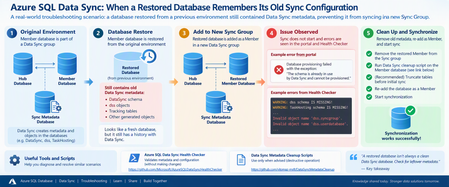
Recently, I worked on an interesting Azure SQL Data Sync issue that I thought was worth sharing with the community. The scenario looked straightforward at first: a database had been restored from another environment and was being configured as a Member database in a new Data Sync group. However, synchronization wasn't working as expected. The interesting part was not the new Sync Group itself. It was what the restored database had brought with it from its previous Data Sync configuration. The scenario The Member database was a restored copy of a database that had previously participated in another Azure SQL Data Sync group. After the restored database was configured as a Member in the new environment, synchronization wasn't working as expected. During troubleshooting, another important clue emerged. The restored database still had a history with Azure SQL Data Sync, so we needed to determine whether metadata and generated objects from its previous configuration were still present. This became one of the key areas of the investigation. Understand the Data Sync architecture first Before jumping into scripts, it's important to clearly distinguish the three database roles involved in Azure SQL Data Sync: Hub Database: The central database containing the application data being synchronized. Member Database: A database that synchronizes with the Hub. Sync Metadata Database: A separate Azure SQL Database containing Data Sync metadata and logs. Microsoft's documentation explains that Data Sync follows a hub-and-spoke topology and that the Sync Metadata Database contains Data Sync metadata and logs. This distinction became particularly important during this investigation because the initial diagnostic configuration wasn't pointing to the expected Sync Metadata Database. Troubleshooting approach Here is the troubleshooting flow we followed. Step 1: Run the Azure SQL Data Sync Health Checker One of the first tools I recommend for this type of investigation is the public Azure SQL Data Sync Health Checker: Azure SQL Data Sync Health Checker on GitHub [github.com] The tool validates whether metadata associated with the Hub and Member is in place and compares the scopes against information in the Sync Metadata Database. Importantly, the Health Checker repository states that it performs validation without changing Data Sync or user objects. The tool requires the relevant connection details for: Sync Metadata Database Hub Database Member Database The GitHub repository contains the current script and execution instructions. What we observed In our investigation, the initial Health Checker output included messages similar to: WARNING: dss schema IS MISSING! WARNING: TaskHosting schema IS MISSING! Invalid object name 'dss.syncgroup'. Invalid object name 'dss.userdatabase'. Those errors were important clues, but they needed to be interpreted together with the database roles. Microsoft's documentation states that the DataSync schema is used for system-created objects in Hub and Member databases, while the dss and TaskHosting schemas are used for system-created objects in the Sync Metadata Database. That distinction helped us recognize that we first needed to validate which database was actually being supplied to the Health Checker as the Sync Metadata Database. Lesson learned Before treating a missing dss or TaskHosting schema as corruption, first make sure you're actually connected to the Sync Metadata Database. That simple validation can save a lot of investigation time. Step 2: Check the Member database for Data Sync artifacts Once we had clarified the topology, the investigation moved to the restored Member database. Because this database had previously participated in Data Sync, we wanted to understand what Data Sync objects were still present. One of the queries used during troubleshooting was: SELECT name FROM sys.tables WHERE SCHEMA_NAME(schema_id) = 'DataSync' AND name NOT LIKE '%_tracking%'; We also inspected: SELECT * FROM DataSync.schema_info_dss; And, when checking the Member database's Data Sync scope information: SELECT * FROM DataSync.scope_info_dss; These checks helped us understand the Data Sync metadata state of the restored Member database and whether it still contained artifacts associated with its previous configuration. Why this matters Microsoft's current Data Sync best-practices documentation confirms that the DataSync schema is used for system-created objects in Hub and Member databases. So, when investigating a database restored from an environment where it previously participated in Data Sync, the DataSync schema is an important part of the investigation. Step 3: Consider the history of the restored database This was really the turning point in the investigation. Instead of treating the database simply as a "new Member", we started looking at it as: A restored database that had previously been provisioned for another Data Sync configuration. That's an important difference. When troubleshooting a restored database, ask early: Was this database previously part of another Azure SQL Data Sync group? If the answer is yes, the database's previous Data Sync state should be considered during the investigation. Step 4: Remove the Member before cleanup In our scenario, the remediation sequence was essentially: Remove the restored database from the current Sync Group. Clean up the previous Data Sync metadata from the restored Member database. Re-add the database as a Member. Trigger synchronization again. For the cleanup portion, we used the following publicly available repository: SQL Data Sync Cleanup Scripts on GitHub [github.com] The repository contains several scripts for different purposes, including: Data Sync complete cleanup.sql Data Sync cleanup hub or member.sql cleanup data sync object V2.sql The specific complete-cleanup script is available here: Data Sync complete cleanup.sql Important warning about the cleanup script Please do not treat this as a general-purpose Data Sync troubleshooting script. The script itself contains a very clear warning. It immediately cleans Data Sync-related objects associated with the database and says it should be used only for the scenarios specified in the script, including when advised by the support team during a support request. The repository also explains the different purposes of its cleanup scripts. For example, the complete-cleanup script has more restrictive usage guidance, while the Hub/Member cleanup and object cleanup scripts target different scenarios. My recommendation: use the Health Checker and read-only diagnostic queries first. Do not jump directly to metadata cleanup without understanding the database topology and existing Data Sync configuration. Step 5: Validate with one table After cleaning up the previous Data Sync artifacts, we didn't immediately assume that everything was resolved. Instead, we validated with a controlled test. A test table on the Member side was truncated, the synchronization was started again, and the table began synchronizing successfully. That provided the confirmation we needed that the previous Data Sync state of the restored Member was an important part of the issue. Root cause The troubleshooting pointed to the fact that the restored Member database had previously participated in another Data Sync configuration and retained Data Sync-related metadata/artifacts from that previous state. After cleaning up the old Data Sync state and reprovisioning the restored database as a Member, synchronization was successfully validated again. The important lesson for me wasn't simply the cleanup itself. It was recognizing that restoring a database does not necessarily mean you're starting with a clean Data Sync state. A practical troubleshooting flow For similar scenarios, I would approach the investigation in this order: Confirm the architecture Identify the: Hub Database Member Database Sync Metadata Database Run the Health Checker Use: Microsoft Azure SQL Data Sync Health Checker [github.com] Review its output before making changes. Inspect the restored Member Check whether Data Sync-related objects exist: SELECT name FROM sys.tables WHERE SCHEMA_NAME(schema_id) = 'DataSync' AND name NOT LIKE '%_tracking%'; Then, where applicable to the database's current state, inspect: SELECT * FROM DataSync.schema_info_dss; and: SELECT * FROM DataSync.scope_info_dss; Ask about the database history Was the database: restored from another environment? previously a Data Sync Member? previously associated with another Sync Group? That historical context can completely change the direction of the investigation. Consider cleanup only after understanding the environment The public cleanup scripts are available here: SQL Data Sync Cleanup Scripts [github.com] These scripts make changes to Data Sync objects and should not be the first troubleshooting step. Validate using a controlled test Once the environment has been correctly cleaned/reconfigured, validate synchronization on a controlled scope before assuming the entire configuration is healthy. My key takeaways This troubleshooting experience reinforced a few lessons for me. A restored database isn't necessarily a clean Data Sync database Restoring the application data doesn't mean you should ignore the database's previous synchronization configuration. Always distinguish Hub, Member, and Sync Metadata databases This is especially important when interpreting Health Checker output. The DataSync schema is associated with system-created objects in Hub and Member databases, while dss and TaskHosting are associated with system-created objects in the Sync Metadata Database. Use diagnostics before cleanup The Azure SQL Data Sync Health Checker is designed to validate Data Sync metadata and objects without making changes. That makes it a much better starting point than immediately removing objects. Database history matters One of my favorite questions after this investigation is now: "Was this database ever part of another Data Sync Group?" It's a simple question, but in restore or copy scenarios it can reveal an important part of the troubleshooting story. Be very careful with metadata cleanup The public cleanup repository itself provides specific guidance about when each script should be used, and the complete-cleanup script includes an explicit warning before execution. Always understand the environment and protect your data before performing destructive operations. One more important consideration: SQL Data Sync retirement There is also an important longer-term architecture consideration. Microsoft currently documents that SQL Data Sync retires on September 30, 2027. Existing Sync Groups can continue operating until the retirement date, but Microsoft recommends migrating to alternative data replication and synchronization solutions before then. So, while troubleshooting existing Data Sync environments remains necessary, organizations using the service should also begin considering their migration strategy. References and useful tools Microsoft documentation Best practices for Azure SQL Data Sync [learn.microsoft.com] Troubleshooting tools Azure SQL Data Sync Health Checker [github.com] SQL Data Sync Metadata Cleanup repository [github.com] Data Sync complete cleanup.sqlLessons Learned #555: The First 60 Seconds of a Production Incident: Stop, Scope, Correlate
When a critical production incident starts, the first message we often receive is something like: “The database is down.” At that moment, everything suddenly becomes urgent. Engineers open monitoring dashboards. Someone starts checking logs. Another person reviews CPU and memory. Someone else asks whether there was a deployment. Connections are tested. Metrics are queried. Teams are contacted. All of these actions may eventually be necessary. But there is a more important question to answer first: What exactly does “down” mean? After working on many production incidents, one lesson becomes increasingly clear: The first 60 seconds are not about solving the incident. They are about defining the incident. A vague problem description can send troubleshooting in many different directions. A precise problem statement dramatically reduces the investigation space. This article describes a simple approach that can be applied during the first moments of an incident: Stop. Scope. Correlate. 1. Stop: Define What “Down” Actually Means The first mistake during many incidents is assuming that everyone understands the problem in the same way. Consider the statement: “The database is unavailable.” That statement could mean many different things: Applications cannot establish new connections. Existing connections are still working, but new connections fail. Queries are timing out. A specific login cannot authenticate. One database is inaccessible. One application is failing while other applications work correctly. Performance degradation makes the service appear unavailable. The application returns HTTP 500 errors, but the database itself is healthy. Connections fail intermittently. A failover is occurring. DNS or networking issues prevent the application from reaching the database. These scenarios require completely different investigation paths. Before opening ten different tools, try to transform the original statement into something more specific. For example: Instead of: “The database is down.” Try to reach something like: “Since approximately 14:32 UTC, new application connections to Database A have intermittently failed with login errors, while existing sessions remain active.” Now we have something we can investigate. The problem statement contains: a timestamp, a specific database, a specific symptom, affected connection behavior, and an indication that the issue may be intermittent. That is already much more valuable than the original alert. 2. Scope: Determine the Blast Radius Once we understand the symptom, the next question is: Who or what is affected? This is sometimes called determining the blast radius. The scope can immediately eliminate entire categories of possible causes. Ask questions such as: Is one user affected or every user? Is one application affected or several applications? Is one database affected or all databases? Are all connection types affected? Are existing connections healthy while new connections fail? Are only specific clients or drivers affected? Imagine the following situation. Application A reports database connectivity failures. However: Application B connects successfully. SSMS connects successfully. Azure metrics show the database is available. Existing sessions continue executing queries. This changes the investigation dramatically. The problem may not be: “Azure SQL is unavailable.” It may instead be: “Application A cannot establish new connections.” That distinction is extremely important. A large percentage of troubleshooting time can be saved simply by identifying the correct scope early. 3. Build the Timeline The next critical dimension is time. During an incident, timestamps are evidence. Ask: When did the issue start? Is there an exact timestamp? How long did it last? Is the issue continuous or intermittent? Did the problem recover automatically? Did the issue occur once or multiple times? Was there another event immediately before the problem? A good incident timeline may look like this: 14:31:52 UTC – Application operating normally 14:32:08 UTC – First connection error reported 14:32:10 UTC – Database failover detected 14:32:14 UTC – Additional login failures 14:32:18 UTC – New connections begin succeeding 14:32:20 UTC – Application fully recovere Now the investigation is no longer based on assumptions. We have a five-to-ten-second window that can be correlated with platform telemetry, database events, application logs, networking information, and deployment history. Without the timeline, engineers may analyze hours of logs. With the timeline, the investigation becomes focused. 4. Correlate Before Changing Anything The next step is correlation. Once we understand the symptom, scope, and timeline, we can ask: What changed at the same time? Useful correlation sources may include: application deployments, infrastructure changes, configuration changes, database failovers, scaling operations, maintenance events, firewall changes, authentication changes, networking events, DNS changes, resource utilization, query regressions, blocking, deadlocks, connection pool behavior, driver updates, platform events. etc The key word here is correlation. It is tempting during an incident to immediately change something. For example: restart the application, restart a service, scale the database, clear the connection pool, change configuration, rebuild an index, modify a query, fail over manually. Sometimes these actions are necessary. But every change also modifies the evidence. A restart may restore the service while simultaneously removing valuable diagnostic information. Whenever possible: Collect evidence before changing the environment. 5. Use Multiple Sources of Evidence Production incidents rarely provide the complete answer in one telemetry source. A better approach is to correlate multiple sources. For a database-related incident, we may investigate: Application telemetry Application logs may reveal: connection failures, authentication errors, request latency, retry attempts, timeout exceptions, HTTP errors, dependency failures. Platform metrics Cloud metrics may help determine: service availability, CPU utilization, storage pressure, connection count, throttling, resource saturation. Database telemetry Database-level information may include: active sessions, waits, blocking, query performance, login failures, failover events, resource statistics. Query Store For performance incidents, Query Store can be extremely valuable. It may help identify: query regressions, plan changes, increased execution duration, abnormal CPU consumption, changes in execution frequency. Deployment history Always ask: What changed recently? Many incidents have a strong temporal relationship with: application deployments, schema changes, configuration modifications, infrastructure updates, new releases, security changes. The goal is not to assume that the most recent change caused the incident. The goal is to determine whether the events correlate. 6. Avoid Starting With a Tool One common troubleshooting pattern is: “Open the monitoring portal.” or: “Run this query.” or: “Check this log.” Tools are essential, but tools should follow the investigation strategy. The investigation should determine which tool we need. Not the other way around. If the problem is authentication, the investigation path may focus on: login errors, authentication configuration, identity providers, user mappings, connection strings. If the problem is performance, the investigation may focus on: Query Store, waits, blocking, execution plans, resource utilization. If the problem is connectivity, we may investigate: DNS, network paths, firewalls, drivers, retries, connection pools. A clear problem definition tells us where to look. 7. Ask the Same Questions Every Time One of the most effective improvements teams can make is standardizing the first questions asked during incidents. A simple initial checklist could be: Symptom: What exactly is failing? Scope: Who or what is affected? Timeline: When did it start? Error: What exact error message or error code is being returned? Frequency: Is the issue continuous, intermittent, or already recovered? Changes: What changed immediately before the incident? Evidence : Which telemetry sources can confirm the behavior? These questions are intentionally simple. During a high-severity incident, simplicity is valuable. 8. The First 60 Seconds Framework We can summarize the approach in four steps. 1. Define: What does the reported symptom actually mean? 2. Scope: Determine the blast radius. 3. Timeline: Identify exactly when the problem occurred. 4. Correlate Connect the symptom with telemetry, events, and recent changes. Only after these steps should we decide the deeper troubleshooting path. 9. Speed Is Important, but Direction Is More Important During critical incidents, teams naturally want to move quickly. That is the correct instinct. But speed without direction can create noise. Ten engineers investigating ten different theories at the same time may generate enormous activity without producing clarity. A well-defined incident allows teams to divide the investigation intelligently. For example: One engineer investigates application telemetry. Another checks database telemetry. Another reviews platform events. Another investigates recent deployments. Another builds the incident timeline. All of them are now investigating the same defined problem. That is very different from everyone independently trying to determine what the problem might be.Lessons Learned #550: From a Support Case to Reusable Knowledge
Reaching Lessons Learned #550 is an important milestone for me. However, the value of this series is not only the number of articles published. Each article started with a technical question, an unexpected behavior, a support investigation, or a scenario that required additional testing and analysis. Some cases resulted in a configuration change. Others required a query, a script, a workaround, a product clarification, or a different troubleshooting approach. Over time, I have learned that resolving the immediate issue is only one part of the work. A support case becomes even more valuable when the knowledge gained during the investigation can help another engineer or customer facing a similar situation. Every support case may contain a lesson. The challenge is to identify it, validate it, and make it reusable. Identify the Reusable Lesson Not every detail from a support case needs to become an article. The first step is to identify the part of the investigation that may be useful outside the original scenario. This could be: an unexpected product behavior; a common misunderstanding; a diagnostic query; a troubleshooting method; a configuration requirement; a limitation that may not be immediately visible; a way to interpret a metric or error message; a test that helped confirm the technical explanation. For example, the specific customer environment may be unique, but the method used to distinguish CPU pressure from Data IO pressure may be useful in many other investigations. Similarly, the original application architecture may be complex, but the test used to isolate a network path may be simple and reusable. The objective is not to reproduce the complete support case. The objective is to extract the lesson that may help others. Explain the Symptom Clearly A useful technical article should begin with a behavior that readers can recognize. For example: Connections fail only from one application instance. Query duration increases after a service-tier migration. CPU reaches a high percentage, but the workload remains constrained by another resource. A failover restores normal operation without fully explaining the original cause. A monitoring result appears different from what was initially expected. A reader should be able to determine quickly whether the scenario resembles a problem they are investigating. Describe How the Conclusion Was Reached A solution is more useful when the reader understands how it was validated. For that reason, I normally try to explain: what was initially observed; which evidence was reviewed; which possibilities were considered; which tests were performed; what result supported the conclusion; which limitations remained. The objective is to provide enough context for the reader to understand why the conclusion is reasonable and under which conditions it applies. Separate Mitigation from Explanation A mitigation may restore service without fully explaining the technical cause. For example: restarting an application may reset the connection pool; a failover may disconnect blocking sessions; scaling may increase several resource limits simultaneously; recompiling a query may temporarily produce a better execution plan; reverting a deployment may remove the immediate impact. These actions can be valid and necessary. However, when converting the case into reusable knowledge, it is important to distinguish between: what restored normal operation; what was confirmed as the contributing condition; what remained unconfirmed. This distinction helps prevent a successful recovery action from being interpreted as a complete root-cause explanation. Include Something Practical The most useful articles normally provide something the reader can apply. This may be: a query; a script; a checklist; a sequence of tests; a monitoring recommendation; a comparison table; a list of questions to ask; an example of the expected and unexpected results. Even a short article can be valuable if it gives the reader a practical next step. For example, a troubleshooting article may suggest comparing: affected and unaffected periods; successful and unsuccessful connections; current and previous execution plans; CPU, Data IO, and log write utilization; the original and alternative network paths; behavior before and after one controlled change. The practical element is what transforms an explanation into a reusable resource. Document the Boundaries of the Conclusion A technical conclusion is more reliable when its limitations are clearly described. During a support investigation, the available evidence may not allow us to determine every detail. For example: the historical telemetry may be limited; the behavior may not be reproducible; the exact application request may not be identifiable; the test environment may differ from production; an internal implementation detail may not be externally visible. In these situations, it is useful to explain both what was confirmed and what could not be confirmed. For example: The behavior was reproduced only through the affected network path. The same endpoint and authentication method worked successfully through an alternative path. The tests confirmed that the network path was a relevant condition, although the available evidence did not identify the specific component responsible. This type of conclusion is precise, useful, and transparent. A Simple Model I Normally Follow When deciding whether a support investigation can become reusable knowledge, I normally consider the following sequence: Observe: What behavior was reported or measured? Clarify: What was the exact scope and impact? Investigate: Which evidence was relevant? Reproduce: Could the behavior be tested under controlled conditions? Validate: Which result supported or challenged the explanation? Mitigate: What action reduced the immediate impact? Conclude: What did the available evidence allow us to confirm? Share: Which part of the investigation may help someone else? Not every case follows these steps in the same order, and not every investigation provides a complete answer. However, this approach helps transform an individual technical experience into something that can be understood and reused. Questions That Help Identify a Lessons Learned Article Before writing an article, I normally consider questions such as: Was the behavior unexpected or difficult to interpret? Could the same question affect other Azure SQL users? Was there an important difference between the initial assumption and the final conclusion? Did the investigation produce a useful query, script, or test? Is there a limitation or condition that should be better understood? Can the scenario be explained without customer-specific information? What should another engineer or customer do when facing the same behavior? If the investigation provides a useful answer to one or more of these questions, it may contain a lesson worth sharing. Conclusion After 550 Lessons Learned articles, the most important lesson may be that technical support knowledge should not remain only inside an individual service request. A support case starts with an immediate need: understand the behavior, reduce the impact, and identify the appropriate next action. However, once the investigation is complete, we have an opportunity to go one step further. We can extract the reusable part of the experience, explain how the conclusion was reached, document its limitations, and provide something practical for the next person facing a similar situation. That is how an individual support case can become shared technical knowledge. Resolving a case helps one specific situation. Sharing the validated lesson may help many others avoid starting the same investigation from zero.187Views0likes0CommentsLessons Learned #551: Azure SQL Connection Timeouts: Three Things to Check
An application starts reporting intermittent timeouts when connecting to Azure SQL Database. Some requests succeed, others fail, and a test from a developer’s laptop works perfectly. The database appears online, no recent deployment seems related, and the natural reaction is to ask: Is Azure SQL unavailable? Is the firewall blocking the connection? Should we increase the connection timeout? Should we change the driver or scale the database? Those are reasonable questions, but they may lead the investigation in the wrong direction. The most important lesson is simple: A timeout tells us how long the application waited. It does not tell us what the application was waiting for. Not every “SQL timeout” happens inside Azure SQL From the application’s point of view, opening a database connection may involve several operations: Resolving the server name. Reaching the SQL endpoint. Obtaining a Microsoft Entra access token. Waiting for an available pooled connection. Completing the SQL login. Executing the first command. When all these operations are reported through the same application method or log entry, it can look as though Azure SQL took thirty seconds to accept the connection. In reality, only part of that time may have been spent connecting to the database. In one anonymized support scenario, the application experienced problems mainly on its first connection. Network tests were successful and no corresponding SQL connection failure was identified. The investigation eventually showed that access-token acquisition was consuming a significant part of the available time. Increasing the SQL timeout or changing the firewall would not have addressed the real delay. Check 1: Capture the complete error and the exact time A screenshot containing only “Connection Timeout Expired” is rarely enough. Capture: The complete exception and inner exception. The operation being performed. The driver and version. The authentication method. The exact timestamp in UTC. Whether the issue affects every connection or only some of them. The wording around the timeout matters. For example, a timeout while obtaining a connection from the pool points toward the application’s pooling and concurrency behavior. A pre-login or TLS error belongs to a different investigation. A command timeout after the connection was established is usually a query-performance problem rather than a connection problem. Check 2: Measure the application timeline The application should record important operations separately. A simple timeline can completely change the investigation: 10:14:20.100 Token acquisition started 10:14:28.400 Token acquired 10:14:28.405 SQL connection started 10:14:29.050 SQL connection established The complete operation took almost nine seconds, but Azure SQL connection establishment took less than one second. Useful measurements include: Token-acquisition duration. Time waiting for a pooled connection. SQL connection-open duration. SQL command duration. Number of retry attempts. Applications using Microsoft Entra authentication must obtain an access token before authenticating to Azure SQL. Measuring that operation separately helps distinguish an identity delay from a database connectivity problem. This is particularly useful when the issue appears: On the first connection after startup. After a token expires. Only with Managed Identity or Workload Identity. Intermittently, while SQL authentication connections remain unaffected. Check 3: Test from the application environment A successful connection from a laptop does not validate the path used by an application running in: Azure App Service. Azure Functions. Azure Kubernetes Service. A virtual machine. An on-premises application server. A container or integration runtime. The laptop and the application may use different DNS servers, routes, firewalls, proxies and identities. Connectivity and DNS tests should therefore be performed from the environment that is actually failing. This becomes especially important when Private Endpoint is used. The application should continue connecting with: <server>.database.windows.net It should not use the Private Endpoint IP address or the privatelink.database.windows.net hostname directly. Direct login attempts using the private IP or the private-link FQDN fail; the normal logical-server FQDN must remain in the connection string. From the affected environment, confirm that: The expected DNS server answers the request. The server FQDN resolves to the expected private IP. The Private Endpoint connection is approved. The Private DNS zone is linked correctly. The resolved address is reachable through the intended route. A test from an unrelated machine is still useful for comparison, but it does not prove that the application path is healthy. Observed symptom Likely investigation area Timeout while obtaining a connection from the pool Application connection pooling Server name cannot be resolved DNS TCP connection to the endpoint cannot be established Network path, firewall or routing Error during the pre-login handshake TLS, driver, network interruption or pre-login processing Authentication or access-token error Microsoft Entra authentication, identity or token acquisition Timeout during the post-login phase Login completion, session initialization or server-side processing Execution or command timeout after connecting Query execution and database performance Avoid changing several things at once During a production incident, it is tempting to: Increase the timeout. Add firewall rules. Change the connection policy. Upgrade the driver. Restart the application. Clear connection pools. Applying several changes together makes it difficult to determine which one helped, and some may only hide the symptom. A better approach is to define one hypothesis: We believe DNS in the application environment is resolving the public endpoint instead of the Private Endpoint. Then define: The evidence supporting the hypothesis. One controlled change. The expected result. How the result will be measured. How the change will be reverted. Azure SQL supports Proxy and Redirect connection policies, which determine how traffic flows after reaching the Azure SQL gateway. The policy is configured for the logical server, so it should be verified before making firewall assumptions or changes. What should we collect before opening a support request? A small but precise evidence package can avoid several rounds of questions: Complete error and inner exception. Exact UTC timestamps. Application platform and location. Public or Private Endpoint. Server FQDN used by the application. Driver and version. Authentication method. Token, pool, connection and command durations. DNS result from the affected environment. Whether the issue is constant, intermittent or limited to the first connection. Recent application, network, identity or configuration changes.422Views0likes0CommentsAzure Data Sync: Fixing “Cannot find the user ‘DataSync_executor’” When Creating a New Sync Group
Summary When creating a new Azure SQL Data Sync group, customers may encounter the following error during setup—even when no active sync groups exist: “Failed to perform data sync operation: Cannot find the user 'DataSync_executor', because it does not exist or you do not have permission.” This failure typically occurs during certificate and symmetric key creation as Azure attempts to grant permissions to the DataSync_executor role. In this post, we’ll walk through: The common scenario where this issue appears Why cleanup scripts alone may not fix it A supported, reliable resolution approach to restore Data Sync successfully The Problem Scenario A customer attempts to create a brand-new Azure SQL Data Sync group (hub + members), but the operation fails with an error similar to: Cannot find the user 'DataSync_executor', because it does not exist or you do not have permission. Creating certificate Creating symmetric key Granting permission to [DataSync_executor] on certificate Key observations from affected cases: No active sync group exists Cleanup scripts (including Data Sync complete cleanup.sql) were already executed The failure persists even after retrying the setup Why This Happens Azure SQL Data Sync depends on system-managed database roles that must be created and configured only by the Azure Data Sync service itself. If these roles (or related permissions) are: Missing Partially deleted Left in an inconsistent state then Data Sync may fail while attempting to create certificates or grant required permissions. Important: Manually creating or partially restoring these roles is not supported and often leads to repeated failures. How to Detect the Issue Before troubleshooting further, confirm whether the required Data Sync roles are missing. 1. Run the Data Sync Health Checker Ask the customer to run Data Sync Health Checker, then review SyncDB_Log. Common warnings include: DataSync_reader IS MISSING DataSync_executor IS MISSING Missing EXECUTE/SELECT permissions on dss and TaskHosting schemas This confirms the root cause is role and permission inconsistency. Supported and Effective Resolution Step 1: Verify Roles Are Missing Run the following query on each affected database (hub and members): SELECT name FROM sys.database_principals WHERE name IN ('DataSync_executor', 'DataSync_reader'); If no rows are returned, the roles are missing and must be recovered by Azure Data Sync itself - not manually. Step 2: Fully Clean Up Leftover Data Sync Objects Do this only if the database is not actively syncing -- Remove roles if partially present DROP ROLE IF EXISTS DataSync_executor; DROP ROLE IF EXISTS DataSync_reader; -- Drop DataSync schema IF EXISTS (SELECT 1 FROM sys.schemas WHERE name = 'DataSync') BEGIN DROP SCHEMA DataSync; END This ensures there are no partial or orphaned Data Sync objects left behind that could interfere with setup. Step 3: Recreate the Sync Group (Critical Step) Do not manually recreate roles or permissions Instead: Delete the existing (failed) Sync Group from the Azure Portal Recreate the Sync Group from scratch Re-add the hub and member databases During this process, Azure will automatically: Recreate DataSync_executor and DataSync_reader Assign all required permissions Deploy the correct schemas, certificates, and procedures Key Takeaways DataSync_executor and DataSync_reader are service-managed roles Cleanup scripts alone may not fully reset a broken state Manual role creation is not supported Deleting and recreating the Sync Group is the only reliable recovery method once roles are missing Final Recommendation If you encounter Data Sync setup failures referencing DataSync_executor, always: Validate role existence Fully clean up broken artifacts Let Azure Data Sync recreate everything by rebuilding the Sync Group This approach consistently resolves the issue and restores a healthy Data Sync deployment.203Views0likes0CommentsTroubleshooting Azure SQL Data Sync Failure: SQL Error 8106 During Bulk Insert
Azure SQL Data Sync is widely used to maintain consistency across distributed databases in hub–member topologies. However, synchronization may occasionally fail due to schema mismatches between participating databases — even when everything appears correctly configured at first glance. In this post, we’ll walk through a real-world troubleshooting scenario involving a Data Sync failure caused by a schema inconsistency related to an IDENTITY column, and how it was mitigated. Sample Error: sync_7726d6cb22124c0f901192c434f49106bd618f8ab16343b2adc03250f8367ff4\3953fb7d-1dba-4656-8150-83153d5d019b.batch. See the inner exception for more details. Inner exception: Failed to execute the command 'BulkInsertCommand' for table 'schema.table_name'; the transaction was rolled back. Ensure that the command syntax is correct. Inner exception: SqlException ID: e19b3677-d67e-4c8e-bc49-13d3df61ad0e, Error Code: -2146232060 - SqlError Number:8106, Message: SQL error with code 8106 For more information, provide tracing ID ‘92e76130-f80a-4372-9a48-ec0ede8b0288’ to customer support." Scenario Overview A synchronization operation began failing for a specific table within an Azure SQL Data Sync group. The failure was observed during the sync process when applying changes using a batch file. The error surfaced as part of a failed BulkInsertCommand execution on a synced table, causing the transaction to roll back. Further investigation revealed the following SQL exception: SqlError Number: 8106 Table does not have the identity property. Cannot perform SET operation. Initial Troubleshooting Steps Before identifying the root cause, the following actions were taken: The affected table was removed from the sync group. A sync operation was triggered. The table was re-added to the sync group. Sync was triggered again. Despite performing these steps, the issue persisted with the same error. This indicated that the failure was not related to sync metadata or temporary configuration inconsistencies. Root Cause Analysis After reviewing the table definitions across the sync topology, it was discovered that: The synchronized table had an IDENTITY column defined on one side of the topology (Hub or Member) but not on the other. This schema mismatch led to the sync service attempting to apply SET IDENTITY_INSERT operations during the bulk insert phase — which failed on the database where the column lacked the identity property. Azure SQL Data Sync relies on consistent schema definitions across all participating databases. Any deviation — particularly involving identity columns — can interrupt data movement operations. Mitigation Approach To resolve the issue, the following corrective steps were applied: Remove the affected table from the sync group and save the configuration. Refresh the sync schema. Recreate the table to include the appropriate IDENTITY property. Add the corrected table back to the sync group. Trigger a new sync operation. These steps ensured that the table definitions were aligned across all sync participants, allowing the synchronization process to proceed successfully. Best Practices to Avoid Similar Issues To prevent identity-related sync failures in Azure SQL Data Sync: ✅ Ensure table schemas are identical across all participating databases before onboarding them into a sync group. ✅ Pay special attention to: IDENTITY properties Primary keys Data types Nullable constraints ✅ Always validate schema consistency when: Adding new tables to a sync group Modifying existing table definitions Final Thoughts Schema mismatches — especially those involving identity columns — are a common but often overlooked cause of Data Sync failures. By ensuring consistent table definitions across your hub and member databases, you can significantly reduce the risk of synchronization errors and maintain reliable data movement across regions.157Views0likes0CommentsTroubleshooting Azure SQL Data Sync Groups Stuck in Progressing State
Azure SQL Data Sync is commonly used to synchronize data across Azure SQL Databases and on‑premises SQL Server environments. While the service works well in many scenarios, customers may occasionally encounter a situation where a Sync Group remains stuck in a “Progressing” state and cannot be started, stopped, or refreshed. This blog walks through a real-world troubleshooting scenario, highlights the root cause, and outlines practical remediation steps based on actual support investigation and collaboration. Problem Overview In this scenario, the customer reported that: The Sync Group was stuck in “Progressing” for multiple days Sync operations could not be started or stopped Tables could not be refreshed or reconfigured Azure Activity Logs showed operations as Succeeded, yet sync never progressed Our backend telemetry showed the Sync Group as Active, while hub and member databases were in Reprovisioning state The last successful sync occurred on XX day, after which the sync pipeline stopped making progress. Initial Investigation Findings During the investigation, several key observations were made: 1. High DATA IO Utilization Telemetry and backend checks revealed that DATA IO utilization was pegged at 100% on one of the sync member databases starting XX day. Despite no noticeable change in application workload, the database was under sustained IO pressure, which directly impacted Data Sync operations. 2. Deadlocks During Sync Processing Our backend telemetry showed repeated deadlock errors: Transaction was deadlocked on lock resources with another process and has been chosen as the deadlock victim. These deadlocks were observed for multiple Sync Member IDs starting the same day IO saturation began. This aligned with the hypothesis that resource contention, not a Data Sync service failure, was the underlying issue. 3. Metadata Database Was Healthy The Sync metadata database was running on a serverless Azure SQL Database (1 vCore) and showed healthy resource usage, ruling it out as a bottleneck. Recommended Troubleshooting Steps Based on the findings, the following steps were recommended and validated: ✅ Step 1: Address Database Resource Constraints First Before attempting to recreate or reset the Sync Group, the focus was placed on resolving DATA IO saturation on the affected database. Actions included: Scaling up the database (DTUs / vCores) Monitoring IO utilization after scaling Ensuring sufficient headroom for sync operations This was identified as the primary remediation step. ✅ Step 2: Use the Azure SQL Data Sync Health Checker The Azure SQL Data Sync Health Checker was recommended to validate: Sync metadata integrity Table-level configuration issues Agent and connectivity status GitHub tool: AzureSQLDataSyncHealthChecker ✅ Step 3: Validate Sync Group and Agent State via PowerShell PowerShell was used to confirm: Sync Group state Last successful sync time On‑premises Sync Agent connectivity Example commands used: Get-AzureRmSqlSyncGroup ` -ResourceGroupName "ResourceGroup01" ` -ServerName "Server01" ` -DatabaseName "Database01" | Format-List Get-AzureRmSqlSyncAgent ` -ResourceGroupName "ResourceGroup01" ` -ServerName "Server01" | Select ResourceGroupName, SyncState, LastSyncTime Resolution After the customer increased the database size, DATA IO utilization dropped, sync operations resumed normally, and the customer confirmed that the issue was resolved.210Views0likes0CommentsRecovering Missing Rows (“Gaps”) in Azure SQL Data Sync — Supported Approaches (and What to Avoid)
Azure SQL Data Sync is commonly used to keep selected tables synchronized between a hub database and one or more member databases. In some cases, you may discover a data “gap”: a subset of rows that exist in the source but are missing on the destination for a specific time window, even though synchronization continues afterward for new changes. This post explains supported recovery patterns and what not to do, based on a real support scenario where a customer reported missing rows for a single table within a sync group and requested a way to synchronize only the missing records. The scenario: Data Sync continues, but some rows are missing In the referenced case, the customer observed that: A specific table had a gap on the member side (missing rows for a period), while newer data continued to sync normally afterward. They asked for a Microsoft-supported method to sync only the missing rows, without rebuilding or fully reinitializing the table. This is a reasonable goal—but the recovery method matters, because Data Sync relies on service-managed tracking artifacts. Temptation: “Can we push missing data by editing tracking tables or calling internal triggers?” A frequent idea is to “force” Data Sync to pick up missing rows by manipulating internal artifacts: Writing directly into Data Sync tracking tables (for example, tables under the DataSync schema such as *_dss_tracking), or altering provisioning markers. Manually invoking Data Sync–generated triggers or relying on their internal logic. The case discussion specifically referenced internal triggers such as _dss_insert_trigger, _dss_update_trigger, and _dss_delete_trigger. Why this is not recommended / not supported as a customer-facing solution In the case, the guidance from Microsoft engineering was clear: Manually invoking internal Data Sync triggers is not supported and can increase the risk of data corruption because these triggers are service-generated at runtime and are not intended for manual use. Directly manipulating Data Sync tracking/metadata tables is not recommended. The customer thread also highlights that these tracking tables are part of Data Sync internals, and using them for manual “push” scenarios is not a supported approach. Also, the customer conversation highlights an important conceptual point: tracking tables are part of how the service tracks changes; they are not meant to be treated as a user-managed replication queue. Supported recovery option #1 (recommended): Re-drive change detection via the base table The most supportable approach is to make Data Sync detect the missing rows through its normal change tracking path—by operating on the base/source table, not the service-managed internals. A practical pattern: “No-op update” to re-fire tracking In the internal discussion with the product team, the recommended pattern was to update the source/base table (even with a “no-op” assignment) so that Data Sync’s normal tracking logic is triggered, without manually invoking internal triggers. Example pattern (conceptual): UPDATE t SET some_column = some_column -- no-op: value unchanged FROM dbo.YourTable AS t WHERE <filter identifying the rows that are missing on the destination>; This approach is called out explicitly in the thread as a way to “re-drive” change detection safely through supported mechanisms. Operational guidance (practical): Apply the update in small batches, especially for large tables, to reduce transaction/log impact and avoid long-running operations. Validate the impacted row set first (for example, by comparing keys between hub and member). Supported recovery option #2: Deprovision and re-provision the affected table (safe “reset” path) If the gap is large, the row-set is hard to isolate, or you want a clean realignment of tracking artifacts, the operational approach discussed in the case was: Stop sync Remove the table from the sync group (so the service deprovisions tracking objects) Fix/clean the destination state as needed Add the table back and let Data Sync re-provision and sync again This option is often the safest when the goal is to avoid touching system-managed artifacts directly. Note: In production environments, customers may not be able to truncate/empty tables due to operational constraints. In that situation, the sync may take longer because the service might need to do more row-by-row evaluation. This “tradeoff” was discussed in the case context. Diagnostics: Use the Azure SQL Data Sync Health Checker When you suspect metadata drift, missing objects, or provisioning inconsistencies, the case recommended using the AzureSQLDataSyncHealthChecker script. This tool: Validates hub/member metadata and scopes against the sync metadata database Produces logs that can highlight missing artifacts and other inconsistencies Is intended to help troubleshoot Data Sync issues faster A likely contributor to “gaps”: schema changes during Data Sync (snapshot isolation conflict) In the case discussion, telemetry referenced an error consistent with concurrent DDL/schema changes while the sync process is enumerating changes (snapshot isolation + metadata changes). A well-known related error is SQL Server error 3961, which occurs when a snapshot isolation transaction fails because metadata was modified by a concurrent DDL statement, since metadata is not versioned. Microsoft documents this behavior and explains why metadata changes conflict with snapshot isolation semantics. Prevention guidance (practical) Avoid running schema deployments (DDL) during active sync windows. Use a controlled workflow for schema changes with Data Sync—pause/coordinate changes to prevent mid-sync metadata shifts. (General best practices exist for ongoing Data Sync operations and maintenance.) Key takeaways Do not treat Data Sync tracking tables/triggers as user-managed “replication internals.” Manually invoking internal triggers or editing tracking tables is not a supported customer-facing recovery mechanism. Do recover gaps via base table operations (insert/update) so the service captures changes through its normal path—“no-op update” is one practical pattern when you already know the missing row set. For large/complex gaps, consider the safe reset approach: remove the table from the sync group and re-add it to re-provision artifacts. Use the AzureSQLDataSyncHealthChecker to validate metadata consistency and reduce guesswork. If you see intermittent failures around deployments, consider the schema-change + snapshot isolation pattern (e.g., error 3961) as a possible contributor and schedule DDL changes accordingly. From our experience, when there are row gaps it is usually because of change in the PK or source table.372Views0likes0CommentsLesson Learned #517:Connection Timeouts to Azure SQL Database Using Private Endpoint with HikariCP
Recently, we have been working on a support case where our customer reported the following error message: ERROR com.zaxxer.hikari.pool.HikariPool - HikariPool-1 - Exception during pool initialization. com.microsoft.sqlserver.jdbc.SQLServerException: The TCP/IP connection to the host myserverX.database.windows.net, port 1433 has failed. Error: 'Connection timed out: no further information. Verify the connection properties. Make sure that an instance of SQL Server is running on the host and accepting TCP/IP connections at the port. Make sure that TCP connections to the port are not blocked by a firewall.' I would like to share the lessons learned during the troubleshooting and resolution process Initially, what caught our attention were the first two messages: Exception during pool initialization and Connection Timeout out. This indicates that Hikari was unable to create the connection pool during the initialization process (one of the first steps in connection pooling) due to a connection timeout. Therefore, we began working on connectivity options and started investigating, asking if our customer is using public endpoint or private endpoint, they confirmed the private endpoint usage. The following factors could be identified as possible causes: Private Endpoint Misconfiguration: The Private Endpoint was not correctly associated with the Azure SQL Database. DNS Resolution Issues: The database hostname was not resolving to the Private Endpoint's private IP address. Network Security Group (NSG) Restrictions: The NSG attached to the subnet hosting the Private Endpoint was blocking inbound traffic on port 1433. Firewall Settings on Azure SQL Database: Firewall rules were not allowing connections from the source network. Redirect Mode Configuration: Additional ports required for redirect mode were blocked or misconfigured. Our troubleshooting steps started running using nslookup myserverX.database.windows.net to ensure that the database hostname resolves to the Private Endpoint's private IP address. If the IP is public instead of private, we verify the DNS configuration or use Azure DNS. Our second step was to validate the Java Application host can reach Azure SQL Database on port 1433 or the redirect port (if our customer use redirect connection policy) using the command telnet myserverX.database.windows.net 1433 or the Linux command nc -vz myserverX.database.windows.net 1433 and we identified the connections fails. Check this Azure SQL Database and Azure Synapse Analytics connectivity architecture and Azure Private Link - Azure SQL Database & Azure Synapse Analytics | Microsoft Learn for more details. Following we verify the Network Security Group attached to the subnet if allows outbound traffic to the port 1433 and we found that the NSG rule doesn't exist for private endpoint. Once the rule was added the Java Application was able to connect.867Views0likes0Comments