tips and tricks
133 TopicsBuilding the Ultimate Nerdland Podcast Chatbot with RAG and LLM: Step-by-Step Guide
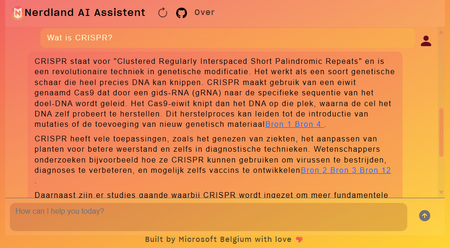
Large Language Models (LLMs) are popular in tech. In Belgium and the Netherlands, the podcast "Nerdland" is a favorite for tech and science fans. It covers topics like bioscience, space, robotics, and AI. With over 100 episodes, "Nerdland" is a goldmine of information. So, why not create a chatbot for "Nerdland" fans? This chatbot uses podcast content to engage and inform users. It allows the "Nerdland" community to interact with the content in new ways and makes the information accessible in many languages, thanks to LLMs' multi-language capabilities. This blog post explains the project's technical details, including the LLMs used, integration process, and deployment on Azure.New Login Experience for Azure Subscriptions with az login
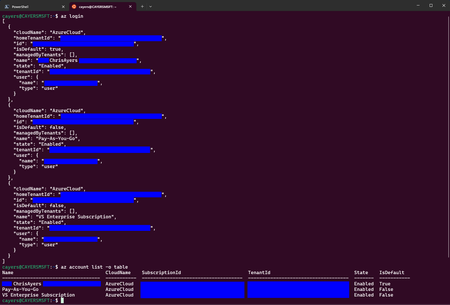
Struggling with logging into the wrong Azure subscription using az login? This common issue can lead to errors and confusion when accessing resources. Luckily, there's a new login experience that makes choosing the right subscription easier. Announced at Build 2024, this helpful feature is now available in Azure CLI version v2.61.0. Update today for a smoother, hassle-free login process and manage your Azure subscriptions with ease.Complete Guide to Deploying OpenClaw on Azure Windows 11 Virtual Machine
1. Introduction to OpenClaw OpenClaw is an open-source AI personal assistant platform that runs on your own devices and executes real-world tasks. Unlike traditional cloud-based AI assistants, OpenClaw emphasizes local deployment and privacy protection, giving you complete control over your data. Key Features of OpenClaw Cross-Platform Support: Runs on Windows, macOS, Linux, and other operating systems Multi-Channel Integration: Interact with AI through messaging platforms like WhatsApp, Telegram, and Discord Task Automation: Execute file operations, browser control, system commands, and more Persistent Memory: AI remembers your preferences and contextual information Flexible AI Backends: Supports multiple large language models including Anthropic Claude and OpenAI GPT OpenClaw is built on Node.js and can be quickly installed and deployed via npm. 2. Security Advantages of Running OpenClaw on Azure VM Deploying OpenClaw on an Azure virtual machine instead of your personal computer offers significant security benefits: 1. Environment Isolation Azure VMs provide a completely isolated runtime environment. Even if the AI agent exhibits abnormal behavior or is maliciously exploited, it won't affect your personal computer or local data. This isolation mechanism forms the foundation of a zero-trust security architecture. 2. Network Security Controls Through Azure Network Security Groups (NSGs), you can precisely control which IP addresses can access your virtual machine. The RDP rules configured in the deployment script allow you to securely connect to your Windows 11 VM via Remote Desktop while enabling further restrictions on access sources. 3. Data Persistence and Backup Azure VM managed disks support automatic snapshots and backups. Even if the virtual machine encounters issues, your OpenClaw configuration and data remain safe. 4. Elastic Resource Management You can adjust VM specifications (memory, CPU) at any time based on actual needs, or stop the VM when not in use to save costs, maintaining maximum flexibility. 5. Enterprise-Grade Authentication Azure supports integration with Azure Active Directory (Entra ID) for identity verification, allowing you to assign different access permissions to team members for granular access control. 6. Audit and Compliance Azure provides detailed activity logs and audit trails, making it easy to trace any suspicious activity and meet enterprise compliance requirements. 3. Deployment Steps Explained This deployment script uses Azure CLI to automate the installation of OpenClaw and its dependencies on a Windows 11 virtual machine. Here are the detailed execution steps: Prerequisites Before running the script, ensure you have: Install Azure CLI # Windows users can download the MSI installer https://aka.ms/installazurecliwindows # macOS users brew install azure-cli # Linux users curl -sL https://aka.ms/InstallAzureCLIDeb | sudo bash 2. Log in to Azure Account az login 3. Prepare Deployment Script Save the provided deploy-windows11-vm.sh script locally and grant execute permissions: chmod +x deploy-windows11-vm.sh Step 1: Configure Deployment Parameters The script begins by defining key configuration variables that you can modify as needed: RESOURCE_GROUP="Your Azure Resource Group Name" # Resource group name VM_NAME="win11-openclaw-vm" # Virtual machine name LOCATION="Your Azure Regison Name" # Azure region ADMIN_USERNAME="Your Azure VM Administrator Name" # Administrator username ADMIN_PASSWORD="our Azure VM Administrator Password" # Administrator password (change to a strong password) VM_SIZE="Your Azure VM Size" # VM size (4GB memory) Security Recommendations: Always change ADMIN_PASSWORD to your own strong password Passwords should contain uppercase and lowercase letters, numbers, and special characters Never commit scripts containing real passwords to code repositories Step 2: Check and Create Resource Group The script first checks if the specified resource group exists, and creates it automatically if it doesn't: echo "Checking resource group $RESOURCE_GROUP..." az group show --name $RESOURCE_GROUP &> /dev/null if [ $? -ne 0 ]; then echo "Creating resource group $RESOURCE_GROUP..." az group create --name $RESOURCE_GROUP --location $LOCATION fi A resource group is a logical container in Azure used to organize and manage related resources. All associated resources (VMs, networks, storage, etc.) will be created within this resource group. Step 3: Create Windows 11 Virtual Machine This is the core step, using the az vm create command to create a Windows 11 Pro virtual machine: az vm create \ --resource-group $RESOURCE_GROUP \ --name $VM_NAME \ --image MicrosoftWindowsDesktop:windows-11:win11-24h2-pro:latest \ --size $VM_SIZE \ --admin-username $ADMIN_USERNAME \ --admin-password $ADMIN_PASSWORD \ --public-ip-sku Standard \ --nsg-rule RDP Parameter Explanations: --image: Uses the latest Windows 11 24H2 Professional edition image --size: Standard_B2s provides 2 vCPUs and 4GB memory, suitable for running OpenClaw --public-ip-sku Standard: Assigns a standard public IP --nsg-rule RDP: Automatically creates network security group rules allowing RDP (port 3389) inbound traffic Step 4: Retrieve Virtual Machine Public IP After VM creation completes, the script retrieves its public IP address: PUBLIC_IP=$(az vm show -d -g $RESOURCE_GROUP -n $VM_NAME --query publicIps -o tsv) echo "VM Public IP: $PUBLIC_IP" This IP address will be used for subsequent RDP remote connections. Step 5: Install Chocolatey Package Manager Using az vm run-command to execute PowerShell scripts inside the VM, first installing Chocolatey: az vm run-command invoke -g $RESOURCE_GROUP -n $VM_NAME --command-id RunPowerShellScript \ --scripts "Set-ExecutionPolicy Bypass -Scope Process -Force; [System.Net.ServicePointManager]::SecurityProtocol = [System.Net.ServicePointManager]::SecurityProtocol -bor 3072; iex ((New-Object System.Net.WebClient).DownloadString( 'https://community.chocolatey.org/install.ps1'))" Chocolatey is a package manager for Windows, similar to apt or yum on Linux, simplifying subsequent software installations. Step 6: Install Git Git is a dependency for many npm packages, especially those that need to download source code from GitHub for compilation: az vm run-command invoke -g $RESOURCE_GROUP -n $VM_NAME --command-id RunPowerShellScript \ --scripts "C:\ProgramData\chocolatey\bin\choco.exe install git -y" Step 7: Install CMake and Visual Studio Build Tools Some of OpenClaw's native modules require compilation, necessitating the installation of C++ build toolchain: az vm run-command invoke -g $RESOURCE_GROUP -n $VM_NAME --command-id RunPowerShellScript \ --scripts "C:\ProgramData\chocolatey\bin\choco.exe install cmake visualstudio2022buildtools visualstudio2022-workload-vctools -y" Component Descriptions: cmake: Cross-platform build system visualstudio2022buildtools: VS 2022 Build Tools visualstudio2022-workload-vctools: C++ development toolchain Step 8: Install Node.js LTS Install the Node.js Long Term Support version, which is the core runtime environment for OpenClaw: az vm run-command invoke -g $RESOURCE_GROUP -n $VM_NAME --command-id RunPowerShellScript \ --scripts "$env:Path = [System.Environment]::GetEnvironmentVariable('Path','Machine') + ';' + [System.Environment]::GetEnvironmentVariable('Path','User'); C:\ProgramData\chocolatey\bin\choco.exe install nodejs-lts -y" The script refreshes environment variables first to ensure Chocolatey is in the PATH, then installs Node.js LTS. Step 9: Globally Install OpenClaw Use npm to globally install OpenClaw: az vm run-command invoke -g $RESOURCE_GROUP -n $VM_NAME --command-id RunPowerShellScript \ --scripts "$env:Path = [System.Environment]::GetEnvironmentVariable('Path','Machine') + ';' + [System.Environment]::GetEnvironmentVariable('Path','User'); npm install -g openclaw" Global installation makes the openclaw command available from anywhere in the system. Step 10: Configure Environment Variables Add Node.js and npm global paths to the system PATH environment variable: az vm run-command invoke -g $RESOURCE_GROUP -n $VM_NAME --command-id RunPowerShellScript \ --scripts " $npmGlobalPath = 'C:\Program Files\nodejs'; $npmUserPath = [System.Environment]::GetFolderPath('ApplicationData') + '\npm'; $currentPath = [System.Environment]::GetEnvironmentVariable('Path', 'Machine'); if ($currentPath -notlike \"*$npmGlobalPath*\") { $newPath = $currentPath + ';' + $npmGlobalPath; [System.Environment]::SetEnvironmentVariable('Path', $newPath, 'Machine'); Write-Host 'Added Node.js path to system PATH'; } if ($currentPath -notlike \"*$npmUserPath*\") { $newPath = [System.Environment]::GetEnvironmentVariable('Path', 'Machine') + ';' + $npmUserPath; [System.Environment]::SetEnvironmentVariable('Path', $newPath, 'Machine'); Write-Host 'Added npm global path to system PATH'; } Write-Host 'Environment variables updated successfully!'; " This ensures that node, npm, and openclaw commands can be used directly even in new terminal sessions. Step 11: Verify Installation The script finally verifies that all software is correctly installed: az vm run-command invoke -g $RESOURCE_GROUP -n $VM_NAME --command-id RunPowerShellScript \ --scripts "$env:Path = [System.Environment]::GetEnvironmentVariable('Path','Machine') + ';' + [System.Environment]::GetEnvironmentVariable('Path','User'); Write-Host 'Node.js version:'; node --version; Write-Host 'npm version:'; npm --version; Write-Host 'openclaw:'; npm list -g openclaw" Successful output should look similar to: Node.js version: v20.x.x npm version: 10.x.x openclaw: openclaw@x.x.x Step 12: Connect to Virtual Machine After deployment completes, the script outputs connection information: ============================================ Deployment completed! ============================================ Resource Group: Your Azure Resource Group Name VM Name: win11-openclaw-vm Public IP: xx.xx.xx.xx Admin Username: Your Administrator UserName VM Size: Your VM Size Connect via RDP: mstsc /v:xx.xx.xx.xx ============================================ Connection Methods: Windows Users: Press Win + R to open Run dialog Enter mstsc /v:public_ip and press Enter Log in using the username and password set in the script macOS Users: Download "Windows App" from the App Store Add PC connection with the public IP Log in using the username and password set in the script Linux Users: # Use Remmina or xfreerdp xfreerdp /u:username /v:public_ip Step 13: Initialize OpenClaw After connecting to the VM, run the following in PowerShell or Command Prompt # Initialize OpenClaw openclaw onboard # Configure AI model API key # Edit configuration file: C:\Users\username\.openclaw\openclaw.json notepad $env:USERPROFILE\.openclaw\openclaw.json Add your AI API key in the configuration file: { "agents": { "defaults": { "model": "Your Model Name", "apiKey": "your-api-key-here" } } } Step 14: Start OpenClaw # Start Gateway service openclaw gateway # In another terminal, connect messaging channels (e.g., WhatsApp) openclaw channels login Follow the prompts to scan the QR code and connect OpenClaw to your messaging app. 4. Summary Through this guide, we've successfully implemented the complete process of automatically deploying OpenClaw on an Azure Windows 11 virtual machine. The entire deployment process is highly automated, completing everything from VM creation to installing all dependencies and OpenClaw itself through a single script. Key Takeaways Automation Benefits: Using az vm run-command allows executing configuration scripts immediately after VM creation without manual RDP login Dependency Management: Chocolatey simplifies the Windows package installation workflow Environment Isolation: Running AI agents on cloud VMs protects local computers and data Scalability: Scripted deployment facilitates replication and team collaboration, easily deploying multiple instances Cost Optimization Tips Standard_B2s VMs cost approximately $0.05/hour (~$37/month) on pay-as-you-go pricing When not in use, stop the VM to only pay for storage costs Consider Azure Reserved Instances to save up to 72% Security Hardening Recommendations Change Default Port: Modify RDP port from 3389 to a custom port Enable JIT Access: Use Azure Security Center's just-in-time access feature Configure Firewall Rules: Only allow specific IP addresses to access Regular System Updates: Enable automatic Windows Updates Use Azure Key Vault: Store API keys in Key Vault instead of configuration files 5. Additional Resources Official Documentation OpenClaw Website: https://openclaw.ai OpenClaw GitHub: https://github.com/openclaw/openclaw OpenClaw Documentation: https://docs.openclaw.ai Azure CLI Documentation: https://docs.microsoft.com/cli/azure/ Azure Resources Azure VM Pricing Calculator: https://azure.microsoft.com/pricing/calculator/ Azure Free Account: https://azure.microsoft.com/free/ (new users receive $200 credit) Azure Security Center: https://azure.microsoft.com/services/security-center/ Azure Key Vault: https://azure.microsoft.com/services/key-vault/14KViews4likes4CommentsJS AI Build-a-thon Setup in 5 Easy Steps
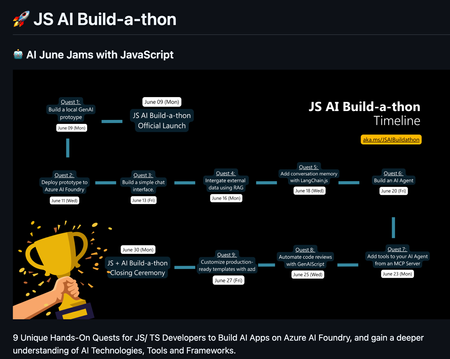
🔥 TL;DR — You’re 5 Steps Away from an AI Adventure Set up your project repo, follow the quests, build cool stuff, and level up. Everything’s automated, community-backed, and designed to help you actually learn AI — using the skills you already have. Let’s build the future. One quest at a time. 👉 Join the Build-a-thon | Chat on Discord