storage
1077 Topics
Announcing Windows Server vNext Preview Build 29595
Hello Windows Server Insiders! Today we are pleased to release a new build of the next Windows Server Long-Term Servicing Channel (LTSC) Preview that contains both the Desktop Experience and Server Core installation options for Datacenter and Standard editions and Azure Edition (for VM evaluation only). Branding remains Windows Server 2025 in this preview - when reporting issues please refer to Windows Server vNext preview. Build 29531 established a new Server preview baseline build. Please perform a clean install of Build 29531 (or later) using the installation media linked below. Please note: Upgrades from Windows Server vNext preview builds older than 29531 are not supported. We encourage all Windows Server vNext preview users to perform a clean install using 29531 or later to successfully upgrade to future Windows Server vNext preview builds. While upgrades from earlier Windows Server previews (Build 26525 and older) are not technically blocked by setup.exe, a number of known issues have been identified related to upgrades necessitating the establishment of a new baseline build for our Server vNext Preview Program. The new baseline build (29531) will not be Flighted due to upgrade issues. Flighting support resumed with preview build 29550 or later. What's New Quick Machine Recovery available in Windows Server vNext Insider Previews. Quick machine recovery (QMR) is now available for Server vNext Insiders to test. This feature enables the recovery of Windows Server devices when they encounter boot critical errors that prevent them from booting. QMR can automatically search for cloud‑based remediations to recover from widespread boot failures significantly reducing the burden on IT administrators when multiple devices are impacted. This supports the goals of the Windows Resiliency Initiative by enabling applicable fixes to be delivered through trusted Windows Update to restore affected devices, helping reduce downtime and minimize manual recovery efforts across enterprise environments. This feature is currently enabled in the latest Server vNext Insider builds for customers to experience test mode. A Group Policy option to enable or disable the feature will be introduced in upcoming builds to provide additional administrative control. To simulate the quick machine recovery experience, use the following commands from an elevated command prompt: 1. Enable test mode: reagentc.exe /SetRecoveryTestmode 2. Configure Windows to boot to Windows Recovery Environment on the next boot: reagentc.exe /BootToRe 3. Reboot your device. The system goes through autoremediation of a simulated crash safely and reboots back to Windows Server. For more information, please review Quick machine recovery (QMR) and Windows Resiliency Initiative. When providing feedback using Feedback hub, please select QMR from the Recovery and Uninstall category in the app. NVMe-over-Fabrics (NVMe-oF) extends the NVMe protocol—originally designed for local PCIe-attached SSDs—across a network fabric. Instead of using legacy SCSI-based protocols such as iSCSI or Fibre Channel, NVMe-oF allows a host to communicate directly with remote NVMe controllers using the same NVMe command set used for local devices. In this Insider build, Windows Server supports: NVMe-oF over TCP (NVMe/TCP), allowing NVMe-oF to run over standard Ethernet networks without specialized hardware. NVMe-oF over RDMA (NVMe/RDMA), enabling low-latency, high-throughput NVMe access over RDMA-capable networks (for example, RoCE or iWARP) using supported RDMA NICs. For more information, please visit: Introducing the Windows NVMe-oF Initiator Preview in Windows Server Insiders Builds | Microsoft Community Hub ReFS Boot is enabled for Windows Server vNext preview builds. Known Limitations ReFS Boot systems create a minimum 2GB WinRE partition. When WinRE cannot be updated due to space constraints, the system may disable WinRE. Disabling WinRE does not remove the partition. If the WinRE partition is deleted and the boot volume is extended over it, this operation is unrecoverable without a clean install. For more information, please visit: Resilient File System (ReFS) overview | Microsoft Learn Feedback Hub app is available for Server Desktop users! The app should automatically update with the latest version, but if it does not, simply Check for updates in the app’s settings tab. Known Issues Server Core Upgrades and AppCompat FOD: Enabling AppCompat FOD after reinstall may fail due to legacy 3rd-party license compatibility issues on Server Core devices. Server Core users may be unable to install the latest AppCompat FOD after upgrading to build 29574. This appears to be limited to Server Core installations with 3rd-party application licenses that fail compatibility checks after upgrade. This will be addressed in a future build. Upgrading from older builds of Windows Server vNext previews (26525 or older) are not supported. Please perform a clean install of build 29531 or later. Users may experience failures when attempting to upgrade from earlier previews (build 26525 and older). VMs may fail to upgrade or start after upgrade from older preview builds impacting live migration and failover cluster scenarios. Download Windows Server Insider Preview (microsoft.com) Flighting: The label for this flight may incorrectly reference Windows 11. However, when selected, the package installed is the Windows Server vNext update. Please ignore the label and proceed with installing your flight. This issue will be addressed in a future release. Available Downloads Downloads to certain countries may not be available. See Microsoft suspends new sales in Russia - Microsoft On the Issues. Windows Server Long-Term Servicing Channel Preview in ISO format in 18 languages, and in VHDX format in English only. Windows Server Datacenter Azure Edition Preview in ISO and VHDX format, English only. Microsoft Server Languages and Optional Features Preview Keys: Keys are valid for preview builds only Server Standard: MFY9F-XBN2F-TYFMP-CCV49-RMYVH Datacenter: 2KNJJ-33Y9H-2GXGX-KMQWH-G6H67 Azure Edition does not accept a key. Symbols: Available on the public symbol server – see Using the Microsoft Symbol Server. Expiration: This Windows Server Preview will expire September 15, 2026. How to Download Registered Insiders may navigate directly to the Windows Server Insider Preview download page. If you have not yet registered as an Insider, see GETTING STARTED WITH SERVER on the Windows Insiders for Business portal. We value your feedback! The most important part of the release cycle is to hear what's working and what needs to be improved, so your feedback is extremely valued. Please use the new Feedback Hub app for Windows Server if you are running a Desktop version of Server. If you are using a Core edition, or if you are unable to use the Feedback Hub app, you can use your registered Windows 10 or Windows 11 Insider device and use the Feedback Hub application. In the app, choose the Windows Server category and then the appropriate subcategory for your feedback. In the title of the Feedback, please indicate the build number you are providing feedback on as shown below to ensure that your issue is attributed to the right version: [Server #####] Title of my feedback See Give Feedback on Windows Server via Feedback Hub for specifics. The Windows Server Insiders space on the Microsoft Tech Communities supports preview builds of the next version of Windows Server. Use the forum to collaborate, share and learn from experts. For versions that have been released to general availability in market, try the Windows Server for IT Pro forum or contact Support for Business. Diagnostic and Usage Information Microsoft collects this information over the internet to help keep Windows secure and up to date, troubleshoot problems, and make product improvements. Microsoft server operating systems can be configured to turn diagnostic data off, send Required diagnostic data, or send Optional diagnostic data. During previews, Microsoft asks that you change the default setting to Optional to provide the best automatic feedback and help us improve the final product. Administrators can change the level of information collection through Settings. For details, see http://aka.ms/winserverdata. Also see the Microsoft Privacy Statement. Terms of Use This is pre-release software - it is provided for use "as-is" and is not supported in production environments. Users are responsible for installing any updates that may be made available from Windows Update. All pre-release software made available to you via the Windows Server Insider program is governed by the Insider Terms of Use.178Views2likes0Comments
Problems with OneDrive Syncing
Hello everyone, I would like to share the problems that occur when I am syncing my OneDrive files. Let me start from the beginning: In February 2018, I got Office 365 Personal. All was great and worked perfectly. Now, in October, I got a new laptop and installed my previous Office Subscription, however, upon attempting to save a file to OneDrive, a "Sync Pending" icon next to the file appeared each time I tried to save a file. The only way I could make it online was to make it local on my new computer, but that is not what I wanted. Now, any file that I save has an icon with a white circle, green outline with green tick in the middle. I do not know what this means or whether it is saved locally on my actual computer. The rest of the files that I saved onto OneDrive from my previous computer have a cloud icon. What I would really like from someone on here is just to give me the definitions of the following icons which appear next to files, so that I can find out what is even going on: Blue cloud icon Arrows in a circle "Sync pending" Green coloured circle with a white tick White circle with green outline with green tick in the middle Thanks.Solved2.2KViews0likes4CommentsAnnouncing Native NVMe in Windows Server 2025: Ushering in a New Era of Storage Performance
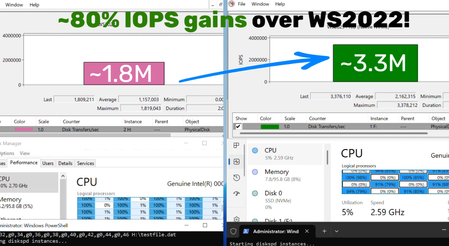
We’re thrilled to announce the arrival of Native NVMe support in Windows Server 2025—a leap forward in storage innovation that will redefine what’s possible for your most demanding workloads. Modern NVMe (Non-Volatile Memory Express) SSDs now operate more efficiently with Windows Server. This improvement comes from a redesigned Windows storage stack that no longer treats all storage devices as SCSI (Small Computer System Interface) devices—a method traditionally used for older, slower drives. By eliminating the need to convert NVMe commands into SCSI commands, Windows Server reduces processing overhead and latency. Additionally, the whole I/O processing workflow is redesigned for extreme performance. This release is the result of close collaboration between our engineering teams and hardware partners, and it serves as a cornerstone in modernizing our storage stack. Native NVMe is now generally available (GA) with an opt-in model (disabled by default as of October’s latest cumulative update for WS2025). Switch onto Native NVMe as soon as possible or you are leaving performance gains on the table! Stay tuned for more updates from our team as we transition to a dramatically faster, more efficient storage future. Why Native NVMe and why now? Modern NVMe devices—like PCIe Gen5 enterprise SSDs capable of 3.3 million IOPS, or HBAs delivering over 10 million IOPS on a single disk—are pushing the boundaries of what storage can do. SCSI-based I/O processing can’t keep up because it uses a single-queue model, originally designed for rotational disks, where protocols like SATA support just one queue with up to 32 commands. In contrast, NVMe was designed from the ground up for flash storage and supports up to 64,000 queues, with each queue capable of handling up to 64,000 commands simultaneously. With Native NVMe in Windows Server 2025, the storage stack is purpose-built for modern hardware—eliminating translation layers and legacy constraints. Here’s what that means for you: Massive IOPS Gains: Direct, multi-queue access to NVMe devices means you can finally reach the true limits of your hardware. Lower Latency: Traditional SCSI-based stacks rely on shared locks and synchronization mechanisms in the kernel I/O path to manage resources. Native NVMe enables streamlined, lock-free I/O paths that slash round-trip times for every operation. CPU Efficiency: A leaner, optimized stack frees up compute for your workloads instead of storage overhead. Future-Ready Features: Native support for advanced NVMe capabilities like multi-queue and direct submission ensures you’re ready for next-gen storage innovation. Performance Data Using DiskSpd.exe, basic performance testing shows that with Native NVMe enabled, WS2025 systems can deliver up to ~80% more IOPS and a ~45% savings in CPU cycles per I/O on 4K random read workloads on NTFS volumes when compared to WS2022. This test ran on a host with Intel Dual Socket CPU (208 logical processors, 128GB RAM) and a Solidigm SB5PH27X038T 3.5TB NVMe device. The test can be recreated by running "diskspd.exe -b4k -r -Su -t8 -L -o32 -W10 -d30 testfile1.dat > output.dat" and modifying the parameters as desired. Results may vary. Top Use Cases: Where You’ll See the Difference Try Native NVMe on servers running your enterprise applications. These gains are not just for synthetic benchmarks—they translate directly to faster database transactions, quicker VM operations, and more responsive file and analytics workloads. SQL Server and OLTP: Shorter transaction times, higher IOPS, and lower tail latency under mixed read/write workloads. Hyper‑V and virtualization: Faster VM boot, checkpoint operations, and live migration with reduced storage contention. High‑performance file servers: Faster large‑file reads/writes and quicker metadata operations (copy, backup, restore). AI/ML and analytics: Low‑latency access to large datasets and faster ETL, shuffle, and cache/scratch I/O. How to Get Started Check your hardware: Ensure you have NVMe-capable devices that are currently using the Windows NVMe driver (StorNVMe.sys). Note that some NVMe device vendors provide their own drivers, so unless using the in-box Windows NVMe driver, you will not notice any differences. Enable Native NVMe: After applying the 2510-B Latest Cumulative Update (or most recent), add the registry key with the following PowerShell command: reg add HKEY_LOCAL_MACHINE\SYSTEM\CurrentControlSet\Policies\Microsoft\FeatureManagement\Overrides /v 1176759950 /t REG_DWORD /d 1 /f Alternatively, use this Group Policy MSI to add the policy that controls the feature then run the local Group Policy Editor to enable the policy (found under Local Computer Policy > Computer Configuration > Administrative Templates > KB5066835 251014_21251 Feature Preview > Windows 11, version 24H2, 25H2). Once Native NVMe is enabled, open Device Manager and ensure that all attached NVMe devices are displayed under the “Storage disks” section. Monitor and Validate: Use Performance Monitor and Windows Admin Center to see the gains for yourself. Or try DiskSpd.exe yourself to measure microbenchmarks in your own environment! A quick way to measure IOPS in Performance Monitor is to set up a histogram chart and add a counter for Physical Disk>Disk Transfers/sec (where the selected instance is a drive that corresponds to one of your attached NVMe devices) then run a synthetic workload with DiskSpd. Compare the numbers before and after enabling Native NVMe to see the realized difference in your real environment! Join the Storage Revolution This is more than just a feature—it’s a new foundation for Windows Server storage, built for the future. We can’t wait for you to experience the difference. Share your feedback, ask questions, and join the conversation. Let’s build the future of high-performance Windows Server storage together. Send us your feedback or questions at nativenvme@microsoft.com! — Yash Shekar (and the Windows Server team)
OneDrive is soooooooooooooooooooooo slow!
Why is OneDrive for Business so unacceptably slow? I've had a case open with Microsoft Support since February and to date they have involved several different teams, run numerous diagnostics and tests remotely on my computer, but still haven't been able to improve let alone resolve the very poor download speeds we are getting across the company. They can see the issue with their own eyes, and the under-performing tests are appearing in their diagnostic logs, but for whatever reason they cannot fix their own systems! We have a fibre-optic leased line, 100Mbit over a 1Gbit bearer. Running a speed test, I am getting the full 100Mbit up and down, and yet when I am downloading a file (whether it's a few MB or a few hundred MB) from OneDrive, the download rate hovers between 500Kb/s and 800Kb/s. Uploading the OneDrive for Business is fine - the upload rate is between 7Mb/s and 9Mb/s. It's just the download rate that's the issue. Whenever any of our users save anything to OneDrive and the document is no longer cached, they have to wait for what feels like an eternity for the file to be downloaded before it can be opened. If they're opening the file via an application, then that application will hang and stop responding until the file has been downloaded from their OneDrive. Before we switched to Microsoft 365, we hosted everything locally. Anything we tried to open would do so almost instantly. But using OneDrive feels like we have travelled back in time to the days of 56K/ISDN. If this is how OneDrive has been designed, then it should not be labelled as a business service. There are other solutions out there from competitors that outperform OneDrive, and unfortunately if these issues are not resolved soon, I doubt we will be the only business who migrates away from OneDrive or even Microsoft altogether.31KViews6likes17CommentsAnnouncing Windows Server vNext Preview Build 29585
Hello Windows Server Insiders! Today we are pleased to release a new build of the next Windows Server Long-Term Servicing Channel (LTSC) Preview that contains both the Desktop Experience and Server Core installation options for Datacenter and Standard editions and Azure Edition (for VM evaluation only). Branding remains Windows Server 2025 in this preview - when reporting issues please refer to Windows Server vNext preview. Build 29531 established a new Server preview baseline build. Please perform a clean install of Build 29531 (or later) using the installation media linked below. Please note: Upgrades from Windows Server vNext preview builds older than 29531 are not supported. We encourage all Windows Server vNext preview users to perform a clean install using 29531 or later to successfully upgrade to future Windows Server vNext preview builds. While upgrades from earlier Windows Server previews (Build 26525 and older) are not technically blocked by setup.exe, a number of known issues have been identified related to upgrades necessitating the establishment of a new baseline build for our Server vNext Preview Program. The new baseline build (29531) will not be Flighted due to upgrade issues. Flighting support resumed with preview build 29550 or later. Please join us this week for Windows Server Summit 2026 Windows Server Summit 2026 is happening this week (May 11 - May 13). Please join us for this online event to learn about the latest updates in Windows Server 2025 and what's coming in vNext. For more information and to register, please visit Windows Server Summit - May 11-13, 2026 - Microsoft Event page. What's New Quick Machine Recovery available in Windows Server vNext Insider Previews. Quick machine recovery (QMR) is now available for Server vNext Insiders to test. This feature enables the recovery of Windows Server devices when they encounter boot critical errors that prevent them from booting. QMR can automatically search for cloud‑based remediations to recover from widespread boot failures significantly reducing the burden on IT administrators when multiple devices are impacted. This supports the goals of the Windows Resiliency Initiative by enabling applicable fixes to be delivered through trusted Windows Update to restore affected devices, helping reduce downtime and minimize manual recovery efforts across enterprise environments. This feature is currently enabled in the latest Server vNext Insider builds for customers to experience test mode. A Group Policy option to enable or disable the feature will be introduced in upcoming builds to provide additional administrative control. To simulate the quick machine recovery experience, use the following commands from an elevated command prompt: 1. Enable test mode: reagentc.exe /SetRecoveryTestmode 2. Configure Windows to boot to Windows Recovery Environment on the next boot: reagentc.exe /BootToRe 3. Reboot your device. The system goes through autoremediation of a simulated crash safely and reboots back to Windows Server. For more information, please review Quick machine recovery (QMR) and Windows Resiliency Initiative. When providing feedback using Feedback hub, please select QMR from the Recovery and Uninstall category in the app. NVMe-over-Fabrics (NVMe-oF) extends the NVMe protocol—originally designed for local PCIe-attached SSDs—across a network fabric. Instead of using legacy SCSI-based protocols such as iSCSI or Fibre Channel, NVMe-oF allows a host to communicate directly with remote NVMe controllers using the same NVMe command set used for local devices. In this Insider build, Windows Server supports: NVMe-oF over TCP (NVMe/TCP), allowing NVMe-oF to run over standard Ethernet networks without specialized hardware. NVMe-oF over RDMA (NVMe/RDMA), enabling low-latency, high-throughput NVMe access over RDMA-capable networks (for example, RoCE or iWARP) using supported RDMA NICs. For more information, please visit: Introducing the Windows NVMe-oF Initiator Preview in Windows Server Insiders Builds | Microsoft Community Hub ReFS Boot is enabled for Windows Server vNext preview builds. Known Limitations ReFS Boot systems create a minimum 2GB WinRE partition. When WinRE cannot be updated due to space constraints, the system may disable WinRE. Disabling WinRE does not remove the partition. If the WinRE partition is deleted and the boot volume is extended over it, this operation is unrecoverable without a clean install. For more information, please visit: Resilient File System (ReFS) overview | Microsoft Learn Feedback Hub app is available for Server Desktop users! The app should automatically update with the latest version, but if it does not, simply Check for updates in the app’s settings tab. Known Issues Server Core Upgrades and AppCompat FOD: Enabling AppCompat FOD after reinstall may fail due to legacy 3rd-party license compatibility issues on Server Core devices. Server Core users may be unable to install the latest AppCompat FOD after upgrading to build 29574. This appears to be limited to Server Core installations with 3rd-party application licenses that fail compatibility checks after upgrade. This will be addressed in a future build. Upgrading from older builds of Windows Server vNext previews (26525 or older) are not supported. Please perform a clean install of build 29531 or later. Users may experience failures when attempting to upgrade from earlier previews (build 26525 and older). VMs may fail to upgrade or start after upgrade from older preview builds impacting live migration and failover cluster scenarios. Download Windows Server Insider Preview (microsoft.com) Flighting: The label for this flight may incorrectly reference Windows 11. However, when selected, the package installed is the Windows Server vNext update. Please ignore the label and proceed with installing your flight. This issue will be addressed in a future release. Available Downloads Downloads to certain countries may not be available. See Microsoft suspends new sales in Russia - Microsoft On the Issues. Windows Server Long-Term Servicing Channel Preview in ISO format in 18 languages, and in VHDX format in English only. Windows Server Datacenter Azure Edition Preview in ISO and VHDX format, English only. Microsoft Server Languages and Optional Features Preview Keys: Keys are valid for preview builds only Server Standard: MFY9F-XBN2F-TYFMP-CCV49-RMYVH Datacenter: 2KNJJ-33Y9H-2GXGX-KMQWH-G6H67 Azure Edition does not accept a key. Symbols: Available on the public symbol server – see Using the Microsoft Symbol Server. Expiration: This Windows Server Preview will expire September 15, 2026. How to Download Registered Insiders may navigate directly to the Windows Server Insider Preview download page. If you have not yet registered as an Insider, see GETTING STARTED WITH SERVER on the Windows Insiders for Business portal. We value your feedback! The most important part of the release cycle is to hear what's working and what needs to be improved, so your feedback is extremely valued. Please use the new Feedback Hub app for Windows Server if you are running a Desktop version of Server. If you are using a Core edition, or if you are unable to use the Feedback Hub app, you can use your registered Windows 10 or Windows 11 Insider device and use the Feedback Hub application. In the app, choose the Windows Server category and then the appropriate subcategory for your feedback. In the title of the Feedback, please indicate the build number you are providing feedback on as shown below to ensure that your issue is attributed to the right version: [Server #####] Title of my feedback See Give Feedback on Windows Server via Feedback Hub for specifics. The Windows Server Insiders space on the Microsoft Tech Communities supports preview builds of the next version of Windows Server. Use the forum to collaborate, share and learn from experts. For versions that have been released to general availability in market, try the Windows Server for IT Pro forum or contact Support for Business. Diagnostic and Usage Information Microsoft collects this information over the internet to help keep Windows secure and up to date, troubleshoot problems, and make product improvements. Microsoft server operating systems can be configured to turn diagnostic data off, send Required diagnostic data, or send Optional diagnostic data. During previews, Microsoft asks that you change the default setting to Optional to provide the best automatic feedback and help us improve the final product. Administrators can change the level of information collection through Settings. For details, see http://aka.ms/winserverdata. Also see the Microsoft Privacy Statement. Terms of Use This is pre-release software - it is provided for use "as-is" and is not supported in production environments. Users are responsible for installing any updates that may be made available from Windows Update. All pre-release software made available to you via the Windows Server Insider program is governed by the Insider Terms of Use.665Views0likes0CommentsAnnouncing Windows Server vNext Preview Build 29574
Hello Windows Server Insiders! Today we are pleased to release a new build of the next Windows Server Long-Term Servicing Channel (LTSC) Preview that contains both the Desktop Experience and Server Core installation options for Datacenter and Standard editions and Azure Edition (for VM evaluation only). Branding remains Windows Server 2025 in this preview - when reporting issues please refer to Windows Server vNext preview. Build 29531 established a new Server preview baseline build. Please perform a clean install of Build 29531 (or later) using the installation media linked below. Please note: Upgrades from Windows Server vNext preview builds older than 29531 are not supported. We encourage all Windows Server vNext preview users to perform a clean install using 29531 or later to successfully upgrade to future Windows Server vNext preview builds. While upgrades from earlier Windows Server previews (Build 26525 and older) are not technically blocked by setup.exe, a number of known issues have been identified related to upgrades necessitating the establishment of a new baseline build for our Server vNext Preview Program. The new baseline build (29531) will not be Flighted due to upgrade issues. Flighting support resumed with preview build 29550 or later. What's New [NEW] Introducing Quick Machine Recovery in Windows Server vNext Insider Previews. Quick machine recovery (QMR) is now available for Server vNext Insiders to test. This feature enables the recovery of Windows Server devices when they encounter boot critical errors that prevent them from booting. QMR can automatically search for cloud‑based remediations to recover from widespread boot failures significantly reducing the burden on IT administrators when multiple devices are impacted. This supports the goals of the Windows Resiliency Initiative by enabling applicable fixes to be delivered through trusted Windows Update to restore affected devices, helping reduce downtime and minimize manual recovery efforts across enterprise environments. This feature is currently enabled in the latest Server vNext Insider builds for customers to experience test mode. A Group Policy option to enable or disable the feature will be introduced in upcoming builds to provide additional administrative control. To simulate the quick machine recovery experience, use the following commands from an elevated command prompt: 1. Enable test mode: reagentc.exe /SetRecoveryTestmode 2. Configure Windows to boot to Windows Recovery Environment on the next boot: reagentc.exe /BootToRe 3. Reboot your device. The system goes through autoremediation of a simulated crash safely and reboots back to Windows Server. For more information, please review Quick machine recovery (QMR) and Windows Resiliency Initiative. When providing feedback using Feedback hub, please select QMR from the Recovery and Uninstall category in the app. NVMe-over-Fabrics (NVMe-oF) extends the NVMe protocol—originally designed for local PCIe-attached SSDs—across a network fabric. Instead of using legacy SCSI-based protocols such as iSCSI or Fibre Channel, NVMe-oF allows a host to communicate directly with remote NVMe controllers using the same NVMe command set used for local devices. In this Insider build, Windows Server supports: NVMe-oF over TCP (NVMe/TCP), allowing NVMe-oF to run over standard Ethernet networks without specialized hardware. NVMe-oF over RDMA (NVMe/RDMA), enabling low-latency, high-throughput NVMe access over RDMA-capable networks (for example, RoCE or iWARP) using supported RDMA NICs. For more information, please visit: Introducing the Windows NVMe-oF Initiator Preview in Windows Server Insiders Builds | Microsoft Community Hub ReFS Boot is enabled for Windows Server vNext preview builds. Known Limitations ReFS Boot systems create a minimum 2GB WinRE partition. When WinRE cannot be updated due to space constraints, the system may disable WinRE. Disabling WinRE does not remove the partition. If the WinRE partition is deleted and the boot volume is extended over it, this operation is unrecoverable without a clean install. For more information, please visit: Resilient File System (ReFS) overview | Microsoft Learn Feedback Hub app is available for Server Desktop users! The app should automatically update with the latest version, but if it does not, simply Check for updates in the app’s settings tab. Known Issues Server Core Upgrades and AppCompat FOD: Enabling AppCompat FOD after reinstall may fail due to legacy 3rd-party license compatibility issues on Server Core devices. Server Core users may be unable to install the latest AppCompat FOD after upgrading to build 29574. This appears to be limited to Server Core installations with 3rd-party application licenses that fail compatibility checks after upgrade. This will be addressed in a future build. Upgrading from earlier builds of Windows Server vNext previews (26525 or older) are not supported. Please perform a clean install of build 29531 or later. Users may experience failures when attempting to upgrade from earlier previews (build 26525 and older). VMs may fail to upgrade or start after upgrade from older preview builds impacting live migration and failover cluster scenarios. Download Windows Server Insider Preview (microsoft.com) Flighting: The label for this flight may incorrectly reference Windows 11. However, when selected, the package installed is the Windows Server vNext update. Please ignore the label and proceed with installing your flight. This issue will be addressed in a future release. Available Downloads Downloads to certain countries may not be available. See Microsoft suspends new sales in Russia - Microsoft On the Issues. Windows Server Long-Term Servicing Channel Preview in ISO format in 18 languages, and in VHDX format in English only. Windows Server Datacenter Azure Edition Preview in ISO and VHDX format, English only. Microsoft Server Languages and Optional Features Preview Keys: Keys are valid for preview builds only Server Standard: MFY9F-XBN2F-TYFMP-CCV49-RMYVH Datacenter: 2KNJJ-33Y9H-2GXGX-KMQWH-G6H67 Azure Edition does not accept a key. Symbols: Available on the public symbol server – see Using the Microsoft Symbol Server. Expiration: This Windows Server Preview will expire September 15, 2026. How to Download Registered Insiders may navigate directly to the Windows Server Insider Preview download page. If you have not yet registered as an Insider, see GETTING STARTED WITH SERVER on the Windows Insiders for Business portal. We value your feedback! The most important part of the release cycle is to hear what's working and what needs to be improved, so your feedback is extremely valued. Please use the new Feedback Hub app for Windows Server if you are running a Desktop version of Server. If you are using a Core edition, or if you are unable to use the Feedback Hub app, you can use your registered Windows 10 or Windows 11 Insider device and use the Feedback Hub application. In the app, choose the Windows Server category and then the appropriate subcategory for your feedback. In the title of the Feedback, please indicate the build number you are providing feedback on as shown below to ensure that your issue is attributed to the right version: [Server #####] Title of my feedback See Give Feedback on Windows Server via Feedback Hub for specifics. The Windows Server Insiders space on the Microsoft Tech Communities supports preview builds of the next version of Windows Server. Use the forum to collaborate, share and learn from experts. For versions that have been released to general availability in market, try the Windows Server for IT Pro forum or contact Support for Business. Diagnostic and Usage Information Microsoft collects this information over the internet to help keep Windows secure and up to date, troubleshoot problems, and make product improvements. Microsoft server operating systems can be configured to turn diagnostic data off, send Required diagnostic data, or send Optional diagnostic data. During previews, Microsoft asks that you change the default setting to Optional to provide the best automatic feedback and help us improve the final product. Administrators can change the level of information collection through Settings. For details, see http://aka.ms/winserverdata. Also see the Microsoft Privacy Statement. Terms of Use This is pre-release software - it is provided for use "as-is" and is not supported in production environments. Users are responsible for installing any updates that may be made available from Windows Update. All pre-release software made available to you via the Windows Server Insider program is governed by the Insider Terms of Use.936Views2likes0CommentsJoin us at Microsoft Azure Infra Summit 2026 for deep technical Azure infrastructure content
Microsoft Azure Infra Summit 2026 is a free, engineering-led virtual event created for IT professionals, platform engineers, SREs, and infrastructure teams who want to go deeper on how Azure really works in production. It will take place May 19-21, 2026. This event is built for the people responsible for keeping systems running, making sound architecture decisions, and dealing with the operational realities that show up long after deployment day. Over the past year, one message has come through clearly from the community: infrastructure and operations audiences want more in-depth technical content. They want fewer surface-level overviews and more practical guidance from the engineers and experts who build, run, and support these systems every day. That is exactly what Azure Infra Summit aims to deliver. All content is created AND delivered by engineering, targeting folks working with Azure infrastructure and operating production environments. Who is this for: IT professionals, platform engineers, SREs, and infrastructure teams When: May 19-21, 2026 - 8:00 AM–1:00 PM Pacific Time, all 3 days Where: Online Virtual Cost: Free Level: Most sessions are advanced (L300-400). Register here: https://aka.ms/MAIS-Reg Built for the people who run workloads on Azure Azure Infra Summit is for the people who do more than deploy to Azure. It is for the people who run it. If your day involves uptime, patching, governance, monitoring, reliability, networking, identity, storage, or hybrid infrastructure, this event is for you. Whether you are an IT professional managing enterprise environments, a platform engineer designing landing zones, an Azure administrator, an architect, or an SRE responsible for resilience and operational excellence, you will find content built with your needs in mind. We are intentionally shaping this event around peer-to-peer technical learning. That means engineering-led sessions, practical examples, and candid discussion about architecture, failure modes, operational tradeoffs, and what breaks in production. The promise here is straightforward: less fluff, more infrastructure. What to expect Azure Infra Summit will feature deep technical content in the 300 to 400 level range, with sessions designed by engineering to help you build, operate, and optimize Azure infrastructure more effectively. The event will include a mix of live and pre-recorded sessions and live Q&A. Throughout the three days, we will dig into topics such as: Hybrid operations and management Networking at scale Storage, backup, and disaster recovery Observability, SLOs, and day-2 operations Confidential compute Architecture, automation, governance, and optimization in Azure Core environments And more… The goal is simple: to give you practical guidance you can take back to your environment and apply right away. We want attendees to leave with stronger mental models, a better understanding of how Azure behaves in the real world, and clearer patterns for designing and operating infrastructure with confidence. Why this event matters Infrastructure decisions have a long tail. The choices we make around architecture, operations, governance, and resilience show up later in the form of performance issues, outages, cost, complexity, and recovery challenges. That is why deep technical learning matters, and why events like this matter. Join us I hope you will join us for Microsoft Azure Infra Summit 2026, happening May 19-21, 2026. If you care about how Azure infrastructure behaves in the real world, and you want practical, engineering-led guidance on how to build, operate, and optimize it, this event was built for you. Register here: https://aka.ms/MAIS-Reg Cheers! Pierre Roman5.8KViews2likes2Comments
OneDrive stop synchronizing
When I try to upload a lot of files to oneDrive, about 5000, onedrive syncs and uploads an average of 200/1000 and stops syncing and gets stuck without uploading anything. The only way to resume the process is to restart the computer or the service.8.4KViews0likes3Comments