standalone
54 Topics
OneDrive for macOS - SharePoint synced folders in Finder lose AutoSave functionality
Hi, We're experiencing a recurring issue across multiple customers using OneDrive on macOS and would like to know if anyone else has seen similar behavior. Issue description Users sync SharePoint document libraries to Finder using the OneDrive sync client for macOS. Initially everything works as expected, including AutoSave in Microsoft 365 desktop apps such as: Excel Word PowerPoint However, after a few days, AutoSave stops working for files located in the synced SharePoint folders. Users may receive synchronization-related messages, version conflicts, or notice that changes are no longer saved seamlessly to SharePoint. Troubleshooting already performed We have tested the following multiple times: Reset OneDrive (using resetonedriveapp.command) Clear OneDrive credentials from Keychain Access Unlink OneDrive Remove all locally synced OneDrive/SharePoint content Re-sync SharePoint libraries from scratch Uninstall OneDrive and reinstalling OneDrive (Standalone version) After doing this, the issue is typically resolved temporarily, but it returns again after a few days. Additional observations The issue has been observed across several different customers and environments (some just using security defaults and some with custom configurations). We have not identified any common denominator regarding SharePoint libraries, tenant configuration, or Microsoft 365 apps. OneDrive synchronization generally continues to work, but AutoSave integration with Office applications eventually breaks down. The problem appears specific to macOS. Questions Has anyone else experienced this issue? Is there a known bug affecting OneDrive for macOS and SharePoint-synced libraries? Have you found a permanent solution or root cause? Is Microsoft currently investigating similar reports? Any insights, workarounds, or references to known issues would be greatly appreciated.137Views0likes0Comments
OneDrive for Mac, can't log in
Brand new mac (Mini M5), brand new install (macOS 27.0), all other office apps log in perfectly. But I can't get OneDrive to log in. I enter my email address, click on next, it says loading for a few seconds, then quits. Open onedrive again, same again. That's it, that's all I get. I need to be able to access my OneDrive files from the filesystem, the same as I did on my old system. I'm not after temporary workarounds such as using web, I'm seeking to get this actual problem fixed. Any suggestions?153Views0likes0Comments
The difference between backup/mirror and move
The terminology used by Microsoft to describe what OneDrive does is seriously flawed. To most people, the concept of backup means duplicating files to another location or archive file. That is a backup provides a mirror copy of files being backed up. OneDrive doesn't backup or mirror files, it moves them to the cloud. They are no longer available offline. You can of course disable syncing which is also wrong terminology because files are not synced, they're moved, which is a copy operation followed by a delete. No problem. You can turn off folder/file syncing and copy the relevant folders/files to your hard drive so they're accessible offline. I then uninstalled OneDrive to make certain. The trouble is, a few days ago my Outlook 365 broke because of a webview2 error which made editing drafts unusable. No problem, I did a repair which didn't fix it, and finally uninstalled office and reinstalled. When I reinstalled office, it also reinstalled OneDrive with the default settings, so OneDrive promptly reenabled folder redirection and the files/folders on the local drive disappeared. 12 months' worth of email, a bunch of documents, gone. No file date/time check to determine the direction of synchronization so that newer files replaced older files, no intelligence whatsoever. I won't quote what I said when I found out because there might be ladies present. Luckily my email service uses MAPI so some time in the future I'll have my emails back, I hope. But updated and new files are gone. Did I have a current backup? I did until someone borrowed my backup drive for something they thought was more important. It wouldn't have mattered if OneDrive had left the newer file copies alone, but the files on OneDrive had all the old date/time stamps from when I turned OneDrive off and that was it. Then there are the little things like if folder redirection was done properly so even the command prompt was appropriately redirected. Not so with OneDrive. Amateur. Backup should not mean my files are moved so there is only a single copy left, ditto with synchronization. So not only is the wrong terminology used, but the implementation of OneDrive also has major room for improvement which may never happen. I also have a MacBook Pro and while I'm much more conversant with Windows, Mark Russinivich's Sysinterbals tools etc, and have done extensive Windows application debugging. I would hope my experience is simply due to ignorance about OneDrive, but I that must be true for a lot of people. It's far from foolproof.507Views0likes1Comment
[Feature Request]: OneDrive CLI
$: man onedrive_rsync onedrive_rsync src_folder_path dst_folder_path src_folder_path: Can be a local path or a onedrive path dst_folder_path: Can be a local path or a onedrive path # Examples # Uploads all files which are present in the local and missing in the onedrive path $: onedrive_rsync path_to_local_folder path_to_ondrive_folder # Downloads all the files which are missing in the local path and persent in the onedrive path $: onedrive_rsync path_to_onedrive_folder path_to_local_folder # Syncs two folders on the onedrive path $: onedrive_rsync path_to_onedrive_folder_1 path_to_onedrive_folder_2 # Regex patterns should also be allowed $: onedrive_rsync path_to_local_folder/*.nef path_to_onedrive_path Hi All, It would be really nice to have an official OneDrive CLI that can be used via the terminal to allow for secure uploads/ downloads and syncing of either local folders to the OneDrive or syncing two OneDrive folders. My motivation for the above feature request is that I quite often upload/download quite big folders to/from OneDrive (many many GBs), and sometimes all I need is incremental changes. Keeping the browser open for the entire duration is cumbersome, and thus, it would be very nice to have a CLI, that can run in the background or can be automated via some script. This also enables a use case where I need to upload files from multiple devices to the same OneDrive folder. Hoping this would become a thing, as I would prefer as little browser interaction as possible, so the entire suite of CLI commands for path manipulations (creating, deleting and moving files and folders in OneDrive) would be very much appreciated. Thanks !385Views0likes1Comment
OneDrive for macOS documentation issue. DefaultFolder plist example is missing array wrapper
Hi everyone, The Microsoft Learn documentation for configuring the OneDrive sync app on macOS currently contains an incorrect plist example for the DefaultFolderLocation setting. Documentation page: https://learn.microsoft.com/en-us/sharepoint/deploy-and-configure-on-macos#defaultfolderlocation In the “DefaultFolderLocation” section, the current plist example shows the DefaultFolder key as a dictionary: <key>DefaultFolder</key> <dict> <key>Path</key> <string>(DefaultFolderPath)</string> <key>TenantId</key> <string>(TenantID)</string> </dict> This format does not work correctly when deployed as a managed preference/configuration profile. The setting starts working when the DefaultFolder dictionary is wrapped in an array, like this: <key>DefaultFolder</key> <array> <dict> <key>Path</key> <string>(DefaultFolderPath)</string> <key>TenantId</key> <string>(TenantID)</string> </dict> </array> Please update the Microsoft Learn documentation to include the array wrapper in the DefaultFolder plist example. The current Microsoft Learn example is confusing because administrators may deploy the documented plist exactly as shown, but the setting does not appear to work correctly until the array wrapper is added.431Views0likes2Comments
Files-On-Demand status on OneDrive for Mac is confusing
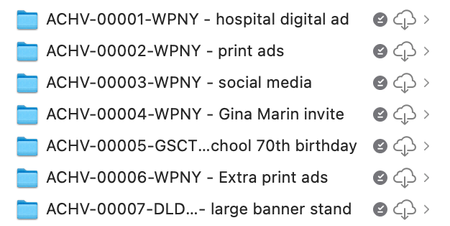
Setting the scene: I'm on an M1 MacBook Pro, MacOS Sequoia 15.5, OneDrive for Mac v.26.017.0126.0002 (standalone) Mystery #1: Okay, so I've got a folder chock full of large files (all neatly placed in nested subfolders, of course). This one folder totals about 400 GB, in fact. For obvious reasons I had set that folder to be cloud-only by electing it and choosing 'Free Up Space' from the contextual menu. It took a while to unload all that data but eventually my finder window showed '900 GB available' instead of '500 GB available', which is what it has said previously. Great. Except that when I looked at the actual folder in ~/Library/CloudStorage and used Cmd-i to 'Get info' on that folder, the info window said that the folder size was… 400GB. The third party disk analysis tool Daisy Disk also reported that folder as being 400 GB in size. Surely if the files have been released back to the cloud and only placeholder 'stubs' remain on the local file system, that folder should have a much smaller size. So what's up? Mystery #2: I want to make a cloned copy of my Mac for backup purposes and I want to include my OneDrive content in that backup (in case the Microsoft OneDrive servers explode, or get overrun by fire ants, or something). I know that there's no point backing up the placeholder stubs — they've got no real data in them (or do they? See Mystery #1) so I select that big old 400GB folder and select 'Always keep on this device'. The menubar icon shows activity, and I can see the individual files downloading if I click that menubar icon. About 20 hours later (because 400 GB) OneDrive finally reports 'Your files are synced'. And the Finder, sure enough, tells me that I now only have 500GB available, not 900 GB. HOWEVER, that folder, and each folder and file inside that folder, has both a 'downloaded locally' checkmark icon (dark grey) AND a 'in the cloud' icon (cloud with a downward arrow in it). Cmd-i (Get info) on one of the subfolders reports a theoretical size for that subfolder of ~230 GB but with only 11.4 MB on disk. If I click on the cloud-with arrow icon then OneDrive seems to redownload the file or folder-and-contents. At least I assume that that's what it's doing; this time the OneDrive menubar icon does NOT show activity, nor do any files show as being processed/downloaded if I open up that menubar window. But whatever the process is, it seems to take about as long as I would expect the download to take and the cloud-with-arrow icon turns into one of those 'time-remaining' icons that looks like a pie chart being filled up. So far I've only done this with small folders as an experiment, because if I'm right about what's going on then that 230 GB folder is going to be showing that pie chart icon for a LOOOONG time. So WTF is going on? If 'Always keep on this device' hasn't actually downloaded the full-fat versions of my files then what the heck was OneDrive doing all through the night and the whole of today? Pretending to download it just to mess with me? Do I actually have to download it twice? Can somebody either explain how and why this is the way that OneDrive is supposed to work (I can't believe that it is), or tell me what I'm doing wrong, or suggest a solution? Or even just confirm to me that I've not gone crazy?1.1KViews0likes1Comment
Social media links on these community pages
II don't know if this is due to my use of Firefox on my PC, but when I came here, I had to reduce the page size to 80% so those multiple social media links would not interfere with the display. Among other things, it make the past difficult for me to read. Can I eliminate those links?228Views0likes1Comment