sqlservertiger
243 TopicsEnabling Azure Key Vault for SQL Server on Linux
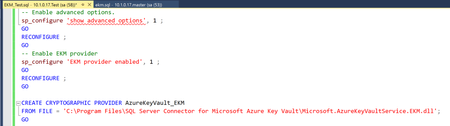
Enhancing Security with EKM using Azure Key Vault in SQL Server on Linux: We’re excited to announce that Extensible Key Management (EKM) using Azure Key Vault in SQL Server on Linux is now generally available from SQL Server 2022 CU12 onwards, which allows you to manage encryption keys outside of SQL Server using Azure Key Vaults. In this blog post, we’ll explore how to leverage Azure Key Vault as an EKM provider for SQL Server on Linux. Azure Key Vault: The Bridge to Enhanced Security is a cloud-based service that securely stores keys, secrets, and certificates. By integrating Azure Key Vault with SQL Server, you can benefit from its scalability, high performance, and high availability. Refer Set up Transparent Data Encryption (TDE) Extensible Key Management with Azure Key Vault - SQL Server | Microsoft Learn for more details. Setting Up EKM with Azure Key Vault Here’s a streamlined version of the setup process for EKM with Azure Key Vault on SQL Server for Linux: Initialize a Microsoft Entra service principal. Establish an Azure Key Vault. Set up SQL Server for EKM and register the SQL Server Connector. Finalize SQL Server configuration. The full guide for setting up AKV with SQL Server on Linux is available here Set up Transparent Data Encryption (TDE) Extensible Key Management with Azure Key Vault - SQL Server | Microsoft Learn . For SQL on Linux, omit steps 3 and 4 and proceed directly to step 5. I’ve included screenshots below for your quick reference that covers the SQL Server configuration to use AKV. Run the below commands to enable EKM in SQL Server and register the SQL Server Connector as EKM provider. Please note: SQL Server requires manual rotation of the TDE certificate or asymmetric key, as it doesn’t rotate them automatically. Regular key rotation is essential for maintaining security and effective key management. Conclusion Using Azure Key Vault for EKM with SQL Server on Linux boosts security, streamlines key management, and supports compliance. With data protection being paramount, Azure Key Vault’s integration offers a robust solution. Stay tuned for more insights on SQL Server on Linux! 🗝️🔒 Official Documentation: Extensible Key Management using Azure Key Vault - SQL Server Setup Steps for Extensible Key Management Using the Azure Key Vault Azure Key Vault Integration for SQL Server on Azure VMs4.4KViews1like1CommentSQL Server 2022 for RHEL 9 and Ubuntu 22.04 is now Generally Available (GA)
We are happy to announce that Starting CU 10 release for SQL Server 2022 , SQL Server 2022 on RHEL 9 and Ubuntu 22.04 is now generally available (GA), meaning you can run production workload on SQL Server 2022 deployed on Red Hat Enterprise Linux (RHEL) 9 and Ubuntu 22.04. For SQL Server 2022 on RHEL 9, the SELinux integration that enables you to run SQL Server 2022 on RHEL 9 as confined application is also now generally available. If you've had the preview packages installed previously, we recommend that you please uninstall the preview bits and upgrade to SQL Server 2022 GA packages available at the following repos, for steps on how to update repos refer the Configure repositories for installing and upgrading SQL Server on Linux - SQL Server | Microsoft Learn documentation. For RHEL 9 use the repo: https://packages.microsoft.com/config/rhel/9/ For Ubuntu 22.04 use the repo: https://packages.microsoft.com/config/ubuntu/22.04/ For further details on getting started with the installation of SQL Server 2022 on RHEL 9 refer: RHEL: Install SQL Server on Linux - SQL Server | Microsoft Learn & for SQL Server on Ubuntu 22.04 refer: Ubuntu: Install SQL Server on Linux - SQL Server | Microsoft Learn SQL Server 2022 container images on RHEL 9 & Ubuntu 22.04 also generally available: SQL Server 2022 on RHEL 9 and Ubuntu 22.04 are also available as container images and generally available (GA). It is easy for you to get started. Like always, you can use both podman and/or docker tool. To pull and run the production ready SQL Server 2022 images on RHEL 9 use the tag: 2022-CU10-rhel-9.1 #Pull the image podman pull mcr.microsoft.com/mssql/rhel/server:2022-CU10-rhel-9.1 #Run a container using the above image podman run -e 'ACCEPT_EULA=Y' -e 'MSSQL_SA_PASSWORD=<YourP@ssword>' -e 'MSSQL_PID=Developer' -h sql22rhel9 --name sql22rhel9 -p 1433:1433 -d mcr.microsoft.com/mssql/rhel/server:2022-CU10-rhel-9.1 To pull and run the production ready SQL Server 2022 images on Ubuntu 22.04 use the tag: 2022-CU10-ubuntu-22.04 #Pull the image docker pull mcr.microsoft.com/mssql/server:2022-CU10-ubuntu-22.04 #Run a container use the above image docker run -e 'ACCEPT_EULA=Y' -e 'MSSQL_SA_PASSWORD=<YourP@ssword>' -e 'MSSQL_PID=Developer' -h sql22ubu2204 --name sql22ubu2204 -p 1433:1433 -d mcr.microsoft.com/mssql/server:2022-CU10-ubuntu-22.048.6KViews3likes6CommentsSQL Server 2022 Release Candidate 1 is now available on Linux
Continuing with our release cadence, we are pleased to announce the release of SQL Server 2022 Release Candidate 1 (RC 1) for Linux. To download the latest RC 1 container images, please use the ‘2022-latest’ tags for both RHEL and Ubuntu based container images. Or you could also use the following tags : For RHEL-based SQL Server containers : "2022-RC1-rhel-8.5" For Ubuntu-based SQL Server containers : "2022-RC1-ubuntu-20.04" Please see SQL Server 2022 public preview blog for detailed instructions on how to get started with the container images. To install the SQL Server 2022 RC 1 packages, follow these steps: For RHEL-based installations see RHEL: RHEL: Install SQL Server on Linux For SLES-based installations refer: SLES: Install SQL Server on Linux For Ubuntu-based installations refer: Ubuntu: Install SQL Server on Linux In addition to the new features added in RC 1, this Linux release includes a preview of SQL Server 2022 packages for SLES 15 distributions. Also, the configuration of PMEM for SQL Server on Linux is supported since SQL Server 2019, you can read Configure persistent memory (PMEM) - Linux - SQL Server for further details. For information on the features supported, see : Editions and supported features of SQL Server 2022 Preview - Linux - SQL Server , and for release notes, see Release notes for SQL Server 2022 Preview on Linux - SQL Server4.1KViews2likes1CommentMicrosoft SQL Server on Ubuntu pro-The preferred choice for deploying SQL Server on Ubuntu in Azure!
Update as of 29 September 2025: Please note that Option 1, as described in the blog post below, is no longer available following the latest announcement. For full details, refer to the blog titled latest updates to SQL Server on Linux VM provisioning on Azure. Today, you can deploy SQL Server on Ubuntu based Azure virtual machines (VMs) in one of the three ways: Option 1: Use the pre-configured Microsoft SQL Server on Ubuntu Pro Azure marketplace image for the Azure virtual machine(VM) creation. Option 2: Deploy a Azure VM based on an Ubuntu Pro image and then manually install and configure the SQL Server. Option 3: Deploy an Ubuntu LTS image based Azure VM, then manually install and configure SQL Server. In this blog, I'd like to spend some time discussing option 1, which is Microsoft SQL Server on Ubuntu Pro Azure marketplace images which were introduced in November 2021 last year. And, why should you consider this as the preferred alternative? The first question to consider is: What additional capabilities are offered by Ubuntu Pro? To help you answer this question, I’d recommend you to read the below articles published by Canonical, which clearly document the advantages of Ubuntu Pro, such as FIPS & CC-EAL2 certification, open-source security, kernel live patch. Ubuntu Pro for Azure | Ubuntu The benefits of running Microsoft SQL Server on Ubuntu Pro | Ubuntu. Now that you are aware of the benefits of Ubuntu Pro, option 3 is no longer among the preferred options as it does not use Ubuntu pro. As a result, we are left with two options: Option 1 and Option 2. The most important aspect to consider for any production grade database workload is the supportability of the entire solution stack, and this is where option 1 of using pre-configured Microsoft SQL Server on Ubuntu Pro Azure marketplace images gives you an advantage, as the SQL Server Azure VMs deployed on Ubuntu Pro using the above image, are a fully 24/7 supported stack from both Microsoft and Canonical. You can basically open a support ticket through the Azure portal for assistance, and both the Microsoft and Canonical teams will work together to promptly provide you with the required support. When you choose option 2, which is where you first deploy an Ubuntu Pro Azure VM and then manually deploy SQL Server, you still have gaps in your support coverage. Ubuntu Pro is designed to be a cost-effective way to increase the security of your Ubuntu estate and by default does not include any technical support. Technical support can be added to Ubuntu Pro with a private offer or separate support subscription from Canonical, but even so the support will be for the operating system (OS) and the database separately & independent of each other. In contrast, when using the pre-configured SQL Server on Ubuntu Pro marketplace image, you get 24/7 support for the entire stack by default. Hence, the preferred deployment method for a production grade workload deployment for SQL Server on Ubuntu is to use the pre-configured Microsoft SQL Server on Ubuntu Pro Azure marketplace image for creating the SQL Server VMs in Azure. So get started with your production workload deployments on SQL Server on Ubuntu Pro Azure VM using the SQL Server on Ubuntu Pro in Azure Gallery image!!4.4KViews0likes0CommentsDeploy Always On Availability Groups (AG) on SQL Server RHEL based Azure VMs - The Ansible Way!
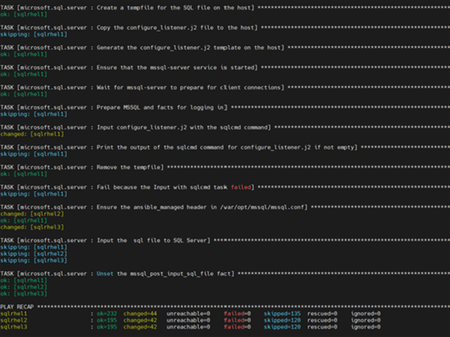
1) Setting up and Configuring pacemaker cluster on three SQL Server RHEL based Azure VMs. 2) Configuring and deploying SQL Server availability groups (AGs) on these nodes. 3) Creating the pacemaker cluster resources for the AG with fencing agent. 4) Optionally, creating the AG listener service. All of this under 8 minutes !! You want to see how? Here we go...6.2KViews1like2CommentsUpcoming updates to SQL Server container images on Microsoft Artifact Registry aka (MCR)
As you may be aware, SQL Server container images are published and available on the Microsoft Artifact Registry (aka MCR or Microsoft Container Registry). To know more, please see Overview of SQL Server on Linux - SQL Server | Microsoft Docs. When you look at the complete tag listing for both RHEL-based and Ubuntu-based container images, you'll notice that SQL Server container images are published for all supported distributions for both RHEL (Red Hat Enterprise Linux) and Ubuntu. To make this approach scalable & manageable, we will publish SQL Server container images to MCR based on the distribution's most recent version, rather than publishing it for all versions of both RHEL and Ubuntu. Here's an example to help you understand: SQL Server 2017 supports Ubuntu 18.04 as the most recent distribution; thus, going forward SQL Server 2017 container images based on the Ubuntu 18.04 image will only be published to MCR and we will not publish the SQL Server 2017 container images for Ubuntu 16.04. This policy will apply for all versions of SQL Server container images. Example: SQL Server container images for 2019 and later will be available only for the most recent distribution, which is currently RHEL 8 and Ubuntu 20.04. When SQL Server supports RHEL 9 and Ubuntu 22.04, we'll start publishing SQL Server container images for those distributions and stop publishing images for older distributions to MCR. On a side note, Ubuntu 16.04 has already transitioned to Extended Security Maintenance (ESM) support phase at the end of April 2021. Thus, the support for SQL Server on Ubuntu 16.04 is also limited as documented here Release notes for SQL Server 2019 on Linux - SQL Server | Microsoft Docs. You can also read more about ESM here: Ubuntu 16.04 LTS transitions to Extended Security Maintenance (ESM) | Ubuntu. While we only publish SQL Server container images to MCR for the most recent versions of RHEL and Ubuntu distributions, SQL Server container images will be supported on all distributions listed here for SQL Server 2017, SQL Server 2019 & SQL Server 2022 (Preview), which means you can create your own custom SQL Server container image if you want to create a SQL Server container image for an older supported distribution. One such example is provided for reference here: mssql-docker/linux/preview/SLES at master · microsoft/mssql-docker (github.com). The already published SQL Server container images available on MCR will remain unchanged and will continue to exist. This change is only applicable to the upcoming SQL Server container images. To know more about supportability aspect for custom SQL Server container images please refer: Support policy for SQL Server - SQL Server | Microsoft Docs.7.2KViews3likes0CommentsSQL Server 2022 public preview is now available on Linux.
In continuation of last week's announcement of SQL Server 2022 public preview, we are pleased to announce availability of SQL Server 2022 on Linux/Containers for public preview. Here are the details for getting started with the SQL Server 2022 public preview packages on Linux/Containers. The following are the container images for SQL Server 2022 on Linux, as well as installation instructions: For RHEL based SQL Server 2022 images refer: mssql/rhel/server - Certified Container Image - Red Hat Ecosystem Catalog To pull and run the SQL Server 2022 RHEL based container image podman pull mcr.microsoft.com/mssql/rhel/server:2022-latest podman run -e 'ACCEPT_EULA=Y' -e 'MSSQL_SA_PASSWORD=yourStrong(!)Password' --name sql22 --hostname sql22 -p 1433:1433 -d mcr.microsoft.com/mssql/rhel/server:2022-latest For Ubuntu based SQL Server 2022 images refer: Microsoft SQL Server by Microsoft | Docker Hub To pull and run the SQL Server 2022 Ubuntu based container image: docker pull mcr.microsoft.com/mssql/server:2022-latest docker run -e 'ACCEPT_EULA=Y' -e 'MSSQL_SA_PASSWORD=yourStrong(!)Password' --name sql22 --hostname sql22 -p 1433:1433 -d mcr.microsoft.com/mssql/server:2022-latest To learn more about the platforms and distributions on which the SQL Server 2022 on Linux public preview can be installed, visit: Release notes for SQL Server 2022 Preview on Linux - SQL Server | Microsoft Docs. Quick installation instructions: Please register the 'mssql-server-preview' repository to install the SQL Server 2022 public preview. Here's a quick tutorial for installing and getting started with SQL Server 2022 public preview. For RHEL 8 based distributions: Download the Microsoft SQL Server preview repository configuration file: sudo curl -o /etc/yum.repos.d/mssql-server-preview.repo https://packages.microsoft.com/config/rhel/8/mssql-server-preview.repo Run the following command to install SQL Server: sudo yum install -y mssql-server After the package installation finishes, run mssql-conf setup and follow the prompts to set the SA password and choose your edition. sudo /opt/mssql/bin/mssql-conf setup Once the configuration is done, verify that the service is running: systemctl status mssql-server For Ubuntu 20.04 based distributions: Import the public repository GPG keys. curl https://packages.microsoft.com/keys/microsoft.asc | sudo apt-key add – Register the Microsoft SQL server preview Ubuntu repository sudo add-apt-repository "$(wget -qO- https://packages.microsoft.com/config/ubuntu/20.04/mssql-server-preview.list)" Run the following commands to install SQL Server: sudo apt-get update sudo apt-get install -y mssql-server After the package installation finishes, run mssql-conf setup and follow the prompts to set the SA password and choose your edition. sudo /opt/mssql/bin/mssql-conf setup Once the configuration is done, verify that the service is running: systemctl status mssql-server --no-pager That's all! SQL Server 2022 public preview is installed, and you can begin using/testing the new features right away! Please see: Installation guidance for SQL Server 2022 Preview on Linux - SQL Server | Microsoft Docs for more information on installation. To install the SQL Server command-line tools for RHEL based distribution please refer RHEL: Install SQL Server on Linux - SQL Server | Microsoft Docs and for Ubuntu based distribution refer: Ubuntu: Install SQL Server on Linux - SQL Server | Microsoft Docs. For more information on the features supported, see : Editions and supported features of SQL Server 2022 Preview - Linux - SQL Server | Microsoft Docs, and for release notes, see Release notes for SQL Server 2022 Preview on Linux - SQL Server | Microsoft Docs.5.2KViews2likes0CommentsConfigure MSDTC to run Distributed transactions for SQL Server Linux Containers on Azure Kubernetes
It's been a while since I've had the opportunity to write and share a blog post about SQL Server containers and Linux. Today, I'd like to show you how to set up and use MSDTC (Microsoft Distributed Transaction Coordinator) to execute distributed transactions for SQL Server containers running on a Kubernetes platform. Please see the following documentation for more information on DTC and SQL Server on Linux. How to configure MSDTC on Linux - SQL Server | Microsoft Docs. The first step is to set up a Kubernetes cluster and connect to it. As usual, I'll be using Azure Kubernetes Service (AKS) as my Kubernetes Platform. Please see Quickstart: Deploy an AKS cluster by using Azure CLI - Azure Kubernetes Service | Microsoft Docs This documentation describes how to deploy an Azure Kubernetes Service cluster with Azure CLI. After the cluster has been deployed, we will proceed to connect to the Azure Kubernetes Cluster using the steps outlined here. I'm going to use the cluster's default namespace to deploy my SQL Server containers and other supporting objects. Before I deploy my SQL Server containers, I need to save the 'sa' password as a secret in Kubernetes, so I'd use the command: kubectl create secret generic mssql --from-literal=SA_PASSWORD="MyC0m9l&xP@ssw0rd" Please note, I will use the same ‘sa’ password to connect to both the SQL Server instances that I deploy. Now that we've created the secret, we're ready to deploy SQL Server containers. I prefer and recommend deploying SQL Server containers as'statefulset' deployments, which ensure that the container name and hostname remain unchanged even after the pods are deleted and recreated. For more information on statefulset deployments, see StatefulSets | Kubernetes. The following yaml script is used to deploy the following objects: one storage class, two SQL Server containers, and two load balancer services to connect to the respective SQL Servers. kind: StorageClass apiVersion: storage.k8s.io/v1 metadata: name: azure-disk provisioner: kubernetes.io/azure-disk parameters: storageaccounttype: Standard_LRS kind: Managed --- apiVersion: apps/v1 kind: StatefulSet metadata: name: mssql labels: app: mssql spec: serviceName: "mssql" replicas: 2 selector: matchLabels: app: mssql template: metadata: labels: app: mssql spec: securityContext: fsGroup: 10001 containers: - name: mssql image: mcr.microsoft.com/mssql/server:2019-latest ports: - containerPort: 1433 name: tcpsql - containerPort: 13500 name: dtcport - containerPort: 51000 name: dtctcpport env: - name: ACCEPT_EULA value: "Y" - name: MSSQL_ENABLE_HADR value: "1" - name: MSSQL_AGENT_ENABLED value: "1" - name: MSSQL_RPC_PORT value: "13500" - name: MSSQL_DTC_TCP_PORT value: "51000" - name: SA_PASSWORD valueFrom: secretKeyRef: name: mssql key: SA_PASSWORD volumeMounts: - name: mssql mountPath: "/var/opt/mssql" volumeClaimTemplates: - metadata: name: mssql spec: accessModes: - ReadWriteOnce resources: requests: storage: 8Gi --- apiVersion: v1 kind: Service metadata: name: mssql-0 spec: type: LoadBalancer loadBalancerIP: 40.88.213.209 selector: statefulset.kubernetes.io/pod-name: mssql-0 ports: - protocol: TCP port: 1433 targetPort: 1433 name: tcpsql - protocol: TCP port: 51000 targetPort: 51000 name: dtctcpport - protocol: TCP port: 135 targetPort: 13500 name: nonrootport --- apiVersion: v1 kind: Service metadata: name: mssql-1 spec: type: LoadBalancer loadBalancerIP: 20.72.137.129 selector: statefulset.kubernetes.io/pod-name: mssql-1 ports: - protocol: TCP port: 1433 targetPort: 1433 name: tcpsql - protocol: TCP port: 51000 targetPort: 51000 name: dtctcpport - protocol: TCP port: 135 targetPort: 13500 name: nonrootport Let me explain each section of the script above. The first section of the script below creates the Azure disk-based storageClass, which is used as persistent storage for SQL Server containers. kind: StorageClass apiVersion: storage.k8s.io/v1 metadata: name: azure-disk provisioner: kubernetes.io/azure-disk parameters: storageaccounttype: Standard_LRS kind: Managed The script's second section deploys multiple SQL Server instances as part of a single deployment. The number of SQL Server containers deployed is determined by the value you enter in the replicas field. In this case, we're only deploying two SQL Server containers. We are also configuring two environment variables that are required for MSDTC configuration. MSSQL RPC PORT-> 13500: This is the TCP port to which the 'RPC endpoint mapper' process is bound. MSSQL DTC TCP PORT -> 51000: This is the port on which the MSDTC server listens. If this option is not set, the MSDTC service will use a random ephemeral port on service restarts, and firewall exceptions will need to be reconfigured to ensure that the MSDTC service can communicate. We are also exposing these ports 1433, 13500, and 51000 at the container level. For the above two environment variables, you can use any port of your choice. apiVersion: apps/v1 kind: StatefulSet metadata: name: mssql labels: app: mssql spec: serviceName: "mssql" replicas: 2 selector: matchLabels: app: mssql template: metadata: labels: app: mssql spec: securityContext: fsGroup: 10001 containers: - name: mssql image: mcr.microsoft.com/mssql/server:2019-latest ports: - containerPort: 1433 name: tcpsql - containerPort: 13500 name: dtcport - containerPort: 51000 name: dtctcpport env: - name: ACCEPT_EULA value: "Y" - name: MSSQL_ENABLE_HADR value: "1" - name: MSSQL_AGENT_ENABLED value: "1" - name: MSSQL_RPC_PORT value: "13500" - name: MSSQL_DTC_TCP_PORT value: "51000" - name: SA_PASSWORD valueFrom: secretKeyRef: name: mssql key: SA_PASSWORD volumeMounts: - name: mssql mountPath: "/var/opt/mssql" .. .. The script concludes with the creation of the load balancer service, which allows us to connect to the SQL Server instances externally. You'll notice in the script that we expose three ports: 1433 for connecting to SQL Server, and 13500 and 51000 for DTC communication. We also configure port routing to occur between port 135 (MSDTC RPC port) and port 13500 using the 'port' and 'targetPort' options in the script. I also am configuring the load balancers to use static IPs, which ensures that the external IP address for the service does not change when the service is deleted and recreated. To know more and to create static IPs in AKS please refer: Use static IP with load balancer - Azure Kubernetes Service | Microsoft Docs. .. port: 1433 targetPort: 1433 name: tcpsql - protocol: TCP port: 51000 targetPort: 51000 name: dtctcpport - protocol: TCP port: 135 targetPort: 13500 name: nonrootport After you've used yaml to create the necessary objects. When you use the command kubectl get all to list all the objects, you should see something like this. C:\>kubectl get all NAME READY STATUS RESTARTS AGE pod/mssql-0 1/1 Running 0 61m pod/mssql-1 1/1 Running 0 61m NAME TYPE CLUSTER-IP EXTERNAL-IP PORT(S) AGE service/kubernetes ClusterIP 10.0.0.1 <none> 443/TCP 7d1h service/mssql-0 LoadBalancer 10.0.18.186 40.88.213.209 1433:31875/TCP,51000:31219/TCP,135:30044/TCP 3d1h service/mssql-1 LoadBalancer 10.0.16.180 20.72.137.129 1433:30353/TCP,51000:32734/TCP,135:31239/TCP 3d1h NAME READY AGE statefulset.apps/mssql 2/2 5d20h You can now connect to the SQL Servers, add linked servers, and run the distributed transactions shown below. I connect to mssql-1, then add mssql-0 as a linked server and run the distributed transaction to list mssql-0's sysprocesses. USE [master] GO EXEC master.dbo.sp_addlinkedserver = N'40.88.213.209', @srvproduct=N'SQL Server' ; GO EXEC master.dbo.sp_addlinkedsrvlogin @rmtsrvname = N'40.88.213.209', @rmtuser = 'sa', @rmtpassword = 'xxxx', @useself = N'False'; GO set xact_abort on begin distributed transaction select * from [40.88.213.209].master.dbo.sysprocesses commit Go7.5KViews0likes5Comments