sqlserver
96 TopicsAnnouncing flexible provisioning for SQL Server on Linux Azure VMs (Public Preview)
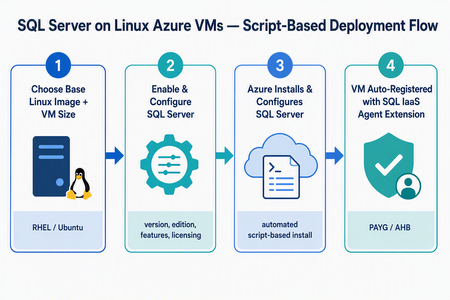
What’s changing We’re introducing a new script-based deployment experience for provisioning SQL Server on Linux Azure Virtual Machines (VMs). This experience replaces the earlier model that relied on pre-created SQL Server on Linux Marketplace images, which have been deprecated. Pre-created SQL Server on Linux Marketplace images are no longer available for new provisioning through the Azure portal, the Azure SQL hub, Azure CLI, or PowerShell. Instead, SQL Server is now installed and configured during VM provisioning using a flexible, automated, script-based workflow. The result is a more adaptable and supportable deployment model that keeps SQL Server on Linux Azure VMs fully supported, reduces image-maintenance overhead, and makes it easier to adopt the latest Linux distributions, VM families, and configuration options - all while giving you more control over your SQL Server setup. Why the new model matters Greater flexibility and control — choose your Linux distribution, SQL Server version, edition, and even bring your own mssql.conf to tailor the configuration. Faster access to innovation — new Linux versions and Azure capabilities are picked up automatically, without waiting for a new baked image to be published. Automatic registration built in — every VM is registered with the SQL IaaS Agent extension by default, unlocking licensing flexibility, compliance, and richer visibility. A dynamic, guided UI — the portal enables or disables options based on supported operating system, SQL Server, and licensing combinations, so you only see valid choices. Supported Linux distributions The script-based deployment experience supports the following distributions, and future versions are picked up automatically as they become supported — no manual intervention required: Distribution Supported versions Red Hat Enterprise Linux (RHEL) RHEL 9, RHEL 10 (and future versions) Ubuntu Ubuntu 22.04, Ubuntu 24.04, Ubuntu 26.04 (and future versions) Automatic registration applies to both Red Hat Enterprise Linux and Ubuntu, across all their supported versions. Automatic registration with the SQL IaaS Agent extension SQL Server on Linux VMs deployed through this experience are automatically registered with the SQL Server IaaS Agent extension. Registration creates a SQL virtual machine resource in Azure (separate from the VM resource) and unlocks: Licensing flexibility — choose Pay-As-You-Go (PAYG) or Azure Hybrid Benefit (AHB), and switch between them anytime with no downtime. Compliance — a simplified way to meet Azure Hybrid Benefit product-term requirements without per-resource registration forms. Visibility and telemetry — clear license-type visibility, subscription-level tracking, and better operational insight from the Azure portal, CLI, or PowerShell. Note: Automatic registration is enabled by default during deployment. You can unregister or re-register a VM after deployment through the Azure portal, Azure CLI, or PowerShell. The end-to-end flow at a glance Two ways to deploy You can provision SQL Server on Linux through either of these Azure portal experiences. Both lead to the same guided SQL Server configuration: Create a virtual machine tab - start from the standard Azure VM creation flow and add SQL Server. Azure SQL hub (aka.ms/azuresqlhub) - start from a SQL-first experience with SQL Server on Azure VMs. Experience 1: The “Create a virtual machine” tab Use this flow if you prefer to start from the standard VM creation experience in the Azure portal. In the Azure portal, go to Virtual machines (or Create a resource → Virtual machine) and select Create. On the Basics tab, select your project details (subscription, resource group), instance details, and a supported Linux base image — RHEL 9, RHEL 10, Ubuntu 22.04, or Ubuntu 24.04. Choose your VM size, authentication, and inbound ports as usual. Go to the Advanced tab and select the Install SQL Server checkbox. This enables SQL Server provisioning on the VM. A new SQL Server settings tab becomes available. Open it to configure your SQL Server deployment: SQL Server version — e.g., SQL Server 2025 or SQL Server 2022. Edition — Enterprise, Standard, Developer, Express, and Evaluation editions (options adjust to the selected version). Licensing model — Pay-As-You-Go (PAYG, default) or Azure Hybrid Benefit (AHB). Advanced configuration — Upload a custom mssql.conf file to set SQL connectivity, Azure Key Vault integration, and the tuned performance profile. Select Review + create, review the configuration summary, and select Create. Azure provisions the VM, then automatically installs and configures SQL Server and registers the VM with the SQL IaaS Agent extension. Experience 2: Azure SQL hub Use this flow if you prefer a SQL-first experience, where SQL Server on Linux is available as a first-class deployment option. Go to the Azure SQL hub at aka.ms/azuresqlhub. Under SQL Server, select SQL Server on Azure VMs, and then select + Create. Select the operating system for your deployment. You’re seamlessly transitioned to the Create a virtual machine experience. Your operating system selection is automatically carried forward, and Install SQL Server is enabled on the Advanced tab. Configure the remaining VM and SQL Server settings, including size, networking, disks, licensing, connectivity, Key Vault integration, tuned profile, or a custom mssql.conf. Select Review + create, review the configuration summary, and then select Create. Azure provisions the VM, installs and configures SQL Server through the same script-based deployment flow, and automatically registers the VM with the SQL IaaS Agent extension. Managing licensing after deployment Because your VM is registered with the SQL IaaS Agent extension, you can change the licensing model anytime — with no downtime and no restart of the VM or SQL Server service. Azure portal: Go to the SQL virtual machine resource → Settings → SQL Server configuration → Manage. Azure CLI az sql vm update -n <VM_NAME> -g <RESOURCE_GROUP> --license-type AHUB Azure PowerShell: Set-AzSqlVM -Name <VM_NAME> -ResourceGroupName <RESOURCE_GROUP> -LicenseType AHUB Note: Switching between PAYG and AHB is immediate, incurs no additional cost, and does not restart the VM or the SQL Server service. Wrapping up The move to script-based deployment modernizes how you provision SQL Server on Linux Azure VMs. By replacing deprecated pre-created Marketplace images with a flexible, automated, script-based flow — and by registering every VM with the SQL IaaS Agent extension automatically — you get more choice, faster access to new Linux and SQL Server versions, and a cleaner path to licensing flexibility, compliance, and visibility. Whether you start from the Create a virtual machine tab or the Azure SQL hub, you get the same guided experience across RHEL 9, RHEL 10, Ubuntu 22.04, Ubuntu 24.04, and future versions. Ready to try it? Head to a Create a virtual machine option in the Azure portal. We’d love your feedback — let us know how the new experience works for your workloads in the comments.355Views1like0CommentsMicrosoft at PASS Data Community Summit 2026:
Microsoft is excited to be back as Sapphire Sponsor and bring that spirit to life through a mix of technical deep dives, community-led conversations, and opportunities to engage directly with Microsoft product leaders and experts. This year, we’ll go deep across the Azure Data portfolio to cover the subjects we’ve been asked about the most, from SQL, PostgreSQL, to Fabric. Whether you’re talking SQL over breakfast, asking your toughest questions during our Azure Data AMA, diving deep with the engineers building the products you use every day, or catching a live Data Exposed session, there are plenty of ways to participate beyond the breakout room. PASS Data Community Summit is more than a place to hear what’s new. It’s a place to be part of what’s next. Microsoft together with our co-sponsor AMD will be there with sessions and experiences that will hopefully leave you inspired by what you can build next. Here’s a look at the Microsoft sessions happening across the week: But PASS Data Community Summit has always been more than just sessions. So, we’re bringing back some of the most popular experiences to the community: We hope to see you there! Register now and use code AZURE150 for a discount off your registration!206Views1like0CommentsMicrosoft ODBC Driver 18.6.2 for SQL
What Is the Microsoft ODBC Driver for SQL? The Microsoft ODBC Driver for SQL provides native connectivity from Windows, Linux, and macOS applications to SQL Server, Azure SQL Database, Azure SQL Managed Instance, and Microsoft Fabric. It is the recommended driver for new application development using the ODBC API, and it supports , Always Encrypted, distributed transactions, and modern authentication methods including Microsoft Entra ID (formerly Azure Active Directory). Whether you're building high-throughput data pipelines, managing enterprise databases, or developing cloud-native applications on Microsoft Fabric, the ODBC driver is a foundational component of the SQL Server connectivity stack. What's New in 18.6.2 Improved Vector Parameter Handling for Prepared Statements Version 18.6.2 improves the handling of output and input/output vector parameters when using prepared statements. This enhancement benefits applications that rely on parameterized queries with array bindings — a common pattern in batch processing and high-performance data access layers. Microsoft Fabric Redirection Support (Up to 10 Redirections) The driver now allows up to 10 server redirections per connection attempt, up from previous limits. This change directly supports Microsoft Fabric redirection scenarios, where connections may be transparently routed through multiple endpoints before reaching the target workspace. If your applications connect to Fabric SQL endpoints, this update ensures more reliable connectivity in complex routing topologies. Alpine Linux Packaging Improvements Architecture detection and packaging have been improved for Alpine Linux environments, making it easier to deploy the driver in lightweight, container-based workloads that use Alpine as a base image. Bug Fixes This release addresses several important issues reported by the community and identified through internal testing: Parameter Array Processing SQL_ATTR_PARAMS_PROCESSED_PTR accuracy — Fixed an issue where the number of processed parameter sets was not reported correctly when executing parameter arrays. Applications that inspect SQL_ATTR_PARAMS_PROCESSED_PTR after batch execution will now see the correct count. SQL_PARAM_IGNORE handling — Fixed SQL_ATTR_PARAMS_PROCESSED_PTR and row counting when SQL_PARAM_IGNORE is used within parameter arrays, ensuring that ignored parameters are accounted for properly. Crash Fixes SQLNumResultCols segmentation fault — Resolved a segfault that occurred when calling SQLNumResultCols in describe-only scenarios where no parameter bindings are present. Table-valued parameter (TVP) NULL handling — Fixed a segmentation fault triggered by NULL values in TVP arguments. Applications passing TVPs with nullable columns should no longer experience unexpected crashes. bcp_bind Consecutive Field Terminators (Known Issue from 18.6.1) bcp_bind fix — Corrected bcp_bind to properly handle consecutive field terminators without misinterpreting them as empty fields. This resolves a known issue introduced in version 18.6.1, where consecutive terminators were incorrectly interpreted as NULL values instead of empty strings. If you deferred upgrading to 18.6.1 because of this issue, 18.6.2 is the recommended target version. Linux Packaging Debian EULA acceptance — Fixed Debian package installation to correctly honor EULA acceptance and complete successfully, eliminating a friction point for automated deployments. RPM side-by-side installation — Fixed RPM packaging rules to allow installing multiple driver versions side by side, which is important for environments that need to maintain backward compatibility or perform staged rollouts. Distributed Transactions XA recovery — Fixed XA recovery to compute transaction IDs correctly, avoiding scenarios where recoverable transactions could be missed during the recovery process. This is a critical fix for applications using distributed transactions with XA transaction managers. Upgrading from Older Versions If you are upgrading from a version prior to 18.6.1, you will also benefit from the features introduced in that release: Vector data type support — Native support for the vector data type (float32), enabling AI and machine learning scenarios directly through ODBC. ConcatNullYieldsNull property — Connection-level control over null concatenation behavior. New platform support — Azure Linux 3.0 ARM, Debian 13, Red Hat 10, and Ubuntu 25.10. Version 18.6.2 builds on these additions with the stability and correctness fixes described above. Download & Installation Windows Platform Download Link x64 Download x86 Download ARM64 Download Linux & macOS Installation packages for supported Linux distributions and macOS are available on Microsoft Learn: Download ODBC Driver for SQL Server (Linux/macOS) Documentation & Release Notes For the full list of changes, platform support details, and known issues, see the official release notes: Windows Release Notes Linux & macOS Release Notes Bug Fixes Get Started We encourage all users to upgrade to version 18.6.2.1 to take advantage of the fixes and improvements in this release — particularly if you are using parameter arrays, table-valued parameters, bcp operations, or connecting to Microsoft Fabric endpoints. As always, we welcome your feedback. If you encounter issues, please report them through the SQL Server feedback channel or open an issue on the Microsoft ODBC Driver GitHub repository. Happy coding!3.8KViews0likes3Commentsmssql-python 1.16.0: Python 3.15 support, Conda, and faster fetches
We released mssql-python 1.16.0, Microsoft’s Python driver for SQL Server and Azure SQL. This release gives developers more ways to install the driver, adds support for Python 3.15, and improves common fetch workloads. Python 3.15 is supported. Prebuilt wheels are available across supported Windows, Linux, and macOS environments, including x64 and ARM64 builds. If you’re moving an application to Python 3.15: pip install --upgrade mssql-python There’s now an official Conda package. For teams that manage Python environments with Conda, version 1.16.0 is the first release on the Microsoft channel: conda install -c microsoft mssql-python The Conda package includes the Python bindings and matching native runtimes in one environment-managed package. On macOS, encrypted connections still require system OpenSSL; see the package details before setting up a new environment. Rows are easier to use in mapping-based code. A fetched row now exposes a read-only row._mapping view, so you can access column names and convert a row to a dictionary without pairing values with cursor.description yourself: record = dict(row._mapping) The release also reduces overhead in row construction, batch fetching, temporal-value conversion, and positional row access. These are improvements to familiar operations such as fetchone(), fetchmany(), and fetchall()—not a change to how you write queries. For those that like to try new things, 1.16.0 adds an opt-in Rust-based mssql-odbc provider. Our Microsoft ODBC Driver 18 based core remains the default, so existing applications do not switch providers when they upgrade. In our testing, we're seeing some nice performance bumps. Several reliability fixes round out the release. Pooled connections are cleaned before reuse; Windows shutdown avoids a late native access violation; and bulk copy handles short positive timeouts and SQL identifiers more safely. Unsupported setencoding() requests now raise a warning rather than being silently ignored. Get started from PyPI or the Microsoft Conda channel. For the full list of changes, see the 1.16.0 release notes.239Views0likes0CommentsIntroducing sqlsimtools
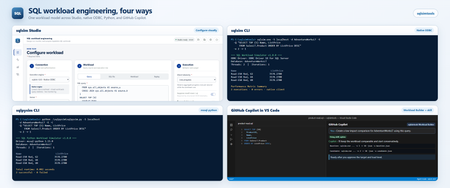
Years ago, in a galaxy far, far away, my colleagues in support, Keith Elmore and Robert Dorr, built a tool called ostress.exe. For decades it transformed the way we reproduced customer issues for SQL Server. The engineering team used it, and up until now I've used it for demonstrations, books, and examples. Its magic was simple: ostress could simulate many concurrent users running SQL queries or scripts. I decided to rethink ostress for today's SQL world, and the result is sqlsimtools, now in public preview at https://aka.ms/sqlsimtools. It's a free, open-source suite of workload simulation tools for SQL Server 2019, 2022, and 2025, Azure SQL Database, Azure SQL Managed Instance, and SQL database in Microsoft Fabric. I've been building it for some time and using it at events and in demonstrations. Now I want everyone to have it. The public preview includes: sqlsim: a native, ODBC-based command-line tool for Windows (x64 and ARM64) and Ubuntu Linux. sqlpysim: a Python version of sqlsim built on Microsoft's mssql-python driver, for Windows and Ubuntu Linux. sqlsim Studio: a self-contained local browser app that configures, runs, monitors, replays, and compares workloads using sqlsim or sqlpysim. It's available today on Windows x64. I'm also looking for Private Preview testers for macOS, and for sqlsim Studio on Linux and Windows ARM64. If you'd like to help, request Private Preview access. I'll be writing more posts on different parts of the tools, but here are my top 10 cool things you can do with sqlsimtools: Run any SQL query, script, or mixed workload Create your own benchmarks, load tests, and stress tests Configure, run, monitor, and compare workloads visually with sqlsim Studio Replay captured SQL Server activity Monitor workload performance live or after execution Run before-and-after experiments with detailed performance comparisons Test SQL Server, Azure SQL, and SQL database in Microsoft Fabric with flexible authentication Use native or Python tools on Windows, Linux, and macOS (Private Preview) Automate testing with JSON results and live event streams Build and run workloads with AI agents such as GitHub Copilot, Claude Code, Codex CLI, and Cursor Get started today at https://aka.ms/sqlsimtools . The easiest way to start is the all-in-one sqlsimtools package, which includes sqlsim Studio and both command-line tools. You can also download just the tool for your platform, or clone the repo and build it yourself. On Windows, unblock the ZIP before you extract it, because the tools aren't code signed. sqlsimtools is an open-source project, not an official Microsoft product, and isn't covered by Microsoft support. For questions and ideas, join the conversation in GitHub Discussions (microsoft/sqlsimtools · Discussions · GitHub), and report bugs in GitHub Issues (Issues · microsoft/sqlsimtools). During Public Preview I'm not taking Pull Requests yet but file issues and as the project progresses, we will incorporate the PR process. Bob Ward Microsoft1.7KViews7likes0CommentsThe same connection string keywords now work across our SQL drivers
For years we've been treating every one of our Microsoft SQL drivers as a distinct entity. We've heard your feedback that we need to re-examine that approach. A team running applications written in multiple languages against one database should not have to juggle multiple connection strings. We are fixing that. What changed We added keyword aliases to SqlClient, JDBC, ODBC, OLE DB, and go-mssqldb, so the same spelling works across all of them. All five now accept Server Database UID App Encrypt TrustServerCertificate ApplicationIntent MultiSubnetFailover FailoverPartner We added also added the following aliases: Driver Now accepts Already worked as SqlClient ConnectTimeout FailoverPartner PacketSize WorkstationID columnEncryption Connect Timeout Failover Partner Packet Size Workstation ID / WSID Column Encryption Setting JDBC uid trusted_connection app connectTimeout columnEncryption quotedId user integratedSecurity applicationName loginTimeout columnEncryptionSetting quotedIdentifier ODBC ConnectTimeout MultipleActiveResultSets FailoverPartner WorkstationID no keyword MARS_Connection Failover_Partner WSID OLE DB ConnectTimeout MultipleActiveResultSets WorkstationID Timeout MarsConn WSID go-mssqldb Connect Timeout Failover Partner Application Intent Trust Server Certificate Multi Subnet Failover Host Name In Certificate Server SPN WSID App connection timeout failoverpartner applicationintent trustservercertificate multisubnetfailover hostnameincertificate serverspn workstation no keyword Nothing is deprecated. Connect Timeout still works in SqlClient, loginTimeout still works in JDBC, WSID still works in ODBC and OLE DB, MarsConn and Timeout still work in OLE DB. No public APIs changed. Move one app to the shared spellings and leave the rest alone. One string, four languages One string, assigned once: Server=<server>;Database=AdventureWorksLT;UID=<user>;PWD=<password>;Encrypt=no;TrustServerCertificate=yes We pass it unchanged to four clients. All four return the same five rows from SalesLT.Product. C# on Microsoft.Data.SqlClient. Takes it as-is. Go on go-mssqldb. Takes it as-is. Python on mssql-python. Takes it as-is. C++ on Microsoft ODBC Driver 18. We still use the same string, just with the driver name appended: ;Driver={ODBC Driver 18 for SQL Server} Will things ever be perfect? No. Some drivers have specific requirements, like the ODBC specification that requires a driver name, like we just saw. That said, remembering to add one tag sure beats having to start over from scratch. PHP and Django PHP connects through the ODBC driver, so it picks up the ODBC keywords. mssql-django runs on pyodbc by default. It can run on mssql-python per connection with OPTIONS = {"python_driver": "mssql_python"}. Either way it takes the server and database through Django settings and passes the rest through extra_params. On the mssql-python path it drops DRIVER, DSN, and SERVERNAME, because mssql-python bundles its own driver and rejects them. mssql-python also accepts spellings the ODBC driver does not, including Packet Size with a space and addr for the server, and normalizes them before connecting. This is just the first step You told us that when we say a keyword is supported it should mean the same thing in every language we ship. We aren't there yet. This is the first piece. A big one on our list is Microsoft Entra authentication, although it is more difficult. The drivers rely on per-language frameworks that we do not own. Each has different levels of support for Microsoft Entra authentication methods. Where to get the new keywords Driver Language Available in Microsoft.Data.SqlClient C# 7.1.0 go-mssqldb Go v1.11.2 mssql-python Python 1.15.0 Microsoft ODBC Driver 18 C++ 18.7.1.1 JDBC Java 13.6.0 OLEDB C++ Coming in October If a keyword you expect is still missing in a driver you use, open an issue on that driver's repo and tell us which one. We want to know what your priorities are.409Views1like0CommentsMicrosoft.Data.SqlClient 7.1.0 is now generally available
This release is about making everyday database workloads more predictable. It fixes a collection of issues that could appear under connection failures, retries, transactions, pooling, streaming, encryption, and newer SQL Server data types. If your application uses Microsoft.Data.SqlClient, upgrading to 7.1.0 gives you a provider with fewer sharp edges in the paths your application already depends on. Connections and transactions behave more reliably Connection pooling is one of those features that should disappear into the background. Your application opens a connection, does its work, returns the connection, and moves on. SqlClient 7.1.0 fixes several cases where that process could go wrong: A connection could return to the pool in a broken state after a TransactionScope rollback. Pool performance counters could become negative or drift upward after failed or broken connections. A connection factory timer could keep waking the process even when there were no pools to maintain. A race during connection opening could produce an InvalidCastException. Failover login paths could encounter invalid parser state. Several cancellation token sources could remain allocated longer than necessary. These fixes matter most in long-running services, applications that reconnect frequently, and workloads that depend heavily on pooling and transactions. Better behavior for modern SQL Server data SqlClient 7.1.0 also fixes issues that affect newer .NET and SQL Server scenarios. Applications using DateOnly with variants or table-valued parameters now send the correct SQL type. This avoids converting valid date values into datetime and prevents failures for dates outside the datetime range. Large decimal parameters with explicit precision and scale no longer cause an OverflowException. This is especially important for Always Encrypted applications, where precision and scale are commonly specified explicitly. Azure SQL applications using schema discovery can now see the json data type through: connection.GetSchema("DataTypes"); The release also corrects Always Encrypted metadata reads and fixes a SqlDataReader streaming issue where calling IsDBNull() before reading a streamed value could skip data. Easier diagnosis for libraries and tools SqlClient 7.1.0 adds an application identity to the TDS USERAGENT payload. Most application developers do not need to configure this. The feature is intended for libraries and tools built on top of SqlClient. For example, Entity Framework Core, SQL Server Management Studio, SqlPackage, and other tools can identify themselves to SQL Server. That gives database and service operators a clearer picture when investigating a workload. Instead of seeing only that many connections came from SqlClient, telemetry can show which client stack created them. A library or tool can register its identity before opening a connection: using Microsoft.Data.SqlClient; await using var connection = new SqlConnection(connectionString); connection.RegisteredApplication = RegisteredApplication.EntityFrameworkCore; await connection.OpenAsync(); This value is telemetry only. It must not be used for authorization or other security decisions. Moving away from Transparent Network IP Resolution TransparentNetworkIPResolution is now marked obsolete. There is no runtime behavior change in 7.1.0. Applications that use the property will receive a compile-time warning and can migrate when convenient. For new code, use MultiSubnetFailover, which works across supported target frameworks and is the recommended approach for availability group listeners. Upgrade to 7.1.0 Install the provider with NuGet: dotnet add package Microsoft.Data.SqlClient --version 7.1.0 The SqlClient extension packages continue to use aligned versions. If your application references them, update them to 7.1.0 too: Microsoft.Data.SqlClient.AlwaysEncrypted.AzureKeyVaultProvider Microsoft.Data.SqlClient.Extensions.Azure Microsoft.Data.SqlClient.Extensions.Abstractions Microsoft.Data.SqlClient.Internal.Logging Applications upgrading from 7.0.2, 7.0.3, or a 7.1 preview do not need new .NET Framework strong-name binding redirects. Read the complete 7.1.0 release notes and get the package from NuGet.1.4KViews2likes0Commentsmssql-django 2.0: Now with mssql-python
mssql-django 2.0 is on PyPI. This release adds Microsoft's new mssql-python driver as a second way to connect, moves the supported Python, Django, and SQL Server versions forward, and fixes several connection and query bugs that production teams hit. pip install --upgrade mssql-django Pick your driver, one database at a time Until now, mssql-django spoke to SQL Server through pyodbc and an ODBC driver you installed yourself. That still works, and it's still the default. Version 2.0 adds a second path: mssql-python, Microsoft's Python driver for SQL Server. You choose per database alias. Add one option to the alias you want to move: DATABASES = { "default": { "ENGINE": "mssql", "NAME": "appdb", "HOST": "contoso.database.windows.net", "PORT": "1433", "OPTIONS": { "python_driver": "mssql_python", "extra_params": "Encrypt=yes", }, }, "reporting": { # No python_driver, so this alias stays on pyodbc. "ENGINE": "mssql", "NAME": "reportdb", "HOST": "contoso.database.windows.net", "PORT": "1433", "OPTIONS": { "driver": "ODBC Driver 18 for SQL Server", }, }, } ENGINE doesn't change. Remove the option and the alias is back on pyodbc. That's the whole rollback plan, which is the point: you can try the new driver on one database, run your test suite, and leave everything else alone. The mssql-python path covers the day-to-day work: connections, pooling, retries, transactions and savepoints, datetimeoffset values, introspection, and Microsoft Entra ID authentication. One practical difference worth calling out. On the mssql-python path, pip also installs the mssql-python-odbc companion package, which supplies Microsoft ODBC Driver 18 for SQL Server. There's no separate driver install, which takes a step out of container images and App Service deployments. Know what changes before you switch The two drivers aren't identical, and the differences are the reason we made this per alias instead of a global switch. The mssql-python path ignores driver, dsn, host_is_server, and unicode_results. There's no ODBC Driver 17 fallback. It validates extra_params against an allowlist and rejects pyodbc-only keywords such as ColumnEncryption, APP, and Connect Timeout, so use the connection_timeout option instead of the last one. It also doesn't enable MARS, which means QuerySet.iterator() reads the full result into memory before yielding rows so a nested query can reuse the connection. On a large queryset, that memory is real. Budget for it. Stay on pyodbc if you depend on a named DSN, FreeTDS, MARS, Always Encrypted through ColumnEncryption, or an ODBC driver version you manage yourself. We cleaned up the version matrix This is something we've wanted to get to for a while. mssql-django 2.0 supports Python 3.10 through 3.14, Django 5.2 through 6.1, and SQL Server 2017 through 2025, plus Azure SQL Database, Azure SQL Managed Instance, and SQL database in Microsoft Fabric. Django 6.0 and 6.1 need Python 3.12 or later. Python 3.8 and 3.9 and Django 3.2 through 5.1 are no longer supported. The compatibility code is still in the tree, so nothing breaks the moment you upgrade, but those combinations aren't tested or listed. Fixes MARS settings are honored. If you set MARS_Connection=no in extra_params, the backend used to overwrite it with the Windows default and the connection failed. That's the bug frederiksoftware reported when connecting an on-premises Django app to a Microsoft Fabric Warehouse. The explicit value now wins, case-insensitively, so those connections work. To be clear about scope: this fixes the connection, it doesn't add full Warehouse support for migrations or other SQL Server features. Bracket wildcards are escaped in F() expression lookups. A pattern lookup comparing two fields, such as filter(name__contains=F("code")), didn't escape the SQL Server [ wildcard, so bracket characters in your data were treated as wildcard syntax and matched the wrong rows. Thanks to @Khan3K for the fix. Quotes are escaped in inspectdb schema names. inspectdb --schema produced malformed T-SQL for a schema name containing a single quote. An empty HOST connects to localhost on the mssql-python path. Omitting HOST in Django settings leaves it as an empty string, which mssql-python rejected. It now resolves to localhost, matching the pyodbc behavior for local instances. pytz is gone Time zone handling moved to the standard library zoneinfo module, with the tzdata package supplying the IANA database where the operating system doesn't ship one: Windows, and minimal container images. This fixes offsets for zones with negative daylight saving offsets, and it drops a dependency. Before you upgrade mssql-python is a required dependency in 2.0 even when every alias uses pyodbc. That means mssql-django 2.0 installs only on platforms that have a compatible mssql-python distribution: Windows x64, Windows ARM64 with Python 3.11 and later, macOS 15 and later on Intel or Apple silicon, and Linux x64 or ARM64 with glibc 2.28 or later or musl 1.2 or later. SUSE Linux on ARM64 isn't supported. If you're outside that list, stay on 1.8.0. Upgrade now pip install --upgrade mssql-django Release notes Documentation Report an issue Thanks to @Khan3K and @frederiksoftware for the contributions in this release.335Views0likes0CommentsMicrosoft ODBC Driver 18.7.1: smaller vectors, easier configuration, and better cloud routing
Microsoft ODBC Driver 18.7.1 for SQL Server is now generally available. This release continues the work we started in 18.6 to support modern application patterns while making the driver easier to deploy and operate. It adds float16 vector support, brings familiar connection-string names to ODBC, improves routing for Azure SQL Database Hyperscale, expands platform coverage, and removes a Windows installation dependency. It also includes a substantial set of reliability, security, and diagnostic fixes. Many of those changes happen below the application layer. More compact vector workloads ODBC Driver 18.6.1 introduced support for the SQL Server vector data type using 32-bit floating-point values. Version 18.7.1 adds support for float16 vectors. A float16 element uses two bytes instead of the four bytes required by float32. For applications working with large embedding collections, that can reduce the amount of vector data stored and moved between the application and the database. The right precision depends on the model and workload, but applications that can use half-precision vectors now have that choice through ODBC. This matters because vector support is becoming part of the normal database application stack. You should not need a separate connectivity path just because an application combines relational data, business data, and embeddings. Adding float16 support brings ODBC forward with the vector capabilities being added across SQL Server and Azure SQL. Connection strings that travel more easily ODBC has accumulated its own connection-string vocabulary over many years. Some settings use different names in ODBC, JDBC, OLE DB, and SqlClient even when they configure the same behavior. Version 18.7.1 accepts four additional connection-string keywords: MultipleActiveResultSets FailoverPartner WorkstationID ConnectTimeout The first three are aliases for existing ODBC settings. For example, MultipleActiveResultSets maps to MARS_Connection, while WorkstationID maps to WSID. Existing connection strings continue to work. ConnectTimeout maps to the ODBC login timeout. It supports the same behavior as the underlying ODBC setting, including zero for an infinite timeout and a default of 15 seconds. These additions reduce the small but persistent differences you encounter when moving configuration between Microsoft SQL drivers. Shared configuration systems, deployment templates, and migration tools can use more consistent names instead of maintaining driver-specific translations for common settings. We also spent some time on details that tend to cause production surprises: case-insensitive matching, precedence when an alias and canonical name both appear, invalid values, timeout limits, and DSN interaction. Better routing for Hyperscale read workloads Azure SQL Database Hyperscale named replicas provide independent read scale for applications with large or isolated read workloads. ODBC Driver 18.7.1 adds load-balanced routing for named-replica reader endpoints. Applications can connect through the reader endpoint and allow the service and driver to handle routing across the available read capacity. That makes the endpoint more useful for workloads such as reporting, analytics, and read-heavy application services without requiring applications to manage individual replica destinations themselves. The driver already sits at the point where connection intent becomes a physical connection. Supporting this routing behavior there keeps replica topology out of application code. Less setup on Windows The Windows package no longer requires the Microsoft Visual C++ Runtime to be installed separately. That removes a prerequisite from new machines, container images, automated build agents, and managed desktop deployments. It also reduces one of the common differences between a machine where an application was built and a clean machine where it is installed. The change is small from an application-code perspective. For deployment owners, it means fewer moving parts and one less prerequisite to diagnose. More Linux distributions Version 18.7.1 adds support for: Alpine Linux 3.23 SUSE Linux Enterprise Server 16 Ubuntu 26.04 Platform support is more than producing an RPM, DEB, or APK. The driver must install cleanly, connect successfully, upgrade from prior versions where packages are available, and coexist with ODBC Driver 17 on supported configurations. The installer automation used for this release covers AMD64 and ARM64 variants across RHEL, Azure Linux, Ubuntu, Debian, Alpine, and supported SUSE environments. Windows coverage includes Windows 11 and Windows Server 2019, 2022, and 2025, with fresh installation, upgrade, coexistence, and MSI repair scenarios where applicable. Ubuntu 26.04 currently receives fresh-install validation because previous packages are not yet available from the Ubuntu 26.04 Microsoft package repository. The test pipeline records that distinction instead of treating unsupported upgrade combinations as covered. Reliability work below the application Database drivers operate on untrusted network input, coordinate asynchronous operations, manage native memory, and translate between platform APIs and the Tabular Data Stream protocol. Small mistakes in those paths can produce failures far away from the code that caused them. The 18.7.1 release addresses several of those cases: Protocol parsing is more defensive when processing malformed LOGINACK and ENVCHANGE tokens. Memory corruption issues were corrected in the SQL Server Network Interface packet pool and on Linux ARM64 and macOS ARM64. Multiple Active Result Sets connections now clean up memory correctly when a connection ends abruptly. Asynchronous timeout handling was corrected for zero-length partially length-prefixed data and data-classification tokens. OpenSSL errors left on a calling thread are handled correctly. XA distributed transactions recover more reliably from SQL Server connectivity failures. Always Encrypted performs less redundant logging while acquiring Azure Key Vault tokens. Tabular Data Stream packet tracing reports the correct byte count for overlapped named-pipe writes. Most applications will never encounter the exact failure conditions behind these fixes. That is the goal. A malformed server response should produce a controlled error. A dropped connection should release its memory. A timeout should behave consistently even when it arrives in the middle of an unusual protocol sequence. Get ODBC Driver 18.7.1 Microsoft ODBC Driver 18.7.1 for SQL Server is available now for Windows, Linux, and macOS. Download Microsoft ODBC Driver for SQL Server Read the ODBC Driver release notes Learn about the vector data type in ODBC If your application uses vectors, Azure SQL Database Hyperscale named replicas, shared connection configuration, or newer Linux distributions, 18.7.1 contains changes you can use immediately. For other applications, the deployment, protocol, memory-management, and diagnostic fixes provide a strong reason to include this release in your normal driver update cycle.732Views0likes1Comment