sql server on azure vms
100 TopicsAzure Monitor SQL Insights – Preview
Azure Monitor SQL insights (Preview) Comprehensive and reliable monitoring is a top priority for all SQL customers. The Azure SQL and Azure Monitor teams are proud to announce the preview of Azure Monitor SQL insights: a new, Azure-native monitoring experience for almost any SQL deployment in Azure.8.4KViews8likes2CommentsExpanding Azure Arc SQL Migration with a New Target: SQL Server on Azure Virtual Machines
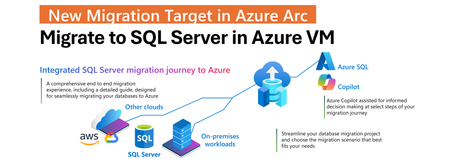
Modernizing a SQL Server estate is rarely a single-step effort. It typically involves multiple phases, from discovery and assessment to migration and optimization, often spanning on-premises, hybrid, and cloud environments. SQL Server enabled by Azure Arc simplifies this process by bringing all migration steps into a single, cohesive experience in the Azure portal. With the March 2026 release, this integrated experience is extended by adding SQL Server on Azure Virtual Machines as a new migration target in Azure Arc. Arc-enabled SQL Server instances can now be migrated not only to Azure SQL Managed Instance, but also to SQL Server running on Azure infrastructure, using the same unified workflow. Expanding Choice Without Adding Complexity By introducing SQL Server on Azure Virtual Machines as a migration target, Azure Arc now supports a broader range of migration strategies while preserving a single operational model. It becomes possible to choose between Azure SQL Managed Instance and SQL Server on Azure VMs without fragmenting migration tooling or processes. The result is a flexible, scalable, and consistent migration experience that supports hybrid environments, reduces operational overhead, and enables modernization at a controlled and predictable pace. One Integrated Migration Journey A core value of SQL Server migration in Azure Arc is that the entire migration lifecycle is managed from one place. Once a SQL Server instance is enabled by Azure Arc, readiness can be assessed, a migration target selected, a migration method chosen, progress monitored, and cutover completed directly in the Azure portal. This approach removes the need for disconnected tools or custom orchestration. The only prerequisite remains unchanged: the source SQL Server needs to be enabled by Azure Arc. From there, migration is fully integrated into the Azure Arc SQL experience. A Consistent Experience Across Migration Targets The migration experience for SQL Server on Azure Virtual Machines follows the same model already available for Azure SQL Managed Instance migrations in Azure Arc. The same guided workflow, migration dashboard, and monitoring capabilities are used regardless of the selected target. This consistency is intentional. It allows teams to choose the destination that best fits their technical, operational, or regulatory requirements without having to learn a new migration process. Whether migrating to a fully managed PaaS service or to SQL Server on Azure infrastructure, the experience remains predictable and familiar. Backup Log Shipping Migration to SQL Server in Azure VM Migration to SQL Server on Azure Virtual Machines is based on backup and restore, specifically using log shipping mechanism. This is a well-established approach for online migrations that minimizes downtime while maintaining control over the cutover window. In this model, database backups need to be uploaded from the source SQL Server to Azure Blob Storage. The migration engine will restore the initial full backup followed by ongoing transaction log and diff. backups. Azure Blob Storage acts as the intermediary staging location between the source and the target. The Azure Blob Storage account and the target SQL Server running on an Azure Virtual Machine must be co-located in the same Azure region. This regional alignment is required to ensure efficient data transfer, reliable restore operations, and predictable migration performance. Within the Azure Arc migration experience, a simple and guided UX is used to select the Azure Blob Storage container that holds the backup files. Both the selected storage account and the Azure VM hosting SQL Server must reside in the same Azure region. Once the migration job is started, Azure Arc automatically restores the backup files to SQL Server on the Azure VM. As new log backups are uploaded to Blob Storage, they are continuously detected and applied to the target database, keeping it closely synchronized with the source. Controlled Cutover on Your Terms This automated restore process continues until the final cutover is initiated. When the cutover command is issued, Azure Arc applies the final backup to the target SQL Server on the Azure Virtual Machine and completes the migration. The target database is then brought online, and applications can be redirected to the new environment. This controlled cutover model allows downtime to be planned precisely, rather than being dictated by long-running restore operations. Getting started To get started, Arc enable you SQL Server. Then, in the Azure portal, navigate to your Arc enabled SQL Server and select Database migration under the Migration menu on the left. For more information, see the SQL Server migration in Azure Arc documentation.1.3KViews5likes0CommentsMigrating SQL Server workloads FAQ
Discover "one-stop-shop" FAQ for migrating SQL Server workloads to Azure SQL. When considering SQL Server migration to Azure lots of questions pop-up, as customers seek to understand Total Cost of Ownership savings, benefits of moving to Azure SQL Paas services, business and technical benefits for running SQL Server workloads in Azure, as well as how technical requirements map when moving from on-premises into the cloud.5.8KViews5likes0Comments
Introducing the Azure SQL hub: A simpler, guided entry into Azure SQL
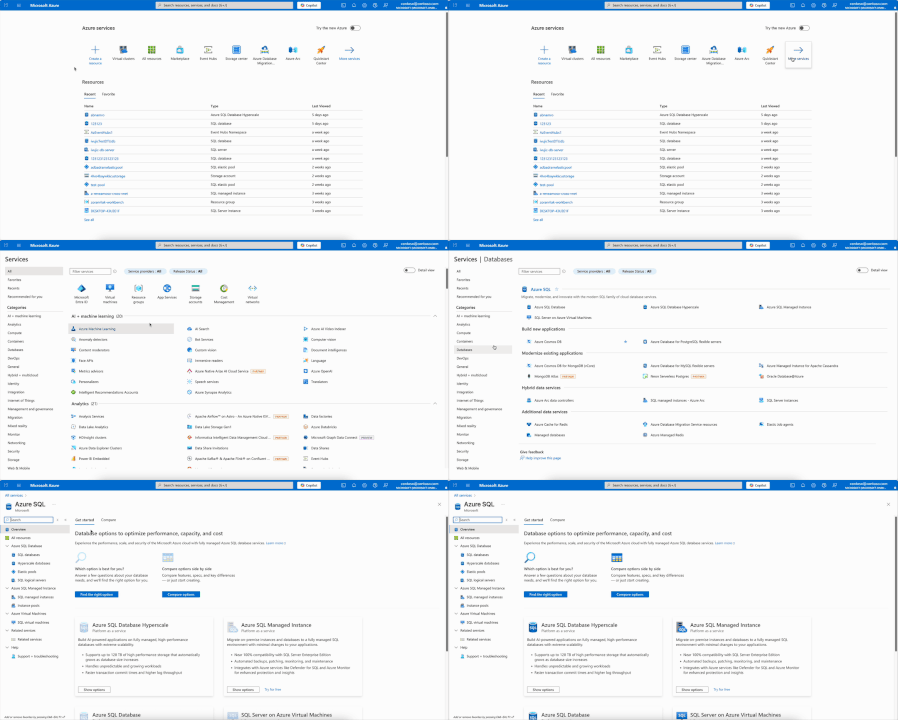
Choosing the right Azure SQL service can be challenging. To make this easier, we built the Azure SQL hub, a new home for everything related to Azure SQL in the Azure portal. Whether you’re new to Azure SQL or an experienced user, the hub helps you find the right service quickly and decide, without disrupting your existing workflows. For existing users: Your current workflows remain unchanged. The only visible update is a streamlined navigation pane where you access Azure SQL resources. For new users: Start from the Azure SQL hub home page. Get personalized recommendations by answering a few quick questions or chatting with Azure portal Copilot. Or compare services side by side and explore key resources, all without leaving the portal. This is one way to find it: Searching for "azure sql" in main search box or marketplace is also efficient way to get to Azure SQL hub Answer a few questions to get our recommendation and use Copilot to refine your requirements. Get a detailed side-by-side comparison without leaving the hub. Still deciding? Explore a selection of Azure SQL services for free. This option takes you straight to the resource creation page with a pre-applied free offer. Try the Azure SQL hub today in the Azure portal, and share your feedback in the comments!2.3KViews4likes1CommentIntroducing "Backups on Secondary" for SQL Server Always On Availability Groups with SQL Server 2025
We’re excited to announce a major enhancement for SQL Server Always On Availability Groups Backups on Secondary, in SQL Server 2025. Until SQL Server 2022, you could only perform COPY_ONLY full backups and transaction log backups on a secondary replica of an Always On Availability Group. This enhancement in SQL Server 2025 allows you to offload all types of backups—full, differential, and transaction logs - to a secondary replica, significantly improving performance, resource utilization, and operational flexibility. What Is "Backups on Secondary"? Traditionally, backups in an Always On Availability Group were typically performed on the primary replica, which could lead to resource contention and performance degradation for mission-critical workloads. With this update in SQL Server 2025 to the Backups on Secondary feature, you can now configure your environment to perform all backup operations on a designated secondary replica. This includes: Full backups Differential backups Transaction log backups Key Benefits 🔄 Reduced Load on Primary Replica By offloading backup operations to a secondary replica, you free up CPU, memory, and I/O resources on the primary replica, ensuring that your production workloads run more smoothly and efficiently. 🧩 Flexible Backup Strategies You can now design more flexible and resilient backup strategies by leveraging secondary replicas in different geographic locations or data centers. 🛡️ Enhanced High Availability and Disaster Recovery In the event of a failover, backup operations can continue seamlessly on another secondary replica, ensuring continuous data protection. How It Works The feature is easy to configure using T-SQL or SQL Server Management Studio (SSMS). There are two steps to make backups run on secondary: Configure backups to run on secondary replica via the AUTOMATED_BACKUP_PREFERENCE and BACKUP_PRIORITY parameters – refer to Configure backups on secondary replicas of an Always On availability group for prerequisites and detailed steps. Run the T-SQL BACKUP command using one of the tools such as SSMS or SQL Agent jobs or Maintenance plans. These are the same steps that have been currently in place for SQL Server 2022 and for prior versions. In the prior versions this configuration only allowed COPY_ONLY and transaction log backups. Now, starting with SQL Server 2025, with the same configuration in place, you can perform FULL, DIFFERENTIAL and T-LOG backups on a secondary replica and truly offload the backup overhead on to the secondary replica. You can also query system views like sys.dm_hadr_backup_is_preferred_replica to programmatically determine the preferred replica for backups. Final Thoughts The Backups on Secondary feature is a game-changer for organizations looking to optimize their SQL Server environments for performance, availability, and cost. Whether you're managing a large-scale enterprise deployment or a hybrid cloud setup, this feature gives you the flexibility and control you need to build a more efficient and resilient data platform. This feature is available in SQL Server 2025 CTP 2.0. You can download it and try it out today.3.6KViews4likes4CommentsAzure Data Studio Retirement
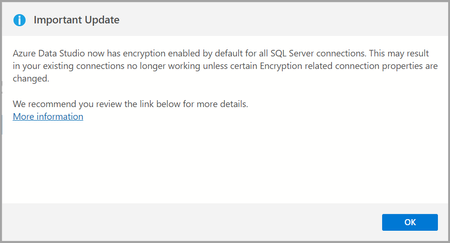
We’re announcing the upcoming retirement of Azure Data Studio (ADS) on February 6, 2025, as we focus on delivering a modern, streamlined SQL development experience. ADS will remain supported until February 28, 2026, giving developers ample time to transition. This decision aligns with our commitment to simplifying SQL development by consolidating efforts on Visual Studio Code (VS Code) with the MSSQL extension, a powerful and versatile tool designed for modern developers. Why Retire Azure Data Studio? Azure Data Studio has been an essential tool for SQL developers, but evolving developer needs and the rise of more versatile platforms like VS Code have made it the right time to transition. Here’s why: Focus on innovation VS Code, widely adopted across the developer community, provides a robust platform for delivering advanced features like cutting-edge schema management and improved query execution. Streamlined tools Consolidating SQL development on VS Code eliminates duplication, reduces engineering maintenance overhead, and accelerates feature delivery, ensuring developers have access to the latest innovations. Why Transition to Visual Studio Code? VS Code is the #1 developer tool, trusted by millions worldwide. It is a modern, versatile platform that meets the evolving demands of SQL and application developers. By transitioning, you gain access to cutting-edge tools, seamless workflows, and an expansive ecosystem designed to enhance productivity and innovation. We’re committed to meeting developers where they are, providing a modern SQL development experience within VS Code. Here’s how: Modern development environment VS Code is a lightweight, extensible, and community-supported code editor trusted by millions of developers. It provides: Regular updates. An active extension marketplace. A seamless cross-platform experience for Windows, macOS, and Linux. Comprehensive SQL features With the MSSQL extension in VS Code, you can: Execute queries faster with filtering, sorting, and export options for JSON, Excel, and CSV. Manage schemas visually with Table Designer, Object Explorer, and support for keys, indexes, and constraints. Connect to SQL Server, Azure SQL (all offerings), and SQL database in Fabric using an improved Connection Dialog. Streamline development with scripting, object modifications, and a unified SQL experience. Optimize performance with an enhanced Query Results Pane and execution plans. Integrate with DevOps and CI/CD pipelines using SQL Database Projects. Stay tuned for upcoming features—we’re continuously building new experiences based on feedback from the community. Make sure to follow the MSSQL repository on GitHub to stay updated and contribute to the project! Streamlined workflow VS Code supports cloud-native development, real-time collaboration, and thousands of extensions to enhance your workflows. Transitioning to Visual Studio Code: What You Need to Know We understand that transitioning tools can raise concerns, but moving from Azure Data Studio (ADS) to Visual Studio Code (VS Code) with the MSSQL extension is designed to be straightforward and hassle-free. Here’s why you can feel confident about this transition: No Loss of Functionality If you use ADS to connect to Azure SQL databases, SQL Server, or SQL database in Fabric, you’ll find that the MSSQL extension supports these scenarios seamlessly. Your database projects, queries, and scripts created in ADS are fully compatible with VS Code and can be opened without additional migration steps. Familiar features, enhanced experience VS Code provides advanced tools like improved query execution, modern schema management, and CI/CD integration. Additionally, alternative tools and extensions are available to replace ADS capabilities like SQL Server Agent and Schema Compare. Cross-Platform and extensible Like ADS, VS Code runs on Windows, macOS, and Linux, ensuring a consistent experience across operating systems. Its extensibility allows you to adapt it to your workflow with thousands of extensions. If you have further questions or need detailed guidance, visit the ADS Retirement page. The page includes step-by-step instructions, recommended alternatives, and additional resources. Continued Support With the Azure Data Studio retirement, we’re committed to supporting you during this transition: Documentation: Find detailed guides, tutorials, and FAQs on the ADS Retirement page. Community Support: Engage with the active Visual Studio Code community for tips and solutions. You can also explore forums like Stack Overflow. GitHub Issues: If you encounter any issues, submit a request or report bugs on the MSSQL extension’s GitHub repository. Microsoft Support: For critical issues, reach out to Microsoft Support directly through your account. Transitioning to VS Code opens the door to a more modern and versatile SQL development experience. We encourage you to explore the new possibilities and start your journey today! Conclusion Azure Data Studio has served the SQL community well,but the Azure Data Studio retirement marks an opportunity to embrace the modern capabilities of Visual Studio Code. Transitioning now ensures you’re equipped with cutting-edge tools and a future-ready platform to enhance your SQL development experience. For a detailed guide on ADS retirement , visit aka.ms/ads-retirement. To get started with the MSSQL extension, check out the official documentation. We’re excited to see what you build with VS Code!35KViews4likes31Comments