software
29 Topics
since 12d old trauma loop bc of an unknown amd popup never seen before(amd cog icon midgame)
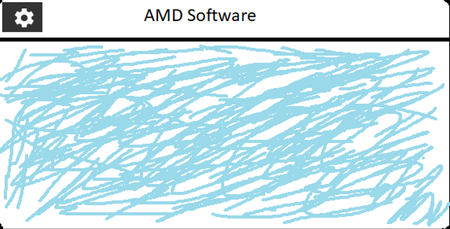
Hello i cant get past an popup i never saw before and my brain flagged this realy bad as threat i played a game albion online and afer some time a box appeared in the middle of the game and looked way way differnt than the adrenaline popups/toast it was white/blueish maybe clouds and had a very graphical box, no normal notification box, it had a cog icon one the top left and said "amd software" in the top middle. no buttons in the rest of the box and it vanished after like 5 seconds. i cant find any info on it no where. i also asked the support but they dont know if someone maybe knows what that was i would aprecciate the help , cant relax since that i made a small sketch but its not 100% accurate, only the layout25Views0likes0CommentsAction Required: Migrate Your Copilot CLI MCP Config Away from .vscode/mcp.json
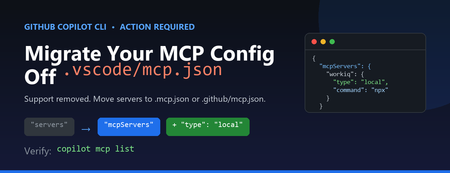
If you use the GitHub Copilot CLI with Model Context Protocol (MCP) servers, you may have hit this message on launch: Copilot CLI's incomplete support for .vscode/mcp.json has been removed. See https://gh.io/copilotcli-mcpmigrate to migrate to .mcp.json or .github/mcp.json . This is a quick, one-time fix. Here's what changed, why, and exactly what you need to do. What Changed The Copilot CLI previously made a best-effort attempt to read .vscode/mcp.json , the file VS Code uses to define MCP servers. That support was incomplete, so it has been removed. The CLI now loads MCP servers only from its own dedicated files: .mcp.json in your project root (or working directory) .github/mcp.json in your repository Your .vscode/mcp.json file is not deleted and still works for VS Code. The CLI simply no longer reads it. Why It Matters The VS Code and Copilot CLI configuration formats look similar but are not identical. Two differences trip people up: The top-level key is servers in VS Code, but mcpServers in the CLI. The CLI requires a type field on each server (for example, "local" for a stdio command-based server, or "http" for a remote server). Because of these differences, you can't just rename the file — you also need to adjust its contents. What You Need to Do Step 1: Find your existing config Locate the VS Code MCP file you've been using, for example: // .vscode/mcp.json (VS Code format) { "servers": { "workiq": { "command": "npx", "args": ["-y", "@microsoft/workiq", "mcp"], "tools": ["*"] } } } Step 2: Create .mcp.json in the same directory Convert it to the Copilot CLI format by renaming the top-level key and adding "type" : // .mcp.json (Copilot CLI format) { "mcpServers": { "workiq": { "type": "local", "command": "npx", "args": ["-y", "@microsoft/workiq", "mcp"], "tools": ["*"] } } } Prefer the change to live with your repository so teammates pick it up automatically? Put the same content in .github/mcp.json instead. Step 3: Verify From the directory containing the new file, list the servers the CLI can see: copilot mcp list You should see your server reported, for example workiq (local) , and the startup warning will stop. Quick Reference VS Code ( .vscode/mcp.json ) Copilot CLI ( .mcp.json / .github/mcp.json ) Top-level key servers Top-level key mcpServers No type field Add "type": "local" (stdio) or "http" (remote) Read by VS Code only Read by Copilot CLI only Don't Forget Your Other Repositories This setting is per-directory. If you run copilot inside multiple projects that each have a .vscode/mcp.json , repeat the migration in each one. The change is always the same: rename servers to mcpServers and add a type to every server. Key Takeaways The Copilot CLI no longer reads .vscode/mcp.json . Move your MCP servers into .mcp.json (project) or .github/mcp.json (repo). Change the key from servers to mcpServers and add "type" to each server. Leave .vscode/mcp.json in place so VS Code keeps working. Confirm with copilot mcp list . Learn More Copilot CLI MCP migration guidance GitHub Copilot CLI command reference Model Context Protocol872Views0likes0CommentsMake Your Copilot Credits Count: A Student's Guide to Smarter AI Usage
If you're a student enrolled in GitHub Education, you already have something most developers pay for: free access to GitHub Copilot and its premium features. That's incredible. But here's the thing, free access doesn't mean unlimited usage, and not all AI interactions cost the same. Every chat message, every agent task, every model call consumes something called AI Credits, and knowing how they work will help you use Copilot smarter, produce better code, and build the kind of disciplined AI habits that professional developers are only just starting to learn. This post is inspired by a fantastic deep-dive from my collegaue developer advocate Bruno: "GitHub Copilot and Tokens: How to Keep Using AI Without Burning Your Budget" . We've taken those professional lessons and tailored them specifically for students because your learning environment, your assignments, and your goals are different from a seasoned engineer at a tech company. TL;DR: Use autocomplete before chat. Choose the right model. Keep context small. Start fresh chats often. Plan before you build. These habits will make you a better developer and stretch your credits further. What Are AI Credits and Why Do They Matter? When you interact with GitHub Copilot through chat, agent mode, or inline edits the model processes tokens. Tokens are small chunks of text (roughly 3–4 characters each). Every interaction consumes: Input tokens — everything sent to the model (your message, attached files, chat history, instructions) Output tokens — everything the model generates back to you Cached tokens — context the model reuses from previous turns (cheaper) These tokens are converted to AI Credits, where 1 AI Credit = $0.01 USD. Different models have very different token costs a lightweight model like GPT-5 mini charges $0.25 per million input tokens, while a powerful model like GPT-5.5 charges $5.00 per million input tokens (20x more expensive). Using the wrong model for a simple task is like taking a taxi to a destination that's a 5-minute walk. See the official pricing table: GitHub Copilot Models and Pricing . Figure 1: The four cost tiers of Copilot interactions. Autocomplete and Next Edit Suggestions are free — they do not consume AI Credits on paid plans Strategy 1: Tab Before Chat The Free Tier is Powerful Here is the single most impactful habit you can build: always try autocomplete before opening chat. According to GitHub's official billing documentation, code completions and Next Edit Suggestions are not billed as AI Credits on paid plans. That means every time you press Tab to accept an inline suggestion, you are getting AI assistance for free. Use autocomplete (Tab) for: Completing a line or a simple function Generating repetitive boilerplate (constructors, properties, getters/setters) Completing a repeated pattern you've started Writing obvious next lines like console.log , imports, or variable declarations Adjusting variable names inline Only move to Inline Edit (Ctrl+I / Cmd+I) when autocomplete isn't enough for a local change. Only open a Chat window when you need genuine reasoning an explanation, a plan, or a multi-step solution. As Bruno puts it: "The most expensive model in the world should not be helping you write public string Name { get; set; } . That's what Tab is for. And coffee." Strategy 2: Choose the Right Model for the Job GitHub Copilot gives you access to models from OpenAI, Anthropic, and Google each at different price points and capability levels. The key insight from VS Code's official Copilot usage guide is: reserve powerful reasoning models for tasks that genuinely need them. Your Task Recommended Model Tier Example Models Simple question or boilerplate Lightweight GPT-5 mini, Gemini 3 Flash Code explanation or basic docs Lightweight GPT-5 mini, GPT-5.4 nano Writing tests or debugging a single function Medium / Versatile Claude Haiku 4.5, GPT-5.4 Multi-file refactor or code review Medium / Versatile Claude Sonnet 4.6, GPT-5.4 Complex system design or architecture Powerful Claude Opus 4.7, GPT-5.5 Long agentic workflows Powerful (scoped!) Claude Opus 4.8, GPT-5.5 Not sure what you need Auto (recommended default) Copilot selects for you GitHub Copilot's Auto Model Selection feature automatically chooses a model based on task complexity, availability, and policies. For most students, Auto should be your default only switch manually when you have a specific reason. And when the complex task is done, switch back to Auto or a lighter model. Strategy 3: Context is Currency Smaller is Smarter Here's the counterintuitive truth that surprises most developers: the expensive part of a prompt is usually not the question you type it's everything surrounding it. Every token consumed by Copilot includes: All your previous chat messages in the session Every file you have open or attached Workspace search results Copilot pulled in Build output, terminal logs, or diff content Responses from any MCP (Model Context Protocol) servers you have enabled Your custom instructions file ( .github/copilot-instructions.md ) A single question inside a conversation with 80 messages, 12 open files, and 3 tool call results can cost significantly more than the same question asked fresh in a new chat with one relevant file attached. Figure 2: The same task asked two ways. Scope your prompts to save credits and often get better answers. Practical rules for context management: Attach only 2–3 relevant files — not your entire project Don't ask Copilot to analyse the whole repo when you only need changes in one module Paste only the first relevant error from a log, not 2,000 lines of output Remove timestamps and duplicate stack traces from pasted logs State the expected output format explicitly so the model stops early Use /compact in VS Code Chat to summarise a long conversation without losing key context Use /fork to explore an alternative direction without polluting the main conversation Strategy 4: Start Fresh Chats When You Change Tasks This is one of the simplest optimisations and one of the most ignored. The VS Code Copilot usage guide is explicit about it: when a conversation grows, it carries context from all previous messages. If you switch to an unrelated task in the same session, the model still processes that irrelevant history and you pay for it in credits. Bad pattern: Chat session: - "Help me fix the JWT bug in auth.ts" [10 messages] - "Now write unit tests for my sorting algorithm" [still in same chat!] - "Can you generate the README for my project?" [still in same chat!] - "Now debug this CSS layout issue..." [still in same chat!] Smart pattern: Chat 1: "Fix JWT bug in auth.ts" - DONE, close chat. Chat 2: "Write unit tests for sorting algorithm" - DONE, close chat. Chat 3: "Generate README for project" - fresh context, fresh cost. New task = new chat. Your human brain benefits too — focused sessions produce better outcomes than sprawling multi-topic conversations. Strategy 5: Plan Before You Build Use Agent Mode Wisely Agent mode is one of the most powerful Copilot features for students working on larger assignments — it can create files, run terminal commands, edit across multiple files, and execute tests. But agent mode also carries the highest token cost, because it loops: it plans, acts, observes tool output, then plans again. The VS Code documentation recommends separating planning from implementation to reduce rework and back-and-forth. Here's a phased approach that saves credits and produces better results: Figure 3: The credit-smart workflow. Always try the cheaper option first, escalate only when needed. Phase 1: Plan (lightweight model, low cost) I need to add user authentication to my Express app. Before writing any code, give me a step-by-step plan covering which files to create, which packages to install, and what tests to write. Do not write code yet. Phase 2: Scoped Implementation (one feature at a time) Using the plan we agreed, implement only Step 1: create src/middleware/auth.ts with JWT validation. Do not modify any other files yet. Phase 3: Validate Run the existing tests in tests/auth.test.ts and report the results. Fix only test failures related to the new auth middleware. Phase 4: Cleanup The implementation is complete. Update README.md with setup instructions for the auth module. Keep it under 200 words. Each phase is small, scoped, and verifiable. You can stop at any phase, check the result, and only continue when you're satisfied. This dramatically reduces expensive re-runs where the agent reverses its own changes. Strategy 6: Review Your MCP Servers and Custom Instructions MCP Servers MCP (Model Context Protocol) servers let Copilot connect to external tools databases, GitHub issues, Jira, Slack, browser automation, and more. Each enabled server expands what the agent can do, but also adds to the context the model must consider, which increases token usage. For students, a practical rule: only enable MCP servers relevant to your current project. If you're working on a simple Python web app, you probably don't need browser automation, a Kubernetes connector, and a Slack integration all active at the same time. See the VS Code MCP servers documentation for how to enable, disable, and configure them. Custom Instructions A .github/copilot-instructions.md file in your repository lets you give Copilot standing instructions — coding standards, testing commands, architecture conventions. This is a fantastic feature. But that file is included in every prompt's context, so a bloated instructions file costs credits on every single interaction. A good custom instructions file is: Short — under 200 words for a student project Specific to this repository's real conventions Clear about test commands (e.g., npm test , pytest ) Free of generic advice that applies to every codebase on earth Example of a good student instructions file: # Copilot Instructions for MyWebApp Language: TypeScript (strict mode) Framework: Express.js with Prisma ORM Tests: Run with `npm test` (Jest) Lint: Run with `npm run lint` (ESLint + Prettier) Conventions: - Use async/await, not callbacks - Validate all request inputs with Zod - Keep controllers thin; put logic in service files - Write a test for every new public function That's it. Short, actionable, and genuinely useful — not a 500-line manifesto. Strategy 7: Use Traditional Tools First AI is excellent for reasoning, explaining, planning, and connecting ideas. It is not the right tool for every job. Before reaching for Copilot chat, ask yourself whether a traditional tool can answer your question faster, cheaper, and more reliably: Compiler / type-checker — to find type errors (TypeScript, mypy) Linter — to find style and logic issues (ESLint, Pylint, Checkstyle) Formatter — to fix formatting (Prettier, Black, gofmt) Test runner — to confirm whether your code works (Jest, pytest, JUnit) Debugger — to step through execution and inspect state Docs / Stack Overflow — for well-documented APIs and common patterns If your linter tells you there's a missing import, fix it directly — don't ask Copilot to analyse your code to find it. Let deterministic tools do deterministic work, and let AI do the reasoning where it genuinely adds value. Your GitHub Education Benefits: What You Get If you haven't already, apply for GitHub Education with your school email address. Once verified, you receive: Free GitHub Copilot including premium features — see how to enable Copilot as a student Free GitHub Codespaces — 180 core hours per month, equivalent to GitHub Pro (great for browser-based coding with Copilot built in) GitHub Student Developer Pack — free access to dozens of professional tools from GitHub's partners, including cloud credits, domains, and IDEs GitHub Classroom — your instructors can manage assignments and provide feedback GitHub Community Exchange — discover and contribute to student-built projects Campus Experts program — become a student leader in your tech community These benefits are designed to give you real-world tools in an educational setting. Copilot is the standout feature — it's the same tool professional developers use every day. Using it wisely during your studies means you'll arrive in the workforce already ahead of the curve. Pre-Prompt Checklist for Students Before you fire off your next Copilot prompt, run through this checklist. It takes 10 seconds and can save significant credits — and more importantly, it builds the mental habits of a professional AI user. Figure 4: Two-column checklist covering what to check before opening chat and when writing your prompt. Before you open chat: ☐ Can Tab / autocomplete solve this? ☐ Is inline edit (Ctrl+I) enough for this local change? ☐ Can a linter, compiler, or test runner answer this? ☐ Is this a different task from my last message? If so, start a new chat. ☐ Am I on Auto model selection (or the right tier for this task)? ☐ Should I ask for a plan before asking for code? ☐ Do I have MCP servers enabled that I don't need right now? ☐ Is my copilot-instructions.md file concise and current? When writing your prompt: ☐ Attach only 2–3 relevant files, not the whole project ☐ Paste only the first relevant error from any logs ☐ Define the files to change, the goal, and any files not to touch ☐ Ask for a plan before implementation on complex tasks ☐ Remove timestamps and duplicate stack traces from pasted logs ☐ State the expected output format and length ☐ Use /compact if the session is getting long ☐ Use /fork to explore alternatives without polluting the main thread A Note on Responsible AI Use in Education Using Copilot smartly is not just about saving credits it's about developing genuine skills. When you ask Copilot to write all your code without understanding it, you lose the learning opportunity the assignment was designed to create. When you review and understand every suggestion Copilot makes, you learn faster, build better instincts, and can confidently explain your own work. Best practices for academic integrity with AI tools: Understand before you accept — never paste code you can't explain Use Copilot to learn, not to skip learning — ask it to explain the code it generates Follow your institution's AI policy — many universities have specific guidance on AI use in assessments Treat Copilot as a senior pair-programmer, not an answer machine — question its suggestions, push back, iterate Verify facts and documentation links — AI can hallucinate; always check official sources GitHub Education exists to give you real professional tools while you learn. The goal is for you to graduate with genuine skills, a real portfolio, and the confidence that comes from building things yourself — with AI as your collaborator, not your ghostwriter. Key Takeaways Tab first — autocomplete and Next Edit Suggestions are free; use them for everything small Auto model by default — only switch to a powerful model when you have a clear reason Context is cost — fewer files, fewer messages, fewer tools = fewer tokens New task = new chat — don't carry stale context into unrelated work Plan before you build — a 10-message plan session is cheaper than 50 messages of rework Keep instructions short — your copilot-instructions.md runs on every prompt Use traditional tools first — linters and compilers are free, fast, and deterministic Understand your code — Copilot is a collaborator, not a replacement for learning Resources and Next Steps GitHub Education — apply for your free student benefits GitHub Student Developer Pack — explore free tools for students Enable GitHub Copilot as a student GitHub Copilot: Models and Pricing — understand exactly what each model costs Auto Model Selection in GitHub Copilot VS Code: Optimising GitHub Copilot Usage — the official guide that inspired many of these tips Managing MCP Servers in VS Code El Bruno: GitHub Copilot and Tokens (the original professional perspective) GitHub Education Community Discussions — connect with students and educators worldwide This post draws on insights from El Bruno's developer blog and best practices from GitHub Education. All pricing figures are sourced from the official GitHub Copilot billing documentation and are correct as of June 2026.7.4KViews0likes1Comment
Deployment Win11 on OEM Licence
Hello, does anyone know which Licence i need for Installing an Win 11 iso and Deploy it with MDT / WDS Creating is Free i think. The Pcs we buy have an installed Win 11 Pro for example Lenovo ThinkCentre so they have an OEM Version of Win 11 and i want to Deploy our own Win 11 Pro with Pre Installed Software. Is this included in the Win 11 Pro Version or do i need Win 11 SA or a System Builder Licence? Do i just need one Licence or for each Device one? i hope someone can help me with this Question.445Views0likes1CommentAzure Open Source Day 7th March 2023
Join us to learn about open-source technologies and how to build intelligent, scalable apps faster and easier. Discover new capabilities in cloud-native architectures, microservices, and data management using Azure and open-source technologies. Get insights and best practices from industry leaders and ask experts your questions during the live chat Q&A. Register now for this free digital event.4KViews2likes1CommentMicrosoft Security Code Analysis (Private Preview)
First published on MSDN on Sep 26, 2018 Run security analysis tools in Azure DevOps PipelinesThe Secure Development Lifecycle (SDL) Guidelines recommend that teams perform static analysis during the implementation phase of your development cycle.2.4KViews1like0CommentsBuilding an Assignment Bot with Microsoft Bot Framework
First published on MSDN on Oct 12, 2017 Guest blog by Wang (Leonard) Ge Microsoft Student Partner at Imperial College London About meHello! My name is Leonard I’m a 2nd year student, studying Computer Science Engineering at Imperial College London My interest areas mainly include front end development, Here is my LinkedIn profile https://www.994Views0likes0Comments