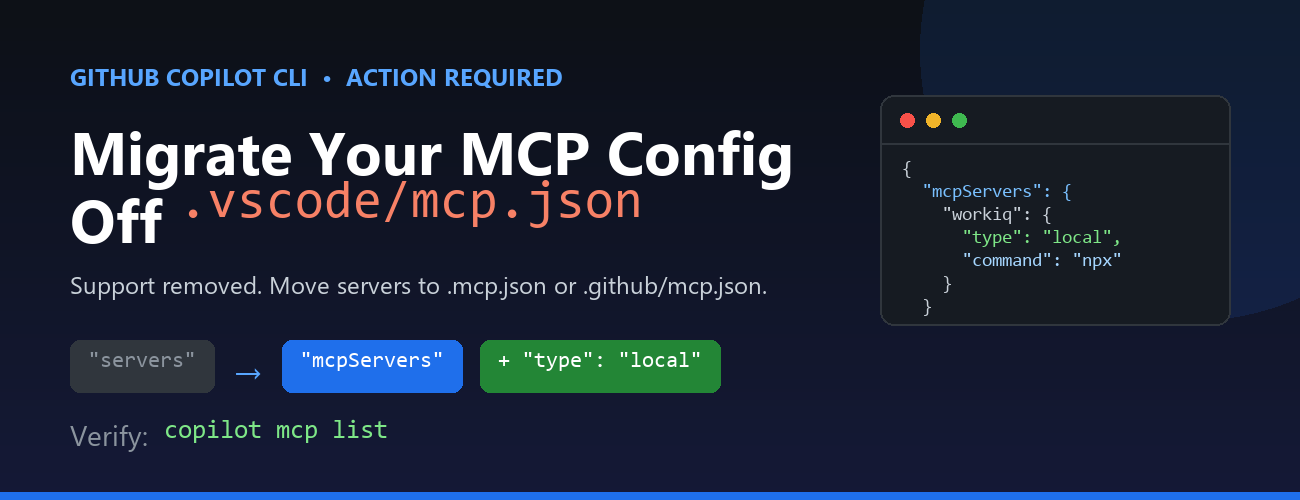
If you use the GitHub Copilot CLI with Model Context Protocol (MCP) servers, you may have hit this message on launch:
Copilot CLI's incomplete support for
.vscode/mcp.jsonhas been removed. See https://gh.io/copilotcli-mcpmigrate to migrate to.mcp.jsonor.github/mcp.json.
This is a quick, one-time fix. Here's what changed, why, and exactly what you need to do.
What Changed
The Copilot CLI previously made a best-effort attempt to read .vscode/mcp.json, the file VS Code uses to define MCP servers. That support was incomplete, so it has been removed. The CLI now loads MCP servers only from its own dedicated files:
.mcp.jsonin your project root (or working directory).github/mcp.jsonin your repository
Your .vscode/mcp.json file is not deleted and still works for VS Code. The CLI simply no longer reads it.
Why It Matters
The VS Code and Copilot CLI configuration formats look similar but are not identical. Two differences trip people up:
- The top-level key is
serversin VS Code, butmcpServersin the CLI. - The CLI requires a
typefield on each server (for example,"local"for a stdio command-based server, or"http"for a remote server).
Because of these differences, you can't just rename the file — you also need to adjust its contents.
What You Need to Do
Step 1: Find your existing config
Locate the VS Code MCP file you've been using, for example:
// .vscode/mcp.json (VS Code format)
{
  "servers": {
    "workiq": {
      "command": "npx",
      "args": ["-y", "@microsoft/workiq", "mcp"],
      "tools": ["*"]
    }
  }
}
Step 2: Create .mcp.json in the same directory
Convert it to the Copilot CLI format by renaming the top-level key and adding "type":
// .mcp.json (Copilot CLI format)
{
  "mcpServers": {
    "workiq": {
      "type": "local",
      "command": "npx",
      "args": ["-y", "@microsoft/workiq", "mcp"],
      "tools": ["*"]
    }
  }
}
Prefer the change to live with your repository so teammates pick it up automatically? Put the same content in .github/mcp.json instead.
Step 3: Verify
From the directory containing the new file, list the servers the CLI can see:
copilot mcp listYou should see your server reported, for example workiq (local), and the startup warning will stop.
Quick Reference
VS Code (.vscode/mcp.json) | Copilot CLI (.mcp.json / .github/mcp.json) |
|---|---|
Top-level key servers | Top-level key mcpServers |
No type field | Add "type": "local" (stdio) or "http" (remote) |
| Read by VS Code only | Read by Copilot CLI only |
Don't Forget Your Other Repositories
This setting is per-directory. If you run copilot inside multiple projects that each have a .vscode/mcp.json, repeat the migration in each one. The change is always the same: rename servers to mcpServers and add a type to every server.
Key Takeaways
- The Copilot CLI no longer reads
.vscode/mcp.json. - Move your MCP servers into
.mcp.json(project) or.github/mcp.json(repo). - Change the key from
serverstomcpServersand add"type"to each server. - Leave
.vscode/mcp.jsonin place so VS Code keeps working. - Confirm with
copilot mcp list.
Learn More

 Microsoft