github copilot
34 TopicsBuild an AI-Powered Space Invaders Game
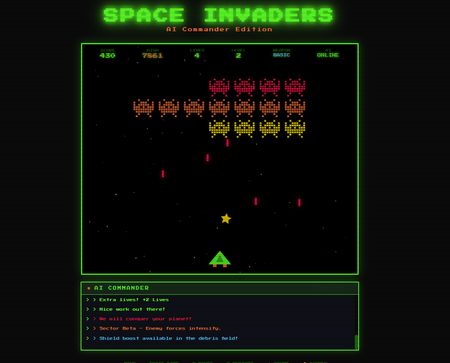
Build an AI-Powered Space Invaders Game: Integrating LLMs into HTML5 Games with Microsoft Foundry Local Introduction What if your game could talk back to you? Imagine playing Space Invaders while an AI commander taunts you during battle, delivers personalized mission briefings, and provides real-time feedback based on your performance. This isn't science fiction it's something you can build today using HTML, JavaScript, and a locally-running AI model. In this tutorial, we'll explore how to create an HTML5 game with integrated Large Language Model (LLM) features using Microsoft Foundry Local. You'll learn how to combine classic game development with modern AI capabilities, all running entirely on your own machine—no cloud services, no API costs, no internet connection required during gameplay. We'll be working with the Space Invaders - AI Commander Edition project, which demonstrates exactly how to architect games that leverage local AI. Whether you're a student learning game development, exploring AI integration patterns, or building your portfolio, this guide provides practical, hands-on experience with technologies that are reshaping how we build interactive applications. What You'll Learn By the end of this tutorial, you'll understand how to combine traditional web development with local AI inference. These skills transfer directly to building chatbots, interactive tutorials, AI-enhanced productivity tools, and any application where you want intelligent, context-aware responses. Set up Microsoft Foundry Local for running AI models on your machine Understand the architecture of games that integrate LLM features Use GitHub Copilot CLI to accelerate your development workflow Implement AI-powered game features like dynamic commentary and adaptive feedback Extend the project with your own creative AI features Why Local AI for Games? Before diving into the code, let's understand why running AI locally matters for game development. Traditional cloud-based AI services have limitations that make them impractical for real-time gaming experiences. Latency is the first challenge. Cloud API calls typically take 500ms to several seconds, an eternity in a game running at 60 frames per second. Local inference can respond in tens of milliseconds, enabling AI responses that feel instantaneous and natural. When an enemy ship appears, your AI commander can taunt you immediately, not three seconds later. Cost is another consideration. Cloud AI services charge per token, which adds up quickly when generating dynamic content during gameplay. Local models have zero per-use cost, once installed, they run entirely on your hardware. This frees you to experiment without worrying about API bills. Privacy and offline capability complete the picture. Local AI keeps all data on your machine, perfect for games that might handle player information. And since nothing requires internet connectivity, your game works anywhere, on planes, in areas with poor connectivity, or simply when you want to play without network access. Understanding Microsoft Foundry Local Microsoft Foundry Local is a runtime that enables you to run small language models (SLMs) directly on your computer. It's designed for developers who want to integrate AI capabilities into applications without requiring cloud infrastructure. Think of it as having a miniature AI assistant living on your laptop. Foundry Local handles the complex work of loading AI models, managing memory, and processing inference requests through a simple API. You send text prompts, and it returns AI-generated responses, all happening locally on your CPU or GPU. The models are optimized to run efficiently on consumer hardware, so you don't need a supercomputer. For our Space Invaders game, Foundry Local powers the "AI Commander" feature. During gameplay, the game sends context about what's happening, your score, accuracy, current level, enemies remaining and receives back contextual commentary, taunts, and encouragement. The result feels like playing alongside an AI companion who actually understands the game. Setting Up Your Development Environment Let's get your machine ready for AI-powered game development. We'll install Foundry Local, clone the project, and verify everything works. The entire setup takes about 10-15 minutes. Step 1: Install Microsoft Foundry Local Foundry Local installation varies by operating system. Open your terminal and run the appropriate command: # Windows (using winget) winget install Microsoft.FoundryLocal # macOS (using Homebrew) brew install microsoft/foundrylocal/foundrylocal These commands download and install the Foundry Local runtime along with a default small language model. The installation includes everything needed to run AI inference locally. Verify the installation by running: foundry --version If you see a version number, Foundry Local is ready. If you encounter errors, ensure you have administrator/sudo privileges and that your package manager is up to date. Step 2: Install Node.js (If Not Already Installed) Our game's AI features require a small Node.js server to communicate between the browser and Foundry Local. Check if Node.js is installed: node --version If you see a version number (v16 or higher recommended), you're set. Otherwise, install Node.js: # Windows winget install OpenJS.NodeJS.LTS # macOS brew install node # Linux sudo apt install nodejs npm Node.js provides the JavaScript runtime that powers our proxy server, bridging browser code with the local AI model. Step 3: Clone the Project Get the Space Invaders project onto your machine: git clone https://github.com/leestott/Spaceinvaders-FoundryLocal.git cd Spaceinvaders-FoundryLocal This downloads all game files, including the HTML interface, game logic, AI integration module, and server code. Step 4: Install Dependencies and Start the Server Install the Node.js packages and launch the AI-enabled server: npm install npm start The first command downloads required packages (primarily for the proxy server). The second starts the server, which listens for AI requests from the game. You should see output indicating the server is running on port 3001. Step 5: Play the Game Open your browser and navigate to: http://localhost:3001 You should see Space Invaders with "AI: ONLINE" displayed in the game HUD, indicating that AI features are active. Use arrow keys or A/D to move, SPACE to fire, and P to pause. The AI Commander will start providing commentary as you play! Understanding the Project Architecture Now that the game is running, let's explore how the different pieces fit together. Understanding this architecture will help you modify the game and apply these patterns to your own projects. The project follows a clean separation of concerns, with each file handling a specific responsibility: Spaceinvaders-FoundryLocal/ ├── index.html # Main game page and UI structure ├── styles.css # Retro arcade visual styling ├── game.js # Core game logic and rendering ├── llm.js # AI integration module ├── sound.js # Web Audio API sound effects ├── server.js # Node.js proxy for Foundry Local └── package.json # Project configuration index.html: Defines the game canvas and UI elements. It's the entry point that loads all other modules. game.js: Contains the game loop, physics, collision detection, scoring, and rendering logic. This is the heart of the game. llm.js: Handles all communication with the AI backend. It formats game state into prompts and processes AI responses. server.js: A lightweight Express server that proxies requests between the browser and Foundry Local. sound.js: Synthesizes retro sound effects using the Web Audio API—no audio files needed! How the AI Integration Works The magic of the AI Commander happens through a simple but powerful pattern. Let's trace the flow from gameplay event to AI response. When something interesting happens in the game, you clear a wave, achieve a combo, or lose a life, the game logic in game.js triggers an AI request. This request includes context about the current game state: your score, accuracy percentage, current level, lives remaining, and what just happened. The llm.js module formats this context into a prompt. For example, when you clear a wave with 85% accuracy, it might construct: You are an AI Commander in a Space Invaders game. The player just cleared wave 3 with 85% accuracy. Score: 12,500. Lives: 3. Provide a brief, enthusiastic comment (1-2 sentences). This prompt travels to server.js , which forwards it to Foundry Local. The AI model processes the prompt and generates a response like: "Impressive accuracy, pilot! Wave 3 didn't stand a chance. Keep that trigger finger sharp!" The response flows back through the server to the browser, where llm.js passes it to the game. The game displays the message in the HUD, creating the illusion of playing alongside an AI companion. This entire round trip typically completes in 50-200 milliseconds, fast enough to feel responsive without interrupting gameplay. Using GitHub Copilot CLI to Explore and Modify the Code GitHub Copilot CLI accelerates your development workflow by letting you ask questions and generate code directly in your terminal. Let's use it to understand and extend the Space Invaders project. Installing Copilot CLI If you haven't installed Copilot CLI yet, here's the quick setup: # Install GitHub CLI winget install GitHub.cli # Windows brew install gh # macOS # Authenticate with GitHub gh auth login # Add Copilot extension gh extension install github/gh-copilot # Verify installation gh copilot --help With Copilot CLI ready, you can interact with AI directly from your terminal while working on the project. Exploring Code with Copilot CLI Use Copilot to understand unfamiliar code. Navigate to the project directory and try: gh copilot explain "How does llm.js communicate with the server?" Copilot analyzes the code and explains the communication pattern, helping you understand the architecture without reading every line manually. You can also ask about specific functions: gh copilot explain "What does the generateEnemyTaunt function do?" This accelerates onboarding to unfamiliar codebases, a valuable skill when working with open source projects or joining teams. Generating New Features Want to add a new AI feature? Ask Copilot to help generate the code: gh copilot suggest "Create a function that asks the AI to generate a mission briefing at the start of each level, including the level number and a random mission objective" Copilot generates starter code that you can customize and integrate. This combination of AI-powered development tools and AI-integrated gameplay demonstrates how LLMs are transforming both how we build games and how games behave. Customizing the AI Commander The default AI Commander provides generic gaming commentary, but you can customize its personality and responses. Open llm.js to find the prompt templates that control AI behavior. Changing the AI's Personality The system prompt defines who the AI "is." Find the base prompt and modify it: // Original const systemPrompt = "You are an AI Commander in a Space Invaders game."; // Customized - Drill Sergeant personality const systemPrompt = `You are Sergeant Blaster, a gruff but encouraging drill sergeant commanding space cadets. Use military terminology, call the player "cadet," and be tough but fair.`; // Customized - Supportive Coach personality const systemPrompt = `You are Coach Nova, a supportive and enthusiastic gaming coach. Use encouraging language, celebrate small victories, and provide gentle guidance when players struggle.`; These personality changes dramatically alter the game's feel without changing any gameplay code. It's a powerful example of how AI can add variety to games with minimal development effort. Adding New Commentary Triggers Currently the AI responds to wave completions and game events. You can add new triggers in game.js : // Add AI commentary when player achieves a kill streak if (killStreak >= 5 && !streakCommentPending) { requestAIComment('killStreak', { count: killStreak }); streakCommentPending = true; } // Add AI reaction when player narrowly avoids death if (nearMissOccurred) { requestAIComment('nearMiss', { livesRemaining: lives }); } Each new trigger point adds another opportunity for the AI to engage with the player, making the experience more dynamic and personalized. Understanding the Game Features Beyond AI integration, the Space Invaders project demonstrates solid game development patterns worth studying. Let's explore the key features. Power-Up System The game includes eight different power-ups, each with unique effects: SPREAD (Orange): Fires three projectiles in a spread pattern LASER (Red): Powerful beam with high damage RAPID (Yellow): Dramatically increased fire rate MISSILE (Purple): Homing projectiles that track enemies SHIELD (Blue): Grants an extra life EXTRA LIFE (Green): Grants two extra lives BOMB (Red): Destroys all enemies on screen BONUS (Gold): Random score bonus between 250-750 points Power-ups demonstrate state management, tracking which power-up is active, applying its effects to player actions, and handling timeouts. Study the power-up code in game.js to understand how temporary state modifications work. Leaderboard System The game persists high scores using the browser's localStorage API: // Saving scores localStorage.setItem('spaceInvadersScores', JSON.stringify(scores)); // Loading scores const savedScores = localStorage.getItem('spaceInvadersScores'); const scores = savedScores ? JSON.parse(savedScores) : []; This pattern works for any data you want to persist between sessions—game progress, user preferences, or accumulated statistics. It's a simple but powerful technique for web games. Sound Synthesis Rather than loading audio files, the game synthesizes retro sound effects using the Web Audio API in sound.js . This approach has several benefits: no external assets to load, smaller project size, and complete control over sound parameters. Examine how oscillators and gain nodes combine to create laser sounds, explosions, and victory fanfares. This knowledge transfers directly to any web project requiring audio feedback. Extending the Project: Ideas for Students Ready to make the project your own? Here are ideas ranging from beginner-friendly to challenging, each teaching valuable skills. Beginner: Customize Visual Theme Modify styles.css to create a new visual theme. Try changing the color scheme from green to blue, or create a "sunset" theme with orange and purple gradients. This builds CSS skills while making the game feel fresh. Intermediate: Add New Enemy Types Create a new enemy class in game.js with different movement patterns. Perhaps enemies that move in sine waves, or boss enemies that take multiple hits. This teaches object-oriented programming and game physics. Intermediate: Expand AI Interactions Add new AI features like: Pre-game mission briefings that set up the story Dynamic difficulty hints when players struggle Post-game performance analysis and improvement suggestions AI-generated names for enemy waves Advanced: Multiplayer Commentary Modify the game for two-player support and have the AI provide play-by-play commentary comparing both players' performance. This combines game networking concepts with advanced AI prompting. Advanced: Voice Integration Use the Web Speech API to speak the AI Commander's responses aloud. This creates a more immersive experience and demonstrates browser speech synthesis capabilities. Troubleshooting Common Issues If something isn't working, here are solutions to common problems. "AI: OFFLINE" Displayed in Game This means the game can't connect to the AI server. Check that: The server is running ( npm start shows no errors) You're accessing the game via http://localhost:3001 , not directly opening the HTML file Foundry Local is installed correctly ( foundry --version works) Server Won't Start If npm start fails: Ensure you ran npm install first Check that port 3001 isn't already in use by another application Verify Node.js is installed ( node --version ) AI Responses Are Slow Local AI performance depends on your hardware. If responses feel sluggish: Close other resource-intensive applications Ensure your laptop is plugged in (battery mode may throttle CPU) Consider that first requests may be slower as the model loads Key Takeaways Local AI enables real-time game features: Microsoft Foundry Local provides fast, free, private AI inference perfect for gaming applications Clean architecture matters: Separating game logic, AI integration, and server code makes projects maintainable and extensible AI personality is prompt-driven: Changing a few lines of prompt text completely transforms how the AI interacts with players Copilot CLI accelerates learning: Use it to explore unfamiliar code and generate new features quickly The patterns transfer everywhere: Skills from this project apply to chatbots, assistants, educational tools, and any AI-integrated application Conclusion and Next Steps You've now seen how to integrate AI capabilities into a browser-based game using Microsoft Foundry Local. The Space Invaders project demonstrates that modern AI features don't require cloud services or complex infrastructure, they can run entirely on your laptop, responding in milliseconds. More importantly, you've learned patterns that extend far beyond gaming. The architecture of sending context to an AI, receiving generated responses, and integrating them into user experiences applies to countless applications: customer support bots, educational tutors, creative writing tools, and accessibility features. Your next step is experimentation. Clone the repository, modify the AI's personality, add new commentary triggers, or build an entirely new game using these patterns. The combination of GitHub Copilot CLI for development assistance and Foundry Local for runtime AI gives you powerful tools to bring intelligent applications to life. Start playing, start coding, and discover what you can create when your games can think. Resources Space Invaders - AI Commander Edition Repository - Full source code and documentation Play Space Invaders Online - Try the basic version without AI features Microsoft Foundry Local Documentation - Official installation and API guide GitHub Copilot CLI Documentation - Installation and usage guide GitHub Education - Free developer tools for students Web Audio API Documentation - Learn about browser sound synthesis Canvas API Documentation - Master HTML5 game rendering910Views0likes3CommentsAction Required: Migrate Your Copilot CLI MCP Config Away from .vscode/mcp.json
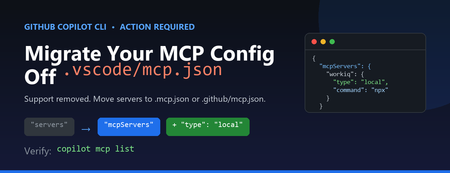
If you use the GitHub Copilot CLI with Model Context Protocol (MCP) servers, you may have hit this message on launch: Copilot CLI's incomplete support for .vscode/mcp.json has been removed. See https://gh.io/copilotcli-mcpmigrate to migrate to .mcp.json or .github/mcp.json . This is a quick, one-time fix. Here's what changed, why, and exactly what you need to do. What Changed The Copilot CLI previously made a best-effort attempt to read .vscode/mcp.json , the file VS Code uses to define MCP servers. That support was incomplete, so it has been removed. The CLI now loads MCP servers only from its own dedicated files: .mcp.json in your project root (or working directory) .github/mcp.json in your repository Your .vscode/mcp.json file is not deleted and still works for VS Code. The CLI simply no longer reads it. Why It Matters The VS Code and Copilot CLI configuration formats look similar but are not identical. Two differences trip people up: The top-level key is servers in VS Code, but mcpServers in the CLI. The CLI requires a type field on each server (for example, "local" for a stdio command-based server, or "http" for a remote server). Because of these differences, you can't just rename the file — you also need to adjust its contents. What You Need to Do Step 1: Find your existing config Locate the VS Code MCP file you've been using, for example: // .vscode/mcp.json (VS Code format) { "servers": { "workiq": { "command": "npx", "args": ["-y", "@microsoft/workiq", "mcp"], "tools": ["*"] } } } Step 2: Create .mcp.json in the same directory Convert it to the Copilot CLI format by renaming the top-level key and adding "type" : // .mcp.json (Copilot CLI format) { "mcpServers": { "workiq": { "type": "local", "command": "npx", "args": ["-y", "@microsoft/workiq", "mcp"], "tools": ["*"] } } } Prefer the change to live with your repository so teammates pick it up automatically? Put the same content in .github/mcp.json instead. Step 3: Verify From the directory containing the new file, list the servers the CLI can see: copilot mcp list You should see your server reported, for example workiq (local) , and the startup warning will stop. Quick Reference VS Code ( .vscode/mcp.json ) Copilot CLI ( .mcp.json / .github/mcp.json ) Top-level key servers Top-level key mcpServers No type field Add "type": "local" (stdio) or "http" (remote) Read by VS Code only Read by Copilot CLI only Don't Forget Your Other Repositories This setting is per-directory. If you run copilot inside multiple projects that each have a .vscode/mcp.json , repeat the migration in each one. The change is always the same: rename servers to mcpServers and add a type to every server. Key Takeaways The Copilot CLI no longer reads .vscode/mcp.json . Move your MCP servers into .mcp.json (project) or .github/mcp.json (repo). Change the key from servers to mcpServers and add "type" to each server. Leave .vscode/mcp.json in place so VS Code keeps working. Confirm with copilot mcp list . Learn More Copilot CLI MCP migration guidance GitHub Copilot CLI command reference Model Context Protocol737Views0likes0CommentsBuilding ShadowQuest: A Multi-Agent RPG
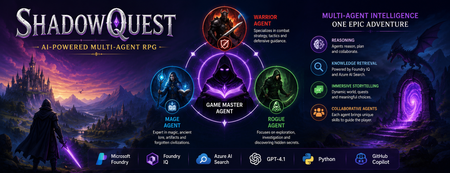
Artificial Intelligence is rapidly evolving beyond traditional chatbots. Today, developers are building intelligent systems where multiple AI agents collaborate, retrieve knowledge, and solve problems together. Microsoft's Agents League Hackathon provided the perfect opportunity to explore this new approach through the Reasoning Agents challenge. For this challenge, I built ShadowQuest, a fantasy role-playing game (RPG) powered by Microsoft Foundry, Foundry IQ, Azure AI Search, GPT-4.1, and GitHub Copilot. The project demonstrates how specialized AI agents can work together while using Retrieval-Augmented Generation (RAG) to deliver accurate and context-aware responses. About the Challenge Microsoft Agents League is a global developer challenge designed to encourage developers to build intelligent AI applications using Microsoft's latest AI technologies. Participants could choose from three tracks: Creative Apps, Reasoning Agents, and Enterprise Agents. I selected the Reasoning Agents track because I wanted to explore how multiple AI agents could collaborate instead of relying on a single large language model. Another important requirement for this year's challenge was integrating at least one Microsoft Intelligence Layer. For ShadowQuest, I chose Foundry IQ as the project's intelligence layer. The Idea Behind ShadowQuest Fantasy RPGs are built around storytelling, exploration, and collaboration between different characters. Every character usually has a unique role, whether it's a warrior protecting the team, a mage interpreting magical knowledge, or a rogue discovering hidden paths. I wanted to recreate this experience using AI. Instead of building one AI assistant responsible for everything, I designed a system where multiple specialized agents collaborate to create a richer and more immersive adventure. ShadowQuest is set in a fantasy world filled with magical artifacts, forgotten kingdoms, mysterious locations, and story-driven quests. Players can ask questions about the world, explore different locations, and learn about the game's lore through conversations with AI agents. Building the Multi-Agent Architecture The architecture follows a simple but scalable design. At the center of the system is the Game Master Agent, which acts as the orchestrator. Every player interaction starts with the Game Master. It receives the player's request, determines what information is needed, retrieves additional knowledge when required, and generates the final response. Supporting the Game Master are three specialized agents: Warrior Agent – Focuses on combat strategy and tactical decisions. Mage Agent – Provides magical knowledge, world lore, and information about ancient artifacts. Rogue Agent – Specializes in exploration, investigation, and discovering hidden information. Each agent has a clearly defined responsibility, making the system easier to understand, maintain, and extend in the future. Using Foundry IQ as the Knowledge Layer One of the most important parts of the project was integrating Foundry IQ. Instead of storing every piece of game information inside prompts, I created a dedicated knowledge base containing information about characters, magical artifacts, locations, quests, and the history of the ShadowQuest world. This approach separates knowledge from reasoning. Whenever a player asks a question, the Game Master Agent first retrieves relevant information from the knowledge base before generating a response. This ensures that answers remain consistent with the game's world while reducing hallucinations. Foundry IQ became the central source of truth for the entire project, making it easy to manage and expand the game world without constantly modifying prompts. Azure AI Search and Retrieval-Augmented Generation To enable intelligent retrieval, I connected Foundry IQ with Azure AI Search. The RPG documents were indexed, and vector embeddings were generated using Microsoft's embedding models. This enables semantic search, allowing the system to understand the meaning behind a player's question instead of relying only on keyword matching. For example, if a player asks about a magical relic without mentioning its exact name, Azure AI Search can still retrieve the correct information based on semantic similarity. The complete workflow looks like this: The player submits a question. The Game Master Agent receives the request. Foundry IQ queries Azure AI Search. Relevant documents are retrieved. GPT-4.1 generates a grounded response using the retrieved context. This Retrieval-Augmented Generation (RAG) approach significantly improves the quality and reliability of responses. Accelerating Development with GitHub Copilot GitHub Copilot played an important role throughout the development process. It helped generate Python classes, improve documentation, create helper functions, and speed up repetitive coding tasks. During the live demonstration, I also showed how Copilot could quickly generate a new Healer Agent, demonstrating how AI-assisted development makes it easier to extend a multi-agent application while maintaining a consistent architecture. Rather than replacing the developer, Copilot acted as an intelligent coding assistant, allowing me to focus more on architecture and design decisions. Demonstrating ShadowQuest During the Microsoft Agents League Reasoning Agents Battle, I demonstrated the Game Master Agent by asking questions about the ShadowQuest world, magical artifacts, and game lore. One of the most interesting parts of the demonstration was observing the retrieval process. Before generating a response, the Game Master Agent called the knowledge retrieval function through Foundry IQ. This confirmed that the system was retrieving relevant information from the indexed knowledge base rather than relying only on GPT-4.1's internal knowledge. This demonstrated how RAG can create more grounded, reliable, and context-aware AI experiences. Lessons Learned Building ShadowQuest taught me that designing multi-agent systems is as much about architecture as it is about AI models. Clearly defining responsibilities for each agent made the application easier to maintain and opened the door for future expansion. I also learned how valuable Retrieval-Augmented Generation can be for applications that depend on structured knowledge. Separating reasoning from knowledge allows AI systems to remain accurate while making it easier to update information over time. Finally, participating in the Microsoft Agents League was an incredible opportunity to experiment with Microsoft's latest AI technologies, learn from other developers, and share ideas with a global community passionate about agentic AI. Looking Ahead ShadowQuest is only the beginning. In future iterations, I plan to expand the project by introducing additional agents such as a Merchant Agent and Healer Agent, implementing persistent player memory, adding dynamic quest generation, improving combat mechanics, and enabling deeper collaboration between agents. These improvements will make the game world more immersive while continuing to explore the possibilities of agent-based AI systems. Conclusion ShadowQuest demonstrates how Microsoft Foundry, Foundry IQ, Azure AI Search, GPT-4.1, and GitHub Copilot can be combined to build intelligent multi-agent applications. More importantly, the project reinforced an important idea: the future of AI is not a single assistant performing every task, but a team of specialized agents collaborating with shared knowledge to solve increasingly complex problems. Participating in the Microsoft Agents League was an inspiring experience that allowed me to explore the next generation of AI development while building a project that combines storytelling, reasoning, and knowledge retrieval. I look forward to continuing this journey and discovering new ways to build intelligent applications using Microsoft's growing AI ecosystem.437Views1like0CommentsModel Mondays S2:E7 · AI-Assisted Azure Development
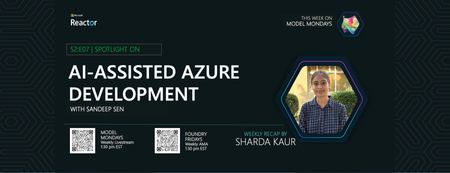
Welcome to Episode 7! This week, we explore how AI is transforming Azure development. We’ll break down two key tools—Azure MCP Server and GitHub Copilot for Azure—and see how they make working with Azure resources easier for everyone. We’ll also look at a real customer story from SightMachine, showing how AI streamlines manufacturing operations.507Views0likes0CommentsAgentic Code Fixing with GitHub Copilot SDK and Foundry Local
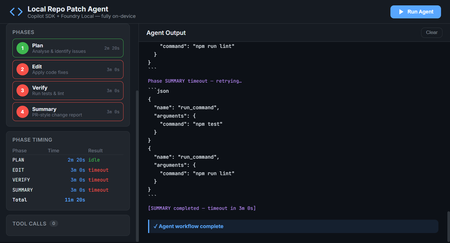
Introduction AI-powered coding assistants have transformed how developers write and review code. But most of these tools require sending your source code to cloud services, a non-starter for teams working with proprietary codebases, air-gapped environments, or strict compliance requirements. What if you could have an intelligent coding agent that finds bugs, fixes them, runs your tests, and produces PR-ready summaries, all without a single byte leaving your machine? The Local Repo Patch Agent demonstrates exactly this. By combining the GitHub Copilot SDK for agent orchestration with Foundry Local for on-device inference, this project creates a fully autonomous coding workflow that operates entirely on your hardware. The agent scans your repository, identifies bugs and code smells, applies fixes, verifies them through your test suite, and generates a comprehensive summary of all changes, completely offline and secure. This article explores the architecture behind this integration, walks through the key implementation patterns, and shows you how to run the agent yourself. Whether you're building internal developer tools, exploring agentic workflows, or simply curious about what's possible when you combine GitHub's SDK with local AI, this project provides a production-ready foundation to build upon. Why Local AI Matters for Code Analysis Cloud-based AI coding tools have proven their value—GitHub Copilot has fundamentally changed how millions of developers work. But certain scenarios demand local-first approaches where code never leaves the organisation's network. Consider these real-world constraints that teams face daily: Regulatory compliance: Financial services, healthcare, and government projects often prohibit sending source code to external services, even for analysis Intellectual property protection: Proprietary algorithms and trade secrets can't risk exposure through cloud API calls Air-gapped environments: Secure facilities and classified projects have no internet connectivity whatsoever Latency requirements: Real-time code analysis in IDEs benefits from zero network roundtrip Cost control: High-volume code analysis without per-token API charges The Local Repo Patch Agent addresses all these scenarios. By running the AI model on-device through Foundry Local and using the GitHub Copilot SDK for orchestration, you get the intelligence of agentic coding workflows with complete data sovereignty. The architecture proves that "local-first" doesn't mean "capability-limited." The Technology Stack Two core technologies make this architecture possible, working together through a clever integration called BYOK (Bring Your Own Key). Understanding how they complement each other reveals the elegance of the design. GitHub Copilot SDK The GitHub Copilot SDK provides the agent runtime, the scaffolding that handles planning, tool invocation, streaming responses, and the orchestration loop that makes agentic behaviour possible. Rather than managing raw LLM API calls, developers define tools (functions the agent can call) and system prompts, and the SDK handles everything else. Key capabilities the SDK brings to this project: Session management: Maintains conversation context across multiple agent interactions Tool orchestration: Automatically invokes defined tools when the model requests them Streaming support: Real-time response streaming for responsive user interfaces Provider abstraction: Works with any OpenAI-compatible API through the BYOK configuration Foundry Local Foundry Local brings Azure AI Foundry's model catalog to your local machine. It automatically selects the best available hardware acceleration—GPU, NPU, or CP, and exposes models through an OpenAI-compatible API on localhost. Models run entirely on-device with no telemetry or data transmission. For this project, Foundry Local provides: On-device inference: All AI processing happens locally, ensuring complete data privacy Dynamic port allocation: The SDK auto-detects the Foundry Local endpoint, eliminating configuration hassle Model flexibility: Swap between models like qwen2.5-coder-1.5b , phi-3-mini , or larger variants based on your hardware OpenAI API compatibility: Standard API format means the GitHub Copilot SDK works without modification The BYOK Integration The entire connection between the GitHub Copilot SDK and Foundry Local happens through a single configuration object. This BYOK (Bring Your Own Key) pattern tells the SDK to route all inference requests to your local model instead of cloud services: const session = await client.createSession({ model: modelId, provider: { type: "openai", // Foundry Local speaks OpenAI's API format baseUrl: proxyBaseUrl, // Streaming proxy → Foundry Local apiKey: manager.apiKey, wireApi: "completions", // Chat Completions API }, streaming: true, tools: [ /* your defined tools */ ], }); This configuration is the key insight: with one config object, you've redirected an entire agent framework to run on local hardware. No code changes to the SDK, no special adapters—just standard OpenAI-compatible API communication. Architecture Overview The Local Repo Patch Agent implements a layered architecture where each component has a clear responsibility. Understanding this flow helps when extending or debugging the system. ┌─────────────────────────────────────────────────────────┐ │ Your Terminal / Web UI │ │ npm run demo / npm run ui │ └──────────────┬──────────────────────────────────────────┘ │ ┌──────────────▼──────────────────────────────────────────┐ │ src/agent.ts (this project) │ │ │ │ ┌────────────────────────────┐ ┌──────────────────┐ │ │ │ GitHub Copilot SDK │ │ Agent Tools │ │ │ │ (CopilotClient) │ │ list_files │ │ │ │ BYOK → Foundry │ │ read_file │ │ │ └────────┬───────────────────┘ │ write_file │ │ │ │ │ run_command │ │ └────────────┼───────────────────────┴──────────────────┘ │ │ │ │ JSON-RPC │ ┌────────────▼─────────────────────────────────────────────┐ │ GitHub Copilot CLI (server mode) │ │ Agent orchestration layer │ └────────────┬─────────────────────────────────────────────┘ │ POST /v1/chat/completions (BYOK) ┌────────────▼─────────────────────────────────────────────┐ │ Foundry Local (on-device inference) │ │ Model: qwen2.5-coder-1.5b via ONNX Runtime │ │ Endpoint: auto-detected (dynamic port) │ └───────────────────────────────────────────────────────────┘ The data flow works as follows: your terminal or web browser sends a request to the agent application. The agent uses the GitHub Copilot SDK to manage the conversation, which communicates with the Copilot CLI running in server mode. The CLI, configured with BYOK, sends inference requests to Foundry Local running on localhost. Responses flow back up the same path, with tool invocations happening in the agent.ts layer. The Four-Phase Workflow The agent operates through a structured four-phase loop, each phase building on the previous one's output. This decomposition transforms what would be an overwhelming single prompt into manageable, verifiable steps. Phase 1: PLAN The planning phase scans the repository and produces a numbered fix plan. The agent reads every source and test file, identifies potential issues, and outputs specific tasks to address: // Phase 1 system prompt excerpt const planPrompt = ` You are a code analysis agent. Scan the repository and identify: 1. Bugs that cause test failures 2. Code smells and duplication 3. Style inconsistencies Output a numbered list of fixes, ordered by priority. Each item should specify: file path, line numbers, issue type, and proposed fix. `; The tools available during this phase are list_files and read_file —the agent explores the codebase without modifying anything. This read-only constraint prevents accidental changes before the plan is established. Phase 2: EDIT With a plan in hand, the edit phase applies each fix by rewriting affected files. The agent receives the plan from Phase 1 and systematically addresses each item: // Phase 2 adds the write_file tool const editTools = [ { name: "write_file", description: "Write content to a file, creating or overwriting it", parameters: { type: "object", properties: { path: { type: "string", description: "File path relative to repo root" }, content: { type: "string", description: "Complete file contents" } }, required: ["path", "content"] } } ]; The write_file tool is sandboxed to the demo-repo directory, path traversal attempts are blocked, preventing the agent from modifying files outside the designated workspace. Phase 3: VERIFY After making changes, the verification phase runs the project's test suite to confirm fixes work correctly. If tests fail, the agent attempts to diagnose and repair the issue: // Phase 3 adds run_command with an allowlist const allowedCommands = ["npm test", "npm run lint", "npm run build"]; const runCommandTool = { name: "run_command", description: "Execute a shell command (npm test, npm run lint, npm run build only)", execute: async (command: string) => { if (!allowedCommands.includes(command)) { throw new Error(`Command not allowed: ${command}`); } // Execute and return stdout/stderr } }; The command allowlist is a critical security measure. The agent can only run explicitly permitted commands—no arbitrary shell execution, no data exfiltration, no system modification. Phase 4: SUMMARY The final phase produces a PR-style Markdown report documenting all changes. This summary includes what was changed, why each change was necessary, test results, and recommended follow-up actions: ## Summary of Changes ### Bug Fix: calculateInterest() in account.js - **Issue**: Division instead of multiplication caused incorrect interest calculations - **Fix**: Changed `principal / annualRate` to `principal * (annualRate / 100)` - **Tests**: 3 previously failing tests now pass ### Refactor: Duplicate formatCurrency() removed - **Issue**: Identical function existed in account.js and transaction.js - **Fix**: Both files now import from utils.js - **Impact**: Reduced code duplication, single source of truth ### Test Results - **Before**: 6/9 passing - **After**: 9/9 passing This structured output makes code review straightforward, reviewers can quickly understand what changed and why without digging through diffs. The Demo Repository: Intentional Bugs The project includes a demo-repo directory containing a small banking utility library with intentional problems for the agent to find and fix. This provides a controlled environment to demonstrate the agent's capabilities. Bug 1: Calculation Error in calculateInterest() The account.js file contains a calculation bug that causes test failures: // BUG: should be principal * (annualRate / 100) function calculateInterest(principal, annualRate) { return principal / annualRate; // Division instead of multiplication! } This bug causes 3 of 9 tests to fail. The agent identifies it during the PLAN phase by correlating test failures with the implementation, then fixes it during EDIT. Bug 2: Code Duplication The formatCurrency() function is copy-pasted in both account.js and transaction.js, even though a canonical version exists in utils.js. This duplication creates maintenance burden and potential inconsistency: // In account.js (duplicated) function formatCurrency(amount) { return '$' + amount.toFixed(2); } // In transaction.js (also duplicated) function formatCurrency(amount) { return '$' + amount.toFixed(2); } // In utils.js (canonical, but unused) export function formatCurrency(amount) { return '$' + amount.toFixed(2); } The agent identifies this duplication during planning and refactors both files to import from utils.js, eliminating redundancy. Handling Foundry Local Streaming Quirks One technical challenge the project solves is Foundry Local's behaviour with streaming requests. As of version 0.5, Foundry Local can hang on stream: true requests. The project includes a streaming proxy that works around this limitation transparently. The Streaming Proxy The streaming-proxy.ts file implements a lightweight HTTP proxy that converts streaming requests to non-streaming, then re-encodes the single response as SSE (Server-Sent Events) chunks—the format the OpenAI SDK expects: // streaming-proxy.ts simplified logic async function handleRequest(req: Request): Promise { const body = await req.json(); // If it's a streaming chat completion, convert to non-streaming if (body.stream === true && req.url.includes('/chat/completions')) { body.stream = false; const response = await fetch(foundryEndpoint, { method: 'POST', body: JSON.stringify(body), headers: { 'Content-Type': 'application/json' } }); const data = await response.json(); // Re-encode as SSE stream for the SDK return createSSEResponse(data); } // Non-streaming and non-chat requests pass through unchanged return fetch(foundryEndpoint, req); } This proxy runs on port 8765 by default and sits between the GitHub Copilot SDK and Foundry Local. The SDK thinks it's talking to a streaming-capable endpoint, while the actual inference happens non-streaming. The conversion is transparent, no changes needed to SDK configuration. Text-Based Tool Call Detection Small on-device models like qwen2.5-coder-1.5b sometimes output tool calls as JSON text rather than using OpenAI-style function calling. The SDK won't fire tool.execution_start events for these text-based calls, so the agent includes a regex-based detector: // Pattern to detect tool calls in model output const toolCallPattern = /\{[\s\S]*"name":\s*"(list_files|read_file|write_file|run_command)"[\s\S]*\}/; function detectToolCall(text: string): ToolCall | null { const match = text.match(toolCallPattern); if (match) { try { return JSON.parse(match[0]); } catch { return null; } } return null; } This fallback ensures tool calls are captured regardless of whether the model uses native function calling or text output, keeping the dashboard's tool call counter and CLI log accurate. Security Considerations Running an AI agent that can read and write files and execute commands requires careful security design. The Local Repo Patch Agent implements multiple layers of protection: 100% local execution: No code, prompts, or responses leave your machine—complete data sovereignty Command allowlist: The agent can only run npm test , npm run lint , and npm run build —no arbitrary shell commands Path sandboxing: File tools are locked to the demo-repo/ directory; path traversal attempts like ../../../etc/passwd are rejected File size limits: The read_file tool rejects files over 256 KB, preventing memory exhaustion attacks Recursion limits: Directory listing caps at 20 levels deep, preventing infinite traversal These constraints demonstrate responsible AI agent design. The agent has enough capability to do useful work but not enough to cause harm. When extending this project for your own use cases, maintain similar principles, grant minimum necessary permissions, validate all inputs, and fail closed on unexpected conditions. Running the Agent Getting the Local Repo Patch Agent running on your machine takes about five minutes. The project includes setup scripts that handle prerequisites automatically. Prerequisites Before running the setup, ensure you have: Node.js 18 or higher: Download from nodejs.org (LTS version recommended) Foundry Local: Install via winget install Microsoft.FoundryLocal (Windows) or brew install foundrylocal (macOS) GitHub Copilot CLI: Follow the GitHub Copilot CLI install guide Verify your installations: node --version # Should print v18.x.x or higher foundry --version copilot --version One-Command Setup The easiest path uses the provided setup scripts that install dependencies, start Foundry Local, and download the AI model: # Clone the repository git clone https://github.com/leestott/copilotsdk_foundrylocal.git cd copilotsdk_foundrylocal # Windows (PowerShell) .\setup.ps1 # macOS / Linux chmod +x setup.sh ./setup.sh When setup completes, you'll see: ━━━ Setup complete! ━━━ You're ready to go. Run one of these commands: npm run demo CLI agent (terminal output) npm run ui Web dashboard (http://localhost:3000) Manual Setup If you prefer step-by-step control: # Install npm packages npm install cd demo-repo && npm install --ignore-scripts && cd .. # Start Foundry Local and download the model foundry service start foundry model run qwen2.5-coder-1.5b # Copy environment configuration cp .env.example .env # Run the agent npm run demo The first model download takes a few minutes depending on your connection. After that, the model runs from cache with no internet required. Using the Web Dashboard For a visual experience with real-time streaming, launch the web UI: npm run ui Open http://localhost:3000 in your browser. The dashboard provides: Phase progress sidebar: Visual indication of which phase is running, completed, or errored Live streaming output: Model responses appear in real-time via WebSocket Tool call log: Every tool invocation logged with phase context Phase timing table: Performance metrics showing how long each phase took Environment info: Current model, endpoint, and repository path at a glance Configuration Options The agent supports several environment variables for customisation. Edit the .env file or set them directly: Variable Default Description FOUNDRY_LOCAL_ENDPOINT auto-detected Override the Foundry Local API endpoint FOUNDRY_LOCAL_API_KEY auto-detected Override the API key FOUNDRY_MODEL qwen2.5-coder-1.5b Which model to use from the Foundry Local catalog FOUNDRY_TIMEOUT_MS 180000 (3 min) How long each agent phase can run before timing out FOUNDRY_NO_PROXY — Set to 1 to disable the streaming proxy PORT 3000 Port for the web dashboard Using Different Models To try a different model from the Foundry Local catalog: # Use phi-3-mini instead FOUNDRY_MODEL=phi-3-mini npm run demo # Use a larger model for higher quality (requires more RAM/VRAM) FOUNDRY_MODEL=qwen2.5-7b npm run demo Adjusting for Slower Hardware If you're running on CPU-only or limited hardware, increase the timeout to give the model more time per phase: # 5 minutes per phase instead of 3 FOUNDRY_TIMEOUT_MS=300000 npm run demo Troubleshooting Common Issues When things don't work as expected, these solutions address the most common problems: Problem Solution foundry: command not found Install Foundry Local—see Prerequisites section copilot: command not found Install GitHub Copilot CLI—see Prerequisites section Agent times out on every phase Increase FOUNDRY_TIMEOUT_MS (e.g., 300000 for 5 min). CPU-only machines are slower. Port 3000 already in use Set PORT=3001 npm run ui Model download is slow First download can take 5-10 min. Subsequent runs use the cache. Cannot find module errors Run npm install again, then cd demo-repo && npm install --ignore-scripts Tests still fail after agent runs The agent edits files in demo-repo/. Reset with git checkout demo-repo/ and run again. PowerShell blocks setup.ps1 Run Set-ExecutionPolicy -Scope Process Bypass first, then .\setup.ps1 Diagnostic Test Scripts The src/tests/ folder contains standalone scripts for debugging SDK and Foundry Local integration issues. These are invaluable when things go wrong: # Debug-level SDK event logging npx tsx src/tests/test-debug.ts # Test non-streaming inference (bypasses streaming proxy) npx tsx src/tests/test-nostream.ts # Raw fetch to Foundry Local (bypasses SDK entirely) npx tsx src/tests/test-stream-direct.ts # Start the traffic-inspection proxy npx tsx src/tests/test-proxy.ts These scripts isolate different layers of the stack, helping identify whether issues lie in Foundry Local, the streaming proxy, the SDK, or your application code. Key Takeaways BYOK enables local-first AI: A single configuration object redirects the entire GitHub Copilot SDK to use on-device inference through Foundry Local Phased workflows improve reliability: Breaking complex tasks into PLAN → EDIT → VERIFY → SUMMARY phases makes agent behaviour predictable and debuggable Security requires intentional design: Allowlists, sandboxing, and size limits constrain agent capabilities to safe operations Local models have quirks: The streaming proxy and text-based tool detection demonstrate how to work around on-device model limitations Real-time feedback matters: The web dashboard with WebSocket streaming makes agent progress visible and builds trust in the system The architecture is extensible: Add new tools, change models, or modify phases to adapt the agent to your specific needs Conclusion and Next Steps The Local Repo Patch Agent proves that sophisticated agentic coding workflows don't require cloud infrastructure. By combining the GitHub Copilot SDK's orchestration capabilities with Foundry Local's on-device inference, you get intelligent code analysis that respects data sovereignty completely. The patterns demonstrated here, BYOK integration, phased execution, security sandboxing, and streaming workarounds, transfer directly to production systems. Consider extending this foundation with: Custom tool sets: Add database queries, API calls to internal services, or integration with your CI/CD pipeline Multiple repository support: Scan and fix issues across an entire codebase or monorepo Different model sizes: Use smaller models for quick scans, larger ones for complex refactoring Human-in-the-loop approval: Add review steps before applying fixes to production code Integration with Git workflows: Automatically create branches and PRs from agent-generated fixes Clone the repository, run through the demo, and start building your own local-first AI coding tools. The future of developer AI isn't just cloud—it's intelligent systems that run wherever your code lives. Resources Local Repo Patch Agent Repository – Full source code with setup scripts and documentation Foundry Local – Official site for on-device AI inference Foundry Local GitHub Repository – Installation instructions and CLI reference Foundry Local Get Started Guide – Official Microsoft Learn documentation Foundry Local SDK Reference – Python and JavaScript SDK documentation GitHub Copilot SDK – Official SDK repository GitHub Copilot SDK BYOK Documentation – Bring Your Own Key integration guide GitHub Copilot SDK Getting Started – SDK setup and first agent tutorial Microsoft Sample: Copilot SDK + Foundry Local – Official integration sample from Microsoft2.7KViews0likes0CommentsChoosing the Right Intelligence Layer for Your Application
Introduction One of the most common questions developers ask when planning AI-powered applications is: "Should I use the GitHub Copilot SDK or the Microsoft Agent Framework?" It's a natural question, both technologies let you add an intelligence layer to your apps, both come from Microsoft's ecosystem, and both deal with AI agents. But they solve fundamentally different problems, and understanding where each excels will save you weeks of architectural missteps. The short answer is this: the Copilot SDK puts Copilot inside your app, while the Agent Framework lets you build your app out of agents. They're complementary, not competing. In fact, the most interesting applications use both, the Agent Framework as the system architecture and the Copilot SDK as a powerful execution engine within it. This article breaks down each technology's purpose, architecture, and ideal use cases. We'll walk through concrete scenarios, examine a real-world project that combines both, and give you a decision framework for your own applications. Whether you're building developer tools, enterprise workflows, or data analysis pipelines, you'll leave with a clear understanding of which tool belongs where in your stack. The Core Distinction: Embedding Intelligence vs Building With Intelligence Before comparing features, it helps to understand the fundamental design philosophy behind each technology. They approach the concept of "adding AI to your application" from opposite directions. The GitHub Copilot SDK exposes the same agentic runtime that powers Copilot CLI as a programmable library. When you use it, you're embedding a production-tested agent, complete with planning, tool invocation, file editing, and command execution, directly into your application. You don't build the orchestration logic yourself. Instead, you delegate tasks to Copilot's agent loop and receive results. Think of it as hiring a highly capable contractor: you describe the job, and the contractor figures out the steps. The Microsoft Agent Framework is a framework for building, orchestrating, and hosting your own agents. You explicitly model agents, workflows, state, memory, hand-offs, and human-in-the-loop interactions. You control the orchestration, policies, deployment, and observability. Think of it as designing the company that employs those contractors: you define the roles, processes, escalation paths, and quality controls. This distinction has profound implications for what you build and how you build it. GitHub Copilot SDK: When Your App Wants Copilot-Style Intelligence The GitHub Copilot SDK is the right choice when you want to embed agentic behavior into an existing application without building your own planning or orchestration layer. It's optimized for developer workflows and task automation scenarios where you need an AI agent to do things, edit files, run commands, generate code, interact with tools, reliably and quickly. What You Get Out of the Box The SDK communicates with the Copilot CLI server via JSON-RPC, managing the CLI process lifecycle automatically. This means your application inherits capabilities that have been battle-tested across millions of Copilot CLI users: Planning and execution: The agent analyzes tasks, breaks them into steps, and executes them autonomously Built-in tool support: File system operations, Git operations, web requests, and shell command execution work out of the box MCP (Model Context Protocol) integration: Connect to any MCP server to extend the agent's capabilities with custom data sources and tools Multi-language support: Available as SDKs for Python, TypeScript/Node.js, Go, and .NET Custom tool definitions: Define your own tools and constrain which tools the agent can access BYOK (Bring Your Own Key): Use your own API keys from OpenAI, Azure AI Foundry, or Anthropic instead of GitHub authentication Architecture The SDK's architecture is deliberately simple. Your application communicates with the Copilot CLI running in server mode: Your Application ↓ SDK Client ↓ JSON-RPC Copilot CLI (server mode) The SDK manages the CLI process lifecycle automatically. You can also connect to an external CLI server if you need more control over the deployment. This simplicity is intentional, it keeps the integration surface small so you can focus on your application logic rather than agent infrastructure. Ideal Use Cases for the Copilot SDK The Copilot SDK shines in scenarios where you need a competent agent to execute tasks on behalf of users. These include: AI-powered developer tools: IDEs, CLIs, internal developer portals, and code review tools that need to understand, generate, or modify code "Do the task for me" agents: Applications where users describe what they want—edit these files, run this analysis, generate a pull request and the agent handles execution Rapid prototyping with agentic behavior: When you need to ship an intelligent feature quickly without building a custom planning or orchestration system Internal tools that interact with codebases: Build tools that explore repositories, generate documentation, run migrations, or automate repetitive development tasks A practical example: imagine building an internal CLI that lets engineers say "set up a new microservice with our standard boilerplate, CI pipeline, and monitoring configuration." The Copilot SDK agent would plan the file creation, scaffold the code, configure the pipeline YAML, and even run initial tests, all without you writing orchestration logic. Microsoft Agent Framework: When Your App Is the Intelligence System The Microsoft Agent Framework is the right choice when you need to build a system of agents that collaborate, maintain state, follow business processes, and operate with enterprise-grade governance. It's designed for long-running, multi-agent workflows where you need fine-grained control over every aspect of orchestration. What You Get Out of the Box The Agent Framework provides a comprehensive foundation for building sophisticated agent systems in both Python and .NET: Graph-based workflows: Connect agents and deterministic functions using data flows with streaming, checkpointing, human-in-the-loop, and time-travel capabilities Multi-agent orchestration: Define how agents collaborate, hand off tasks, escalate decisions, and share state Durability and checkpoints: Workflows can pause, resume, and recover from failures, essential for business-critical processes Human-in-the-loop: Built-in support for approval gates, review steps, and human override points Observability: OpenTelemetry integration for distributed tracing, monitoring, and debugging across agent boundaries Multiple agent providers: Use Azure OpenAI, OpenAI, and other LLM providers as the intelligence behind your agents DevUI: An interactive developer UI for testing, debugging, and visualizing workflow execution Architecture The Agent Framework gives you explicit control over the agent topology. You define agents, connect them in workflows, and manage the flow of data between them: ┌─────────────┐ ┌──────────────┐ ┌──────────────┐ │ Agent A │────▶│ Agent B │────▶│ Agent C │ │ (Planner) │ │ (Executor) │ │ (Reviewer) │ └─────────────┘ └──────────────┘ └──────────────┘ Define Execute Validate strategy tasks output Each agent has its own instructions, tools, memory, and state. The framework manages communication between agents, handles failures, and provides visibility into what's happening at every step. This explicitness is what makes it suitable for enterprise applications where auditability and control are non-negotiable. Ideal Use Cases for the Agent Framework The Agent Framework excels in scenarios where you need a system of coordinated agents operating under business rules. These include: Multi-agent business workflows: Customer support pipelines, research workflows, operational processes, and data transformation pipelines where different agents handle different responsibilities Systems requiring durability: Workflows that run for hours or days, need checkpoints, can survive restarts, and maintain state across sessions Governance-heavy applications: Processes requiring approval gates, audit trails, role-based access, and compliance documentation Agent collaboration patterns: Applications where agents need to negotiate, escalate, debate, or refine outputs iteratively before producing a final result Enterprise data pipelines: Complex data processing workflows where AI agents analyze, transform, and validate data through multiple stages A practical example: an enterprise customer support system where a triage agent classifies incoming tickets, a research agent gathers relevant documentation and past solutions, a response agent drafts replies, and a quality agent reviews responses before they reach the customer, with a human escalation path when confidence is low. Side-by-Side Comparison To make the distinction concrete, here's how the two technologies compare across key dimensions that matter when choosing an intelligence layer for your application. Dimension GitHub Copilot SDK Microsoft Agent Framework Primary purpose Embed Copilot's agent runtime into your app Build and orchestrate your own agent systems Orchestration Handled by Copilot's agent loop, you delegate You define explicitly, agents, workflows, state, hand-offs Agent count Typically single agent per session Multi-agent systems with agent-to-agent communication State management Session-scoped, managed by the SDK Durable state with checkpointing, time-travel, persistence Human-in-the-loop Basic, user confirms actions Rich approval gates, review steps, escalation paths Observability Session logs and tool call traces Full OpenTelemetry, distributed tracing, DevUI Best for Developer tools, task automation, code-centric workflows Enterprise workflows, multi-agent systems, business processes Languages Python, TypeScript, Go, .NET Python, .NET Learning curve Low, install, configure, delegate tasks Moderate, design agents, workflows, state, and policies Maturity Technical Preview Preview with active development, 7k+ stars, 100+ contributors Real-World Example: Both Working Together The most compelling applications don't choose between these technologies, they combine them. A perfect demonstration of this complementary relationship is the Agentic House project by my colleague Anthony Shaw, which uses an Agent Framework workflow to orchestrate three agents, one of which is powered by the GitHub Copilot SDK. The Problem Agentic House lets users ask natural language questions about their Home Assistant smart home data. Questions like "what time of day is my phone normally fully charged?" or "is there a correlation between when the back door is open and the temperature in my office?" require exploring available data, writing analysis code, and producing visual results—a multi-step process that no single agent can handle well alone. The Architecture The project implements a three-agent pipeline using the Agent Framework for orchestration: ┌─────────────┐ ┌──────────────┐ ┌──────────────┐ │ Planner │────▶│ Coder │────▶│ Reviewer │ │ (GPT-4.1) │ │ (Copilot) │ │ (GPT-4.1) │ └─────────────┘ └──────────────┘ └──────────────┘ Plan Notebook Approve/ analysis generation Reject Planner Agent: Takes a natural language question and creates a structured analysis plan, which Home Assistant entities to query, what visualizations to create, what hypotheses to test. This agent uses GPT-4.1 through Azure AI Foundry or GitHub Models. Coder Agent: Uses the GitHub Copilot SDK to generate a complete Jupyter notebook that fetches data from the Home Assistant REST API via MCP, performs the analysis, and creates visualizations. The Copilot agent is constrained to only use specific tools, demonstrating how the SDK supports tool restriction. Reviewer Agent: Acts as a security gatekeeper, reviewing the generated notebook to ensure it only reads and displays data. It rejects notebooks that attempt to modify Home Assistant state, import dangerous modules, make external network requests, or contain obfuscated code. Why This Architecture Works This design demonstrates several principles about when to use which technology: Agent Framework provides the workflow: The sequential pipeline with planning, execution, and review is a classic Agent Framework pattern. Each agent has a clear role, and the framework manages the flow between them. Copilot SDK provides the coding execution: The Coder agent leverages Copilot's battle-tested ability to generate code, work with files, and use MCP tools. Building a custom code generation agent from scratch would take significantly longer and produce less reliable results. Tool constraints demonstrate responsible AI: The Copilot SDK agent is constrained to only specific tools, showing how you can embed powerful agentic behavior while maintaining security boundaries. Standalone agents handle planning and review: The Planner and Reviewer use simpler LLM-based agents, they don't need Copilot's code execution capabilities, just good reasoning. While the Home Assistant data is a fun demonstration, the pattern is designed for something much more significant: applying AI agents for complex research against private data sources. The same architecture could analyze internal databases, proprietary datasets, or sensitive business metrics. Decision Framework: Which Should You Use? When deciding between the Copilot SDK and the Agent Framework, or both, consider these questions about your application. Start with the Copilot SDK if: You need a single agent to execute tasks autonomously (code generation, file editing, command execution) Your application is developer-facing or code-centric You want to ship agentic features quickly without building orchestration infrastructure The tasks are session-scoped, they start and complete within a single interaction You want to leverage Copilot's existing tool ecosystem and MCP integration Start with the Agent Framework if: You need multiple agents collaborating with different roles and responsibilities Your workflows are long-running, require checkpoints, or need to survive restarts You need human-in-the-loop approvals, escalation paths, or governance controls Observability and auditability are requirements (regulated industries, enterprise compliance) You're building a platform where the agents themselves are the product Use both together if: You need a multi-agent workflow where at least one agent requires strong code execution capabilities You want Agent Framework's orchestration with Copilot's battle-tested agent runtime as one of the execution engines Your system involves planning, coding, and review stages that benefit from different agent architectures You're building research or analysis tools that combine AI reasoning with code generation Getting Started Both technologies are straightforward to install and start experimenting with. Here's how to get each running in minutes. GitHub Copilot SDK Quick Start Install the SDK for your preferred language: # Python pip install github-copilot-sdk # TypeScript / Node.js npm install @github/copilot-sdk # .NET dotnet add package GitHub.Copilot.SDK # Go go get github.com/github/copilot-sdk/go The SDK requires the Copilot CLI to be installed and authenticated. Follow the Copilot CLI installation guide to set that up. A GitHub Copilot subscription is required for standard usage, though BYOK mode allows you to use your own API keys without GitHub authentication. Microsoft Agent Framework Quick Start Install the framework: # Python pip install agent-framework --pre # .NET dotnet add package Microsoft.Agents.AI The Agent Framework supports multiple LLM providers including Azure OpenAI and OpenAI directly. Check the quick start tutorial for a complete walkthrough of building your first agent. Try the Combined Approach To see both technologies working together, clone the Agentic House project: git clone https://github.com/tonybaloney/agentic-house.git cd agentic-house uv sync You'll need a Home Assistant instance, the Copilot CLI authenticated, and either a GitHub token or Azure AI Foundry endpoint. The project's README walks through the full setup, and the architecture provides an excellent template for building your own multi-agent systems with embedded Copilot capabilities. Key Takeaways Copilot SDK = "Put Copilot inside my app": Embed a production-tested agentic runtime with planning, tool execution, file edits, and MCP support directly into your application Agent Framework = "Build my app out of agents": Design, orchestrate, and host multi-agent systems with explicit workflows, durable state, and enterprise governance They're complementary, not competing: The Copilot SDK can act as a powerful execution engine inside Agent Framework workflows, as demonstrated by the Agentic House project Choose based on your orchestration needs: If you need one agent executing tasks, start with the Copilot SDK. If you need coordinated agents with business logic, start with the Agent Framework The real power is in combination: The most sophisticated applications use Agent Framework for workflow orchestration and the Copilot SDK for high-leverage task execution within those workflows Conclusion and Next Steps The question isn't really "Copilot SDK or Agent Framework?" It's "where does each fit in my architecture?" Understanding this distinction unlocks a powerful design pattern: use the Agent Framework to model your business processes as agent workflows, and use the Copilot SDK wherever you need a highly capable agent that can plan, code, and execute autonomously. Start by identifying your application's needs. If you're building a developer tool that needs to understand and modify code, the Copilot SDK gets you there fast. If you're building an enterprise system where multiple AI agents need to collaborate under governance constraints, the Agent Framework provides the architecture. And if you need both, as most ambitious applications do, now you know how they fit together. The AI development ecosystem is moving rapidly. Both technologies are in active development with growing communities and expanding capabilities. The architectural patterns you learn today, embedding intelligent agents, orchestrating multi-agent workflows, combining execution engines with orchestration frameworks, will remain valuable regardless of how the specific tools evolve. Resources GitHub Copilot SDK Repository – SDKs for Python, TypeScript, Go, and .NET with documentation and examples Microsoft Agent Framework Repository – Framework source, samples, and workflow examples for Python and .NET Agentic House – Real-world example combining Agent Framework with Copilot SDK for smart home data analysis Agent Framework Documentation – Official Microsoft Learn documentation with tutorials and user guides Copilot CLI Installation Guide – Setup instructions for the CLI that powers the Copilot SDK Copilot SDK Getting Started Guide – Step-by-step tutorial for SDK integration Copilot SDK Cookbook – Practical recipes for common tasks across all supported languages1.7KViews3likes0CommentsFix Broken Migrations with AI Powered Debugging in VS Code Using GitHub Copilot
Data is at the heart of every application. But evolving your schema is risky business. One broken migration, and your dev or prod environment can go down. We've all experienced it: mismatched columns, orphaned constraints, missing fields, or that dreaded "table already exists" error. But what if debugging migrations didn’t have to be painful? What if you could simply describe the error or broken state, and AI could fix your migration in seconds? In this blog, you’ll learn how to: Use GitHub Copilot to describe and fix broken migrations with natural language Catch schema issues like incorrect foreign keys before they block your workflow Validate and deploy your database changes using GibsonAI CLI Broken migrations are nothing new. Whether you're working on a side project or part of a large team, it’s all too easy to introduce schema issues that can block deployments or corrupt local environments. Traditionally, fixing them means scanning SQL files, reading error logs, and manually tracking down what went wrong. But what if you could skip all that? What if you could simply describe the issue in plain English and AI would fix it for you? That’s exactly what GitHub Copilot let you do, right from within VS Code. What You Need: Visual Studio Code Installed Account in GitHub Sign up with GitHub Copilot GibsonAI CLI installed and logged in Let’s Break (and Fix) a Migration: Here’s a common mistake. Say you create two tables: users and posts. CREATE TABLE users ( id UUID PRIMARY KEY, name TEXT, email TEXT UNIQUE ); CREATE TABLE posts ( id UUID PRIMARY KEY, title TEXT, user_id UUID REFERENCES user(id) ); The problem? The posts table refers to a table called user, but you named it users. This one-word mistake breaks the migration. If you've worked with relational databases, you’ve probably run into this exact thing. Just Ask a GitHub Copilot: Instead of troubleshooting manually, open Copilot Chat and ask: “My migration fails because posts.user_id references a missing user table. Can you fix the foreign key?” Copilot understands what you're asking. It reads the context and suggests the fix: CREATE TABLE posts ( id UUID PRIMARY KEY, title TEXT, user_id UUID REFERENCES users(id) ); It even explains what changed, so you learn along the way. Wait — how does Copilot know what I mean? GitHub Copilot is smart enough to understand your code, your errors, and even what you’re asking in plain English. It doesn’t directly connect to GibsonAI. You’ll use the GibsonAI CLI for that, but Copilot helps you figure things out and fix your code faster. Validating with GibsonAI Once Copilot gives you the fixed migration, it’s time to test it. Run: gibson validate This checks your migration and schema consistency. When you're ready to apply it, just run: gibson deploy GibsonAI handles the rest so no broken chains, no surprises. Why This Works Manual debugging of migrations is frustrating and error prone. GibsonAI with GitHub Copilot: Eliminates guesswork in debugging You don’t need to Google every error Reduces time to fix production schema issues You stay in one tool: VS Code You learn while debugging Whether you're a student learning SQL or a developer on a fast moving team, this setup helps you recover faster and ship safer. Fixing migrations used to be all trial and error, digging through files and hoping nothing broke. It was time-consuming and stressful. Now with GitHub Copilot and GibsonAI, fixing issues is fast and simple. Copilot helps you write and correct migrations. GibsonAI lets you validate and deploy with confidence. So next time your migration fails, don’t panic. Just describe the issue to GitHub Copilot, run a quick check with GibsonAI, and get back to building. Ready to try it yourself? Sign up atgibsonai.com Want to Go Further? If you’re ready to explore more powerful workflows with GibsonAI, here are two great next steps: GibsonAI MCP Server – Enable Copilot Agent Mode to integrate schema intelligence directly into your dev environment. Automatic PR Creation for Schema Changes – The in-depth guide on how to automate pull requests for database updates using GibsonAI. Want to Know More About GitHub Copilot? Explore these resources to get the most out of Copilot: Get Started with GitHub Copilot Introduction to prompt engineering with GitHub Copilot GitHub Copilot Agent Mode GitHub Copilot Customization Use GitHub Copilot Agent Mode to create a Copilot Chat application in 5 minutes Deploy Your First App Using GitHub Copilot for Azure: A Beginner’s Guide That's it, folks! But the best part? You can become part of a thriving community of learners and builders by joining the Microsoft Student Ambassadors Community. Connect with like minded individuals, explore hands-on projects, and stay updated with the latest in cloud and AI. 💬 Join the community on Discord here and explore more benefits on the Microsoft Learn Student Hub.450Views2likes2CommentsDeploy Your First App Using GitHub Copilot for Azure: A Beginner’s Guide
Deploying an app for the first time can feel overwhelming. You may find yourself switching between tutorials, scanning documentation, and wondering if you missed a step. But what if you could do it all in one place? Now you can! With GitHub Copilot for Azure, you can receive real time deployment guidance without leaving the Visual Studio Code. While it won’t fully automate deployments, it serves as a step-by-step AI powered assistant, helping you navigate the process with clear, actionable instructions. No more endless tab switching or searching for the right tutorial—simply type, deploy, and learn, all within your IDE i.e. Visual Studio Code. If you are a student, you have access to exclusive opportunities! Whether you are exploring new technologies or experimenting with them, platforms like GitHub Education and the Microsoft Learn Student Hub provide free Azure credits, structured learning paths, and certification opportunities. These resources can help you gain hands-on experience with GitHub Copilot for Azure and streamline your journey toward deploying applications efficiently. Prerequisites: Before we begin, ensure you have the following: Account in GitHub. Sign up with GitHub Copilot. Account in Azure (Claim free credits using Azure for Students) Visual Studio Code installed. Step 1: Installation How to install GitHub Copilot for Azure? Open VS Code, in the leftmost panel, click on Extensions, type – ‘GitHub Copilot for Azure’, and install the first result which is by Microsoft. After this installation, you will be prompted to install – GitHub Copilot, Azure Tools, and other required installations. Click on allow and install all required extensions from the same method, as used above. Step 2: Enable How to enable GitHub Copilot in GitHub? Open GitHub click on top rightmost Profile pic, a left panel will open. Click on Your Copilot. Upon opening, enable it for IDE, as shown in the below Figure. Step 3: Walkthrough Open VSCode, and click on the GitHub Copilot icon from topmost right side. This will open the GitHub Copilot Chat. From here, you can customize the model type and Send commands. Type azure to work with Azure related tasks. Below figure will help to locate the things smoothly: Step 4: Generate Boilerplate Code with GitHub Copilot Let’s start by creating a simple HTML website that we will deploy to Azure Static Web Apps Service. Prompt for GitHub Copilot: Create a simple "Hello, World!" code with HTML. Copilot will generate a basic structure like this: Then, click on "Edit with Copilot." It will create an index.html file and add the code to it. Then, click on "Accept" and modify the content and style if needed before moving forward. Step 5: Deploy Your App Using Copilot Prompts Instead of searching for documentation, let’s use Copilot to generate deployment instructions directly within Visual Studio Code. Trigger Deployment Prompts Using azure To get deployment related suggestions, use azure in GitHub Copilot’s chat. In the chat text box at the bottom of the pane, type the following prompt after azure, then select Send (paper airplane icon) or press Enter on your keyboard: Prompt: azure How do I deploy a static website? Copilot will provide two options: deploying via Azure Blob Storage or Azure Static Web App Service. We will proceed with Azure Static Web Apps, so we will ask Copilot to guide us through deploying our app using this service. We will use the following prompt: azure I would like to deploy a site using Azure Static Web Apps. Please provide a step-by-step guide. Copilot will then return steps like: You will receive a set of instructions to deploy your website. To make it simpler, you can ask Copilot for a more detailed guide. To get a detailed guide, we will use the following prompt: azure Can you provide a more detailed guide and elaborate on GitHub Actions, including the steps to take for GitHub Actions? Copilot will then return steps like: See? That’s how you can experiment, ask questions, and get step-by-step guidance. Remember, the better the prompt, the better the results will be. Step 6: Learn as You Deploy One of the best features of Copilot is that you can ask follow-up questions if anything is unclear—all within Visual Studio Code, without switching tabs. Examples of Useful Prompts: What Azure services should I use with my app? What is GitHub Actions, and how does it work? What are common issues when deploying to Azure, and how can I fix them? Copilot provides contextual responses, guiding you through troubleshooting and best practices. You can learn more about this here. Conclusion: With GitHub Copilot for Azure, deploying applications is now more intuitive than ever. Instead of memorizing complex commands, you can use AI powered prompts to generate deployment steps in real time and even debug the errors within Visual Studio Code. 🚀 Next Steps: Experience with different prompts and explore how Copilot assists you. Try deploying more advanced applications, like Node.js or Python apps. GitHub Copilot isn’t just an AI assistant, it’s a learning tool. The more you engage with it, the more confident you’ll become in deploying and managing applications on Azure! Learn more about GitHub Copilot for Azure: Understand what GitHub Copilot for Azure Preview is and how it works. See example prompts for learning more about Azure and understanding your Azure account, subscription, and resources. See example prompts for designing and developing applications for Azure. See example prompts for deploying your application to Azure. See example prompts for optimizing your applications in Azure. See example prompts for troubleshooting your Azure resources. That's it, folks! But the best part? You can become part of a thriving community of learners and builders by joining the Microsoft Learn Student Ambassadors Community. Connect with like-minded individuals, explore hands-on projects, and stay updated with the latest in cloud and AI. 💬 Join the community on Discord here.1.4KViews2likes1CommentUse GitHub Copilot Agent Mode to create a Copilot Chat application in 5 minutes
GitHub Copilot just got an upgrade—Agent Mode is here. 🚀 With GitHub Copilot Agent Mode, you can build applications faster than ever. In just 5 minutes, you can create a Facebook Messenger-style Copilot Chat app using Flask and GPT-4o. Simply upload a screenshot, prompt Copilot, and watch it generate your code. Fine-tune your UI, integrate GitHub Models, and deploy effortlessly. The future of AI-powered development is here—everyone can program. Are you ready to try it?9.9KViews2likes0CommentsUtilizando Slash commands en GitHub Copilot para Visual Studio
En este blog, demostraremos más información de los comandos de barra diagonal (slash commands). Como los llama Bruno Capuano en un video, "pequeños hechizos mágicos"; en otras palabras, al escribir una barra diagonal (/) en un símbolo del sistema de GitHub Copilot, se abre una opción en la que puede elegir algunos comandos que tendrán una acción predefinida. [Blog original en inglés creado por Laurent Bugnion y Bruno Capuano] Abriendo el menú de los comandos “Slash” Para abrir el menú de comandos de barra diagonal, puedes hacer clic en el botón Barra diagonal dentro de la ventana de chat de GitHub Copilot, como se muestra en la imagen inferior. Otra opción es simplemente escribir una barra diagonal en el área de GitHub Copilot Chat. Cualquiera de las dos acciones abrirá el menú que se ve así: Repasemos los comandos: doc: Este comando ayuda a crear un comentario de documentación relacionado con la selección determinada. Por ejemplo, si el cursor está dentro de un método, GitHub Copilot propondrá un comentario para este método. exp: Este comando comienza un nuevo hilo de conversación, con un contexto completamente nuevo. Después, puedes cambiar entre conversaciones desde un cuadro combinado en la parte superior de la ventana de chat. explain: Este comando explicará una parte del código. Si seleccionas un código, GitHub Copilot te explicará este código. También puedes utilizar el comando # para especificar un contexto diferente. fix: Este comando propondrá una corrección para el código seleccionado. generate: Este comando generará un código correspondiente a la pregunta que acabas de hacer. help: Este comando mostrará ayuda sobre GitHub Copilot. optimize: Este comando analizará el código en contexto y propondrá una optimización (en términos de rendimiento, líneas de código, etc.). tests: Este comando creará una prueba unitaria para el código seleccionado. Obtendremos más detalles sobre cada uno de estos comandos en futuras publicaciones. Más información Como siempre, puedes encontrar más información, en nuestra colección de Microsoft Learn. Mantente al tanto de este blog para obtener más contenido. Y, por supuesto, ¡también puedes suscribirte a nuestro canal de YouTube!330Views0likes0Comments