sharepoint
4009 TopicsAnnouncing the 2026 Microsoft 365 Community Conference Keynotes
The Microsoft 365 Community Conference returns to Orlando this April, bringing together thousands of builders, innovators, creators, communicators, admins, architects, MVPs, and product makers for three unforgettable days of learning and community. This year’s theme, “A Beacon for Builders, Innovators & Icons of Intelligent Work,” celebrates the people shaping the AI‑powered future — and the keynote lineup reflects exactly that. These leaders will set the tone for our biggest, boldest M365 Community Conference. Below is your first look at the official 2026 keynote order and what to expect from each session. Opening Keynote Jeff Teper — President, Microsoft 365 Collaborative Apps & Platforms Building for the future: Microsoft 365, Agents and AI, what's new and what's next Join Jeff Teper, to discover how AI-powered innovation across Copilot, Teams, and SharePoint is reshaping how people communicate, create, and work together. This session highlights what’s new, what’s fundamentally different, and why thoughtful design continues to matter. See the latest advances in AI and agents, gain insight into where collaboration is headed, and learn why Microsoft is the company to continue to bet on when it comes to building what’s next. Expect: New breakthroughs in collaboration powered by AI and agents Fresh innovations across Teams, Copilot, and SharePoint Practical guidance on how design continues to shape effective teamwork Real world demos that show how AI is transforming communication and content Insight into what is new, what is changing, and what is coming next Business Apps & Agents Keynote Ryan Cunningham — Corporate Vice President, Power Platform In this keynote, Ryan Cunningham will share how Microsoft 365 Copilot, Copilot Studio, Power Apps, and Agent 365 come together to help makers build powerful agents and help IT teams deploy and govern them at scale. We’ll share how organizations can design, extend, and govern a new model for the intelligent workplace – connecting data, workflows, and systems into intelligent agents that move work forward. Copilot, apps, and agents: the next platform shift for Microsoft 365 Microsoft 365 Copilot has changed how we interact with software. Now AI agents are changing how work gets done – moving from responding to prompts to taking action, across the tools and data your organization already relies on. Expect: A clear explanation of how to leverage and build with Copilot and agents How agents access data, use tools, and complete multi-step work A deeper look at the latest capabilities across Microsoft 365 Copilot, Copilot Studio, and Power Apps End-to-end demos of agents in action Security, Trust & Responsible AI Keynote Vasu Jakkal — Corporate Vice President, Microsoft Security & Rohan Kumar — Corporate Vice President, Microsoft Security, Purview & Trust In our third keynote, Vasu Jakkal and Rohan Kumar join forces to address one of the most urgent topics of the AI era: trust and security at scale. As organizations accelerate into AI‑powered work, safeguarding identities, data, compliance, and governance is mission‑critical. Securing AI: Building Trust in the Era of AI Join Vasu Jakkal and Rohan Kumar as they unveil Microsoft’s vision for securing the new frontier of AI—showing how frontier firms are protecting their data, identities, and models amid rapid AI adoption. This session highlights how Microsoft is embedding security and governance into every layer of our AI platforms and unifying Purview, Defender, Entra, and Security Copilot to defend against threats like prompt injection, model tampering, and shadow AI. You’ll see how built-in protections across Microsoft 365 enable responsible, compliant AI innovation, and gain practical guidance to strengthen your own security posture as AI transforms the way everyone works. Expect: Microsoft's unified approach to secure AI transformation Forward‑looking insights across Security, Purview & Trust Guidance for building safe, responsible AI environments How to protect innovation without slowing momentum Future of Work Fireside Keynote Dr. Jaime Teevan — Chief Scientist & Technical Fellow, Microsoft Dr. Jaime Teevan, one of the foremost thought leaders on AI, productivity, and how work is evolving. In this intimate fireside‑style session, she’ll share research, real‑world insights, and Microsoft’s learnings from being both the maker and the first customer of the AI‑powered workplace. Expect: Insights from decades of workplace research The human side of AI transformation Practical guidance for leaders, creators, and practitioners Why collaboration is essential to unlock the true potential of AI. Community Closer Keynote Karuana Gatimu - Director, Microsoft Customer Advocacy Group & Heather Cook - Principal PM, MIcrosoft Customer Advocacy Group From Momentum to Movement: Where Community Goes Next As the final moments of Microsoft 365 Community Conference come to a close, Heather Cook and Karuana Gatimu invite the community to pause, reflect, and look forward together. This Community Closer keynote connects the breakthroughs, conversations, and shared experiences of the week into a bigger story—one about people, purpose, and progress. Together, they’ll explore how community transforms technology into impact, how advocates and builders shape what’s next across Microsoft 365, and why this moment matters more than ever. More than a recap, this session is a call to action—challenging attendees to take the energy of the conference back to their teams, regions, and communities, and turn inspiration into sustained momentum. You’ll leave not just with ideas, but with clarity, confidence, and a renewed sense of belonging—because community doesn’t end when the conference does. It’s where the real work begins. More Than Keynotes: Why You’ll Want to Be in Orlando The M365 Community Conference brings together: 200+ sessions and breakouts 21 hands‑on workshops 200+ Microsoft engineers and product leaders onsite The Microsoft Innovation Hub Ask the Experts, Meet & Greets, and Community Studio Women in Tech & Allies Luncheon SharePoint’s 25th Anniversary Celebration And an epic attendee party at Universal’s Islands of Adventure Whether you create, deploy, secure, govern, design, or lead with Microsoft 365 — this is your community, and this is your moment. Join Us for the Microsoft 365 Community Conference April 21–23, 2026 Loews Sapphire Falls & Loews Royal Pacific 👉 Register now: https://aka.ms/M365Con26 Use the SAVE150 code for $150USD off current pricing Come be part of the global community building the future of intelligent work.3.5KViews3likes2CommentsYour guide to the Microsoft 365 Community Conference
Register now and save your spot for the chance to ask questions and share feedback with hundreds of Microsoft executives, engineers, and product leaders. By making your voice heard, your feedback will help shape the technologies that you and countless others use every day. Plus, you’ll hear from icons of Intelligent Work during inspiring keynotes, sessions, and AMAs, including: Jeff Teper, President, Microsoft 365 Collaborative Apps & Platforms, Microsoft Ryan Cunningham, Corporate Vice President, Power Platform Vasu Jakkal, Corporate Vice President, Microsoft Security Dr. Jaime Teevan, Chief Scientist & Technical Fellow, Microsoft View full speaker list > What: Microsoft 365 Community Conference 2025 Register today | Note: Use the SAVE150 discount code to save $150 USD. Content snapshot: 5 Microsoft keynotes + 1 Ask Microsoft Anything (AMA) | 200+ overall sessions Microsoft-led sessions | 21 full-day workshops (pre-day and post) Microsoft is sending over 150+ product makers to present and engage. Review all sessions, workshops, and speakers. When & where: April 21-23, 2026 In-person: Loews Sapphire Falls and Loews Royal Pacific Resorts in Orlando, Florida Pre-day workshops on Sunday, April 19 and Monday, April 20. Details: Twitter & hashtag: @M365CONF | #M365Con Follow us on LinkedIn: M365Community Conference LinkedIn Company Page Cost: $1,850- full conference (Includes 3 continental breakfasts, 3 lunches, a T-shirt, and backpack (additional costs for full-day workshops). Please visit the M365 Community Conference for full pricing. Microsoft Customer Discount: Use CODE: SAVE150 for $150 USD off registration. Why attend? Stay Ahead of Innovation: Gain exclusive insights into the latest advancements in AI and Microsoft’s Product Roadmap. Empowering you to drive transformation within your organization and stay at the forefront of technology. Hands-On Learning: Participate in practical sessions and workshops that provide actionable strategies and skills to optimize workflows, enhance productivity, and achieve business success. Connect with Experts: Build invaluable connections with Microsoft product makers, MVPs, industry leaders, and a global community of like-minded professionals who share your passion for technology. Transform Your Impact: Leave with a deeper understanding of Microsoft tools, clear strategies for leveraging AI in your work, and a roadmap for achieving your goals and enhancing your team's success. Build Community: Build community by connecting with others, sharing experiences, and forming meaningful relationships. Check out Jeff Teper's awesome statement on The ultimate Microsoft 365 community event is back| Microsoft 365 Blog. FUN: Join us in our community lounge for networking, hanging out, meet and greets with Microsoft and Community All-Stars, surprise and delight treats, stickers and raffles to win grand prizes! Are you in? Register today! Don't miss your chance to join the largest M365 focused conference of the year. Ways to save: Use CODE: SAVE150 for $150 USD off registration. M365CON26 Grant Program (For Non-profits & Small Business) See if you qualify for a deep discount or free pass for Microsoft 365 Community Conference. Small Businesses & Non-profits are eligible to apply for a free pass grant (government organizations do not quality). Read on for more details about what to expect, and we hope to see you there! High-level conference schedule *subject to change – check back for updates Sunday, April 19, 2026 – Workshop Day 9:00 AM- 4:00 PM Workshops Monday, April 20, 2026 – Workshop Day 9:00 AM- 4:00 PM Workshops Tuesday, April 21, 2026 –Conference Session Day 7:00 AM- 8:15 AM Continental Breakfast 8:30 AM- 5:00 PM Keynotes and Sessions 5:00 PM- 6:30 PM Conference Opening Recep7on Wednesday, April 22, 2026 – Conference Session Day 7:00 AM- 8:00 AM Continental Breakfast 8:00 AM - 5:00 PM Keynotes and Sessions 5:00 PM - 6:15 PM Networking and T-shirt pick up in Expo Hall 8:00 PM - 10:00 PM Attendee Party Universal Islands of Adventure Thursday April 23, 2026 – Conference Session Day 7:30 AM– 8:45 AM Continental Breakfast 9:00 AM – 4:30 PM Keynotes and Sessions Friday April 24, 2026 – Workshop Day 8:00 AM - 3:00 PM Workshops Check out the keynotes and speakers Catch the speakers and sessions that matter most to you, and your customers. Keynote: Building for the Future: Microsoft 365, Agents and AI, What's New and What's Next Jeff Teper, President, Collaborative Apps and Platforms, Microsoft Tuesday, April 21, 8:30-9:30 AM Keynote: Business Apps and Agents Ryan Cunningham, Corporate Vice President, Microsoft Tuesday, April 21, 9:30-10:20 AM Keynote: Securing AI: Building Trust in the Era of AI Vasu Jakkal, Corporate Vice President, Microsoft Security Business Wednesday, April 22, 8:00-9:15 AM Keynote: The Future of Work Fireside Keynote Jamie Teevan, Ph.D., Chief Scientist and Technical Fellow, Microsoft Thursday, April 23, 2:15-3:15 PM Keynote: From Momentum to Movement: Where Community Goes Next Karuana Gatimu, Director of Customer Advocacy, AI and Collaboration, Microsoft Heather Cook, Principal PM Manager, Global Community Evangelism and Events Customer Advocacy Group, Microsoft 365 Thursday, April 23, 3:15-4:15 PM Full session list 200+ sessions and workshops If you’re interested in learning how Microsoft is shaping the future of work—there’s a session for you. Join Microsoft experts, MVPs, and community leaders as you find out about the latest product innovations and AI-powered tools. Discover what’s new with Microsoft 365 Copilot, Teams, SharePoint, OneDrive, Copilot Studio, and much more. Check out the full catalog > Explore sessions by day: Tuesday, April 21, 2026 – Conference Session Day 10:55 AM - 11:15 AM | Building AI Agents for Communities: How Viva Engage + Copilot Supercharge Organizational Insight Speaker: Spencer Perry and Ramya Rajasekhar 11:30 AM - 12:15 PM | Featured Session: Your Guide What’s New in Teams: Collaboration, Communication, and Copilot Speaker: Chandra Chivukula and Ilya Bukshteyn 11:30 AM - 12:15 PM | Breaking In, Leveling Up: Navigating Tech Careers with Community Speaker: Heather Cook and Nisaini Rexach (CELA) 11:30 AM - 12:15 PM | OneDrive: Your Hub for Productivity and Collaboration Excellence Speaker: Carter Green and Arvind Mishra 11:30 AM - 12:15 PM | From Chaos to AI-Ready in 30 Days: Meet the SharePoint Admin Agent Speaker: Dieter Jansen and Dave Minasyan 11:30 AM - 12:15 PM | Leveraging SQL database in Fabric to implement RAG patterns using Vector search Speaker: Sukhwant Kaur 11:30 AM - 12:15 PM | How Microsoft Actually Builds Copilot Agents Speaker: Kristina Marko and Clint Williams 11:30 AM - 12:15 PM | Copilot Studio Governance for Public Sector Speaker: William McLendon and Richie Wallace 11:30 AM - 12:15 PM | AI-Powered Collaboration: Unlocking Your Employee Knowledge Base in Engage Speaker: Allison Michels and Ramya Rajasekhar 11:30 AM - 12:15 PM | From Data to Decisions: How Copilot in VS Code Empowers Research and Enterprise Teams Speaker: Semir Sarajlic and Olesya Sarajlic, PhD 1:40 PM - 2:00 PM | Deep dive into Agent insights and content governance across SharePoint and Microsoft 365 Speaker: Nikita Bandyopadhyay 1:45 PM - 2:30 PM | Agent Lifecycle Management and Governance leveraging FastTrack Speaker: Pratik Bhusal and Azharullah Meer 1:45 PM - 2:30 PM | Evolving channels to be the hub for collaboration in M365 Speakers: Roshin Lal Ramesan and Derek Snook 1:45 PM - 2:30 PM | Employee Voice Reinvented: Gathering Insights with Next-Gen Feedback Agents Speaker: Caribay Garcia and Alisa Liddle 1:45 PM - 2:30 PM | Fireside Chat: Being an Effective Leader with AI Speaker: Karuana Gatimu 1:45 PM - 2:30 PM | Inside Microsoft: Reclaiming Engineering Time with AI in Azure DevOps Speaker: Apoorv Gupta and Gopal Panigrahy 1:45 PM - 2:30 PM | Featured Session: OneDrive in Action: Transforming Industries, Empowering Success Speaker: Vishal Lodha, Arwa Tyebkhan, and Jason Moore 1:45 PM - 2:30 PM | Demystifying Copilot and AI experiences on Windows Speaker: Anupam Pattnaik 1:45 PM - 2:30 PM | Work IQ fundamentals Speaker: Ben Summers 1:45 PM - 2:30 PM | Copilot "Employee Agents" Speaker: Kyle Von Haden 2:30 PM - 2:50 PM | FastTrack your M365 Deployment Speaker: Pratik Bhusal and Jeffrey Manning 2:45 PM - 3:30 PM | Protect and govern agents with Microsoft Purview Speaker: Nishan DeSilva and Shilpa Ranganathan 2:45 PM - 3:30 PM | Mission Readiness - Cybersecurity and Copilot in the Public Sector Speaker: Karuana Gatimu 2:45 PM - 3:30 PM | A New Way of Building! Child Agents, Instructions, and Descriptions Speaker: Dewain Robinson and Grant Gieszler 2:45 PM - 3:30 PM | Start your adoption journey with adoption.microsoft.com Speaker: Jessie Hwang 2:45 PM - 3:30 PM | Copilot readiness & resiliency with M365 Backup & Archive Speaker: Sree Lakshmi and Eshita Priyadarshini 2:45 PM - 3:30 PM | Protection in Teams as Modern Threats Evolve Speaker: Srisudha Mahadevan and Harshal Gautam 2:45 PM - 3:30 PM | Meet AI in SharePoint Speaker: Cory Newton-Smith and Julie Seto 2:45 PM - 3:30 PM | Featured Session: Engage everywhere: communities, events, and storylines in Teams, powered by AI Speaker: Jeanette Vikbacka Castaing, Jason Mayans, Steve Nguyen, and Murali Sitaram 3:30 PM - 3:50 PM | From Slack to Teams: What’s New and How We Make the Move Easy Speaker: Roshin Lal Ramesan and Arun Das 3:55 PM - 4:15 PM | How Microsoft Digital adopted Baseline Security Mode to improve Microsoft's security posture Speaker: Adriana Wood 4:15 PM - 5:00 PM | Featured Session: Agent 365: The control plane for all Agents Speaker: Nikita Bandyopadhyay and Sesha Mani 4:15 PM - 5:00 PM | Customer/Partner spotlight: Microsoft 365 Backup Speaker: Saumitra Bhide and Brad Gussin 4:15 PM - 5:00 PM | Demystifying Multiagent (Child / Connected) and Component Collection Speaker: Bobby Chang and Dewain Robinson 4:15 PM - 5:00 PM | Turning AI Potential into High-Impact AI Business Cases and ROI Speaker: April Delsing and Olga Gordon 4:15 PM - 5:00 PM | Leading Workforce Transformation: The Art and Science of Skilling Your People Speaker: Karuana Gatimu 4:15 PM - 5:00 PM | Seamless External Collaboration for all customer engagements Speaker: Nitesh Golchha 4:15 PM - 5:00 PM | Leading Workforce Transformation: The Art and Science of Skilling Your People Speaker: Jessie Hwang 4:15 PM - 5:00 PM | Community in the Age of AI—Humans at the Center of Copilot Adoption Speaker: Sarah Lundy, Allison Michels, and Alex Snyder 4:15 PM - 5:00 PM | What's new with Copilot and Office: Word, Excel, Power Point Agent Mode and Agents Speakers: Trevor O'Brien and Dan Parish 4:15 PM - 5:00 PM | Understanding Work IQ API Speaker: Paolo Pialorsi Wednesday, April 22, 2026 – Conference Session Day 8:30 AM - 9:30 AM | Building for the future: Microsoft 365, Agents and AI, what's new and what's next Speaker: Jeff Teper 9:30 AM - 10:30 AM | Business Apps & Agents Keynote Speaker: Ryan Cunningham 10:15 AM - 11:00 AM | Empowering Community Builders: Join MGCI & CommunityDays.org Speaker: Heather Cook, Bryan Hart and Emily Hove 10:15 AM - 11:00 AM | The Communicator’s Guide to Viva Engage: Making Comms Relevant in Your AI Transformation Speaker: Najla Dadmand, Sarah Lundy, and Dan Mulcahey 10:15 AM - 11:00 AM | Top Wins - Copilot and Agents for Non Profit Speaker: Karuana Gatimu 10:15 AM - 11:00 AM | Empowering Community Builders: Join MGCI & CommunityDays.org Speaker: Heather Cook, Bryan Hart and Emily Hove 10:15 AM - 11:00 AM | The Communicator’s Guide to Viva Engage: Making Comms Relevant in Your AI Transformation Speaker: Najla Dadmand, Sarah Lundy, and Dan Mulcahey 10:15 AM - 11:00 AM | From Chaos to Clarity: Hyper automation That Actually Works Speaker: Danielle Moon 10:15 AM - 11:00 AM | The Communicator’s Guide to Viva Engage: Making Comms Relevant in Your AI Transformation Speaker: Najla Dadmand, Sarah Lundy, and Dan Mulcahey 10:15 AM - 11:00 AM | Supercharge Your Agents with Computer Use in Copilot Studio Speaker: Sravani Seethi and Phi-Lay Nguyen 10:55 AM - 11:15 AM | Building AI Agents for Communities: How Viva Engage + Copilot Supercharge Organizational Insight Speaker: Spencer Perry and Ramya Rajasekhar 11:30 AM - 12:15 PM | Featured Session: Your Guide What’s New in Teams: Collaboration, Communication, and Copilot Speaker: Chandra Chivukula and Ilya Bukshteyn 11:30 AM - 12:15 PM | Breaking In, Leveling Up: Navigating Tech Careers with Community Speaker: Heather Cook and Nisaini Rexach (CELA) 11:30 AM - 12:15 PM | OneDrive: Your Hub for Productivity and Collaboration Excellence Speaker: Carter Green and Arvind Mishra 11:30 AM - 12:15 PM | From Chaos to AI-Ready in 30 Days: Meet the SharePoint Admin Agent Speaker: Dieter Jansen and Dave Minasyan 11:30 AM - 12:15 PM | Leveraging SQL database in Fabric to implement RAG patterns using Vector search Speaker: Sukhwant Kaur 11:30 AM - 12:15 PM | How Microsoft Actually Builds Copilot Agents Speaker: Kristina Marko and Clint Williams 11:30 AM - 12:15 PM | Copilot Studio Governance for Public Sector Speaker: William McLendon and Richie Wallace 11:30 AM - 12:15 PM | AI-Powered Collaboration: Unlocking Your Employee Knowledge Base in Engage Speaker: Ramya Rajasekhar and Allison Michels 11:30 AM - 12:15 PM | From Chaos to AI-Ready in 30 Days: Meet the SharePoint Admin Agent Speaker: Dieter Jansen and Dave Minasyan 11:30 AM - 12:15 PM | AI-Powered Collaboration: Unlocking Your Employee Knowledge Base in Engage Speaker: Ramya Rajasekhar and Allison Michels 11:30 AM - 12:15 PM | From Data to Decisions: How Copilot in VS Code Empowers Research and Enterprise Teams Speaker: Semir Sarajlic and Olesya Sarajlic, PhD 11:30 AM - 12:15 PM | How Microsoft Actually Builds Copilot Agents Speaker: Kristina Marko and Clint Williams 1:30 PM - 2:15 PM | An AI Powered Communication and Operational Efficiency Blueprint for Frontline Teams Speaker: Vishal Anil and Amarjit Prasad 1:30 PM - 2:15 PM | Connected Collaboration: The Future of Sharing in M365 Speaker: Miceile Barrett and Phaneendra Sai Sristi 1:30 PM - 2:15 PM | Use data, insights, and employee listening to build your comms strategy Speaker: Amy Morris, Paula Wellings, and John Cirone 1:30 PM - 2:15 PM | The Power Apps Builder’s Guide for Choosing the Right Path Speaker: April Dunnam 1:30 PM - 2:15 PM | What's new in the Microsoft 365 Copilot app: Your starting place for AI at work Speaker: Andrea Lum and Constance Gervais 1:30 PM - 2:15 PM | The Future of SharePoint Extensibility: What's New, What's Next Speaker: Alex Terentiev and Vesa Juvonen 1:30 PM - 2:15 PM | Using SharePoint AI to solve Business Processes Speaker: Kristen Kamath, Nate Tennant, and Alexander Spitsyn 1:30 PM - 2:15 PM | The Future of SharePoint: AI ready to discover, publish and build. Speaker: Kripal Kavi and Sarah Mathurin 1:30 PM - 2:15 PM | Secure and Govern Microsoft 365 Copilot - What Every IT Pro Needs to Know Speaker: Sophie Ke 1:30 PM - 2:15 PM | What's new in the Microsoft 365 Copilot app: Your starting place for AI at work Speaker: Andrea Lum and Constance Gervais 1:30 PM - 2:15 PM | An AI Powered Communication and Operational Efficiency Blueprint for Frontline Teams Speaker: Vishal Anil and Amarjit Prasad 1:30 PM - 2:15 PM | The Future of SharePoint Extensibility: What's New, What's Next Speaker: Alex Terentiev and Vesa Juvonen 1:35 PM - 1:55 PM | Modernizing Federal Security for the AI Era: Deploying Copilot in GCC High and DoW Speaker: William McLendon and Richie Wallace 1:40 PM - 2:00 PM | Deep dive into Agent insights and content governance across SharePoint and Microsoft 365 Speaker: Nikita Bandyopadhyay 1:45 PM - 2:30 PM | Agent Lifecycle Management and Governance leveraging FastTrack Speaker: Pratik Bhusal and Azharullah Meer 1:45 PM - 2:30 PM | Evolving channels to be the hub for collaboration in M365 Speaker: Chandra Chivukula, Roshin Lal Ramesan, and Chandrika Duggirala 1:45 PM - 2:30 PM | Employee Voice Reinvented: Gathering Insights with Next-Gen Feedback Agents Speaker: Caribay Garcia and Alisa Liddle 1:45 PM - 2:30 PM | Fireside Chat: Being an Effective Leader with AI Speaker: Karuana Gatimu 1:45 PM - 2:30 PM | Inside Microsoft: Reclaiming Engineering Time with AI in Azure DevOps Speaker: Apoorv Gupta and Gopal Panigrahy 1:45 PM - 2:30 PM | Featured Session: OneDrive in Action: Transforming Industries, Empowering Success Speaker: Vishal Lodha, Jason Moore, and Arwa Tyebkhan 1:45 PM - 2:30 PM | Work IQ fundamentals Speaker: Ben Summers 1:45 PM - 2:30 PM | Copilot "Employee Agents" Speaker: Kyle Von Haden 2:30 PM - 2:50 PM | FastTrack your M365 Deployment Speaker: Pratik Bhusal and Jeffrey Manning 2:45 PM - 3:30 PM | Protect and govern agents with Microsoft Purview Speaker: Nishan DeSilva, Shilpa Ranganathan 2:45 PM - 3:30 PM | Mission Readiness - Cybersecurity and Copilot in the Public Sector Speaker: Karuana Gatimu 2:45 PM - 3:30 PM | A New Way of Building! Child Agents, Instructions, and Descriptions Speaker: Dewain Robinson and Grant Gieszler 2:45 PM - 3:30 PM | Start your adoption journey with adoption.microsoft.com Speaker: Jessie Hwang 2:45 PM - 3:30 PM | Copilot readiness & resiliency with M365 Backup & Archive Speaker: Sree Lakshmi and Eshita Priyadarshini 2:45 PM - 3:30 PM | Protection in Teams as Modern Threats Evolve Speaker: Srisudha Mahadevan and Harshal Hautam 2:45 PM - 3:30 PM | Featured Session: Engage everywhere: communities, events, and storylines in Teams, powered by AI Speaker: Jeanette Vikbacka Castaing, Jason Mayans, Steve Nguyen, and Murali Sitaram 2:45 PM - 3:30 PM | Meet AI in SharePoint Speaker: Cory Newton-Smith and Julie Seto 3:30 PM - 3:50 PM | From Slack to Teams: What’s New and How We Make the Move Easy Speaker: R Roshin Lal Ramesan and Arun Das 3:55 PM - 4:15 PM | How Microsoft Digital adopted Baseline Security Mode to improve Microsoft's security posture Speaker: Adriana Wood 4:15 PM - 5:00 PM | Featured Session: Agent 365: The control plane for all Agents Speaker: Nikita Bandyopadhyay and Sesha Mani 4:15 PM - 5:00 PM | Demystifying Multiagent (Child / Connected) and Component Collection Speaker: Bobby Chang and Dewain Robinson 4:15 PM - 5:00 PM | Turning AI Potential into High-Impact AI Business Cases and ROI Speaker: April Delsing and Olga Gordon 4:15 PM - 5:00 PM | Leading Workforce Transformation: The Art and Science of Skilling Your People Speaker: Karuana Gatimu 4:15 PM - 5:00 PM | Seamless External Collaboration for all customer engagements Speaker: Nitesh Golchha 4:15 PM - 5:00 PM | Customer/Partner spotlight: Microsoft 365 Backup Speaker: Brad Gussin and Saumitra Bhide 4:15 PM - 5:00 PM | Leading Workforce Transformation: The Art and Science of Skilling Your People Speaker: Jessie Hwang 4:15 PM - 5:00 PM | Community in the Age of AI—Humans at the Center of Copilot Adoption Speaker: Sarah Lundy, Allison Michels, and Alex Snyder 4:15 PM - 5:00 PM | What's new with Copilot and Office: Word, Excel, Power Point Agent Mode and Agents Speaker: Trevor O'Brien and Dan Parish 4:15 PM - 5:00 PM | Understanding Work IQ API Speaker: Paolo Pialorsi Thursday April 23, 2026 – Conference Session Day 9:00 AM - 9:45 AM | Microsoft Lists Speaker: Mitalee Mulpuru and Arjun Tomar 10:55 AM - 11:15 AM | Building AI Agents for Communities: How Viva Engage + Copilot Supercharge Organizational Insight Speakers: Spencer Perry and Ramya Rajasekhar 11:30 AM - 12:15 PM | Featured Session: Your Guide What’s New in Teams: Collaboration, Communication, and Copilot Speakers: Ilya Bukshteyn and Chandra Chivukula 11:30 AM - 12:15 PM | Breaking In, Leveling Up: Navigating Tech Careers with Community Speaker: Heather Cook 11:30 AM - 12:15 PM | OneDrive: Your Hub for Productivity and Collaboration Excellence Speaker: Carter Green and Arvind Mishra 11:30 AM - 12:15 PM | From Chaos to AI-Ready in 30 Days: Meet the SharePoint Admin Agent Speaker: Dieter Jansen and Dave Minasyan 11:30 AM - 12:15 PM | Leveraging SQL database in Fabric to implement RAG patterns using Vector search Speaker: Sukhwant Kaur 11:30 AM - 12:15 PM | How Microsoft Actually Builds Copilot Agents Speaker: Kristina Marko and Clint Williams 11:30 AM - 12:15 PM | AI-Powered Collaboration: Unlocking Your Employee Knowledge Base in Engage Speaker: Ramya Rajasekhar and Allison Michels 11:30 AM - 12:15 PM | From Chaos to AI-Ready in 30 Days: Meet the SharePoint Admin Agent Speaker: Dieter Jansen and Dave Minasyan 11:30 AM - 12:15 PM | From Data to Decisions: How Copilot in VS Code Empowers Research and Enterprise Teams Speaker: Semir Sarajlic and Olesya Sarajlic, PhD 11:30 AM - 12:15 PM | Copilot Studio Governance for Public Sector Speaker: William McLendon and Richie Wallace 1:40 PM - 2:00 PM | Deep dive into Agent insights and content governance across SharePoint and Microsoft 365 Speaker: Nikita Bandyopadhyay 1:45 PM - 2:30 PM | Agent Lifecycle Management and Governance leveraging FastTrack Speaker: Pratik Bhusal and Azharullah Meer 1:45 PM - 2:30 PM | Evolving channels to be the hub for collaboration in M365 Speakers: Roshin Lal Ramesan and Derek Snook 1:45 PM - 2:30 PM | Employee Voice Reinvented: Gathering Insights with Next-Gen Feedback Agents Speaker: Caribay Garcia and Alisa Liddle 1:45 PM - 2:30 PM | Fireside Chat: Being an Effective Leader with AI Speaker: Karuana Gatimu 1:45 PM - 2:30 PM | Inside Microsoft: Reclaiming Engineering Time with AI in Azure DevOps Speaker: Apoorv Gupta and Gopal Panigrahy 1:45 PM - 2:30 PM | Featured Session: OneDrive in Action: Transforming Industries, Empowering Success Speaker: Vishal Lodha, Jason Moore, and Arwa Tyebkhan 1:45 PM - 2:30 PM | Work IQ fundamentals Speaker: Ben Summers 1:45 PM - 2:30 PM | Copilot "Employee Agents" Speaker: Kyle Von Haden 2:30 PM - 2:50 PM | FastTrack your M365 Deployment Speaker: Pratik Bhusal and Jeffrey Manning 2:45 PM - 3:30 PM | Protect and govern agents with Microsoft Purview Speaker: Nishan DeSilva and Shilpa Ranganathan 2:45 PM - 3:30 PM | Mission Readiness - Cybersecurity and Copilot in the Public Sector Speaker: Karuana Gatimu 2:45 PM - 3:30 PM | A New Way of Building! Child Agents, Instructions, and Descriptions Speaker: Dewain Robinson and Grant Gieszler 2:45 PM - 3:30 PM | Start your adoption journey with adoption.microsoft.com Speaker: Jessie Hwang 2:45 PM - 3:30 PM | Copilot readiness & resiliency with M365 Backup & Archive Speaker: Sree Lakshmi and Eshita Priyadarshini 2:45 PM - 3:30 PM | Protection in Teams as Modern Threats Evolve Speaker: Srisudha Mahadevan and Harshal Gautam 2:45 PM - 3:30 PM | Meet AI in SharePoint Speaker: Cory Newton-Smith and Julie Seto 2:45 PM - 3:30 PM | Featured Session: Engage everywhere: communities, events, and storylines in Teams, powered by AI Speaker: Jeanette Vikbacka Castaing, Jason Mayans, Steve Nguyen, and Murali Sitaram 3:30 PM - 4:15 PM | Keynote: From Momentum to Movement: Where Community Goes Next Speakers: Heather Cook and Karuana Gatimu Friday, April 24, 2026 – Workshop Day 9:00 AM - 9:45 AM | Deepening customer connections for your SMB through Teams Speakers: Angela Chin and Prem Mathiyalagan 9:00 AM - 9:45 AM | Cultivating Trust and Leadership Excellence: Strategies for Respect and Empathy in the Workplace Speaker: Heather Cook 9:00 AM - 9:45 AM | Planner, Copilot and Agents: AI Assisted Projects with Work IQ Speakers: Howard Crow and Robyn Guarriello 9:00 AM - 9:45 AM | Microsoft 365 Mergers & Acquisitions Speaker: Vaibhav Gaddam and Subham Dang 9:00 AM - 9:45 AM | Top Wins - Copilot and Agents for Retail Speaker: Karuana Gatimu 9:00 AM - 9:45 AM | Agents are joining the team - build collaborative agents for Microsoft Teams Speaker: Carter Gilliam and Saira Shariff 9:00 AM - 9:45 AM | Prompt to Profit: How Finance Teams Win with M365 Copilot & AI Agents Speaker: Melanie Mayo 9:00 AM - 9:45 AM | Top Wins - Copilot and Agents for Retail Speaker: Danielle Moon and Karuana Gatimu 9:00 AM - 9:45 AM | Microsoft Purview: AI‑-Powered Data Security for Microsoft 365 Speaker: Aashish Ramdas Level up your AI skills and shape the future of your business with Featured Sessions Develop the skills needed to thrive as a Frontier Firm through sessions led by innovators, builders, designers, Microsoft product teams, and MVPs shaping collaboration. Featured Session: Engage everywhere: communities, events, and storylines in Teams, powered by AI with Murali Sitaram, Steve Nguyen, Jason Mayans, and Jeanette Vikbacka Castaing Featured Session: Your Guide What’s New in Teams: Collaboration, Communication, and Copilot with Ilya Bukshteyn and Chandra Chivukula Planner, Copilot and Agents: AI Assisted Projects with WorkIQ with Howard Crow and Robyn Guarriello Lightning Talks: Lightning Talks are fast‑paced, 15‑minute sessions happening live at the Microsoft Booth that are designed to deliver practical insights, real‑world tips, and quick wins you can take back to your team right away. Stop by throughout the day to learn something new, get inspired, and catch a few surprises along the way. You can check the event agenda for session details. Onsite experiences Demo Stations: Visit the demo stations in the Microsoft Booth for guided, live walkthroughs led by Microsoft experts who can answer your questions in real time. Each station is designed to support scenario‑based conversations and hands‑on exploration, so you can dive deeper into the tools and solutions that matter most to your organization. The Microsoft Booth will be open anytime the expo hall is open. Mini LEGO figurines: Build a mini-LEGO figurine as a takeaway after walking through a demo scenario. It is a quick hands-on moment that adds some play and personality to your conference experience and lets you take some fun swag home. Celebrate 25 years of SharePoint Tuesday, April 21, 12:30PM – 1:30PM Celebrate the SharePoint community with the premiere of a new documentary short film at the conference, complete with a true movie‑premiere experience. Designed to honor the impact of SharePoint and Microsoft 365, this special event brings the community together to capture and celebrate the moment in person. Tuesday, April 21, 5PM – 6:30PM Microsoft Booth Join a live panel celebrating 25 years of SharePoint and what is next for the platform and community. Expect reflections, stories, and forward-looking conversations tied to the broader SharePoint at 25 celebration. Surface + Global Skilling Bar: Get hands on with Surface devices while exploring skilling resources designed to help you level up. This activation is being built to connect Surface experiences with AI skilling guidance, including the AI Skills Navigator. Attendees can experience this hands-on learning in the Microsoft booth during expo hall hours. Surface giveaways from raffle: Enter the raffle for a chance to win Surface giveaways and other prizes during the event. Winners are selected as part of the community giveaway experience, so check posted instructions onsite and make sure you enter. Each raffle will take place at the close of expo hall hours at the Microsoft Booth Bring your spirit wear game! We’re bringing the fun to the show floor with themed Costume Spirit Days all week long! Come by the booth in your best look, show off your costume, and score an extra raffle ticket for our daily prize drawing. Product Roundtable Discussions Microsoft wants to hear from you! The Microsoft User Experience Research team is hosting a series of interactive sessions focused on AI-powered experiences across Microsoft Teams, OneDrive, SharePoint, Planner, and Viva Engage. We invite you to join us to share your perspectives, explore emerging ideas, and influence what’s next. Customer feedback is at the heart of our innovation process. Your participation helps ensure that the experiences we are building are useful, intuitive, and grounded in real organizational needs. “At Microsoft, learning from our customers is a privilege and a vital part of our customer-driven innovation process. By sharing your perspectives, you enable us to create solutions that truly meet your needs and enhance your overall experience with Microsoft products.” – Marcella Silva, Partner Director of User Experience Research What you can expect: Interactive Sessions: Participate in hands-on activities and guided discussions with the Microsoft User Experience Research and Product teams. Expert Insights: Learn directly from the teams shaping the experiences you use every day. Exclusive Previews: Get early visibility into current explorations and future directions. Meaningful Connections: Engage with peers and Microsoft teams in a collaborative environment. Community meetups Community meetups are informal, connection‑first gatherings where attendees can meet others who share a role, interest, or identity. Whether you're looking to exchange ideas, grow your network, or find your people within the Microsoft 365 community, these sessions create space for meaningful conversations and authentic connection beyond the conference sessions. How to sign up: Please use this signup sheet to reserve a social meetup with your community. Women in Tech and Allies Lunch Discussion Grab your lunch and network with peers, discuss progress, and focus on how we can continue to make the Microsoft ecosystem the best in the world for supporting women. All individuals are welcome regardless of gender for an open and compassionate conversation on allyship and inclusiveness. The discussion will be hosted by Heather Cook, Principal Customer Experience PM and distinguished panelists including: Vasu Jakkal, Corporate Vice President, Microsoft Security Business Jaime Teevan, Chief Scientist & Technical Fellow Lan Ye, Corporate Vice President, Microsoft Teams Sumi Singh, Corporate Vice President, Microsoft Teams Karuana Gatimu, Director, Customer Advocacy - AI & Collaboration, Microsoft Kate Faaland, Program Manager of Data and AI, AvePoint Reservable podcast room Microsoft FTEs, MVPs, and community leaders can reserve time in the on-site Podcast Room at Microsoft 365 Community Conference to record interviews, podcast episodes, or social content. The space will be equipped with branded backdrops along with professional video and audio equipment to support high quality content creation. Complete the reservation form to request a time slot. Calendar invites will be sent once confirmed. Questions can be directed to Jonathan Jones. Celebrity Meet-n-greet Stop by the Microsoft Community News Desk on Tuesday from 2pm-4pm for a special photo meet and greet. Meet surprise celebrity guests and snap a photo with them at our on site photobooth Get the MVP experience—and don’t forget the photo op! Microsoft MVPs will be on hand throughout the event to share their real-world experience and practitioner insight directly to you. During sessions, our MVPs will share thoughts and brainstorm solutions to challenges as they share practical, scenario‑driven guidance drawn from hands‑on work with Microsoft 365. And of course, the program isn’t over without the annual MVP photo! This will take place at the Innovation Hub (Microsoft Booth) on Tuesday, April 21, at 5:00 PM. Register Today! You’ll find all this and more at Microsoft 365 Community Conference, April 21–23 in Orlando. Register today and don't miss your chance for the largest M365 focused conference of the year. and don't miss your chance for the largest M365 focused conference of the year. Ways to save: Use CODE: SAVE150 for $150 USD off registration. M365CON26 Grant Program (For Non-profits & Small Business) See if you qualify for a deep discount or free pass for Microsoft 365 Community Conference. Small Businesses & Non-profits are eligible to apply for a free pass grant at www.change3e.com/grants (government organizations do not quality). Learn more Visit M365Conf.com and follow the action on: X/Twitter: @M365Conf / #M365Con, @Microsoft365, @MSFTCopilot, @SharePoint, @OneDrive, @MicrosoftTeams, @MSPowerPlat, @Microsoft365Dev, and @MSFTAdoption. And on our Microsoft Community LinkedIn and Learning YouTube channel. Want more information? Check out our library of blogs on topics, speakers, community activities and more: The ultimate Microsoft 365 community event returns with Jeff Teper 5 reasons to attend this year’s event What’s new in Microsoft Teams What to expect from the Copilot & AI sessions MVP experiences Get your company engagement up with Viva Engage Women in Tech at M365 Community Conference Level up your data security Keynotes highlight We hope you will join us in Orlando for an unforgettable week of innovation, inspiration, and community! Get ready to dive into the action with passionate MVPs, Microsoft product leaders, and an incredible lineup of tools like Microsoft 365 Copilot, Teams, SharePoint, OneDrive, Copilot Studio, Power Platform, Planner, and so much more. Let us make memories and shape the future together!807Views0likes1CommentMicrosoft 365 & Power Platform Community call
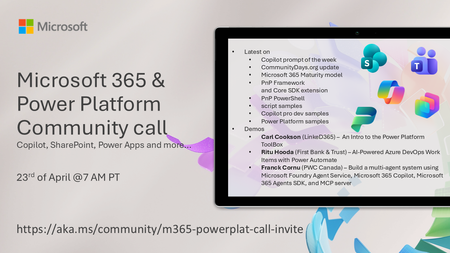
💡 Microsoft 365 & Power Platform Development bi-weekly community call focuses on different use cases and features within the Microsoft 365 and Power Platform - across Microsoft 365 Copilot, Copilot Studio, SharePoint, Power Apps and more. 👏 Looking to catch up on the latest news and updates, including cool community demos, this call is for you! 📅 On 23rd of April we'll have following agenda: Copilot prompt of the week CommunityDays.org update Microsoft 365 Maturity model Latest on PnP Framework and Core SDK extension Latest on PnP PowerShell Latest on script samples Latest Copilot pro dev samples Latest on Power Platform samples Picture time with the Together Mode! Carl Cookson (LinkeD365) – An Intro to the Power Platform ToolBox Ritu Hooda (First Bank & Trust) – AI‑Powered Azure DevOps Work Items with Power Automate Franck Cornu (PWC Canada) – Build a multi-agent system using Microsoft Foundry Agent Service, Microsoft 365 Copilot, Microsoft 365 Agents SDK, and MCP server 📅 Download recurrent invite from https://aka.ms/community/m365-powerplat-dev-call-invite 📞 & 📺 Join the Microsoft Teams meeting live at https://aka.ms/community/m365-powerplat-dev-call-join 👋 See you in the call! 💡 Building something cool for Microsoft 365 or Power Platform (Copilot, SharePoint, Power Apps, etc)? We are always looking for presenters - Volunteer for a community call demo at https://aka.ms/community/request/demo 📖 Resources: Previous community call recordings and demos from the Microsoft Community Learning YouTube channel at https://aka.ms/community/youtube Microsoft 365 & Power Platform samples from Microsoft and community - https://aka.ms/community/samples Microsoft 365 & Power Platform community details - https://aka.ms/community/home 🧡 Sharing is caring!16Views0likes0CommentsMicrosoft 365 & Power Platform product updates call
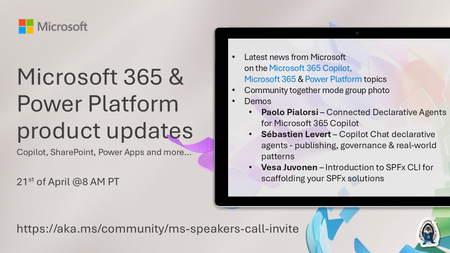
💡Microsoft 365 & Power Platform product updates call concentrates on the different use cases and features within the Microsoft 365 and in Power Platform. Call includes topics like Microsoft 365 Copilot, Copilot Studio, Microsoft Teams, Power Platform, Microsoft Graph, Microsoft Viva, Microsoft Search, Microsoft Lists, SharePoint, Power Automate, Power Apps and more. 👏 Weekly Tuesday call is for all community members to see Microsoft PMs, engineering and Cloud Advocates showcasing the art of possible with Microsoft 365 and Power Platform. 📅 On the 21st of April we'll have following agenda: News and updates from Microsoft Together mode group photo Paolo Pialorsi – Connected Declarative Agents for Microsoft 365 Copilot Sébastien Levert – Copilot Chat declarative agents - publishing, governance & real-world patterns Vesa Juvonen – Introduction to SPFx CLI for scaffolding your SPFx solutions 📞 & 📺 Join the Microsoft Teams meeting live at https://aka.ms/community/ms-speakers-call-join 🗓️ Download recurrent invite for this weekly call from https://aka.ms/community/ms-speakers-call-invite 👋 See you in the call! 💡 Building something cool for Microsoft 365 or Power Platform (Copilot, SharePoint, Power Apps, etc)? We are always looking for presenters - Volunteer for a community call demo at https://aka.ms/community/request/demo 📖 Resources: Previous community call recordings and demos from the Microsoft Community Learning YouTube channel at https://aka.ms/community/youtube Microsoft 365 & Power Platform samples from Microsoft and community - https://aka.ms/community/samples Microsoft 365 & Power Platform community details - https://aka.ms/community/home 🧡 Sharing is caring!16Views0likes0CommentsBuilding a modern digital workplace on Microsoft 365 - WebVine - SharePoint Partner Showcase
We are excited to share a new episode on our partner showcase series focused on SharePoint in Microsoft 365. In this post, we focus on WebVine which is providing intranet accelerator solution with streamlined document management capabilities with user interface implemented using SharePoint Framework (SPFx).247Views0likes0Comments
Power Automate - iAuditor integration to Excel for business
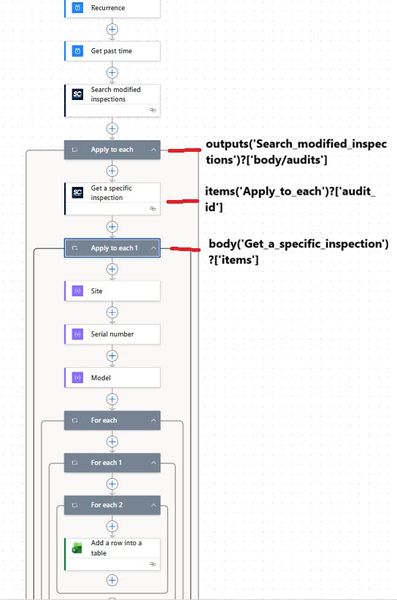
Hi all, I'm trying to build a flow in Power Automate to feed data in Excel file (located on SharePoint) used for my Power BI report but i don't know why it does not want to work. This is my flow as shown in the photo In the first "For Each" action i have " body('Site') ", second " body('Serial Number') "..... When i test this is how it looks like If i remove the second and third FOR EACH, it goes to the excel action and stops there. Does anyone have a similar flow or does anyone know what i'm doing wrong? Thank you in advance if anyone has a solution.AI is a Team Sport – Announcing our first wave of Guest Speakers at M365 Community Conference 2026
What do championship athletes, enterprise innovators, and community leaders all have in common? They know that transformation does not happen in isolation. It happens when teams come together with a shared goal, the right strategy, and the courage to try something new. That is why at the Microsoft 365 Community Conference in Orlando, Florida from April 21 to 23, 2026, we are bringing the spirit of collaboration to life in a whole new way by welcoming a dynamic lineup of guest voices from the worlds of professional sports, innovation strategy, and real-world AI adoption at scale. This year, we are proud to host legendary athletes Chasity Melvin and Kia Vaughn, alongside innovation thought leaders Dan Toma, Manjunatha Sivanna, Maral Taak, Christopher Blakeley and Jon Wear as they join Microsoft leaders on stage to explore how teamwork, leadership, experimentation, and trust are shaping the future of AI powered organizations. Chasity Melvin is a former WNBA All-Star and coach, with over two decades of experience in professional basketball. As a first-round draft pick, she played 12 seasons in the WNBA and spent over a decade winning championships internationally. She is a multifaceted coach with experience at the collegiate and professional levels including a stint with Charlotte Hornets as the first female coach to coach men. Her accolades include being an author, motivational speaker, and co-host of the Washington Mystics pre- and postgame show, where she shares her informed perspective as both a player and a coach. She is passionate about the business of sports and technology and is intentional about lending her voice in conversations that drive impact and inspire change. At the conference, she will join Corporate Vice President and Chief Scientist Jaime Teevan in a fireside chat to share insights on AI and its collaborative future in changing roles, leadership, and transformation. This fireside chat will be hosted by the Director of Customer Advocacy for AI & Collaboration, Karuana Gatimu. Kia Vaughn is an international champion known across WNBA in the United States and worldwide. Immersed in basketball from an early age, she honed her craft at Rutgers, delivering standout performances on the championship stage. Throughout her 14-year career on several WNBA teams, including the New York Liberty, Washington Mystics, Phoenix Mercury, and Atlanta Dream, she developed a reputation as a consummate professional. Known for her preparation and reliability, she is geared up to bring an impact-driven global perspective to our Women in Technology Lunch in a conversation with Karuana Gatimu, Director of Customer Advocacy for AI & Collaboration. Don’t miss her insights as she navigates the challenges of an ever-changing league. Dan Toma is the CEO and Partner at Outcomes Consulting, where he helps global organizations in enhancing their approach to technology. He is an acclaimed author with a key focus on leadership, technology strategy, and delivering business outcomes. As co-author of the recent text, “Innovation Accounting”, he offers practical, detailed, and focused guidance on fostering a culture of experimentation and innovation, essential for organizations adopting generative AI. We’re excited to have him join the Director of Customer Advocacy for AI & Collaboration, Karuana Gatimu, in a fireside chat on real world adoption best practices at scale. And because AI is only as powerful as the impact it drives in the real world, we are also excited to spotlight customer voices leading enterprise transformation today. Real world customer stories Across our product keynotes, Microsoft customers will bring AI transformation to life by sharing how they are moving from experimentation to impact inside their own organizations. These global brands offer a real-world look at how teams are adopting AI, modernizing operations, and building for the future with greater confidence, creativity, and scale. Their stories ground our keynotes in practical insight and show what it really takes to turn innovation into meaningful business outcomes. Featured in our day one keynote Building for the Future: Microsoft 365, Agents and AI, What's New and What's Next with Jeff Teper, Executive Vice President, Collaborative Apps and Platforms: Maral Taak, Associate Vice President and Head of Enterprise Generative AI at the National Basketball Association, leads enterprise-wide AI strategy, architecture, and governance. Maral has more than 20 years of experience using cutting-edge technology to create and identify practical solutions that drive real-world impact. Since joining the NBA, she has focused on shaping the league's enterprise AI capabilities, including deploying intelligent agents, scaling agentic workflows across business functions, and driving broad adoption of generative AI across the organization. Prior to joining the NBA, Maral spent four years at Amazon, where she led the delivery of generative AI solutions across healthcare & life sciences. She also previously spent nearly a decade at IBM spearheading AI-driven automation projects across industries ranging from finance to healthcare. Her experience spans large-scale cloud deployments, AI infrastructure management, and compliance for Fortune 500 clients. She started her career as a computer vision researcher at L.R.V (Laboratoire de Robotique de Versailles). Also featured in our day one keynote Building for the Future: Microsoft 365, Agents and AI, What's New and What's Next with Jeff Teper, Executive Vice President, Collaborative Apps and Platforms: Jon Wear, Director of Transformation and Innovation at British Airways, is focused on the airline’s largest‑ever transformation program, an investment of over £7BN, the biggest in BA’s history. This program is modernizing the airline for long‑term growth and is already delivering measurable results, including improved on‑time and financial performance as well as higher customer satisfaction (NPS). As part of this agenda, Jon is co‑leading British Airways’ AI transformation. This has included successfully rolling out Microsoft Copilot to 40,000 employees, deploying AI agents to automate key processes, and building the organizational capabilities required to scale AI responsibly and deliver real‑world impact. Jon has nearly 20 years of professional experience across leadership, strategy, and large‑scale transformation, including service as a military officer as well as senior roles in industry and McKinsey & Company. Featured in our day one keynote Business Apps & Agents with Ryan Cunningham, Corporate Vice President: Christopher Blakeley, Principal Program Manager and AI & Agentic Automation Enablement at NASA. In this role, Chris leads the Agency’s Intelligent Automation strategy and drives the expansion of NASA’s Microsoft Power Platform ecosystem that supports more than 50,000 employees across all Centers. He oversees secure and scalable platform adoption, enabling mission and administrative teams to rapidly build automation solutions that streamline operations and advance NASA’s digital transformation goals. brings a unique perspective on applying advanced technologies in mission critical environments. Chris leads the Federal wide Power Platform Focus Group, collaborating with government agencies to coordinate best practices, governance approaches, and enterprise adoption strategies. With more than 20 years of service at NASA, including roles at Johnson Space Center, Kennedy Space Center, and Marshall Space Flight Center, Chris contributes to government‑wide modernization by championing responsible automation and empowering the federal workforce with ai-enabled digital tools. In our day two keynote Securing AI: Building Trust in the Era of AI with Vasu Jakkal, Corporate Vice President, Microsoft Security and Rohan Kumar, Corporate Vice President, Microsoft Purview will be joined by: Manjunatha Sivanna, Principal Platform Manager at Cummins Inc., will provide a look into how enterprise organizations are integrating AI into core business functions to improve decision making, streamline workflows, and empower teams to innovate faster in a rapidly changing technology landscape. In his current role, he is responsible for enterprise-wide adoption of Microsoft 365 Copilot and Enterprise AI, establishing information governance and compliance foundations using Microsoft Purview, and enabling low-code innovation through the Power Platform. He works closely with legal, compliance, security, and business teams to ensure AI is deployed in a way that is secure, compliant, and pragmatically useful for employees. He has been a key driver behind large-scale Copilot rollouts, enterprise AI governance models, and ECM modernization initiatives, helping organizations move from experimentation to real-world, production-ready AI outcomes. He is passionate about bridging the gap between technology capability and business value, and about shaping practical patterns for Responsible and Agentic AI in the enterprise. Together, these voices reflect the very best of our community: diverse perspectives, shared challenges, and a willingness to learn from one another as we shape what comes next. Because in the era of AI, progress is not built alone. It is built together, with trust, curiosity, and teamwork at the center. Because when it comes to AI, success is a team sport.148Views0likes0Comments
Unable to @ mention external collaborators in comments within Office online files
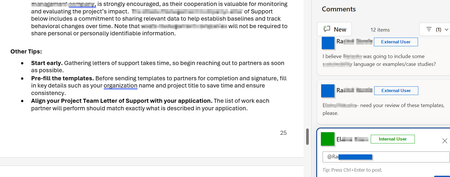
Is anyone aware of whether Microsoft will someday enable the ability to @ mention users who do not belong to the M365 tenant within comments in Office online files? I've attached a screenshot of what this looks like in a Word Online file in OneDrive. There are a number of Microsoft feedback posts about this, but it really feels like an unnecessary gap in functionality. Anyone have any insights on roadmap?65Views0likes1CommentHelp Shape the Future of Microsoft 365: Join Research Sessions at Microsoft 365 Community Conference
One of the best ways to get value from the Microsoft 365 Community Conference isn’t just attending sessions, it’s helping shape what gets built next. The Research sessions at Microsoft 365 Community Conference give attendees a rare, behind-the-scenes chance to collaborate directly with the Microsoft teams designing the products millions of people use every day. These sessions are designed for customers, practitioners, and IT professionals who want their real-world experiences to influence what’s coming next across Microsoft 365. What to Expect These aren’t traditional lectures or breakouts. Research sessions are small-group, interactive conversations designed to bring your voice into the product design process. In a typical session, you can expect: Spending dedicated time with Microsoft researchers (and sometimes partner team members) Discuss scenarios drawn from real customer workflows Review early ideas or prototypes and share what would (or wouldn’t) work in your environment Offer candid feedback to help prioritize and refine future experiences Topics That Matter to You The Research sessions focus on some of the most widely used and fast-evolving Microsoft 365 experiences, including: SharePoint OneDrive Microsoft Teams Microsoft Planner Microsoft Lists Viva Engage Whether you’re managing these tools at scale, supporting adoption, or building solutions on top of them, your perspective helps teams understand what’s working today and what needs to change next. How to Participate Research sessions are invite-only to keep the groups small and ensure everyone has time to contribute. Here’s how it works: Registered conference attendees will receive an email invitation to sign up for Research sessions. The invitation includes short descriptions of each session and a brief signup form so you can indicate which topics you’re interested in. Participants are required to complete a consent form and a non-disclosure agreement. Participation in Research sessions is optional. Completing the survey does not affect your ability to attend the conference if you choose not to participate. Spots are filled first-come, first-served, so early registration is encouraged. Be Part of What’s Next The Microsoft 365 Community Conference is all about learning, connection, and community—and the Research sessions take that mission one step further. This is your opportunity to go beyond listening and actively contribute to the evolution of Microsoft 365. If you’ve ever wanted to influence the tools you rely on every day, the Research sessions are one of the most meaningful ways to do it. Keep an eye out for the invitation, choose a session that matches your interests, and bring your real-world experience to the table. -- Attendees of the research sessions must be registered attendees of the Microsoft 365 Community Conference.229Views0likes0CommentsSharePoint Showcase: Automation updates for smarter workflows & business processes
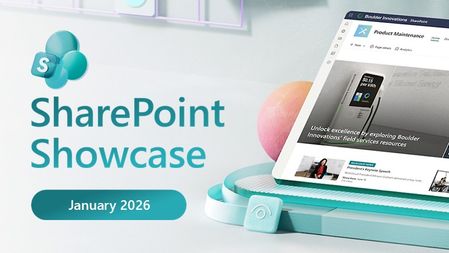
The way work gets done continues to evolve. Across organizations, everyday tasks are moving beyond manual handoffs toward intelligent, connected workflows where AI helps coordinate activity and people focus on outcomes.7.9KViews2likes3Comments