settings
2526 Topics
Security loophole in Private Channels?
We came across an interesting use case in our organization today. We have a Team and a private channel within that Teams team. Within the private channel a subsite was created. I am not an owner or member of the Team nor am I a member or owner of the private channel. However during creation of the subsite I was able to be invited with unique permissions to the subsite and I was successfully able to access it. After the initial creation of the subsite, our admin was not able to add or remove or effect any additional permissions on that subsite. Is this a loophole? I expected that without being a member of the private channel I would have absolutely zero access to any items associated with the private channel and site. Which has remained true (when I go to the private channel URL I get denied access) except that I do have access to this specific subsite. My instinct is that the reason permissions cannot be changed after the fact is that this is a genuine loophole and permissions weren't intended by Microsoft to be able to be granted at all on the subsite. This is due to the fact it is under the private channel and permissions should only be able to be changed via the admin UI or from the Teams application. Has anyone come across this in their work? Any guesses or explanations for why the subsite access would be initially available? Is this just genuinely a loophole in the permissions architecture?149Views0likes1Comment
Cannot deploy Custom backgrounds for Teams in VDI environment
We have detected (or so we think) a malfunction in Teams on VDI when attempting to deploy Teams backgrounds that should be available to users for their video calls. The only article that documents how to do this is the following: https://learn.microsoft.com/en-us/microsoftteams/custom-meeting-backgrounds It clearly states that the path where custom Teams backgrounds are stored is in the user profile, specifically in the folder: %LOCALAPPDATA%\Packages\MSTeams_8wekyb3d8bbwe\LocalCache\Microsoft\MSTeams\Backgrounds\Uploads Expected Process The process is not direct, but it is straightforward. Using a script, a UUID is generated, which is used to create two image files (JPG, BMP, or PNG format, depending on the original image). For example, if the original is a JPG: UUID.JPG UUID_thumb.JPG These two files are copied to the path above, and on the next Teams session startup they should be available to the user. ✅ This works correctly in physical (non-VDI) environments. Tested many times without issues. What We Have Observed in VDI Even when the file pair is copied to the correct path within the user's FSLogix profile, the image does not become available in the Teams client — even after restarting Teams multiple times or even the VDI session itself. After each restart, the files are confirmed to be persistent and located at the correct profile path.[ %LOCALAPPDATA%\Packages\MSTeams_8wekyb3d8bbwe\LocalCache\Microsoft\MSTeams\Backgrounds\Uploads folder contents] When a background image is added manually through the Teams UI, a folder is created in OneDrive called "Microsoft Teams User Custom Video Backgrounds". If additional images are manually added to that OneDrive folder, they do not appear as available in Teams. This leads us to believe that the upload process performs additional operations in the registry or other configuration locations beyond simply copying the file. A ProcMon capture was performed, but after an initial superficial inspection, it was not possible to determine exactly what is happening under the hood.270Views0likes2Comments
Setting app page is not getting localized in windows server OS 2025 with official language pack ISO
We created a VM on ESXi with Windows Server 2025 and installed the language packs offline using the official language pack ISO for Windows Server 2025. Most of the UI was localized successfully, but the Settings app was not localized. We tested this with the Japanese language pack and also tried installing it using both PowerShell and DISM. Is this a known issue? Has anyone else encountered the same behavior? If so, is there any known solution?93Views0likes0Comments
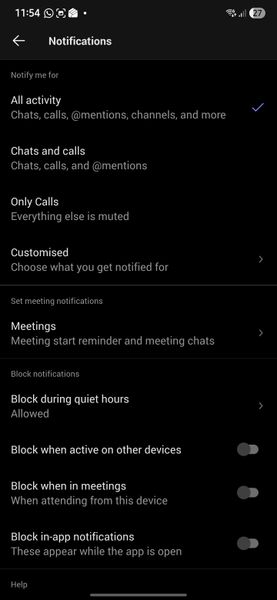
Not receiving any notifications in my Samsung S26 Ultra
Hello, Since I moved to Samsung S26 Ultra, I am not getting any notifications. Following are my settings. Please help to fix the issue. Following are settings in Samsung phone Following are settings in my Teams app in deskop Following is the settings set for all my channels Thanks268Views0likes3CommentsSharing sound
Teams screen sharing does not show “Include sound” option for multiple users I’m having an issue with Microsoft Teams screen sharing that I haven’t been able to resolve. I work in a call center, and we use Teams for peer coaching and training. When an agent shares their screen, I need to be able to hear both the agent and the customer they are speaking with through our call-center application (Amazon Connect). The problem is that most of our agents do not have the “Include sound” / “Include computer sound” option when they click Share in Teams. They can share their screen normally, and I can hear the agent speaking, but I cannot hear the audio from the call they are handling. What makes this especially strange is that the option does appear for me when I share my screen. Or if it doesn't show I can simply re-download the desktop version and it will fix itself.... but that doesn't work for anyone else. We have already tried: Reinstalling Teams Using the Teams desktop application Using Teams in a web browser Trying different browsers Restarting the computers Having multiple affected agents repeat the same troubleshooting Nothing has brought the audio-sharing option back for them Any suggestions for what we should check would be greatly appreciated.293Views0likes2Comments
Has anyone successfully used "Hide attendee names" in Teams Meetings or Webinars with Teams Premium?
Hello, I'm trying to understand the current status of the**"Hide attendee names"** feature in Microsoft Teams. Our organization has Teams Premium, and according to Microsoft's documentation, the feature should be available for both Meetings and Webinars. The documentation even provides separate instructions for each scenario. However, during a recent Microsoft Support call, I was told that the feature is actually available only for Town Hall events and not for standard Teams Meetings or Webinars. This appears to contradict the current Microsoft documentation, so I'm looking for real-world feedback from other administrators. Questions: Has anyone successfully enabled Hide attendee names in a standard Teams Meeting? Has anyone used it in a Webinar? We have Teams Premium. If it works for you, what licenses are assigned to the organizer? Do you actually see the Hide attendee names option in Meeting Options? Is there any specific policy, rollout, or configuration required? Has Microsoft Support ever told you that the feature is Town Hall only? Microsoft documentation: https://support.microsoft.com/en-us/teams/meetings/hide-attendee-names-in-microsoft-teams-meetings-and-webinars At this point I'm trying to determine whether: The documentation is incorrect or outdated. The feature is being rolled out gradually. There is an undisclosed licensing or policy requirement. Microsoft Support provided incorrect information. The feature has been silently restricted to Town Hall events. Any feedback from tenants where this is actually working would be very helpful. Thanks! Giuseppe376Views0likes2CommentsMeet compared to the new Events app
Am I the only one not impressed by the "Events" app that replaced "Meet"? Meet was easy to use and was great to find recent items. Now with the Events app, that app is just empty - no content at all. Now I have to instruct users to go dig around their chats for recorded meetings. Is there way to have that old Meet functionality somewhere?174Views0likes1Comment
Change meeting category default options
When creating a new meeting in Teams and clicking the drop down button to select a category, a list of about six options appears that appear to be randomly selected. These don't bear any relation to the most commonly used categories I use, meaning I then have to click through to the list of all categories to find them. Is there a way to change what categories appear in that initial short list to save me a click each time?376Views0likes1Comment
Create event sometimes returns 201 but no Teams meeting link
Hello, I am creating calendar events through Microsoft Graph and setting them as Teams online meetings. Most of the time it works correctly, but very rarely the API returns 201 Created and the event is created without the Teams join link in the response. I have already checked the following: isOnlineMeeting is always set to true. The correct online meeting provider is being used. The issue is intermittent, not consistent. The same integration normally creates Teams meetings successfully. What I need to understand is: Why can Graph return 201 Created but still omit the Teams meeting link? Is this a known intermittent issue with event creation or Teams meeting provisioning? Is there anything I should check in the response, headers, permissions, or follow-up GET call to verify the meeting link was actually created205Views0likes1Comment