serverless
294 TopicsConnect Azure Functions to more services with managed connectors
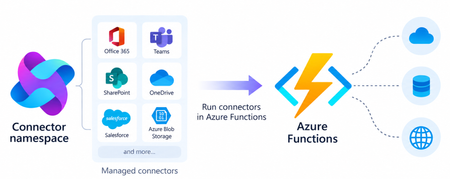
Azure Functions can already connect to many Azure services through triggers and bindings. With managed connectors, your functions can access about 1,700 connectors across services such as Microsoft 365, Microsoft Teams, Dataverse, SharePoint, OneDrive, and third-party systems. Connector triggers deliver events from these services to your function, while typed connector clients let your code take actions against them. You get this broader integration surface without writing the webhook registration code or managing the OAuth tokens required to connect to each service. Focus on your function's business logic and let Azure Connector Namespace handles the connection. Azure Functions integration with Connector Namespace is currently in public preview. It supports .NET isolated, Python, and Node.js. Review the managed connectors overview for current language, hosting plan, and regional availability. To demonstrate how connector triggers and actions work together, this article follows a .NET sample that automates RFP intake across SharePoint, Azure Content Understanding, and Teams. From an uploaded RFP to Teams notification Consider an organization that receives requests for proposals (RFPs) in a shared SharePoint document library. Someone must read each document, identify the requested capabilities, determine which subject-matter experts should respond, and notify the right team. The automated RFP intake sample turns that process into an event-driven workflow: A customer uploads an RFP to a SharePoint document library. A SharePoint connector trigger invokes an Azure Function when the file is created. The function uses a typed SharePoint connector client to retrieve the file contents. Azure Content Understanding extracts the document’s text and layout. The function applies deterministic rules to identify the customer, required capabilities, and recommended subject-matter experts. The function uses a typed Teams connector client to post the results as an Adaptive Card in a channel. Connector Namespace manages the SharePoint and Teams connections. The function controls file processing, document analysis, routing rules, error handling, and notification content How the sample works The .NET sample demonstrates both parts of the connector programming model: a connector trigger receives an event from SharePoint, and typed connector clients provided by the Connector SDKs to perform actions against SharePoint and Teams. The function starts when the SharePoint When a file is created trigger detects a new RFP. It declares the trigger using the ConnectorTrigger attribute and receives a typed payload containing the file’s properties: [Function("OnNewFile")] public async Task OnNewFile( [ConnectorTrigger] SharePointOnlineOnNewFileItemsTriggerPayload payload, CancellationToken cancellationToken) { // Process the newly uploaded file. } Because the trigger provides file properties rather than its contents, the function uses a typed SharePoint client to retrieve the document: byte[] response = await _sharePoint.GetFileContentAsync( Uri.EscapeDataString(siteAddress), fileIdentifier, cancellationToken: cancellationToken); byte[] document = SharePointFileContent.Decode(response); The SharePoint and Teams clients are registered through dependency injection. Each client uses the runtime URL of its Connector Namespace connection and authenticates with DefaultAzureCredential: services.AddSingleton( new SharePointOnlineClient( new Uri(sharePointRuntimeUrl), credential)); services.AddSingleton( new TeamsClient( new Uri(teamsRuntimeUrl), credential)); The function sends the document to Content Understanding’s prebuilt-layout analyzer, which extracts its text and structure. It then applies deterministic C# rules to identify the customer and required capabilities and map those capabilities to predefined subject-matter expert roles. Finally, the function creates an Adaptive Card containing the results and posts it to the configured Teams channel with the typed Teams client: await _teams.PostCardToConversationAsync( postAs, postIn, request, cancellationToken); Connector Namespace handles the SharePoint and Teams connections, while the function controls the document analysis, routing logic, error handling, and notification content. Try the sample The RFP intake sample includes the function code, Bicep infrastructure, Azure Developer CLI configuration, and supporting scripts. Its README explains how to test the workflow locally and deploy it to Azure. Common connector patterns Managed connectors are useful when a function must react to events or perform operations in external systems. Common patterns include: Event to action: React to an event in one service and take an action in another. Event to enrich to action: Retrieve additional information related to an event before acting. Event to document analysis to action: Extract text and structure from a document, apply application rules, and send the result through another connector. Event to AI to action: Analyze event data with an AI service and write the result back through a connector. Extend an existing function app: Add connector-based integrations alongside HTTP, timer, queue, Service Bus, Event Grid, or Durable Functions workloads. The RFP sample combines several of these patterns. A SharePoint event starts the workflow, a SharePoint action retrieves the document, Content Understanding extracts its contents, application code enriches the result, and a Teams action sends the notification. Closing thoughts Managed connectors extend the external systems that can trigger your functions and the services your function code can act on. This brings services such as SharePoint, Teams, Microsoft 365, and many third-party systems into the Azure Functions programming model without requiring you to build the underlying webhook and OAuth infrastructure. Choose Azure Functions with managed connectors when you want this broader integration surface in a code-first application and need custom branching, application libraries and SDKs, other Functions bindings, document or AI processing, or application-specific logic between the trigger and action. If the workload primarily orchestrates connector operations, involves little custom code, and would benefit from a visual designer, Azure Logic Apps is usually the simpler choice. Resources Documentations Overview of managed connectors in Azure Functions Azure Functions connector samples Azure Connector Namespace overview Content Understanding prebuilt-layout analyzer Connector SDK GitHub repos .NET SDK Python SDK Node.js SDK16Views0likes0CommentsEnable Dynamic Workflows in Azure Functions hosted skills
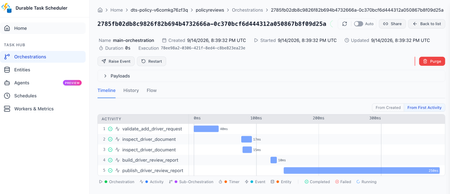
Azure Functions already gives you a familiar way to build event-driven apps. A queue message, HTTP request, timer, or event triggers the code that handles the work. Azure Functions hosted skills (formerly Serverless Agents) add AI reasoning to that model. A hosted skill can read a request, use the regular tools you give it to inspect context, and choose the next step, while your triggers, tools, and business logic stay in place. When the work needs to keep going Consider an insurance policy servicing request. A hosted skill can use its regular tools to understand the requested change, look up the policy, and inspect the submitted documents. If the information is ready and the request can finish now, the normal tool loop, where the model calls a tool, reads the result, and decides the next step, is a good fit. That changes when the work must continue after the initial request. An insurance policy servicing request may need to inspect several documents in parallel, wait for a configured delay before checking again for missing information, and build a review packet after the checks it depends on complete. In a normal tool loop, each result returns to the model before the skill can decide what happens next. The application must keep the job alive, save its progress, and deliver the final result. At that point, the work needs to keep running independently of the original interaction instead of relying on the model and application to coordinate every step. For a queue or other non-HTTP trigger, the final result also needs to be written or sent somewhere useful because there is no response channel. Introducing Dynamic Workflows Dynamic Workflows brings a programmatic tool-calling pattern to Azure Functions hosted skills. Instead of sending every tool result back to the model so it can decide the next call, the model creates a structured, validated workflow plan once. Durable Functions then executes the allowed workflow-safe tool calls, waits, and subagent tasks, passing intermediate results through the workflow instead of the model context. This can reduce model turns and token use for multi-step work while making the work durable. That separation addresses the limits of the normal tool loop: the workflow store keeps state and intermediate results out of the model's context, independent checks can run in parallel, and durable timers resume waits without holding a worker open. Because a Durable Functions orchestration handles execution, the work can continue after the original request or a Functions worker restart. To test the difference, we ran the same structured multi-step task with the regular tool loop and with Dynamic Workflows, using a Foundry gpt-5.4-mini deployment. We ran it with inputs for one service and then ten services. In the Dynamic Workflows version, the model made the plan once, while the runtime kept intermediate tool results in the workflow store instead of sending them back to the model after every tool call. Dynamic Workflows used 56% fewer total model tokens for the one-service run and 93% fewer for the ten-service run, while producing the same final reports. Results will vary by workload and model, and small jobs can have planning overhead. The savings are largest when intermediate tool results would otherwise return to the model after every tool call. How it works Enable workflows in the hosted skill's Markdown front matter. The runtime then adds the management tools: start_workflow, get_workflow_status, list_workflows, cancel_workflow, and terminate_workflow. You do not implement those tools. You choose the workflow-safe tools and subagents that a plan can use. At run time, the AI model uses the hosted skill's instructions to generate a structured plan, limited to the workflow-safe tools and subagents you explicitly allow. The hosted skill calls start_workflow with that plan; the runtime validates it, starts a Durable Functions orchestration, and returns a workflow ID right away. --- name: Add Driver Review description: Prepares an add-driver document review for an insurance representative. workflows: enabled: true trigger: type: queue_trigger args: queue_name: policy-service-requests connection: AzureWebJobsStorage --- Put workflow-safe handlers under tools/ and decorate them for use in a workflow. Each handler must run synchronously, accept one dict argument, return JSON-serializable data, and be idempotent. A worker failure can cause a handler to run more than once, which is why that last point matters. Ordinary tools retain their existing behavior unless you explicitly make them available to a workflow. workflow_tool( description=( "Inspect one document from an add-driver request. Args: " "{document: <document>, position: int}. Returns the document and evidence state." ) ) def inspect_driver_document(args: dict[str, Any]) -> dict[str, Any]: document = args["document"] evidence_state = { "received": "present", "missing": "missing", "expired": "needs_current_copy", }[document["status"]] return { "position": args["position"], "document_id": document["document_id"], "type": document["type"], "file_name": document["file_name"], "evidence_state": evidence_state, } Dynamic Workflows runs on Durable Functions. You can configure Durable Task Scheduler in host.json and use its dashboard to see per-instance task state, retry history, and controls for work that is still running. Durable timers let a workflow wait without keeping a worker busy, then resume the steps that are ready. The workflow stays visible and durable instead of depending on an open request or a best-effort background task. Get started Build your first Azure Functions hosted skill dynamic workflow with the quickstart, then use the overview and sample to go deeper: Follow the Dynamic Workflows quickstart. Read the Dynamic Workflows overview. Browse the insurance policy review sample for an end-to-end implementation.220Views0likes0CommentsVirtual nodes on Azure Container Instances: a new compute layer for AKS
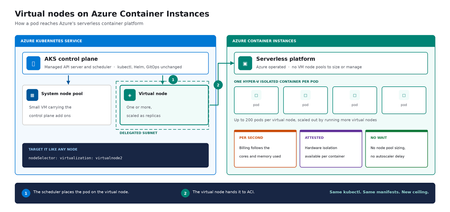
Meet virtual nodes on ACI Azure Kubernetes Service (AKS) gives you managed Kubernetes: the full Kubernetes API without operating the control plane yourself. Virtual nodes on Azure Container Instances go a step further, letting your pods run directly on Azure's serverless container platform, with the elasticity and with no capacity planning and no waiting for machines. Whether you already run AKS or want a managed Kubernetes that bursts without node management, this is for you. In short: virtual nodes on ACI attach Azure's serverless container platform to your cluster as Kubernetes nodes. Pods run as Hyper-V isolated containers, sized per pod rather than packed onto a fixed VM, up to 200 pods per virtual node. Run multiple virtual nodes, scaled as replicas, for more. They behave like any other pod: same kubectl, Helm, and GitOps. Kubernetes has always assumed a fixed set of machines underneath it. That assumption shapes everything above it: you size a node pool for a specific VM type in a specific region, you plan for peak rather than for average, and every workload on a node shares the same kernel and the same security boundary. Virtual nodes on ACI relaxs that assumption, which is what makes both elastic capacity and per container isolation possible without a different Kubernetes. If you've used the original AKS virtual nodes add-on (Virtual Kubelet based), this is not a rebrand. It is a new implementation that integrates far more deeply with Kubernetes, lifts most prior limitations (init containers, persistent volumes, managed identity, richer networking), and adds confidential containers as a first-class capability. The migration guide can be found here. Two capabilities carry the rest of this post: effortless burst capacity, and confidential containers. How virtual nodes on ACI work ACI runs every container as a Hyper-V isolated container, which means each one gets its own lightweight virtual machine boundary rather than sharing a kernel with its neighbors. Azure operates that platform. A virtual node connects it to your cluster. The cluster's control plane, the component that decides where each container runs, sees two kinds of destination: a small pool of virtual machines carrying cluster services, and one or more virtual nodes. From the application manifest's perspective, nothing changes. The pod lands on a virtual node; the virtual node hands it off to ACI. See Microsoft Learn: virtual nodes on ACI for the official capability and current limits. Virtual nodes on ACI in practice The rest of this post is hands on. You do not need to be a Kubernetes expert to follow it. kubectl is the command line tool for talking to a cluster, Helm installs packaged software into one, and a manifest is a text file describing what you want to run. If you have a cluster, everything below runs against it as written. The manifests behind the examples live in a companion demo repo. Setup is documented officially, and you can reproduce this end to end from the ACI virtual nodes documentation and the microsoft/virtualnodesOnAzureContainerInstances Helm repo. One requirement before you start: deploy into a delegated ACI subnet, meaning a subnet in your virtual network set aside for the ACI platform to place containers in. Size it for peak pod count plus headroom, since every pod consumes an address from it for its lifetime. Demo manifest files can be found in this repo, a personal sample repo provided as is and not a supported Microsoft artifact. Enable virtual nodes on ACI The virtual node is deployed via Helm. The Microsoft GitHub repo is itself a Helm repository, so a single helm install is all you strictly need. Cloning first, shown here, just makes it easier to customize values. Running kubectl get nodes afterward confirms the node registered. git clone https://github.com/microsoft/virtualnodesOnAzureContainerInstances.git helm install <yourReleaseName> ./virtualnodesOnAzureContainerInstances/Helm/virtualnode kubectl get nodes The virtual node appears alongside any existing capacity, ready to accept work. A virtual node is a Kubernetes node You target it the same way you would target any node. These few lines in a manifest say "run this on the virtual node": nodeSelector: virtualization: virtualnode2 kubernetes.io/os: linux tolerations: - key: virtual-kubelet.io/provider operator: Exists effect: NoSchedule That is the entire integration surface. No new API to learn, no separate deployment pipeline, no application changes. kubectl describe, kubectl logs, and kubectl exec, the standard commands for inspecting and troubleshooting, all work as they would anywhere else, including opening a shell inside a container running in a Hyper-V isolated boundary. Scaling stays trivial. kubectl scale deployment demo-deployment --replicas=10 lands every replica on the same virtual node, with no VMSS scale event, no provisioning latency, no climbing node-count chart. The same flow scales just as cleanly to hundreds. Cost follows the same shape. Each pod is billed per second against the cores and memory it requests, at ACI rates, and billing stops when the pod stops. Logs and metrics flow through the same path you already use, so existing dashboards and alerts keep working. One annotation makes a pod confidential Turning a regular container into a confidential one takes a single addition to its manifest: a policy that pins exactly which images, commands, environment variables, mounts, and capabilities are permitted inside the Trusted Execution Environment. The format is a base64 encoded Rego document, called a CCE (Container Confidential Enforcement) policy. You do not write that policy by hand. A tool generates it from the manifest you already have: az extension add -n confcom az confcom acipolicygen --virtual-node-yaml ./hello-world-deployment.yaml The tool pulls each image, hashes its layers, builds the allow-list, and injects the annotation back into the manifest. kubectl apply, and you're done. (acipolicygen has prerequisites of its own, including a working Docker installation; see the confcom documentation.) Here is why this is a genuinely new isolation primitive rather than a stronger version of an existing one. Most container security policy is enforced by software in the cluster, which means an attacker who compromises the host can potentially bypass it. This policy is enforced by the guest operating system inside the TEE instead. The underlying hardware, AMD SEV-SNP, also produces an attestation report, retrievable from inside the container, which is a cryptographic proof that the workload running is the workload you specified and nothing tampered with it. That is the guarantee regulated industries have been asking for, and increasingly the one AI workloads running untrusted code need too. The same per pod boundary is also what makes multi-tenancy on a single cluster realistic, though multi-tenancy in production still depends on your network and identity boundaries, which sit outside what the isolation layer itself provides. Background: Microsoft Learn: confidential containers on ACI. Wrapping up Virtual nodes on ACI give containers on Azure two things that were previously hard to deliver cleanly on Kubernetes: Effortless burst capacity on Azure's serverless container platform, billed per second for the cores and memory used, with no capacity planning and no waiting for machines. Confidential containers with hardware attested, per container isolation inside a Trusted Execution Environment. Virtual nodes are additive, not a replacement. Traditional node pools remain the right home for steady state, DaemonSet, and persistent volume workloads, and AKS features such as Node Auto Provisioning and Virtual Machine Node Pools already make that baseline more flexible. Virtual nodes on ACI absorb the spikes, the short-lived jobs, and the specialized isolation work on top. Where to start New to containers on Azure? Start with a small AKS cluster and add a virtual node from day one. You get a managed Kubernetes environment without having to guess your peak capacity in advance, and the elastic layer is there the first time you need it. Already running AKS? Add a virtual node to an existing cluster and move one bursty or short lived workload to it. Nothing else changes, and the comparison is immediate. Evaluating platforms? The capability that is hard to find elsewhere is the confidential containers path: hardware attested isolation per container, reachable through a standard Kubernetes manifest. The result: virtual nodes on ACI expand what AKS can run, with more capacity and stronger isolation, without changing the Kubernetes operating model you already use. Same kubectl, same manifests, same GitOps. New ceiling. For the high-level overview, official documentation, and Helm details, the Microsoft Learn is the source of truth. The companion repo holds the demo manifests used in this post. Acknowledgements I'd like to thank Gurpreet Virdi, Partner Group Engineering Manager, whose guidance shaped this post from the first outline through to publication. Her product leadership ensured this post reflects both the technical depth and the customer value of virtual nodes on ACI. Thanks to Gabriel Fuhrman, Senior Software Engineer, for his detailed technical review. His feedback refined the technical content and significantly improved the accuracy and depth of this post. Christopher Little, Principal CSA, shaped the enterprise adoption perspective, and Adam Sharif, CSA, reviewed the post from the earliest draft. Thanks also to Kirthi Maguluri, Senior Product Manager, and Varun Shandilya, Principal Product Manager, for their review of the blog.258Views0likes0Comments
Azure function require private git package
At the moment we are deploying our python application to a server-less azure function app. For this we use the kudu config-zip deployment. az functionapp deployment source config-zip -g "xxxx" -n "xxxx" --src "xxxx.zip" --build-remote We also want a remote build, because this will install the correct version of the packages. Because some packages have different versions voor different python versions (e.g. 3.8 vs 3.10) and different environment (windows vs linux). The remote build will make sure the correct packages are installed, cause the build (azure's default oryx) will run in the same environment. Recently we moved some of our code to another package. This package is shared by multiple other applications. To install it, we add it to our requirements.txt: git+ssh://Email address removed/xxxxx/xxxxx.git@f4e2bf2e3dxxxxxxxxx This works perfect on our local machines. But not once we deploy to azure. Unfortunately there are no logs. Well the logs shows "oryx build...." and that's it. There is no way to access the build logs. Anyway, we know the cause of the issue: the build doesn't have access to the repository. We do have a ssh key, which can be used to access the git repo. But we have no clue how to pass it to the orxy builder. We tried to make a work around with the "PRE_BUILD_COMMAND" environment variable, but since there are no logs, we cannot determine what is failing during the build. So we cannot install private python packages with azure serverless functions. We see two ways to solve this issue, but for neither we have a clue how to do it: Make the orxy builder use the ssh key Do a local build and push it to the azure function Did some tried this before or can give someone some pointers how to get started on this?1.6KViews1like1Comment
Introducing APIOps CLI
APIOps CLI helps teams extract, version, review, preview, and publish Azure API Management configuration through source-controlled DevOps workflows. Today, we're excited to announce APIOps CLI, a new command-line experience designed to help organizations manage Azure API Management (APIM) using modern configuration-as-code and GitOps practices. As APIs become increasingly central to digital transformation, organizations need a reliable way to manage API definitions, policies, products, diagnostics, and gateway configuration across multiple environments. APIOps CLI provides a streamlined, developer-friendly approach to extract, version, review, and publish API Management configuration through familiar DevOps workflows. Why APIOps CLI? Traditional API management processes often rely on manual configuration changes, environment-specific customizations, and limited visibility into what changed and why. As API estates grow, these approaches become difficult to scale, audit, and govern. APIOps CLI addresses these challenges by enabling teams to manage API Management configuration as source-controlled artifacts. Every change can be reviewed through pull requests, tracked through Git history, and promoted consistently across development, test, and production environments. The result is improved governance, greater reliability, better collaboration between API developers and platform operators, and a simpler path toward enterprise-scale API operations. What APIOps CLI Enables APIOps CLI provides capabilities that help organizations adopt a true APIOps model: Extract API Management configuration into local artifact files Store and version configuration in Git repositories Review changes through standard pull request workflows Publish approved artifacts back into API Management environments Promote configuration consistently across environments Scaffold GitHub Actions and Azure DevOps pipelines Support automated CI/CD deployment patterns Enable auditable, repeatable API configuration management By treating API Management configuration as code, organizations gain the same operational excellence practices that software development teams have relied on for years. A Modern GitOps Workflow for APIs The APIOps CLI workflow follows a simple yet powerful pattern: Extract configuration from an existing API Management instance. Store the generated artifacts in source control. Review and approve changes through pull requests. Run automated validation and deployment pipelines. Publish approved configuration back to target API Management environments. This approach creates a clear separation between authoring, review, approval, and deployment while maintaining a complete audit trail of API platform changes. For organizations already practicing GitOps, APIOps CLI integrates naturally into existing development workflows and governance processes. Built for Real-World Enterprise Scenarios APIOps CLI is designed to support customers operating at enterprise scale. Common use cases include: Migrating away from manual API Management administration Standardizing deployments across multiple environments Establishing controlled promotion paths from development to production Implementing governance and compliance requirements Supporting platform engineering and API platform teams Managing large inventories of APIs, products, policies, and configurations Enabling self-service API development with centralized governance Whether you're operating a single API Management instance or managing a large multi-team API platform, APIOps CLI provides a foundation for consistent and repeatable operations. Integrated with Your Existing Toolchain APIOps CLI works alongside the tools teams already use: GitHub Azure DevOps Azure Pipelines GitHub Actions Azure CLI Existing Git repositories and branching strategies The tool can generate CI/CD scaffolding to accelerate adoption, helping teams move from manual operations to automated deployments with less effort. Open Source and Community Driven APIOps CLI is available as an open-source project under the Azure GitHub organization. The repository includes source code, architecture guidance, command documentation, CI/CD examples, walkthroughs, troubleshooting guidance, and reference material. By making the project open and community-driven, we are enabling customers, partners, and contributors to participate directly in the evolution of Azure API Management DevOps practices. Getting Started Getting started is straightforward: Install the APIOps CLI package. Authenticate with Azure. Extract an existing API Management instance into local artifacts. Commit those artifacts to a Git repository. Review and approve changes through pull requests. Publish approved changes back to Azure API Management. We recommend beginning with a non-production environment to establish your workflow, validate governance processes, and familiarize teams with the configuration-as-code model. Looking Ahead APIs have become a strategic asset for every organization. As API estates continue to expand, successful teams will increasingly adopt automation, governance, and GitOps practices to maintain speed without sacrificing control. APIOps CLI is an important step in that journey. It provides a modern foundation for managing Azure API Management configurations with the same rigor, automation, and reliability that organizations expect from modern software delivery practices. We invite you to explore APIOps CLI, try it in your environment, share feedback, and join us in shaping the future of API operations on Azure. Resources APIOps CLI GitHub repository: https://github.com/Azure/apiops-cli/tree/main Microsoft Learn: Manage API Management configuration with APIOps CLIZonal redundancy in API management Standard v2
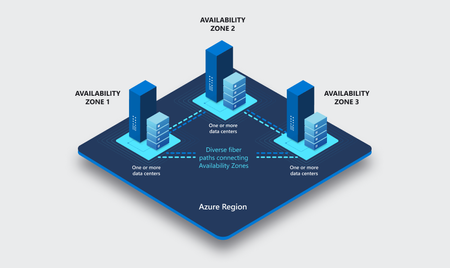
APIs are the backbone of modern applications, powering everything from mobile experiences and microservices to AI-driven applications and business-critical integrations. As customers continue to modernize their platforms on Azure, they increasingly expect their API infrastructure to remain available even in the face of datacenter-level disruptions. With zone redundancy in Standard v2, Azure API Management now enables customers to increase resilience against Availability Zone failures while continuing to benefit from the simplicity, performance, and cost efficiency of the v2 platform. Why Zone Redundancy Matters Azure Availability Zones are physically separate locations within an Azure region, each with independent power, cooling, and networking infrastructure. By distributing API Management resources across multiple zones, organizations can reduce the impact of a single datacenter failure and improve service continuity for their APIs. Until now, customers who required built-in zone-level resiliency often needed to evaluate higher-end deployment options. With this enhancement, Standard v2 customers can now deploy API gateways across Availability Zones and benefit from improved reliability while maintaining the streamlined operational model of the v2 platform. What’s New Zone Redundancy for Standard v2 extends the platform's resiliency by distributing service capacity across multiple Availability Zones within a supported Azure region. Key benefits include: Higher Availability: API traffic continues to flow even if a single Availability Zone experiences an outage. Built-in Resiliency: Redundancy is provided at the platform layer, reducing the need for customers to design and manage complex intra-region failover solutions. Production-Ready Reliability: Customers can confidently run critical API workloads on Standard v2 with stronger availability guarantees. Operational Simplicity: The service automatically manages capacity distribution, health monitoring, and recovery behavior across zones. Cost-Effective Resilience: Customers gain zone-level protection without requiring an enterprise-tier deployment model. Built on the Modern v2 Platform The v2 platform was designed from the ground up to provide a faster, more reliable, and more scalable API Management experience. Standard v2 already delivers capabilities such as rapid deployment, simplified networking, workspace support, and flexible scaling. Zone Redundancy further strengthens the platform by expanding its reliability story for production workloads. This announcement builds on our broader investment in making Azure API Management more accessible to a wider range of organizations, from digital-native startups to large enterprises modernizing their application estates. Ideal Scenarios Zone Redundancy in Standard v2 is particularly valuable for customers who: Run business-critical APIs that must remain available during datacenter incidents. Consolidate multiple application workloads behind a single API gateway. Expose APIs consumed by mobile, partner, and customer-facing applications. Support AI applications and agent-based architectures that depend on highly available API endpoints. For organizations adopting modern cloud and AI native architectures, this capability helps ensure that API infrastructure remains aligned with broader application resiliency strategies. A Foundation for Reliable AI and API Platforms As AI-powered applications continue to proliferate, APIs increasingly become the critical connection layer between models, agents, business systems, and data platforms. Downtime at the API layer can have a direct impact on application availability, customer experience, and business operations. By bringing zone redundancy to Standard v2, we are making it easier for organizations to build highly resilient API platforms that can serve as the foundation for next-generation AI and digital transformation initiatives. Getting Started Zone Redundancy for Standard v2 can be enabled in supported Azure regions, allowing customers to deploy API Management with built-in protection against Availability Zone failures. We recommend reviewing your application's overall resiliency architecture, including backend redundancy, traffic management, and disaster recovery requirements, to maximize the benefits of zone-resilient API infrastructure. Enable Zone Redundancy in the Azure Portal Getting started with Zone Redundancy in Azure API Management Standard v2 is straightforward and can be configured during service creation. Create a New Standard v2 Instance with Zone Redundancy Sign in to the Azure portal. Select Create a Resource and search for Azure API Management. Choose Standard v2 as the service tier. Select a region that supports Availability Zones. In the Availability Zones section, enable Zone Redundancy. Review and create the service. After deployment, Azure API Management automatically distributes service capacity across multiple Availability Zones within the selected region, helping maintain API availability during a zone-level outage. Looking Ahead This release represents another step in our ongoing investment in the Azure API Management v2 platform. We remain committed to delivering the reliability, scalability, security, and developer experiences that organizations expect from a modern API management service. We are excited to see what our customers build with a more resilient Standard v2 platform and look forward to your feedback as you continue modernizing and scaling your API ecosystems on Azure. Learn more by visiting the Azure API Management documentation and exploring the latest reliability guidance for API Management deployments.Orchestrate Azure Container Apps Jobs with Apache Airflow
Azure Container Apps (ACA) Jobs are a great way to run work that starts, does something, and finishes: nightly batch, data processing, ETL, ML scoring, report generation. They scale to zero, bill per execution, and run any container you give them. But the moment your "one job" becomes "a set of jobs that depend on each other," a gap appears: How do I run twenty jobs in parallel, wait for all of them, then run one more job only if they all succeeded — and retry just the one that failed? A single ACA Job can't express that on its own. What you're describing is an orchestrator, and the most widely adopted one in the data world is Apache Airflow. This post introduces two open-source templates that connect the two, so Airflow becomes the brain and ACA Jobs become the muscle. Pick the one that matches what you already run: airflow-on-aca-jobs: you already have Airflow. Drop in an operator and point it at ACA Jobs. Host nothing new. airflow-hosted-on-aca: you don't have Airflow. Get a full one running on Azure Container Apps with one command. Both use the same operator and the same DAGs, so you can start with one and move to the other later without rewriting your workflows. See Airflow orchestrate real ACA Job executions with parallel fan-out, dependency ordering, and automatic retries. Why ACA Jobs need an orchestrator A plain ACA Job is great at one thing: run this container to completion, then stop. That covers a scheduled job or a one-off task perfectly. Real pipelines need more than that: Dependency ordering: step B runs only after step A succeeds. Parallel fan-out: launch one execution per file, per store, or per partition, all at once, then wait for the whole batch. Per-task retries: if one execution in a batch of fifty fails, retry just that one, not the other forty-nine. Backfills and scheduling: re-run yesterday's pipeline, or run every night with a full history of what happened. These are the problems an orchestrator solves. Instead of building that logic yourself, you let Airflow handle the graph, the scheduling, and the retries, while ACA Jobs run the compute. You get serverless, scale-to-zero workers, and you didn't have to stand up a scheduler to get them. The operator that ties them together Both templates ship the same small plugin: an Airflow operator called AzureContainerAppsJobOperator . In a DAG it looks like any other task: report_sales = AzureContainerAppsJobOperator( task_id="report_store_sales", subscription_id="{{ var.value.azure_subscription_id }}", resource_group="{{ var.value.aca_resource_group }}", job_name="{{ var.value.aca_job_name }}", image="python:3.12-slim", command=["python", "-c", MY_PROGRAM], env_vars={"STORE_NAME": "Seattle"}, deferrable=True, ) A few things make this operator easy to work with: Per-execution overrides. It takes the ACA Job you point it at and overrides the image , command , args , and env_vars for that run. You can drive many different workloads from a single ACA Job definition, and you don't need to build or push a custom image just to try something. The example above runs the stock python:3.12-slim image with an inline program. Deferrable by default. With deferrable=True , Airflow frees its worker slot while the ACA Job runs and resumes when it finishes. That means your fan-out width is bounded by ACA, not by how many Airflow workers you have. You can launch dozens of parallel executions cheaply. No secrets required. Authentication resolves in a sensible order: an Airflow Connection if you set one, otherwise an AZURE_ACCESS_TOKEN environment variable, otherwise DefaultAzureCredential (managed identity). In Azure, the hosted template uses a managed identity so nothing sensitive is stored in Airflow at all. Because both templates share this operator, a DAG written for one runs unchanged on the other. Option 1: Bring your own Airflow (host nothing) Choose airflow-on-aca-jobs if you already run Airflow: Azure Managed Airflow, MWAA, Astronomer, or your own deployment. You keep that Airflow exactly as it is and simply teach it to talk to ACA Jobs. +------------------------------------------+ | Your Airflow (you host it, unchanged) | | runs AzureContainerAppsJobOperator | +------------------------------------------+ | | ACA Jobs REST API v +------------------------------------------+ | ACA Job (Azure Container Apps) | | | | store 1 | store 2 | ... | store N | | parallel executions -> scale to zero | +------------------------------------------+ Your existing Airflow runs the operator; ACA Jobs run the work. You host nothing new. Adoption is three small steps: Copy the operator into your Airflow's plugins/ folder. Add a DAG that uses AzureContainerAppsJobOperator . Set three Airflow Variables so the operator knows which job to drive: Airflow Variable Value azure_subscription_id your subscription id aca_resource_group the resource group holding the ACA Job aca_job_name the ACA Job name That's the whole integration. Nothing new to host, no extra scheduler or database, no custom image. ACA Jobs just become another task type Airflow can call. If you want a job to point at first, the template includes an Azure Developer CLI ( azd ) deployment that stands up a sample ACA Job for you: git clone https://github.com/hetvip2/airflow-on-aca-jobs cd airflow-on-aca-jobs azd up # deploys a sample ACA Job, prints its resource group + name Then copy airflow/plugins/ and airflow/dags/ into your Airflow, set the three Variables, and trigger the DAG. Option 2: Airflow hosted on ACA (turnkey) Choose airflow-hosted-on-aca if you don't already have an orchestrator and want one running next to your jobs. One command provisions the whole thing on Azure Container Apps: azd up | v +------------------------------------------+ | Airflow control plane on ACA | | web | scheduler | triggerer | | Postgres (metadata) + Azure Files (dags)| | Managed Identity - no secrets stored | +------------------------------------------+ | | ACA Jobs REST API v +------------------------------------------+ | ACA Job (Azure Container Apps) | | | | store 1 | store 2 | ... | store N | | parallel executions -> scale to zero | +------------------------------------------+ One command deploys the whole Airflow control plane on ACA, right next to the jobs it drives. git clone https://github.com/hetvip2/airflow-hosted-on-aca cd airflow-hosted-on-aca azd env new my-airflow azd up # prints your Airflow URL when it finishes azd up deploys a complete, working Airflow control plane on ACA: airflow-web, airflow-scheduler, and airflow-triggerer running as Container Apps on LocalExecutor, so there's no Celery or Redis to operate. A Postgres metadata database. A user-assigned managed identity with permission to call the ACA Jobs API, so the operator authenticates with no secrets stored in Airflow. A sample ACA Job for Airflow to drive out of the box. Your DAGs and plugins live on a mounted Azure Files share, so you ship new workflows by re-uploading files rather than rebuilding an image: cp my_dag.py airflow/dags/ azd hooks run postprovision # uploads dags + plugins to the share Airflow picks up the change within a minute. You now own a real orchestrator, hosted serverlessly on the same platform as your jobs. Which one should you pick? Option 1: airflow-on-aca-jobs Option 2: airflow-hosted-on-aca Best when You already run Airflow You don't have Airflow yet Setup Copy the operator + a DAG + 3 Variables azd up (one command) Who hosts Airflow You do (unchanged) Azure Container Apps Authentication Connection or short-lived token Managed identity, nothing stored Ownership Lowest: nothing new to run Turnkey: a full orchestrator you own The important part: the workload never changes. The same DAG and the same operator drive the same ACA Job executions in both. Start wherever you are today, and switch later with zero changes to your pipelines. See it end to end Picture a retailer that wants one number every night: total sales across all stores. Each store reports its own sales as a separate ACA Job execution, all running in parallel. When every store is in, a final job adds them into the company total. That one workflow exercises exactly what a plain Job can't do alone: parallel fan-out: one ACA Job execution per store, all at once dependency ordering: the roll-up runs only after every store reports per-task retries: if a store's execution fails, Airflow retries just that store, and the nightly total still lands In Airflow's Graph view you watch the store tasks light up together, then the roll-up run last. In the Azure portal you watch real executions appear under your ACA Job and scale back to zero when they finish. Same job, same DAG, whichever template you chose. Call to action If you run batch, ETL, or any multi-step work on Azure Container Apps Jobs, give one of these templates a try: Already have Airflow? Start with airflow-on-aca-jobs. Need an orchestrator? Start with airflow-hosted-on-aca. Both are open source, deploy with azd up , and share the same operator so you can move between them freely. Try them out and let us know what you orchestrate.553Views1like3CommentsBring Your Own Orchestrator to Azure Container Apps Jobs
Azure Container Apps Jobs are a good fit for batch processing, ETL, machine learning, reports, and other tasks that run to completion. But when those tasks have dependencies, retries, or fan-out, you still need an orchestrator. Many teams already have one. The community-maintained Bring Your Own Orchestrator collection provides 13 templates that connect existing workflow engines to Azure Container Apps Jobs. The collection is also listed in the Microsoft Azure Container Apps template index. The idea is simple: Your orchestrator manages schedules, dependencies, retries, and workflow history. Azure Container Apps Jobs runs each containerized task and reports the result. You keep the control plane your team knows while ACA Jobs provides the execution layer. How it works Each integration follows the same flow: The orchestrator authenticates to Azure. It starts an ACA Job execution. It waits for that execution to succeed or fail. It uses the result to continue, retry, or stop the workflow. Your orchestrator ---> Azure Container Apps Job ^ | +---- execution result ---+ The templates package this flow in the native model of each platform: an Airflow operator, a Temporal Activity, an Argo workflow template, a Camunda service task, or visual actions in Logic Apps and n8n. The workload container stays independent of the orchestrator that launched it. Choose the orchestrator that fits the workflow There is no single best orchestrator for every workload. The useful question is which control plane matches the way your team models work. When this describes your team Start with Why You already operate Airflow Airflow on ACA Jobs Adds an ACA Jobs operator without replacing your Airflow deployment You need a complete Airflow environment Airflow hosted on ACA Deploys the Airflow control plane and the ACA Jobs integration Your workflows are Kubernetes-native and run from AKS Argo Workflows Uses Argo workflow templates and AKS workload identity You model long-running business processes in BPMN Camunda 8 Connects Camunda service tasks to ACA Job executions You use JSON-defined microservice workflows Conductor Uses Conductor workers and native FORK_JOIN workflows You need durable replay, heartbeats, and resilient retries Temporal Keeps Temporal as the durable control plane while ACA Jobs runs the workload You build asset-centric Python data pipelines Dagster Uses Dagster resources, ops, and dynamic mapping You build general Python flows and task automation Prefect Uses Prefect tasks, flows, and mapped execution You prefer visual automation and SaaS integrations n8n Provides visual workflows for starting and observing ACA Jobs You use Azure-native data pipelines Azure Data Factory and Fabric Provides pipeline definitions for Azure data integration workflows You need connector-rich application integration Logic Apps Standard Uses stateful workflows, connectors, and native control flow You want Azure-native, code-first durable orchestration Durable Functions Uses durable orchestrations, activities, retries, and fan-out/fan-in You already operate a Dapr-enabled workflow host Dapr Workflow Demonstrates Dapr Workflow directing external ACA Job workloads The Bring Your Own Orchestrator catalog keeps this comparison current and links to deployment instructions for every option. Before production The existing-orchestrator templates are designed around managed identity, scoped Azure RBAC, failure handling, and native fan-out/fan-in examples. Their fan-out samples default to five shards and accept configurations from 1 to 50. Treat higher shard counts as configuration support, not a throughput guarantee. Test them against your Azure quotas, orchestrator limits, and downstream systems. Two template-specific boundaries are worth calling out: Dapr Workflow is a preview architecture Azure Container Apps Jobs do not host Dapr sidecars. The Dapr workflow runtime must run in a separate Dapr-enabled host and start ACA Jobs through Azure Resource Manager. The template is therefore labeled preview architecture. Fabric still needs a native workspace run The Azure Data Factory path has live validation. The included Fabric pipeline is structurally validated but still needs a native run in a Fabric workspace. Each repository README documents its validation scope and limitations. Get started Open the template catalog. Choose the orchestrator your team already uses. Review that template's prerequisites and validation notes. Deploy the sample ACA Job with azd up . Run the single-job example, then test fan-out and failure behavior. For example, if Airflow is already your standard: git clone https://github.com/hetvip2/airflow-on-aca-jobs cd airflow-on-aca-jobs azd up The exact setup differs by orchestrator, but the target remains ACA Jobs. Try the templates Compare all 13 orchestrator templates and choose the control plane that matches your team. Review the Azure Container Apps Jobs documentation for triggers, permissions, and platform limits. Browse the ACA community template collections to find the collection in the Microsoft Azure Container Apps repository. Closing thoughts Using Azure Container Apps Jobs should not require an orchestrator migration. Keep the workflow engine your team already trusts and use ACA Jobs for containerized task execution. Explore all 13 options in the Bring Your Own Orchestrator to Azure Container Apps Jobs collection. References Azure Container Apps Jobs overview Azure Container Apps Jobs management API Managed identities in Azure Container Apps Azure Developer CLI documentation Bring Your Own Orchestrator template catalog Azure Container Apps community template collections667Views1like0Comments