serverless
18 Topics
Introducing APIOps CLI
APIOps CLI helps teams extract, version, review, preview, and publish Azure API Management configuration through source-controlled DevOps workflows. Today, we're excited to announce APIOps CLI, a new command-line experience designed to help organizations manage Azure API Management (APIM) using modern configuration-as-code and GitOps practices. As APIs become increasingly central to digital transformation, organizations need a reliable way to manage API definitions, policies, products, diagnostics, and gateway configuration across multiple environments. APIOps CLI provides a streamlined, developer-friendly approach to extract, version, review, and publish API Management configuration through familiar DevOps workflows. Why APIOps CLI? Traditional API management processes often rely on manual configuration changes, environment-specific customizations, and limited visibility into what changed and why. As API estates grow, these approaches become difficult to scale, audit, and govern. APIOps CLI addresses these challenges by enabling teams to manage API Management configuration as source-controlled artifacts. Every change can be reviewed through pull requests, tracked through Git history, and promoted consistently across development, test, and production environments. The result is improved governance, greater reliability, better collaboration between API developers and platform operators, and a simpler path toward enterprise-scale API operations. What APIOps CLI Enables APIOps CLI provides capabilities that help organizations adopt a true APIOps model: Extract API Management configuration into local artifact files Store and version configuration in Git repositories Review changes through standard pull request workflows Publish approved artifacts back into API Management environments Promote configuration consistently across environments Scaffold GitHub Actions and Azure DevOps pipelines Support automated CI/CD deployment patterns Enable auditable, repeatable API configuration management By treating API Management configuration as code, organizations gain the same operational excellence practices that software development teams have relied on for years. A Modern GitOps Workflow for APIs The APIOps CLI workflow follows a simple yet powerful pattern: Extract configuration from an existing API Management instance. Store the generated artifacts in source control. Review and approve changes through pull requests. Run automated validation and deployment pipelines. Publish approved configuration back to target API Management environments. This approach creates a clear separation between authoring, review, approval, and deployment while maintaining a complete audit trail of API platform changes. For organizations already practicing GitOps, APIOps CLI integrates naturally into existing development workflows and governance processes. Built for Real-World Enterprise Scenarios APIOps CLI is designed to support customers operating at enterprise scale. Common use cases include: Migrating away from manual API Management administration Standardizing deployments across multiple environments Establishing controlled promotion paths from development to production Implementing governance and compliance requirements Supporting platform engineering and API platform teams Managing large inventories of APIs, products, policies, and configurations Enabling self-service API development with centralized governance Whether you're operating a single API Management instance or managing a large multi-team API platform, APIOps CLI provides a foundation for consistent and repeatable operations. Integrated with Your Existing Toolchain APIOps CLI works alongside the tools teams already use: GitHub Azure DevOps Azure Pipelines GitHub Actions Azure CLI Existing Git repositories and branching strategies The tool can generate CI/CD scaffolding to accelerate adoption, helping teams move from manual operations to automated deployments with less effort. Open Source and Community Driven APIOps CLI is available as an open-source project under the Azure GitHub organization. The repository includes source code, architecture guidance, command documentation, CI/CD examples, walkthroughs, troubleshooting guidance, and reference material. By making the project open and community-driven, we are enabling customers, partners, and contributors to participate directly in the evolution of Azure API Management DevOps practices. Getting Started Getting started is straightforward: Install the APIOps CLI package. Authenticate with Azure. Extract an existing API Management instance into local artifacts. Commit those artifacts to a Git repository. Review and approve changes through pull requests. Publish approved changes back to Azure API Management. We recommend beginning with a non-production environment to establish your workflow, validate governance processes, and familiarize teams with the configuration-as-code model. Looking Ahead APIs have become a strategic asset for every organization. As API estates continue to expand, successful teams will increasingly adopt automation, governance, and GitOps practices to maintain speed without sacrificing control. APIOps CLI is an important step in that journey. It provides a modern foundation for managing Azure API Management configurations with the same rigor, automation, and reliability that organizations expect from modern software delivery practices. We invite you to explore APIOps CLI, try it in your environment, share feedback, and join us in shaping the future of API operations on Azure. Resources APIOps CLI GitHub repository: https://github.com/Azure/apiops-cli/tree/main Microsoft Learn: Manage API Management configuration with APIOps CLIZonal redundancy in API management Standard v2
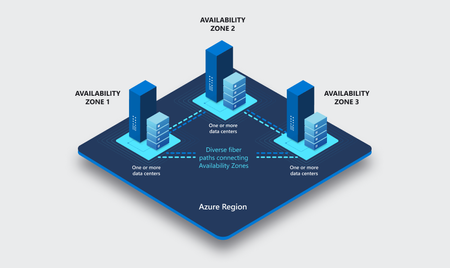
APIs are the backbone of modern applications, powering everything from mobile experiences and microservices to AI-driven applications and business-critical integrations. As customers continue to modernize their platforms on Azure, they increasingly expect their API infrastructure to remain available even in the face of datacenter-level disruptions. With zone redundancy in Standard v2, Azure API Management now enables customers to increase resilience against Availability Zone failures while continuing to benefit from the simplicity, performance, and cost efficiency of the v2 platform. Why Zone Redundancy Matters Azure Availability Zones are physically separate locations within an Azure region, each with independent power, cooling, and networking infrastructure. By distributing API Management resources across multiple zones, organizations can reduce the impact of a single datacenter failure and improve service continuity for their APIs. Until now, customers who required built-in zone-level resiliency often needed to evaluate higher-end deployment options. With this enhancement, Standard v2 customers can now deploy API gateways across Availability Zones and benefit from improved reliability while maintaining the streamlined operational model of the v2 platform. What’s New Zone Redundancy for Standard v2 extends the platform's resiliency by distributing service capacity across multiple Availability Zones within a supported Azure region. Key benefits include: Higher Availability: API traffic continues to flow even if a single Availability Zone experiences an outage. Built-in Resiliency: Redundancy is provided at the platform layer, reducing the need for customers to design and manage complex intra-region failover solutions. Production-Ready Reliability: Customers can confidently run critical API workloads on Standard v2 with stronger availability guarantees. Operational Simplicity: The service automatically manages capacity distribution, health monitoring, and recovery behavior across zones. Cost-Effective Resilience: Customers gain zone-level protection without requiring an enterprise-tier deployment model. Built on the Modern v2 Platform The v2 platform was designed from the ground up to provide a faster, more reliable, and more scalable API Management experience. Standard v2 already delivers capabilities such as rapid deployment, simplified networking, workspace support, and flexible scaling. Zone Redundancy further strengthens the platform by expanding its reliability story for production workloads. This announcement builds on our broader investment in making Azure API Management more accessible to a wider range of organizations, from digital-native startups to large enterprises modernizing their application estates. Ideal Scenarios Zone Redundancy in Standard v2 is particularly valuable for customers who: Run business-critical APIs that must remain available during datacenter incidents. Consolidate multiple application workloads behind a single API gateway. Expose APIs consumed by mobile, partner, and customer-facing applications. Support AI applications and agent-based architectures that depend on highly available API endpoints. For organizations adopting modern cloud and AI native architectures, this capability helps ensure that API infrastructure remains aligned with broader application resiliency strategies. A Foundation for Reliable AI and API Platforms As AI-powered applications continue to proliferate, APIs increasingly become the critical connection layer between models, agents, business systems, and data platforms. Downtime at the API layer can have a direct impact on application availability, customer experience, and business operations. By bringing zone redundancy to Standard v2, we are making it easier for organizations to build highly resilient API platforms that can serve as the foundation for next-generation AI and digital transformation initiatives. Getting Started Zone Redundancy for Standard v2 can be enabled in supported Azure regions, allowing customers to deploy API Management with built-in protection against Availability Zone failures. We recommend reviewing your application's overall resiliency architecture, including backend redundancy, traffic management, and disaster recovery requirements, to maximize the benefits of zone-resilient API infrastructure. Enable Zone Redundancy in the Azure Portal Getting started with Zone Redundancy in Azure API Management Standard v2 is straightforward and can be configured during service creation. Create a New Standard v2 Instance with Zone Redundancy Sign in to the Azure portal. Select Create a Resource and search for Azure API Management. Choose Standard v2 as the service tier. Select a region that supports Availability Zones. In the Availability Zones section, enable Zone Redundancy. Review and create the service. After deployment, Azure API Management automatically distributes service capacity across multiple Availability Zones within the selected region, helping maintain API availability during a zone-level outage. Looking Ahead This release represents another step in our ongoing investment in the Azure API Management v2 platform. We remain committed to delivering the reliability, scalability, security, and developer experiences that organizations expect from a modern API management service. We are excited to see what our customers build with a more resilient Standard v2 platform and look forward to your feedback as you continue modernizing and scaling your API ecosystems on Azure. Learn more by visiting the Azure API Management documentation and exploring the latest reliability guidance for API Management deployments.Write Logic Apps in C#: introducing the Logic Apps Standard SDK
The workflow you always wished you could write in code If you build on Logic Apps Standard, you already know the deal: the runtime is excellent at the unglamorous parts of integration - connecting to systems, retrying, scaling, keeping run history you can actually debug. What you sometimes wanted was a different front door. You're a .NET developer. You live in C#, source control, and pull requests. And for a long time, authoring a workflow meant leaving all of that behind for a visual designer and a JSON file. That's the gap the new Logic Apps Standard SDK closes. It lets you define Logic Apps Standard workflows in code - strongly typed, IntelliSense-guided C# - without giving up a single thing the runtime already does for you. What is the Logic Apps Standard SDK? The Logic Apps Standard SDK (Microsoft.Azure.Workflows.Sdk) is a NuGet package that gives you a fluent, code-first way to build workflow definitions in C#. Instead of dragging actions onto a canvas, you compose a workflow with method chaining: a trigger, then the actions that follow it, all the way to a response. Worth saying clearly, because people ask: this is a new way to define workflows - not a new runtime. The workflows you write with the SDK compile down to the same definitions and run on the same Logic Apps Standard runtime you use today. Same connectors. Same hosting. Same rich run history and monitoring. You're changing the authoring experience, not the engine underneath it. Why this matters for developers When your workflow lives in C#, it behaves like the rest of your code. A few things fall out of that almost for free: Type safety and IntelliSense - connector operations, triggers, and outputs are discoverable as you type, and the compiler catches mistakes before you run anything. Real source control and reviews - workflows diff like code, get reviewed in pull requests, and version alongside the services they orchestrate. Familiar tooling - refactor, debug with F5, and lean on the .NET ecosystem you already know. Extensibility on your terms — Compose your workflow declaratively with the fluent builder, then drop into plain imperative C# wherever a step needs logic that might be too complex to implement declaratively - loops, branching, a call into your own library, all encapsulated in a step of your workflow - without leaving the file or the language. And it isn't limited to one style of work. The SDK covers both enterprise integration workflows - the connect-systems-and-move-data scenarios Logic Apps is known for - and agentic workflows, where a conversational or autonomous AI agent drives the steps. Both are first-class in the same SDK, built from the same building blocks. There's one more angle worth calling out, because it's becoming hard to ignore: coding agents are simply better at writing imperative code than declarative JSON. And the reason is the same set of guardrails that helps you. Strong typing and a compilation step mean the code an agent produces is syntactically correct out of the gate — the type system and the compiler do the checking, so you don't have to. Layer unit tests on top and you've covered north of 90% of what matters; what's left is integration testing. Getting an LLM to the same level of accuracy against declarative JSON means building dedicated tooling to stand in for everything the compiler gives you for free. With code-first workflows, those guardrails are just there — which makes this a natural fit for an agent-assisted way of building. Getting started Everything here lives in the Logic Apps extension for VS Code. You'll want the Logic Apps Standard VS Code extension version 5.961.10 or later, which includes all the components you need to create code first workflows. Beyond that, the prerequisites are the ones you'd expect - VS Code with the Logic Apps extension, an Azure subscription you can create resources in, and a working comfort with C# and .NET. From a clean start, you're a handful of steps from a running workflow: Create the workspace — launch the Logic Apps extension and choose Create new Logic Apps workspace. Pick a folder, name the workspace and project, and when prompted for the workflow type, choose Logic Apps codeful - that's the code-first option that uses the SDK. Pick a workflow kind - name your first workflow and choose how it runs: Stateful, Autonomous agents (Preview), or Conversational agents (Preview). The agent options are where the agentic scenarios live. Enable connectors - when prompted, select Use connectors from Azure, choose your subscription and resource group, and pick Connection Keys for authentication. Managed identity is still in development, so connection keys are the way in for now. Find your way around - the project opens with Program.cs, which builds and starts the host, plus a workflow file (like workflow1.cs) where your trigger and actions are defined. The SDK compiles those definitions and runs them on the Logic Apps runtime. Run it - press F5 (or right-click Program.cs and pick Overview). The runtime starts locally and an overview page opens where you can fire triggers, watch run history, and inspect inputs and outputs. That last part is worth dwelling on: run history for SDK workflows uses the same rich visual view as designer-built ones. You author in code, but you monitor and troubleshoot exactly as you always have. A look at the capabilities Connectors and triggers Every workflow starts with a trigger and runs a series of actions. The SDK exposes both through two entry points - WorkflowTriggers and WorkflowActions - each split into BuiltIn and Managed. Built-in triggers and actions run directly in the runtime: HTTP request, recurrence, and the conversational agent trigger; actions like Compose, HTTP, Response, and custom code. Managed connectors give you the full Logic Apps connector catalog - Service Bus, SharePoint, SQL, and hundreds more - typed and ready to call. The managed surface is generated from the same connector definitions the designer uses, so the operations you know are right there: // Built-in trigger var trigger = WorkflowTriggers.BuiltIn.CreateHttpTrigger(); // Managed connector action — full catalog, strongly typed var getItems = WorkflowActions.Managed .Sharepointonline("sharepoint") .GetItems( dataset: () => "https://contoso.sharepoint.com", table: () => "orders-list-id") .WithName("GetOrders"); The fluent API streamlines the definition This is where it comes together. You compose a workflow by chaining operations with .Then(...). The shape of your code mirrors the shape of your workflow - read it top to bottom and you read the execution path. trigger .Then(validateOrder) .Then(getOrders) .Then(sendResponse); Control flow is part of the same fluent model. Built-in structures like Condition (if/else) and ForEach - along with Switch, Until, Scope, and Terminate - are just actions you chain in, each taking a small factory for the branch or loop body: var checkTotal = WorkflowActions.BuiltIn.Control.Condition( expression: () => order.Total > 1000, trueBranch: () => requireApproval, falseBranch: () => autoApprove ).WithName("CheckOrderValue"); And ForEach takes the collection to iterate and a factory that builds the body for each item: var processLines = WorkflowActions.BuiltIn.Control.ForEach( items: () => order.LineItems, actions: (item) => new WorkflowBuiltInActions() .Compose(inputs: () => $"Line: {item}").WithName("HandleLine") ).WithName("ProcessLineItems"); Need parallel branches that fan back in? The same Then pattern handles branching and join - no JSON wiring, no run-after blocks to hand-edit. Extending workflows with custom code Some logic doesn't belong in a connector or an expression - it's just code. The CustomCode action lets you drop a real C# method into the middle of a workflow. It receives a WorkflowContext, so you can read the trigger payload or any earlier action's results and return a strongly typed value the next step can use: var enrich = WorkflowActions.BuiltIn.CustomCode<string>(async (context) => { var trigger = await context.GetTriggerResults(); var order = await context.GetActionResults("GetOrders"); // your logic, your libraries, your types return "enriched"; }).WithName("EnrichOrder"); That's the escape hatch that keeps you in flow: when a step needs custom transformation, validation, or a call into your own libraries, you write a method instead of bending an expression to do something it was never meant to. Handling failures: try/catch with run-after Real workflows have to deal with things going wrong, and the SDK gives you the same try/catch shape Logic Apps has always had - expressed in code. The .Then(...) overload takes a FlowStatus[] run-after condition, so a handler runs only when the step before it ends in a status you name. Wrap the risky work in a Scope (your try), then chain a handler that runs after it Failed or TimedOut (your catch): var tryProcess = WorkflowActions.BuiltIn.Control.Scope(() => callPaymentApi.Then(saveOrder) ).WithName("ProcessPayment"); var handleFailure = WorkflowActions.BuiltIn .Compose(inputs: () => "Payment failed — compensating") .WithName("HandleFailure"); trigger .Then(tryProcess) .Then(handleFailure, runAfter: new[] { FlowStatus.Failed, FlowStatus.TimedOut }); The status set is the whole vocabulary: Succeeded, Failed, Skipped, and TimedOut. Combine them however a step needs - a cleanup action that should run no matter what can list every status; a finally is just the union. The same idea scales to fan-in. When several parallel branches converge, the per-predecessor RunAfter overload lets the join wait on each branch independently - so you can require some to succeed and tolerate others failing: leftChain .Join(rightChain) .Then(merge, runAfter: new[] { new RunAfter(leftChain, FlowStatus.Succeeded), new RunAfter(rightChain, FlowStatus.Succeeded), }); Putting it together Here's a small but complete shape - an HTTP-triggered order workflow that validates input, branches on order value, loops over line items, runs custom code, and replies. The core steps live in a Scope so a single failure handler can catch anything that goes wrong, and a clean reply only runs when the work succeeds. Notice it's all one readable chain: namespace LogicApps { using Microsoft.Azure.Workflows.Sdk; using Microsoft.Azure.Workflows.Sdk.Connectors.Msnweather; using System.Net; public class OrderWorkflow : IWorkflowProvider { /// <summary> /// Gets the HTTP request/response workflow definition. /// </summary> public FlowDefinition[] GetWorkflows() { // --- Trigger ---------------------------------------------------- var trigger = WorkflowTriggers.BuiltIn.CreateHttpTrigger(); // --- Managed connector action (full catalog, strongly typed) ---- // Reused verbatim from the confirmed stateful1.cs pattern. var getWeather = WorkflowActions.Managed.Msnweather("msnweather").CurrentWeather( location: () => "98058", units: () => unitsInput.Imperial).WithName("GetWeather"); // --- Custom code: real C# in the middle of the workflow --------- var enrich = WorkflowActions.BuiltIn.CustomCode<string>(async (context) => { var triggerResults = await context.GetTriggerResults(); var weather = await context.GetActionResults("GetWeather"); // your logic, your libraries, your types return "enriched"; }).WithName("EnrichOrder"); // --- ForEach over a collection (control flow via .Control) ------- var processLines = WorkflowActions.BuiltIn.Control.ForEach( items: () => trigger.TriggerOutput.Body["lineItems"], actions: (item) => WorkflowActions.BuiltIn .Compose(inputs: () => $"Line: {item}").WithName("HandleLine") ).WithName("ProcessLineItems"); // --- Condition (if/else) (control flow via .Control) ------------ var checkTotal = WorkflowActions.BuiltIn.Control.Condition( expression: () => true, trueBranch: () => processLines, falseBranch: () => WorkflowActions.BuiltIn .Compose(inputs: () => "Auto-approved").WithName("AutoApprove") ).WithName("CheckOrderValue"); // --- Scope groups the core steps so one handler catches failures - var processOrder = WorkflowActions.BuiltIn.Control.Scope(() => checkTotal .Then(getWeather) .Then(enrich) ).WithName("ProcessOrder"); // --- Responses -------------------------------------------------- var ok = WorkflowActions.BuiltIn.Response( responseBody: () => "Order processed").WithName("Reply"); var failed = WorkflowActions.BuiltIn.Response( statusCode: () => HttpStatusCode.InternalServerError, responseBody: () => "Order failed").WithName("ReplyFailed"); // --- Assemble --------------------------------------------------- // Happy path runs after the Scope Succeeded; the handler runs after // Failed or TimedOut. trigger .Then(processOrder) .Then(ok, runAfter: new[] { FlowStatus.Succeeded }) .Then(failed, runAfter: new[] { FlowStatus.Failed, FlowStatus.TimedOut }); return new[] { WorkflowFactory.CreateStatefulWorkflow("OrderWorkflow", trigger) }; } } } That last stretch is the best-practice shape in miniature: the happy-path Reply runs only after the Scope Succeeded, while a separate handler catches Failed or TimedOut and returns a 500 - no exception plumbing, just run-after conditions. You implement IWorkflowProvider, hand your trigger graph to WorkflowFactory as a stateful, stateless, or agent workflow, and the host registers it. Run it with F5 and the Logic Apps runtime starts locally - same as any Standard project. Before you build: preview realities I'd rather you go in clear-eyed. While the SDK is in public preview, keep these in mind: Service Provider connectors aren't supported yet - that connector type is coming in a future release. Dynamic schemas aren't supported - support is planned. Custom code supports callback methods only - inline lambdas aren't available in this version. Define and name actions before referencing them - name an action before using it as a dependency elsewhere. Managed identity authentication is in development - use connection keys for connectors in the meantime. Try it, and tell us what you think If you've ever wanted your workflows to live where the rest of your code lives - in C#, in source control, in your pull requests - this is for you. Install the Logic Apps extension for VS Code, create a Logic Apps codeful project, and build your first workflow in code. This is a preview, which means your feedback genuinely shapes where it goes - which capabilities come next, where the rough edges are. Bring issues, feature requests and feedback to our GitHub page. I read it. Let's make code-first workflows something you actually want to use. Related content Create Standard workflow projects with the SDK Logic Apps Standard SDK class library1.9KViews3likes2Comments
Migrate Data Ingestion from Data Collector to Log Ingestion
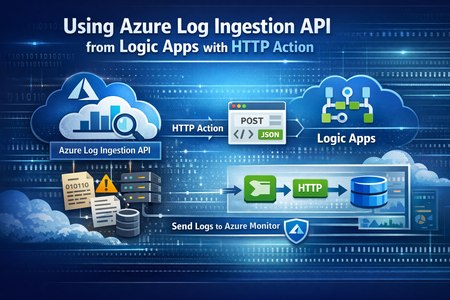
HTTP Data Collector API in Log Analytics workspaces is being deprecated, and will be totally out of support in September 2026. Data Collector actions in logic app using already created API connections (which uses workspace Id & Key) would still work against old custom log tables, however, newly created table will not be able to ingest data, although the connector would still succeed in logic app, but no data will be populated in newly created custom logs. In case new API connection is created for Data Collector action (using workspace Id & Key); these will fail with 403 - Forbidden action. Users should start using the Log Ingestion API to send data to custom tables, and this document will guide users on how to use Log Ingestion API in logic apps. Note: Azure portal currently is update so it doesn't show the Workspace keys in Log Analytics workspace page, however, Az CLI will still get the keys, but as stated, actions will fail with 403 when using them in Data Collector Action. Creating DCE & DCRs: To utilize the Log Ingestion API, Data Collection Endpoint & Data Collection Rule should be created first. DCE Creation is simple, from azure portal search for DCE, and then create a new one: For DCR creation, it can be either created from the DCR page in Azure Portal, or upon creating the custom log in Log Analytics workspace. DCR Popup You need to upload sample data file, so the custom log table has a schema, it needs to be JSON array. In case the sample log doesn't have a TimeGenerated field, you can easily add it using the mapping function as below: Add the below code in the Transformation box, then click run. Once you complete the DCR creation, we need to get the DCE full endpoint. Getting DCE Log Ingestion Full URL To get the full endpoint URL, please follow the below: 1. Get the DCE Log Ingestion URL from the DCE overview page: 2. On the DCR Page, get the immutable id for the DCR., then click on the JSON view of the DCR resource: 3. From the JSON view, get the stream name from the streamDeclarations field Now the full Log Ingestion URL is: DCE_URL/dataCollectionRules/{immutable_id}/streams/{streamName}?api-version=2023-01-01 It would be similar to: https://mshbou****.westeurope-1.ingest.monitor.azure.com/dataCollectionRules/dcr-7*****4e988bef2995cd52ae/streams/Custom-mshboulLogAPI_CL?api-version=2023-01-01 Granting Logic App MI needed IAM Roles: To call the ingestion endpoint using Logic Apps MI, we need to grant logic apps MI the role "Monitoring Metrics Publisher" over the DCR resource. To do this, open the DCR, from the blade choose Access Control (IAM), and then grant the logic app MI the role "Monitoring Metrics Publisher" Calling Log Ingestion Endpoint from logic apps: To call the ingestion endpoint from logic apps, we need to use the HTTP action, as below, the URI is the full DCE Endpoint we created before. Add the content-type headers, and the json body that contains the log data you want to send. For the authentication, it will be as below: Once executed, it should succeed, with status code 204. For more details on the Log Ingestion API, and the migration, please see our documentation: Migrate from the HTTP Data Collector API to the Log Ingestion API - Azure Monitor | Microsoft Learn Logs Ingestion API in Azure Monitor - Azure Monitor | Microsoft Learn Thanks.1.2KViews0likes0CommentsIntroducing Skills in Azure API Center
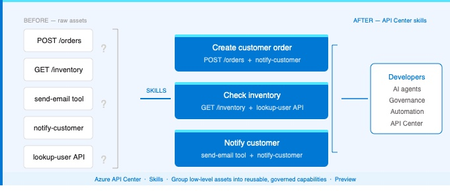
The problem Modern applications depend on more than APIs. A single AI workflow might call an LLM, invoke an MCP tool, integrate a third-party service, and reference a business capability spanning dozens of endpoints. Without a central inventory, these assets become impossible to discover, easy to duplicate, and painful to govern. Azure API Center — part of the Azure API Management platform — already catalogs models, agents, and MCP servers alongside traditional APIs. Skills extend that foundation to cover reusable AI capabilities. What is a Skill? As AI agents become more capable, organizations need a way to define and govern what those agents can actually do. Skills are the answer. A Skill in Azure API Center is a reusable, registered capability that AI agents can discover and consume to extend their functionality. Each skill is backed by source code — typically hosted in a Git repository — and describes what it does, what APIs or MCP servers it can access, and who owns it. Think of skills as the building blocks of AI agent behavior, promoted into a governed inventory alongside your APIs, MCP servers, models, and agents. Example: A "Code Review Skill" performs automated code reviews using static analysis. It is registered in API Center with a Source URL pointing to its GitHub repo, allowed to access your code analysis API, and discoverable by any AI agent in your organization. How Skills work in API Center Skills can be added to your inventory in two ways: registered manually through the Azure portal, or synchronized automatically from a connected Git repository. Both approaches end up in the same governed catalog, discoverable through the API Center portal. Option 1: Register a Skill manually Use the Azure portal to register a skill directly. Navigate to Inventory > Assets in your API center, select + Register an asset > Skill, and fill in the registration form. Figure 2: Register a skill form in the Azure portal. The form captures everything needed to make a skill discoverable and governable: Field Description Title Display name for the skill (e.g. Code Review Skill). Identification Auto-generated URL slug based on the title. Editable. Summary One-line description of what the skill does. Description Full detail on capabilities, use cases, and expected behavior. Lifecycle stage Current state: Design, Preview, Production, or Deprecated. Source URL Git repository URL for the skill source code. Allowed tools The APIs or MCP servers from your inventory this skill is permitted to access. Enforces governance at the capability level. License Licensing terms: MIT, Apache 2.0, Proprietary, etc. Contact information Owner or support contact for the skill. Governance note: The Allowed tools field is key for AI governance. It explicitly defines which APIs and MCP servers a skill can invoke — preventing uncontrolled access and making security review straightforward. Option 2: Sync Skills from a Git repository For teams managing skills in source control, API Center can integrate directly with a Git repository and synchronize skill information automatically. This is the recommended approach for teams practicing GitOps or managing many skills at scale. Figure 3: Integrating a Git repository to sync skills automatically into API Center. When you configure a Git integration, API Center: Creates an Environment representing the repository as a source of skills Scans for files matching the configured pattern (default: **/skill.md) Syncs matching skills into your inventory and keeps them current as the repo changes For private repositories, a Personal Access Token (PAT) stored in Azure Key Vault is used for authentication. API Center's managed identity retrieves the PAT securely — no credentials are stored in the service itself. Tip: Use the Automatically configure managed identity and assign permissions option when setting up the integration if you haven't pre-configured a managed identity. API Center handles the Key Vault permissions automatically. Discovering Skills in your catalog Once registered — manually or via Git — skills appear in the Inventory > Assets page alongside all other asset types. Linked skills (synced from Git) are visually identified with a link icon, so teams can see at a glance which skills are source-controlled. From the API Center portal, developers and other stakeholders can browse the full skill catalog, filter by lifecycle stage or type, and view detailed information about each skill — including its source URL, allowed tools, and contact information. Figure 4: Skills catalog in API Center portal, showing registered skills and the details related to the skill. Developer experience: The API Center portal gives teams a self-service way to discover approved skills without needing to ask around or search GitHub. The catalog becomes the authoritative source of what's available and what's allowed. Why this matters for AI development teams Skills close a critical gap in AI governance. As organizations deploy AI agents, they need to know — and control — what those agents can do. Without a governed skill registry, capability discovery is ad hoc, reuse is low, and security review is difficult. By bringing skills into Azure API Center alongside APIs, MCP servers, models, and agents, teams get: A single inventory for all the assets AI agents depend on Explicit governance over which resources each skill can access via Allowed tools Automated, source-controlled skill registration via Git integration Discoverability for developers and AI systems through the API Center portal Consistent lifecycle management — Design through Production to Deprecated API Center, as part of the Azure API Management platform and the broader AI Gateway vision, is evolving into the system of record for AI-ready development. Skills are the latest step in that direction. Available now Skills are available today in Azure API Center (preview). To register your first skill: Sign in to the Azure portal and navigate to your API Center instance In the sidebar, select Inventory > Assets Select + Register an asset > Skill Fill in the registration form and select Create → Register and discover skills in Azure API Center (docs) → Set up your API Center portal → Explore the Azure API Management platform2.6KViews0likes2Comments
Using Logic Apps (Consumption)? Tell us what’s keeping you there
We’re inviting Logic Apps Consumption customers to share feedback on what’s influencing their decision to stay on Consumption and what might be holding them back from exploring Logic Apps Standard. Your input will help shape future improvements.Extending Logic Apps App Insight integration with Azure Workbooks
With the improvements we made in Logic Apps integration with App insight, we streamlined how various types of Logic Apps associated events get emitted and ingested into Application Insights. This change also improved how they get mapped to existing application insight concepts such as requests, dependencies, and exceptions. Azure workbooks provides a flexible canvas for data analysis and the creation of rich visual reports within azure portal. Azure workbooks also replace Azure monitoring solutions which we had been using with Consumption Logic Apps to build visual dashboards on top of Log Analytics data from consumption Logic Apps. In this blog post we are going to show how we can use Azure workbooks together with recent improvements to application insight integration to build similar rich and interactive dashboards for standard Logic Apps.7KViews2likes3CommentsUsing Logic App Standard to connect to SAP
1. Overview: SAP Connector ( ) is a Enterprise connector which provides a set of actions and triggers to connect to your SAP Service. Ref: SAP - Connectors | Microsoft Learn The SAP connector supports the following message and data integration types from SAP NetWeaver-based systems: Intermediate Document (IDoc) Business Application Programming Interface (BAPI) Remote Function Call (RFC) and Transactional RFC (tRFC) The SAP connector uses the SAP .NET Connector (NCo) library. To use the available SAP trigger and SAP actions, you need to first authenticate your connection. You can authenticate your connection with a username and password. The SAP connector also supports SAP Secure Network Communications (SNC) for authentication. You can use SNC for SAP NetWeaver single sign-on (SSO), or for additional security capabilities from external products. 2. Connecting and Creating a Workflow: Create a new Logic App Standard. Ref: Create Standard workflows in single-tenant Azure Logic Apps with the Azure portal - Azure Logic Apps | Microsoft Learn Upload all required SAP Private DLLs as Client/SDK Assembly (.NET Framework). See below for known issue with DLLs larger than 4 MB. All SAP Libraries (like sapnco.dll, sapnco_utils.exe, libicudecnumber.dll, rscp4n.dll, also visible here SNC's sapcrypto.dll, sapgenpse.exe, slcryptokernel.dll which are discussed later below) were uploaded to Assemblies. Throws Exception: If any of these libraries are missing, the following exception will be thrown: HttpStatusCode: BadRequest ErrorCode: ServiceProviderActionFailed ErrorMessage: The service provider action failed with error code 'ServiceOperationFailed' and error message 'SAP client library is missing. Please add pre-requisites SAP .NET Connector client library assemblies to the workflow application. Detailed error message 'Could not load file or assembly '{assembly name}' Enable vnet integration and private ports by following this article: Enabling Service Bus and SAP built-in connectors for stateful Logic Apps in Standard (microsoft.com) Add an SAP Action to the workflow. Create a connection (Refer Section 2.2) and run the workflow. Throws Exception: If there is any error while connecting to SAP using the created connection parameters, it will throw below exception: HttpStatusCode: BadRequest ErrorCode: ServiceProviderActionFailed ErrorMessage: The service provider action failed with error code 'ServiceOperationFailed' and error message 'Call to SAP client library failed with error message '{error message}' '. 2.2 Creating SAP Connections: 2.2.1 Using Username and Password: You can create a simple Username and Password connection by selecting 'Auth Type' as 'Basic' and providing required fields in 'Add Connection' pane. Then click Create. 2.2.2 Using SNC You can create a SNC connection by selecting 'Auth Type' as 'Logon Using SNC' and providing required fields in 'Add Connection' pane. For SNC to work properly, you need to upload SAP Libraries namely (sapcrypto.dll, sapgenpse.exe, slcryptokernel.dll) using Assemblies pane in Azure portal. For SNC Partner Name, enter the backend's SNC name. For example, p:CN=DV3, OU=LA, O=MS, C=US . For SNC Certificate, enter your SNC client's public certificate in base64-encoded format. Don't include the PEM header or footer. Don't enter the private certificate here because the PSE might contain multiple private certificates, but this SNC Certificate parameter identifies the client certificate that must be used for this connection. Configure PSE settings. For PSE, enter your SNC PSE as a base64-encoded binary. The PSE must contain the private client certificate, which thumbprint matches the public client certificate that you provided in the previous step. The PSE may contain additional client certificates. We recommend however that you create separate Workflow applications if you intend to authenticate with different client certificates. The PSE must have no PIN. If needed, set the PIN to empty using the SAPGENPSE utility. Then click Create. 3. Known Issues Assemblies tab doesn't allow uploading libraries above 4MB. As a workaround you can follow steps below: All SAP libraries can be uploaded to site/wwwroot/lib/builtinOperationSdks/net472/* using kudu tool. Open Kudu tool: Navigate to site/wwwroot : Create Directory lib/builtinOperationSdks/net472/ (if it does not already exist): Upload all your SAP/SNC assemblies to site/wwwroot/lib/builtinOperationSdks/net472/* : NOTE: SAP Connector is in Preview and doesn't guarantee SLA and latency requirements.9.6KViews3likes11Comments