scan
7 Topics
Microsoft Purview Data Map Approach to scan
I plan to scan Purview data assets owner by owner rather than scanning entire databases in one go because this approach aligns with data governance and RBAC (Role-Based Access Control) principles. By segmenting scans by asset ownership, we ensure that only the designated data asset owners have the ability to edit or update metadata for their respective assets in Purview. This prevents broad, unrestricted access and maintains accountability, as each owner manages the metadata for the tables and datasets they are responsible for. Scanning everything at once would make it harder to enforce these permissions and could lead to unnecessary exposure of metadata management rights. This owner-based scanning strategy keeps governance tight, supports compliance, and ensures that metadata stewardship remains with the right people. This approach also aligns with Microsoft Purview best practices and the RBAC model: Microsoft recommends scoping scans to specific collections or assets rather than ingesting everything at once, allowing different teams or owners to manage their own domains securely and efficiently. Purview supports metadata curation via roles such as Data Owner and Data Curator, ensuring that only users assigned as owners; those with write or owner permissions on specific assets; can edit metadata like descriptions, contacts, or column details. The system adheres to the principle of least privilege, where users with Owner/Write permissions can manage metadata for their assets, while broader curation roles apply only where explicitly granted. Therefore, scanning owner by owner not only enforces governance boundaries but also ensures each data asset owner retains exclusive editing rights over their metadata; supporting accountability, security, and compliance. After scanning by ownership, we can aggregate those assets into a logical data product representing the full database without breaking governance boundaries. Is this considered best practice for managing metadata in Microsoft Purview, and does it confirm that my approach is correct?Solved358Views0likes2Comments
Some Fabric Lakehouse tables not appearing in Microsoft Purview after scan
Hi everyone, I’m running into an issue where several tables from a Fabric Lakehouse aren’t appearing in Microsoft Purview after a workspace scan. Here’s the situation: I scanned a Fabric workspace that contains multiple Lakehouses. For most Lakehouses, the tables appear correctly in Purview after the scan. However, for one specific Lakehouse, several tables that I know exist aren’t showing up in the scanned assets — even after adding the Lakehouse as an asset to a data product in the Unified Catalog. What I’ve tried: I rescanned the workspace and the specific Lakehouses. I verified that the tables are persistent (not temporary) and appear under the Tables section in Fabric, not only as files. I confirmed permissions for the Purview connection account. Scan results and errors: After the rescan, the tables still didn’t appear. The scan logs show several ingestion errors with messages like: Failed to ingest asset with type fabric_lakehouse and qualified name [qualified name] due to invalid data payload to data map I checked the error entries to see which assets they point to, and none of them are related to the tables in the Lakehouse in question. There were four of these errors in the last run. Additional context: Some older Lakehouses that had been archived months ago in Fabric still appeared as active in Purview before the rescan, so there may be stale metadata being retained. Notes: I’m aware Fabric scanning in Purview currently has sub-item scanning limitations where item-level metadata is prioritised, and individual tables aren’t always picked up. But given that tables from other Lakehouses appear as expected, and given the ingestion errors (even though the errors do not point to the missing tables), it feels like there may be a metadata sync or processing issue rather than a simple coverage limitation. Question: Has anyone encountered this behaviour or the “invalid data payload to data map” error before? Any guidance on further troubleshooting steps would be appreciated. Thanks in advance!447Views1like1CommentScanning Salesforce with Purview / Connector Exception: Can not retrieve access token.
Hello everyone, I am trying to scan a demo Salesforce system that is publicly available over the internet (so no SHIR needed as I see it). Nevertheless even when trying out the SHIR as well as AIR to run a scan after registering the Salesforce with the URL, i get the error message: "Failed to testConnection: Exception when processing request: Connector Exception: Can not retrieve access token. Make sure you specify proper parameters." I know it has to do with the User Name & Password and Connected App Consumer Key & Consumer Secret combination. I created a key vault that is connected, the MI of Purview has sufficient read rights (Key Vault Secrets Officer as well as Key Vault Secrets User) on that key vault and I created 4 secrets. the concatted api user password & security token just the API User Password just the Consumer Secret of the Connected App and finally just the security token I tried every possible combination maybe I did overlook something here? From the Connect to and manage Salesforce in Microsoft Purview documentation: Select Consumer key while creating a credential. (Automatically checked) Provide the username of the user that the connected app is imitating in the User name input field. (I am using an integration user with permission set for this) Store the password of the user that the connected app is imitating in an Azure Key Vault secret. If your self-hosted integration runtime machine's IP is within the trusted IP ranges for your organization set on Salesforce, provide just the password of the user. Otherwise, concatenate the password and security token as the value of the secret. The security token is an automatically generated key that must be added to the end of the password when logging in to Salesforce from an untrusted network. Learn more about how to get or reset a security token. (not applicable but I also tried through an SHIR with the concatenated password and security key) Provide the consumer key from the connected app definition. You can find it on the connected app's Manage Connected Apps page or from the connected app's definition. (took this exactly) Stored the consumer secret from the connected app definition in an Azure Key Vault secret. You can find it along with consumer key. (took this exactly and stored in key vault) I found an older post where some people seem to have made it work: Trying to connect purview to salesforce ... - Microsoft Q&A So I think you always need to concatenate the user password and securtiy token when using AIR too no? I'd really appreciate any input or ideas! Best regards and a nice day to you all, MatthiasSolved697Views1like4CommentsNew Feature | Sharing pages via QR code now fully working in latest Edge Canary 84.0.493.0
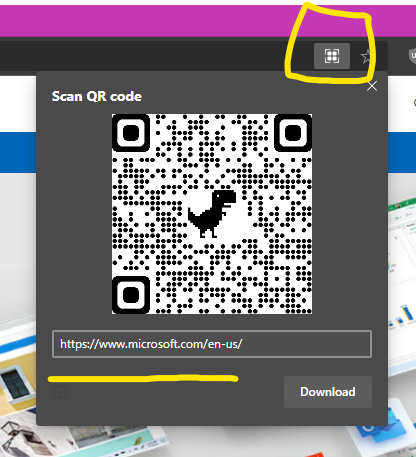
The icon is also changed in Edge Canary Version 84.0.493.0 To get that on your address bar, first you have to be on the latest Edge canary and also enable this flag: Enable sharing page via QR Code Enables right-click UI to share the page's URL via a generated QR Code. – Mac, Windows #sharing-qr-code-generator in edge://flags/ I tested scanning the code via the new All-in-One Office app on Android and it works correctlySolved4.2KViews1like4Comments