refs
9 TopicsWhy Windows Should Adopt ReFS as a Bootable Filesystem
ReFS could become a bootable filesystem — it only needs a few missing layers. No need to copy NTFS, just implement what the Windows boot process requires. Key missing pieces: System‑level journaling (not only metadata) Full hardlink + extended attribute support EFS, ACLs, USN Journal for security + Windows Update Boot‑critical atomicity for safe system file updates Bootloader‑compatible APIs (BCD, BitLocker pre‑boot, WinRE, Secure Boot) Goals: Use NTFS as a reference map, add the missing capabilities to ReFS, and optimize them using ReFS features (copy‑on‑write, integrity streams, block cloning). Result: A modern, resilient filesystem that can finally boot Windows - without losing its benefits.342Views1like7Comments
Announcing ReFS Boot for Windows Server Insiders
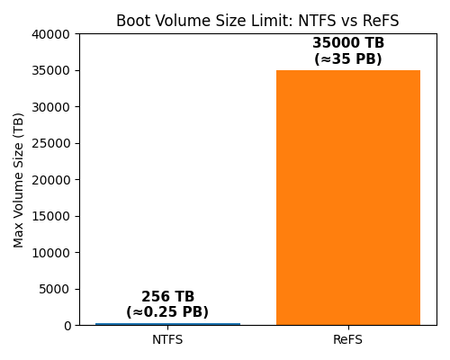
We’re excited to announce that Resilient File System (ReFS) boot support is now available for Windows Server Insiders in Insider Preview builds. For the first time, you can install and boot Windows Server on an ReFS-formatted boot volume directly through the setup UI. With ReFS boot, you can finally bring modern resilience, scalability, and performance to your server’s most critical volume — the OS boot volume. Why ReFS Boot? Modern workloads demand more from the boot volume than NTFS can provide. ReFS was designed from the ground up to protect data integrity at scale. By enabling ReFS for the OS boot volume we ensure that even the most critical system data benefits from advanced resilience, future-proof scalability, and improved performance. In short, ReFS boot means a more robust server right from startup with several benefits: Resilient OS disk: ReFS improves boot‑volume reliability by detecting corruption early and handling many file‑system issues online without requiring chkdsk. Its integrity‑first, copy‑on‑write design reduces the risk of crash‑induced corruption to help keep your system running smoothly. Massive scalability: ReFS supports volumes up to 35 petabytes (35,000 TB) — vastly beyond NTFS’s typical limit of 256 TB. That means your boot volume can grow with future hardware, eliminating capacity ceilings. Performance optimizations: ReFS uses block cloning and sparse provisioning to accelerate I/O‑heavy scenarios — enabling dramatically faster creation or expansion of large fixed‑size VHD(X) files and speeding up large file copy operations by copying data via metadata references rather than full data movement. Maximum Boot Volume Size: NTFS vs. ReFS Resiliency Enhancements with ReFS Boot Feature ReFS Boot Volume NTFS Boot Volume Metadata checksums ✅ Yes ❌ No Integrity streams (optional) ✅ Yes ❌ No Proactive error detection (scrubber) ✅ Yes ❌ No Online integrity (no chkdsk) ✅ Yes ❌ No Check out Microsoft Learn for more information on ReFS resiliency enhancements. Performance Enhancements with ReFS Boot Operation ReFS Boot Volume NTFS Boot Volume Fixed-size VHD creation Seconds Minutes Large file copy operations Milliseconds-seconds (independent of file size) Seconds-minutes (linear with file size) Sparse provisioning ✅ ❌ Check out Microsoft Learn for more information on ReFS performance enhancements. Getting Started with ReFS Boot Ready to try it out? Here’s how to get started with ReFS boot on Windows Server Insider Preview: 1. Update to the latest Insider build: Ensure you’re running the most recent Windows Server vNext Insider Preview (Join Windows Server Insiders if you haven’t already). Builds from 2/11/26 or later (minimum build number 29531.1000.260206-1841) include ReFS boot in setup. 2. Choose ReFS during setup: When installing Windows Server, format the system (C:) partition as ReFS in the installation UI. Note: ReFS boot requires UEFI firmware and does not support legacy BIOS boot; as a result, ReFS boot is not supported on Generation 1 VMs. 3. Complete installation & verify: Finish the Windows Server installation as usual. Once it boots, confirm that your C: drive is using ReFS (for example, by running fsutil fsinfo volumeInfo C: or checking the drive properties). That’s it – your server is now running with an ReFS boot volume. A step-by-step demo video showing how to install Windows Server on an ReFS-formatted boot volume, including UEFI setup, disk formatting, and post-install verification. If the player doesn’t load, open the video in a new window: Open video. Call to Action In summary, ReFS boot brings future-proof resiliency, scalability, and performance improvements to the Windows Server boot volume — reducing downtime, removing scalability limits, and accelerating large storage operations from day one. We encourage you to try ReFS boot on your servers and experience the difference for yourself. As always, we value your feedback. Please share your feedback and questions on the Windows Server Insiders Forum. — Christina Curlette (and the Windows Server team)
Issue with existing drive formatted to ReFS and mounting in new server
I had a hardware failure which also took out my Server installation drive. I have new hardware and have installed Server 2022 again on new drive. I have connected a drive that I had formatted as ReFS and now it shows as RAW and Event log shows "ReFS failed to mount the volume. Version 3.14 doesn't match expected value 3.7" I have no idea what is going on here. Both installations of Server 2022 used the same media. This is getting very painful. I have connected the drive to a Windows 11 24H2 computer, and it reads fine.169Views0likes0Comments
Data Protection Manager storage usage
DPM stores everything on a local 20TB RAID (formatted in ReFS). The system was running DPM 2019 a week or so ago and total storage usage was about 11TB. It had been online for several years before I got to it so storage usage was stable. I upgraded to DPM 2022 since we had to move all the VMs from a 2019 Hyper-V cluster to a 2022 Hyper-V cluster, so we had to update DPM to be able to support the new cluster. I also made some adjustments to the protection jobs, pulling out any old VMs that weren't in use anymore and adding a few "new" servers that weren't currently in DPM. Within less than a week the storage usage has skyrocketed and the drive is now almost full. I deleted a bunch of old retention points yesterday to get some space back, but DPM went and gobbled most of it up last night. I am puzzled why the usage is so high for just 10 days' worth of recovery points. The environment that we're backing up isn't big. I have searched for old recovery points that might have been missed the first time around and came up with about 200GB, which is hardly anything. Deduplication isn't an option since the DPM server is physical. When I checked this morning there were 857GB free on the storage drive. Now (2:40pm) there are just 348Gb free, but the only DPM jobs that have run since this morning are synchronization jobs and Monitoring shows they transferred less than half a GB. So why is DPM showing half a TB gone from free space? I was wondering if there's some other issue that might be affecting storage usage, perhaps to do with ReFS. Any other ideas would be much appreciated!550Views0likes0CommentsReFS volume appears RAW (version doesn't match expected value) after Windows Update
After Windows Update last night, Windows Server 2019 wouldn't mount a storage space volume as ReFS (it appears as RAW). The error in the ReFS event log is "ReFS failed to mount the volume. Version 1.2 doesn't match expected value 3.4" No issues that I can see at the storage space level (it is a mirrored disk). The volume was working fine before Windows Update and the reboot. Another ReFS volume still works fine after the update. Any clues? I could not find this error mentioned anywhere else. Thanks.Solved135KViews3likes87CommentsCRITICAL - Storage Spaces: ReFS mirrored storage space will not free up space, related Defrag issues
This is an issue introed in the build of Windows 10 1903, first reported 8 months before release. I didn't thought this would be included in to Server 2022 LTSC since I have successfully worked on this to be fixed by the storage team in a Windows 10 Dev build. I have a running SR with MS support for over 1 year now so the fix from Insider dev gets at least backported to 2004 and later. They declined to fix it for 1903, 1909 due to end of support policies. Now this also affects an Server LTSC build for the first time it gets even more "spicy". Due a recent change of my Storage Space I had to "evacuate" all data from the Storage Space and found the same behaviour: issue: - deletion of files on the volume does not free up space (only ReFS mirrored volumes on Storage Spaced (not necessarily S2D, S2D was not tested). The space is shown as used on the Windows Explorer - deletion of files on the volume does not free up space on the Storage Pool affected OS: Windows 10 Pro / Enterprise / EDU 1903, 1909, 2004, 20H1, 20H2, 21H1 (beta channel), Windows Server SAC 1903 or later Windows Server LTSC 2022 LTSC (21H2) open SR: 120072921001646 this is not a local issue and can Feedback Hub (Storage Spaces file deletion issue): https://aka.ms/AAbfubr edit: (possibly related Defrag issues with Storage Spaces) https://aka.ms/AAbmte3Solved7.2KViews2likes11CommentsDirect Mode didn’t work on ReFS formated Cluster Shared Volumes
Hi, why is direct access not possible with a ReFS format CSV volume? Instead of direct access, all reFS formatted CSVs that are provided by a SAN runs with "FileSystemRedirected". This behavior is critical because the "FileSystem Redirected" mode, compared to direct access, has up to 90% or more performance losses depending on the environment. Neither the fact that ReFS formatted CSV only run in "FileSystem Redirected" mode nor the associated performance penalties are mentioned in any official Microsoft statement. On the contrary, Microsoft actively recommends using ReFS for VHDX files. That is why, like many others, I have formatted the CSV with ReFS since the server in 2016, because I hoped that this would be an advantage for the customer systems. Unfortunately, this procedure led to the opposite and it was not easy to find the reason for it. Mainly because Microsoft has absolutely nothing documented about this behavior. I personally had to postpone more than 100 TB of data on various customer systems over the past few months in order to eliminate this problem and to bring the CSV formatted with ReFS back to NTFS. This action cost my company a considerable amount and also led to massive annoyance of the customer. However, if you know what to look for, you can now find a lot of posts on the Internet that confirm this behavior. Here are a few examples. https://github.com/MicrosoftDocs/windowsserverdocs/issues/2051 https://www.hyper-v-server.de/hypervisor/performance-probleme-hyper-v-cluster-mit-san-storage-und-csvs-mit-refs-formatiert/ https://techcommunity.microsoft.com/t5/failover-clustering/understanding-the-state-of-your-cluster-shared-volumes/ba-p/371889 https://www.windowspro.de/marcel-kueppers/refs-ntfs-vor-nachteile-dateisysteme-server-2016 https://www.wowrack.com/blog/microsofts-latest-system-refs-compared-to-ntfs/ https://4sysops.com/archives/windows-server-2019-cluster-shared-volumes-best-practices/ https://social.technet.microsoft.com/Forums/ie/en-US/6b2dcc4f-e735-4700-81f3-df45d94e7e01/refs-for-a-hyperv-csv-volume?forum=winserverhyperv https://forums.veeam.com/veeam-backup-replication-f2/latest-veeam-community-forums-digest-oct-2-oct-8-t46019.html Therefore, I now spare myself any further details and come directly to my demand. If ReFS does not fundamentally support direct mode, then I also expect Microsoft to publicly clarify it accordingly and also clearly indicate which disadvantages could arise if the CSVs are formatted with ReFS. If it should work and there is only a bug in between, please finally fix it. This problem has existed since Server 2016, so enough time should have passed to fix the problem. Best Regards from Germany Alex2.3KViews1like0Comments