purview
79 TopicsUsing Copilot in Sensitive Healthcare Teams Meetings - Without Recording or Transcription
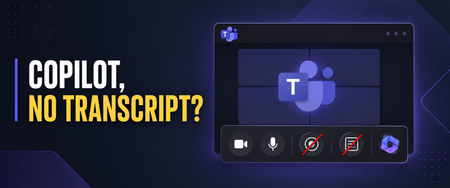
Healthcare organizations want the productivity benefits of Microsoft 365 Copilot, but those benefits must be balanced with privacy, security, and compliance requirements. I recently worked with a healthcare customer whose compliance team was concerned about persistent meeting artifacts. They wanted users to benefit from Copilot during Microsoft Teams meetings, but they did not want every conversation recorded or a transcript available afterward—especially for meetings involving sensitive operational, workforce, legal, compliance, or patient-related discussions. Microsoft Teams provides an option that can help with this scenario: allowing Copilot only during the meeting while disabling recording and transcription. Important: This article describes a technical configuration and customer scenario. It is not legal or compliance advice. Your privacy, security, compliance, records-management, and legal teams should determine whether this configuration is appropriate for your organization and specific meeting types. Why This Matters in Healthcare Healthcare organizations conduct many meetings where the discussion may include sensitive information: Patient care coordination Quality and safety reviews Compliance investigations Workforce and employee matters Security incidents Legal or risk-management discussions Research and clinical program planning A recording or transcript can become an additional persistent information asset that must be appropriately protected, retained, governed, and eventually disposed of. The HIPAA Security Rule requires covered entities and business associates to implement reasonable and appropriate administrative, physical, and technical safeguards for electronic protected health information. This includes evaluating risk, controlling access, implementing audit controls, and periodically reviewing security measures. The U.S. Department of Health and Human Services provides an overview of these requirements here. HIPAA’s minimum necessary standard also generally calls for organizations to limit unnecessary access to protected health information, although important exceptions apply—including certain disclosures for treatment. HHS provides additional guidance on the minimum necessary requirement. Turning off recording and transcription does not automatically make a meeting compliant. However, reducing the creation of unnecessary meeting artifacts can be one useful part of a broader, risk-based healthcare data-governance strategy. Copilot Without a Persistent Transcript When a Teams meeting is configured for Only during the meeting, Copilot can use temporary speech-to-text data to understand the active conversation. A traditional meeting transcript does not need to be started. Users can ask Copilot to: Summarize what has been discussed Identify decisions List open questions Capture action items Explain areas of disagreement Help someone catch up after joining late Microsoft explains that Copilot must be manually started by a participant in this configuration. Copilot can then provide insights based on the conversation taking place while it is active. See Microsoft’s guidance for using Copilot without recording or transcribing a Teams meeting. There are two important limitations users must understand. First, Copilot does not automatically start when the meeting begins. If someone activates it five minutes into the meeting, it will not have the same context it would have had if it had been started at the beginning. Second, users should capture anything they need before leaving the meeting. Without transcription, they will not have the same post-meeting Copilot conversation history or transcript-based recap. Microsoft recommends copying any Copilot content users want to keep before the meeting ends. Watch the Complete Walkthrough In the following video, I demonstrate the user experience, the corresponding Teams administrative policies, the Facilitator consideration, and several lessons I learned while implementing this for a healthcare customer. How to Use Copilot in Teams Without Recording or Transcription: Admin Setup & Gotchas The Administrative Configuration For this scenario, the goal was to create a scoped Teams meeting policy that: Prevented users from recording meetings Prevented users from starting transcription Allowed Copilot to operate during the meeting Avoided enabling a transcript-dependent post-meeting Copilot experience The settings are managed through Teams meeting policies in the Teams admin center. In the video, I walk through the relevant recording, transcription, and Copilot controls and show the resulting experience from a user’s perspective. For a healthcare organization, I would normally begin with a limited population instead of immediately applying a new policy globally. A pilot group gives the organization an opportunity to test the technical behavior and evaluate it with stakeholders from: Privacy and compliance Information security Legal and risk management Records management Clinical or operational leadership Microsoft 365 administration End-user training and adoption The appropriate configuration may differ between clinical, administrative, research, legal, HR, and general collaboration scenarios. A single organization-wide meeting policy may not be the right answer for every healthcare meeting. “No Transcript” Does Not Mean “No Compliance Data” This distinction is critical. Although participants may not receive a traditional meeting recording or transcript, Copilot prompts and responses can still be subject to Microsoft Purview retention policies. Depending on the organization’s configuration, those interactions may also be discoverable through Microsoft Purview eDiscovery. Microsoft explicitly notes that Copilot prompts and responses may be retained for compliance purposes even when recording and transcription are disabled. Microsoft’s Purview training covers auditing, retention, eDiscovery, and compliance controls for Copilot interactions. Healthcare organizations should therefore evaluate more than the visible Teams recap. The governance review should include: Copilot interaction retention Microsoft Purview Audit eDiscovery requirements Data Loss Prevention policies Sensitivity labels Records-management obligations Access to saved notes or exported Copilot responses Organizational policies governing the entry of PHI into AI-assisted experiences The user experience may feel temporary, but the organization’s compliance controls can still operate behind the scenes. The Lesson We Almost Missed: Facilitator Still Creates Loop Artifacts This was one of the most important lessons from my recent engagement. While working to Copilot to operate only during the meeting. Recording was disabled, transcription was disabled, and users did not receive the traditional transcript-based recap we were trying to avoid. But Loop files were still appearing. That initially seemed inconsistent with the policy design. After investigating, we discovered that the files were not being created by the personal Copilot experience—they were being generated because Microsoft Facilitator was enabled. This distinction is easy to miss: Copilot only during the meeting gives an individual user private, real-time assistance without requiring a persistent transcript. Facilitator is a shared meeting agent that can generate collaborative notes and other meeting artifacts. Microsoft documents that Facilitator’s meeting data is stored as a .loop file in the Meetings folder of the OneDrive account belonging to the user who initiated Facilitator. The data is treated as meeting transcript data for governance purposes. Facilitator notes may also be available to meeting participants through Notes and the meeting recap. Microsoft documents Facilitator’s behavior, storage, and administrative controls here. For a healthcare organization, that Loop file is not simply a convenient set of notes. Depending on what was discussed, it could contain sensitive operational information, workforce information, security details, or protected health information. It becomes another persistent artifact that must be considered in the organization’s access, sharing, retention, eDiscovery, lifecycle-management, and data-protection strategy. Copilot and Facilitator Require Separate Governance Decisions Disabling recording and transcription while allowing Copilot during the meeting does not automatically prevent Facilitator from producing shared meeting content. Healthcare organizations should make separate decisions about: Whether users should have access to Copilot during meetings. Whether users should be allowed to initiate Facilitator. Which meeting types are appropriate for shared AI-generated notes. Which users or groups should be allowed to use Facilitator. How the resulting Loop files should be stored, accessed, retained, labeled, and disposed of. Facilitator can be extremely useful for approved operational meetings where collaborative notes, decisions, and follow-up actions are valuable. However, it may not be appropriate for every sensitive clinical, compliance, legal, HR, or incident-response meeting. Microsoft allows administrators to control whether Facilitator is available across the organization or only to selected groups of users through Teams app policies and app-centric management. One important administrative nuance is that access to Facilitator can be scoped, while Microsoft’s control for turning off AI-generated meeting notes is currently tenant-wide rather than user-specific. That makes intentional scoping particularly important. Instead of assuming every Copilot-licensed user should also be able to initiate Facilitator, organizations can identify the populations and meeting scenarios where persistent collaborative notes have a defined business purpose and an approved governance model. The practical lesson is simple: If your goal is to use Copilot without creating persistent meeting artifacts, do not stop after validating the recording, transcription, and Copilot policies. Verify whether Facilitator is enabled and inspect the resulting Loop behavior as part of your testing. The Meeting Option That Can Cause Confusion and Broke Things For Us One of the most important lessons from this implementation involved the meeting organizer’s Copilot setting. If an organizer changes the meeting from Only during the meeting to During and after the meeting, Copilot expects transcription to be available. If the organization’s policy prevents transcription, the user may receive an error indicating that Copilot cannot access the meeting. From the user’s perspective, that can look like a licensing problem or a broken Copilot deployment. In reality, it may simply be a mismatch between: The organization’s transcription policy The Copilot meeting option selected by the organizer The type of Copilot experience the user is attempting to start Microsoft’s meeting guidance confirms that During and after the meeting requires transcription, while Only during the meeting can operate without it. Review the current Copilot behavior in Microsoft Teams meetings. This is why user education is just as important as the policy itself. A Healthcare Deployment Checklist Before introducing this configuration more broadly, consider the following: Classify the meeting scenarios. Determine where in-meeting Copilot is appropriate and where AI assistance should be restricted entirely. Engage compliance early. Validate the design with privacy, security, legal, records-management, and compliance stakeholders. Use scoped policies. Pilot with specific users or groups before considering a broader rollout. Review more than recordings and transcripts. Evaluate Purview retention, auditing, eDiscovery, DLP, sensitivity labels, and exported Copilot content. Evaluate and scope Facilitator separately. Determine which users should be able to initiate Facilitator and which meeting scenarios justify shared AI-generated notes. Test where the resulting Loop files are stored, who can access them, and how retention, sensitivity labels, eDiscovery, sharing, and lifecycle controls apply. Test for unexpected artifacts. After a pilot meeting, inspect the organizer’s and initiator’s OneDrive, the meeting chat, Notes, Recap, Loop, and relevant Purview experiences. Confirm that the meeting produces only the artifacts your governance team expects. Train meeting organizers. Explain the difference between Only during the meeting and During and after the meeting. Prepare users for the temporary experience. Users should capture approved action items or summaries before the meeting ends. Test the complete workflow. Validate the experience using representative accounts, policies, licenses, meeting types, and organizational controls. Review the configuration periodically. Microsoft Teams and Copilot capabilities continue to evolve, and healthcare organizations should reassess their controls as features change. Finding the Right Balance Healthcare organizations do not necessarily have to choose between disabling Copilot completely and generating a recording and transcript for every meeting. The Only during the meeting option provides another path: users can receive real-time assistance while the organization limits the creation of traditional post-meeting artifacts. It is not a substitute for a complete healthcare compliance strategy. It is a technical control that can support a broader strategy built around risk assessment, appropriate access, retention, auditing, training, and clearly defined meeting scenarios. The Facilitator lesson also demonstrates why organizations must test the entire meeting experience—not just the most visible policy settings. Copilot may be operating as expected while another enabled capability is still creating shared, persistent content. For the healthcare customer that inspired this video, the technical settings were only part of the solution. The real success came from understanding the user experience, finding the unexpected Loop artifacts, separating Copilot governance from Facilitator governance, and teaching organizers how the different options behave. That is the lesson I hope this walkthrough helps other healthcare organizations apply.Compliance Meets AI: Wrapping Up an Incredible Series and Looking Ahead
Over the past six sessions, the Compliance Meets AI webinar series has taken us on a journey through the evolving landscape of compliance, security, and generative AI. From SharePoint advanced management and data security posture for AI to eDiscovery, auditing, and communication compliance, we’ve explored how Microsoft Purview and Copilot can transform governance strategies. Today’s final session, Deep Dive: Insider Risk for Copilot, was a powerful close to the series. Led by Kevin Uy and supported by our team, we unpacked how Insider Risk Management (IRM) helps organizations detect and mitigate risky behaviors—intentional or accidental—before they become costly incidents. Key highlights included: Risky AI Usage Policies: How to monitor prompts and responses for sensitive data exposure across Copilot and third-party AI tools. Policy Templates & Indicators: Leveraging built-in templates for data leaks, health record misuse, and AI-specific risks. Integration with DLP: Understanding how IRM complements real-time blocking by providing investigative context. Adaptive Protection: Moving from passive monitoring to proactive enforcement by linking IRM insights with DLP policies. If you missed today's session: No worries you can watch the recording here https://aka.ms/Compliance-Meets-Ai-Session-Six We also shared practical tips on policy configuration, threshold tuning, and privacy controls, plus a sneak peek at forensic evidence and case escalation workflows. Why This Series Matters Compliance isn’t just about meeting regulatory requirements—it’s about building trust in an era of AI-driven innovation. This series brought together experts and practitioners to demystify complex topics and provide actionable strategies for safeguarding sensitive data while enabling productivity. What’s Next? The conversation doesn’t stop here. We’re thrilled to announce that Compliance Meets AI will return in 2026 with new topics, deeper demos, and fresh insights into governance for emerging technologies. Expect sessions on advanced AI risk scenarios, cross-cloud compliance, and automation strategies that redefine security operations. Stay tuned for registration links early next year—and in the meantime, revisit all six recorded sessions here and follow me on LinkedIn for ongoing updates. Thank you to everyone who joined us for this series. Your engagement and feedback shape what comes next. Here’s to a future where compliance and AI work hand in hand to empower secure innovation.🚀 Compliance Meets AI: Communication Compliance for Copilot – What You Missed!
Last Friday’s session was a game-changer for anyone looking to keep AI use safe, ethical, and compliant. We didn’t just talk theory—we showed real-world strategies for monitoring Copilot interactions and protecting sensitive data with Microsoft Purview Communication Compliance. Missed the session? No worries we have you covered. You can watch it here https://aka.ms/Compliance-Meets-Ai-Session-Five 🔥 Top Highlights The Big Picture Copilot is transforming productivity—but with great power comes great responsibility. Communication Compliance helps you spot risky prompts, prevent data leaks, and enforce ethical AI use across Copilot, Copilot Chat, Agents and Copilot Studio. Policy Power Moves Learn how to build smart policies that detect sensitive info like MRNs, credit card numbers, or custom keywords. We explored trainable classifiers for prompt injection attacks and inappropriate content—plus tips for scoping policies to specific teams or roles. From Alerts to Action Tag it. Resolve it. Escalate it. Even kick off Power Automate workflows for instant notifications. We showed how to turn alerts into actionable compliance steps that keep your organization secure. Insights That Matter Dive into dashboards that reveal top triggered policies, sensitive data trends, and user activity—so you can make informed decisions and strengthen governance. ✅ Next Up: Insider Risk Management for Copilot 📅 Date: 11.7.25 🎤 Host: Kevin Uy 👉 https://aka.ms/ComplianceMeetsAI Don’t miss this one—we’re taking compliance to the next level!1.4KViews0likes0CommentsCompliance Meets AI: Deep Dive into Sensitivity Labels and DLP for Copilot
Last Friday’s session was packed with insights on Data Loss Prevention (DLP) and Sensitivity Labels in Microsoft Purview, and how they integrate with Copilot for M365 to keep your data secure while enabling productivity. If you missed the session, we have you covered you can watch it here https://aka.ms/Compliance-Meets-Ai-Session-Three Key Highlights: Sensitivity Labels & Copilot: We explored how labels inherit across Copilot-generated content, why label priority matters, and the critical role of extract permissions for Copilot responses. Endpoint DLP: Ben Perkins walked us through onboarding endpoints, using Purview clients, and applying policies to prevent sensitive data egress to browsers, USB devices, and even generative AI sites. Policy Design Tips: From inline browser protection to advanced classification scanning, we covered best practices for creating robust DLP rules without sacrificing Copilot’s power. Licensing & Integration: E5 licensing simplifies DLP coverage across Exchange, SharePoint, OneDrive, Teams, and endpoints—plus integration with Microsoft Defender for Cloud Apps for cloud-based controls. Upcoming Features: Expect expanded support for sensitive information types in Copilot DLP policies soon, and adaptive protection tied to insider risk levels. Ben’s live demo showcased real-world configurations, including auto-labeling, simulation mode, and advanced rule tuning. The Q&A touched on practical challenges like encrypted PDFs, trainable classifiers, and overlapping policies with MDCA. What’s Next? Don’t miss our next session on Retention and Unified Audit Logs—critical for compliance and Copilot investigations. We’ll also dive into eDiscovery strategies. 📅 Next Session: Friday, October 24 🕛 Time: Noon Eastern ✅ Register here: Compliance Meets Ai: Microsoft Purview in the Age of Ai | Microsoft Community Hub1.6KViews0likes0CommentsMicrosoft deployment blueprint - Address oversharing concerns for your M365 Copilot deployment
Optimized deployment leverages advanced compliance and automation capabilities available in Microsoft 365 E5. This episode outlines how E5 customers can proactively secure data and enhance Copilot performance.1.9KViews0likes0CommentsMicrosoft deployment blueprint - Address oversharing concerns for your M365 Copilot deployment
In regulated industries, internal oversharing can compromise data integrity and Copilot effectiveness. This episode defines what “Foundational” means for Microsoft 365 E3 customers and outlines actionable steps to mitigate oversharing risks during Copilot deployment.1.6KViews0likes0Comments
Microsoft Purview - Compliance Score (Part 1) - Overview
Blog Series Part 1 - Microsoft Purview - Compliance Score (Part 1) - Overview Part 2 - Microsoft Purview - Compliance Score (Part 2) - Sample Assessment Scoring Part 3 - Microsoft Purview - Compliance Score (Part 3) - HITRUST Part 4 - Microsoft Purview - Compliance Score (Part 4) - HIPAA / HITECH Part 5 - Microsoft Purview - Compliance Score (Part 5) - GDPR Part 6 - Microsoft Purview - Compliance Score (Part 6) - CCPA Part 7 - Microsoft Purview - Compliance Score (Part 7) - Data Protection Baseline Part 8 - Microsoft Purview - Compliance Score (Part 😎 - ARMA GARP Part 9 - Microsoft Purview - Compliance Score (Part 9) - NIST Privacy Framework Part 10 - Microsoft Purview - Compliance Score (Part 10) - ISO 15489 Disclaimer This document is not meant to replace any official documentation, including those found at docs.microsoft.com. Those documents are continually updated and maintained by Microsoft Corporation. If there is a discrepancy between this document and what you find in the Compliance User Interface (UI) or inside of a reference in docs.microsoft.com, you should always defer to that official documentation and contact your Microsoft Account team as needed. Links to the docs.microsoft.com data will be referenced both in the document steps as well as in the appendix. All of the following steps should be done with test data, and where possible, testing should be performed in a test environment. Testing should never be performed against production data. Target Audience This blog series is aimed at Security and Compliance officers who need to understand how the Microsoft Purview Compliance Manager assessments can help them meet their regulatory and certification needs. Document Scope This document will be covering: the goal of this blog series discussing Compliance Manager assessment at a high level and how to leverage them to meet a business need such as HIPAA, GDPR, CCPA, NIST, etc Out-of-Scope This document does not cover any other aspect of Microsoft E5 Purview, including: Compliance Manager (configuration) Data Classification Information Protection Data Protection Loss (DLP) for Exchange, OneDrive, Devices Data Lifecycle Management (retention and disposal) Records Management (retention and disposal) eDiscovery Insider Risk Management (IRM) Priva Advanced Audit Microsoft Cloud App Security (MCAS) Information Barriers Communications Compliance Licensing For details on licensing (ie. which components and functions of Purview are in E3 vs E5) you will need to contact your Microsoft Security Specialist, Account Manager, or certified partner. We will not be walking through the HITRUST assessment step-by-step. For more information on running an assessment in Compliance Manager, you should reference the corresponding documentation listed in the Appendix and Links section below. You can also find a blog series covering how to do this and how to run other Purview functions at the following link: Microsoft Purview- Paint By Numbers Series (Part 0) - Overview - Microsoft Tech Community Overview of Document We will be walking through: the goal of this blog series Compliance Manager and What it does Compliance Score Compliance Manager – finding applicable Microsoft Solutions Use Case Using Compliance Manager assessments to meeting government regulations or industry certifications. Definitions Actions– the things that need to be done to mark a Control as completed and Assessments – these help you implement data protection controls specified by compliance, security, privacy, and data protection standards, regulations, and laws. Assessments include actions that have been taken by Microsoft to protect your data, and they're completed when you take action to implement the controls included in the assessment. Assessment Templates – these templates track compliance with over 300 industry and government regulations around the world. Compliance Score - Compliance Manager awards you points for completing improvement actions taken to comply with a regulation, standard, or policy, and combines those points into an overall compliance score. Each action has a different impact on your score depending on the potential risks involved. Your compliance score can help prioritize which action to focus on to improve your overall compliance posture. You receive an initial score based on the Microsoft 365 data protection baseline. This baseline is a set of controls that includes key regulations and standards for data protection and general data governance. Controls – the various requirements in your tenant that must be met to meet a part of an assessment Control Family – a grouping of Controls Microsoft Actions – These are actions that Microsoft has performed in side of your tenant to help it meet a specific assessment. Progress – each assessment has a progress chart to help you visualize the progress you are making to meet the requirements of the assessment Your Improvement Actions – These are actions that you and your organization must perform to meet a specific assessment. Regulations – the regulations or standards pertaining to the action (Microsoft) Solutions – the solution where you can go to perform the action Action Types – indicates whether the improvement action is technical, meaning it can be implemented within a solution or product, or non-technical, which would be implemented outside of a technical solution Group - the group to which you assigned the action Categories – the related data protection category (such as, protect information, manage devices, etc.) Notes None Pre-requisites You should have a basic understanding of Compliance Manager and how it works. You can find this information in the blog named “Paint By Numbers” and the official Microsoft documentation found at docs.microsoft.com. You an find links to these in the section below labeled Appendix and Links. Overview of this blog series This blog will review specific Microsoft Compliance Manager Assessments and how they relate to Microsoft Purview solutions. Here is a list of the specific assessments: HITRUST for Microsoft 365 HIPAA/HITECH for Microsoft 365 GDPR for Microsoft 365 California Consumer Privacy Act (CCPA) for Microsoft 365 Data Protection Baseline for Microsoft 365 This is not meant to be an exhaustive list as there are 700+ assessments in Compliance Manager as of the writing of this blog. Overview of Compliance Manager and What it does Here is the official answer as listed in docs.microsoft.com “Microsoft Purview Compliance Manager is a feature in the Microsoft Purview compliance portal that helps you manage your organization’s compliance requirements with greater ease and convenience. Compliance Manager can help you throughout your compliance journey, from taking inventory of your data protection risks to managing the complexities of implementing controls, staying current with regulations and certifications, and reporting to auditors.” Compliance Manager – What does it scan and track? Each assessment in Microsoft Purview Compliance Manager tracks all the regulatory/certification requirements relative to your Microsoft 365/Office 365 environment. Here is a visualization on how this scanning and tracking works. Compliance Score Here is the official definition as found in docs.microsoft.com. The URL can be found in t Appendix and Links section below. “Compliance Manager awards you points for completing improvement actions taken to comply with a regulation, standard, or policy, and combines those points into an overall compliance score. Each action has a different impact on your score depending on the potential risks involved. Your compliance score can help prioritize which action to focus on to improve your overall compliance posture. Compliance Manager gives you an initial score based on the Microsoft 365 data protection baseline. This baseline is a set of controls that includes key regulations and standards for data protection and general data governance.” Compliance Manager – Finding Applicable Microsoft Solutions Built into Compliance Manager is a way to review which Microsoft Solutions will be applicable to each certification/regulation along with the Compliance Score that each of these solutions will bring to your organization. Go to Compliance Manager -> Solutions Here you will see all the Microsoft solutions that are applicable to the assessments you have run. On the right hands side, click Filters You can filter these solutions based on various criteria: Regulations – the regulations or standards pertaining to the action (Microsoft) Solutions – the solution where you can go to perform the action Action Types – indicates whether the improvement action is technical, meaning it can be implemented within a solution or product, or non-technical, which would be implemented outside of a technical solution Group - the group to which you assigned the action Categories – the related data protection category (such as, protect information, manage devices, etc.) You can filter any of these criteria, but we will choose Regulation -> Data Protection Baseline for purposes in this blog. This will narrow ALL Microsoft Solutions down to just the ones relevant to a particular Assessment/Regulation/Certification. You can narrow this further by Categories. Here I will select the categories relevant to Purview/Compliance workloads: Discover and Respond, Govern information, Manage compliance, Privacy Management, and Protect information. For now, we will not run any other filters inside the Compliance Manager -> Solutions section. Returning to the Solutions page, we will now look at the two columns relevant to your Compliance Score: Current score contribution and Potential score remaining. These will allow you to know which Microsoft Solutions will provide the most value to meeting your regulation/certification needs. We are now done with looking at the Compliance Manager – Solutions page. Microsoft Managed Scoring Compliance Manager keeps track of both 1) the organizations responsibilities (ie. Your organization) and 2) Microsoft’s responsibilities, as they pertain each assessment, and then maps a score to those responsibilities. Here is an example of where you would find both of these scores in a Compliance Manager assessment that I have already run. I have gone to Compliance Manager -> Assessment -> HITRUST Then go to Progress tab on the right side to find the Your points achieved score and Microsoft managed points achieved score. Thank Yous Before finishing this overview, I want to thank the members of the Microsoft Health Life Sciences Purview Technical Specialist team (HLS Purview TS) team for their assistance in creating, researching and developing this blog series. This includes, but is not limited to: Erfan Setork, Ken Sicinski, and Chad Lightfoot. Appendix and Links Microsoft Purview Compliance Manager - Microsoft Purview (compliance) | Microsoft Docs Working with improvement actions in Microsoft Purview Compliance Manager - Microsoft Purview (compliance) | Microsoft Docs Build and manage assessments in Microsoft Purview Compliance Manager - Microsoft Purview (compliance) | Microsoft Docs About the Microsoft Purview Compliance Manager premium assessment trial - Microsoft Purview (compliance) | Microsoft Docs Microsoft Purview Compliance Manager alerts and alert policies - Microsoft Purview (compliance) | Microsoft Docs Get started with Microsoft Purview Compliance Manager - Microsoft Purview (compliance) | Microsoft Docs Compliance score calculation - Microsoft Purview (compliance) | Microsoft Learn Working with improvement actions in Microsoft Purview Compliance Manager - Microsoft Purview (compliance) | Microsoft Learn Microsoft Purview- Paint By Numbers Series (Part 0) - Overview - Microsoft Tech Community Note: This solution is a sample and may be used with Microsoft Compliance tools for dissemination of reference information only. This solution is not intended or made available for use as a replacement for professional and individualized technical advice from Microsoft or a Microsoft certified partner when it comes to the implementation of a compliance and/or advanced eDiscovery solution and no license or right is granted by Microsoft to use this solution for such purposes. This solution is not designed or intended to be a substitute for professional technical advice from Microsoft or a Microsoft certified partner when it comes to the design or implementation of a compliance and/or advanced eDiscovery solution and should not be used as such. Customer bears the sole risk and responsibility for any use. Microsoft does not warrant that the solution or any materials provided in connection therewith will be sufficient for any business purposes or meet the business requirements of any person or organization.