prompt engineering
21 Topics
Operationalize your Prompt Engineering Skills with Azure Prompt Flow
In today’s AI-driven world, prompt engineering is a game-changing skill for developers and professionals alike. With Azure Prompt Flow, you can harness the power of open-source LLMs to solve real-world operational challenges! This article guides you through using Azure’s robust tools to build, deploy, and refine your own LLM apps—from chatbots to data extraction tools and beyond. Whether you're just starting or looking to sharpen your AI expertise, this guide has everything you need to unlock new possibilities with prompt engineering. Dive in and take your tech journey to the next level!1.7KViews5likes3CommentsAI Agents in Production: From Prototype to Reality - Part 10
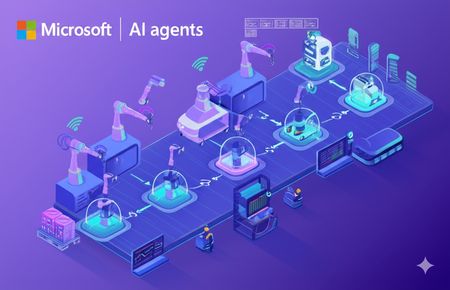
This blog post, the tenth and final installment in a series on AI agents, focuses on deploying AI agents to production. It covers evaluating agent performance, addressing common issues, and managing costs. The post emphasizes the importance of a robust evaluation system, providing potential solutions for performance issues, and outlining cost management strategies such as response caching, using smaller models, and implementing router models.1.7KViews3likes1CommentExploring AI Development and Management: A Journey through Contoso Chat and LLM Ops
In this blog, we'll navigate through the world of AI models, exploring Contoso Chat, Prompt Engineering, limitations of Prompt Engineering, and Large Language Models. We'll introduce tools like the RAG Pattern and Azure AI Studio that can boost AI responses and system performance. Ready to dive into the intricacies of AI development and management? Join us!15KViews3likes1CommentNavigating Semantic Kernel v1.0.0-beta1: A Path to Agnostic AI Services
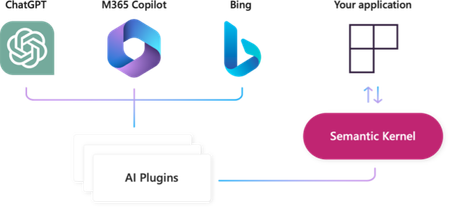
Are you a computer science student eager to dive into the world of AI development with the latest technologies? Semantic Kernel's latest release, v1.0.0-beta1, brings you an exciting opportunity to explore agnostic AI services. In this blog post, we'll take you through the significant changes in this version and show you how to adapt your code effectively.2.4KViews3likes0Comments
One agent, three runtimes: porting a CSA agent to Microsoft Scout and Foundry Local
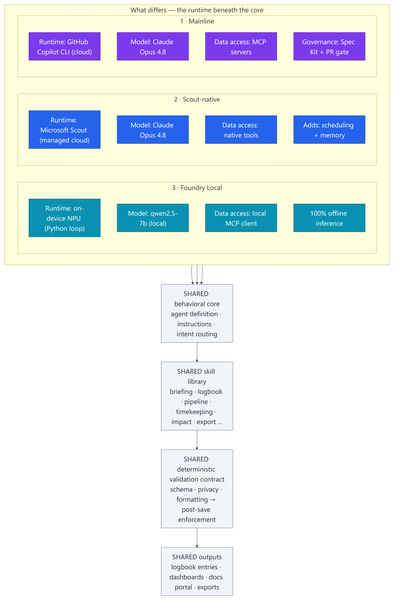
Most of my posts here are about Azure infrastructure lessons from customer engagements. This one is a little different — it's a real‑world engineering lesson from something I built to run my own practice. In my role as a Senior Cloud Solution Architect (CSA), I'm part of a grass-roots organic development team for an internal persona‑driven productivity agent called CSA‑Sherpa. It runs my daily rhythm: a morning briefing, a running logbook of wins and blockers, pipeline and timekeeping summaries, and reporting/exports. It started life in the GitHub Copilot CLI. But over the last few months two things changed the ground under it: Microsoft Scout arrived as a managed cloud agent with native tooling, scheduling, and memory; and Foundry Local made it realistic to run a capable model entirely on‑device on a Copilot+ PC's NPU — no cloud round‑trip at all. That raised a question I think a lot of people building agents will eventually ask: If I designed the framework well, can I change how the model runs without rewriting the agent? To find out, I stood the same agent up in three runtimes, then wrote a whitepaper and a comparison deck measuring what actually changed. This post explains: How one shared, deterministic core made three very different runtimes comparable What the three ports — Copilot CLI, Scout‑native, and Foundry Local (on‑device NPU) — actually took What the analysis showed, and a simple decision framework for which runtime to use when The part that stayed the same: a deterministic core The whole exercise only works because all three implementations load the same behavioral core: Agent definition — persona, behavioral rules, intent routing, workflow dispatch Instructions — conventions, session bootstrap, change‑management rules Skill library — one procedure file per workflow (morning briefing, logbook, pipeline, timekeeping, impact, ops, export…) A deterministic validation contract — schema, formatting, and privacy validators plus a post‑save enforcement chain That last point is the whole thesis: reliability belongs in code, not in the prompt. Rather than asking the model to "remember" to validate its output, a real gate (a validation step → a post‑save enforcement chain → index regeneration) enforces it every single run. This wasn't my idea in a vacuum — it follows the enterprise prompt‑engineering principles Kathiravan Thangavelu lays out in his article Prompt Engineering for Enterprise AI: Why Reliability Matters: keep deterministic logic in code, prefer schema‑driven / structured output over prompt‑enforced formatting, and replace "before you answer, verify that…" mental checklists with real machine validation. My validation gate is that principle in practice. And because that contract is identical across all three runtimes, I'm comparing three ways to execute one product — not three different products. The deterministic payoff: faster and cheaper Retrofitting those principles into the agent — moving work out of the model and into deterministic scripts — is the single change that paid off the most, on two axes at once: Faster. Letting code (not the model) gather and aggregate history cut the average model round‑trips per workflow from ~8.7 to ~5.5 — roughly a third fewer turns. Fewer turns means less waiting on generation and less back‑and‑forth to finish a task. Cheaper. The same change cut usage‑based cost ~24% — and, more importantly, held it flat as the logbook grew to hundreds of entries, because scripts carry the history the model used to re‑read every run. That's the quiet lesson: the reliability work I did for correctness turned out to be the same work that made the agent quicker and less expensive. Determinism isn't a tax on speed — here it bought all three. The work: three repositories, three runtimes Everything below the core — runtime, data access, governance, file layout — is where the effort went. 1 · Mainline — Copilot CLI + MCP. The upstream, most feature‑complete build. Runs as a primary agent in the GitHub Copilot CLI on Claude Opus 4.8; data services are discovered through MCP. It carries the heaviest governance: a Spec Kit layer (spec‑driven‑development agents, a constitution + templates, and 50+ per‑feature spec artifacts gated at PR time) plus an add‑on framework. The richest architecture — and the most complex to operate. 2 · Scout‑native. A thin wrapper loads the exact same core onto Microsoft Scout — again on Claude Opus 4.8 — but data access is re‑platformed onto Scout's native tooling instead of MCP subprocesses. No broker to configure; native tools negotiate their own auth. It adds two things the CLI can't do as cleanly: ✅ Scheduled automations — my morning briefing fires automatically on weekday mornings ✅ Cross‑session memory in place of hand‑off files The deterministic finalize gate stays fully intact. 3 · Foundry Local — on‑device NPU. The genuine outlier and the most involved port: a Python re‑implementation that runs the model — qwen2.5‑7b, an open ~7‑billion‑parameter model — 100% locally on the device's NPU (a Snapdragon X Elite Copilot+ PC) via Foundry Local's OpenAI‑compatible server. The agent loop, an MCP client, skill loading, and a distinct finalize pipeline all had to be rebuilt outside the CLI. The model never leaves the machine; only data connectors reach out when connected. The trade‑offs are real — modest throughput and a fixed context window — but so is the payoff: offline, private, near‑zero marginal cost. The effort This wasn't a weekend spike. Across the three code bases (plus a clean isolation clone I kept as an A/B baseline): ~340–380 commits per repository, three versions maintained in parallel 17 skills in each cloud build; 18 in the Foundry port ~37 scripts in the streamlined Scout build, up to ~97 in the governed Mainline build A Spec Kit governance layer with 50+ feature specs on Mainline A four‑part cost study and two written deliverables: an architecture whitepaper and a 20‑slide comparison deck The analysis and reporting The whitepaper and deck do two jobs. First, they document each runtime as a layered diagram — runtime, core, skills, scripting/validation, external services — so the differences are visible at a glance. Second, they convert the architecture fork into economics: a study that measured the actual token footprints of each repo and priced runs across billing models and hardware. The four dimensions: per‑skill cost, optimized‑vs‑out‑of‑the‑box, Copilot CLI vs Scout, and cloud vs local NPU. By the numbers The study priced measured token footprints at frontier‑model rates (treat the dollars as ±30% — the relative conclusions are far more robust than the absolute figures): Per skill: roughly $0.6–$1.4 per run usage‑based — or a single flat "premium request" under request‑based billing The determinism dividend: optimized, script‑driven skills cut model round‑trips ~8.7 → ~5.5 and usage‑based cost ~24% — and held cost flat as the logbook grew Scout vs CLI: Scout ran ~37% cheaper across a five‑command session and consumed none of the premium‑request allowance Cloud vs local: on‑device NPU inference came in 50–3,400× cheaper in cash than cloud — at the cost of throughput, context, and first‑pass reliability A full active day (~4 runs) landed around a few dollars usage‑based The headline isn't any single figure — it's the shape: cloud cents buy first‑pass reliability, on‑device near‑zero cost trades your time, and determinism makes either one cheaper and steadier. What held up The core is portable. The same agent, skills, and validation gate ran under all three runtimes. Good separation of concerns paid off. Determinism pays three ways — faster, cheaper, and more reliable (detailed above). It was the highest‑leverage change I made. Managed cloud wins the day job. Scout is the best daily driver: reliability gate intact, lower setup friction, scheduling + memory, and cheaper across a multi‑command session because it caches the bootstrap. On‑device is strategic — but reliability is the tax. Local NPU inference is dramatically cheaper in cash. We ran an in‑depth test pass across every function and closed the gaps it surfaced — yet the smaller model that makes Foundry Local possible still hallucinates and drops instructions often enough on the first pass to matter. Each re‑run is nearly free in dollars, but it costs real time to catch and correct. The winning pattern is hybrid. Draft and triage locally for ~nothing; escalate the correctness‑critical steps to cloud Opus 4.8, paying only where it buys first‑pass reliability. Three runtimes, side by side Figure: Three runtimes, one shared core. Only the top rows — runtime, model, data access, and governance — differ; the behavioral core, skill library, validation gate, and outputs are identical across all three. Capability Mainline (Copilot CLI) Scout‑native Foundry Local (NPU) Runtime Copilot CLI (cloud) Scout (cloud, managed) On‑device NPU Model Claude Opus 4.8 Claude Opus 4.8 qwen2.5‑7b (open, ~7B) Data access MCP Native tools MCP via local client Governance Spec Kit + PR gate Behavioral rules Behavioral rules Scheduling + memory ❌ ✅ ❌ Runs fully offline ❌ ❌ ✅ Marginal cost / run cloud per‑token cloud per‑token (cheaper/session) ≈ free Best for Framework development Daily production Offline / privacy / bulk When to use each Daily CSA workflows → Scout‑native. Managed, cheaper across a session, reliable, and it doesn't burn your Copilot request allowance. Building or versioning the framework → Mainline. Spec Kit governance and the add‑on system earn their keep here. Offline, air‑gapped, or sensitive data → Foundry Local. 100% on‑device inference. Bulk / high‑volume / non‑critical → Foundry Local. Zero marginal cost. Must be right on the first pass → Cloud Opus 4.8. The cents are worth it. Mixed, cost‑sensitive workload → Hybrid. Local draft → cloud escalate. Closing Thoughts The most useful reframe from this work: the three architectures aren't competitors — they're a portfolio. A managed cloud daily‑driver (Scout), a governed development platform (Mainline), and a sovereign on‑device runtime (Foundry Local). The job is to match the runtime to the task, not to crown one winner. And the same lesson that applies to Azure infrastructure applies to agents: build reliability into the system, not into good intentions. Because CSA‑Sherpa keeps its guarantees in code, I could change the entire execution model underneath it — cloud CLI, managed cloud, on‑device NPU — and the agent still behaved the same way. That portability is the dividend of a deterministic design. These workflows are genuinely complex, and that's exactly where the small model shows its limits: even after closing the gaps our testing surfaced, it still hallucinates and drops instructions often enough on the first pass to be a real cost. That's the honest trade‑off — near‑zero dollars, paid back in review‑and‑retry time — and it's why my recommendation lands on hybrid: let the small model draft where it's cheap and low‑risk, and escalate anything that has to be right the first time to cloud Opus 4.8. I use the agent in Microsoft Scout daily, as part of my personal production process. I did use AI to help draft and format this post — fittingly, the very agent it describes. The architecture, the analysis, and the conclusions are my own. Thanks for reading.373Views1like1Comment
## Advanced Copilot Prompt for High‑Fidelity Teams Meeting Analysis (v1.5)
## Advanced Copilot Prompt for High‑Fidelity Teams Meeting Analysis (v1.5) I’ve been working on a structured Copilot prompt designed to dramatically improve the quality of meeting analysis inside **Microsoft Teams**, especially when the default Intelligent Recap doesn’t capture enough nuance, decisions, or actionable follow‑ups. This prompt produces a detailed, repeatable output that includes: - TL;DR executive summary - Meeting quality assessment - Prioritized action items table - Confirmed vs. tentative decisions - Open questions & risks - Mind‑map style outline - Timeline of key moments - Confidence & source citations - Tech jargon glossary - Planner‑ready task export It’s now at **version 1.5**, and I’m sharing it publicly for anyone who wants deeper meeting insights or more reliable task handoff into Planner. --- ### Why I Built This In many engineering, security, and cross‑functional meetings, clarity is everything. The default recap is helpful, but sometimes too generic. I wanted something that: - Reduces ambiguity - Surfaces decisions clearly - Highlights risks and open questions - Produces actionable, Planner‑ready tasks - Works consistently across different meeting types - Enforces strict inference rules to avoid hallucinations If your team relies heavily on Teams + Copilot, this can significantly improve meeting outcomes. --- ### What’s Included The full prompt includes: - Strict ordering rules - Anti‑hallucination constraints - Fallback rules for missing data - TL;DR section - Speaker‑labeling rules - Timestamp restrictions - Bullet‑length limits - Planner task title constraints - Deduplication rules - Tone consistency - Signal‑to‑noise filtering I’ve included the complete prompt below for anyone who wants to use or adapt it. --- ### How to Use It 1. Open the **Recap** tab of any Teams meeting with transcription enabled. 2. Click **Open Copilot**. 3. Paste the entire prompt into the Copilot compose box. 4. Wait for the structured output (usually 30–120 seconds). 5. Copy the Planner tasks section directly into Planner or Copilot for Planner. --- ### Looking for Feedback If you try this prompt, I’d love to hear: - What worked well - What didn’t - What you’d like added in v1.6 - Any edge cases or meeting types where it struggled I’m planning to maintain this as a community resource, so suggestions are welcome. Thanks to everyone experimenting with Copilot in Teams — the creativity in this community is incredible. --- ### Full Prompt (v1.5) ````markdown ```markdown # ============================================================ # PROMPT NAME: Advanced Teams Meeting Analyst (Copilot Enhancement) # ============================================================ # Version: 1.5 # Author: Scott M # Last Updated: 2026-01-14 # # Goal: # Use Microsoft Copilot in Teams (Recap tab or live meeting) to generate a highly structured, # high-signal meeting analysis that goes far beyond the default Intelligent Recap output. # Produce executive summary with TL;DR, prioritized action items table, confirmed/tentative decisions, # risks/open questions, mind-map outline, timeline, quality assessment, confidence/sources, # tech jargon glossary, and Planner-ready task export—all derived strictly from the transcript, # shared screens, chat, and attachments. # # Why This Is Superior to Default Teams/Copilot Processing: # - Default Recap: Basic chapters, highlights, simple tasks, attendance—often generic and misses nuance. # - This custom prompt: Forces strict inference rules (no hallucinations), adds confidence labeling, # decision status, risks section, mind-map structure, quality flags, source citations, # jargon glossary, and direct Planner integration for seamless task handoff. # Delivers scannable, professional-grade notes + actionable tasks for tech/engineering teams. # # Audience: # Microsoft 365 Copilot users in Teams-heavy environments who want deeper analysis # and direct bridge to Planner for follow-up execution. # # Non-Goals: # - This is NOT a replacement for legal/compliance-grade minutes. # - This is NOT verbatim transcription (use the native transcript for that). # - Relies on Teams transcription quality (enable Intelligent Speakers if available). # # Usage Instructions: # 1. Prerequisites: # - Ensure the meeting had transcription enabled (Meeting options → Record & transcribe → Allow transcription). # - For best speaker attribution: Enable Intelligent Speakers (if your org supports it) or have participants use their names clearly. # - Copilot license required (M365 Copilot or Teams Premium for full Recap features). # # 2. Post-Meeting (Recommended – Recap Tab): # - Go to the Teams meeting chat → Click the Recap tab (appears after meeting ends and processing finishes). # - Click Open Copilot (or the Copilot icon in the top-right of Recap). # - In the Copilot pane compose box, paste this ENTIRE prompt and press Enter/Send. # - Wait 30–120 seconds (longer for 60+ min meetings) for the full structured output. # # 3. During Live Meeting (Quick Catch-Up): # - While the meeting is active → Click the Copilot icon in the meeting controls. # - Paste the prompt (or a shortened version if time-sensitive) and ask for real-time summary/actions so far. # # 4. After Output Appears: # - Review the markdown sections—copy any part (e.g., Action Items table, Planner tasks) directly. # - For Planner handoff: # - Copy the entire "10. Planner Integration" section. # - Open Planner (in Teams app or planner.microsoft.com). # - Option A: Manually create tasks by pasting titles/descriptions. # - Option B: In Planner's Copilot pane (if available): Paste the tasks list and say "Create these tasks in my [plan name] plan". # - Save/export: Copy full output to OneNote, Word, or email for sharing. # # 5. Refinement & Follow-Ups (Highly Recommended): # - In the same Copilot pane, type targeted follow-ups like: # - "Expand the Risks section with mitigation ideas" # - "Draft a professional follow-up email to attendees including the summary and action table" # - "Create these tasks in Planner plan 'Engineering Syncs'" # - "Explain [specific jargon term] in more detail" # - "Prioritize the action items by impact" # - Iterate until satisfied—Copilot remembers context in the session. # # 6. Tips & Troubleshooting: # - If output is incomplete: Re-paste the prompt or say "Regenerate full analysis". # - Short meetings (<15 min): Output may be concise—ask for more detail if needed. # - No Recap tab? Ensure recording/transcription was on; wait 5–10 min post-meeting. # - Sensitive meetings: Redaction is automatic per rules, but double-check output. # # Changelog: # v1.0 - Initial release # v1.1 - Added confidence/sources + follow-up suggestions # v1.2 - Added Tech Jargon Glossary # v1.3 - Added Planner Integration section # v1.4 - Expanded Usage Instructions into detailed, step-by-step guide with prerequisites, live/post options, refinement examples, and troubleshooting # v1.5 - Added strict ordering rules, anti-hallucination constraints, fallback rules for missing data, TL;DR section, speaker-labeling rules, timestamp restrictions, bullet-length limits, Planner title constraints, deduplication rules, tone consistency, and signal-to-noise filtering # # ============================================================ # CRITICAL INSTRUCTIONS (STRICT) # ============================================================ - Do NOT summarize, restate, or comment on this prompt. Produce only the meeting analysis. - Follow the numbered sections in the exact order shown. Do not omit, reorder, merge, or rename sections. - If any section lacks sufficient evidence, include the header and write: **“No reliable data found.”** - Derive ALL content ONLY from the Teams transcript, shared content, chat, and attachments. - NEVER invent details. If unclear, mark as “Unclear” or “TBD.” - Use neutral labels (Speaker A, Speaker B, etc.) if speaker names are not confidently identified. - Assign deterministic speaker labels based on first appearance. - Redact sensitive info as [REDACTED] and flag in Risks. - Include inline citations [Transcript HH:MM, Slide X] where possible. - Keep bullet points ≤ 20 words unless quoting transcript evidence. - Exclude small talk, greetings, jokes, or irrelevant chatter unless they directly impact decisions or tasks. - Only include timestamps if explicitly present in the transcript. Never estimate or invent them. - Deduplicate action items, decisions, and risks before final output. - Maintain a professional, concise, cross-functional technical PM tone. - Planner task titles must be ≤ 10 words and start with a verb. # ============================================================ # OUTPUT FORMAT (USE EXACTLY) # ============================================================ **TL;DR (1–2 sentences)** A concise, high-level summary of why the team met and what was resolved. --- 1. **Meeting Quality Assessment** - Clarity: [Good | Fair | Poor — brief explanation] - Speaker overlap / noise: [Low | Medium | High] - Estimated accuracy: [High | Medium | Low — justification] 2. **Executive Summary** Start with 1–2 sentence overview. Then provide 5–8 bullets covering: - Purpose - Attendees (names or count if unclear) - Key topics - Outcomes - Next steps 3. **Action Items** | Priority | Owner | Task Description | Due Date | Timestamp | Dependencies | Status | Notes | |----------|-------|------------------|----------|-----------|--------------|--------|-------| **Rules:** - Sort by Priority (High → Medium → Low), then Due Date. - Infer owners/dates ONLY if explicitly stated or clearly volunteered. - Default Priority: Medium; Status: Open. - Titles ≤ 10 words, start with a verb. - Deduplicate similar tasks. 4. **Key Decisions** - **DECISION:** [What was decided] - Status: [Confirmed | Tentative | Disputed] - Confidence: [High/Medium/Low — reason] - Rationale: [Why] - Impacted: [Who] - Evidence: [Transcript HH:MM or Slide reference] 5. **Open Questions & Risks** **Open Questions** - [Unresolved or unclear items] **Risks** - [Ambiguity, missing owners, conflicting views, scope creep, technical risks, etc.] 6. **Mind Map Outline (Hierarchical Outline)** - Main Topic 1 - Subtopic A - Action / Decision / Fact - Subtopic B **Rules:** - Max 5 main topics - Max 3 levels deep - ≤ 8 words per node - Prune low-signal branches 7. **Timeline of Key Moments** - HH:MM – [Brief one-line description] - HH:MM – [etc.] *Only include if timestamps exist; otherwise write “No reliable data found.”* 8. **Confidence & Sources Summary** - Overall confidence: XX/100 - Key sources: [Transcript HH:MM, Slide X, Chat message, etc.] 9. **Tech Jargon Glossary** - TERM: Definition (1–2 sentences) *Include only if relevant terms appear.* 10. **Planner Integration: Ready-to-Create Tasks** Numbered list, each formatted as: 1. **Task Title:** [≤10 words, verb-led] - Assigned to: [Owner or TBD] - Due: [Date or TBD] - Priority: [High/Medium/Low] - Description: [Brief details + dependencies/notes] - Labels/Buckets: [Suggested grouping] **Rules:** - Only include items with clear action/owner potential. - Group related tasks under consistent buckets. - Deduplicate tasks. --- **Follow-Up Prompts (suggest 3–5)** - “Create these tasks in Planner plan ‘X’.” - “Expand the Risks section with mitigation strategies.” - “Draft a follow-up email summarizing this meeting.” - “Prioritize action items by impact and urgency.” - “Clarify ambiguous decisions and propose next steps.”3.4KViews1like2Comments