powershell
2277 TopicsWhy the Microsoft Graph PowerShell SDK has Two Cmdlets to Add Group Members
It’s a consequence of how the Microsoft Graph PowerShell SDK is built that two cmdlets are available to add members to Entra ID groups (the same is true for group owners). The reason why the New-MgGroupMember and New-MgGroupMemberByRef cmdlets exist is down to how the Graph SDK build process constructs cmdlets from Graph metadata. The Graph exposes two ways to add new group members, so the SDK follows suit. https://office365itpros.com/2026/10/20/group-member-sdk-cmdlets/28Views0likes0CommentsWhat Really Happens When You Scale Azure SQL Database? How to Monitor Long-Running Scale Operations
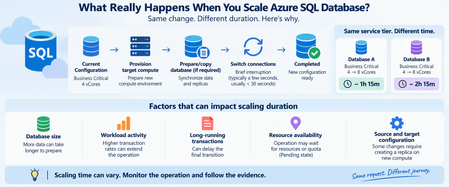
One of the advantages of Azure SQL Database is the ability to scale compute resources without managing the underlying infrastructure. Changing from 4 vCores to 8 vCores can be only a few clicks or a single command. But there is a question I frequently see when troubleshooting scaling operations: "Why is my Azure SQL Database scaling operation taking so long?" An even more interesting question appears when two databases undergo what looks like the same change: Database A Business Critical → Business Critical Scaling duration: ~1 hour 15 minutes Database B Business Critical → Business Critical Scaling duration: ~2 hours 15 minutes Same service tier. Similar scaling request. Very different completion time. At first glance, that might look unusual. However, a scale operation isn't simply Azure changing a configuration value from one number of vCores to another. Depending on the source and target configuration, Azure SQL Database can need to provision target compute, prepare or copy database data, transition connections to the target compute, and clean up the original environment. Microsoft specifically notes that creating a database replica on the new compute instance for some scaling combinations can strongly influence the overall latency. Let's look at what happens and, more importantly, how to monitor it. Scaling Is More Than Changing vCores When you submit a scaling request such as: Business Critical 4 vCores ↓ Business Critical 8 vCores it's tempting to imagine something like: CPU allocation: 4 → 8 Done. That isn't necessarily what happens. At a high level, Microsoft documents a scaling workflow involving two important stages: Create a new compute instance with the requested service tier and compute size Switch routing from the original compute instance to the new one For some combinations of service-tier and compute-size changes, Azure SQL Database must also create a replica on the new compute instance, involving data copying. A simplified view is: Scaling request ↓ Prepare target compute ↓ Prepare/copy database if required ↓ Bring target environment ready ↓ Switch connections ↓ Scaling complete The important takeaway is: A scale operation can involve moving database execution to a new compute environment, not simply increasing CPU on the existing environment. Why Can Two Similar Databases Take Different Amounts of Time? This is where troubleshooting becomes interesting. Imagine two databases: Database A 4 vCores → 8 vCores Completed in 75 minutes Database B 4 vCores → 8 vCores Completed in 135 minutes The natural question is: "If the source and destination configurations are the same, shouldn't the duration also be the same?" Not necessarily. The requested configuration tells us where the database needs to end up. It does not mean the work required to reach that state is identical. Several factors can affect the operation. 1. Database Size and Data Movement One of the most important factors can be the amount of data that must be prepared on the target compute. Microsoft's scaling documentation explicitly states that for some source/target combinations, a replica must be created on the new compute instance. That involves copying data and can significantly affect the overall scaling latency. Conceptually: Small database Provision ████ Data preparation ██████ Switch █ versus: Large database Provision ████ Data preparation ████████████████████████ Switch █ Database size alone doesn't provide a precise prediction of completion time, but it can influence the amount of work required during applicable scaling paths. 2. Workload Activity Matters A database also doesn't necessarily stop processing application traffic while Azure prepares the target environment. Microsoft states that during target compute creation, the database remains online and connections continue to the original compute instance. That creates an interesting challenge: Target environment preparing + Application still generating workload A highly active transactional database and a relatively idle database can therefore present different operational conditions during scaling. The practical lesson is: Two databases with the same service objective aren't necessarily in the same workload state when scaling begins. When investigating a slow scale operation, look at the activity around the scaling window, including: transaction volume; write activity; long-running transactions; workload peaks; batch operations; maintenance activity. 3. Long-Running Transactions Can Affect Switchover Toward the end of scaling, connections need to transition to the target compute instance. Microsoft documents that existing connections to the original compute are dropped and new connections are established to the target compute. The switch generally results in a short interruption, often only a few seconds and generally less than 30 seconds. However, there's an important exception. Microsoft notes that: If long-running transactions are active when connections are dropped, the switch can take longer because aborted transactions need to recover. Conceptually: Normal transition Target ready ↓ Switch ↓ Reconnect ↓ Done With a long-running transaction: Target ready ↓ Connection transition ↓ Transaction interruption ↓ Recovery work ↓ Reconnect ↓ Done This is one reason application workload should be considered when evaluating scaling duration. 4. Resource Availability Can Matter Another clue comes from Azure SQL's operation-status metadata. The sys.dm_operation_status DMV exposes several states for database operations, including: PENDING IN_PROGRESS COMPLETED FAILED CANCEL_IN_PROGRESS CANCELLED Importantly, Microsoft defines PENDING as an operation waiting for resource or quota availability. That means some of the elapsed time around an operation may occur before active processing progresses as expected. This is why comparing scale operations purely by database size or vCore count can be misleading. How Can I Monitor a Scaling Operation? Rather than repeatedly refreshing the Azure portal, there are several useful methods for inspecting progress. Method 1: Azure PowerShell with Get-AzSqlDatabaseActivity Azure PowerShell provides: Get-AzSqlDatabaseActivity Microsoft documents this cmdlet specifically for retrieving the status of operations against Azure SQL databases. For example: Get-AzSqlDatabaseActivity ` -ResourceGroupName "MyResourceGroup" ` -ServerName "myserver" ` -DatabaseName "mydatabase" This can help identify database operations associated with the selected database. For clearer output: Get-AzSqlDatabaseActivity ` -ResourceGroupName "MyResourceGroup" ` -ServerName "myserver" ` -DatabaseName "mydatabase" | Select-Object ` Operation, OperationId, DatabaseName, State, PercentComplete, StartTime, ErrorCode, ErrorMessage The specific fields returned can vary with module/API behavior, so always interpret them in the context of the operation being monitored. The important point is that you're no longer asking only: "Is scaling still happening?" You can inspect the operation itself. Method 2: Check Current and Requested Service Objectives Another useful PowerShell command is: Get-AzSqlDatabase Microsoft documents this cmdlet for retrieving Azure SQL Database properties. Its output includes service-objective information such as CurrentServiceObjectiveName and RequestedServiceObjectiveName. For example: Get-AzSqlDatabase ` -ResourceGroupName "MyResourceGroup" ` -ServerName "myserver" ` -DatabaseName "mydatabase" | Select-Object ` DatabaseName, Status, Edition, CurrentServiceObjectiveName, RequestedServiceObjectiveName During a change, comparing these fields can help establish the current and requested configuration. Think of it as: CurrentServiceObjectiveName ↓ Where am I now? RequestedServiceObjectiveName ↓ Where am I trying to go? Once the operation completes successfully, the current configuration should reflect the requested target. Method 3: Use sys.dm_operation_status For SQL-side monitoring, sys.dm_operation_status provides information about database operations such as CREATE and ALTER. For example: SELECT major_resource_id, operation, state_desc, percent_complete, start_time, last_modify_time, error_code, error_desc FROM sys.dm_operation_status ORDER BY start_time DESC; Useful columns include: operation state_desc percent_complete start_time last_modify_time error_code error_desc Microsoft defines the operation states as including PENDING, IN_PROGRESS, COMPLETED, and FAILED. Be Careful With PercentComplete This is an important detail. It is tempting to interpret: PercentComplete = 50 as: "Half of the work is finished, so half of the remaining time is left." That isn't necessarily correct. For sys.dm_operation_status, Microsoft documents percent_complete for most operations as: 0 = Operation not started 50 = Operation in progress 100 = Operation complete Restore operations are an important exception, where values between 1 and 99 can indicate more granular progress. So for a normal ALTER/scale operation: 50% should generally be interpreted as: The operation is in progress rather than: Exactly half the work remains. This distinction is very useful when communicating with application teams during long-running operations. A Practical Monitoring Script For PowerShell users, I like combining the configuration and operation views. First check the database: $db = Get-AzSqlDatabase ` -ResourceGroupName "MyResourceGroup" ` -ServerName "myserver" ` -DatabaseName "mydatabase" $db | Select-Object ` DatabaseName, Status, Edition, CurrentServiceObjectiveName, RequestedServiceObjectiveName Then check database operations: Get-AzSqlDatabaseActivity ` -ResourceGroupName "MyResourceGroup" ` -ServerName "myserver" ` -DatabaseName "mydatabase" This gives you two complementary perspectives: DATABASE STATE + OPERATION STATE ↓ Better understanding of scaling progress What About Application Availability During Scaling? One of the biggest concerns is: "Does the database remain available while scaling?" For Azure SQL Database, Microsoft states that the database remains online while the new compute environment is being prepared. Connections continue to the original compute during that stage. The important availability event occurs during the transition. At switchover: Existing connections ↓ Dropped ↓ Routing switches ↓ New connections ↓ Target compute Microsoft says the switch generally causes an interruption of less than 30 seconds and often only a few seconds. Applications should therefore implement appropriate transient-error handling and retry logic. Microsoft explicitly recommends retry logic for applications and components using the database while the service tier is being changed. Don't Immediately Cancel a "Slow" Scaling Operation A scale operation taking longer than expected does not automatically mean: Scaling is stuck. It could still be legitimately working through: Resource availability ↓ Target compute preparation ↓ Data/replica preparation ↓ Synchronization / workload handling ↓ Switchover Before assuming failure, gather evidence. Check: Operation state Current service objective Requested service objective Start time Last modification time Error details Workload activity Long-running transactions Then determine whether the operation is: Pending Actively progressing Completed or: Failed Troubleshooting Two Databases With Different Scaling Durations Suppose you're investigating: Database A Scale duration: 1h15 Database B Scale duration: 2h15 Here is the approach I recommend. 1. Verify that the changes truly match Compare: Source service tier Target service tier Source vCores Target vCores Compute tier Storage configuration Do not assume both operations were identical simply because both ended at, for example, Business Critical 8 vCores. 2. Compare database characteristics Look at: Database size Workload level Write activity Transaction volume Long-running transactions 3. Compare operation timing Retrieve: Start time State Last modification time Completion time sys.dm_operation_status exposes this operation metadata for Azure SQL database operations. 4. Determine whether either operation spent time pending Remember: PENDING can mean the operation is waiting for resource or quota availability. That represents a very different explanation from: "The database took longer to copy." 5. Check workload around the transition Look for: Large transactions Bulk writes ETL operations Maintenance High transaction rates Long-running transactions particularly around the switchover period. Scaling Duration Is Not an SLA Stopwatch This leads to perhaps the most important takeaway. If: Database A took 75 minutes you should not assume: Database B must take approximately 75 minutes. Even apparently similar scale operations can encounter different database and platform conditions. A better operational expectation is: Treat each scaling operation as an asynchronous platform operation whose duration depends on the work required to safely reach the requested configuration. Monitor the operation rather than predicting its completion from a previous database. Recommended Checklist Before scaling a production Azure SQL Database: Before Review workload activity. Identify long-running transactions or batch processes. Confirm the requested service objective. Ensure application retry logic is implemented. Record the UTC start time. Understand dependent application connection behavior. During Monitor: Get-AzSqlDatabaseActivity Get-AzSqlDatabase sys.dm_operation_status and watch: State CurrentServiceObjectiveName RequestedServiceObjectiveName StartTime LastModifyTime Error information After Confirm: Current service objective = requested target Database status = Online Application connectivity = Healthy Workload performance = Expected Also validate that applications successfully reconnected after the transition. Final Thoughts When Azure SQL Database scaling takes longer than expected, it's easy to think: "Something must be wrong." And when two similar databases take very different amounts of time, it's equally tempting to expect the durations to match. But a scale operation can involve substantially more than changing a vCore number. At a high level: Request scaling ↓ Provision target compute ↓ Prepare/copy database when required ↓ Transition connections ↓ Complete Microsoft's documentation confirms that data copying for applicable scale paths can strongly influence latency, that the switchover can take longer in the presence of long-running transactions, and that a pending operation might be waiting for resource or quota availability. So when someone asks: "Why is Azure SQL scaling taking so long?" my recommendation is not to start by guessing how many minutes it should take. Instead ask: "What state is the operation currently in, and what evidence do we have about its progress?" With Get-AzSqlDatabaseActivity, Get-AzSqlDatabase, and sys.dm_operation_status, you can turn an opaque waiting period into a much more structured investigation. References Scale single database resources in Azure SQL Database Scale resources in Azure SQL Database sys.dm_operation_status Get-AzSqlDatabaseActivity Get-AzSqlDatabase169Views0likes0CommentsAutomating Microsoft 365 with PowerShell Update 29
After some major developments in the world of Microsoft 365 PowerShell, we’ve updated the Automating Microsoft 365 with PowerShell eBook to version 29.2. Refreshed EPUB and PDF files are available for current subscribers to download from Gumroad.com. This release will eventually form part of the Microsoft 365 for IT Pros November 2026 update. The nice thing about electronic publishing is that we can put information in our readers’ hands as soon as we’ve had time to analyze changes. https://office365itpros.com/2026/10/16/automating-microsoft-365-29/53Views0likes0CommentsMGDC for SharePoint FAQ: How to List SharePoint Webs or Subsites?
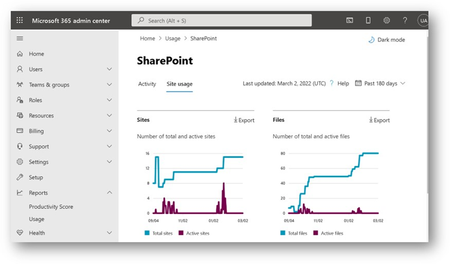
1. Introduction SharePoint uses a known object hierarchy to store your files, including, in order: Site Collection (site, SPSite) Web (site, subsite, SPWeb) List (SPList, Document Library, SPDocumentLibrary) Folder (SPFolder) List Item (documents, files, SPListItem, SPFile) If you are not familiar with all those, you can read more about them at What is in the Permissions dataset? 2.What we have in MGDC for SharePoint The SharePoint Sites dataset in Microsoft Graph Data Connect offers a list of all sites (site collections) in your tenant. The SharePoint Files will give you details about each file (document). However, there are no MGDC datasets that will give you one object per SharePoint Web (subsite) or SharePoint List (library). There is a workaround, though. If you pay attention to the schema for the SharePoint Sites and SharePoint Files datasets in MGDC, you will find that Sites includes a few interesting details about the Root Web (the main web in the site collection) and the total number of webs (subsites) in each site. Also, the Files dataset includes details about the web (subsite) and the list (library) where the file lives. You could group on these columns to expose more information about webs and lists. 3. One Web These days, if you create a modern SharePoint site, you will get one web (called the Root Web) and no obvious mechanism to create subsites or additional webs. For any sites created in the last few years, you likely have no additional webs outside the Root Web. Your SharePoint might have existed for many years and your company could have sites using old templates with multiple subsites. If you’re trying to find out if that’s the case for your tenant, the information is available in MGDC, if you are willing to dig a little deeper. 4. Finding Old Subsites The main task here is to create a custom query to join the Sites and Files datasets. You would then group that in a particular way to enumerate each subsites (Webs). You might also tag the Webs that are a Root Web, so that you can identify subsites that are not at the top of the Site hierarchy. If you pulled the Sites and Files datasets into a SQL Server or a Lakehouse in Microsoft Fabric, this is what that query could look like: SELECT Webs.SiteId, Sites.RootWeb.Title AS SiteTitle, Sites.Url AS SiteUrl, Sites.WebCount, Webs.WebId, CASE WHEN Root.RootWeb.Id IS NOT NULL THEN 1 ELSE 0 END AS IsRootWeb, Webs.FileCount, Webs.TotalSize, Webs.TotalSizeWithVersions FROM ( SELECT SiteId, WebId, COUNT(*) AS FileCount, SUM(SizeInBytes) AS TotalSize, SUM(SizeInBytesWithVersions) AS TotalSizeWithVersions FROM Files GROUP BY SiteId, WebId ) AS Webs LEFT JOIN Sites AS Sites ON Webs.SiteId = Sites.Id LEFT JOIN Sites AS Root ON Webs.SiteId = Root.Id AND Webs.WebId = Root.RootWeb.Id 4. Empty Webs, Web properties This technique will get you a nice list of Webs, but there are a few problems. First, if a specific web has no files, we won’t see that web in the Files dataset and therefore the query will fail to list that particular web. You would still see that Web counted in the WebCount property of the Sites dataset, but there would be no listing of that web in the query proposed above, since it has no files. Another problem is that there is no way to find in MGDC the details properties of the Web, like the Title. You get some of those for the Root Web in the Sites dataset, but not for the other Webs. For that, you would have to query the Web object using another source like the Graph API or PowerShell. 5. Conclusion I hope this article helped you find details about enumerating SharePoint Webs using the Microsoft Graph Data Connect. For recent deployments of SharePoint Online, you should have only one web per site and the Sites dataset (with Root Web details) should give you plenty of details. However, this might come in handy if you want to manage some of the old subsites of a slightly older SharePoint deployment. Finally, if you’re looking for a challenge, I would suggest adapting the SQL code above to enumerate all the document libraries using the Files dataset. It can be done following a similar pattern…Azure Key Vault Control Plane API Update: Required Upgrade for Azure CLI and Azure PowerShell Users
Deadline: February 27, 2027 All Azure Key Vault control plane (management) API versions released before 2026-02-01 will stop working on February 27, 2027. This does NOT affect the data plane (getting/setting secrets, keys, and certificates) — only vault and access-control management operations are impacted. TL;DR — What you need to do Upgrade Azure CLI to 2.90.0 or later (run az upgrade). Upgrade Az PowerShell's Az.KeyVault module to 6.6.1 or later, or upgrade the Az package to 16.3.0 or later. Do this before February 27, 2027 to avoid any interruption to vault management operations. No data plane changes are required — reading/writing secrets, keys, and certificates is unaffected. For details, see Prepare for Key Vault API version 2026-02-01 and later. What is changing Current releases of Azure CLI 2.90.0 or later and Az PowerShell 16.3.0 or later (including Az.KeyVault 6.6.1 or later) already use Key Vault control plane API version 2026-02-01. Upgrade to these versions before February 27, 2027; after that date, earlier control plane API versions will no longer be served. Who is affected You are affected if you use either of the following: Azure CLI scripts or automation that call az keyvault management commands (create, update, network-rule, access-policy, etc.). Az PowerShell scripts that use the Az.KeyVault module's management cmdlets (New-AzKeyVault, Set-AzKeyVault, Update-AzKeyVault, etc.). Minimum versions to upgrade to Tool / SDK Minimum version How to upgrade Azure CLI 2.90.0 or later az upgrade Az PowerShell (Az.KeyVault module) Az.KeyVault 6.6.1 or later; or Az 16.3.0 or later Update-Module Az -Force Impact if you take no action What breaks on and after February 27, 2027 if you have not upgraded Key Vault management operations (create/update/delete vault, change network rules, change access policies or RBAC settings, etc.) issued with a pre-2026-02-01 API version will fail. You’ll get the following error message: “Due to an RBAC security default, Key Vault's Resource Manager API versions older than 2026-02-01 will retire on 2027-04-01.” Your vaults are NOT deleted and existing secrets/keys/certificates remain fully accessible via the data plane — only management (control plane) operations are blocked. There is no way to opt out or request an extension once the retirement takes effect on February 27, 2027. How to check your installed versions Check your Azure CLI version Run the following command: az version Check the azure-cli value. If the installed version is earlier than 2.90.0, upgrade Azure CLI before February 27, 2027 by running az upgrade. Check your Az PowerShell version Run the following commands: Get-InstalledModule Az, Az.KeyVault | Select-Object Name, Version If Az.KeyVault is earlier than 6.6.1, or the installed Az package is earlier than 16.3.0, upgrade before February 27, 2027. To upgrade the complete Az package, run: Update-Module Az -Force Alternatively, to update only the Az.KeyVault module to the latest version, run: Update-Module Az.KeyVault -Force Timeline Date Milestone March 2026 Control plane API version 2026-02-01 generally available across public Azure regions, Azure Government, and Azure operated by 21Vianet. Today → February 27, 2027 Preparation window. Upgrade to Azure CLI 2.90.0 or later, Az.KeyVault 6.6.1 or later, or Az 16.3.0 or later before February 27, 2027. February 27, 2027 All control plane API versions released before 2026-02-01 are retired and stop being served. Questions? For any questions about Azure CLI or Azure PowerShell, please submit feedback through GitHub: Azure CLI GitHub issues Azure PowerShell GitHub issues521Views0likes0CommentsAzure CLI on macOS got security upgrade: native broker authentication
Why we built this If you manage Azure resources from a Mac today, az login opens a browser tab, you sign in, and a token comes back to the CLI. That's worked well for a long time. As security requirements become more stringent, many enterprise organizations are adopting secure authentication brokers to strengthen identity protection and reduce authentication-related risks. Many organizations require broker-based authentication as a matter of security policy. A broker is the operating system's own credential broker — on Windows this is the Web Account Manager (WAM), and it's what lets az login reuse your existing signed-in Windows account instead of opening a browser every time. Depending on the broker, device configuration, and policies applied by the organization, broker-based authentication can provide: Device-bound refresh tokens, which help protect tokens from exfiltration and misuse Support for Conditional Access and device compliance checks where those capabilities are configured and available Single sign-on using accounts known to the operating system, reducing repeated credential prompts Azure CLI has supported broker authentication on Windows for a while. Beginning with Azure CLI 2.91.0, organizations with stringent security requirements can also use broker-based authentication with Azure CLI on macOS. What changed Beginning with Azure CLI 2.91.0, broker-based authentication is available in preview on macOS. The feature uses MSAL's native macOS broker support and is disabled by default, so you remain in control of when to enable it. After you opt in and run az login, Azure CLI opens a native macOS account picker instead of starting the sign-in flow in a browser. You can select an account already known to the broker or add another account. If a compatible broker isn't available, Azure CLI falls back to the existing browser-based sign-in flow. How Homebrew Cask supports broker authentication The core MSAL library is open source, but the macOS broker runtime is not. It is subject to strict internal compliance and intellectual property protection requirements and must also satisfy Apple-specific requirements such as notarization. Azure CLI is now available through Homebrew Cask, a supported installation method that can accommodate these requirements and support broker-based authentication on macOS. The familiar package name continues to work for new installations: brew update brew install azure-cli You can also select the Cask explicitly: brew update brew install --cask azure-cli We tested the migration on a Mac that had Azure CLI 2.90.0 installed through the former Homebrew Formula. After brew update, Homebrew detected that azure-cli had moved to homebrew/cask, unlinked the existing Formula, downloaded Azure CLI 2.91.0 or later, and linked the az executable and shell completions from the Cask. The final output confirmed: azure-cli was successfully installed! azure-cli has been moved to homebrew/cask. The existing keg has been unlinked. Homebrew detects the package migration, installs Azure CLI from Cask, and preserves the az command. Homebrew also recommended removing the old Formula record when convenient: brew uninstall --formula --force azure-cli This means scripts that use brew install azure-cli can continue to use the same package name. If you previously used the Azure CLI preview tap and Homebrew still resolves stale Formula metadata, remove that tap and retry: brew untap azure/azure-cli brew update brew install azure-cli What the broker sign-in experience looks like Install Azure CLI 2.91.0 or later and make sure a compatible authentication broker, such as Microsoft Company Portal, is available on your Mac. Enable broker-based authentication: az config set core.enable_broker_on_mac=true az account clear You can confirm the setting with: az config get core.enable_broker_on_mac 3. Start a new sign-in: az login 4. Azure CLI opens the native single sign-on account picker. Select an existing account and choose Continue or use the add-account button to sign in with another account. After broker authentication is enabled, az login opens the native account picker instead of starting in a browser. 5. Run az account show to confirm that you're signed in with the expected account and tenant. The broker changes how Azure CLI acquires credentials; it doesn't change Azure CLI's subscription or tenant selection model. If your account belongs to multiple tenants, you might still need to select the intended tenant explicitly: az login --tenant <tenant-id> To opt out and return to browser-based authentication: az account clear az config set core.enable_broker_on_mac=false az login If a compatible broker isn't installed or available, Azure CLI automatically falls back to browser-based authentication. What's next This is one part of a broader push to bring Azure CLI's macOS experience up to parity with Windows and Linux — including packaging improvements (to keep pace with Apple's tightening notarization requirements). If you run Azure CLI on macOS in an enterprise environment, we'd love to hear from you — file feedback or ask questions at Azure/azure-cli on GitHub. References Install Azure CLI on macOS Sign in with an authentication broker on macOS Azure CLI issues on GitHub268Views0likes0CommentsI built a free, open-source M365 security assessment tool - looking for feedback
I work as an IT consultant, and a good chunk of my time is spent assessing Microsoft 365 environments for small and mid-sized businesses. Every engagement started the same way: connect to five different PowerShell modules, run dozens of commands across Entra ID, Exchange Online, Defender, SharePoint, and Teams, manually compare each setting against CIS benchmarks, then spend hours assembling everything into a report the client could actually read. The tools that automate this either cost thousands per year, require standing up Azure infrastructure just to run, or only cover one service area. I wanted something simpler: one command that connects, assesses, and produces a client-ready deliverable. So I built it. What M365 Assess does https://github.com/Daren9m/M365-Assess is a PowerShell-based security assessment tool that runs against a Microsoft 365 tenant and produces a comprehensive set of reports. Here is what you get from a single run: 57 automated security checks aligned to the CIS Microsoft 365 Foundations Benchmark v6.0.1, covering Entra ID, Exchange Online, Defender for Office 365, SharePoint Online, and Teams 12 compliance frameworks mapped simultaneously -- every finding is cross-referenced against NIST 800-53, NIST CSF 2.0, ISO 27001:2022, SOC 2, HIPAA, PCI DSS v4.0.1, CMMC 2.0, CISA SCuBA, and DISA STIG (plus CIS profiles for E3 L1/L2 and E5 L1/L2) 20+ CSV exports covering users, mailboxes, MFA status, admin roles, conditional access policies, mail flow rules, device compliance, and more A self-contained HTML report with an executive summary, severity badges, sortable tables, and a compliance overview dashboard -- no external dependencies, fully base64-encoded, just open it in any browser or email it directly The entire assessment is read-only. It never modifies tenant settings. Only Get-* cmdlets are used. A few things I'm proud of Real-time progress in the console. As the assessment runs, you see each check complete with live status indicators and timing. No staring at a blank terminal wondering if it hung. The HTML report is a single file. Logos, backgrounds, fonts -- everything is embedded. You can email the report as an attachment and it renders perfectly. It supports dark mode (auto-detects system preference), and all tables are sortable by clicking column headers. Compliance framework mapping. This was the feature that took the most work. The compliance overview shows coverage percentages across all 12 frameworks, with drill-down to individual controls. Each finding links back to its CIS control ID and maps to every applicable framework control. Pass/Fail detail tables. Each security check shows the CIS control reference, what was checked, what the expected value is, what the actual value is, and a clear Pass/Fail/Warning status. Findings include remediation descriptions to help prioritize fixes. Quick start If you want to try it out, it takes about 5 minutes to get running: # Install prerequisites (if you don't have them already) Install-Module Microsoft.Graph, ExchangeOnlineManagement -Scope CurrentUser Clone and run git clone https://github.com/Daren9m/M365-Assess.git cd M365-Assess .\Invoke-M365Assessment.ps1 The interactive wizard walks you through selecting assessment sections, entering your tenant ID, and choosing an authentication method (interactive browser login, certificate-based, or pre-existing connections). Results land in a timestamped folder with all CSVs and the HTML report. Requires PowerShell 7.x and runs on Windows (macOS and Linux are experimental -- I would love help testing those platforms). Cloud support M365 Assess works with: Commercial (global) tenants GCC, GCC High, and DoD environments If you work in government cloud, the tool handles the different endpoint URIs automatically. What is next This is actively maintained and I have a roadmap of improvements: More automated checks -- 140 CIS v6.0.1 controls are tracked in the registry, with 57 automated today. Expanding coverage is the top priority. Remediation commands -- PowerShell snippets and portal steps for each finding, so you can fix issues directly from the report. XLSX compliance matrix -- A spreadsheet export for audit teams who need to work in Excel. Standalone report regeneration -- Re-run the report from existing CSV data without re-assessing the tenant. I would love your feedback I have been building this for my own consulting work, but I think it could be useful to the broader community. If you try it, I would genuinely appreciate hearing: What checks should I prioritize next? Which security controls matter most in your environment? What compliance frameworks are most requested by your clients or auditors? How does the report land with non-technical stakeholders? Is the executive summary useful, or does it need work? macOS/Linux users -- does it run? What breaks? I have tested it on macOS, but not extensively. Bug reports, feature requests, and contributions are all welcome on GitHub. Repository: https://github.com/Daren9m/M365-Assess License: MIT (free for commercial and personal use) Runtime: PowerShell 7.x Thanks for reading. Happy to answer any questions in the comments.5.8KViews2likes4CommentsAzure AD Graph API retirement: action required for older versions of Azure CLI and Azure PowerShell
Summary Azure AD Graph API (the legacy graph.windows.net API, not to be confused with Microsoft Graph) entered its retirement process in September 2024, with the general shutdown completed on July 1, 2025. Azure CLI and Azure PowerShell completed their migration away from Azure AD Graph well ahead of that deadline. az ad and the Az module's Microsoft Entra ID (Azure AD) cmdlets have been backed by Microsoft Graph for some time now. If you're running a current version of Azure CLI or Azure PowerShell, no action is required on your part for this specific retirement. Because Azure CLI and Azure PowerShell are Microsoft first-party clients, their Azure AD Graph application identities have remained available temporarily to provide a transition path for legacy releases that still call Azure AD Graph. However, those legacy releases have long been out of maintenance and are no longer supported; the temporary availability of the application identities does not mean the old releases remain supported. Beginning after October 6, 2026, the Microsoft Entra team will progressively disable this remaining legacy access over a two-month buffer period. Users of current versions are not affected, but anyone still running an old release should upgrade now. This post explains what changed, why, and how to confirm you're unaffected. Terminology This post uses the following terms: Azure AD Graph API (https://graph.windows.net) — the legacy, now-retired API for reading and writing Microsoft Entra ID (formerly Azure Active Directory) objects: users, groups, applications, service principals, and directory roles. Microsoft Graph (https://graph.microsoft.com) — Microsoft's current, unified API surface for Entra ID and the broader Microsoft 365 ecosystem, and the only supported path going forward for any identity/directory operation. If your Azure CLI or Azure PowerShell still uses legacy Azure AD Graph, migrate as soon as possible Azure CLI has used Microsoft Graph for az ad commands since version 2.37.0, and the identity-related cmdlets in Azure PowerShell have used Microsoft Graph since Az.Resources version 5.1.0. These migrations were completed years before the Azure AD Graph retirement. Azure CLI releases earlier than 2.37.0 and Az.Resources releases earlier than 5.1.0 have long been out of maintenance and are no longer supported. The temporary availability of the tools' first-party Azure AD Graph application identities was retained only to provide a transition path for those legacy releases; it does not mean that the releases are maintained or supported. We are notifying users who still use legacy Azure AD Graph versions We are sending notifications in phases to tenants where telemetry indicates that calls may still be reaching Azure AD Graph endpoints. Some of this traffic comes from legacy Azure CLI or Azure PowerShell releases using the tools' temporarily retained first-party Azure AD Graph identities; other cases typically trace back to one of the following: An old, unsupported version of Azure CLI or the Az/AzureAD/MSOnline PowerShell modules still in use (for example, pinned in a long-lived CI/CD image or automation runbook that hadn't been updated). Custom scripts or tooling calling the legacy graph.windows.net endpoint directly via Invoke-RestMethod/curl/a hand-rolled SDK client, independent of az/Az entirely. The standalone legacy AzureAD or MSOnline PowerShell modules (distinct from the Az module), which were already deprecated separately from this effort and have their own migration path to Microsoft.Graph PowerShell cmdlets. These notifications are intended to help close out any remaining migration gaps and continue the original retirement communication. Beginning after October 6, 2026, the Microsoft Entra team will progressively disable the remaining legacy first-party access over a two-month buffer period. Old Azure CLI or Azure PowerShell releases that still depend on Azure AD Graph may stop working at any point during this phased shutdown. How to check whether your automation still uses Azure AD Graph Checking the version actually running in each environment is the most reliable way to identify legacy Azure CLI or Azure PowerShell usage. Check developer machines as well as CI/CD agents, automation runbooks, scheduled jobs, and container images, which often remain pinned to an older version after interactive environments have been updated. You may need to work with your tenant, subscription, infrastructure, or automation administrators to locate the system that is generating the legacy traffic. The source may be a developer machine, VM, self-hosted build agent, automation worker, scheduled task, or container host that you do not manage directly. Use the tenant information from any targeted notification together with your organization's sign-in logs, automation inventory, pipeline logs, and VM or container inventory to identify the execution environment, then upgrade it or stop the obsolete job. Azure CLI Run the following command in the same environment and execution account used by your automation: az version Azure CLI 2.37.0 replaced the Azure AD Graph implementation used by az ad with Microsoft Graph. If the reported version is lower than 2.37.0, upgrade to the latest Azure CLI release and test your scripts before the phased shutdown begins. Also check pipeline definitions, package installation steps, and container image tags for an explicitly pinned Azure CLI version; checking only the version on your local workstation does not verify the version used by automation. For installations that support the built-in updater, run: az upgrade Otherwise, update Azure CLI through the same package manager or installation method originally used, then run the version check again. After upgrading, review the documented Microsoft Graph migration changes because some command arguments, behavior, and output properties changed. For example, Microsoft Graph directory object output uses id, while the corresponding Azure AD Graph property was objectId. This can affect scripts that parse command output. If you encounter a problem after upgrading, report it in the Azure CLI GitHub repository and include the output of az version, the affected command, and a minimal reproduction with secrets removed. Azure PowerShell The Entra ID cmdlets discussed in this post are provided by Az.Resources, so check that module's version rather than relying only on the version of PowerShell itself: Get-Module Az.Resources -ListAvailable | Sort-Object Version -Descending | Select-Object -First 1 Name, Version, Path Az.Resources 5.1.0 introduced the Microsoft Graph implementation for the identity-related cmdlets. If the reported version is lower than 5.1.0, update to the latest Az module, restart the PowerShell session, and test your scripts. Check automation accounts, hosted agents, module caches, and container images separately. Also look for scripts that load a specific old version with Import-Module Az.Resources -RequiredVersion or declare a fixed module version in #Requires. If Az was installed from the PowerShell Gallery, update it with: Update-Module -Name Az -Force Restart PowerShell after the update so that the session does not continue using an older module already loaded in memory. To confirm which module version provides a cmdlet in the current session, run: (Get-Command Get-AzADUser).Module | Select-Object Name, Version, Path After upgrading, review the documented Azure PowerShell migration changes because parameter names, input and output types, and object properties changed. If you encounter a problem after upgrading, report it in the Azure PowerShell GitHub repository and include the Az.Resources version, PowerShell version, affected cmdlet, and a minimal reproduction with secrets removed. Check for direct endpoint calls Tool versions do not identify custom code that bypasses az ad or the Az cmdlets. Search your repositories, pipeline definitions, runbooks, and configuration files for graph.windows.net. Pay particular attention to calls made through az rest, curl, Invoke-RestMethod, or custom HTTP and SDK clients. Any direct call to that host must be migrated to Microsoft Graph regardless of the installed Azure CLI or Azure PowerShell version. If you need help upgrading, locating the source of Azure AD Graph traffic, or troubleshooting an issue related to the retirement, you can ask a question in the Azure CLI GitHub repository or the Azure PowerShell GitHub repository, as appropriate. Include the available version information, affected command or cmdlet, execution environment, error message, and a minimal reproduction or relevant logs with all secrets and personal or tenant-sensitive information removed. The Azure CLI and Azure PowerShell teams can then help you investigate and provide guidance. What you should do Make sure you're on a current, supported version of Azure CLI or Azure PowerShell. Run the checks above and update if you're on an old release. Do not rely on the two-month buffer period: legacy access will be progressively disabled after October 6, 2026, so an old release may stop working before the end of that period. If you use the standalone legacy AzureAD or MSOnline PowerShell modules, these are a separate deprecation track from Az and need their own migration to the Microsoft.Graph PowerShell SDK. This is not something updating the Az module alone resolves — see the dedicated migration guidance referenced below. If you have custom code or scripts calling graph.windows.net directly, those calls will fail outright post-retirement regardless of what version of Azure CLI/PowerShell you run, since this isn't a CLI/PowerShell-specific concern — it's any direct caller of the retired endpoint. Migrate those calls to the Microsoft Graph SDK/API directly. If you received a targeted notification referencing a specific tenant ID, that means telemetry showed residual traffic from that tenant specifically — check any automation, scheduled scripts, or older images/containers associated with that tenant for one of the causes above. References Migrate from Azure AD Graph to Microsoft Graph - Microsoft 365 Developer Blog Azure AD Graph to Microsoft Graph migration FAQ - Microsoft Graph | Microsoft Learn Impact of Microsoft Graph migration in Azure CLI Azure AD to Microsoft Graph migration changes in Azure PowerShell Install Azure CLI / Install Azure PowerShell Migrate from the AzureAD and MSOnline PowerShell modules to Microsoft Graph PowerShell536Views0likes0Comments