powershell
2197 Topics
UPDATE: Create Office 365 Groups with team sites from SharePoint home moving beyond First Release
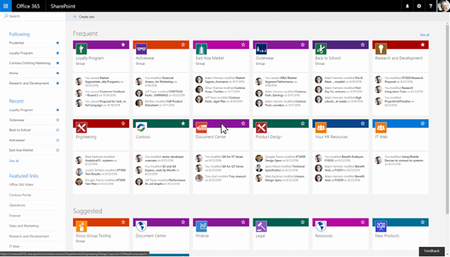
We recently completed the worldwide rollout for Office 365 Groups getting full-powered SharePoint team sites at the end of January 2017. Our next step is to now bring the ability to create SharePoint team sites connected to Office 365 Groups from SharePoint home beyond First Release. This next phase of rollout will begin today, and is expected to reach all customers worldwide over the next month. We also wanted to share some of the additional capabilities we’ve added to group-connected team sites since we first began roll out to First Release. No matter where you create an Office 365 Group from – whether SharePoint, Outlook, Microsoft Teams, Yammer, or elsewhere – you consistently get the full collaborative power of a connected SharePoint Online team site among the other services groups provides (shared inbox, shared calendar, Planner plan, team notebook, and more). This move beyond First Release includes the capabilities described in our November blog post: Fast creation of sites connected to Office 365 Groups from the SharePoint home page Editable team site home pages that look great at your desk and on your phone Modern creation panels for new libraries and lists In-place navigation editing Site settings panels for editing site information and site permissions Modern page creation in classic sites Admin controls for team site creation The site permissions panel listed above has been enhanced to include options for adding members to the site’s Office 365 Group or simply sharing only the team site without providing access to other group resources. The panel is intended to provide simple permissions management, but also includes a link to ‘Advanced permission settings’ for site owners that have a need to do things like add custom SharePoint permissions & mappings. Note this panel also allows you to add users or groups to the ‘Site Visitors’ permissions group, so it is easy to provide read-only access to the site. All you need to do is add a new person or group via the ‘Invite people’ button, and then change their permission level to ‘Read’. The user or group’s permission level determines which permission group they appear under – those with ‘Read’ permission will appear in the ‘Site Visitors’ category. Managing group-connected team sites Since new team sites are connected to Office 365 Groups, managing them involves possible interactions with Office 365 Group settings in addition to those provided by SharePoint. Examples include settings that apply to groups such as whether group creation is allowed in the tenant, which users are permitted to create groups, usage guidelines URL or group classification labels. Once the group-connected site is created, management of the site is likewise split between Azure Active Directory (AAD) PowerShell cmdlets and the SharePoint Online Management Shell. Anything dealing with creation, deletion, un-delete (restore) or membership happens through AAD. SharePoint-specific management, such as storage quota and link sharing policies, take place using the SharePoint management tools. For governing modern site creation, this support page details the administrative controls, but is useful to summarize the relationship between a group’s policy settings and how the SharePoint ‘Create site’ experience behaves. By default, if group creation is enabled in the tenant, the ‘Create site’ command will appear on SharePoint home, and if a user is permitted to create groups they will get the site creation experience. If the user is *not* permitted to create groups, they will get the classic self service provisioning experience that results in the creation of a subsite. The table below describes how the combination of group and site creation settings work together: * The current user is considered to have group creation permissions if the AAD property EnableGroupCreation is true, or it is false but the user is a member of the security group assigned to the GroupCreationAllowedId AAD property. ** Site creation is enabled via SharePoint Admin Center under Site creation settings: In addition to managing site creation, we are also enabling the SharePoint Online PowerShell cmdlets to administer modern, group-connected site collections. This means that modern team site collections can now be enumerated with the Get-SPOSite cmdlet with the following example: Get-SPOSite -Template GROUP#0 -IncludePersonalSite:$false Most parameters for these site collections can also be set using the Set-SPOSite cmdlet, with the exception of those that would result in breaking connection with their corresponding Office 365 Group (e.g. you cannot set the Owner property using this cmdlet – you would need to set the Group’s owners via AAD). Please refer to the respective documentation for each of the above cmdlets for additional details. For more information on using PowerShell to manage Office 365 Groups, this article may be helpful as well. What else is new? In addition to the above, this phase of the rollout includes a couple of previously unannounced capabilities. The first is a group membership management experience that lives in SharePoint itself. Now, when you click on the member count of the group in the site header, you will be presented with a new group membership panel that allows you to add members and change their roles between owners and members, or remove them outright. Users will no longer need to jump to Outlook to manage the group’s membership. The second is Content Type Hub syndication – modern sites can now consume content types that have been published from a central content type hub. We heard feedback that this is an important feature to enable, and we are including it in this rollout. As noted above, this rollout will take place over the course of a few weeks. We are very excited for you to take advantage of modern, connected team sites and look forward to any feedback or questions you may have. As always, please ask in a reply to this thread. Thanks, Tejas90KViews29likes76CommentsHow to run a Windows 11 VM on Hyper-V
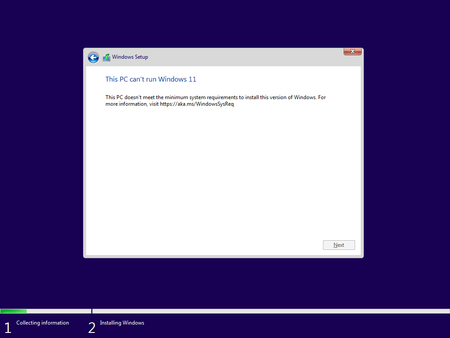
Happy new year everyone! Last month, before the holidays I wanted to run a Windows 11 VM on Hyper-V to run a few tests on Windows containers in a different environment than my local machine. However, it took me some time to get that VM up and running, simply because I forgot about the new hardware requirements for Windows 11 and that I had to get them configured before I installed the new OS in it. This blog post is my contribution so you don’t have to go through the same!253KViews17likes14CommentsAnnouncing General Availability of Terraform Azure Verified Modules for Platform Landing Zone (ALZ)
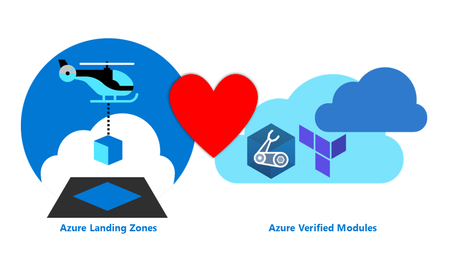
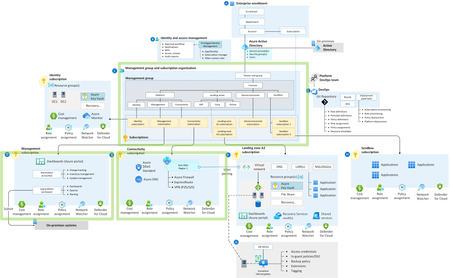
Azure Verified Modules ALZ ❤️ AVM. We are moving to a more modular approach to deploying your platform landing zones. In line with consistent feedback from you, we have now released a set of modules that together will deploy your platform landing zone architecture (ALZ). Azure Verified Modules for Platform Landing Zones (ALZ) is collection of Azure Verified Modules that are composed together to create your Platform Landing Zone. This replaces the existing CAF Enterprise Scale module that you may already be familiar with. The core Azure Verified Modules that are composed together are: Management Groups and Policy Pattern Module: avm-ptn-alz Management Resources Pattern Module: avm-ptn-management-alz Hub Virtual Networking Pattern Module: avm-ptn-hubnetworking Virtual Network Gateway Pattern Module: avm-ptn-vnetgateway Virtual WAN Networking Pattern Module: avm-ptn-virtualwan Private DNS Zone for Private Link Pattern Module: avm-ptn-network-private-link-private-dns-zones This means that you can now choose your own adventure by selecting only the modules that you need. It also means we can add new features faster and allows us the opportunity to do more rigorous testing of each module. To improve deployment reliability, we now use our own Terraform provider. The provider generates data for use by the module and does not directly deploy any resources. The move to a provider allows us to add many more features and checks to improve your deployment reliability. ALZ IaC Accelerator updates for Terraform The Azure Landing Zones IaC Accelerator is our recommended approach for deploying the Terraform Azure Verified Modules for Platform Landing Zone (ALZ). The Azure Verified Modules for Platform Landing Zone is now our default selection for the Terraform ALZ IaC Accelerator. This module will be the focus of our development and improvement efforts moving forward. The module implements best practices by default, including multi-region and availability zones for resiliency. The ALZ IaC Accelerator bootstrap continues to implement best practices, such as version control and Workload identity federation security. Along with supporting the Azure Verified Modules for Platform Landing Zone (ALZ) approach, we have also made many enhancements to the ALZ IaC Accelerator process. A summary of the improvements include: We now support HCL (HashiCorp Configuration language) tfvars file as the platform landing zone configuration file format We have introduced a Phase 0 to help you plan for your ALZ IaC Accelerator deployment We have introduced the concepts of Scenarios and Options to simplify the decisions you need to make Platform landing zone configuration file Before the introduction of the Azure Verified Modules for Platform Landing Zone (ALZ) starter module the platform landing zone configuration file was supplied in YAML format. Due to the lack of support for YAML in Terraform, we had to then convert this to JSON. Once converted to JSON the configuration file lost all it's ordering, formatting and comments. This made day 2 updates to the configuration very cumbersome. With the support for the tfvars file (in HashiCorp Configuration Language format), we are now able to pass the configuration file in its original format to the version control system repository. This makes for a much easier day 2 update process as the file retains it's ordering, comments and formatting as defined by you. Phase 0 Phase 0 is a new planning phase we have added to the documentation. This phase takes you through 3 sets of decisions you need to make about the ALZ IaC Accelerator deployment: Bootstrap decisions Platform Landing Zone Scenarios Platform Landing Zone Options In order to assist with this, we also provide a downloadable Excel checklist , which lists all the decisions so you can consider them up front prior to completing any configuration file updates. Phase 0 guides you through this process and provides explanations of the decisions. The Bootstrap decisions relate to the resources deployed to Azure and the configuration of your Version Control System required for the Continuous Delivery pipeline. These decisions are not new to the ALZ IaC Accelerator, but we now provide more structured guidance. Platform Landing Zone Scenarios The Scenarios are a new concept introduced for the Azure Verified Modules for Platform Landing Zone (ALZ) starter module. We aim to cover the most common Platform landing zone use cases we hear requested from partners and customers with the ALZ IaC Accelerator. These include: Multi-Region Hub and Spoke Virtual Network with Azure Firewall Multi-Region Virtual WAN with Azure Firewall Multi-Region Hub and Spoke Virtual Network with Network Virtual Appliance (NVA) Multi-Region Virtual WAN with Network Virtual Appliance (NVA) Management Groups, Policy and Management Resources Only Single-Region Hub and Spoke Virtual Network with Azure Firewall Single-Region Virtual WAN with Azure Firewall For each scenario we provide an example Platform landing zone configuration file that is ready to deploy immediately. We know that customers will want to modify some of the settings and that is where Options come in. NOTE: At the time this blog post was published, we support the 7 Scenarios listed above. We may update or add to these Scenarios based on feedback we hear from you, so keep an eye on our documentation. Platform Landing Zone Options The Options build on the Scenarios. For each Scenario, you can choose to customise it with one or more Options. Each Options includes detailed instructions of how to update the Platform landing zone configuration file or introduce library files to implement to the option. The Options are: Customise Resource Names Customize Management Group Names and IDs Turn off DDOS protection plan Turn off Bastion host Turn off Private DNS zones and Private DNS resolver Turn off Virtual Network Gateways Additional Regions IP Address Ranges Change a policy assignment enforcement mode Remove a policy assignment Turn off Azure Monitoring Agent Deploy Azure Monitoring Baseline Alerts (AMBA) Turn off Defender Plans Implement Zero Trust Networking NOTE: At the time this blog post was published, we support the 14 Options listed above. We may update or add to these Options based on feedback we hear from you, so keep an eye on our documentation. Azure Landing Zones Library Another new offering is the Azure Landing Zones Library. This is an evolution of the library concept in the caf-enterprise-scale module. Principally, the Library allows us to decouple the update cycle of the ALZ architecture, from the module and provider. We are separating the data from the deployment logic. This allows you to update the module to take advantage of a bug fix, without having to change the policies that are deployed. Something that wasn't easily possible before. Conversely, you are able to update to the latest policy refresh of Azure Landing Zones without updating the module itself. The Library has its own documentation site, which introduces the concepts. We plan to make the library the single source of truth for all Azure Landing Zones implementation options (e.g. Portal, Terraform and Bicep) in the future. Azure Landing Zones Documentation Site Furthermore, we have a new place to go for all technical documentation for Azure Verified Modules for Platform Landing Zones (ALZ). With the move to multiple modules, and the new accelerator all having multiple GitHub repositories, we felt the need to centralize the documentation to make it the one place to go to get technical details. We currently have documentation for the Accelerator and Terraform, with Bicep coming soon. The new vanity URL is: https://aka.ms/alz/tech-docs. Please let us know what you think! What about ALZ-Bicep? Finally, some of you may be wondering what the future for our Bicep implementation option (ALZ Bicep) for Azure Verified Modules for Platform Landing Zones (ALZ) may be with this evolution on the Terraform side. And we have good news to share! Work is underway to also build the next version of ALZ in Bicep, which will be known as “Bicep Azure Verified Modules for Platform Landing Zone (ALZ)”. This will also use the new Azure Landing Zones Library and be built from Azure Verified Modules (where appropriate). We are currently looking to complete this work before August 2025, if not a lot sooner than this; as we are making good progress as we speak! But for now, for Bicep you do not do anything and continue to use ALZ Bicep via the ALZ IaC Accelerator and we will provide more updates on the next version of Bicep ALZ in the coming months! Staying up-to-date We highly recommend joining, or watching back, our quarterly Azure Landing Zones Community Calls, to get all the latest and greatest from the ALZ team. Our next one is on the 29th January 2025 and you can find the link to sign up to attend or watch back previous ones at: aka.ms/ALZ/Community We look forward to seeing you all there soon!9.4KViews14likes0CommentsPowerShell Basics: How to Delete Microsoft Teams Cache for All Users
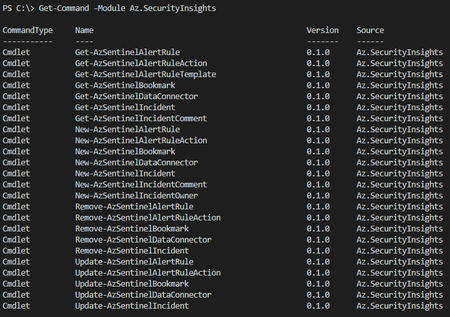
Sometimes there is a need to delete Microsoft Teams cache to quicken the adoption of an in-band policy change or simply troubleshoot an issue. The challenge here is that the cache for Microsoft Teams is in multiple directories. This can be done manually but would result in a slow and tedious process. Again, we turn to PowerShell to automate this process and this time it's a one-liner that addresses this opportunity.215KViews13likes33CommentsAzure Landing Zones Accelerators for Bicep and Terraform. Announcing General Availability!
Azure Landing Zones Accelerators are designed to simplify the process of onboarding your Infrastructure as Code into a robust CI / CD pipeline with Azure DevOps or GitHub. Learn more about what the Accelerator can do for you and why you should be using it.32KViews12likes4CommentsHow to Migrate Windows Server 2008 R2 FSMO roles to Windows Server 2019
With the "end of support" on the horizon for Windows Server 2008 R2 coming January 2020, folks are looking around for resources to help them check off some high ticket items from their "to do" list. I thought I would dust off some of my Active Directory admin skills and document the quick and dirty process of upgrading your Active Directory from 2008 R2 over to the latest version of Windows Server 2019.155KViews11likes23Comments