owa
129 TopicsExchange Server OWA does not display lnline Images after EEMS M2.1.0 mitigation.
Exchange Server can automatically apply applicable mitigations by using the Exchange Emergency Mitigation Service (EEMS) to retrieve mitigation information from Microsoft's Office Config Service (OCS). EEMS can apply several types of mitigations: 1. IIS URL Rewrite Rule Mitigation: Blocks specific malicious HTTP request patterns that could put an Exchange Server at risk. 2. Exchange Service Mitigation: Disables a vulnerable Exchange service. 3. Application Pool Mitigation: Disables a vulnerable application pool on the Exchange Server. In this case, inline images were displayed correctly in Outlook, but the same images were not displayed in OWA. The issue was identified as being related to the IIS URL Rewrite rule deployed by the M2.1.0 mitigation for CVE-2026-42897. Verification Run the following commands in the Exchange Management Shell. 1. Check the installed Exchange Security Update version (Get-Command ExSetup.exe).FileVersionInfo.ProductVersion 2. Check whether the Emergency Mitigation Service is enabled Get-OrganizationConfig | fl MitigationsEnabled 3. Check applied and blocked mitigations Get-ExchangeServer | fl Name,MitigationsApplied,MitigationsBlocked For example, a server affected by this issue may show: MitigationsApplied : {PING1, M2.1.0} MitigationsBlocked : {M2.1.0} 4. Check the IIS URL Rewrite rule Import-Module WebAdministration Get-WebConfigurationProperty -PSPath "IIS:\Sites\Default Web Site\owa" -Filter "system.webServer/rewrite/outboundRules/rule" -Name "." | Select-Object name The following rule may be present: EEMS M2.1 OWA CSP - outbound Microsoft provides Security Updates (SUs) to address security vulnerabilities in Exchange Server. Exchange Server SE is currently supported, while Exchange Server 2016 and Exchange Server 2019 can continue to receive applicable security updates through the Extended Security Updates (ESU) program. Note: Exchange Server 2016 and Exchange Server 2019 reached end of support in October 2025. ESU must be purchased separately to continue receiving applicable security updates. Resolution 1. Install the July 2026 SU or later Install the July 2026 SU or a later Security Update (preferably the latest available SU), and then restart the server. Installing the update does not automatically remove the previously applied CVE-2026-42897 mitigation. 2. Block M2.1.0 from being reapplied If M2.1.0 is not already listed under MitigationsBlocked, add it: Set-ExchangeServer -Identity EXSE-01 -MitigationsBlocked @{Add="M2.1.0"} Note: Adding M2.1.0 to MitigationsBlocked does not remove the IIS rules that have already been applied. It prevents EEMS from reapplying the M2.1.0 mitigation. 3. Back up the OWA web.config file Copy-Item ` -Path "$env:ExchangeInstallPath\FrontEnd\HttpProxy\owa\web.config" ` -Destination "$env:ExchangeInstallPath\FrontEnd\HttpProxy\owa\web.config.$((Get-Date).ToString('yyyyMMdd-HHmmss')).bak" 4. Remove the M2.1.0 IIS URL Rewrite rule and precondition Remove-WebConfigurationProperty ` -PSPath "IIS:\Sites\Default Web Site\owa" ` -Filter "system.webServer/rewrite/outboundRules" ` -Name "." ` -AtElement @{name="EEMS M2.1 OWA CSP - outbound"} Then remove the associated precondition: Remove-WebConfigurationProperty ` -PSPath "IIS:\Sites\Default Web Site\owa" ` -Filter "system.webServer/rewrite/outboundRules/preConditions" ` -Name "." ` -AtElement @{name="EEMS M2.1 OWA SPA HTML shell - precondition"} Verification After Rollback Without restarting the Exchange Server or running IISReset, reopen the same OWA message that previously failed to display the inline image and verify that the image is now displayed correctly. Test Results I reproduced the issue in an Exchange Server SE June 2026 SU test environment. After EEMS automatically applied the M2.1.0 mitigation, an inline PNG image that was displayed correctly in Outlook was no longer displayed in OWA. After blocking M2.1.0 and removing the M2.1.0 IIS rules according to Microsoft's rollback guidance, the inline image in the same message was displayed correctly again in OWA. No Exchange Server restart or IISReset was required after removing the IIS rules.486Views0likes0Comments
OWA inline CID images still not displayed – EEMS mitigation side effect persists?
Environment: Exchange Server Subscription Edition (SE), RTM Jun26SU installed (all updates current as of June 2026) On-premises, Windows Server 2019 OWA tested in Chrome, Edge, Firefox – all including InPrivate/Incognito mode Issue: Since approximately May 14–15, 2026 (coinciding with the EEMS mitigation rollout for CVE-2026-42897), inline CID-referenced images in emails are no longer displayed in OWA. Instead, OWA replaces them with a transparent 1×1 GIF placeholder (a data-URI containing a blank GIF image). Microsoft Support confirmed this is a known side effect of the EEMS mitigation for CVE-2026-42897. We expected the June 2026 Security Update (KB5094139) to resolve this – but the problem persists even after installation. Test results: Method OWA Outlook Desktop Thunderbird External HTTPS image ✅ Visible ✅ Visible ✅ Visible Base64 embedded image ❌ Not visible ✅ Visible ✅ Visible CID inline image ❌ Not visible (blank placeholder) ✅ Visible ✅ Visible What we confirmed: Affects all users, all browsers, all devices, all networks Affects newly created mailboxes as well The blank placeholder is injected server-side by OWA Problem started exactly with the EEMS mitigation rollout (~May 14, 2026) June 2026 SU (KB5094139) installed – problem still present Microsoft Support has been engaged for 5+ weeks without resolution Questions: Has anyone else confirmed that the June 2026 SU does not fix the OWA inline image rendering issue? Is there a known follow-up fix or hotfix planned specifically for this side effect? Has anyone found a working workaround that does not involve disabling Extended Protection? Any feedback from the Exchange product team or other admins would be greatly appreciated.Solved3KViews1like7Comments
Edge Facebook OWA starts greyed out with Close Button
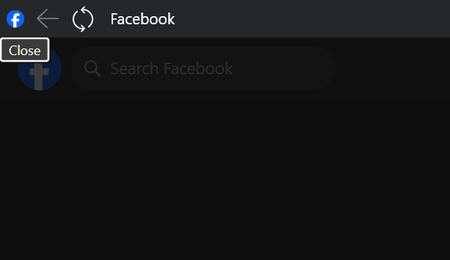
I have setup Facebook as an Edge desktop OWA and when I click to start it loads greyed out with a CLOSE button in the top left (see screen snip below). If I click on close, everything works OK. How can I stop this from happening and avoid having to click close everytime?650Views0likes5Comments
How to Delete a Composing Email Attachment via Outlook Add-in?
Context: Server: Exchange Server 2019 on premise Client: OWA Category: Outlook Add-in Office JS API Set: Supported up to 1.5 only Problem Details: Delete an attachment added manually or through EWS API to an email item. Limitations: 1. Limitation of makeEWSRequestAsync() Office JS method: The makeEWSRequestAsync method in Office.js does not support the DeleteAttachment SOAP operation, which is required from outlook add in. -> Attempted Workaround - Using fetch with EWS SOAP Request: I tried invoking the DeleteAttachment operation via a fetch call to the EWS endpoint. However, EWS response states "requested web method is not allowed for this application". 2. OWA Limitation: As OWA in this environment only supports Office.js up to version 1.5, the modern attachment Office JS APIs and Graph APIs are not an option. Question: In an Exchange On-Premises scenario, how can I programmatically delete attachments via my add-in? Specifically, is there a recommended approach to obtain a valid token for EWS requests, or any supported alternative to perform DeleteAttachment? Any way to convert EWS attachment ID to Office JS attachment UUID? Additional Notes: I am aware that Exchange Online supports more modern APIs (Graph/REST), but my current deployment is strictly Exchange On-Premises. The add-in works well for reading attachments and other operations, except for deletion. Any guidance or recommendations would be highly appreciated! Thank you in advance.371Views0likes1CommentOWA Upload and Share Permissions
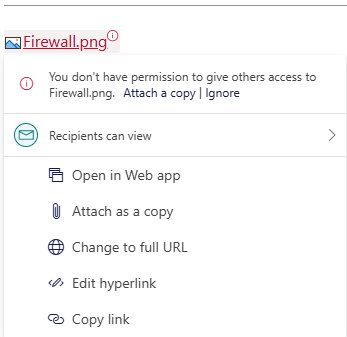
Hello...I have a user using OWA (University - Microsoft 365 A5 license) who is experiencing a new scenario/error msg., when initiating the "upload and share" option to share a locally stored file as an email attachment (gets uploaded by default to their OneDrive Attachments folder) when sending OWA email messages to colleagues. The email will send with the attachment icon/link, but recipients don't have access to it and have to choose the "request access" option, where then the user/sender can approve the request for access. The error msg., is "you don't have permission to give others access to file X" and the filename that is uploaded has red text (normally it is blue). The users has tested this scenario on multiple computers w/ multiple browsers, and changed the upload OneDrive folder location, with the same result. I can initiate the same scenario on the same computers, browsers, and files, while signed onto my OWA account w/ out issue. The user's Mailbox has a small quota size and their OneDrive account does as well. This started about two weeks ago, though as far as I know, no University Enterprise changes were made to the users account. Not sure what to look at for a solution so any help would be appreciated. Thanks!Solved331Views0likes1Comment