outlook
105 TopicsOutlook clients receive error 0x8004010f when downloading the Offline Address Book
EDIT 10/01/2008: To read the updated (and more comprehensive) guidance for troubleshooting errors 0x8004010f, please go here. There are a multiple reasons for why an Outlook client can receive the 0x8004010f sync error. Unfortunately, 0x8004010f is just a generic MAPI error and will show up for a variety of problems. Here is what the error looks like under err.exe (Microsoft Exchange Server Error Code Look-up Tool): C:\WXP\system32>err 0x8004010f # for hex 0x8004010f / decimal -2147221233 ecNotFound ec.h ecAttachNotFound ec.h ecUnknownRecip ec.h ecPropNotExistent ec.h MAPI_E_NOT_FOUND mapicode.h # 5 matches found for "0x8004010f" This is what the error looks like from the sync log from within Outlook: 12:45:53 Synchronizing Mailbox <dgoldman> 12:45:53 Done 12:45:54 Microsoft Exchange offline address book 12:45:54 0x8004010f Some of the most common reasons for Outlook clients to receive the 0x8004010f error with regards to downloading the OAB are listed below. Most of these are documented and I have linked articles to each of these to help everybody out. Please note that these solutions can change a small bit depending on unknown factors in a company's environment. An administrator decommissioned the last Exchange server in a site and never pushes replicas to another Exchange server. A new OAB is created in the active directory and the information store never reads the active directory during its maintenance schedule. This will result in the OAB files never being generated and the Outlook client will fail to download anything. The information store has an invalid EntryID that points to the legacy EX:/ folders. Again there is nothing for the client to download. An outlook client logging in from one domain to another domain and attempting to log in to another users mailbox. The OAB was never generated or some OAB folders are missing from the public folder store. Multiple OAB Version folders exist of the same type. Clients are attempting to download the OAB files from a public folder store that have not received the replicated updates. The offline address book list object has a missing address list. The offline address book list object has an incorrect address list. Send/As changes in the store affect users accounts with no mailbox full rights to another mailbox. If you are seeing this error on an Exchange 2007 server and your OAB is generated by an Exchange 2007 server, please make sure of the following: 1. Make sure that you have added the replicas of OAB to the Exchange 2007 server 2. Make sure public folder replication is working. 3. Make sure the OAB is public folder enabled and you have OAB Version 2, OAB Version 3 and OAB Version 4 checked off so your legacy clients can download the OAB files from the public folder store. 4. Make sure that if you are using an Outlook 2007 client, your OAB is Web Distribution enabled and the OAB files have been replicated over to the Client Access Server. For more information on this process please see this blog: http://blogs.msdn.com/dgoldman/archive/2006/10/23/outlook-client-fails-to-download-the-oab-with-error-0x8004011b.aspx and http://blogs.msdn.com/dgoldman/archive/2006/08/25/How-Exchange-2007-OAB-Files-are-replicated-to-a-Client-Access-Server-for-download.aspx 5. If you are removing your last Exchange 2003 server from the org, please make sure that you follow our documentation on this process. - Dave Goldman82KViews1like18CommentsMicrosoft Ignite 2018 - The Recap
Microsoft Ignite 2018 ended a few weeks ago, and what a great event it was. It was great to see so many of our customers, partners and friends there – thank you for coming to our sessions, thank you for coming to the booth, thank you for hanging out with us whenever the opportunity arose and thank you for giving us great feedback on what we’re doing. We’re still recovering but we heard you and are focused on doing a better job because of it. All of the sessions were recorded this year, and so here’s a handy reference to all the sessions in the Exchange and Outlook track, and some others we think you’ll find interesting, so you can refer back here whenever you want to find one. You will need an account in Tech Community to access them, but that’s something you should have anyway. So here’s a long list of sessions, in no particular order but grouped by technology as much as possible. Exchange Welcome to Exchange 2019! Panel discussion: Microsoft Exchange/Calendar/OWA Hybrid Exchange – Making it easier and faster to move to the cloud Scott Schnoll's Exchange and Office 365 Tips & Tricks Securing Exchange Online from Modern Threats So long and thanks for all the (email) phish Email Search in a Flash! Accelerating Exchange 2019 with SSDs Turbo charge your Exchange on-premises and Hybrid environment – Notes from the field How to add MFA to your Exchange On-Prem/Online mailboxes in 20 minutes or less Preparing to Move (or remove) Those Public Folders to the Cloud Why do we need to keep an Exchange Server on-premises when we move to the cloud? Making the best of the cloud: How Exchange Online is different from Exchange on-premises Azure Information Protection and Exchange Online - better together Securing your Office 365 environment from advanced phishing campaigns with Office 365 Advanced Threat Protection Outlook Deep dive into what’s new and coming soon to Outlook for Windows and Mac Outlook mobile in the Enterprise Deploying Outlook mobile securely in the enterprise What's Amazing and New in Calendaring in Outlook! Outlook on the web - What's new and why you should care! The Best (Outlook driven) Day of Your Life Success through people with LinkedIn and Microsoft 365 What's New in groups in Outlook Panel discussion: Microsoft Outlook (Windows, Mac, and Mobile) Let the intelligence built into Outlook help you to make time for what really matters Simple room booking in Outlook using new built-in Intelligence The Power of People in Outlook Security made real with Outlook mobile in-app experiences Outlook on the web: Don’t block your users, restrict them with conditional access/limited access! Adaptive Cards in Teams, Windows, Outlook and your own applications Create engaging, powerful new business processes in Microsoft Outlook with Adaptive Cards Office 365 Notes from the field: how we moved a large global bank to Office 365 Office 365 – Marriages, Divorces and Adoptions Getting stuff done: Solving Office 365 problems with PowerShell How to be an author and write about Office 365 Real-world best practices for managing Office 365 groups Embrace Office 365 Groups: What's new and how to get started Office 365 Groups automation inside-out Delivering Office 365 as an evergreen service: What to do, and more importantly, what not to do Understanding how Microsoft Information Protection capabilities work together to protect sensitive information across devices, apps, and services Secure enterprise productivity with Office 365 threat protection services including EOP, ATP, and Threat Intelligence Strategies for building effective, optimal and future proof connectivity to Office 365 that will delight your users Implementing a modern network architecture to get the most out of Office 365 Addressing global data residency needs with Multi-Geo in Office 365 Podcasts/Broadcasts Ross Smith IV & Greg Taylor on theCUBE Scott Schnoll & Jeff Mealiffe on theCUBE Ross Smith IV on Channel 9 talking about Outlook mobile Greg Taylor on Channel 9 talking about Exchange Server 2019 Greg Taylor, Tony Redmond and Paul Robichaux – Office 365 Exposed talking about random stuff It’s possible we missed a session you think we should have included (there were 750 or more after all), if so, add it to the comments section so people can find it. Thanks! Happy watching! And see you next year for more of the same. Microsoft Ignite 2019 here we come! Greg Taylor Director of Product Marketing Exchange Server and Online11KViews1like3CommentsRecurring Meeting Requests with Conflicting Instances 2: The Power of Delegates
The key takeaway from my last post on this topic was that the Resource Booking Assistant never allows double booking of a resource room calendar as a result of a recurring meeting request (please see Automatic Processing of Recurring Meeting Requests with Conflicting Instances). Since there are times that an administrator may want to allow double-booking, we offered two workarounds that I’d like to address in a bit more depth. I'd also like to offer a third one that wasn’t mentioned before: 1) Send Follow-Up Nonrecurring Meeting Requests to Double Book Recall that if a recurring meeting series is accepted individual conflict notifications will be emailed to the organizer in addition to the acceptance email for the series. The organizer can use those declined-instance emails as a reference for following the first of our workarounds, which would be to send additional non-recurring meeting requests to double-book the intended resource room for each declined instance. This method, though laborious, allows fine control over when a resource is double booked and when not. Suppose on the other hand an administrator follows the second workaround, and hands control to a trusted delegate instead of the Resource Booking Assistant? A delegate has the human discretion to allow all recurring meeting conflicts to double book by accepting an entire recurring meeting series. It also turns out a delegate can selectively decline any number of conflicting instances while accepting the series, something the assistant cannot. The question came up about how exactly they can do this, so let’s take a look: 2) Allow a Delegate to Double Book Resources The request policy on a resource mailbox can be configured to require delegate control over resolving recurring meeting request instance conflicts. But how exactly do they use that power? What might the process look like, and what tools can they use carry it out? The best functionality for this is in Outlook 2010. Let’s go to an example. Say we have a resource room, called Green Room, which is managed by a delegate named Howard. As meeting requests for the Green Room come in Howard accepts them for the room calendar. Presently there’s a meeting scheduled for 2PM on Wednesday, and another for 3PM on the following Thursday. Now a new recurring meeting request with the Green Room as the room resource goes out to several recipients. The room’s request policy requires Howard to approve all meeting requests, so this new one gets forwarded to him. We see that the recurring meeting request is for four instances, Tuesday through Thursday, from 2:30PM - 3:30PM each day. Outlook helpfully points out (highlighted in yellow and also below the Calendar Preview) that two of the four instances conflict with the existing appointments: If Howard wishes to accept the entire series, and allow double booking he can just accept the whole thing. But what if he wants to decline one conflict, but allow the other? Howard can click on the arrow next to “Conflicts: 2” and get a preview of each area of the calendar where conflicts overlap with an existing appointment. He does so, and sees the first conflict is with the Wednesday, 2PM Catalog Review meeting: The second is with the Sales Presentation meeting on Thursday: Suppose Howard wishes to decline the double booking on Thursday, but let the Wednesday conflict get booked? To decline the Thursday instance he can simply double-click on the item in the Calendar Preview section of the forwarded meeting request. That action will open up a view for that time from the Green Room’s calendar. Howard can then right click on the instance that he wishes to decline, go to the Decline menu item, then select an option to decline just this occurrence: Now that Howard has determined which instance to decline and which to allow he can simply go back to the original forwarded meeting request, and accept the series. This will accept all the remaining instances while preserving the manually declined instances: So to summarize a delegate's power in this area, they can use the conflict notifications provided in Outlook 2010 to quickly decline (or accept) individual occurrences of a recurring meeting request. 3) Send a Series Update Without Changing Details There is a third known way of working around the Resource Booking Assistant’s refusal to double book a room due to a recurring meeting request. Thanks to feedback from a customer relayed to me by my colleague Patriciu Seliceanu, we now know that a meeting organizer can simply send an update for a recurring meeting but without changing any details. The amazing result is that conflict instances declined before are then accepted. This workaround of course requires that conflicts be allowed for single-instance meeting requests, which by default is enabled in virtue of the AllowConflicts attribute set to "True" for calendar processing settings. The update to the recurring meeting works because each recipient receives not another recurring meeting request, but an update meeting request (with no actual changes) for each individual instance. Since Exchange sees much the same as the single-instance meeting requests from workaround method 1 above it allows double-booking for each updated instance. This may save a bit of labor over the steps required in item 1 of this list, such as when the number of conflicts is high, and assuming every conflict should be double booked. In conclusion, there are a number of ways to work around the safety mechanism inherent in the Resource Booking Assistant which prevents recurring meeting request from double-booking a resource mailbox. The most robust and powerful of these is the intrepid delegate with Outlook 2010 at their fingertips and Exchange 2010 at the ready. Please note though that for the majority of cases, you should not even have to worry about doing this, as in most cases, the default behavior is the correct one. Thanks to Tom Kern for his help and counsel, and to Patriciu Seliceanu for method 3. Jesse Tedoff88KViews0likes6CommentsCalCheck - The Outlook Calendar Checking Tool
Over the past year or so I have been working on this tool - adding functionality and checks based off my experience as an Outlook engineer, and from suggestions given by other engineers. Well, this February the tool has been released so that all our customers can download and use it to check for potential problems in their calendars - which will hopefully be a real time saver when you encounter a problem with your Outlook Calendar - or with a user’s Outlook Calendar in your organization. Installation Download CalCheck from the Microsoft Download Center. Documentation: Information about the Calendar Checking Tool for Outlook (CalCheck) - Outlook | Microsoft Learn. Important: The 64-bit version of this tool is only for use with the 64-bit version of Microsoft Outlook 2010. The download is a ZIP file - just unzip it in an empty directory, open a command window in that directory, and run it. What CalCheck does The Calendar Checking Tool for Outlook (CalCheck) is a command-line program that checks Microsoft Outlook Calendars for problems. The tool opens an Outlook profile to access the Outlook Calendar. It performs various checks, such as permissions, free/busy publishing, delegate configuration, and automatic booking. Then each item in the calendar folder is checked for known problems that can cause unexpected behavior, such as meetings that appear to be missing. As CalCheck goes through this process, it generates a report that can be used to help diagnose problem items or identify trends. Checks performed The following Calendar-specific checks are performed and logged in the report: Permissions on the Calendar Delegates on the Calendar Free/Busy publishing information Direct Booking settings for the Mailbox or Calendar Total number of items in the Calendar folder The following item-level checks are performed and logged in the report: No Organizer email address No Sender email address No dispidRecurring property (causes an item to not show in the Day/Week/Month view) Time existence of the dispidApptStartWhole and dispidApptEndWhole properties No Subject for meetings that occur in the the future or for recurring meetings (a warning is logged) Message Class check (a warning is logged) dispidApptRecur (recurrence blob) is checked for time on overall start and end times, not for exceptions Check for Conflict items in the Calendar Check for duplicate items, based on certain MAPI properties Check if over 1250 recurring meetings (a warning is logged) and 1300 recurring meetings (an error is reported); 1300 is the limit Check if you are an attendee and you became the Organizer of a meeting Check meeting exception data to ensure it is the correct size Server Mode You also have the option to run CalCheck in Server Mode. In Server Mode, CalCheck attempts to open all mailboxes on the Exchange server and perform the checks listed in the "Checks Performed" section of this article. Server Mode generates a CalCheckSvr.log file, which lists the mailboxes that have errors. Additionally, CalCheck generates a separate CalCheck__.log file for each mailbox. This log file shows more mailbox-specific detail. To use Server Mode, you must use a messaging profile associated with an account that has permissions to all of the mailboxes on the specified Exchange server. To run server mode, use the “-S” command-line switch. Example Running to check a single mailbox/calendar: If you don’t specify a profile on the command line - then you will be prompted to choose a profile as in the above screenshot. Once you have chosen your profile - the tool will run - and you will see similar output as long as everything is successful: Looking at this window shows you that there is a CalCheck.log, and where to go and find it. Opening that will show some info like the following: 02/17/2012 05:09:20PM Calendar Checking Tool - Version 1.0 02/17/2012 05:09:20PM ==================================== 02/17/2012 05:13:45PM Opening mailbox: Mailbox 02/17/2012 05:13:45PM /O=Org/OU=OU/cn=Recipients/cn=Mailbox 02/17/2012 05:13:45PM Local time zone: Eastern Standard Time 02/17/2012 05:13:45PM Successfully opened the Calendar folder. 02/17/2012 05:13:45PM Processing calendar for Mailbox 02/17/2012 05:13:46PM Successfully located and opened the local free busy message for this mailbox. 02/17/2012 05:13:47PM Publishing 2 month(s) of free/busy data on the server. 02/17/2012 05:13:47PM Resource Scheduling / Automatically accept meeting requests is disabled. 02/17/2012 05:13:47PM ==================================== 02/17/2012 05:13:47PM Delegates for this mailbox: 02/17/2012 05:13:47PM =========================== 02/17/2012 05:13:47PM No delegates are set. 02/17/2012 05:13:47PM =========================== 02/17/2012 05:13:47PM Permissions on this Calendar: 02/17/2012 05:13:47PM ============================= 02/17/2012 05:13:47PM Default: None 02/17/2012 05:13:47PM Manager: Reviewer 02/17/2012 05:13:47PM Coworker1: None 02/17/2012 05:13:47PM Coworker2: Reviewer 02/17/2012 05:13:47PM Coworker3: Reviewer 02/17/2012 05:13:47PM ============================= 02/17/2012 05:13:48PM Found 1404 items in the Calendar. Processing... 02/17/2012 05:13:48PM WARNING: No Subject on this item. You may want to add a Subject to this item. 02/17/2012 05:13:48PM Properties to help investigate this reported item: 02/17/2012 05:13:48PM Subject: Location: No subject on recurring item Start Time: 01/11/2011 10:00:00PM End Time: 01/11/2011 10:30:00PM Last Modifier: Mailbox Last Modified Time: 02/04/2011 02:48:08PM Is a recurring appointment: true Sender Name: Mailbox Sender Address: /o=Org/ou=OU/cn=recipients/cn=Mailbox Organizer Name: Mailbox Organizer Address: /o=Org/ou=OU/cn=recipients/cn=Mailbox Recurrence Start: 12:00:00.000 AM 1/11/2011 Recurrence End: 12:00:00.000 AM 2/1/2011 Recurrence End Type: End After X Occurrences Number of Exceptions: 0x0000 02/17/2012 05:13:50PM ERROR: Detected a duplicate item in the Calendar. Please check this item. 02/17/2012 05:13:50PM Properties to help investigate this reported item: 02/17/2012 05:13:50PM Subject: Doctor appointment Location: Doctor’s Office Start Time: 03/04/2012 04:30:00PM End Time: 03/04/2012 06:00:00PM Last Modifier: Mailbox Last Modified Time: 08/01/2011 06:29:05PM Is a recurring appointment: false Sender Name: Mailbox Sender Address: /o=Org/ou=OU/cn=recipients/cn=Mailbox Organizer Name: Mailbox Organizer Address: /o=Org/ou=OU/cn=recipients/cn=Mailbox For problem items that are found - the report gives you information you can use to go and find the problem items so you can remove it, recreate it, or if possible - fix it, etc. Command Switches - and what they do CalCheck [-P ] [-M ] [-S ] [-A] [-F] [-R] [-V] [-No] CalCheck -? -P Profile name (If this parameter is not specified, the tool prompts you for a profile) -M Mailbox DN (If this parameter is specified, only process the mailbox that is specified) -S Server name (Process the complete server unless a mailbox is specified) -A All calendar items are output to CALCHECK.CSV -F Create a CalCheck folder, and move flagged error items to the folder -R Put a Report message that contains the CalCheck.log file in the Inbox -V Verbose output to the Command Prompt window -No To omit a calendar item test The No parameter works with "org" to omit the “Attendee becomes Organizer” test and works with "dup" to omit duplicate item detection -? Print this message Some additional tips about specific switches: “-M” You must use the legacyExchangeDN for the mailbox, and the profile you use must be for a mailbox that has permission to open that other mailbox. “-A” Will create a CSV file that includes all calendar items - one in each row. There will be several properties listed for each item that can be used to look for problems not detected by the tool: You can view all items in the Calendar by opening the CSV in Excel. You can sort and filter items based on things like start time, subject, recurring items, etc. This can be useful for finding problems that can’t be detected by CalCheck, or that currently aren’t looked for by CalCheck. If you find a problem item in the CSV, you can open the Calendar and put it into Category view to get a similar view of the Calendar in Outlook. To do this, in Outlook click the View tab, click the Change View drop down, and choose By Category. This will give a view of the Calendar like the following: This view shows all the items in the Calendar as a list - similar to looking at emails in the Inbox folder. You can sort on things here like Subject, Location, Start, and End. This can be used to find the problem item in the Calendar folder when it is difficult or impossible to find in the normal Calendar view. “-F” Will create a CalCheck folder in your folder list, and will move items marked as an Error to that folder: Items can easily be moved back to the Calendar, or can be deleted from here if not needed, or corrected if possible and then placed back in the Calendar. The general rule of thumb would be to recreate the item and delete the item that was moved out to the CalCheck folder. “-R” Will create a mail message in the Inbox folder with the CalCheck.log file attached to it. This is useful when running the tool in Server mode - as each user will get their report in their Inbox: “-No” There are two of these: “-No org” and “-No dup”: The “-No org” will omit the check for the “attendee becomes the organizer of the meeting” check. Part of this check uses the legacyExchangeDN of the mailbox. If the legacyExchangeDN has changed for any reason - like a migration - then this test will give errors for items that may not really be in error. The error that is logged by CalCheck will show both DNs. Here is an example: 12/21/2011 05:27:25PM ERROR: dispidApptStateFlags is 1, but the address for this mailbox does not match the organizer address. 12/21/2011 05:27:25PM Check to ensure the Organizer Address is correct, and whether or not this user should be the organizer. 12/21/2011 05:27:25PM Organizer Address: /o=Org1/ou=admin group 1/cn=recipients/cn=user1 12/21/2011 05:27:25PM DN for this user: /o=Org2/ou=admin group 2/cn=recipients/cn=user1 12/21/2011 05:27:25PM See KB 2563324 for additional information: http://support.microsoft.com/default.aspx?scid=kb;EN-US;2563324 12/21/2011 05:27:25PM Properties to help investigate this reported item: 12/21/2011 05:27:25PM Subject: Test The mailbox here is the same actual mailbox - but because the legacyExchangeDN changed - it is marked as an error. The “-No dup” will omit the duplicate item detection - as this test creates an in-memory list of items and tests each item against that list. This can slow the process down a bit due to the extra processing and memory usage. What CalCheck does not do CalCheck is a reporting tool only. It will not automatically modify or “fix” any items. It will move items detected as error items to the CalCheck folder if the “-F” switch is used, but otherwise no changes will be made to any items. CalCheck only works against Calendars located on an Exchange server. It will not work against other servers, such as IMAP or POP3, etc. CalCheck can’t find every kind of corruption that can possibly happen to a Calendar item. However - it can find many known problems that can be knocked out without having to spend time combing through a Calendar and/or contacting a help desk. Feedback Tool official documentation: Information about the Calendar Checking Tool for Outlook (CalCheck) - Outlook | Microsoft Learn Thanks - and I hope this will help save time in diagnosing and resolving calendar issues for you! Randy Topken Senior Escalation Engineer Outlook team131KViews0likes19CommentsNative external sender callouts on email in Outlook
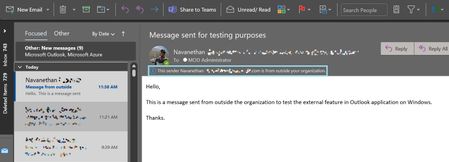
We know that some of our customers leverage Exchange transport rules to prepend subject line or insert the message body to show the email is from external senders. This approach has a few limitations, so we are working on native functionality.405KViews19likes169CommentsConsistently block delegates or shared mailbox members from accessing protected messages in Outlook
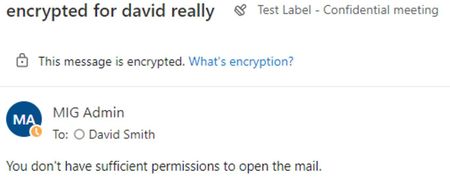
Based on customer feedback, we are introducing new Get/Set/Remove-MailboxIRMAcess cmdlets that provide admins with more granular access control of encrypted content, including in scenarios where delegates or shared mailbox members have FullAccess to the shared mailbox.27KViews1like13Comments