onedrive
220 TopicsOneDrive Just Got a Major Upgrade: New Copilot Capabilities, Simpler Sharing, and Smarter Photos
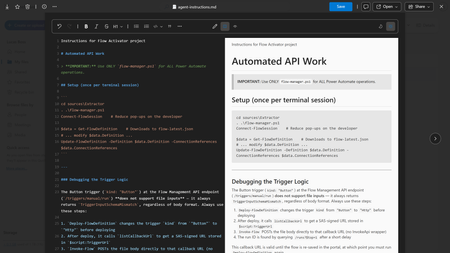
Files have always been at the heart of how we work. They're where we create, collaborate, and share ideas. And now, with Copilot and agents, they're taking on an even bigger role, providing the knowledge and context that AI needs to understand our work, connect ideas, and help us get things done. And beyond work, AI is also transforming how we experience our most important memories. Our photos and videos hold the moments that matter most to us. With AI, we're making it easier than ever to find those memories, relive them, and create something new to share with the people we love. Today at our event, OneDrive + Copilot: Your file system and photo solution for the AI era, we showed how we're bringing that vision to life, with experiences that make your files more useful, your everyday work simpler, and your personal memories easier to enjoy. We showed Copilot turning files into finished outcomes, a faster and simpler file system across web, desktop, and mobile, easier and more secure sharing and collaboration, and new ways to rediscover, create with, and share your favorite memories. Let's take a closer look at what's new in OneDrive. Turning files into outcomes with Copilot in OneDrive Copilot is embedded in the Microsoft 365 apps where you already work, like Word, Excel, and PowerPoint. Now, with the general availability of Copilot in OneDrive and SharePoint, we’re bringing AI directly to where your files and shared content live. Instead of piecing together information file by file, Copilot can help you understand your content, uncover insights, take action, and create something new. Here are just a few ways to put Copilot to work: NEW - Analyze across files: Select a number of spreadsheets, and ask Copilot to analyze the files, including generating charts and graphs and highlighting trends. NEW - Organize your projects: Point Copilot at a crowded folder of reports, research, notes, and plans, and it can sort everything into a structure that makes sense. NEW - Create from what you have: Turn current files and past work into something new, like an interactive HTML report, and keep refining it with follow-up prompts. NEW - Custom skills in Copilot: Capture a process you repeat as a personal skill, saved as a Markdown file, so Copilot runs it the same way every time. NEW - OneDrive Prompt Gallery: Get started with Copilot using ready-to-use prompts that help you explore what’s possible with your files. And that's just the beginning. Copilot in OneDrive goes well beyond these examples, helping you reason across your content, take action on your files, and get work done simply by describing what you want to accomplish. Copilot in Action on OneDrive HTML and Markdown, built for AI-created content HTML and Markdown are becoming essential formats for Copilot and agents. But creating these files is only the beginning. OneDrive makes it easy to open, edit, and collaborate with them, turning AI-generated content into something you can work with, share, and build on with your team. NEW - HTML comes alive in OneDrive: Just like in the Microsoft 365 Copilot experience, you can use Copilot directly in OneDrive to create interactive reports, dashboards, and bring experiences to life. Then edit them directly on the canvas or switch to source/html with a live preview right alongside. Present your HTML output in full screen for an immersive viewing experience. Collaborate with others through anchored comments and live presence, including comments placed directly within slides. NEW – Markdown, ready for teamwork: Turn Markdown files into collaborative work. Edit with a familiar rich-text experience while preserving the native .md file underneath. Then refine it together with anchored comments, live presence, real-time coauthoring, and autosave. Collaboration is seamless when you bring people and agents into the same document. Whether your HTML or Markdown file was created with Copilot or another tool, OneDrive gives you the same rich experience to open, edit, share, and collaborate on it. These files become a natural part of your everyday workflow, right alongside the rest of your content. Viewing, Editing, Collaborating with HTML and Markdown files in OneDrive Example using Copilot in OneDrive: So many of us spend hours, sometimes days, pulling together that monthly business report. Gathering spreadsheets, sorting through notes, finding last month's report, and trying to make sense of it all. Now imagine putting Copilot to work. Ask it to analyze your spreadsheets, uncover trends, and organize the files you need. Then have it bring everything together into a beautiful, interactive HTML report that you can refine and share with your team. And here's the best part: save the process as a personal skill, and next month's report is just a prompt away. Actions to try: Select several spreadsheets in OneDrive and ask Copilot to compare trends across them. Ask Copilot to organize a cluttered project folder. Select one or more spreadsheets, your notes stored in a Word document and ask Copilot to create an HTML dashboard/report summarizing all it. Share it and then edit it in real time with your team. Ask Copilot to save a workflow as a personal skill Watch the full demo deep dives of Copilot in OneDrive and HTML and Markdown in OneDrive. Stay in flow everywhere: The core file system, reimagined for AI Work doesn’t sit still. It moves between your personal files, team libraries, desktops, and mobile devices throughout the day. OneDrive helps you stay in the flow by making shared work easier to find, organize, and access wherever you are. With refreshed library navigation, modern views and filters, improved shortcuts, and expanded sync capabilities, we're making the core file system simpler and more seamless across web, desktop, and mobile. NEW - Libraries view: Get to the SharePoint libraries you use most, right from OneDrive. Move between recently visited libraries, Teams, and favorite sites, or open My sites to see every site you're a member or owner of, including ones you haven't visited recently. NEW - Search for libraries and lists: Find the right library or list without hunting through sites. NEW - Modern views and filters: Filter and navigate the same way everywhere, so finding content feels familiar. NEW - Add to OneDrive, with a dedicated folder: Shared folders or libraries that you add now land in a dedicated Shortcuts folder, so they're easy to find. NEW - Sync up to one million items on Windows and MacOS: Large libraries sync reliably on Windows and MacOS with as little as 8GB of RAM. NEW - Longer file paths: Handle long file paths smarter to reduce sync errors. Libraries in OneDrive Web Example using the Libraries view and Add to OneDrive: You're working across several project sites and a dozen document libraries. In your browser, from OneDrive, you open the Libraries view, access the library you need, filter it the same way you filter your own files, and add the folder you use every day to OneDrive, where it lands in your Shortcuts folder and syncs to your PC or Mac. Actions to try: Open Libraries from the left pane, then browse your recent, Teams, and favorite libraries. Use the filter control to quickly find the exact library you need. Add a shared folder or library to OneDrive using the Add shortcut to My files. Save it to My files or the new Shortcuts folder – your choice! Built for team flow: Share, collaborate, and stay in control Sharing and collaboration should be effortless, without compromising security or control. That's why we're making it easier than ever to share files and work together across Microsoft 365, while giving organizations the tools they need to protect and manage their data. Hero Links are here Sharing a file has often meant creating multiple links for different people with different permissions. Over time, that can leave you unsure of which link gives what level of access, forcing you to spend extra time ensuring permissions are set up right, and making access harder to manage. Hero Links, now rolling out, change that, giving you one link per file or folder by default. If you need to change access, you simply update permissions, and the same URL obeys the new permissions. No need for new links! It’s sharing made simple, while keeping you in full control. You can also use the browser link to share the file, with the same permissions applied. Hero Links in Action Coming Soon: Expiring hero link access With hero links rolling out, we know that managing the lifecycle of permissions on your files is also essential to your work. That’s why we’re developing new, expiring hero link controls. These controls let you automatically expire your organization’s hero links on a schedule that meets your needs. For instance, you can configure a policy that requires hero links shared to your entire organization to expire after 90 days. The file’s hero link will work just the way people expect, but when 90 days elapse, the link changes back to the secure default: Only People Added. Stronger admin controls As your content grows across OneDrive and SharePoint, admins need simpler ways to secure, govern, archive, and manage it all at scale. Our latest updates bring you more intelligence and control to content governance, file lifecycle management, and sync administration. Here’s what’s new: SharePoint Admin Agent: Use natural language to assess content across SharePoint and OneDrive, including site cataloging, and take guided action to keep content secure and AI-ready. Learn more in the SharePoint Admin Agent overview. File archive in SharePoint document libraries: Archive inactive files with a policy, and use what-if analysis to see the impact before you turn it on. NEW - OneDrive Sync management: Exclude specific folders from sync with a folder-level policy, and view accounts, configuration, policy, and status from the command line with the OneDrive Sync Command Line Interface (CLI). Available in private preview. Sign up here SharePoint Admin Agent Actions to try: Share a file with a Hero Link, then change its permissions without resharing the link. Admins: ask the SharePoint Admin Agent, "Which sites are overshared and what are the risk levels for these sites?" Watch the full demo deep dive of OneDrive Sync CLI. More than a place to store photos: An intelligent home for your memories Our photos and videos capture the people, places, and moments that matter most to us, from life's biggest milestones to the little moments in between. OneDrive has always helped keep those memories safe and accessible, wherever you go. Now, we're taking the next step. With new experiences across Windows, web, and mobile, OneDrive is becoming a more intelligent and personal home for your photos. From AI-powered Moments that bring forgotten memories back to life, to natural-language search, AI-powered editing, and new ways to create and share, we're helping you do more with the memories you love. NEW - Microsoft Photos on Windows: Microsoft’s all-new desktop experience for your photos brings together images and videos from OneDrive, your PC, and iCloud Photos in one unified Gallery. Rediscover memories through Moments, explore with People, and use natural language to find the photos you’re looking for, all through a consistent experience across devices. NEW - Copilot in OneDrive photos: Quickly find moments by simply describing them in your own words, then ask Copilot to turn them into something new to enjoy and share. With a prompt like, “See the photos of my kids through the years and turn it into a slideshow”, Copilot will quickly bring years of photos together and create a share-able slideshow from the results. NEW - AI-curated and seasonal Moments: Automatically created collections, bringing your best moments back to you. NEW - Map view: Browse your photos on the go by their location. NEW - Edit with AI: Fix, refine, and reimagine your photos with easy-to-use AI-powered editing tools. From practical corrections like background cleanup to restyling your photos into something new, like crochet or graffiti art, these editing tools help you to easily enhance your photos. NEW - Create: Brings a dedicated creation experience to OneDrive, with new ways to use your photos to create personalized, shareable content like collages, holiday cards, and more. Creating with Copilot in OneDrive Mobile Example using the Create hub: Your wedding anniversary is coming up and you want to make something special for your partner. You find some photos you want to include in a card and edit one of them to remove that pesky object in the background. Then you create a collage of photos from your engagement and wedding day and add a “Happy Anniversary” message to it. Spruce it up with some flowers and color and share the image directly with your loved one. Simple tasks that would’ve taken hours of hunting and multiple app switches, all done from one place! Actions to try: Open the Windows Photos app to see your PC, OneDrive, and iCloud photos in one place. Search your photos by describing a memory. Fix your photos by auto enhancing the colors or removing an object in the background Explore your photos on the map in the OneDrive Android app. Use Copilot in photos to create a new collage of photos from last year’s holiday season in the OneDrive Android app. Create a new social media post using a preset template for Diwali in the OneDrive iOS app. Watch the full demo deep dive of Windows Photos app. The future of OneDrive: Building on what you saw today We've shared a lot of exciting innovations today, with some available now and others rolling out over the coming months. And we're just getting started. Looking ahead, we're building on these innovations across Copilot, the core file system, collaboration, and photos and video. Here are a few highlights from the OneDrive roadmap for the coming year. Copilot: Bringing agents into file collaboration As Copilot evolves from individual assistance to teamwork with agents, the files we work with remain central to how that collaboration happens. We're exploring ways to bring agents into familiar file collaboration experiences, making it possible to share a file with an agent, @mention it, and continue working together through comments, just as you would with a colleague. AutoPilots Working [for You] in OneDrive Core file system: A home for AI-created content As more content is created by Copilot and agents, OneDrive will make it easier to find, understand, and manage that work alongside your own. You'll be able to quickly identify files AI helped create, see which agents contributed to them, and understand what changed. OneDrive, a Natural Home for AI Created Work File collaboration: Simpler access, stronger security As people and agents collaborate across more files, managing access becomes increasingly complex. Knowing who can access what, understanding why permissions aren't working, and preventing oversharing are more important than ever. Future Copilot experiences will make it easier to diagnose and resolve access issues directly from the sharing experience. Copilot will help identify problems such as broken permission inheritance, recommend corrections, and let owners review and apply fixes. It will also proactively help to uncover oversharing risks, including Anyone links that expose content more broadly than intended. That way your teams can collaborate with confidence while keeping their information protected. Copilot Diagnosing and Fixing Sharing Permissions Photos and video: Easier media workflows for teams So much of our work relies on photos and video, but finding the right media, keeping it organized, and managing feedback and approvals can be difficult. We're building new experiences that make it easier for you to find photos and videos by describing their contents, without needing to know filenames or folder locations. Teams will be able to review, comment, and edit together in context, with approvals that stay with the asset, so everyone knows what's ready to use. Future Support for Commercial Media Everything we shared today reflects our vision for the next chapter of OneDrive. The file system is one of computing's most enduring concepts, and in the AI era, it's more important than ever. As people and agents create and collaborate in new ways, they need a durable home for their work and knowledge. That's why we're evolving OneDrive to operate at agent scale, support the formats AI uses naturally, and make the knowledge in your files easier to find, manage, and put to work. At the same time, we're bringing that same spirit of innovation to your personal photos and videos, helping you rediscover the moments that matter, relive your favorite memories, and create new ways to share them. That's the future we're building: OneDrive, your file system and photo solution for the AI era. Resources & next steps To help you get started and dive deeper: Watch the full event, AMA, and demos on YouTube: https://aka.ms/OneDriveEvent/Playlist OneDrive adoption resources Feature deep dives: OneDrive CLI | Photos App | Copilot in OneDrive | HTML / Markdown OneDrive Customer Office Hours Sync Up podcast Windows Blog SharePoint Admin Agent overview Ready to take action? Bookmark the OneDrive blog at https://aka.ms/OneDriveBlog for the latest tips and feature updates.772Views0likes0CommentsIntroducing Markdown support in SharePoint and OneDrive
Today, we’re introducing native Markdown support in SharePoint and OneDrive, now rolling out to general availability across both consumer and commercial audiences. As AI and agents increasingly create and update Markdown files to carry out work, teams need a reliable place to manage that content. SharePoint and OneDrive make it easy to view and edit these files in the browser when precision, intent, or changes are required, with built‑in versioning and governance. Markdown files are now fully integrated into the Microsoft 365 file experience, behaving like any other file in your workflow.53KViews4likes17CommentsSimple, Smart, and Secure: The next step in sharing files in Microsoft 365
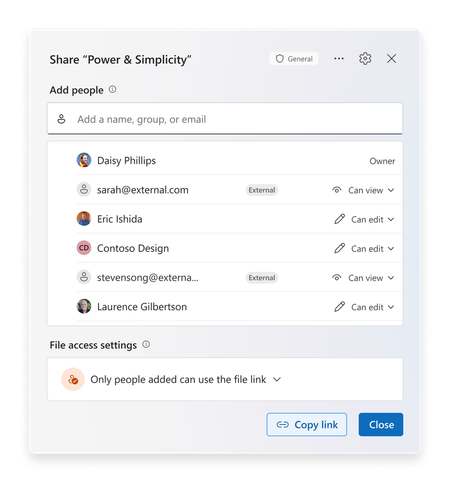
Today at the Microsoft 365 Community Conference, we announced the next generation of sharing for Microsoft 365. Not just an experience refresh, this year we are improving the underlying model that enables collaboration within oM365. We are making it simpler to use, more intelligent, and ensuring that users can keep their content secure by default. In 2011, the cloud revolutionized collaboration and SharePoint Online launched with direct permissioning to enable sharing. Three years later, the on-going cloud transformation led to the invention of “link-based sharing” to allow users to forward and share URLs that grant access within defined, yet secure scopes. Over the last decade, collaboration flourished with over 1.2 Billon people using the share dialog in M365 per month. But as we look ahead, we see new demands emerging to meet the needs of collaborative, agentic workplaces. We are excited to give you a walkthrough of the third generation of sharing in Microsoft 365 and introduce the hero link, the power behind the next decade of collaboration. Meet the hero link The next generation of sharing makes you the hero of collaboration! Each file gets a single hero link which controls all access to the file. Whether you’re clicking “Copy Link”, sending an e-mail, or yes, even copying the URL out of the address bar, it’s all the hero link! This removes the need to create, delete, and manage multiple links on your files, creating a vastly simpler experience. Sharing files with your company has never been easier: simply update the hero link and anyone with the link in your company will get access. Need to lock down a file? Change the link to only allow access for people you directly add, keeping your files secured. We know that users don’t always check file permissions before they send out a link, which can lead to frustrating “Access Denied” page. With hero links, users are empowered to update the link that they already sent, enabling them to quickly increase or decrease the scope of the hero link to match their needs. Secure by default Every hero link starts by working for only the people who have already been added to the document. As users embark on their collaboration journey, they can add more people and teams directly to the document or update the hero link as needed to broaden access. For files that are shared externally, the new share experience explicitly tags external users and guests to make sure they stand out and can be managed appropriately. Administrators will be able to change this default on a per-site collection or OneDrive basis, as needed. With the next generation of sharing, users can further secure their content by controlling who can add people or update access of the file or folder, which gives users the granular control they need to protect their most important content. At a glance access The next generation of sharing requires easy understanding of not only who has access to a file, but how they have access. The Share Dialog and Manage Access experiences are now unified into a single, powerful interface, ensuring users can see and manage their documents and folders with effortless precision. Updates to permissions now appear in real-time, giving users confidence and real-time feedback as they share! With this new sharing model, you can now update permissions in bulk. It is now easier than ever to change or remove permissions for multiple people in a single session. Changes appear instantly, helping you stay in control! If a user wants additional granularity, they can even create additional sharing links to be used for specific purposes. These links can even be named, to help users track and assign them to specific tasks. Copilot + Sharing Save time for your coworkers and keep your team up to speed by using Copilot when you share. With a single click, generate a summary of your document that will be included in the notification mail. Recipients can now understand what the file is about, without needing to open it and read the content. This is a great way to save time and help get your collaborators up to speed! Choose when you notify Have you ever had those days where your notifications are going crazy from teammates adding you to files? We hear your frustration-and we are happy to tell you that you can now choose whether to send an e-mail notification or not when you add people to your file. This update puts you in control of how you share and notify teammates – simply check the box or not based on your preference! This control is critical when you’re bringing a colleague up to speed on multiple documents, or just want to make sure that your file is shared correctly before incorporating into a SharePoint News Post or Amplify! Looking Ahead This new sharing experience and model will be rolling in late 2025! You can track the latest timelines and updates via the Microsoft 365 Message Center or the Microsoft 365 Roadmap (ID: 492622). We know change management is top of mind with any product change, and especially one’s as critical to your organization as collaboration.In addition to the standard updates at Microsoft Docs, we’ll also be uploading how to videos for end users and IT Pros to the Microsoft Community Learning YouTube Channel, walking through the changes in depth on the Sync Up Podcast and in the OneDrive Customer Office Hours. We’re excited to share the future with you! Frequently Asked Questions We know how important collaboration is to your organization! Here are answers to a few of the common questions we’ve heard! If you have others, let us know in the comments below! Q - What do I need to do to prepare for this change? A – For now, keep an eye on the roadmap id and Message Center for more information! As we get closer to release, we’ll ensure you have the content you need to update and prepare your users, admins and security teams. Q - What happens to my existing collaboration experience? A – Nothing! The new sharing model is fully backwards compatible. All the links and permissions you have today will continue to work and will show up in the “Other Links” section of the dialog! Q - Where will this change happen? A - Everywhere! OneDrive powers the sharing experience across 64 apps in M365. This change will be updated consistently across the entire ecosystem.40KViews18likes48CommentsSave the Date: Join us October 20 for the OneDrive + Copilot Digital Event
Files and photos are at the center of how we work, create, and collaborate. As AI and Copilot transform the way we use content, OneDrive is evolving for this era - helping people get more from their files with Copilot, delivering a faster and more dependable core file experience, making collaboration effortless, and creating new ways to discover, enjoy, and share photos and videos. So, join us on October 20 for the 4th Annual OneDrive + Copilot Digital Event, a free online experience showcasing the latest innovations across OneDrive and Copilot. ✨ Hear directly from Jeff Teper, Executive Vice President of Microsoft Apps and Agents, Adam Harmetz, Corporate Vice President of Product, OneDrive and SharePoint, and Arwa Tyebkhan, Head of Product, OneDrive, alongside product leaders, engineers, and experts from across the OneDrive team as they share the latest innovations, demonstrating how AI is transforming the way people work with files and content. 💡 You'll see real product demos, hearing from the people building the product, and get a closer look at the experiences that will help you get the most out of OneDrive and Microsoft 365. 🗣️ Following the broadcast, you are invited to join our live Q&A with members of the OneDrive team and get answers directly from the experts behind the product. Event Details Event: OneDrive + Copilot - Your file system and photo solution for the AI Era Date: October 20, 2026, 9:00 AM PST Cost: Free Format: Digital event followed by a live Q&A Register here: https://aka.ms/OneDriveEvent Join the AMA Live: https://aka.ms/OneDriveEventonMTC This event is open to everyone – whether you’re an IT professional, a knowledge worker, or a fan who uses OneDrive to relive your favorite memories! Register today and join us to see what's next for OneDrive in the Copilot and AI era. See you there!3.2KViews4likes1CommentMaking Mac OneDrive Faster and More Reliable
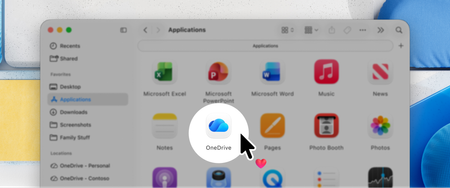
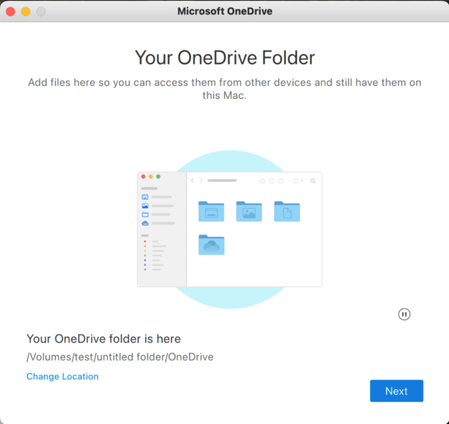
OneDrive on macOS is getting a major update to how it syncs! The Native Sync Engine is rolling out to Insiders today with version 26.098. It's up to 2x faster on initial sync and on-disk state changes, uses less CPU, memory, and battery, and removes the hidden cache folder that's been the source of most reliability issues since 2022. It's the latest in an ongoing effort to make OneDrive feel native on Mac. Earlier this year we shipped a redesigned Activity Center with Liquid Glass and native dialogs, and the Native Sync Engine is a major step in that journey. The cache folder problem When we moved OneDrive to Apple's File Provider platform in 2022, we needed a way to bridge the existing sync engine with how File Provider expected things to work. Broadly, there are two parts to OneDrive sync: the sync engine itself, and the code that OneDrive uses to work with files. To support File Provider, we had to change how OneDrive interacted with the file system. However, to reduce risk, we decided to use a hidden cache folder that mirrored your OneDrive contents, so the sync engine could remain largely unchanged. That cache folder solved the immediate problem and unlocked features like Known Folder Move. Over time, however, feedback and telemetry showed us that it was root cause of many of the reliability and performance issues users have reported since. The Native Sync Engine removes it. What’s changed Over the past several years, we’ve been working behind the scenes on the Native Sync Engine. Building it required us to completely rebuild large portions of our code and build a new sync platform that allows OneDrive to work better with the File Provider system. The Native Sync Engine provides the fastest, most reliable experience we’ve ever delivered on the Mac. It has a simplified architecture, eliminates entire classes of errors, and integrates more deeply with macOS. In our performance testing, the new system is about 2x faster for initial sync and on-disk state changes. It also uses fewer system resources, helping preserve your Mac’s battery life while improving overall responsiveness. We’ve also put the new system through multiple tests that simulate usage well beyond what the average user would ever do, and it has held up extremely well in those scenarios. It’s a massive improvement, and one we are very excited to bring to you. On the surface, the Native Sync Engine looks and feels very similar to what we had before, but there are a few important changes. Let’s walk through a few of them. Hidden folders no longer hold data OneDrive's hidden folders now contain metadata only. Your file data only lives in the OneDrive folder you interact with directly. There are a few cases where a copy of file data will exist in the hidden folder: Files you've created or changed that haven't uploaded yet. The copy is removed once the file has fully synced to the cloud. OneNote shortcuts and similar "link" file types. These are typically a few hundred bytes at most, and we retain them in the hidden folder indefinitely. Some kinds of macOS packages, such as GarageBand files, .app bundles, and certain older iWork files. Copies of these files are retained for longer than most files. Files and folders are always browsable Files in a folder used to be created on disk only the first time the folder was accessed. That led to Finder showing "Loading..." while you browsed and apps hanging while they waited for folders to materialize. Now, every folder and file is always browsable on disk. Navigating your OneDrive folder feels like navigating any other folder. It’s snappy, responsive, and just works. Note that Files On-Demand is unchanged with the Native Sync Engine. Files you haven't opened remain online-only unless you either open them or mark them Always On This Device. External drive support The Native Sync Engine also supports external drives, such as USB drives you can plug into your Mac. If your system and your external drive meet the requirements, all of your files and OneDrive's metadata folder will be placed on this drive. On older versions of macOS and on drives that don't meet the requirements, your files and OneDrive metadata will be stored on the home volume. Syncing shared folders and libraries If your organization has disabled the “Sync” button on SharePoint and your users are using “Add shortcut to My Files”, you can skip this section, as you are already in the ideal state! If you are still using synced libraries, each synced library now appears as its own root in the Finder sidebar, instead of nested under a single tenant entry. Add shortcut to OneDrive remains the modern way to access shared content. Admins can hide the Sync button via aka.ms/HideSyncButton. Identifying the Native Sync Engine You can identify whether your Mac is using the Native Sync Engine by inspecting the OneDrive version in the Preferences dialog: If the version ends with a value such as "(26K)", you are running the Native Sync Engine. If the version ends with the version of macOS, you are not yet running the Native Sync Engine. Rollout Starting today, we’ll be gradually rolling out this new experience to our Insiders audience. This rollout will take several weeks to complete. If you aren't already in Insiders and want to try the new update, simply open OneDrive preferences, click on the About tab, and check the box to join the Insiders program. Your Mac will upgrade to the Native Sync Engine automatically when it receives the update. It might take a couple of minutes for OneDrive to complete the upgrade, and a little while longer for File Provider to finish with the upgrade, but you can still use your OneDrive while this is taking place. We would love to hear your feedback, good or bad. Just click “Send Feedback” in the OneDrive Activity Center and share your thoughts! To learn more, watch the latest Sync Up podcast below:5.5KViews4likes15CommentsOneDrive for Mac Now Supports Removable Drives
Earlier this year, we announced support for several improvements to OneDrive for Mac, including support for external, non-removable drives. We’ve heard feedback about the differences between “non-removable” and removable drives, and wanting the flexibility to sync OneDrive to any external drive—no matter the type. Now, with OneDrive version 25.127 or later, you can seamlessly sync your OneDrive files to any external drive, including removable ones. Syncing to a removable drive works just like any other drive, except that if you unplug your drive, OneDrive will stop syncing and show an error. You’ll need to plug your drive back in and restart OneDrive to resume syncing. There’s a short grace period between when a drive gets disconnected and when OneDrive shows an error to handle drives that sporadically disconnect. There are a few requirements your system must meet to use this feature: You’ll need version 25.127 or later of OneDrive. You also need to be running macOS 15.0 or later. The drive you select must meet the following requirements: Formatted for APFS Protected by FileVault (see below for instructions) Not read-only, a network drive, or marked as quarantined by macOS. Just like before, you'll need to manually set up a new sync relationship on the new drive. Sync settings won't transfer automatically. You cannot use OneDrive by moving your external drive between Macs; you must set up OneDrive again on each new Mac with the external drive. To protect a drive with FileVault: Format the drive for case-insensitive APFS, if it is not already. Find the drive in the Finder. Option/right click the drive and choose Encrypt. Follow the prompts. That’s it! We’d love to hear your feedback about this change! The best way to do that is to click on the OneDrive icon in the macOS Menu bar (near the clock), click the gear icon, and choose Send Feedback. You can also leave a comment here. We read them all, even if we can’t reply to them all.11KViews9likes65CommentsNOW ON DEMAND | OneDrive Office Hours | July 2026
Get ready for the July 2026 OneDrive Customer Office Hours! This session creates space for open conversation around the latest updates and how they support the way you use your files every day. In this month’s session, we’ll walk through what’s new and open the floor for questions, feedback, and shared experiences. Join us for our next call Date: July 15, 2026 Time: 8:00 AM-9:00 AM Pacific Time (US & Canada) Special Topic: Hero Link Sharing with Stephen Rice Register Today: aka.ms/OneDriveOfficeHours Join the OneDrive team to learn about Hero Link sharing, a single link that controls access to your files, so you can quickly share content and clearly understand who has permission to view, edit, or reshare. This updated sharing experience makes collaboration easier and gives you control with a single, unified experience to both share and manage permissions. Anyone can join this one-hour webinar to ask us questions, share feedback, and learn more about the features we’re releasing soon and our roadmap. We can't wait to share, listen, and engage every month! Note: Our monthly public calls are not an official support tool. To open support tickets, go to see Get support for Microsoft 365; distinct support for educators and education customers is available, too. New way to register and watch on demand! Go to: Microsoft OneDrive: Customer Office Hours – Microsoft Adoption to see upcoming sessions, to register and rewatch previous sessions! Save the Calendar invite so you never miss a call: https://aka.ms/OfficeHoursCalendar Each call is recorded and made available on demand shortly after. Stay up to date on Microsoft OneDrive adoption on adoption.microsoft.com. Join our community to catch all news and insights from the OneDrive community blog. And follow us on X: @OneDrive. Thank you for your interest in making your voice heard and taking your knowledge and depth of OneDrive to the next level. You can ask questions and provide feedback in the chat during the meeting, and we will do our best to answer them. Register and join live: aka.ms/OneDriveOfficeHours. 1.1KViews0likes3Comments
OneDrive on Mac gets Liquid Glass with an All-New Activity Center
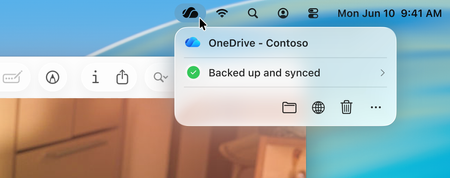
OneDrive on macOS is getting a fully redesigned Activity Center, built from scratch in SwiftUI with Liquid Glass support on macOS 26. This is part of a broader investment in making OneDrive feel native on Mac.5.5KViews3likes6CommentsNOW ON DEMAND | OneDrive Office Hours | June 2026
Get ready for the June OneDrive Customer Office Hours! This session creates space for open conversation around the latest updates and how they support the way you use your files every day. In this month’s session, we’ll walk through what’s new and open the floor for questions, feedback, and shared experiences.589Views0likes0CommentsOneDrive community call | August 2024 | Join in
Are you ready to connect with OneDrive product makers this month? We’re gearing up for the next call. And a small FYI, we are approaching production a little different: The call broadcasts from the Microsoft Tech Community, within the OneDrive community hub. Same value. Same engagement. New and exciting home. Join the OneDrive product team live each month on our monthly OneDrive Community Call (previously ‘Office Hours’) to hear what's top of mind, get insights into roadmap updates, and dig into a special topic. Each call includes live Q&A where you'll have a chance to ask the OneDrive product team any question about OneDrive - The home of your files. Use this link to register and join live: https://aka.ms/OneDriveCommunityCall. Each call is recorded and made available on demand shortly after.2.5KViews0likes0Comments