mw365
12 Topics
VDI, Teams, and what’s changing in 2026: VBSS becomes VMSS, and eCDN lands in the core license
Audience: Mission Critical customers running Microsoft Teams on virtualized desktop platforms (Citrix, AVD, Windows 365, VMware/Omnissa Horizon). TL;DR: Two Teams-on-VDI changes are converging: VMSS is already in Public Preview today as the successor to VBSS in the new VDI solution for Teams (Microsoft Learn - Screen sharing), and Microsoft eCDN is now included in Teams core license. This post previews the guidance our Support for Mission Critical (SfMC) Cloud Solution Architects (CSAs) are already walking customers through - because the cost of finding these issues in production is always higher than finding them in a pilot. Why we’re flagging this now SfMC exists to get ahead of changes like these. The SfMC CSA role is built on a simple principle: be a trusted advisor embedded alongside the customer team, not a reactive support line. SfMC CSAs work hand-in-hand with platform, network, security and service-ownership teams to build a deep “know-me” picture of the customer - their gold-image strategy, their VDI vendors, their peering topology, their CAB cadence, the history of what was tried and what didn’t stick. That context is the reason a readiness review lands in weeks, not months: your SfMC CSA isn’t starting from zero, they’re starting from knowing the estate. Goodbye VBSS, hello VMSS - and it’s here now Teams on VDI has used Video Based Screen Sharing (VBSS) for years - an efficient, encoded video stream for screen shares. That approach is being replaced by Virtual Machine Screen Sharing (VMSS) as part of Microsoft’s New VDI solution for Teams. This isn’t a future roadmap item - VMSS is available in Public Preview today across Azure Virtual Desktop, Windows 365, Citrix and Amazon WorkSpaces, with Omnissa following. Microsoft’s guidance and support matrix is live on Microsoft Learn: New VDI solution for Teams - Screen sharing. If you have users on a pilot ring on VDI, you can light this up now, simply by activating Public Preview for them. Support depends on three things moving together: the Teams client on the session host, the virtualization vendor’s optimization component (Citrix HDX / AVD Multimedia Redirection / VMware-Omnissa Media Optimization), and the endpoint client (Windows App, Citrix Workspace App, Horizon Client). Where any one of those lags, screen share quietly falls back to a lesser modality - users don’t raise tickets, they just tolerate worse quality. Because VMSS is already in preview, there’s a real window to get this right before it becomes the default path. On Mission Critical engagements, SfMC CSAs are already sitting with customer teams on VMSS readiness reviews: confirming client and plugin versions across the gold-image estate, rebuilding CQD dashboards so the baseline survives the cutover, and flagging any inline network appliance that still assumes the old VBSS flow. The “know-me” picture the SfMC CSA has built up makes that work fast - they already know which plugin versions the desktop team is running and which CAB window the next image refresh lands in. Microsoft eCDN is now in the core Teams license Microsoft eCDN - previously a paid add-on - is now included in the Microsoft Teams core license. It’s a WebRTC-based peer-to-peer mesh that offloads large-scale town halls and live events from the corporate WAN by peering video between clients on the same site. If the business case for the add-on never cleared, that objection is gone. But “included” doesn’t mean “working”. The failure mode we see is consistent: customers enable eCDN because “it’s free now”, but the peering never works - because the client-to-client path is blocked by security controls nobody remembers adding. The town hall runs, the WAN still saturates, the CIO asks why the thing that was supposed to fix it didn’t. The VDI infrastructure question Both changes elevate something that has always mattered but rarely been tested: VDI-to-VDI network reachability. The new Teams client needs to talk to Microsoft 365 media endpoints (usually already open) and to other VDI instances on the same site for eCDN peering. That second requirement is where customers are consistently caught out. Most VDI builds treat each session host as an island - east-west traffic between session hosts is blocked by NSG, hypervisor firewall, or micro-segmentation policy, because it was never needed. With eCDN in the box, it is now needed - and the blocks are often in places the virtualization team doesn’t own. This is where working hand-in-hand with the customer team pays off. The SfMC CSA convenes the platform, network, and security owners, translates the platform change into each team’s language, and makes sure nothing falls through the gaps between them. The specific hostnames, IP ranges, UDP/TCP port requirements, and peering-group configuration are all on Microsoft Learn (links below) - the hard work is operationalizing them against your estate, and that’s the work your SfMC CSA is built to drive. If two or more of these apply to your estate, book the conversation with your SfMC CSA now: Client version sprawl - multiple Teams versions in flight across gold images, or a long tail of unpatched Citrix Workspace App / Windows App / Horizon Client. Missing or partial CQD data - gaps in building/subnet mapping, “unknown” network location for a meaningful share of streams, dashboards still filtered on legacy VBSS modality tags. Recent east-west firewall changes - new micro-segmentation rollout, zero-trust project, or NSG rule consolidation in the last 12 months. Recent live-event pain - WAN saturation, buffering, or join failures on the last town hall. No eCDN subnet map, or a map that predates your current site/subnet topology. Proxy or TLS-inspection changes forcing Teams media through an inspection device rather than bypassing it. VPN full-tunnel without eCDN VPN exclusion. Upcoming large broadcast in the next 90 days. Closing thought VMSS is in Public Preview today and eCDN is already in your Teams license. The window to pilot, validate and harden is open right now - and it closes the moment either of these becomes the default path for your users. That’s what Support for Mission Critical is built for: Cloud Solution Architects working shoulder-to-shoulder with your team as trusted advisors, investing the time to genuinely know your estate - your platforms, your people, your change windows, your risks - so that when a shift like VMSS or eCDN arrives, the remediation plan is already half-written. Not a ticket-shop. A partnership. If you’re running Teams on VDI at scale and you haven’t had the VMSS + eCDN conversation with your SfMC CSA yet - that’s the next call to book. References New VDI solution for Teams - Screen sharing (VMSS, Public Preview) - https://learn.microsoft.com/en-us/microsoftteams/vdi-2#screen-sharing New VDI solution for Teams (overview) - https://learn.microsoft.com/en-us/microsoftteams/vdi-2 Microsoft Teams for VDI - install requirements - https://learn.microsoft.com/en-us/microsoftteams/teams-client-vdi-requirements-deploy Microsoft eCDN networking requirements - https://learn.microsoft.com/en-us/ecdn/technical-documentation/network-requirements eCDN peering groups and restrictions - https://learn.microsoft.com/en-us/ecdn/how-to/set-up-peering-groups Microsoft 365 URLs and IP address ranges - https://learn.microsoft.com/en-us/microsoft-365/enterprise/urls-and-ip-address-ranges362Views0likes0CommentsEnterprise Security Assessment: A Strategic Lens for Mission Critical Environments
Understanding Enterprise Security at Scale Understanding security posture at scale requires more than isolated control reviews or point‑in‑time assessments. The Enterprise Security Assessment (ESA) helps organizations understand their security posture across Azure, Microsoft 365, and hybrid environments from a true enterprise perspective. Instead of assessing individual services or workloads in isolation, ESA provides a single, enterprise‑wide view of security. By examining identity, data security, endpoints, threat protection, and cloud infrastructure together, ESA helps uncover gaps that often span multiple teams and platforms. This broader perspective enables clearer prioritization, stronger alignment across security teams, and a more resilient foundation for long‑term security improvement. ESA complements other Microsoft assessments, such as workload‑specific reviews, by connecting the bigger picture - to align security priorities across teams and platforms, fostering a more cohesive and resilient security approach. From Standard Engagement to Strategic Partnership An Enterprise Security Assessment is typically delivered as a focused engagement designed to establish an enterprise‑wide view of security posture. At Microsoft, we begin by reviewing Secure Score insights, analyzing a defined set of core security datasets, and correlating those signals across Azure and Microsoft 365. For many organizations, this approach works well. Collecting and evaluating these datasets provides a high‑level understanding of security posture, highlights common gaps, and identifies priority improvement areas. In standard enterprise environments, ESA delivers actionable insights with minimal disruption and sets a solid foundation for security improvements. How ESA Evolves in Mission‑Critical Environments In large or mission‑critical environments, security is often distributed across multiple teams and tools. Operational constraints, regulatory requirements, and business dependencies introduce complexity that standard assessments cannot fully capture. For mission‑critical customers, ESA goes beyond a baseline review and becomes more consultative. This typically includes: 📝 Structured discovery sessions across multiple security domains 🤝 Deep‑dive workshops with specialized teams 🎯 Validation of findings against real‑world operating models 🔄 Iterative analysis to validate findings against real operational conditions This ensures recommendations reflect how security is actually managed, not just how it is documented. Why Going Deeper Matters to Customers For organizations operating at scale, this consultative ESA approach delivers significantly more than a standard readout: A realistic, enterprise‑wide understanding of security posture, grounded in actual configurations and operating models Clear visibility into cross‑team dependencies and systemic risks Prioritized recommendations aligned to existing licenses, third‑party tools, and regulatory requirements A realistic, phased security roadmap focused on adoption, not theory The result is a clear starting point for security improvements that teams can execute with confidence. A Continuous Improvement Model ESA is not a one‑time exercise. For most customers, it becomes the foundation for ongoing security maturity. Once a baseline is established, future ESAs are faster and more efficient, allowing organizations to track progress, validate improvements, and maintain alignment as environments evolve. Over time, ESA functions as an annual enterprise security health check, supported by follow‑up reviews and continuous improvement. In mission‑critical environments, this means: The first ESA requires deeper engagement investment Building cross-team alignment takes time Future assessments become smoother and more efficient once a baseline is established Over time, ESA functions as an enterprise security health check that supports continuous improvement. It works best when treated as a starting point for continuous improvement, and Enterprise Security Alignment. What Customers Gain from an Enterprise Security Assessment A true enterprise view Visibility across identity, data, devices, cloud workloads, and threat signals - without losing sight of critical details. A customized security roadmap Recommendations aligned to existing licenses, third‑party tools, hybrid footprints, and regulatory requirements - making adoption realistic, not aspirational. Momentum and measurability Many organizations track progress using dashboards or scorecards to measure improvement and sustain focus over time. Repeatability Once a baseline is established, future ESAs become easier and more efficient - serving as a regular health check rather than a brand‑new effort. A consultative model ESA delivers far more value than a one‑time assessment by fostering collaboration, shared understanding, and long‑term alignment. A Foundation for Continuous Improvement Enterprise security is complex, especially at scale. In mission‑critical environments, security success depends on embracing complexity, aligning teams, and moving beyond a standard assessment playbook. An Enterprise Security Assessment is more than a snapshot. It’s an opportunity to build alignment, inform strategy, and create a resilient security foundation that evolves with the organization.974Views3likes0CommentsSharePoint Automatic Version History Cleanup (Intelligent Versioning)
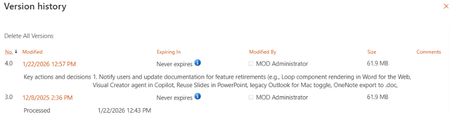
What is SharePoint Automatic Version History Cleanup? SharePoint Automatic Version History Cleanup is a feature in Microsoft 365 (SharePoint Online and OneDrive) that automatically manages and prunes file version history based on the age of versions and file activity. It is part of the “Version History Limits” functionality that gives admins control over how many versions to keep and for how long. When this Automatic mode is enabled (often referred to as Intelligent Versioning), SharePoint will no longer retain every single version up to the static limit indiscriminately. Instead, it will “thin out” older versions over time, keeping a higher density of recent versions and progressively fewer versions as they age. This ensures that most day-to-day edits remain recoverable, while redundant or stale versions from long ago are cleaned up. Crucially, automatic cleanup does not require administrators or users to manually delete versions or set specific limits for each library. In the traditional model (Manual versioning), admins or site owners had to configure each library to keep a fixed number of versions (with a minimum of 100) and possibly specify a time-based deletion for older versions. In contrast, the Automatic setting uses built-in logic to manage versions dynamically. Microsoft’s internal testing and customer feedback guided this feature to address the major pain point of runaway version storage while maintaining “strong recoverability” for files. Key characteristics of Automatic (Intelligent) Versioning: Time-based retention algorithm: It looks at the age of each version and the file’s edit frequency to decide which versions to keep. Recent changes are kept in detail, whereas older changes are pruned, keeping only periodic snapshots. Dynamic, ongoing cleanup: As new versions are created, older ones are evaluated and trimmed automatically in the background. This is not a one-time job, but a continuous policy is applied to the library. Wider recovery window with fewer versions: Users still have access to versions spanning a long time period (e.g. many months or years), but without the full count of every minor change. The system preserves important restore points (like the first version of each week or day), assuming those are more valuable for recovery than every tiny edit. Storage space optimization: By cutting down on redundant older versions, organizations see dramatic storage savings. Microsoft reports up to a 96% reduction in version storage over a 6-month period using automatic trimming, compared to keeping all versions under a 500-count limit. Still protective of current versions: The most recent versions (within the last days or weeks) are generally all retained. The current file version is never deleted by the system, and recent version history remains robust for auditing and quick rollback needs. Applies to Office documents (and more): Intelligent versioning is particularly beneficial for Office files (Word, Excel, PowerPoint) that save frequently, but it works for any files in SharePoint/OneDrive. How the Automatic Cleanup Algorithm Works When Automatic version limit is in effect, SharePoint uses a built-in tiered retention algorithm based on version age. In simple terms, the older a version is, the less frequently it’s kept. Here is a summary of the default intelligent retention logic: Age of File Version Retention by Automatic Cleanup 0–30 days old Keep all versions. Every saved version from the last 30 days is preserved (upto 500 versions). This ensures you can track all recent changes in detail. 31–60 days old Keep hourly versions. For versions in this range, the system prunes away some duplicates, aiming to retain roughly one version per hour of edit activity. In practice, if multiple versions were saved within the same hour, only the latest from that hour might be kept. 61–180 days old (2–6 mo.) Keep daily versions. Versions older than two months get further thinned out to about one per day, preserving a daily snapshot of the file’s state. Over 180 days old Keep weekly versions. Very old versions (beyond ~6 months) are trimmed to approximately one per week, maintaining a weekly snapshot over long periods. This tiered approach means that if a file is actively edited, you’ll have all of its versions from the past month, then a representative sampling of versions as you go back in time (hourly→daily→weekly). In effect, the algorithm removes redundant intermediate saves that are likely low-value (e.g. dozens of near-identical saves due to auto-save in a short period) while still keeping a timeline of the document’s evolution. If a file hasn’t been edited in a long time, its last saved versions will remain available at least until they hit the weekly or daily thresholds. Maximum Number of Versions: Even under Automatic mode, SharePoint will not keep more than 500 versions of a file. This is a hard cap that remains in place for now. If a file continues to be edited very heavily over months or years, hitting 500 versions, the oldest versions will be trimmed to honor the cap. In practice, however, most files are unlikely to hit 500 retained versions under the automatic algorithm, because many interim versions would already be pruned by age. The 500 limit mainly serves as a safety net. Expiration Labels in Version History UI: Once you switch a library or site to Automatic limits, you may notice in the Version History view that older versions get an “expiration date” label. These dates indicate when a given version is scheduled to be removed by the algorithm. For example, a version might show “Expires on 5/10/2026”, meaning the system will automatically delete it on that date (unless it gets preserved longer due to other rules). The most recent version is never assigned an expiration date (it does not expire at all), and very new versions may show “Never expires” until they age beyond the no-trim window. Example of Automatic Cleanup in Action Imagine a project plan (Excel file) that multiple team members edit daily over the course of the year. Under the old policy (500 versions, no expiration), if the team saves changes frequently, they might hit 500 versions in a few months, after which SharePoint starts dropping the oldest versions on each new save. If the editing is less frequent, they might not hit 500 for a long time, but all versions (even trivial ones) from throughout the year remain, eating storage. With Automatic version cleanup enabled, SharePoint will keep every version for the first 30 days of rapid collaboration, then automatically trim and compress the version history: After a few months, you’ll still have complete daily snapshots of how the file looked each day, but not every single save from, say, 4 months ago. After a year, you might have weekly snapshots remaining from the early months. The team can restore the file to any week in the past year, or any day in the past 6 months, or any hour in the past 60 days, etc., giving ample recovery points. The storage used by this file’s version history will be dramatically lower than it would be under the old scheme (potentially just a few dozen versions retained instead of hundreds). In Microsoft’s example, automatic trimming yields ~96% storage reduction for versions over six months. From the user perspective, nothing special needs to be done — version cleanup happens behind the scenes. Users still go to Version History on a document and see a list of versions, but with fewer ultra-fine-grained ones as they get older. Admins benefit by not having to constantly monitor or manually delete old versions to free space. Configuring Automatic Version History Cleanup in SharePoint Online Setting up Automatic version cleanup requires adjusting your SharePoint Online versioning settings at the appropriate level. Here’s how to configure it: Organization-Level Default Setting (SharePoint Admin Center) To enable intelligent version management across your tenant, navigate to your SharePoint admin center Settings and Version history limits. Once this is saved, SharePoint Online will use Automatic (intelligent) version limits by default on any new libraries created in your tenant. Existing sites and libraries, however, do not retroactively change just by toggling this setting. They will continue with their current versioning settings until you update them (see below). Verifying the setting: It may take some time for the new setting to propagate. You can confirm that it’s in effect by creating a new document library on a site (after enabling Automatic) and checking the library’s version settings or testing with a file. If for any reason you need to switch back to manual settings globally, you can do so similarly in the Admin Center by choosing the manual option and specifying the number of versions and expiration days (if any). By default that might revert to 500 versions, no expiration. You can also manage this via PowerShell (see next section). Site-Level and Library-Level Configuration There are scenarios where you might not want to use the organization’s default for every site or library. SharePoint allows breaking the inheritance: Site-level limits: A SharePoint site (site collection) can have its own version history policy that overrides the tenant by default for all libraries in that site. However, as of now, Microsoft’s UI does not provide a direct way to set site-level versioning in the admin center. You must use PowerShell cmdlets to configure a site’s setting. For example, to enable Automatic mode on a specific site (if the tenant default is not already automatic), you would run: This flags that site to use automatic version limits for new libraries. (Add the -ApplyToExistingDocumentLibraries switch if you want to apply it to all current libraries on that site as well. Otherwise, existing libraries remain as they were, and only newly created libraries on that site use the new policy.) Library-level limits: Site owners or admins can configure individual document libraries to have their own version limit settings, overriding both site and org defaults for that library. This is done either through the Library Settings in the SharePoint site UI or via PowerShell. In the library’s settings page (under “Versioning settings”), modern SharePoint should expose fields for the version limit and expiration if the admin has allowed that. For example, you might set one specific library to manual 100 versions, while the rest of the site follows Automatic, or vice versa, depending on needs. In PowerShell, you can use Set-SPOListVersionPolicy to manage a specific library’s policy. For instance, to turn on Automatic for one library: Or to set a manual limit on a library (say 200 versions, no expiration): You can also specify a time limit (ExpireVersionsAfterDays) in combination with the version count if needed. Keep in mind that lowering version limits on an existing library does not instantly delete all the extra versions above the new threshold. Instead, SharePoint will trim them gradually as new versions are added, to avoid large sudden deletions. According to Microsoft, if you reduce a library’s limit from 500 to 300, the next time someone edits a file that has, say, 500 versions, the system will purge up to 20 of the oldest versions on that save, then another 20 on the next save, and so on until the file complies with the 300 limit. This process prevents performance issues from mass deletion. (If you want immediate cleanup of a huge backlog of versions, consider using the trim job approach below.) Using PowerShell for Tenant-Level Settings For completeness, note that you can enable or disable the automatic versioning feature across the tenant via PowerShell as well. The relevant property is EnableAutoExpirationVersionTrim on the tenant: To enable Automatic globally (equivalent to selecting Automatic in Admin Center): This turns on the new “intelligent” version limits at the org level. After running this, you would typically also specify what you want the manual limits to be, in case you switch back or for any site still using manual. By default when turning on auto, SharePoint sets the global MajorVersionLimit to 500 and ExpireVersionsAfterDays to 0 (no time limit) behind the scenes. To disable Automatic and revert to manual, you might run: (This example sets a manual policy of 500 versions, no expiration. Adjust the numbers as needed, and note the UI minimums of 100 versions / 30 days if setting via UI.) There are also PowerShell cmdlets to apply settings in bulk to sites. For example, you can iterate through all site collections and activate intelligent versioning for each one using a loop with Set-SPOSite -EnableAutoExpirationVersionTrim $true, as demonstrated in the SharePoint Diary blog. Use caution with such scripts, and run them in batches or during off-hours if you have many sites. Trimming Existing Version History (On-Demand Cleanup Jobs) Enabling Automatic mode will govern the retention of new versions going forward. But what about old versions that already exist from before you changed the setting? Those will not magically disappear the moment you switch modes. For example, if a library had 400 versions of a file and you turned on auto (or lowered the manual limit to 100), those 400 will still be there until new edits trigger the algorithm to clean up gradually. In some cases you might want to immediately reclaim storage by clearing out old versions in bulk, according to the new policy or other criteria. This is where SharePoint’s Version Trimming Jobs come in. On-demand trimming allows admins to explicitly remove versions from existing files in a site or library. Microsoft provides PowerShell cmdlets to queue these jobs, which run asynchronously on the server to delete versions matching certain filters. There are three types of trim operations you can choose from: Manual expiration trim: Delete versions older than a specified date threshold (e.g., remove all versions older than 180 days). Manual count-based trim: Delete the oldest versions exceeding a specified count (e.g., keep the latest 100 versions and remove the rest). Automatic trim: Apply the same intelligent algorithm to existing versions. This will simulate what the Automatic mode would have done and remove the excess versions accordingly (older ones may be outright deleted or assigned expiration dates depending on their age). To use these, you’d run commands like: 1 # Example: Trim versions older than 180 days on an entire site 2 New-SPOSiteFileVersionBatchDeleteJob -Identity https://<siteURL> -DeleteBeforeDays 180 3 # Example: Trim to a count limit of 100 on a specific doc library 4 New-SPOListFileVersionBatchDeleteJob -Site https://<siteURL> -List "<LibraryName>" -MajorVersionLimit 100 5 # Example: Apply the automatic algorithm to trim versions on a site 6 New-SPOSiteFileVersionBatchDeleteJob -Identity https://<siteURL> -Automatic These jobs permanently delete the matching versions (bypassing the recycle bin, so they cannot be recovered once trimmed). Microsoft therefore strongly recommends running a “What-if” analysis first: you can generate a Version Storage Report for a site or library and then simulate the trim to see how many versions would be deleted and how much space saved. This helps validate that you won’t accidentally remove something critical. The “What-if” process involves an auditing cmdlet (New-SPOSiteFileVersionExpirationReportJob) that produces a CSV of versions and their would-be deletion status under given rules, which you can review. Trimming jobs run in the background and can take a significant amount of time for large libraries (possibly hours or days), particularly if thousands of versions are being evaluated. They tend to run during off-peak hours automatically. You can check the status of a job via PowerShell or the SharePoint admin center (there’s a page listing version trim jobs and their progress). Important: Always inform site owners before trimming versions, and ideally take a backup or export of version history if the content is mission-critical. Once a version is deleted by a trim job, it’s gone for good (unless you restore the entire site from a backup). Trimming is irreversible and bypasses the recycle bin1. Best Practices for Managing Version History in SharePoint Online For IT administrators and power users managing SharePoint, here are best practices and considerations to get the most out of version history while avoiding pitfalls: Adopt Automatic Versioning for Most Scenarios: Microsoft and real-world experience indicate that the Automatic (Intelligent) mode is optimal for the majority of use cases. It greatly reduces storage bloat while preserving the ability to recover recent and important versions. Make this your organization’s default unless you have a compelling reason not to. Many organizations have switched this on tenant-wide to curb runaway storage growth from versioning. Use Manual Limits Where Necessary: There may be cases where a manual policy fits better. For example, a compliance-sensitive library might be required to keep all versions for at least 7 years, or conversely you might have a library of large video files where you only want the last 5 versions to save space. In such cases, set a specific manual limit (with or without expiration) appropriate to the scenario. For instance, you might configure 50 versions for a library with huge files, or “200 versions or 2 years” for a regulatory archive library. Document these deviations so you remember why they differ from the default. Don’t Go Below 100 Versions/30 Days (UI Enforced Minimum): SharePoint Online’s interface won’t let you set extremely low limits – the rationale is to prevent administrators from accidentally setting a policy that could wipe out too much version history. Under the hood you can technically force lower values via APIs, but Microsoft strongly recommends against using less than 100 versions or trimming earlier than 30 days. Such aggressive limits could result in losing important recent edits and defeat the purpose of having version history. Stick to reasonable values that align with your recovery needs. Educate Users on Versioning Impact: Ensure that site owners and users understand that versioning consumes storage. They should know that frequent saves (especially with AutoSave turned on) will generate many versions. This isn’t to discourage saving (the answer is not to turn off versioning!), but to reinforce why your organization manages versions the way it does. Users can also manually delete unnecessary versions from a file’s history if they know certain drafts or changes are not needed – though anything they delete manually goes to recycle bin for a period in case they made a mistake. Leverage Reporting Tools: Take advantage of the Version Storage Usage report that Microsoft provides. This report can be run per site to see which libraries or files are consuming the most space via version history. It’s useful for identifying hotspots (e.g., a single file with 800+ versions taking 10 GB) and can guide you in applying proper limits or cleaning up. Before doing a large trim, always run the “what-if” analysis report to gauge impact. Plan for Retention and Compliance: Be aware that retention policies and legal holds override version trimming. If a SharePoint site or an item is subject to a retention policy (through Microsoft Purview Compliance Center) or placed on eDiscovery hold, then no versions can be permanently deleted by any limit until that retention period is over. (Microsoft’s documentation explicitly states: “For items under a retention policy or hold, the document library’s versioning limits are ignored.”) This means your storage might continue to grow in those compliance scenarios. Best practice: coordinate with your compliance officers – if certain sites need infinite retention, you might leave their version limits looser (or just accept that storage will climb). Conversely, if you implement trimming, ensure it doesn’t conflict with any data retention requirements. The good news is that if a trim job encounters a version that is under retention/hold, it won’t delete it; it will tag an expiration date and then keep extending it until the hold is released, thereby not violating compliance. Monitor Critically Important Documents: For content that is extremely sensitive or business-critical (e.g., an annually updated Policy document, or a legal contract file with tracked changes), you might want to keep more versions than usual or at least be very cautious with automated deletion. You can opt such libraries out of automatic trimming by setting a manual policy, or simply monitor their version history over time. Generally, Automatic mode is safe for even critical docs (since it preserves a broad range of history), but it’s wise to verify. If a particular version must be retained indefinitely (beyond what the algorithm would do), consider declaring the document a record or using a retention label on that version, which would prevent its deletion. Conclusion SharePoint’s Automatic Version History Cleanup (Intelligent Versioning) is a powerful feature that brings much-needed automation to version management. It keeps your SharePoint Online storage lean by removing redundant older versions while still providing a rich history of recent changes for recovery and audit purposes. By understanding how this feature works and following best practices — enabling it tenant-wide, adjusting specific libraries as needed, and considering organization-specific compliance requirements — IT administrators can significantly reduce storage costs and maintenance overhead. With a sensible versioning strategy in place, you’ll ensure that users have the file history they need, when they need it, without letting “version sprawl” overwhelm your SharePoint environment. By configuring automatic cleanup and using the tools Microsoft provides (like reports and trim jobs), managing version history becomes a set-and-forget policy rather than a constant manual cleanup effort. This lets you and your users enjoy the benefits of versioning (easy recovery from mistakes, audit trails of changes) without the downsides of unchecked growth in your content databases. With SharePoint Automatic Version History Cleanup, you can strike the right balance between data retention and storage efficiency – keeping your collaboration environments both agile and compliant.Legacy SharePoint Authentication (IDCRL) Is Retiring — What to Do Before May 1, 2026
Audience: SharePoint admins, M365 admins, and anyone running automations that access SharePoint Online/OneDrive. This post explains what’s changing, how to detect legacy sign-ins, and the practical steps to move to modern authentication (OAuth) before the cutoff dates. Microsoft is turning off a legacy SharePoint sign-in method called IDCRL (Identity Client Run Time Library). If you only access SharePoint and OneDrive through the browser or Microsoft 365 apps, you’re probably fine—but if you run scripts, Power BI refreshes, Power Automate flows, or third-party tools that store a username/password, you’ll want to update those connections to Modern Authentication (OAuth/OpenID Connect) now to avoid outages. TL:DR (What you need to know) Who’s most affected: Any non-interactive connection that stores a SharePoint username/password (scripts, scheduled jobs, Power BI refreshes, Power Automate flows, and third-party tools). What’s changing: Microsoft is retiring legacy SharePoint authentication (IDCRL) for SharePoint Online and OneDrive for Business. What to do: Move those connections to modern authentication (OAuth/OpenID Connect) using supported connectors, modules, or app registrations. Key dates: Mid-February 2026 (legacy logins blocked by default), April 30, 2026 (last day an admin extension can keep legacy auth temporarily allowed), and May 1, 2026 (IDCRL fully retired and cannot be re-enabled). Quick checklist Inventory: list SharePoint connections you own (scripts, Power BI, Power Automate, third-party tools). Spot legacy auth: saved passwords, “Basic” auth, or PowerShell -Credential/SharePointOnlineCredentials. Migrate: switch to Modern Authentication (OAuth) using supported connectors/modules. Test: run the script/refresh/flow end-to-end and confirm it still works. Finish early: complete updates ahead of mid-February 2026, and no later than May 1, 2026. What Is IDCRL and Why Is It Going Away? IDCRL (Identity Client Run Time Library) is an older SharePoint sign-in approach used by some legacy apps and scripts. In plain terms, it’s the “just pass a username and password” style of authentication. While most interactive sign-ins moved to modern authentication years ago, some behind-the-scenes tools still use IDCRL—often without the person who set them up realizing it. Why is Microsoft retiring it? Because password-based legacy flows are harder to protect and don’t align well with today’s security controls. Modern Authentication uses OpenID Connect and OAuth 2.0 with short-lived tokens (not stored passwords) and works cleanly with protections like MFA and Conditional Access. This is part of Microsoft’s broader “secure by default” direction—and it reduces risk for both individual accounts and the organization. From Microsoft’s guidance, the main shift is stop sending passwords to SharePoint and start acquiring OAuth access tokens via the Microsoft identity platform. For custom solutions, that typically means using MSAL (Microsoft Authentication Library) and either an interactive sign-in (delegated permissions) or an app-only approach (application permissions) depending on your scenario. Key Dates and Impact on Users Here’s the timeline Microsoft shared for SharePoint Online and OneDrive for Business: mid-February 2026 is when remaining legacy (IDCRL) logins will be blocked by default. If customers need additional time to complete migration, tenant admins can temporarily allow legacy authentication again (extension) until April 30, 2026. Then, on May 1, 2026, IDCRL is fully retired and cannot be re-enabled. In other words, anything still connected with an embedded username/password is likely to break. The risk is concentrated in custom integrations and automations (scripts, refreshes, flows, vendor tools) that still rely on legacy auth. How Do I Know If I’m Using Legacy Authentication? If you only access SharePoint/OneDrive through the browser, Microsoft 365 apps, or standard Microsoft connectors, you’re typically already using modern authentication. A simple rule of thumb: if a script, dataset, flow, or tool stores a SharePoint username/password, plan to modernize it. For the most common patterns and what to switch to, see How to Transition to Modern Authentication (Action Plan) below. Check Microsoft Purview audit logs (recommended) If you want a definitive answer (beyond “does this script store a password?”), review your tenant’s activity in Microsoft Purview audit and search for IDCRLSuccessSignIn events. Open the Microsoft Purview portal and go to Audit. Run an Audit search for an appropriate time range (start with the last 30–60 days). Under Activities (operations name), select IDCRLSuccessSignIn. Submit the search, review results, then export (download) the results for deeper filtering in Excel. What to look for in the export For IDCRLSuccessSignIn results, focus on the user/account, time pattern, and any available client/app details (for example, user agent, application name, or client IP) to pinpoint what’s generating the legacy sign-ins. Look for patterns that match automation: recurring events (hourly/daily), service accounts, or sign-ins that line up with scheduled refreshes/flows. Then map those timestamps back to likely owners: Power BI datasets, Power Automate flows, scripts, or vendor tools. If your export includes client/app identifiers, note any unexpected apps accessing SharePoint; those are the best candidates to validate and migrate first. Cross-check suspicious entries with your inventory (scripts, Power BI datasets, Power Automate flows, vendor tools) and then update the matching connection to OAuth. Not sure whether something you own is using legacy auth? A good starting point is to check how the connection was set up: if it relies on a stored password, plan to update it. If you’re still unsure, reach out to IT support or the vendor/developer of the tool—many providers have already published “modern auth” upgrade steps. How to Transition to Modern Authentication (Action Plan) If you own anything that connects to SharePoint behind the scenes, the goal is simple: move every connection to Modern Authentication and test it end-to-end well before the cutoff. Below are the most common “legacy” patterns and what to switch to. Common legacy scenarios (and modern replacement) 1) PowerShell scripts or custom code that pass a username/password If you’re using older SharePoint Online PowerShell patterns like -Credential, Get-Credential or SharePointOnlineCredentials, plan to update. Use updated modules that default to OAuth or use PnP PowerShell with interactive sign-in or an Entra app (certificate/client ID) rather than stored credentials. Additionally, according to Microsoft’s announcement in the M365 admin center (MC1188595), the Microsoft.Online.SharePoint.PowerShell module (version 16.0.26712.12000 or newer) supports app-only authentication with a certificate and an Entra app registration (instead of legacy username/password patterns), using Connect-SPOService. For custom apps, adopt token-based auth via MSAL and supported SharePoint libraries. Example: $appID = "1e499dc4-1988-48ef-8f4f-9756f4f04548" # This is your Entra App ID $tenant = "9cfc52cb-53da-4154-67e9-b20b170b7ba3" # This is your Tenant ID $thumbprint = "6EAD7303b5C7E27Dc4245989AD554642940BA093" # This is certificate thumbprint $cert = Get-ChildItem Cert:\LocalMachine\My\$thumbprint Connect-SPOService -Url 'https://contoso-admin.sharepoint.com' -Certificate $cert -ClientId $appID -TenantId $tenant 2) Power BI reports that connect to SharePoint using “Basic” credentials In Power BI Desktop, open Data source settings for SharePoint connections and switch the authentication method to Microsoft (Organizational) Account / OAuth2. After updating, re-publish and confirm scheduled refresh still works. 3) Power Automate flows (or workflows) that store a username/password Prefer the official SharePoint connector (modern auth by default) over custom HTTP calls with stored credentials. For custom connectors, use an Azure AD app registration and configure OAuth 2.0 so the flow uses tokens, not passwords. 4) Third-party tools (migration/sync/reporting) that use “other user” or stored credentials Update the tool to the latest version and confirm it supports modern authentication for SharePoint Online. Run a full test (connect, read/write, scheduled jobs) well before the cutoff dates. A few best practices while you’re updating Don’t delay: Modernize your connections before mid-February 2026 (when legacy logins are blocked by default), and no later than May 1, 2026. Extension (if needed): If you need more time, tenant admins can temporarily allow legacy authentication until April 30, 2026. Treat this as short-term mitigation while your complete migration and validation—not a long-term solution. Use official solutions: Where possible, use Microsoft’s supported clients and connectors (like updated SharePoint PowerShell modules, Power BI’s OAuth login, and Power Automate SharePoint actions) instead of hard-coding credentials. These default options are already used by modern auth and will help ensure access continues. Improve security: Embrace modern authentication to benefit from better security (support for MFA, conditional access, etc.) and to eliminate reliance on outdated passwords or legacy API calls. Get help if needed: If you’re unsure how to update a specific application or script, contact your IT support team or the vendor/developer of the tool. PowerShell: temporarily allow legacy authentication (extension) If an extension is required, tenant admins can use SharePoint Online PowerShell to temporarily allow legacy authentication by setting AllowLegacyAuthProtocolsEnabledSetting and LegacyAuthProtocolsEnabled to $true. Set-SPOTenant -AllowLegacyAuthProtocolsEnabledSetting $true Set-SPOTenant -LegacyAuthProtocolsEnabled $true Recommendation: Block time now to inventory and modernize your SharePoint connections, then run a full end-to-end test. Doing this early helps you avoid last-minute troubleshooting when a refresh, script, or workflow suddenly fails. Next steps (recommended) Run a Purview audit search for IDCRLSuccessSignIn (last 30–60 days) and identify the owners of each recurring legacy sign-in. Prioritize and modernize the highest-impact items first (scheduled Power BI refreshes, production automations, service accounts, and vendor tools), then test end-to-end. If you must use the temporary extension, set a firm internal deadline to turn it back off and complete migration before May 1, 2026. Helpful Resources and Support For further reading and technical guidance, please see the following official resource: Microsoft 365 Developer Blog – Migrating from IDCRL to Modern Authentication in SharePoint – Explains the retirement decision and provides developer-oriented steps for migrating code and scripts to MSAL/OAuth. Conclusion and call to action IDCRL retirement is one of those changes that is easy to miss until something breaks—because the impact shows up in background jobs, not in day-to-day browser use. The good news is that the fix is straightforward: identify anything still using stored credentials and move it to modern authentication (OAuth) well before the deadline. Inventory: list every script, dataset, flow, and vendor tool that connects to SharePoint/OneDrive. Modernize: replace embedded usernames/passwords with OAuth via supported connectors, updated modules, or an Entra app registration. Test: run each workload end-to-end (including scheduled runs) and confirm it behaves as expected. Timeline reminder: legacy logins are blocked by default in mid-February 2026, extensions (if used) run through April 30, 2026, and IDCRL is fully retired on May 1, 2026. Q&A Q: Will this impact end users who only use SharePoint in a browser or the Microsoft 365 apps? A: Typically, no. Most interactive sign-ins already use modern authentication. The main risk is with background processes that still send stored usernames/passwords. Q: What’s most likely to break? A: Anything non-interactive that connects to SharePoint/OneDrive using embedded credentials—PowerShell scripts, scheduled jobs, Power BI refreshes configured with “Basic” credentials, Power Automate flows/custom connectors that store passwords, and some third-party tools. Q: How can I confirm whether my tenant is still using IDCRL? A: Use Microsoft Purview audit and search for IDCRLSuccessSignIn. Export the results and look for recurring patterns (service accounts, scheduled times, consistent client/app details) to identify the source. Q: What happens in mid-February 2026 vs. May 1, 2026? A: In mid-February 2026, legacy (IDCRL) logins are blocked by default—so legacy-dependent workloads may start failing unless updated (or temporarily re-enabled). On May 1, 2026, IDCRL is fully retired and cannot be re-enabled. Q: We need more time—what does the “extension” do? A: It temporarily allows legacy authentication again through April 30, 2026 while you complete migration. You can enable it with: Set-SPOTenant -AllowLegacyAuthProtocolsEnabledSetting $true Set-SPOTenant -LegacyAuthProtocolsEnabled $true Use this as a short-term mitigation and set a firm plan to turn it back off after you modernize. Q: What’s the recommended modern auth approach for PowerShell? A: Use modern modules and token-based sign-in (OAuth). For automation, use an Entra app registration with a certificate (app-only) where appropriate. The updated Microsoft.Online.SharePoint.PowerShell module (v16.0.26712.12000+) also supports Connect-SPOService with certificate-based app-only authentication. Q: What should I do for Power BI datasets that connect to SharePoint? A: In Power BI Desktop, update the SharePoint data source authentication to Microsoft (Organizational) Account / OAuth2, then republish and validate that scheduled refresh succeeds. Q: What about Power Automate flows or custom connectors? A: Prefer the built-in SharePoint connector (modern auth by default). If you’re using custom HTTP actions or custom connectors, update them to use OAuth 2.0 with an Entra app registration rather than stored credentials. Admin email template (notify owners identified in Purview) Use the template below to contact the user/account you found in your IDCRLSuccessSignIn audit export. Copy/paste it into Outlook, then fill in the placeholders (timestamps, site, and any client details) so the recipient can quickly identify the workload. Subject: Action required: Update a SharePoint/OneDrive connection using legacy authentication (IDCRL) Hi <Name>, We’re reaching out because Microsoft is retiring legacy SharePoint authentication (IDCRL). Our audit review indicates a legacy sign-in associated with your account. If the underlying workload isn’t updated, it may fail when legacy authentication is blocked/retired. What we observed (from Microsoft Purview audit) User/account: <UPN or service account> Activity: IDCRLSuccessSignIn Timestamp(s): <YYYY-MM-DD HH:MM TZ> (add 2–3 examples if recurring) SharePoint site (if known): <site URL> Client details (if available): <client/app, user agent, IP> What we need from you Please confirm what workload is generating this sign-in (for example: Power BI dataset refresh, Power Automate flow, PowerShell script, scheduled job, or a third-party tool). If you’re not the owner, please reply with the correct owner/contact (a team name or distribution list is fine). Timeline Mid-February 2026: legacy logins blocked by default May 1, 2026: IDCRL fully retired (cannot be re-enabled) Note: if an extension is used, it is temporary and runs through April 30, 2026. How we can help We can help update the connection to modern authentication (OAuth). In many cases this is as simple as re-authenticating with “Microsoft (Organizational) Account”/OAuth (Power BI), using the SharePoint connector (Power Automate), or updating scripts to use an Entra app registration with certificate-based authentication. Please reply by: <target response date> Thanks, <Your name> <Team/Role> <Contact info> Tip: Consider including 2–3 sample timestamps from the export (especially recurring ones) and, if you have it, the dataset/flow name or server/job name that matches the schedule. If you don’t get a response, follow up with the user’s manager or the owning team for the workload, and consider using the temporary extension only as a short-term mitigation while ownership is confirmed.30KViews3likes7Comments
SharePoint and OneDrive Site User ID Mismatch Explored
In this post, we walk through why users who look ‘healthy’ on the surface can still experience issues, and we cover practical ways to prevent and fix them across identity lifecycle management, rehire scenarios, tenant changes, and operational hygiene. Who this is for Microsoft 365 / SharePoint admins troubleshooting unexpected Access denied issues in SharePoint or OneDrive. Identity admins managing offboarding, rehiring, account restores, or account recreation in Microsoft Entra ID. Migration teams performing tenant-to-tenant migrations, domain changes, or identity consolidation. Background Design Explained When a user is created in Microsoft Entra ID, there is no guarantee that the User Principal Name (UPN) is unique so there is a unique id (historically known as PUID) that is created and passed to SharePoint. When a user is granted permission to a SharePoint or OneDrive Site or file explicitly the user information is added to a hidden list User Information List (UIL) that stores basic details about the users. Note: For users that are given permission via Office 365 Group, Security group, sharing link, the user profile information is not added until the first time the user interacts with the site or file. The users unique id, UPN, and other user information will be added to the UIL. Note: The User Information List (UIL) is maintained per site collection and is separate from Microsoft Entra ID and SharePoint User Profile Service. As part of authorization, the unique id that is found in the UIL is evaluated to the unique id that is passed via the authentication token and if they do not match then the authorization fails and the user receives “Access Denied”. Scenario: Taylor Smith (UPN taylor.smith@contoso.com) has confidential SharePoint/OneDrive access. Sometime after Taylor leaves the company, a new user joins the company with the same name and is assigned the same UPN. The new Taylor should not inherit the former Taylor’s access or content. SharePoint prevents this by checking a unique identifier via the User Information List (UIL), ensuring only matching IDs can access content. Considerations for users removed from Entra ID It’s common to notice users removed from Entra ID still showing up in SharePoint or OneDrive. SharePoint intentionally retains these accounts in the site’s User Information List to preserve: Document meta data such as “Created By” or “Modified By” information Audit and compliance records Legacy permission references Sharing and version history integrity As a result, terminated or mail-disabled users may still appear in: Site People lists (e.g., _layouts/15/people.aspx) Group‑connected site membership views SharePoint user pickers This visibility is expected and not a security risk because: A disabled or deleted Entra ID account cannot authenticate SharePoint permissions are not re‑granted The presence of the user record does not re‑enable access Preventive Measures to Avoid Site User ID Mismatches Preventing Site ID mismatches is largely about identity management. The goal is to avoid situations where a SharePoint site has one ID for a user and Entra ID has another. Here are strategies to minimize the chances of a mismatch occurring: Identity lifecycle best practices Avoid reusing a former employee’s UPN: If possible, do not create a new account with the same username. If you must reuse, ensure you’ve cleaned up the old account’s SharePoint presence (see next points) before the new user starts using SharePoint. Rehire scenarios Leverage account restores when rehiring: If an employee returns within Entra ID’s 30-day soft-delete window, restore the original account in Entra ID instead of creating a new one. This way, the user’s PUID is the same, and no mismatch will occur because as far as SharePoint is concerned it’s the same account. If outside the 30 days, restoration isn’t possible then extra cleanup will be needed. Educate and coordinate with HR/IT for re-hires: Often, IT might not realize that creating a returning employee’s account from scratch can cause access issues. Train staff on Site ID mismatches so they know to restore the old account when possible or run diagnostics/cleanup quickly after creating a new account. A standard operating procedure for rehired employee account setup that includes checking for SharePoint conflicts is valuable. Change UPNs by renaming, not recreating: If you need to change a user’s UPN (for example, after a name change or domain change), rename the existing account (Plan and troubleshoot User Principal Name changes in Microsoft Entra ID) rather than delete and create new. Entra ID allows updating the UPN of a user. SharePoint will typically update the user info entry’s UPN on next sync. This way, the user’s PUID stays consistent. Documentation: How UPN changes affect OneDrive - SharePoint in Microsoft 365 | Microsoft Learn Change your SharePoint domain name - SharePoint in Microsoft 365 | Microsoft Learn Tenant/domain changes Gracefully handle corporate domain transitions: In tenant-to-tenant migrations or domain swaps (such as consolidating two Entra ID tenants), be aware of PUIDs. Use migration tools that map old IDs to new ones or plan to run the fixes post-migration if users receive new IDs. If user/profile mapping isn’t available, treat it like bulk rehiring. Operational hygiene Implement a UPN reuse delay or alteration: Some organizations choose to alter the UPN of departing users for a period to prevent accidental reuse (for example, rename jdoe@company.com to jdoe_deactivated@company.com) before deletion. If your policies allow, avoiding UPN reuse entirely is the simplest way to prevent identity confusion. Maintain documentation of user’s site access: Knowing which sites a user previously accessed makes it easier to clean up conflicts and restore access for legitimate rehires. Centralized, group-based permission management can also simplify re-permissioning once the mismatch is fixed. We have seen this accomplished in the following ways: Microsoft Graph Data Connect for SharePoint Custom scripts and Tools Third Party Tools Clear SharePoint user info on departure (if feasible): For users who are permanently gone, you can remove them from SharePoint site collections, so old UIL entries don’t linger and later conflict with a reused UPN. This cleanup can be part of an offboarding checklist when appropriate. The cleanup will be 2 steps: Locate which sites a user previously had access to: If the user has been deleted from Entra then the use of custom scripts will be needed to identify sites that the user previously had access to. Example Script SPO-Sharing-Scripts/Readme-FindAccess-SPO.md at main · mikelee1313/SPO-Sharing-Scripts · GitHub If the user still exists in Entra, use the SharePoint Data Access Governance reports to locate sites accessible for a given user. Data access governance reports - get site permission report for given users Once you have a list of sites that the user has accessed, you will need to remove them from that site. Create a script utilizing remove-spouser (Remove users from SharePoint) for all sites that the user had access to previously. Process for guest users: If you remove guest users, consider also cleaning them from site permissions if they might be re-invited later. Cleanup Site User ID Mismatches Once there is a user encountering a Site User ID Mismatch then you will have to do a cleanup reactively. Review the article and use the tools outlined to address the OneDrive site as well as critical sites. If you do not need an inventory of sites, the user had access to previously to facilitate restoring access to those files/sites then you could do a cleanup of the user through script. The following is an example of such a script: If a user encounters a Site User ID Mismatch, follow these steps to resolve the issue: Review the article "Fix site user ID mismatch in SharePoint or OneDrive" for guidance on addressing mismatches. Use the tools outlined in the article to fix issues with the OneDrive site and any other critical sites. If you do not need an inventory of sites the user previously accessed, proceed with cleaning up the user using a script. Refer to SPO-Sharing-Scripts/Readme-SPOUserRemover.md at main · mikelee1313/SPO-Sharing-Scripts · GitHub for details that could be used. Use this option if restoring access to those files or sites is not required. If you need an inventory of sites that the user previously had access to provide access later, then you will need a script or report of the permission inventory for the site prior to removing the user from the site. Users can then move forward with sharing or resharing content/sites to the new user instance, which will write a new entry to the user information list, with the correct unique ID, allowing access. Summary User Site ID mismatches occur when a user is recreated with the same UPN but a different underlying identity, leading to SharePoint or OneDrive access issues. SharePoint authorizes access using a unique ID (PUID) stored per site in the User Information List (UIL), not just the users' UPN. Disabled or deleted users may still appear in SharePoint by design to preserve audit history and document ownership—this is not a security issue. Prevention focuses on avoiding UPN reuse through process changes. Resolution options depend on the scenario: admins can either remove the old user entry directly if access history is not needed, or inventory and clean up affected sites before resharing content to the new account, so the correct ID is written. Further Reading Fix site user ID mismatch in SharePoint or OneDrive - SharePoint Remove users from SharePoint This script will create a report containing OD4B sites and the value of the AadObjectId stored in SharePoint and Azure Active Directory. This data can be used to help detect Site ID mismatches of OD4B site owners. · GitHub SPO-Sharing-Scripts/Readme-SPOUserRemover.md at main · mikelee1313/SPO-Sharing-Scripts · GitHub3.3KViews2likes1CommentFinding and Remediating EWS App Usage Before Retirement
In this post, we wanted to share a practical walk-through of discovering which Azure AD app registrations are still using Exchange Web Services (EWS), plus what the Kiosk/Frontline license changes mean as you plan your move to Microsoft Graph. Microsoft has announced that Exchange Online EWS blocking with start on October 1, 2026. If you have line-of-business apps, third-party tools, or automation that still depends on EWS, you need two things: (1) an inventory of what’s using EWS today, and (2) a migration plan to supported alternatives – typically Microsoft Graph. What’s changing (and why you should care now) EWS retirement in Exchange Online: Microsoft will start blocking EWS requests to Exchange Online on October 1, 2026. The guidance is to migrate integrations to Microsoft Graph. EWS access changes for Kiosk / Frontline licenses: Starting at the end of June 2026, Microsoft will start blocking EWS access for users without license rights to EWS (for example, certain Kiosk and Frontline Worker license types). This can cause EWS-based integrations for such licensed users to fail before the broader October retirement date. Even if you plan to complete your Graph migration well ahead of October 2026, the end-of-June 2026 licensing-related blocks mean you should validate whether any users with those licenses assigned use EWS. That’s where the Exchange-App-Usage-Reporting script is useful: it helps you find app registrations with EWS permissions and correlate them with recent sign-in activity so you can prioritize remediation. Start here: check your Message Center first The first thing you can do is to check your tenant Message Center (you need either Global Admin or Privacy Reader roles) and search for "Update active Exchange Web Services Applications" in Inbox or Archive. If you do not have such messages, you likely do not have EWS usage in your tenant and are not impacted by this deprecation. We started to send EWS usage messages to all tenants in late December 2025. What the Exchange-App-Usage-Reporting script does The script is designed to answer a practical question: Which Azure AD app registrations in my tenant have EWS permissions, and are they still being used? At a high level, it: Discovers application registrations that have permissions associated with Exchange/EWS-related access. Queries sign-in activity for those applications to determine active applications. Queries audit logs for EWS activity within the tenant. Outputs report files that you can sort and share with app owners. Outputs a user license report to help identify kiosk or frontline workers. How the script complements the Microsoft 365 admin center EWS usage report For customers in our WW service, the Microsoft 365 admin center EWS usage report is a great starting point because it summarizes EWS activity across your tenant and breaks down which EWS SOAP actions are being called and their volumes over time. That helps you quantify overall EWS dependency and spot the heaviest EWS workloads. Where teams often get stuck is turning that usage signal into an actionable remediation plan (for example, identifying the exact Entra ID app registration/service principal, determining whether it is still actively used, and finding the people and mailboxes affected). Exchange-App-Usage-Reporting script is intended to bridge that gap by adding identity and operational context around EWS usage by: App registration and ownership context: identifies Entra ID app registrations/service principals with EWS-related permissions so you can immediately pivot from “an app is calling EWS” to “this is the app object to remediate,” then route it to the right owner/team. Recency and “is it still used?” signals: correlates apps to sign-in activity so you can prioritize the apps that are actively authenticating today versus stale registrations that may be safe to validate/decommission. Authentication + permission model visibility: helps you distinguish whether usage is tied to application permissions versus delegated patterns, which matters for choosing the right Microsoft Graph migration approach and designing least-privilege access. Mailbox population risk (Kiosk/Frontline): adds a user license report so you can quickly identify whether the EWS-dependent workflow touches mailboxes that may lose EWS access earlier (end of June 2026). Exportable, app-centric worklists: produces CSVs you can sort/share (for example, by last sign-in) to drive an engineering backlog: confirm owner, confirm scenario, map EWS operations to Graph endpoints, and track progress to zero. In practice, use the admin center report to understand what EWS operations are happening and at what scale, then use this script to determine which app registrations are responsible, who owns them, whether they’re still active, and which mailbox/license populations are most likely to experience impact first. Customers with tenants that are not in our WW cloud should rely heavily on the script as admin center reports are not available. Step-by-step: run the script and generate the report 1) Download the code The repository for this solution can be found here Note: The following permissions are required for the application: AuditLogsQuery.ReadAll to query the audit logs for EWS activity Application.Read.All to locate app registrations AuditLogs.Read.All to query sign-in activity Directory.Read.All to query user license information Read this to create the Entra Admin Center application for the script. 2) Get active applications Open a PowerShell session and change to the folder where you downloaded the script. You may need to unblock the files (for example, by using Unblock-File) before execution. Run the script with the following example syntax: .\Find-EwsUsage.ps1 -OutputPath C:\Temp\Output -OAuthCertificate 8865BEC624B02FA0DE9586D13186ABC8BE265917 -CertificateStore CurrentUser -OAuthClientId 7a305061-1343-49c3-a469-378de4dbd90d -OAuthTenantId 9101fc97-5be5-4438-a1d7-83e051e52057 -PermissionType Application -Operation GetEwsActivity The output provides a list of applications with EWS permissions and the last sign-in for the associated service principal. A CSV file called App-SignInActivity-yyyyMMddhhmm will be created in the specified output path. 3) Get sign-in activity report for an application Use the output from the previous step to get the sign-in activity for an application (you need to run this step for each application). Depending on the size of your tenant, you may also need to adjust the StartDate, EndDate, and have the Interval be 1 hour. .\Find-EwsUsage.ps1 -OutputPath C:\Temp\Output -OAuthCertificate 8865BEC624B02FA0DE9586D13186ABC8BE265917 -CertificateStore CurrentUser -OAuthClientId 7a305061-1343-49c3-a469-378de4dbd90d -OAuthTenantId 9101fc97-5be5-4438-a1d7-83e051e52057 -PermissionType Application -Operation GetAppUsage -QueryType SignInLogs -Name TJM-EWS-SoftDelete-Script -AppId 86277a5c-d649-46fc-8bf6-48e2a684624b -StartDate (Get-Date).AddDays(-30) -EndDate (Get-Date).AddDays(-14) -Interval 8 The output provides a list of users that have signed into the application in the specified period requested. A CSV file called <AppId>-SignInEvents-yyyyMMddhhmm will be created in the specified output path. 4) Get user license information (Kiosk and Frontline identification) For those organizations that have users with licenses that may be impacted by the upcoming enforcement in June, a report of user licenses can also be generated to help identify potential impact. The output from the previous step can be used to generate this license report. A single CSV file with the results from each application can also be merged into a single user license report. .\Find-EwsUsage.ps1 -OutputPath C:\Temp\Output -OAuthCertificate 8865BEC624B02FA0DE9586D13186ABC8BE265917 -CertificateStore CurrentUser -OAuthClientId 7a305061-1343-49c3-a469-378de4dbd90d -OAuthTenantId 9101fc97-5be5-4438-a1d7-83e051e52057 -PermissionType Application -Operation GetUserLicenses -AppUsageSignInCsv C:\Temp\Output\86277a5c-d649-46fc-8bf6-48e2a684624b-SignInEvents-20260203122538.csv How to interpret the output (and prioritize fixes) Once you have the output files, sort by “last sign-in”. Apps with recent activity are your highest priority because they’re more likely to break production workloads when EWS is blocked. Apps with no sign-in data may be dormant, misconfigured, or retired—treat these as “needs validation,” not automatically “safe to ignore.” Identify the owner of each app registration (or the business system it belongs to). Confirm the workload: mailbox access patterns (read, send, calendar, contacts, etc.) and whether it uses application or delegated access. Check mailbox populations the app touches—especially if any are assigned Kiosk / Frontline licenses that may lose EWS access at the end of June 2026. Choose the migration target: Microsoft Graph API equivalents, supported Exchange Online features, or a vendor upgrade that removes EWS dependency. Don’t miss the Kiosk / Frontline Worker EWS blocks (end of June 2026) Recommended validation playbook: Use the script output to build a shortlist of actively used EWS-enabled apps. For each app, determine which mailboxes it accesses (application access policies, RBAC, service accounts, shared mailboxes, or user populations). Cross-check those mailboxes’ license assignments for Kiosk / Frontline SKUs that may not include EWS rights. Run a controlled test (non-production where possible) to confirm whether the integration depends on EWS for those mailboxes and whether the vendor has a Graph-based update available. Evaluate if adding a different type of license for specific users is needed (for example, adding an Exchange Online Plan 1 or 2, which can still use EWS until October deprecation.) Remediation options (what to do when you find an EWS dependency) Upgrade or reconfigure the product: Many vendors have already moved to Microsoft Graph. Engage the vendor and request their Graph migration guidance and timelines. Refactor custom code: Map EWS operations (mail, calendar, contacts) to Microsoft Graph endpoints and re-test auth flows, throttling, and permissions. More information on mappings can be found here. Reduce blast radius: If an app truly must remain temporarily, scope it tightly using least-privilege permissions and (where applicable) scope the mailbox it has access to using RBAC—then treat it as a short-term exception with an expiration date. Quick checklist Run Exchange-App-Usage-Reporting and identify apps with recent EWS sign-in activity. Track down app owners and document which mailboxes/workloads each app touches. Assess exposure to the end-of-June 2026 licensing-related EWS blocks (Kiosk/Frontline). Prioritize migrations to Microsoft Graph and validate functionality end-to-end. Re-run the report periodically to confirm EWS usage is trending to zero.698Views0likes0CommentsCreate an Organizational Assets Library (including Multi-Geo & Information Barriers guidance)
Overview This guide walks through a practical approach to setting up SharePoint Online (SPO) Organizational Assets Libraries (OAL). It includes optional guidance for more complex tenants—such as Multi-Geo and Information Barriers (IB) - because those scenarios are often under-documented. What you’ll accomplish: Create and register Organizational Assets Libraries so templates, fonts, and brand images are available in Office apps, with notes for Multi-Geo, Information Barriers, Brand Center, and Copilot integration where applicable. Applies to: Standard (single-geo) tenants, Multi-Geo tenants, tenants with Information Barriers, and environments using Brand Center and/or Copilot features for organizational assets. Quick start (standard single-geo tenant) Create a SharePoint site to host Organizational Assets Libraries (often the Brand Center site). Create three document libraries (typical): ImageAssets, DocumentAssets (templates), FontAssets. Grant your intended audience Read access (commonly Everyone except external users via the site’s Visitors group). Enable the SharePoint Online Public CDN (tenant setting). Add a Public CDN origin for each library path (one origin per library). Upload approved assets (images, templates, fonts) into their respective libraries. Register each library with Add-SPOOrgAssetsLibrary (repeat per library). Validate registration and end-user experience, then allow up to 24 hours for Office apps to reflect changes. If you’re Multi-Geo or using Information Barriers: follow the same flow, but repeat per geo and complete registration while the site is in Open IB mode (details below). Key constraints and gotchas Multi-Geo: plan a repeatable per-geo pattern (typically one Org Assets site + matching libraries per geo) and keep naming consistent. Information Barriers (IB): Add-SPOOrgAssetsLibrary cannot be run when the target site is segmented—create and register libraries first (site in Open mode), then segment if needed. The “Everyone except external users” principal may be hidden by default, but it’s still commonly used for broad read access. Brand Center: many orgs host Org Assets Libraries in the Brand Center site; if Brand Center is created after libraries exist, it typically detects and uses them automatically. A public CDN must be enabled to support Organizational Assets Libraries. The “Everyone except external users” principal may be hidden by default, but it’s still commonly used for broad read access. Brand Center: many orgs host Org Assets Libraries in the Brand Center site; if Brand Center is created after libraries exist, it typically detects and uses them automatically. A public CDN must be enabled to support Organizational Assets Libraries. Implementation steps Prerequisites: SharePoint Online Management Shell access (or equivalent), permission to manage tenant settings, and the ability to create sites and libraries in each geo. Create a site to host your Organizational Assets Libraries (many orgs use a communication site). For ease of support, keep the site name, library names, and structure consistent over time. Note: A Communication site is recommended, but a Team site can also work. Example site URLs: In a standard tenant you’ll have one site; in Multi-Geo you’ll typically use one per geo. Primary geo: https://contoso.sharepoint.com/sites/BrandCenter EUR geo: https://contosoEUR.sharepoint.com/sites/BrandCenter APC geo: https://contosoAPC.sharepoint.com/sites/BrandCenter If your tenant uses Information Barriers, keep each site in Open IB mode while creating the Org Assets Libraries. You can segment the site later (if required) after libraries are created. Configure a public CDN (required) To use Brand Center and Organizational Assets Libraries, configure SharePoint Online to use a Public CDN. Set-SPOTenantCdnEnabled -CdnType Public -Enable $true Example output: Public CDN enabled locations: SITES/BRANDCENTER/FONTS */MASTERPAGE (configuration pending) */STYLE LIBRARY (configuration pending) */CLIENTSIDEASSETS (configuration pending) Note: You will see the new CDN is in a pending state until complete. This will take some time. Wait for the CDN to finish provisioning. Re-run the status/list commands until “pending” entries clear. Get-SPOTenantCdnEnabled -CdnType Public Get-SPOTenantCdnOrigins -CdnType Public Add CDN origins for each library Add allowed CDN origins for each asset library path (typically one origin per library). Example: Add-SPOTenantCdnOrigin -OriginUrl sites/BrandCenter/ImageAssets -CdnType Public Add-SPOTenantCdnOrigin -OriginUrl sites/BrandCenter/TemplateAssets -CdnType Public Add-SPOTenantCdnOrigin -OriginUrl sites/BrandCenter/FontAssets -CdnType Public Set permissions (required for broad consumption) To ensure most users can consume the assets, grant Everyone except external users (often abbreviated as EEEU) Read access (commonly via the site’s Visitors group). Example: add Everyone except external users to the Visitors group of the Organizational Assets site. Connect-SPOService -Url 'https://contoso-admin.sharepoint.com' $tenant = "9cfc42cb-51da-4055-87e9-b20a170b6ba3" $site = Get-SPOSite -Identity "https://contoso.sharepoint.com/sites/BrandCenter" $group = Get-SPOSiteGroup $site -Group "BrandCenter Visitors" Add-SPOUser -LoginName ("c:0-.f|rolemanager|spo-grid-all-users/" + $tenant) -Site $site -Group $group.Title Note: Organizational Assets Libraries respect SharePoint security trimming. If you need a narrower audience, grant Read to the appropriate groups instead of tenant-wide access. In many environments, Everyone except external users is required during registration (Add-SPOOrgAssetsLibrary) so Office can enumerate the library—test and confirm in your tenant before removing broad access. Create libraries and upload assets Create a document library for each asset type you plan to publish (for example: images, Office templates, fonts). For example: Upload your assets into the appropriate libraries. Example: Register each library using Add-SPOOrgAssetsLibrary. For this to work, Everyone except external users must already have access to the site (for example, via the Visitors group). Office Template Library Example: Add-SPOOrgAssetsLibrary -LibraryUrl 'https://contoso.sharepoint.com/sites/BrandCenter/DocumentAssets' -OrgAssetType OfficeTemplateLibrary Image Document Library Example: Add-SPOOrgAssetsLibrary -LibraryUrl 'https://contoso.sharepoint.com/sites/BrandCenter/ImageAssets' -OrgAssetType ImageDocumentLibrary Font Document Library Example: Add-SPOOrgAssetsLibrary -LibraryUrl 'https://contoso.sharepoint.com/sites/BrandCenter/FontAssets' -OrgAssetType OfficeFontLibrary -CdnType Public Optional: Enable Copilot support for an image library (only applicable to ImageDocumentLibrary). Set-SPOOrgAssetsLibrary -LibraryUrl 'https://contoso.sharepoint.com/sites/BrandCenter/ImageAssets' -OrgAssetType ImageDocumentLibrary -CopilotSearchable $true Multi-Geo mini runbook (recommended pattern) Use this as a simple tracking sheet so each geo ends up with a complete, consistent setup. Geo Site URL Libraries CDN origins added Libraries registered Primary https://<tenant>.sharepoint.com/sites/<BrandCenterOrAssetsSite> ImageAssets / DocumentAssets / FontAssets Yes/No Yes/No EUR https://<tenant>EUR.sharepoint.com/sites/<BrandCenterOrAssetsSite> ImageAssets / DocumentAssets / FontAssets Yes/No Yes/No APC https://<tenant>APC.sharepoint.com/sites/<BrandCenterOrAssetsSite> ImageAssets / DocumentAssets / FontAssets Yes/No Yes/No Naming standard (strongly recommended): keep the same site path and the same library names in every geo (for example, always ImageAssets, DocumentAssets, FontAssets). This minimizes per-geo scripting differences and reduces support effort. Wrap-up At this point, each geo should have its own site, libraries, CDN origins, and registered Organizational Assets Libraries. From here, focus on governance (who can publish/approve assets), naming standards, and ongoing lifecycle management (retire old templates/fonts and keep branding current). Validate configuration Admin checks (PowerShell) Confirm the Public CDN is enabled. Confirm CDN origins include one entry per assets library path. List registered Org Assets Libraries and verify each URL + type is present. Get-SPOTenantCdnEnabled -CdnType Public Get-SPOTenantCdnOrigins -CdnType Public Get-SPOOrgAssetsLibrary End-user checks (Office apps) In PowerPoint/Word, confirm organizational templates appear in the template picker (if you registered an OfficeTemplateLibrary). In Office font lists, confirm your org fonts appear (if you registered an OfficeFontLibrary). For image libraries, confirm approved brand images appear in supported pickers; if you enabled -CopilotSearchable, confirm images are discoverable as expected. Timing: New registrations and updates can take up to 24 hours to appear in Office apps. If you updated content, run Set-SPOOrgAssetsLibrary for each changed library, then wait for propagation. Updating content in existing Org Assets Libraries If you already have Organizational Assets Libraries registered and you need to publish updated templates, fonts, or images, use the process below. The high-level flow is: update content → run Set-SPOOrgAssetsLibrary (per library) → wait for propagation. Replace or update content in each library. Upload the new versions of templates/fonts/images into the appropriate library (and remove/retire older versions if needed). If Multi-Geo applies, repeat per geo. Update the matching libraries in each geo’s site so users in each geo get the same (or intentionally regional) set of assets. Run Set-SPOOrgAssetsLibrary for each updated library. Execute the cmdlet against the library URL to refresh the configuration after content changes (run it once per library you updated). Wait for Office app propagation. Allow up to 24 hours for updates to begin showing in Office apps. Example: Set-SPOOrgAssetsLibrary -LibraryUrl 'https://contoso.sharepoint.com/sites/BrandCenter/DocumentAssets' -OrgAssetType OfficeTemplateLibrary Notes: If your site is segmented by Information Barriers, confirm the cmdlet behavior in your environment before making changes, and prefer performing registration/updates while the site is in Open mode when possible. For image libraries, if you are using Copilot integration settings (for example -CopilotSearchable), keep the setting consistent when you run Set-SPOOrgAssetsLibrary. Make sure the intended audience still has Read access to the site/library; otherwise users may not see updates due to security trimming. Please note: After registering (or updating) your assets libraries, it can take up to 24 hours before changes become available in Office apps. Once fully enabled, Office apps will surface your templates and fonts. Below is an example. Example of interacting with Org Assets from M365 Apps Org Fonts from PowerPoint: From SharePoint: From Office Apps: Troubleshooting tips If Add-SPOOrgAssetsLibrary fails, confirm the site is not segmented by Information Barriers (Open mode during setup). If assets don’t appear in Office apps, wait for propagation (up to 24 hours) and re-check that the library was registered successfully. If CDN commands show “pending”, allow time for provisioning and re-run the status command. If users can’t see assets, verify the site/library permissions include Everyone except external users (or the intended audience group). Guidance: Using the SharePoint Online Public CDN Enabling the SharePoint Online Public CDN is a required and supported configuration for Organizational Assets Libraries, Brand Center, and related Office experiences. While the word “public” can sound concerning, it’s important to understand what is (and is not) exposed. We take great care to protect the data that runs your business. Data stored in the Microsoft 365 CDN is encrypted both in transit and at rest, and access to data in the Microsoft 365 SharePoint CDN is secured by Microsoft 365 user permissions and token authorization. Requests for data in the Microsoft 365 SharePoint CDN must be referred (redirected) from your Microsoft 365 tenant or an authorization token won't be generated. See: Content delivery networks - Microsoft 365 Enterprise | Microsoft Learn What “Public CDN” actually means Only explicitly approved library paths are cached The CDN does not expose your entire tenant. Administrators must explicitly register CDN origins (specific library paths). If a library is not registered as a CDN origin, it is not served via the CDN. No new content types are exposed The CDN is intended for static, non-sensitive assets such as: Brand images Office templates Fonts It is not designed for documents containing confidential or regulated data. Why Microsoft requires a Public CDN for Org Assets? Performance and reliability Office clients worldwide retrieve assets faster using geographically distributed edge caching. This avoids repeated downloads from SharePoint origin sites. Consistent Office app experiences PowerPoint, Word, Excel, and Copilot rely on CDN-backed delivery to surface: Templates Fonts Brand images Without a public CDN, these features may not function correctly or at all. Best practices Use the practices below to keep Organizational Assets Libraries reliable, secure, and easy for end users to adopt. Where relevant, notes call out additional considerations for Multi-Geo, Information Barriers, Brand Center, and Copilot. Governance and ownership checklist Owners/publishers: named group who can add/change assets (limited membership). Approvals: defined review/approval step before publishing new templates/fonts/images. Versioning/retention: how you retire old assets and prevent outdated branding from appearing in pickers. Rollback plan: how to revert a bad template/font/image quickly. Change communication: how you notify users about new/updated assets and expected timing (up to 24 hours). Assign clear owners (typically Brand/Comms) and a small admin group (typically IT) for each geo’s library and site. Decide what is “approved” vs “draft” content, and enforce it with a simple publishing process (for example, a review checklist or an approvals flow). Version and retire assets deliberately: keep one “current” template set and archive old assets to prevent users from picking outdated branding. Information architecture and naming Keep library names and structures consistent across geos (same library names, same folder conventions) to simplify support and documentation. Use descriptive filenames users can recognize in pickers (for example, “Contoso_Proposal_Template_v3”). Prefer a small number of clearly defined libraries by asset type (images, templates, fonts) rather than many small libraries. Permissions and access Ensure your intended audience has at least Read access to the site and libraries; Organizational Assets still follow SharePoint security trimming. If you use broad access (for example, Everyone except external users), document it and pair it with tight contributor permissions so only approved publishers can change assets. Avoid breaking inheritance in ways that make troubleshooting difficult—keep permissions simple and predictable whenever possible. CDN configuration Plan CDN changes ahead of time: enabling and provisioning can take time, and changes may not be immediate. Register only the origins you need (one per assets library path) and keep them consistent across environments. After changes, allow for propagation time before validating in Office apps. Multi-Geo and Brand Center Use a repeatable pattern: one site + matching libraries per geo, with the same structure and operational runbook. Be aware Brand Center is created in the primary geo; confirm how your org wants to manage global vs regional assets. Document which assets are global (shared everywhere) vs regional (geo-specific) to avoid confusion for publishers and users. Information Barriers (IB) sequencing Create and register Org Assets Libraries before segmenting the site when IB is enabled (create while the site is in Open mode, then segment later if required). After segmentation, re-validate that the right audience can still read the libraries (and that publishers can still manage content). Copilot readiness (image libraries) Use consistent, high-quality metadata for images (titles, descriptions, and tags). Copilot search quality depends heavily on this. If enabling image tagging integration, standardize on a tagging vocabulary (for example, brand terms, campaigns, departments, regions) so results are predictable. Only enable Copilot searchable settings on libraries where content is approved and intended for broad reuse. Q&A Q: What is an Organizational Assets Library (OAL)? A: It’s a SharePoint document library (or set of libraries) that you register so Office apps can surface approved templates, fonts, and images to users directly within the app experience. Q: Do I need SharePoint Brand Center to use OAL? A: No. You can use Organizational Assets Libraries without Brand Center. Brand Center can make asset management more accessible, for example, allowing SharePoint sites to use organizational branding, but OAL can be configured on its own. Q: Why is a “Public CDN” required, and is it safe? A: Office experiences rely on CDN-backed delivery for performance and reliability. “Public CDN” does not mean your whole tenant is exposed—only the specific library paths you register as CDN origins are cached. Access is still governed by Microsoft 365 authentication, token authorization, and SharePoint permissions. Q: Can I use this guide in a standard (single-geo) tenant? A: Yes. In a standard tenant you usually create one site and one set of libraries. The Multi-Geo guidance is only needed if your tenant is Multi-Geo (in which case you’ll typically repeat the pattern per geo). Q: How do Information Barriers (IB) affect setup? A: If a site is segmented, Add-SPOOrgAssetsLibrary cannot register the library. Create the site and register the libraries while the site is in Open mode, then segment afterward if required. Q: Why does “Everyone except external users” (EEEU) matter? A: In many environments, EEEU is required during library registration so Office can enumerate the library. However, OAL still respects SharePoint security trimming. If broad internal availability is the goal, a common pattern is to grant EEEU Read (often via the Visitors group) so Office apps can surface the assets to most internal users. If you need a narrower audience, use a group instead. Q: How long until assets show up (or update) in Office apps? A: It can take up to 24 hours for new registrations or updates to propagate. If you replaced content in an existing library, run Set-SPOOrgAssetsLibrary for each updated library, then allow time for Office apps to refresh. Q: How do I update content in an existing Org Assets Library? A: Replace the files in the library (and repeat across geos if applicable), then run Set-SPOOrgAssetsLibrary against each library you updated. After that, allow up to 24 hours for the updated assets to start showing in Office apps. Q: Do I need to run Set-SPOOrgAssetsLibrary every time I replace files? A: If you want Office apps to reliably pick up changes, run Set-SPOOrgAssetsLibrary after you update content (especially when publishing new/updated templates, fonts, or images). Treat it as the “refresh” step, then wait for propagation. Q: When should I enable Copilot support (CopilotSearchable) for an image library? A: Enable it only for libraries that contain approved, broadly reusable images and have strong metadata (title/description/tags). This helps ensure search results are on-brand and reduces the chance of surfacing unreviewed content. Q: Can I undo this later? A: Yes. You can unregister an Organizational Assets Library using SharePoint Online PowerShell (for example, Remove-SPOOrgAssetsLibrary) and remove CDN origins if you no longer need them. Plan governance so you can retire assets cleanly without disrupting users. Q: Users can’t see the assets (or updates)—what should I check first? A: Start with (1) permissions to the site/library (security trimming), (2) successful registration via Add-SPOOrgAssetsLibrary, (3) if you’re expecting an update, confirm you ran Set-SPOOrgAssetsLibrary for that library, (4) CDN provisioning status and configured origins, and (5) propagation time (up to 24 hours). Additional Reading Create an organization assets library - SharePoint in Microsoft 365 | Microsoft Learn Connect organizational asset libraries to Copilot for an on-brand experience - SharePoint in Microsoft 365 | Microsoft Learn Connect organizational asset libraries to PowerPoint for an on-brand experience - SharePoint in Microsoft 365 | Microsoft Learn Set up and connect organizational asset library (OAL) with image tagging to Copilot search | Microsoft Learn Add-SPOOrgAssetsLibrary (Microsoft.Online.SharePoint.PowerShell) | Microsoft Learn SharePoint Brand Center - SharePoint in Microsoft 365 | Microsoft Learn How to Enable Enterprise Brand Images with PowerPoint Copilot - SharePoint in Microsoft 365 | Microsoft Learn Office 365 Content Delivery Network (CDN) Quickstart - Microsoft 365 Enterprise | Microsoft Learn Use Office 365 Content Delivery Network (CDN) with SharePoint Online - Microsoft 365 Enterprise | Microsoft Learn Content delivery networks - Microsoft 365 Enterprise | Microsoft Learn Multi-Geo Capabilities in OneDrive and SharePoint - Microsoft 365 Enterprise | Microsoft Learn Use Information Barriers with SharePoint | Microsoft Learn1.9KViews3likes0CommentsLarge Mailbox Migration to Exchange Online
Migrating large mailboxes is challenging for enterprise Exchange teams, especially when mailboxes are over 100 GB or contain extensive recoverable items. Using Exchange Messaging Records Management (MRM) to reduce mailbox size before migration can speed up moves to Exchange Online. Why Use MRM Before a Large Mailbox Migration? Many organizations place mailboxes on litigation hold or in-place hold, causing the recoverable items in these mailboxes to grow significantly, often exceeding the 100 GB quota in Exchange Online. Quota adjustments can be requested, allowing up to about 240 GB for the combined size of the primary mailbox and recoverable items. Still, it's common for recoverable items alone to surpass this limit. MRM lets you move content from the primary mailbox to an archive mailbox, reducing the primary's overall size. The archive mailbox may be hosted on-premises or in Exchange Online. Setting up the archive in Exchange Online is usually simpler, reducing the need for additional mailbox migrations. Occasionally, this process can result in the archive mailbox's recoverable items exceeding the 240 GB cap. Therefore, creating the archive in Exchange Online remains the most efficient solution. Prerequisites Archive mailbox created in Exchange Online The archive mailbox must have the correct routing domain configured as the ArchiveDomain value OAuth enabled in Exchange AutoExpandingArchiveEnabled must be enabled for either mailbox or entire organization MRM Configuration The required retention policy tag is dependent upon where the data is located within the mailbox. Our primary focus is on recoverable items for mailboxes on holds; therefore, we need to create a tag to move recoverable items older than x number of days to archive. New-RetentionPolicyTag -Name RecoverableItems_31_MoveToArchive -MessageClass * -RetentionAction MoveToArchive -AgeLimitForRetention 31.0:0:0 -Type RecoverableItems -RetentionEnabled:$True -Comment "Archive all items from the Recoverable Items over 31 days" This tag must be added to a retention policy, and the retention policy must be assigned to the user being migrated. Once this is done, you can start the managed folder assistant (MFA) to move items into the remote archive. Start-ManagedFolderAssistant user@contoso.com Note: A new retention policy may need to be created specifically for these larger mailboxes. Speed up expanded archives One issue with migrating large mailboxes is the delay caused by auto-expanding archives. Thankfully, this delay depends on Exchange processes, which we can observe and activate manually when needed. The first thing to do is keep an eye on your archive mailbox size. Once it hits 90GB, auto-expansion should kick in. To track this, check the mailbox statistics for the archive mailbox. Get-MailboxStatistics <guid of MainArchive shard of MailUser> | fl *itemCount,*ItemSize AssociatedItemCount 6 DeletedItemCount 290041 ItemCount 2 TotalDeletedItemSize 100 GB (107,374,646,793 bytes) TotalItemSize 557.2 MB (584,222,341 bytes) The results indicate that the TotalDeletedSize has reached 100GB, which is the established quota limit. At this threshold, the auxiliary archive should trigger the next time the managed folder assistant (MFA) runs against the mailbox. Manually start the MFA to expedite this process: Start-ManagedFolderAssistant <guid of MainArchive shard of MailUser> Confirm MFA has completed by checking the ELCLastSuccessTimestamp: (Export-MailboxDiagnosticLogs -Identity <guid of MainArchive shard of MailUser> -ExtendedProperties).mailboxlog | Select-Xml -XPath "//MailboxTable/*" | select -ExpandProperty Node | ? {$_.name -like "ELC*"} Once the auxiliary archive becomes available, Exchange will initiate the process of copying data into the new mailbox. The MFA must be triggered again to start copying data. Then we can proceed to verify whether any folders have been ghosted using the following steps: $folders = Get-MailboxFolderStatistics -FolderScope recoverableitems <guid of MainArchive shard of MailUser> $folders | ?{-Not $_.ContentFolder -and $_.VisibleItemsInFolder} | Sort-Object LastMovedTimeStamp | ft FolderSize,LastMoved*,Content* FolderSize LastMovedTimeStamp ContentFolder ContentMailboxGuid 17.79 GB 11/28/2024 10:25:07 PM False GUID of Aux archive 12.95 GB 11/28/2024 10:25:07 PM False GUID of Aux archive 1.371 MB 11/28/2024 10:25:07 PM False GUID of Aux archive 11.14 GB 11/28/2024 10:25:07 PM False GUID of Aux archive These folders have been copied to an auxiliary archive but are not yet expired on the MainArchive, leaving about 43GB of storage pending release. MFA will free this space after its next run, once five days have passed since "11/28/2024 10:25:07 PM". Our monitoring speeds up the process since MFA may take several days to finish. After five days from the LastMovedTimeStamp, we manually start the MFA using the following command: Start-ManagedFolderAssistant <guid of MainArchive shard of MailUser> You will notice these folders shrinking and the primary archive gaining free space. If there are no ghosted folders and the mailbox is full or exceeds 90GB of recoverable items, start MFA to trigger expansion. It may help to run MFA more than once and confirm that it completed successfully. Conclusion Using Messaging Records Management (MRM) ahead of a large mailbox migration helps reduce primary mailbox and recoverable items pressure by moving older content into the archive, improving the likelihood of staying within Exchange Online limits and accelerating move performance. With the right prerequisites in place, you can actively monitor archive growth and expansion. When the archive approaches capacity or when ghosted folders are older than five days, targeted monitoring and triggering MFA against a mailbox can accelerate expansion and free space sooner—keeping migrations on track. Use MRM to move Recoverable Items older than your chosen threshold into the archive before starting migrations. Track archive statistics (especially TotalDeletedItemSize/TotalDeletedSize) to anticipate auto-expansion and identify bottlenecks. Monitor ghosted folders and run MFA after the relevant LastMovedTimeStamp interval to accelerate cleanup.892Views0likes0CommentsOptimizing Exchange Online PowerShell
The Exchange Online PowerShell module is a powerful tool. As environments scale and tasks grow in complexity, performance and reliability become critical. This post takes a holistic approach to optimizing Exchange Online management and automation in four parts: Windows PowerShell performance tips Best practices that apply to all M365 PowerShell modules Best practices specific to the Exchange Online PowerShell module The future of automation ================= General Windows PowerShell Performance Tips Seemingly obvious but often overlooked, if you want to get peak performance from any PowerShell module, you need to optimize Windows PowerShell itself. Keep PowerShell Updated: Always use the latest supported version of PowerShell for security, compatibility, and performance improvements. Windows PowerShell 5.1 is preinstalled on the currently supported versions of Windows. Security updates and other patches are included in Windows Updates. For PowerShell 7, follow the steps here. Disable telemetry if not needed by setting the POWERSHELL_TELEMETRY_OPTOUT environment variable: $env:POWERSHELL_TELEMETRY_OPTOUT = "true" ================= Best Practices for all M365 PowerShell Modules These best practices are vital for, but not specific to Exchange Online PowerShell. In other words, although I’ve used Exchange Online cmdlets in the examples provided, all tips in this section apply to other M365-specific modules like SharePoint, Teams, or Security and Compliance PowerShell. Use the latest module version to benefit from performance improvements and bug fixes. For Admins, establish a regular update cadence for all M365 PowerShell modules. Testing new releases on local machines or management servers is ideal for admins, as it offers flexibility and low risk if problems occur. Leverage auto-updates for automation tools, if available. For example, the Managed Dependencies feature for Azure Functions Apps. Use service principal or app-only (sometimes called app-based) authentication for automation to avoid interactive logins and improve script reliability. App-only authentication in Exchange Online PowerShell and Security & Compliance PowerShell The exact name, requirements and config for app-only authentication can differ across other services or even in our documentation, but the use-case and benefits are universal for all M365 services. Script smarter, not harder… Parallel Processing: Leverage ForEach-Object -Parallel (in PowerShell 7+) or background jobs to perform bulk operations faster. Use -ResultSize to return only the necessary data. This is especially beneficial when querying many objects. Get-EXOMailbox -ResultSize 100 This example retrieves only the first 100 mailboxes (rather than default of 1,000), reducing resources and time to execute. Prioritize service-side filtering when available. Not all filters are created equal. Understanding how, or more importantly, where filtering is done when using different methods can have a substantial impact on performance. Experienced PowerShell users know about pipelining with Where-Object to filter data. This is one example of client-side filtering. Most cmdlets available in the various M365 PowerShell modules support the -Filter parameter. This leverages service-side (a.k.a. server-side) filtering. Get-EXOMailbox -Filter "Department -eq 'Sales'" This example limits results to mailboxes for the sales department and leverages service-side filtering to ensure only the data we want is returned to the client. Service-side filtering is much more efficient for several reasons. A deep-technical explanation of this is outside the scope of the current post, so you can take my word for it or seek out more information for yourself. There are plenty of great, easy to find articles across the web on this topic. Following the above recommendations helps ensure that we, the users (and our tools), have a solid foundation for optimal performance. Next, let’s look at ways to ensure we get the best performance out of the Exchange Online module itself. ================= Exchange Online PowerShell (EXO) The Exchange Online PowerShell module (EXO V3+) introduced significant performance improvements, especially around how cmdlet help files are handled. Use the Exchange Online V3 Module: The latest module supports REST-based cmdlets, offering better performance and reliability. How much better and more reliable? I thought you’d never ask… From REST API connections in the EXO V3 module: The following table compares the benefits of REST API cmdlets to unavailable remote PowerShell cmdlets and the exclusive Get-EXO* cmdlets in the EXO V3 module Remote PowerShell cmdlets (deprecated) Get-EXO* cmdlets REST API cmdlets Security Least secure Highly secure Highly secure Performance Low performance High performance Medium performance Reliability Least reliable Highly reliable Highly reliable Functionality All parameters and output properties available Limited parameters and output properties available All parameters and output properties available Follow the guidelines from this doc. Don’t skip this!! Microsoft Tech Community: Reducing Memory Consumption in EXO V3 ================= The Future! Microsoft Graph PowerShell SDK The Microsoft Graph PowerShell SDK is the future of Microsoft 365 automation. It’s modular, cross-platform, and supports modern authentication. Graph can feel overwhelming to those who are comfortable with the current PowerShell modules. If you haven’t started using Graph because you aren’t sure where to start, I recommend you Install the Microsoft Graph PowerShell SDK and check out our aptly named “Getting started” documentation (don’t look at me like that). Better yet, if you’re a Support for Mission Critical customer, ask your Customer Success Account Manager or Customer Solution Lead about the Microsoft-led training options and learn from an expert! If you’re already using the Microsoft Graph PowerShell SDK, great! The tips outlined throughout this post can provide the same benefits with Graph. ================= ✅ Final Thoughts Optimizing PowerShell performance isn’t just about speed – it’s about reliability, scalability, and resource efficiency. Whether you’re using PowerShell for daily management or building and maintaining automation tools for your organization, following these guidelines should have immediate and lasting benefits.1.1KViews0likes4Comments
SharePoint NoAccess Sites: Search Indexing and Copilot Misconceptions Guide
What is NoAccess Mode in SharePoint? NoAccess mode is a site-level setting in SharePoint Online that restricts user access to the site without permanently deleting it. Think of it as putting the site behind a locked door, the content still exists, but no one can open it. Why Do Organizations Use It? Temporary Lockdown: When a site is under review, being decommissioned, or needs to be secured quickly. Compliance & Security: Helps prevent accidental data exposure during audits or ownership changes. Preserve Data: Unlike deleting a site, NoAccess keeps the content intact for future reference or migration. How Does It Affect Search and Copilot? Search Indexing: By default, NoAccess mode does not remove the site from the search index. This means files may still appear in search results unless additional controls (like Restricted Content Discovery or NoCrawl) are applied. Copilot Behavior: Copilot uses the same index as Microsoft Search. If a site remains indexed, Copilot can surface summaries or references to its content even if users can’t open the files. This is why governance settings like Restricted Access Control or disabling indexing are critical when using Copilot. Why does this happen? NoAccess blocks site access, not indexing. The site remains in the search index unless indexing is explicitly disabled or Restricted Content Discovery (RCD) is enabled. Security trimming still applies. Users will only see items they have direct permissions to (e.g., via shared links). They cannot open anything they don’t have access to. Copilot respects permissions. It uses the same security model as Microsoft Search and Graph, so it never bypasses access controls. Low Priority. Marking a site as NoAccess is a bulk operation that goes into a low priority queue, specifically to avoid system bottlenecks and ensure real-time content changes are prioritized over less critical updates which means it can take much longer than expected for those sites to stop appearing in search results. What are the options to fully hide content? Turn off Allow this site to appear in search results: This setting removes the site from indexing. Note: change the search setting BEFORE setting NoAccess to a site. Enable Restricted Content Discovery (RCD): This hides the site from search and Copilot while keeping it accessible to those with permissions. There is a PowerShell cmdlet available: Set-SPOSite –identity <site-url> -RestrictContentOrgWideSearch $true Please note that for larger sites, both the RCD and no-crawl processes may require a minimum of a week to reflect updates. According to the RCD documentation, sites with more than 500,000 pages could experience update times exceeding one week. What are the options to get Site Crawl information? When setting up the site for NoCrawl, you can run REST to see if the items are returning in search from that site. You can use a simple REST call like: https://contoso.sharepoint.com/_api/search/query?querytext='path:"<siteurl>"'&sourceid='8413cd39-2156-4e00-b54d-11efd9abdb89'&trimduplicates=false. You have to login into the tenant first. An XML object will be generated, please look for <d:TotalRows m:type="Edm.Int32">1</d:TotalRows> you will see the count going down, at some point the count will be equals to 0, that means all items were removed from index. You can use PnP to check the site settings, here an example - Enable/Disable Search Crawling on Sites and Libraries | PnP Samples, remember PnP is open source and it is not supported by Microsoft. Get-PnPSite | Select NoCrawl Key Takeaways Setting a SharePoint site to NoAccess does not automatically remove it from search or Copilot. Copilot and Search always enforce permissions users never see or access unauthorized content. For complete removal, disable site indexing or enable RCD. Monitor index status to confirm content is truly hidden. Understanding and managing these settings ensures secure, seamless experiences with Copilot and Microsoft Search. Helpful Resources Lock and unlock sites - SharePoint in Microsoft 365 | Microsoft Learn Enable/Disable Search Crawling on Sites and Libraries | PnP Samples Restrict discovery of SharePoint sites and content - SharePoint in Microsoft 365 | Microsoft Learn Contributors: Tania Menice