Creating a presentation should begin with the message, not with searching for the latest logo, confirming the correct font, or finding a slide deck that looks close enough to the corporate standard.
AI can accelerate content creation, but speed alone does not solve brand consistency. Without the right assets and guidance, the result can still require significant cleanup before it is ready to share.
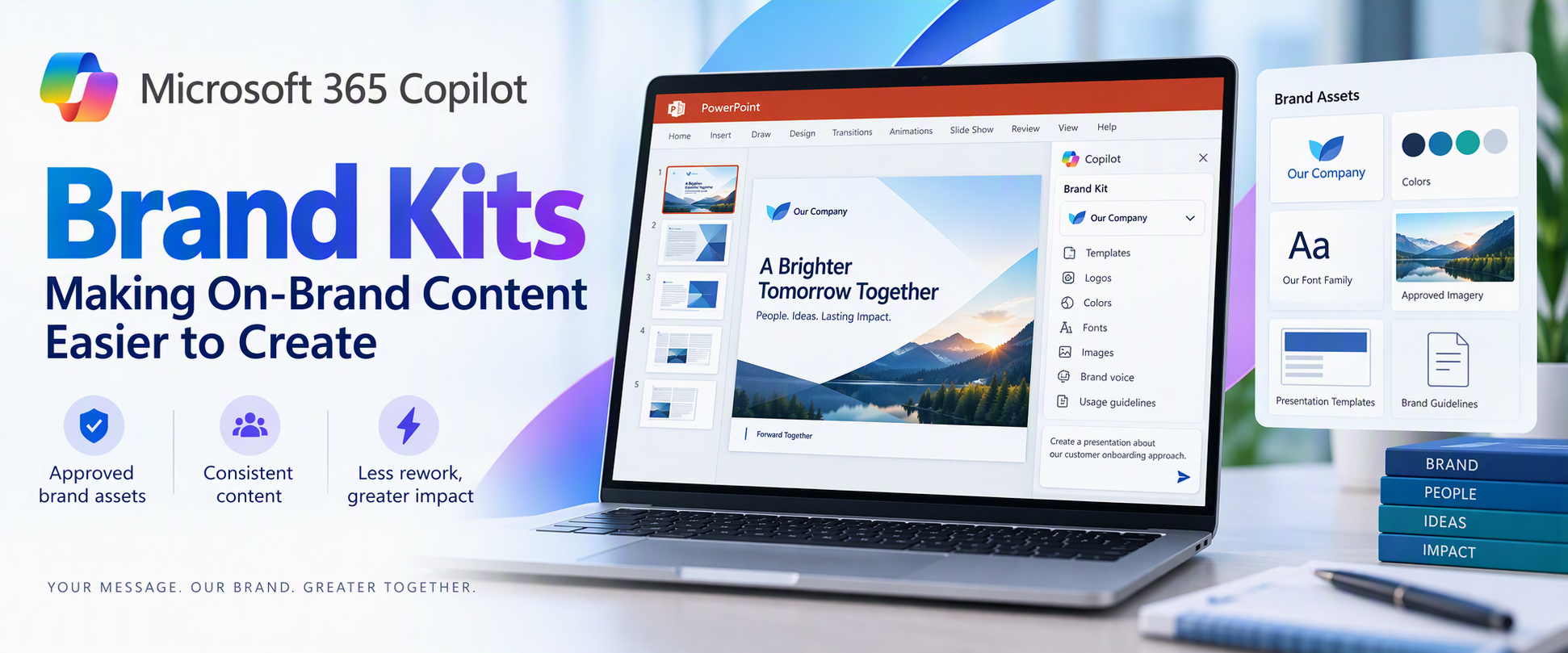
Microsoft 365 Copilot Brand Kits bring approved brand assets and guidance into the content creation experience. Employees gain a clearer starting point, while brand managers and IT can control which organizational branding is available and who can manage it.
The opportunity is straightforward: make approved branding easier to use, reduce avoidable rework, and help people focus on what they want to communicate.
This article explains what Brand Kits include, how personal, shared, and official kits differ, how templates and organizational asset libraries affect PowerPoint results, and what administrators should configure before a pilot. Readers who are evaluating the experience can begin with the PowerPoint and template sections; administrators can start with setup, governance, and storage.
What is a Copilot Brand Kit?
A Brand Kit is a managed collection of approved brand assets and guidance—such as logos, colors, fonts, imagery, templates, and tone—that helps people create content aligned with an organization’s identity. In Microsoft 365 Copilot, Brand Kits provide a consistent starting point for branded content while allowing organizations to control how those assets are created, shared, and published.
A Brand Kit brings together the elements that define an organization’s visual and verbal identity. Depending on how it is configured, that can include:
- Logos: Primary, secondary, and approved variations.
- Colors and fonts: Brand palettes and typography.
- Images and icons: Approved photography, illustrations, and visual assets.
- Templates and layouts: Reusable structures for creating content.
- Brand voice: Guidance on tone, terminology, and communication style.
- Usage guidelines: Rules for how brand elements should—and should not—be used.
These elements help connect content creation to the organization’s standards rather than leaving each employee to assemble their own interpretation.
For organizations with multiple brands, business units, or product identities, separate kits can help keep the right assets associated with the right content.
Think of a Brand Kit as a managed starting point, not a guarantee that every generated result will be publication-ready.
Personal, shared, and official: Understanding the three kit types
Brand Kits support three different scopes of use.
- Personal Brand Kits: Personal kits are available only to their creator. They support individual work without exposing those assets across the organization. Creation rights still depend on organizational policy. “Personal” describes the kit’s audience—not an exemption from administrative controls.
- Shared Brand Kits: Shared kits make assets available to selected people based on the permissions assigned by the creator. They can support a department, project, or other defined group. Giving someone edit permission on a shared kit does not bypass the organization’s restrictions on who may create or edit kits.
- Official Brand Kits: Official kits are managed by designated brand managers and made available across the tenant. They provide an organization-wide option for approved corporate branding. This distinction matters: a kit shared with a team is not automatically an official organizational kit.
How Brand Kits help in PowerPoint
For PowerPoint, a Brand Kit provides access to approved assets and presentation templates that help guide generated content.
Users can select an available Brand Kit when creating content and ask Copilot to incorporate relevant brand imagery. They can also start from an approved presentation or template.
A practical approach is to:
- Choose the appropriate published Brand Kit.
- Use an approved template suited to the presentation.
- Describe the audience, purpose, and desired structure.
- Generate the content.
- Review the result for accuracy, readability, accessibility, and brand alignment.
Selecting a Brand Kit does not automatically restyle existing slides. If the goal is to update an existing presentation, explicitly request or apply the branding changes.
Copilot supports PowerPoint on Windows, Mac, and the web; availability also depends on licensing and organizational settings.
Your template is as important as your assets
A complete logo library cannot compensate for a weak PowerPoint template.
Templates must show how the organization presents information, not merely define a color palette. Representative slides demonstrate how titles, text, images, charts, and other objects work together in realistic layouts.
Include representative sample slides
You do not need one sample slide for every possible layout. Instead, provide examples that reflect common and specialized presentation needs.
A practical collection might include:
- A title slide and section divider.
- A straightforward content slide.
- An image-led slide.
- A chart or table.
- A process or timeline.
- A summary and next-steps slide.
Choose examples that reflect how people actually communicate in your organization. A sales presentation and a technical briefing may need different patterns.
Make placeholders intentional
Copilot uses placeholder type, position, and size to understand the layout.
Placeholder text is not a hidden instruction channel. Writing “Insert an executive summary here” inside a placeholder does not make that wording a semantic instruction to Copilot.
Use the prompt to explain the communication goal. Use the template to demonstrate the presentation structure.
Prepare for varying amounts of content
Copilot does not resize the font or placeholder when generated text needs more space. Instead, it may add design elements to accommodate the content.
That makes review important. Check for overcrowded slides, awkward text flow, and content that would be clearer if split across multiple slides.
Keep instructions separate where possible
Instructional slides can remain when they use reusable layouts, but mixing template guidance with normal presentation content can produce unintended results.
A better practice is to keep reusable sample slides focused on the desired output and maintain detailed authoring instructions separately.
Both .pptx and .potx files are supported as Brand Kit templates.
Administrative setup
Microsoft’s setup guidance directs administrators to configure the brand manager policy in the Microsoft 365 Apps admin center (config.office.com) using a tenant-wide policy and the designated security group. The setting appears as Elevated role for Brand Managers.
Allow up to 24 hours for policy changes to take effect before treating a missing capability as a configuration failure.
Restricting kit creation does not prevent users from accessing and using published official kits.
Group membership matters
Official editing and publishing rights are granted to members of the configured mail-enabled security group.
Being a group owner is not enough. If an owner also needs to manage official Brand Kits, ensure that person is a member as well.
Governance: Two permission checks, not one
One of the most important administrative details is the relationship between two controls:
- Restrict brand kit creation governs who can create and edit kits.
- Enterprise Brand Manager governs publishing and management of official kits.
When creation restrictions are enabled, a user needs the appropriate permissions under both controls to create and publish an official kit.
For example, a person with Enterprise Brand Manager rights who is not in the permitted creation group cannot create or edit kits under that restriction.
Conversely, someone allowed to create kits does not automatically have permission to publish an official kit.
Storage and organizational asset libraries
The implementation guidance supplied with this article describes Brand Kit data as stored in SharePoint Embedded containers:
- Personal and shared kits use user-based containers.
- Official kits use the official Brand Kit container.
Organizations should verify which governance, labeling, retention, and access controls apply to their SharePoint Embedded containers and configuration. SharePoint Embedded storage does not by itself establish that every policy used for a conventional SharePoint site applies in the same way.
An organizational asset library, or OAL, has a related but different role.
An OAL can hold approved assets that a Brand Kit references. This lets organizations reuse an established asset collection rather than treating every kit as a separate collection of uploaded files.
For PowerPoint, the important distinction is:
In PowerPoint, users select the published Brand Kit, while the organizational asset library can supply assets referenced by that kit.
Referencing assets also makes source accessibility important. If an asset cannot be found, check that the referenced OAL content remains accessible. Uploading the asset into the kit may be an alternative where appropriate.
A practical way to get started
Start with a focused pilot rather than loading every brand asset your organization owns into the first kit.
-
Choose one presentation scenario
Select a common use case, such as customer updates, internal briefings, or project reviews.
This gives the team a concrete way to assess whether generated content meets real needs.
- Agree on ownership
Identify who approves the assets, who maintains the template, who publishes the kit, and who manages the supporting permissions.
A clear owner makes it easier to keep the kit current after launch.
- Prepare the template
Review sample slides, placeholders, theme colors, fonts, and reusable layouts.
Remove outdated examples and separate instructional material from production-ready samples where possible.
- Assemble the assets and guidance
Include the approved logos, imagery, colors, fonts, and brand guidance needed for the pilot.
Use compatible asset formats and sensibly sized images. Avoid unnecessarily large files—particularly images over 10 MB—as a performance precaution, not as a stated product upload limit.
- Configure permissions and publish
Confirm both creation/editing permissions and official publishing rights.
Check actual group membership rather than assuming that ownership or another administrative role provides access.
- Test with realistic prompts
Evaluate more than whether the logo appears. Check layout selection, content density, imagery, readability, tone, and factual accuracy.
Use the results to improve the kit and template before expanding adoption.
An example prompt
After selecting the appropriate Brand Kit, try a prompt such as:
Create a presentation introducing our proposed customer onboarding approach to business stakeholders. Use the selected Brand Kit and its approved presentation template. Include the business problem, proposed approach, implementation stages, responsibilities, and next steps. Keep each slide focused on one main idea, use approved brand imagery where relevant, and add speaker notes. Do not invent metrics or customer examples; identify any missing information.
The prompt explains the audience, purpose, and structure. The selected kit supplies the approved brand context.
Four reliable ways to apply branding
Choose the method that matches the task: use the organization theme for standard defaults, begin with a seed file when the presentation needs established structure, apply a named theme when that theme is available, or select a brand directly in PowerPoint.
Frequently asked questions
Do we need a sample slide for every layout?
No. Prioritize representative examples across the slide types and specialized scenarios your organization actually uses.
Can placeholder text tell Copilot what to generate?
Not as semantic guidance. Placeholder type, position, and size inform layout; placeholder wording can influence styling but is not treated as an instruction.
What happens when text does not fit?
Copilot does not change the font size or placeholder size. It may add design elements. Review the result and simplify or split content where needed.
Which template formats are supported?
Both .pptx and .potx.
Can instructional slides stay in the template?
They can, when they use reusable layouts. However, keeping instructions separate reduces the risk of guidance appearing as presentation content.
Can existing OAL assets be used?
Yes. A Brand Kit can reference approved OAL assets. For PowerPoint Brand Kit selection, publish the kit rather than relying on the OAL alone.
Why can a brand manager not create or publish an official kit?
Check both permission controls. When creation restrictions are enabled, Enterprise Brand Manager rights alone are insufficient if the person is outside the permitted creation group.
Also confirm that the person is a member, not only an owner, of the relevant group.
Does selecting a kit update an existing presentation?
No. Explicitly request or apply branding to existing slides.
What should we check when assets are missing?
Confirm that the kit is published, the expected assets are included, and referenced OAL content is accessible. Where appropriate, upload the assets directly into the kit.
What most affects the quality of the output?
The completeness of the kit and the quality of its template—especially representative sample slides, usable placeholders, and consistent theme settings.
The bottom Line
Microsoft 365 Copilot Brand Kits can make approved branding easier to use in everyday content creation.
The strongest approach combines three things: a well-prepared kit, a well-designed template, and clear ownership.
Start with a focused scenario, test realistic output, and refine the underlying assets and guidance. Human review remains essential, but a stronger starting point lets people spend less time correcting formatting and more time communicating clearly.
References
Create and manage official Brand kits in the Microsoft Copilot app | Microsoft Support
Edit with Copilot in PowerPoint | Microsoft Support
Use branded templates in the Microsoft Copilot app | Microsoft Support
Enterprise brand manager policy setup | Microsoft Learn
Set Up the Restrict Brand Kit Creation Policy in Microsoft Copilot | Microsoft Learn
Keep your presentation on-brand with Copilot | Microsoft Support

 Microsoft

