modern authentication
49 TopicsBest practices for securing Microsoft Intune
Microsoft Intune gives IT and security teams a powerful way to manage endpoints at scale - deploying apps, enforcing security baselines, and configuring the settings that keep users productive and your organization protected. That’s why strong admin protections matter, so the right people can make the right changes, in the right scope, with the right safeguards. In this post, we’ll walk through three practical approaches to strengthen Intune protections: Start with least-privilege, designing roles around real admin jobs Embrace phishing-resistant authentication and privileged access hygiene, leveraging Microsoft Entra capabilities to reduce account and token compromise Enable Multi Admin Approval in Intune for sensitive changes Below we outline how to put each approach into practice. 1) Start with least-privilege: design roles around real admin jobs Least-privilege works best when it’s grounded in how your team operates. As a best practice, don’t grant more administrative access than a role truly needs. In Intune, role-based access control (RBAC) lets you tailor permissions and scopes so teams can run day-to-day operations with the minimum set of permissions required, nothing more. Microsoft Entra ID roles that have access to Intune, such as Global Administrator and Intune Administrator, are considered privileged roles with broad permissions in Intune. The use and assignment of privileged roles should be limited and not used for daily administrative tasks within Intune. Least-privilege is about limiting both the actions an admin can take and the users/devices those actions can be applied to. In Intune RBAC, scope tags enable you to constrain an admin’s visibility and actions to a defined set of users and devices - for example, only the devices assigned to a specific region, business unit, or platform team. When implementing RBAC policies, limit both the actions and users/devices an admin has permissions over. Call to action: Treat Intune administration as a set of job-specific roles, not a blanket entitlement. Inventory who has Intune Administrator, Global Administrator, or other high-impact roles, then remove broad assignments that don’t map to a named job function. Leverage Intune built-in role definitions for common personas (Help Desk Operator, Application Manager, Endpoint Security Manager, Read Only Operator) and standardize assignments. Create custom roles for ultimate least-privilege control. Implement scoped administration (scope groups and scope tags) for business units, regions, or platform teams, and validate that admins can only affect resources within their assigned scope. Adopt time-bound privilege elevation such as Microsoft Entra Privileged Identity Management (PIM) for admin roles and require reauthentication on elevation and sensitive operations. 2) Embrace phishing-resistant authentication and privileged access hygiene The security objective is straightforward: privileged access should be hard to obtain and hard to reuse. Microsoft Entra ID capabilities (Conditional Access, phishing-resistant multifactor authentication (MFA), risk signals, and privileged access controls) provide the policy engine that governs who can administer Intune, from where, and under what conditions. Call to action: Every privileged Intune action (Intune RBAC Role Management, device wipe, script deployment) should require strong, policy-verified sign-in, not just a password. Create Conditional Access policies dedicated to privileged roles and admin portals (Intune, Microsoft Entra, and related admin endpoints): require phishing-resistant authentication only, require a compliant device, challenge high-risk users or sign-ins, and restrict access by location or trusted network where feasible. Reduce or eliminate policy exclusions. Eliminate standing access by using Microsoft Entra Privileged Identity Management to assign time-bound roles based on conditions and approval steps, including restricting access to who can administer and assign permissions to apps. Move privileged accounts to phishing-resistant authentication methods and disable weaker methods for those accounts and through policy (see Plan a phishing-resistant passwordless authentication deployment). Establish privilege admin workstations with higher security baselines and use them for Intune high privilege admin accounts. Operationalize your token theft response plan by investigating risky sign-ins and unusual admin activity in Microsoft Defender XDR with signals from Microsoft Entra, Microsoft Defender for Cloud Apps, and Microsoft Defender for Endpoints. Adopt a defense‑in‑depth strategy to reduce the risk and impact of token theft (see Protecting tokens in Microsoft Entra). 3) Multi-admin approval in Intune for sensitive changes Multi Admin Approval introduces a practical governance control: selected Intune changes require a second authorized admin to review and approve before deployment. This is enforced for both Intune admin center actions and actions performed through Intune APIs. Multi Admin Approval reduces the risk that a single action can result in tenant-wide impact. Call to action: Require a second approval for high-impact Intune workflows (such as Intune RBAC role management, device wipe, and script deployment) to add an additional safeguard and help contain potential tenant wide impact. Decide which change types require approval - start with high-impact changes such as Intune RBAC role management and device wipe. Then, add access policies for changes that affect authentication, compliance, security baselines, or broad assignment scopes. Define approver roles and coverage (who can approve, SLAs, and what happens during incidents). Document an emergency/break-glass path with explicit post-change review, so speed doesn’t erase governance. How these measures add up to strong administrative protections When combined, these practices help you shift from relying on “trusted administrators” toward building a more protected administration by design: least-privilege to contain impact, Microsoft Entra-based controls to ensure users are trusted and are who they say they are, and multi-admin approval to govern the changes that matter most. These practices help organizations advance safer speed, clearer separation of duties, stronger audit readiness, and more resilient endpoint operations. If you’re looking for a place to start, here are a few quick steps: start with a quick wins pass - inventory broad, standing Intune role assignments and replace them with least-privilege RBAC roles; enforce Conditional Access and adopt phishing-resistant multifactor authentication for all admin scenarios; and place Intune RBAC role management, device wipe, script deployment behind multi-admin approval.81KViews13likes0CommentsSetup Assistant with modern authentication for ADE - Intune Public Preview
We’re excited to announce support for a new authentication method for Apple's Automated Device Enrollment (ADE) which is Setup Assistant with modern authentication in public preview in Microsoft Endpoint Manager!62KViews3likes45CommentsUpcoming changes to iOS/iPadOS Company Portal app deployment for Setup Assistant with modern auth
Learn more about plans to remove automatic deployment of the iOS/iPadOS Company Portal app as a required app for Automated Device Enrollment (ADE) Setup Assistant with modern authentication enrollment profiles.34KViews4likes39CommentsHybrid Modern Auth for SfB and Exchange goes GA!
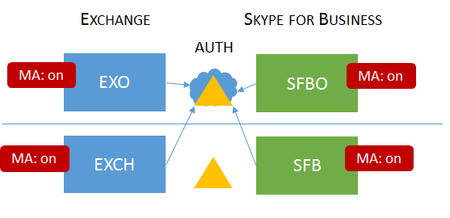
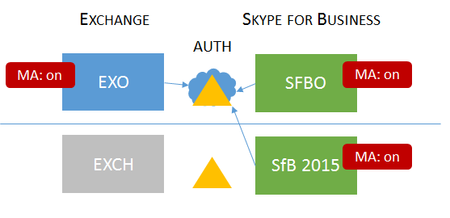
Today, I am very happy to announce General Availability (GA) for Hybrid Modern Authentication (HMA) for Skype for Business and Exchange. This is a major milestone in our Modern Authentication journey. This will enable customers to use Modern Auth enabled security features such as Multi Factor Authentication (MFA), Cert Based Authentication (CBA), AAD Conditional Access (CA) and Intune Mobile Application Management (MAM) for all their users, both those homed online as well as those homed onprem. Here is a visual of the topology: This design requires you to use Azure Active Directory as the authorization server for your onprem SfB and onprem Exchange deployments (note the blue arrow from SfB onprem and Exchange onprem to AUTH in the cloud). The prerequisites and instructions to enable HMA can be found here: https://aka.ms/ModernAuthOverview Updated list of SfB MA Supported Topologies is here: Skype for Business topologies supported with Modern Authentication Also, two of my colleagues have published their own excellent blogs on this topic. Announcing Hybrid Modern Authentication for Exchange On-Premises Hybrid Modern Authentication for Skype for Business20KViews8likes4CommentsWindows Hello for Business 0x80090010 NTE_PERM
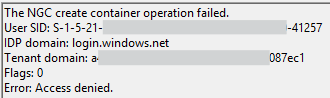
Hi all, I'm encountering an issue with Windows Hello for Business on the latest version of Windows (July 2025 update). The setup process fails during initialisation, and no biometric or PIN options are being provisioned for the user. Environment: Windows version: 11 24H2 Enterprise (latest update) Deployment mode: Hybrid Cloud Trust Hybrid joined devices Symptoms: Users are prompted to set up WHfB but the process fails at the last step with error 0x80090010 Users who already have WHfB authentication methods created can successfully login Event ID 311 & 303 in the User Device Registration logs Screenshots: Troubleshooting so far: Unjoined and rejoined to Entra ID Granted modify permissions on folder in which NGC container would be created Rolled back to June 2025 update (this worked) So it seems like this is caused or related to the latest Windows Update, which is rather unfortunate for us as we are just beginning to rollout WHfB for our organisation. I'm posting here to raise awareness of the issue, if there is a more appropriate place to post then please suggest.17KViews6likes18CommentsSfB Server Now Supports Blocking NTLM Externally
I am happy to announce that with the CU7 version of SFB Server 2015, we have added the ability to block external NTLM traffic. This, along with the use of Cert Based Authentication, will allow you to protect your SFB servers from external DOS attacks using username/passwords. Let me explain. SfB server allows the following protocols that all accept username/passwords – NTLM, Forms Based Auth and Modern Authentication. In order to combat the DOS attacks, you have to shut down all the external ways that allow username/password. With the new Get/Set-CsAuthConfig cmdlets in CU7, you can shut down NTLM and Forms Based Auth externally. Then, you configure your servers to only accept Certificate Based Auth externally. (NOTE: You need Modern Authentication to use CBA.) Now all the username/password doors are shut and your users use CBA to get in externally. Here is an article that explains the details: Turn off Legacy authentication methods internally and externally to your network.9.8KViews3likes15CommentsSfB Hybrid Modern Auth w/ EXO goes Public Preview
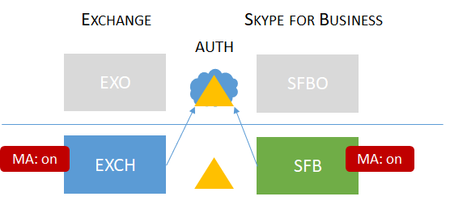
Last week at Microsoft Ignite, we announced that Modern Authentication for Skype for Business server has gone to Public Preview. This means that the following topologies are now supported in Public Preview. Note: the grayed out boxes mean they do not exist in the deployment. These configurations will enable customers to use Modern Auth enabled security features such as Multi Factor Authentication (MFA), Cert Based Authentication (CBA), Conditional Access (CA) and Mobile Application Management (MAM) for users who are homed onprem as well as those homed in the cloud. Both of these topologies require you to use Azure Active Directory as the authorization server for your onprem SfB deployment (note the blue arrow from SfB onprem to AUTH in the cloud). To see the full list of pre-requisites and to join “Hybrid Modern Authentication - w/ Exchange Online” Public Preview, please go to http://aka.ms/skypepreview .7.9KViews4likes9Comments
401 Error using PnP PowerShell in Azure Runbooks
Trying to get PnP PowerShell cmdlets to work within an Azure Runbook with modern authentication (no username/password). I tried registering an Azure AD app and a Service Principal (Run as account) from the automation account that hosts the Runbook. Both use a certificate thumbprint and authorization itself doesn't throw an error. Here's the code I'm using: $connection = Get-AutomationConnection –Name "AzureRunAsConnection" $tenant = '[tenant].onmicrosoft.com' $url = 'https://[tenant].sharepoint.com/sites/test' Connect-PnPOnline -Url $url –Thumbprint $connection.CertificateThumbprint –ClientId $connection.ApplicationID -Tenant $tenant For every PnP cmdlet this throws the following error. Get-PnPTenantSite : The remote server returned an error: (401) Unauthorized. At line:7 char:1 + Get-PnPTenantSite + ~~~~~~~~~~~~~~~~~ + CategoryInfo : NotSpecified: (:) [Get-PnPTenantSite], WebException + FullyQualifiedErrorId : System.Net.WebException,PnP.PowerShell.Commands.GetTenantSite I have also updated the cmdlets from SharePointPnPPowerShellOnline to the newest PnP.PowerShell. Furthermore, the Azure app and service principal are members of the SharePoint administrators group. When I attempt to reproduce the issue on a local machine I get the same 401 error. Any ideas? Thanks!Solved7.7KViews0likes3Comments