microsoftentra
4 Topics
Agent365: The Identity-First Control Plane for Scalable AI Agents
As organizations move from AI experimentation to enterprise-scale adoption, AI agents are increasingly becoming persistent actors within the digital environment accessing data, invoking APIs, and executing workflows autonomously. This shift introduces a new governance challenge: How do organizations ensure visibility, control and security as the number of agents scales across cloud, SaaS and endpoint environments? Microsoft Agent365 addresses this challenge by introducing a control plane for AI agents, built on Microsoft Entra, that enables organizations to manage agents using the same identity-driven approach applied to users and applications. Why Identity Becomes Foundational for Agent Governance In traditional enterprise systems, identity platforms were designed to manage: Human identities Application identities Service principals With the introduction of Agent365, this model expands to include AI agents as first-class identities. Each agent is assigned a unique identity in Microsoft Entra, enabling consistent authentication, authorization, and lifecycle management. This approach allows organizations to: Apply policy-based access controls to agents Enforce least privilege access models Integrate agents into existing IAM and Zero Trust frameworks As highlighted in recent partner perspectives, identity is evolving from a supporting capability to a centralized control plane for AI governance. Managing Agent Sprawl with a Unified Control Plane As AI agents proliferate across business units, organizations often face challenges such as: Limited visibility into deployed agents Inconsistent ownership and lifecycle management Over-permissioned or unmanaged access to data Increased operational and security risks Agent365 addresses these challenges through a unified control plane that enables organizations to: Discover and inventory agents across the environment Apply governance policies consistently Secure agent interactions and data access This aligns with Microsoft’s broader approach to enable organizations to observe, govern, and secure AI workloads at scale. Agents as Managed Identities in Microsoft Entra One of the core innovations of Agent365 is the introduction of Entra Agent ID, which treats agents as managed identities within the directory. This enables organizations to manage agents using familiar identity capabilities, including: Conditional Access Role-based and attribute-based access control (RBAC/ABAC) Identity governance workflows (e.g., access reviews, lifecycle policies) Audit and compliance monitoring By aligning agent governance with identity, organizations can extend existing security controls without introducing separate governance silos. Architecture Overview: Identity-Centric Control Plane Agent365 integrates across Microsoft’s security and compliance ecosystem to provide a layered governance model: Identity Layer (Control Plane Foundation) Microsoft Entra ID for Agents Identity governance and lifecycle controls Conditional access enforcement Governance Layer Centralized agent registry (inventory of agents) Ownership and accountability tracking Policy enforcement across agent lifecycle Security and Compliance Layer Microsoft Defender for threat detection and behavior monitoring Microsoft Purview for data protection and compliance Integration with Zero Trust architecture Observability Layer Unified telemetry and dashboards Monitoring of agent activities and interactions Agent365 brings these capabilities together into a centralized experience within Microsoft 365, enabling consistent control across heterogeneous agent ecosystems. Extending Zero Trust Principles to AI Agents As agents operate autonomously and interact with multiple systems, extending Zero Trust principles becomes essential. Agent365 allows organizations to apply: Continuous verification of agent identity Least privilege access enforcement Real-time monitoring and anomaly detection This ensures that agents operate within defined boundaries, reducing the risk of unintended actions or data exposure, while enabling secure scaling of AI adoption. Key Capabilities Supporting Identity as the Control Plane Agent365 enables identity-driven governance through a set of core capabilities: Agent Registry Provides a centralized inventory and visibility across all agents Access Control Enables policy-based and conditional access through Microsoft Entra Lifecycle Management Supports provisioning, updates, and decommissioning of agents Security and Compliance Integration Extends Defender and Purview capabilities to agent workflows Cross-platform Support Enables governance across Microsoft, open-source, and third-party agents These capabilities help organizations manage agent ecosystems with the same rigor applied to workforce identities. Key gaps Agent365 will surface Shadow agents More agents exist than you think built across Copilot Studio, Power Platform, or third-party tools… but never inventoried. Ownerless agents Agents continue running in production with no clear owner or accountability. Over-permissioned access Agents often inherit excessive privileges far beyond least-privilege intent. No lifecycle governance No expiry, no reviews, no retirement. Agents accumulate over time. Untracked multi-agent workflows Agent-to-agent interactions lack complete audit trails. Data exposure via agents Agents amplify existing oversharing risks across enterprise data. Identity & access gaps Traditional conditional access wasn’t designed for autonomous, non-human identities. And in most enterprises, the true scale of these gaps is often underestimated. Enabling Secure and Scalable Agentic AI Organizations are increasingly recognizing that scaling AI is not just about deploying agents, but about ensuring control, visibility and compliance across their operations. Agent365 provides a framework to: Bring agents under a common governance model Align AI operations with enterprise identity architecture Reduce risks associated with unmanaged automation By anchoring agents within Microsoft Entra, enterprises can leverage existing investments in identity, security and compliance to support AI at scale. Conclusion The transition to agentic AI introduces a new category of identity within the enterprise. With Agent365, Microsoft establishes identity as the foundational control plane enabling organizations to manage AI agents as governed, auditable and secure entities. As enterprises continue to adopt AI, this approach ensures that innovation can scale while maintaining the control, trust and compliance required in modern digital environments.900Views1like0CommentsUnderstanding Microsoft Entra ID Group Membership Caching and Azure SQL Authentication Timing
Contributor: hudajazmawi Executive Summary Organizations frequently use Microsoft Entra ID groups to manage access to Azure SQL databases. This approach simplifies administration, improves security, and supports just-in-time access models. In some scenarios, users may experience temporary authentication failures shortly after being granted access through a Microsoft Entra ID group. These failures can appear inconsistent, especially when access succeeds to one database while failing against another. Understanding how group membership caching works during authentication can help explain this behavior and reduce unnecessary troubleshooting efforts. This article explains a real-world scenario involving temporary authentication failures after group assignment, describes the underlying authentication behavior, and provides practical recommendations for validation and mitigation. Issue Description A user was granted access to Azure SQL through membership in a Microsoft Entra ID group. Shortly afterward, the user attempted to connect using Microsoft Entra authentication. The observed behavior was: Authentication to certain databases succeeded immediately. Authentication to other databases failed temporarily. The issue appeared shortly after the group membership was granted. Access eventually began working without any configuration changes. The behavior resolved after a period of time without additional intervention. At first glance, the results appeared inconsistent because some connection attempts were successful while others failed, even though the same user credentials and group assignments were being used. Technical Background Azure SQL supports Microsoft Entra authentication, allowing access to be granted through users, groups, and service principals managed within Microsoft Entra ID. When a user authenticates, Azure SQL must determine the user's effective permissions. For users who belong to many Microsoft Entra groups, membership information may be cached to improve authentication efficiency and reduce repeated directory lookups. Caching is a common design pattern used throughout distributed systems to improve performance, scalability, and reliability. However, because caches contain information retrieved at a specific point in time, there can be a temporary delay before recently changed security information becomes visible to all authentication requests. This behavior is particularly important to understand when organizations use: Just-in-time access workflows Privileged access management processes Temporary group assignments Automated access provisioning Frequent permission validation testing Root Cause The investigation determined that the authentication failures were caused by Microsoft Entra ID group membership caching. A login attempt occurred before the user was added to the required Microsoft Entra ID group. During that earlier authentication attempt, the user's group memberships were retrieved and cached. After the user was added to the required group, subsequent authentication attempts continued using the previously cached membership information until the cache expired. As a result, authentication requests temporarily evaluated permissions using outdated group membership data. Because the newly assigned group membership had not yet been reflected in the cached information, authentication failed even though access had already been granted. Once the cached membership information expired and fresh group membership data was retrieved, authentication succeeded without any additional configuration changes. Detailed Explanation To understand the behavior, consider the following simplified sequence: Step 1: Initial Authentication A user attempts to connect to Azure SQL before being added to the required Microsoft Entra ID group. During this process: The user's current group memberships are evaluated. Membership information is cached. The required access group is not yet present. Authentication behavior reflects the permissions available at that moment. Step 2: Group Membership Change The user is added to the appropriate Microsoft Entra ID group. From an administrative perspective, the access assignment has been completed successfully. However, any previously cached authentication information may still reflect the user's earlier membership state. Step 3: Immediate Retesting The user immediately attempts another connection. Although the directory now contains the new group membership, the authentication process may still reference cached membership information created before the change occurred. The result can be a temporary authentication failure. Step 4: Cache Expiration After the cached data expires or is refreshed, authentication retrieves updated membership information. The newly assigned group is now visible during authorization evaluation. At this point, authentication succeeds as expected. Why Some Databases May Behave Differently One of the most confusing aspects of these scenarios is that different databases may appear to behave differently even when they use identical group assignment models. This typically occurs because authentication state and cache usage can differ depending on the sequence and timing of connection attempts. For example: Database A may be accessed for the first time after the group assignment occurs. Database B may have received a connection attempt before the group assignment occurred. As a result: Database A may evaluate fresh membership information and allow access. Database B may continue referencing previously cached membership information until the cache expires. This can create the appearance of inconsistent behavior even though the system is operating as designed. Mitigation and Recommendations The following practices can help reduce the likelihood of encountering similar authentication timing scenarios. 1. Assign Access Before Testing Whenever possible, add users to the required Microsoft Entra ID groups before any authentication attempts are made against Azure SQL resources. This helps ensure that fresh membership information is used during the first authentication request. 2. Avoid Immediate Validation After Permission Changes If a user has recently been granted group-based access, consider allowing time for authentication cache refresh behavior before conducting validation testing. Immediate testing can sometimes produce results based on older membership information. 3. Plan for Temporary Authentication Delays Organizations implementing just-in-time access should account for the possibility of short propagation and cache refresh intervals when designing operational procedures. 4. Use DBCC FLUSHAUTHCACHE When Appropriate For controlled testing and validation scenarios, administrators may use: DBCC FLUSHAUTHCACHE; DBCC FLUSHAUTHCACHE; This command can help refresh authentication cache behavior during troubleshooting and validation activities. As with any administrative operation, testing should be performed according to organizational change-management procedures. 5. Capture Precise Timing Information When investigating authentication behavior, collecting exact timestamps is extremely valuable. Recommended data points include: Time the user was added to the Microsoft Entra ID group Time of each authentication attempt Database target of each connection attempt Time any cache refresh operation was performed Time authentication eventually succeeded Accurate timestamps help establish a clear correlation between group membership changes and authentication behavior. Validation Guidance If you need to verify whether group membership caching is influencing authentication results, consider the following approach: Record the exact time a user is added to the required Microsoft Entra ID group. Record the time of every authentication attempt. Identify whether any login attempts occurred before the group membership change. Observe whether successful authentication occurs after a period of time without configuration changes. Where appropriate, perform controlled tests using authentication cache refresh procedures. Compare authentication outcomes against the timeline of group membership updates. This structured approach often helps determine whether the observed behavior is related to authentication caching rather than a permission configuration issue. Key Takeaways Temporary authentication failures immediately after group-based access assignment do not necessarily indicate a configuration problem. Authentication behavior may be influenced by previously cached Microsoft Entra ID group membership information. Login attempts that occur before a group membership change can affect subsequent authentication behavior until cached data expires. Different databases may appear to behave differently if they are accessed at different points in the authentication timeline. Capturing precise timestamps significantly improves troubleshooting accuracy. Proper testing practices and awareness of cache behavior can reduce confusion and accelerate issue resolution. Closing Summary Microsoft Entra ID group-based authorization provides a powerful and scalable way to manage Azure SQL access. However, like many modern cloud authentication systems, caching is used to optimize performance and improve efficiency. When group memberships change immediately before authentication testing, temporary differences between cached and current membership information may lead to short-lived authentication failures. Understanding this behavior can help administrators accurately interpret results, design effective validation procedures, and avoid unnecessary troubleshooting. By assigning permissions before authentication attempts, allowing appropriate time for cache refresh behavior, and capturing precise timing information during investigations, organizations can more effectively manage Microsoft Entra-based access and streamline their operational workflows. As always, when troubleshooting authentication scenarios, focusing on the exact sequence and timing of events often provides the clearest path to identifying the underlying cause and validating a successful resolution. Further Reading To learn more about Microsoft Entra authentication and Azure SQL security, review the following Microsoft documentation: Microsoft Entra authentication for Azure SQL https://learn.microsoft.com/azure/azure-sql/database/authentication-aad-overview Explains how Microsoft Entra authentication works with Azure SQL and the benefits of group-based access management. DBCC FLUSHAUTHCACHE (Transact-SQL) https://learn.microsoft.com/sql/t-sql/database-console-commands/dbcc-flushauthcache-transact-sql Describes how to clear the database authentication cache and notes that it clears cached Microsoft Entra group membership data stored in the database.300Views0likes0CommentsGetting Started with Azure SQL Data Sync Using User-Assigned Managed Identity (UAMI)
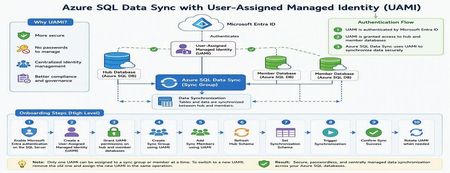
Azure SQL Data Sync is a powerful service that enables data synchronization across multiple Azure SQL Databases. Traditionally, Data Sync relied on SQL Authentication, requiring administrators to manage usernames and passwords for both hub and member databases. With the introduction of User-Assigned Managed Identity (UAMI) support, Azure SQL Data Sync now provides a more secure and modern authentication model built on Microsoft Entra ID. This enhancement reduces credential management overhead, eliminates password storage concerns, and helps organizations strengthen their security posture. In this article, we'll explore how to onboard Azure SQL Data Sync with UAMI, configure the required permissions, create synchronization components, and review best practices for long-term management. Why Use UAMI with Azure SQL Data Sync? User-Assigned Managed Identity offers several advantages over traditional SQL authentication: Eliminates password storage and rotation requirements Reduces credential exposure risks Integrates with Microsoft Entra ID authentication Supports centralized identity management Improves compliance and security posture Simplifies operational maintenance Whether you're deploying a new synchronization topology or modernizing an existing Data Sync environment, UAMI provides a secure cloud-native alternative to password-based authentication. Architecture Overview A typical UAMI-enabled Azure SQL Data Sync deployment looks like this: Authentication Method: Microsoft Entra ID via User-Assigned Managed Identity The same managed identity can be used by Data Sync to authenticate against all participating databases. Prerequisites Before configuring Azure SQL Data Sync with UAMI, ensure the following prerequisites are completed: 1. Enable Microsoft Entra Authentication The Azure SQL Server hosting both Hub and Member databases must have Microsoft Entra authentication enabled and an Entra administrator configured. 2. Create a User-Assigned Managed Identity Create a UAMI within Azure and collect the following information: Managed Identity Name Client ID Resource ID These values will be required during configuration. 3. Install the Required PowerShell Module UAMI support requires the Azure SQL preview PowerShell module: Install-Module Az.Sql -RequiredVersion 6.6.0-preview ` -AllowPrerelease ` -Force ` -AllowClobber Or a later version that includes Data Sync UAMI support. Phase 1: Configure Database Access Before Data Sync can use a managed identity, the identity must be granted access to all databases participating in synchronization. Connect to each Hub and Member database using a Microsoft Entra administrator account and create a user for the managed identity. Example: DECLARE @MSIname SYSNAME = '<UAMI_NAME>'; DECLARE @dbName SYSNAME = DB_NAME(); DECLARE @clientId UNIQUEIDENTIFIER = '<CLIENT_ID>'; -- Create User -- Grant db_datareader -- Grant db_datawriter -- Grant CONTROL permissions The UAMI must be created and granted permissions on every database participating in synchronization. Phase 2: Create the Sync Group After permissions are configured, create the Sync Group using UAMI authentication. Example PowerShell: New-AzSqlSyncGroup ` -ResourceGroupName $resourceGroup ` -ServerName $serverName ` -DatabaseName $hubDatabase ` -Name $syncGroup ` -HubDatabaseAuthenticationType UserAssigned ` -ResourceId $identityResourceId Key Parameters Parameter Description HubDatabaseAuthenticationType Authentication method for Hub Database UserAssigned Enables UAMI authentication ResourceId Full ARM Resource ID of the UAMI Phase 3: Add Sync Members Once the Sync Group is created, add member databases and specify UAMI authentication. Example: New-AzSqlSyncMember ` -ResourceGroupName $resourceGroup ` -ServerName $serverName ` -DatabaseName $hubDatabase ` -SyncGroupName $syncGroup ` -Name $memberName ` -MemberDatabaseAuthenticationType UserAssigned ` -ResourceId $identityResourceId At this stage, both Hub and Member databases are configured to authenticate using the managed identity. Phase 4: Configure Synchronization Refresh Hub Schema Refresh the schema metadata before selecting tables for synchronization. Update-AzSqlSyncSchema ` -ResourceGroupName $resourceGroup ` -ServerName $serverName ` -DatabaseName $hubDatabase ` -SyncGroupName $syncGroup Configure the Synchronization Schema Data Sync requires an explicit schema definition specifying which tables and columns will participate in synchronization. Example schema: { "Tables": [ { "QuotedName": "[dbo].[contacts]", "Columns": [ { "QuotedName": "[id]" }, { "QuotedName": "[name]" } ] } ] } Apply the schema: Update-AzSqlSyncGroup ` -ResourceGroupName $resourceGroup ` -ServerName $serverName ` -DatabaseName $hubDatabase ` -Name $syncGroup ` -HubDatabaseAuthenticationType UserAssigned ` -ResourceId $identityResourceId ` -SchemaFile "C:\schema.json" Trigger Synchronization After configuration is complete, trigger the initial synchronization. Start-AzSqlSyncGroupSync ` -ResourceGroupName $resourceGroup ` -ServerName $serverName ` -DatabaseName $hubDatabase ` -SyncGroupName $syncGroup Phase 5: Rotating UAMIs Over time, organizations may need to replace an existing managed identity. UAMI_v1 → UAMI_v2 Only one UAMI can be assigned to a Sync Group or Sync Member at a time. To rotate identities: Grant required database permissions to the new UAMI. Remove the current UAMI. Assign the new UAMI in the same operation. Update Sync Group Update-AzSqlSyncGroup ` -HubDatabaseAuthenticationType UserAssigned ` -ResourceId $newUamiResourceId ` -RemoveIdentityResourceId $oldUamiResourceId Update Sync Member Update-AzSqlSyncMember ` -MemberDatabaseAuthenticationType UserAssigned ` -ResourceId $newUamiResourceId ` -RemoveIdentityResourceId $oldUamiResourceId Common Pitfalls During implementation, the following issues are commonly encountered: Pitfall #1: Missing Entra Administrator If the SQL Server does not have an Entra administrator configured, UAMI authentication will fail. Pitfall #2: Missing Database Permissions The managed identity must be created and granted permissions in every participating database. Pitfall #3: Multiple UAMIs Assigned Azure SQL Data Sync supports only one UAMI per Sync Group or Sync Member at a time. Pitfall #4: Identity Included During PATCH Updates When updating schemas through REST APIs, avoid re-submitting the identity block if the managed identity is already assigned. This may result in a DataSyncMultipleIdentities error. Validation Checklist Before moving to production, verify the following: Microsoft Entra administrator configured UAMI created successfully UAMI user created in all Hub and Member databases Required permissions granted Sync Group configured with UserAssigned authentication Sync Members configured with UserAssigned authentication Schema refreshed successfully Synchronization schema applied Initial synchronization completed successfully Data synchronized correctly between Hub and Member databases Best Practices For secure and scalable deployments: Prefer UAMI over SQL Authentication for new deployments. Use dedicated managed identities for Data Sync workloads. Follow least-privilege access principles where possible. Test configuration changes in non-production environments first. Maintain documentation for identity ownership and rotation procedures. Monitor synchronization health after identity updates. Standardize naming conventions for managed identities. References The following Microsoft resources provide additional details for implementing Azure SQL Data Sync with User-Assigned Managed Identities: 1. Configure Microsoft Entra Authentication for Azure SQL Database Configure an Entra administrator for Azure SQL Database, which is a prerequisite for UAMI-based authentication. https://learn.microsoft.com/azure/azure-sql/database/authentication-aad-configure 2. Manage User-Assigned Managed Identities Learn how to create and manage User-Assigned Managed Identities in Azure. Managed identities eliminate the need to manage credentials in code and can be reused across multiple Azure resources. Manage user-assigned managed identities using the Azure portal explains the process and prerequisites. [Manage use...soft Learn | Learn.Microsoft.com] 3. Connect to Azure SQL Using Microsoft Entra Authentication Configure and validate Entra-based connectivity for Azure SQL Database before granting permissions to the managed identity. https://learn.microsoft.com/azure/azure-sql/database/authentication-microsoft-entra-connect-to-azure-sql 4. Azure SQL Data Sync PowerShell Documentation Review PowerShell cmdlets used to create Sync Groups, Sync Members, refresh schemas, and trigger synchronization. 5. Azure SQL REST API Documentation Use REST APIs for automation and Infrastructure-as-Code deployment scenarios involving Azure SQL Data Sync. Conclusion User-Assigned Managed Identity support represents a significant security enhancement for Azure SQL Data Sync. By eliminating dependency on stored credentials and leveraging Microsoft Entra authentication, organizations can improve security, simplify operations, and reduce administrative overhead. Whether you're building a new synchronization topology or migrating from SQL Authentication, UAMI provides a modern, scalable, and cloud-native authentication model for Azure SQL Data Sync. As cloud environments continue to adopt identity-first security practices, implementing UAMI for Azure SQL Data Sync is an important step toward a more secure and manageable data platform.200Views0likes0CommentsKickstart Conditional Access in Microsoft Entra: Free Starter Pack with Policies & Automation
Introduction Conditional Access (CA) is the backbone of Zero Trust in Microsoft Entra ID. It helps you enforce security without compromising productivity. But rolling out CA can feel risky what if you lock out admins or break apps? To make this easier, I’ve created a free starter pack with: Ready-to-use policy templates (JSON) PowerShell scripts for deployment via Microsoft Graph GitHub Actions workflow for automation Safe rollout strategy using report-only mode Why This Matters Block legacy authentication to reduce attack surface. Require MFA for admins to protect privileged accounts. Handle high-risk sign-ins with compliant device + MFA. Validate impact before enforcing using report-only mode. What’s Inside the Starter Pack ✔ Policies Block legacy authentication Require MFA for admin roles High-risk sign-ins → compliant device + MFA Safety-net report-only baseline ✔ Scripts Deploy policies (deploy-conditional-access.ps1) Export existing policies Toggle report-only mode ✔ Automation GitHub Actions workflow for CI/CD deployment ✔ Docs Usage guide Safe rollout checklist How to Use It Download the repo: GitHub Repo: https://github.com/soaeb7007/entra-ca-starter-pack Install Microsoft Graph PowerShell SDK: Install-Module Microsoft.Graph -Scope CurrentUser Connect-MgGraph -Scopes 'Policy.ReadWrite.ConditionalAccess','Directory.Read.All' Select-MgProfile -Name beta Deploy policies in report-only mode: ./scripts/deploy-conditional-access.ps1 -PolicyPath ./policies -ReportOnly Validate impact in Sign-in logs before enforcing. Safe Rollout Checklist Exclude break-glass accounts, Start with report-only, Validate for 48–72 hours, Roll out to pilot group before org-wide Next Steps Enable report-only mode for new policies. Explore Conditional Access templates in Entra portal. Watch for my next post: “Optimizing Conditional Access for Performance and Security.” What’s your biggest challenge with Conditional Access? Drop it in the comments, I’ll cover the top 3 in my next post.120Views0likes0Comments