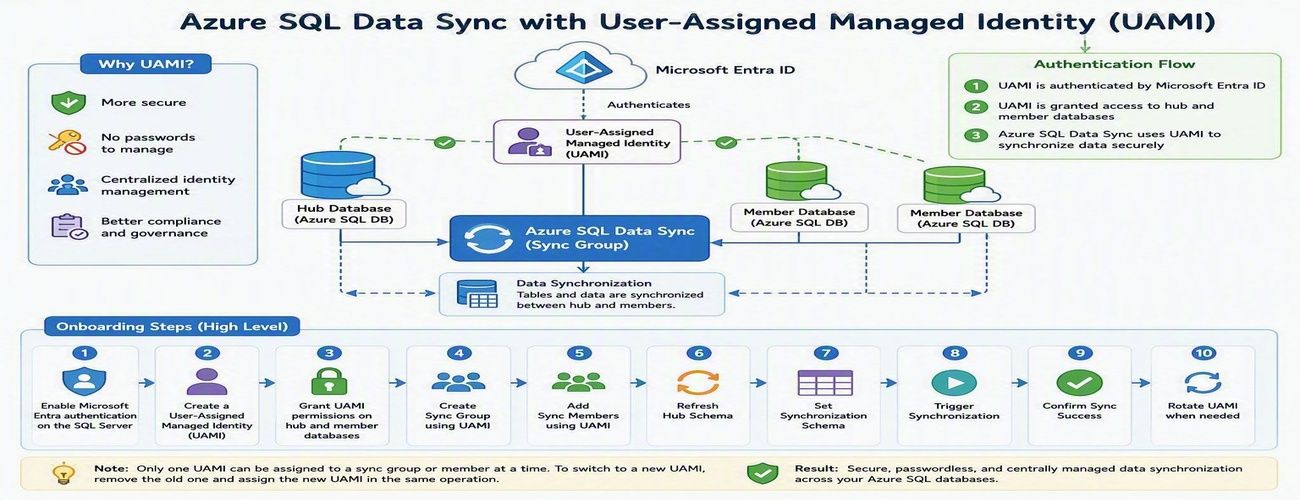
Azure SQL Data Sync is a powerful service that enables data synchronization across multiple Azure SQL Databases. Traditionally, Data Sync relied on SQL Authentication, requiring administrators to manage usernames and passwords for both hub and member databases.
With the introduction of User-Assigned Managed Identity (UAMI) support, Azure SQL Data Sync now provides a more secure and modern authentication model built on Microsoft Entra ID. This enhancement reduces credential management overhead, eliminates password storage concerns, and helps organizations strengthen their security posture.
In this article, we'll explore how to onboard Azure SQL Data Sync with UAMI, configure the required permissions, create synchronization components, and review best practices for long-term management.
Why Use UAMI with Azure SQL Data Sync?
User-Assigned Managed Identity offers several advantages over traditional SQL authentication:
- Eliminates password storage and rotation requirements
- Reduces credential exposure risks
- Integrates with Microsoft Entra ID authentication
- Supports centralized identity management
- Improves compliance and security posture
- Simplifies operational maintenance
Whether you're deploying a new synchronization topology or modernizing an existing Data Sync environment, UAMI provides a secure cloud-native alternative to password-based authentication.
Architecture Overview
A typical UAMI-enabled Azure SQL Data Sync deployment looks like this:
Authentication Method:
Microsoft Entra ID via User-Assigned Managed Identity
The same managed identity can be used by Data Sync to authenticate against all participating databases.
Prerequisites
Before configuring Azure SQL Data Sync with UAMI, ensure the following prerequisites are completed:
1. Enable Microsoft Entra Authentication
The Azure SQL Server hosting both Hub and Member databases must have Microsoft Entra authentication enabled and an Entra administrator configured.
2. Create a User-Assigned Managed Identity
Create a UAMI within Azure and collect the following information:
- Managed Identity Name
- Client ID
- Resource ID
These values will be required during configuration.
3. Install the Required PowerShell Module
UAMI support requires the Azure SQL preview PowerShell module:
Install-Module Az.Sql -RequiredVersion 6.6.0-preview `
-AllowPrerelease `
-Force `
-AllowClobber
Or a later version that includes Data Sync UAMI support.
Phase 1: Configure Database Access
Before Data Sync can use a managed identity, the identity must be granted access to all databases participating in synchronization.
Connect to each Hub and Member database using a Microsoft Entra administrator account and create a user for the managed identity.
Example:
DECLARE @MSIname SYSNAME = '<UAMI_NAME>';
DECLARE @dbName SYSNAME = DB_NAME();
DECLARE @clientId UNIQUEIDENTIFIER = '<CLIENT_ID>';

-- Create User
-- Grant db_datareader
-- Grant db_datawriter
-- Grant CONTROL permissions
The UAMI must be created and granted permissions on every database participating in synchronization.
Phase 2: Create the Sync Group
After permissions are configured, create the Sync Group using UAMI authentication.
Example PowerShell:
New-AzSqlSyncGroup `
-ResourceGroupName $resourceGroup `
-ServerName $serverName `
-DatabaseName $hubDatabase `
-Name $syncGroup `
-HubDatabaseAuthenticationType UserAssigned `
-ResourceId $identityResourceId
Key Parameters
| Parameter | Description |
|---|---|
| HubDatabaseAuthenticationType | Authentication method for Hub Database |
| UserAssigned | Enables UAMI authentication |
| ResourceId | Full ARM Resource ID of the UAMI |
Phase 3: Add Sync Members
Once the Sync Group is created, add member databases and specify UAMI authentication.
Example:
New-AzSqlSyncMember `
-ResourceGroupName $resourceGroup `
-ServerName $serverName `
-DatabaseName $hubDatabase `
-SyncGroupName $syncGroup `
-Name $memberName `
-MemberDatabaseAuthenticationType UserAssigned `
-ResourceId $identityResourceId
At this stage, both Hub and Member databases are configured to authenticate using the managed identity.
Phase 4: Configure Synchronization
Refresh Hub Schema
Refresh the schema metadata before selecting tables for synchronization.
Update-AzSqlSyncSchema `
-ResourceGroupName $resourceGroup `
-ServerName $serverName `
-DatabaseName $hubDatabase `
-SyncGroupName $syncGroup
Configure the Synchronization Schema
Data Sync requires an explicit schema definition specifying which tables and columns will participate in synchronization.
Example schema:
{
  "Tables": [
    {
      "QuotedName": "[dbo].[contacts]",
      "Columns": [
        {
          "QuotedName": "[id]"
        },
        {
          "QuotedName": "[name]"
        }
      ]
    }
  ]
}
Apply the schema:
Update-AzSqlSyncGroup `
-ResourceGroupName $resourceGroup `
-ServerName $serverName `
-DatabaseName $hubDatabase `
-Name $syncGroup `
-HubDatabaseAuthenticationType UserAssigned `
-ResourceId $identityResourceId `
-SchemaFile "C:\schema.json"
Trigger Synchronization
After configuration is complete, trigger the initial synchronization.
Start-AzSqlSyncGroupSync `
-ResourceGroupName $resourceGroup `
-ServerName $serverName `
-DatabaseName $hubDatabase `
-SyncGroupName $syncGroup
Phase 5: Rotating UAMIs
Over time, organizations may need to replace an existing managed identity.
UAMI_v1 → UAMI_v2
Only one UAMI can be assigned to a Sync Group or Sync Member at a time.
To rotate identities:
- Grant required database permissions to the new UAMI.
- Remove the current UAMI.
- Assign the new UAMI in the same operation.
Update Sync Group
Update-AzSqlSyncGroup `
-HubDatabaseAuthenticationType UserAssigned `
-ResourceId $newUamiResourceId `
-RemoveIdentityResourceId $oldUamiResourceId
Update Sync Member
Update-AzSqlSyncMember `
-MemberDatabaseAuthenticationType UserAssigned `
-ResourceId $newUamiResourceId `
-RemoveIdentityResourceId $oldUamiResourceId
Common Pitfalls
During implementation, the following issues are commonly encountered:
Pitfall #1: Missing Entra Administrator
If the SQL Server does not have an Entra administrator configured, UAMI authentication will fail.
Pitfall #2: Missing Database Permissions
The managed identity must be created and granted permissions in every participating database.
Pitfall #3: Multiple UAMIs Assigned
Azure SQL Data Sync supports only one UAMI per Sync Group or Sync Member at a time.
Pitfall #4: Identity Included During PATCH Updates
When updating schemas through REST APIs, avoid re-submitting the identity block if the managed identity is already assigned. This may result in a DataSyncMultipleIdentities error.
Validation Checklist
Before moving to production, verify the following:
- Microsoft Entra administrator configured
- UAMI created successfully
- UAMI user created in all Hub and Member databases
- Required permissions granted
- Sync Group configured with UserAssigned authentication
- Sync Members configured with UserAssigned authentication
- Schema refreshed successfully
- Synchronization schema applied
- Initial synchronization completed successfully
- Data synchronized correctly between Hub and Member databases
Best Practices
For secure and scalable deployments:
- Prefer UAMI over SQL Authentication for new deployments.
- Use dedicated managed identities for Data Sync workloads.
- Follow least-privilege access principles where possible.
- Test configuration changes in non-production environments first.
- Maintain documentation for identity ownership and rotation procedures.
- Monitor synchronization health after identity updates.
- Standardize naming conventions for managed identities.
References
The following Microsoft resources provide additional details for implementing Azure SQL Data Sync with User-Assigned Managed Identities:
1. Configure Microsoft Entra Authentication for Azure SQL Database
Configure an Entra administrator for Azure SQL Database, which is a prerequisite for UAMI-based authentication.
https://learn.microsoft.com/azure/azure-sql/database/authentication-aad-configure
2. Manage User-Assigned Managed Identities
Learn how to create and manage User-Assigned Managed Identities in Azure. Managed identities eliminate the need to manage credentials in code and can be reused across multiple Azure resources. Manage user-assigned managed identities using the Azure portal explains the process and prerequisites. [Manage use...soft Learn | Learn.Microsoft.com]
3. Connect to Azure SQL Using Microsoft Entra Authentication
Configure and validate Entra-based connectivity for Azure SQL Database before granting permissions to the managed identity.
4. Azure SQL Data Sync PowerShell Documentation
Review PowerShell cmdlets used to create Sync Groups, Sync Members, refresh schemas, and trigger synchronization.
5. Azure SQL REST API Documentation
Use REST APIs for automation and Infrastructure-as-Code deployment scenarios involving Azure SQL Data Sync.
Conclusion
User-Assigned Managed Identity support represents a significant security enhancement for Azure SQL Data Sync. By eliminating dependency on stored credentials and leveraging Microsoft Entra authentication, organizations can improve security, simplify operations, and reduce administrative overhead.
Whether you're building a new synchronization topology or migrating from SQL Authentication, UAMI provides a modern, scalable, and cloud-native authentication model for Azure SQL Data Sync.
As cloud environments continue to adopt identity-first security practices, implementing UAMI for Azure SQL Data Sync is an important step toward a more secure and manageable data platform.

 Microsoft