microsoft teams
17374 Topics
Providing Early Feedback - Simplified Teams app bar 557169
How do we provide early feedback to prevent this from happening or requesting the option to disable this feature? If anything, I want Teams to de-simplify. Microsoft keeps going out of their way to hide things that are crititical to productivity. https://www.microsoft.com/en-us/microsoft-365/roadmap?filters=&searchterms=557169 I mean - generally - how do we get Microsoft to stop making things worse? It seems like the recommendation is to use the feedback button in the app; but by that time it's too late. Telling the 100+ people who ask me what Microsoft broke this week to use the feedback button is not helping avoid their distaste and distrust of this platform. This is why people are avoiding Teams and prefer text messaging and WhatsApp. We desperately need to increase adoption but Microsoft keeps obscuring features that lead to increased confusion. Where do we make requests to decrease simplicity and increase productivity?40Views0likes1CommentManage multiple plans effortlessly with the new Portfolios feature in Microsoft Planner
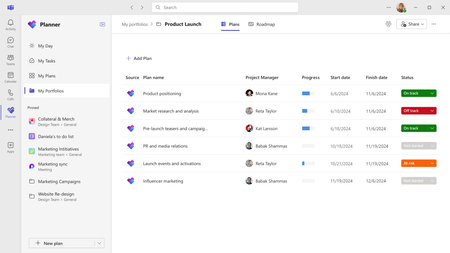
Managing multiple plans across different projects can often become overwhelming for team leads, project managers, or any user handling various deliverables. To simplify the process, we’ve designed a new feature—Portfolios—to help users easily track and manage multiple plans in the Planner app in Microsoft Teams. Portfolios can help simplify complex plan oversight by giving you a consolidated view of all your premium plans and tasks, ensuring nothing slips through the cracks. Once rolled out to your organization, users with a Planner and Project Plan 3 or Planner and Project Plan 5 license will be able to create portfolios to group and manage related plans, track progress at a high level, and visually organize tasks using the Roadmap view. Whether coordinating between various teams or looking for a top-down perspective of multiple plans, the Portfolios feature in the Planner app in Teams makes it all possible in one location—streamlining workflows and improving collaboration A screenshot of the Planner app in Teams displaying a list of plans added to a new portfolio. How it works To get started with Portfolios in Planner once it’s rolled out to your organization, follow the steps below: Navigate to or launch the Planner app in Teams. If you have a Planner and Project Plan 3 or Planner and Project Plan 5 license, you’ll see the new My Portfolios tab in the left navigation directly below My Day, My Tasks, and My Plans. Select the My Portfolios tab to get started with your first portfolio. Then, select the + New Portfolio button. Alternatively, you can select the down arrow directly to the right of the + New plan button at the bottom of the left navigation, then select Portfolio. A screenshot of the Planner app in Teams displaying the new My Portfolios tab with a message that reads, “Get started with your first portfolio!” 3. Add a name for the new portfolio (required), then add it to a group (optional) by selecting the appropriate group from the drop-down. Then, select the Create button. Scenarios to try Below are just a few powerful ways to leverage the new Portfolios feature in Planner. Consolidate multiple plans into a single portfolio: Simplify the process of tracking deliverables and deadlines by creating a portfolio for your ongoing plans. After selecting the Create button, you will see the following message, “There are no plans in your portfolio yet.” Select the + Add Plan button to access a list of all the premium plans you are a member of, including plans you’ve created, as well as those you’ve been added to. A screenshot of the Planner app in Teams displaying the Plans view for My Portfolios with the Add Plan pane open to the right. Select and connect the plan you want to add to the new portfolio as instructed in the Add Plan pane to the right. Properties that are extracted from the plan and displayed in the Plans view include Project Manager, Progress (% complete), Start Date, and Finish Date. The Status field is a drop-down list which enables you to manually select the status of the plan—Not started, On track, At risk, Off track, or Closed—so you can easily identify how the plan is progressing. 2. View your portfolio of plans and their associated tasks as a visual timeline: As soon as you add a plan to the portfolio, a row gets created for that plan on the Roadmap view. In the Roadmap view, you can easily add tasks from the included plans and track them together visually in a timeline view. To add tasks to the timeline, simply select the corresponding plan in the Roadmap view. Upon selection, you will see a Details pane open to the right of Teams with a list of tasks tied to the plan. From here, select the task (or tasks) you want to add to the Roadmap view, then select Add items. A screenshot of the Planner app in Teams displaying the Roadmap view for My Portfolios with the Add items pane open to the right. The selected tasks are displayed as a visual timeline for that plan. A screenshot of the Planner app in Teams displaying a timeline view of plans (and their tasks) added to a new portfolio. 3. Collaborate with your team members: Portfolios in Planner uses the Microsoft 365 group construct to invite users to collaborate on the portfolio. Select the Share button in the top right corner of the portfolio to open the Invite members dialog box. A screenshot of the Planner app in Teams displaying the Plans view for My Portfolios with the Invite members window open in the center. From here, you can create a new Microsoft 365 group by entering each member’s name in the designated text box, then selecting the Create group button. Or, you can add the portfolio to an existing Microsoft 365 group by selecting Add to existing group, then selecting the appropriate group from the drop-down and selecting the Add button. Please note, adding a member to the portfolio does not give the user access to the plan(s) included in the portfolio, but rather enables them to see the portfolio-level aggregations. Availability of Portfolios in Planner The new Portfolios feature is currently rolling out in the Planner app in Teams. Once rolled out to your organization, users with a Planner and Project Plan 3 or Planner and Project Plan 5 license will see the new My Portfolios tab in the left navigation. Users with Planner in Microsoft 365 or a Planner Plan 1 license can view portfolios shared with them in read-only mode. Portfolios will start rolling out in the new Planner for the web in the coming weeks. Share your feedback! We look forward to hearing your feedback and learning more about how you use portfolios in Planner. Please share some of your use cases in the comments below, or let us know how we can help to improve the experience. You can also send feedback via the Planner Feedback Portal or directly in the Planner app by selecting More (the question mark) in the upper right corner, then Feedback.51KViews4likes118CommentsMicrosoft Teams events: A new unified experience makes it easier to discover, create, and manage events
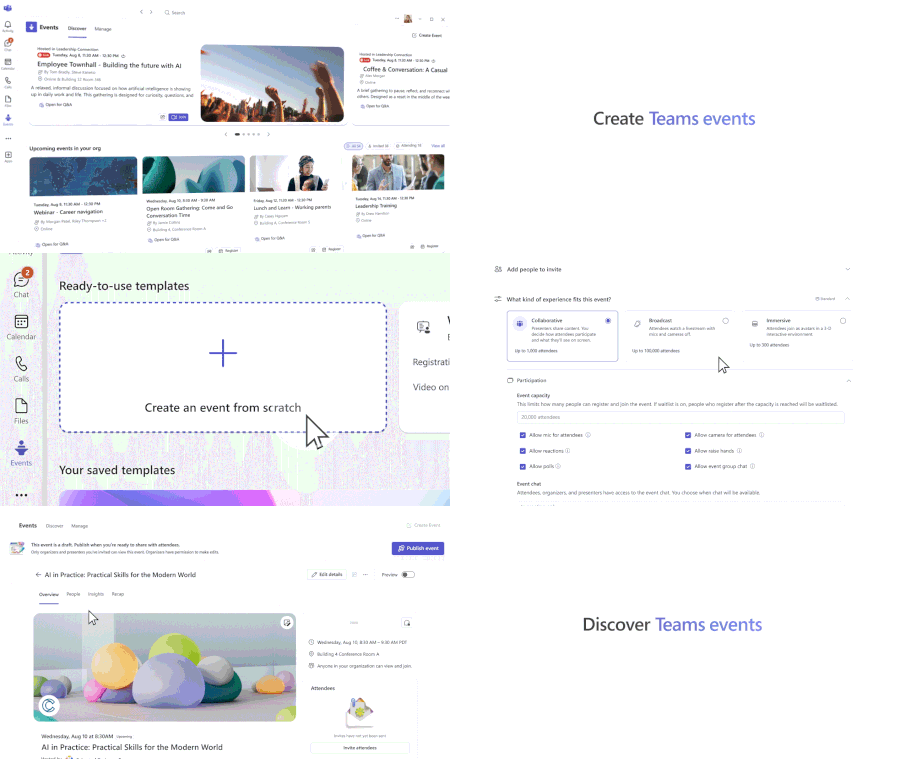
Today’s organizational challenges and growing complexity can make it difficult to create meaningful connections with audiences, whether engaging employees or reaching a dispersed customer base. Having the right tools to navigate the demands of large-scale communication for digital and hybrid events is critical to achieving business objectives. We are excited to introduce the new Teams events experience designed to simplify how events are discovered, created, and managed. Now in public preview, Teams events represents the next step in delivering professional, high-quality events, featuring flexible customization options to empower event organizers and better engage the audiences that matter most. Unified event creation flow At the heart of this Teams events update is greater choice and control for organizers. The Meet app becomes the dedicated home for events in Teams, featuring a new event creation flow that gives organizers more flexibility and control when setting up their events. Organizers can customize experiences such as audience interaction (attendee camera feeds, raise hands, polls, etc.), registration control, and event scale. The new event creation experience no longer constrains individual features to a particular event type, replaced by a dynamic scheduling flow that gives organizers increased flexibility to tailor the event experience to specific audiences and goals. Centralized event discovery and tracking Busy schedules make it impractical, and sometimes impossible, for people to be aware of important events an organization hosts. The new Discover tab in the Meet app helps organizers promote events and drive interest by making them easier for audiences to find and access. The Discover tab is where organizers and attendees can find and track events, without relying solely on calendar invitations. Users can view events they’re registered for, find and register for new events, and catch up on recordings of past events. The Discover tab gives organizers, registrants, and attendees a single place to stay connected to their events. Simplified event management Managing events in Teams is easier than ever with the new Manage tab. No more searching through calendars or hidden menus to update presenter bios, adjust sharing functions, or track registrations. Teams events brings everything into one place for streamlined management. Event pages are created automatically when an event is saved, and serve as the central location for settings, customization, and branding. After an event concludes, Teams events makes it easy to send attendees follow-up emails and recording notifications. Event organizers also have a single place to access registration data and recap tools designed for insights and continued engagement. New capabilities give event organizers more control and flexibility In addition to the new unified experience, Teams events is adding capabilities to streamline setup and drive attendance: New delegate and shared mailbox support enables authorized users to schedule and manage events on behalf of the principal organizer. This helps teams collaborate more naturally when coordinating large or recurring events. Dedicated event details pages make it easy for organizers to view all elements related to the event, including built-in Q&A, and the ability to save customizations as templates for future use. Support for custom domains for event emails improves deliverability and helps invitations and reminders avoid spam filters, while offering additional event branding. Enhanced co-organizer editing and management controls make it easier to share responsibilities throughout the event lifecycle, ensuring a consistent management experience even as teams grow and roles evolve. Expanded access to events with new licensing Starting April 1 st , 2026, Teams events capabilities such as town hall and webinar, including advanced features, are available to all users licensed for Teams Enterprise and no longer require Teams Premium. This expanded access to Teams events enables more people in your organization to create high-quality, professional events. Along with these licensing changes, we also announced Attendee Capacity Pack licenses would be available to scale digital and hybrid events up to 100,000. For more information, please read our recent licensing announcement. Teams live events retirement Teams events will continue to be the experience where we invest in bringing new features and capabilities to support high-quality, professional digital and hybrid events at scale. With this launch, we will be retiring Teams live events fully on June 30, 2026. Users with events already scheduled through February 28, 2027, will be able to carry out these instances as planned through that date to avoid disruption. For more information, please refer to our recent retirement announcement. Create events that connect It’s never been more important to make meaningful connections with the audiences that matter to your organization, and your ability to deliver highly engaging events can play a critical role. The new Teams events experience streamlines your events, from discovering what’s happening across your organization, to creating tailored formats, to managing professional engagements at scale, all in one place. This new chapter brings greater simplicity, flexibility, and power to every event organizer, manager, presenter, and attendee. With expanded access through licensing updates, Teams events provide the foundation to deliver memorable, high-quality experiences, and enables even more people across your organization to confidently bring their events to life.3.4KViews4likes4Comments
Announcing general availability for Microsoft Teams optimization in Amazon WorkSpaces
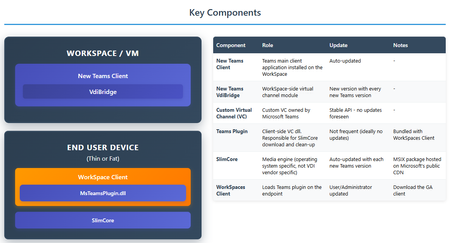
This release introduces the first-ever Virtual Desktop Infrastructure (VDI) optimization for Microsoft Teams on Amazon WorkSpaces for Windows endpoints, delivering a seamless, high-performance collaboration experience. A First for AWS Customers Previously, Amazon WorkSpaces users did not have access to a fully optimized Teams experience. With this release, AWS environments now offer VDI support for Teams, bringing long-requested capabilities to both Personal and Pool Windows WorkSpaces client configurations. What’s New: Key Features and Benefits Multimedia Offloading: Audio and video processing are now offloaded from the virtual desktop to users’ endpoint devices, resulting in smoother, more responsive calls and meetings. High-Definition Audio and Video: Experience crisp, clear video and audio for remote meetings that feel natural and engaging, with improved reliability and reduced latency. Feature Parity: Enjoy Teams experience on Amazon WorkSpaces that matches the functionality of desktop Teams clients. Previously, Teams' audio and video streams on Amazon WorkSpaces were routed through the virtual machine, which could add latency and influence the quality of the media experience. With this update, media processing is handled directly on the endpoint device - audio and video now bypass the VM entirely. Currently, this optimization is available specifically for Amazon WorkSpaces accessed via the Windows WorkSpaces Client –AppStream and other platforms are not yet supported. Behind the Optimization: Step-by-Step Breakdown When a user launches Teams in Amazon WorkSpaces VM the following sequence occurs: The MS Teams VDI Bridge on the VM detects that MS Teams is running inside a virtual machine and initiates the virtual channel between the VM and the endpoint device. Amazon WorkSpaces loads the MSTeamsPlugin.dll on the user's endpoint device. Plugin downloads and installs the required Slimcore MSIX package from the Microsoft Public CDN on the endpoint device. The local process MsTeamsVDI.exe is spawned which handles the media offload to the endpoint device All this sequence is abstracted from the user and happens in the background. Customer Success: Real-World Impact André Akkerman, Director of Workplace Technology at Wolters Kluwer, shared the following: “Our Amazon WorkSpaces users initially faced some challenges with Microsoft Teams video conferencing, including connection stability, system performance, and audio-video quality. These technical limitations impacted our ability to provide a rich collaboration service in our remote and hybrid work virtual environment. Working together with AWS and Microsoft, we implemented MS Teams Optimization for Amazon WorkSpaces across our global user base in North America, Europe, and Asia Pacific regions. The results have been outstanding.” Juan Rivera, Corporate Vice President at Microsoft, added: “Microsoft Teams users expect seamless collaboration experiences across any environment,” said Juan Rivera, Corporate Vice President at Microsoft. “With Teams VDI2 optimization, we are delivering innovative capabilities that transform virtual desktop performance, offering rich functionality, smooth audio and video experiences, and exceptional reliability. By enabling direct endpoint routing for media traffic, organizations can provide employees with the high-quality Teams experience they expect while maintaining flexibility and optimizing infrastructure costs.” Getting Started with Teams VDI Optimization Ready to take advantage of Teams VDI optimization on Amazon WorkSpaces? Visit our website to get step by step guide and ensure your WorkSpaces environment is configured for the new Teams VDI optimization.1.6KViews2likes1Comment
Formal Complaint: The UX Failure of Microsoft Authenticator and Teams Guest Access
To the Microsoft Product & Engineering Teams, I am writing this not just as a frustrated user, but as a systems engineer and developer who has just spent several hours navigating the Kafkaesque labyrinth that is your current authentication ecosystem. The transition to a new mobile device while maintaining "Guest" access to an external organization (Rihter d.o.o.) has been an exercise in systemic failure. Specifically, I would like to highlight the following critical UX flaws: The Identity Paradox: Your system’s inability to gracefully handle a personal Outlook account acting as a Guest in an Entra ID tenant is baffling. Receiving the error "You can't sign in here with a personal account" while trying to access a tenant I am already a member of is a fundamental logic failure. Visual Inconsistency (The "Briefcase" vs. "Initials"): The fact that an account can appear in Authenticator as a "One-time password" nalog with initials, yet be completely non-functional for Teams until it is manually re-added as a "Work/School" nalog with a briefcase icon, is a UI disaster. The "Action Required" Loop: I was trapped in a cycle where the app demanded action but provided no path to resolution within the mobile environment. I had to resort to using a desktop browser in Incognito mode just to force the system to generate a valid QR code for the new hardware. Mandatory Hardware Security (Passwordless): Forcing users to implement device-wide PINs or biometrics on their private hardware just to use the "Approve" notification feature is overreach. There should be a clear, frictionless fallback to TOTP codes within Teams without degrading the entire app's functionality. App vs. Web Desynchronization: It is unacceptable that a web browser (in Desktop mode) can successfully authenticate a session while the native Teams app on the same device remains stuck with stale tokens and cached AADSTS90023 errors. As someone who designs low-level architectural specifications (DREL), I find the lack of interoperability and the "black box" nature of these errors (like AADSTS90023) to be a significant step backward for professional productivity. I hope this feedback reaches someone who prioritizes user flow over bureaucratic security layers. Best regards, Milan Lakatoš Petrović Systems Engineer & Freelance Programmer32Views0likes0Comments
Document Library Settings
Many times when someone opens a document from a teams document library, it shows the document as modified even though no actual changes were made to the document. The default at my company is that documents open in edit mode and they auto save so one solution would be to set it to open in view only mode, but my company doesn't want to change that at the company wide level. Is there any way to do this at the SharePoint library level? I also don't want to make document checkout mandatory.10Views0likes0CommentsAnnouncing the 2026 Microsoft 365 Community Conference Keynotes
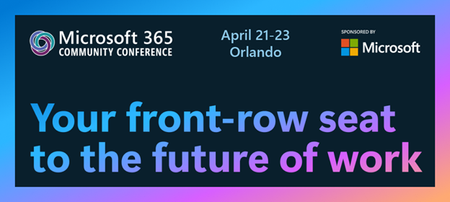
The Microsoft 365 Community Conference returns to Orlando this April, bringing together thousands of builders, innovators, creators, communicators, admins, architects, MVPs, and product makers for three unforgettable days of learning and community. This year’s theme, “A Beacon for Builders, Innovators & Icons of Intelligent Work,” celebrates the people shaping the AI‑powered future — and the keynote lineup reflects exactly that. These leaders will set the tone for our biggest, boldest M365 Community Conference. Below is your first look at the official 2026 keynote order and what to expect from each session. Opening Keynote Jeff Teper — President, Microsoft 365 Collaborative Apps & Platforms Building for the future: Microsoft 365, Agents and AI, what's new and what's next Join Jeff Teper, to discover how AI-powered innovation across Copilot, Teams, and SharePoint is reshaping how people communicate, create, and work together. This session highlights what’s new, what’s fundamentally different, and why thoughtful design continues to matter. See the latest advances in AI and agents, gain insight into where collaboration is headed, and learn why Microsoft is the company to continue to bet on when it comes to building what’s next. Expect: New breakthroughs in collaboration powered by AI and agents Fresh innovations across Teams, Copilot, and SharePoint Practical guidance on how design continues to shape effective teamwork Real world demos that show how AI is transforming communication and content Insight into what is new, what is changing, and what is coming next Business Apps & Agents Keynote Charles Lamanna — President, Business Apps & Agents In this keynote, Charles Lamanna will share how Microsoft 365 Copilot, Copilot Studio, Power Apps, and Agent 365 come together to help makers build powerful agents and help IT teams deploy and govern them at scale. We’ll share how organizations can design, extend, and govern a new model for the intelligent workplace – connecting data, workflows, and systems into intelligent agents that move work forward. Copilot, apps, and agents: the next platform shift for Microsoft 365 Microsoft 365 Copilot has changed how we interact with software. Now AI agents are changing how work gets done – moving from responding to prompts to taking action, across the tools and data your organization already relies on. Expect: A clear explanation of how to leverage and build with Copilot and agents How agents access data, use tools, and complete multi-step work A deeper look at the latest capabilities across Microsoft 365 Copilot, Copilot Studio, and Power Apps End-to-end demos of agents in action Security, Trust & Responsible AI Keynote Vasu Jakkal — Corporate Vice President, Microsoft Security & Rohan Kumar — Corporate Vice President, Microsoft Security, Purview & Trust In our third keynote, Vasu Jakkal and Rohan Kumar join forces to address one of the most urgent topics of the AI era: trust and security at scale. As organizations accelerate into AI‑powered work, safeguarding identities, data, compliance, and governance is mission‑critical. Securing AI: Building Trust in the Era of AI Join Vasu Jakkal and Rohan Kumar as they unveil Microsoft’s vision for securing the new frontier of AI—showing how frontier firms are protecting their data, identities, and models amid rapid AI adoption. This session highlights how Microsoft is embedding security and governance into every layer of our AI platforms and unifying Purview, Defender, Entra, and Security Copilot to defend against threats like prompt injection, model tampering, and shadow AI. You’ll see how built-in protections across Microsoft 365 enable responsible, compliant AI innovation, and gain practical guidance to strengthen your own security posture as AI transforms the way everyone works. Expect: Microsoft's unified approach to secure AI transformation Forward‑looking insights across Security, Purview & Trust Guidance for building safe, responsible AI environments How to protect innovation without slowing momentum Future of Work Fireside Keynote Dr. Jaime Teevan — Chief Scientist & Technical Fellow, Microsoft Dr. Jaime Teevan, one of the foremost thought leaders on AI, productivity, and how work is evolving. In this intimate fireside‑style session, she’ll share research, real‑world insights, and Microsoft’s learnings from being both the maker and the first customer of the AI‑powered workplace. Expect: Insights from decades of workplace research The human side of AI transformation Practical guidance for leaders, creators, and practitioners Why collaboration is essential to unlock the true potential of AI. Community Closer Keynote Karuana Gatimu - Director, Microsoft Customer Advocacy Group & Heather Cook - Principal PM, MIcrosoft Customer Advocacy Group From Momentum to Movement: Where Community Goes Next As the final moments of Microsoft 365 Community Conference come to a close, Heather Cook and Karuana Gatimu invite the community to pause, reflect, and look forward together. This Community Closer keynote connects the breakthroughs, conversations, and shared experiences of the week into a bigger story—one about people, purpose, and progress. Together, they’ll explore how community transforms technology into impact, how advocates and builders shape what’s next across Microsoft 365, and why this moment matters more than ever. More than a recap, this session is a call to action—challenging attendees to take the energy of the conference back to their teams, regions, and communities, and turn inspiration into sustained momentum. You’ll leave not just with ideas, but with clarity, confidence, and a renewed sense of belonging—because community doesn’t end when the conference does. It’s where the real work begins. More Than Keynotes: Why You’ll Want to Be in Orlando The M365 Community Conference brings together: 200+ sessions and breakouts 21 hands‑on workshops 200+ Microsoft engineers and product leaders onsite The Microsoft Innovation Hub Ask the Experts, Meet & Greets, and Community Studio Women in Tech & Allies Luncheon SharePoint’s 25th Anniversary Celebration And an epic attendee party at Universal’s Islands of Adventure Whether you create, deploy, secure, govern, design, or lead with Microsoft 365 — this is your community, and this is your moment. Join Us for the Microsoft 365 Community Conference April 21–23, 2026 Loews Sapphire Falls & Loews Royal Pacific 👉 Register now: https://aka.ms/M365Con26 Use the SAVE150 code for $150USD off current pricing Come be part of the global community building the future of intelligent work.864Views2likes0CommentsWhat to Expect from the Copilot & AI Sessions at Microsoft 365 Community Conference
AI isn’t a side conversation at the Microsoft 365 Community Conference—it’s at the center of how work is changing. The Copilot, Agents, & Copilot Services Sessions are designed for anyone who wants to move beyond curiosity and into real-world application. This is an opportunity to learn how Copilot works today and how agents extend it. You will also explore how organizations can govern, scale, and operationalize AI across Microsoft 365. Questions these sessions will help answer: How do we move from experimentation to real value? How do we scale AI responsibly? How do agents fit into the way we already work? What skills do teams need next? Business leaders, IT pros, developers, and community practitioners will join sessions to find practical insights into how AI shows up in your daily work, and what it takes to deploy it responsibly and effectively. There will also be a focus on change management, champion programs, and adoption frameworks, because deploying AI isn’t just a technical decision, it’s a cultural one. From Copilot to Agents: The Shift from Assistance to Action One of the biggest themes across the sessions are the evolution from AI as a helper to AI as an active participant in work. If you’re curious about what “agentic AI” actually means in practice, attending these sessions will make it concrete. Join your peers as you learn how Microsoft 365 Copilot is being extended through agents that reason, act, and automate. Learn about agent orchestration across tools like Copilot Studio, SharePoint, Teams, Planner, and Power Platform. Discover new agent patterns including declarative agents, multi-agent configurations, workflows agents, and computer-use agents. In these sessions you’ll explore how agents can: Take action on your behalf and do more than suggest content. Work across apps, data sources, and workflows. Participate alongside humans as part of the team. Real Adoption Stories (Not Just Demos)! Go beyond feature walkthroughs to focus on how organizations are actually adopting Copilot and agents at scale. In these adoption stories you’ll hear: How Microsoft uses Copilot and agents internally as Customer Zero. What adoption looks like across large enterprises, frontline environments, and regulated industries. Lessons learned from early adopters—what worked, what didn’t, and what they’d do differently. Governance, Trust, and Control Are Front and Center AI adoption only works when people trust it—and trust is built through strong governance. Learn how organizations are balancing innovation with oversight and enabling teams to build and use agents while maintaining enterprise-grade guardrails. A significant portion of the Copilot & AI track is dedicated to: Agent lifecycle management. Security, compliance, and data protection. Preventing oversharing and managing risk. Observability and control using tools like Agent 365, Microsoft Purview, and Copilot Control System. This is especially valuable for IT and security leaders who are being asked to “move fast” without compromising standards. Building with Copilot: No-Code, Low-Code, and Pro-Code Paths No matter where you sit on the technical spectrum, there’s a clear path to learning how to build responsibly and effectively. Not everyone builds the same way and organizations need prompt engineering that delivers results. In these sessions you’ll learn how to choose the right agent type for the job, extending Copilot with enterprise data, and designing agents that are production ready—not just impressive in demos. These sessions are tailored to: Business users and makers getting started with Copilot Studio Low-code developers extending Copilot with workflows, connectors, and prompts Pro developers building advanced agents using APIs, MCP servers, Microsoft Graph, SharePoint Embedded, and Azure AI Copilot in the Flow of Everyday Work Rather than abstract AI concepts, you’ll see end-to-end workflows that demonstrate how Copilot helps people save time, reduce manual work, and focus on higher-value outcomes. The emphasis in these sessions is on practical impact, not hype showing how AI is grounded in real work. These sessions will showcase Copilot and agents embedded into: Meetings, chats, and channels. Task and project management. Content creation and knowledge management. Business processes and frontline operations. Why the Copilot and AI track matters If AI is part of your roadmap, or already part of your day, this track will show you how strategy can meet execution. Join us to explore clear mental models for Copilots and agents, see real examples you can apply to your work, and gain a better understanding of what’s now—and what’s coming next. Each year, #M365Con26 is built around one simple idea: bringing our global community together to learn, grow, innovate, and get hands-on with the technologies shaping the next era of work. This year’s conference delivers our most expansive program yet, including: 200+ sessions, workshops, and AMAs, covering Microsoft 365 Copilot, Teams, SharePoint, OneDrive, Copilot Studio, and more. 100+ Microsoft-led sessions, giving you unprecedented access to the people building the apps and AI capabilities you use every day. A keynote lineup featuring Microsoft leaders including Jeff Teper, Charles Lamanna, Vasu Jakkal, Rohan Kumar, Jaime Teevan, and many more. Deep-dive workshops to elevate your skills with real-world scenarios and hands-on learning. Exclusive attendee parties and networking events where you can connect with peers and icons. You’ll also get the chance to meet hundreds of Microsoft executives, engineers, and product leaders—ask questions, share feedback, and help shape the roadmap of the technologies you rely on. Register now, save $150 with code SAVE150 - https://aka.ms/M365ConRegister139Views0likes0Comments
Tracking Competencies & Development in MS Teams?
Does anyone have any experience building an employee development program inside Microsoft Teams? Our team had the idea to map out competencies and integrate employee development programs into our overall performance management cycle. We would love to keep all of this inside Teams. Is Power Apps the way to go?13Views0likes1Comment