microsoft teams
17385 TopicsLicensing updates extend access to advanced capabilities in Microsoft Teams and Microsoft Places
UPDATE: These changes will go into effect on April 1, 2026 for customers with users on any license that includes access to the calendar in Outlook and Teams (including Microsoft 365 E3, E5, Business Basic, Business Standard, and Business Premium; Outlook 365 E1, E3, and E5; Exchange Online; various Teams licenses; additional Microsoft 365 and Office 365 licenses). Access to the Places management portal remains available for all Places customers. At Microsoft, we empower organizations to achieve more through intelligent communication, inclusive collaboration, and connected workplace experiences. Our customers are looking for scaled, widespread access to powerful tools that enable workforces to interact and communicate with more intelligence and precision. To facilitate that, we’re announcing Teams licensing updates that make it easier for customers to unlock their full communication and collaboration potential. These licensing changes simplify access to capabilities spanning across Microsoft Places and Teams town halls and webinars, so you can deliver experiences that enhance virtual and in-person collaboration. Read on to learn about the changes ahead and new ways to empower your organization. Access enhanced workplace coordination capabilities Places enables an AI-powered workplace experience by connecting employees to colleagues, spaces, and services in the office. We are expanding access to end-user functionality in Places by making it available in all licenses that include access to the calendar in Outlook and Teams (including Microsoft 365 E3, E5, Business Basic, Business Standard, and Business Premium; Outlook 365 E1, E3, and E5; Exchange Online; various Teams licenses; additional Microsoft 365 and Office 365 licenses). Functionality included in this change: Places Finder: Make more informed decisions about bookings with enriched context like images, floorplans, custom attributes, and available technology in the spaces around you. This change enables organizations to upgrade at scale from Room Finder to the full Places Finder experience by onboarding spaces to the Places Directory. Places Explorer: Enable map-based space reservations and explore details about all workplaces, including the people, spaces, and experiences in each location. Access to Places Explorer is through the Places app inside Microsoft Outlook and Teams. These changes will go into effect on April 1, 2026 for customers with users on any license that includes access to the calendar in Outlook and Teams (including Microsoft 365 E3, E5, Business Basic, Business Standard, and Business Premium; Outlook 365 E1, E3, and E5; Exchange Online; various Teams licenses; additional Microsoft 365 and Office 365 licenses). Manage shared spaces more efficiently Across our AI-powered workplace solutions, we’re continually looking for ways to streamline how organizations manage their inventory of shared desks, spaces, and assets. The newly renamed Teams Shared Space license (formerly Teams Shared Devices license) will be the way that organizations manage this inventory of assets, adding the ability to manage up to four desks with a single license (in addition to the previous ability to manage either a common area phone, a Teams panel, shared space like a room, or a hotdesking device included in the Teams Shared Device license). IT admins will be able to assign licenses to bookable shared spaces individually and control which workspaces are available for employees to use with this new functionality. This license will provide space management capabilities, including: Desk booking: Employees can reserve desks in advance before arriving at a location. Space management: Admins can manage advance reservation policies for desks and set auto-release policies for rooms with a shared spaces license. Space Analytics: Inventory and utilization reports are available for licensed shared spaces (desks). This license will be available on April 1, 2026. For customers with legacy Teams Shared Device licenses, admins will not be required to take any action to transition to this license (but will have to assign additional spaces like desks with an additional no-cost license to take advantage of the new increased allotment of four spaces per license). Communicate and connect at scale Managing communication to thousands or tens of thousands of attendees can be a daunting process for anyone. Built directly on the Teams platform, Teams town hall and webinar enable events at scale with improved capabilities, reliability, and capacity. To empower more organizations to plan and execute high-quality events, we are bringing all town hall and webinar features that were previously only available with a Teams Premium license to Teams Enterprise, including: Streaming chat: Chat for town hall events reduces any message sending lag, enabling smoother communication between attendees and organizers. Reactions interactivity: Enjoy the same reactions from Teams meetings in town hall and webinar, allowing the audience to express themselves and react to presented content. Real-time event insights: Hosts of town hall and webinar instances can get feedback on the performance and reliability of their broadcasts, helping to ensure a smoother experience for attendees. Meeting theme and email customization: Use organizational branding to customize the event-related artifacts that are delivered to attendees. Enterprise Content Delivery Network (eCDN): eCDN helps to manage the bandwidth load of streaming events to large audiences, providing stability and reliability. Immersive events in Teams: Host immersive experiences in custom 3D environments where attendees join as avatars to interact and collaborate. All users with a Teams Enterprise license will soon be able to host events for up to 3,000 attendees with all Teams town hall and webinar features. We will also enable a higher-capacity, view-only streaming experience for town halls up to 10,000 users. To fully enable events at scale, customers will be able to purchase attendee pack licenses that increase the cap on the total number of attendees up to 100,000 with the same suite of robust features. Attendee pack licenses will come in a range of sizes to provide added flexibility, and will be available to assign through the Teams Admin Center (TAC) after transacting. Summary of licensing changes These changes reflect our commitment to helping organizations confidently embrace the future of work with greater impact across their communication and collaboration. The full slate of changes will go into effect on April 1, 2026: End-user workplace coordination features from Microsoft Places available for licenses that include access to the calendar in Outlook and Teams (including Microsoft 365 E3, E5, Business Basic, Business Standard, and Business Premium; Outlook 365 E1, E3, and E5; Exchange Online; various Teams licenses; additional Microsoft 365 and Office 365 licenses) Introduction of the renamed Teams Shared Space license with additional capabilities for space management and analytics for admins Advanced Teams town hall and webinar features available for all Teams Enterprise users for instances up to 3,000 attendees (10,000 attendee view-only experience) Introduction of attendee pack add-on licenses for town hall events starting from 5,000 up to 100,000 attendees Independent of these changes, we are committed to continuing to provide a robust set of experiences for organizations that have invested in Teams Premium. Teams Premium will still be the only way for customers to experience advanced communication features in Teams meetings, meeting protection, Advanced Collaboration Tools for admins, Intelligent recap, Queues app for Teams Phone, and enhanced capabilities for Bookings and virtual appointments. For a full list of current Teams Premium features, please click here. More information about these new licensing changes, including impacts for existing Teams Premium customers using these products and features, are available below. Read more about these changes in our licensing update FAQ attached below Explore more Teams experiences: Microsoft Teams Learn more about Microsoft Places: Microsoft Places Learn more about Teams town hall and webinar22KViews12likes6Comments
Allow only specific external domains
When External Access is set to “Allow only specific external domains” Scenario 1 If Microsoft Teams External Access is set to “Allow only specific external domains”, and a user from a domain not on the allowed list joins a meeting while signed into their work Teams account, Will they still appear with their actual name and organization, rather than as Anonymous? Is this correct? Scenario 2 If a user from a non-allowed domain joins the meeting link through a browser and selects “Join as guest”, Will they appear under the name they manually enter, instead of showing as Anonymous? Is this correct? Scenario 3 If a user joins without authenticating and meeting policy allows anonymous access, Will they appear as Anonymous only in that situation, and not because of the External Access restriction? Is this correct?47Views0likes3Comments
Teams duplicates contacts until it maxed out at 15000
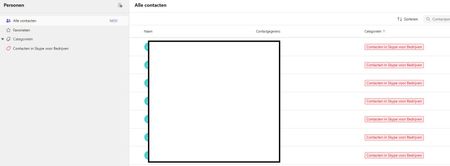
Hi, I have a weird issue with some users, Teams seems to be duplicating old Skype for Business contacts until it maxes out at 15000 contacts. I have been digging into it a bit and found out the location of the folder through Exchange powershell but I can't clear or delete it. Skype for Business is phased out and disabled in my tenant for a long time now so I couldn't do much there, I can't login to it through powershell. We've had Teams since like 2017 so I suspect this is a niche legacy issue popping up recently somehow. Manual deleting is possible through the browser environment but that is such a hassle because it keeps glitching if you delete per 100 and skipping pages and stuff, need to refresh constantly. Just a pain, it would take days. And no guarentee its not coming back either. See screenshots. Does anyone know why this is happening and how to fix this? Thanks for reading, cheers!14Views0likes1Comment
When I install my app to a second channel in Teams, the this.onMessage will nto trigger
I have a bot which when installed to a channel will read messages using this.onMessage, if I add another channel to the same team it will also read the messages without installing the bot on that channel. However if a user installs the bot again, to the second channel which some users do, the second channel will not trigger the onMessage listener except when using the @botname command. I cant log errors anything because it just wont trigger. I feel like the context gets screwed up, all the other listeners fire on other channel Any help please?19Views0likes1CommentBest External Access configuration
I’m looking for guidance on the best Microsoft Teams configuration for the following goal: Objective Prevent random external domains from: Looking up users in Teams Sending 1:1 chats Making direct audio/video calls At the same time: External users invited to Teams meetings should not appear as Anonymous10Views0likes0Comments
The Next Chapter of Microsoft Teams in Virtualized Environments
Virtual Desktop Infrastructure (VDI) has long been a critical deployment model for Microsoft Teams, especially for organizations that rely on centralized desktops for security, compliance, and scale. Over the past six years, Microsoft has invested heavily in improving the Teams experience in VDI—listening to customer feedback, addressing operational pain points, and rethinking how collaboration workloads should run in virtualized environments. That journey has now reached an important milestone: the legacy WebRTC based VDI optimization is being retired, and the new VDI optimization — built on top of a new media engine— is becoming the standard going forward. In this post, I want to explain why Microsoft is making this change, what customers gain with the new architecture, what’s coming next, and how IT teams can track adoption and progress. Why Microsoft Is Deprecating WebRTC-based optimization The WebRTC-based optimization (“Citrix HDX Media optimized” or “AVD Media optimized”) was designed in an earlier era of Teams, relying on WebRTC stacks bundled with the Remote Desktop client / Citrix Workspace app to offload audio/video/screensharing processing from the virtual desktop to the endpoint. While this approach enabled media optimization for the most common scenarios, it also introduced architectural limitations that became more pronounced as Teams evolved. Based on years of customer feedback, support cases, and operational learnings, several challenges consistently surfaced: Feature gaps between native Teams and VDI Longer call setup times Limited diagnostics and observability, making troubleshooting difficult for IT Operational complexity, including version-dependency on external components (like VDI Clients or VDI Hosts) and frequent infrastructure alignment issues. As Microsoft modernized the Teams client itself, it became clear that continuing to invest in the WebRTC based model would slow innovation and prevent VDI from reaching parity with physical desktops. This led to a full re-architecture of Teams in VDI, resulting in the new optimization in Q4 2024 (colloquially referred to as VDI 2.0). With the new optimization now broadly adopted, Microsoft is transitioning WebRTC into a legacy state, with defined End of Support and End of Availability milestones for Windows-based VDI environments that run on Azure Virtual Desktops, Windows 365 and Citrix (and only for these). What exactly is going to happen This change applies only to Windows-based endpoints connecting to Citrix and Azure Virtual Desktop (AVD) / Windows 365 environments and does not affect macOS, Linux, mobile, HTML5, or ChromeOS. It does not apply to Omnissa. Separate announcements will be made for those as soon as they hit General Availability. As announced in the Message Center Post 1239928, there will be two subsequent milestones in the deprecation, following the same pattern you saw in the transition from Classic to New Teams: End of Support October 1 st , 2026: WebRTC-based optimization will continue to work, but it is no longer officially supported by Microsoft and Citrix when connecting from Windows endpoints. Two months before this milestone, users will see dismissible banners upon application launch time alerting about the upcoming change. End of Availability April 1 st , 2027: WebRTC stops working; the new optimization is enforced. If Teams fails to optimize, it will fall back to server-side rendering (i.e. all multimedia is processed on the virtual machine, degrading the user experience). Two months before this milestone, users see a modal dialogue window alerting about the upcoming change. If the reason for not being optimized with the new stack is that the plugin is not installed, users are instructed to download the plugin from Microsoft’s website. Optimization Policies related to the legacy optimization (such as in Citrix Studio ) no longer take effect. The Benefits of the new optimization In a nutshell, the new architecture is using the same media engine as the native Teams desktop client. This alignment fundamentally changes what’s possible in virtualized environments. Customers that have migrated frequently report: A plethora of new features (Gallery View 3x3 and 7x7, Hardware Acceleration, 1080p, QoS, Custom and organizational backgrounds, Noise Suppression, HID, Advanced telephony features such as QoS, Media Bypass, and Location Based Routing) (These depend on the user’s endpoint platform and Teams license) Can significantly reduce call setup times (“a game changer”) Better Monitoring and Supportability (Teams Admin Center and Call Quality Dashboard-CQD-, and richer telemetry and diagnostics aligned with native Teams) Because the new architecture decouples from the VDI infrastructure and kept evergreen, Teams avoids mismatches between client versions and media stacks, and can reliability at scale. Additionally, this enables IT teams to proactively identify issues, analyze trends, and reduce mean time to resolution—capabilities that were limited or unavailable before. QuickStart Checklist and Common Pitfalls This quick‑start helps IT admins move from the legacy WebRTC-based optimization to the SlimCore-based optimization while reducing risk and improving visibility. Quickstart Tools/Actions What to look for 1 - Baseline Your Environment Use Teams Admin Center, Call Quality Dashboard and PowerBI Optimized vs Unoptimized users with both WebRTC and SlimCore (a.k.a VDI 2.0). ‘Inactive’ users (i.e. optimization disabled) 2 - Validate Prerequisites Read the VDI Article CWA/Windows App versions, MSIX GPOs on the endpoint, Networking requirements on the branch office 3 - Enable new Optimization -Check VDI Policy -Enable Citrix custom Virtual channels -Deploy Plugins Powershell Policy, Citrix Studio VC Allow List (allow MSTEAMS, MSTEAM1, MSTEAM2) 4 - Verify at User Level VDI Status Indicator It should say “Teams is [AVD]/[Citrix] SlimCore Media optimized” 5 - Monitor adoption Teams Admin Center (TAC) and Call Quality Dashboard (CQD) Use Teams Admin Center → Meetings → Best Practice Configurations Identify users still unoptimized Export impacted users Track improvements in CQD: Call setup success rate Media quality Reliability trends 6 - Prepare for VDI 1.0 Retirement Internal Comms Communicate timelines to Helpdesk and end users 7 - Operational Readiness Check Internal training, monitoring ready -Helpdesk trained on: VDI Status Indicator Teams Admin Center + CQD -No remaining dependencies on WebRTC-specific policies -Monitoring reflects new architecture Pitfall What Admins Observe Root Cause Impact Recommended Fix 1. New Teams installed, but users are still on WebRTC Teams shows ‘Not optimized’ or “Citrix HDX Media optimized” • Virtual channels not allowed (Citrix) • Teams plugin not deployed on endpoint Users never activate SlimCore and remain on legacy WebRTC • Verify Citrix virtual channel allow list • Confirm plugin presence and correct version on endpoints Upgrade CWA to 2508 (this version can auto-install plugins) 2. SlimCore never downloads (MSIX blocked) Silent fallback with no clear error. Endpoint GPOs or security tools (AppLocker?) blocking MSIX installs SlimCore cannot stage/provision and never activates Explicitly allow SlimCore MSIX staging and registration in endpoint policies 3. No monitoring after pilot rollout Some users work fine, others regress Rollout assumed complete after pilot Hidden pockets of unoptimized users persist Regularly review Best Practice Configurations dashboard and CQD 4. Helpdesk still troubleshoots like VDI 1.0 Long investigations and escalations Legacy runbooks and outdated mental models Higher MTTR and unnecessary escalations Retrain support on: • VDI Status Indicator • Teams Admin Center diagnostics • CQD-first troubleshooting Best Practice Configurations Dashboard In early 2026, Microsoft introduced a Best Practice Configurations dashboard in the Teams Admin Center that specifically highlights VDI optimization compliance, allowing admins to: Identify users and locations running unoptimized or legacy configurations Export impacted user lists for targeted remediation Track progress as tenants move fully to the new optimization This tool provides a clear, actionable path to measure migration progress and ensure a consistent Teams experience across virtualized environments. So… What’s Coming Next Microsoft continues to expand support across platforms and ecosystems on top of the new architecture. Upcoming and recently announced roadmap items include: Omnissa Horizon support for Windows endpoints using SlimCore-based optimization, rolling out in late February/early March (Public Tech Preview) Amazon WorkSpaces support, released this month, enabling optimized Teams experiences in AWS Continued expansion across endpoint types, including macOS, as platform capabilities mature. This is currently in Tech Preview! These investments reinforce Microsoft’s commitment to making VDI a first-class citizen, regardless of hosting provider or infrastructure choice. Looking Ahead The transition from the legacy WebRTC to the new optimization is more than a deprecation—it’s a platform shift. By aligning Teams in VDI with the native client architecture, Microsoft is enabling faster innovation, better reliability, and a more consistent collaboration experience for users who depend on virtual desktops every day. If your organization has not yet completed the upgrade, now is the time to assess your environment, validate optimization status, and plan for the retirement of the legacy WebRTC based solution. For additional guidance, please check our public documentation and read our previous blog posts (here, here and here).384Views1like0CommentsIntroducing a refreshed design, task chat, and more in Microsoft Planner
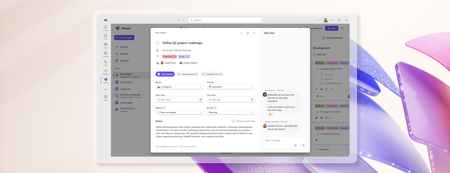
We’re excited to announce that a modernized user interface and new features are now rolling out to basic plans in both Planner in Teams and Planner for the web. The updated design offers enhanced navigation, responsive layouts, a new goals view for setting objectives and priorities, and task chat—one of your most requested features—to enable real-time collaboration and @ mentioning team members. This release aims to make planning easier for everyday users while preparing for future AI-powered capabilities. Our goal is to streamline planning by making it more intelligent and connected, so teams can concentrate on achieving results rather than managing tasks. What's new in Planner A refreshed design: With this rollout, users will be able to manage their plans in a cleaner, more modern interface that brings a more consistent planning experience across work. Planner’s new look was designed to feel simpler, allowing users to find what they need. It reduces visual clutter, improves layout and spacing, and creates a more focused workspace. Task chat with @ mentions: A new task chat is coming to basic plans, bringing real-time, threaded conversations directly into tasks, including @ mentions, rich formatting, emojis, and notifications to help keep decisions tied to the specific task at hand. Plan members who are @ mentioned in a task will receive a notification in their Teams Activity feed and via email and can select the notification which takes them directly to the task card for additional context. Note that previously, users received notifications for every task comment, but as a result of customer feedback, we now only send notifications to mentioned users. The ability to @ mention team members directly in a task has been a top request, and we’re excited to roll this out in a familiar, chat-based experience. Please note, premium plans will continue to utilize the existing task conversation experience. This will converge into the new experience at a later point in time. Goals view: Basic plans will now include a dedicated Goals view, allowing teams to set clear, well-defined objectives to help prioritize work. By connecting tasks to shared goals, teams achieve greater alignment, gain clarity on priorities, and track progress and outcomes—driving the plan forward together. Access to Goals view in basic plans requires either a Planner premium license or a Microsoft 365 Copilot license. Notes on availability Please note that not all users will see the new Planner interface at the same time. This refreshed interface, along with Task chat and Goals view, begins rolling out to basic plans today and will continue to roll out over the coming weeks. This is only the beginning This redesign lays the groundwork for many more improvements coming to Planner in the next few weeks and months, including: Project Manager agent in basic plans – to help with task execution and the creation of status reports. Custom templates. Planner in Outlook. Stay tuned for announcements regarding these updates and more aligned to our long-term vision for integrated work management. Feature availability, naming, and timelines are subject to change. Please refer to the Microsoft 365 Roadmap for the latest status. Addressing your feedback We heard your feedback about inconsistencies between basic and premium plans. This refresh starts closing those gaps, so features appear consistently across plans based on your license. For example, users with a Planner premium license will now see Goals in basic plans, and users with a Microsoft 365 Copilot license will soon have access to Project Manager Agent in basic plans as well. Tell us what you think about the new Planner interface, Task chat, and Goals view by selecting More (circled question mark icon) in the top right corner of the app, then selecting Feedback from the dropdown menu. We also encourage you to share any feature requests by adding your ideas to the Planner Feedback Portal. Your feedback helps inform our feature updates, and we look forward to hearing from you. Learn more Visit planner.cloud.microsoft to access Planner directly from your browser. Sign up to receive future communication about Planner. Learn more about Planner in our Frequently asked questions. Check out the Planner adoption page and Planner help & learning page to learn more about Planner. Visit the Microsoft 365 roadmap for feature descriptions and estimated release dates for Planner. Walk through the interactive demos for Project Manager Agent in Planner and Project Manager Agent skills in Teams meetings.12KViews7likes21CommentsExternal Accessbto “Allow only specific domains” How does this affect meeting participant identity?
Hi everyone, We have recently changed our Microsoft Teams External Access setting from: “Block only specific external domains” to “Allow only specific external domains.” This means only explicitly approved domains are allowed for 1:1 chat, calling, and federation. I would like clarification regarding how this impacts Teams meetings. Scenario: If a user from a domain that is not on the allowed list is invited to a Teams meeting: If they join the meeting while signed into their work/school Teams account, will they still appear with their authenticated name (e.g., Name (External))? Or will they appear as Anonymous because their domain is not permitted under External Access? My understanding is that External Access (federation) controls chat and calling, but meeting identity is governed separately by meeting policies and authentication status. Can someone confirm if this is correct? Thank you in advance for your guidance.22Views0likes0CommentsUnable to unmirror camera on Microsoft Teams
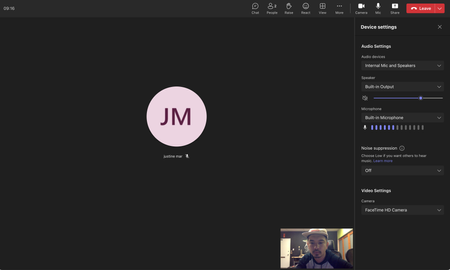
Hello, I am currently unable to un-mirror any camera feeds that go in microsoft teams. The button and option is completely missing in the options. See pic below. What is even more baffling is that I did see this option there earlier but now it is missing. I am on a Mac running macOS Big Sur 11.6 and Microsoft teams desktop app is running version 1.6.00.19353. Why is this option missing and how can I bring it back?1.8KViews0likes3Comments
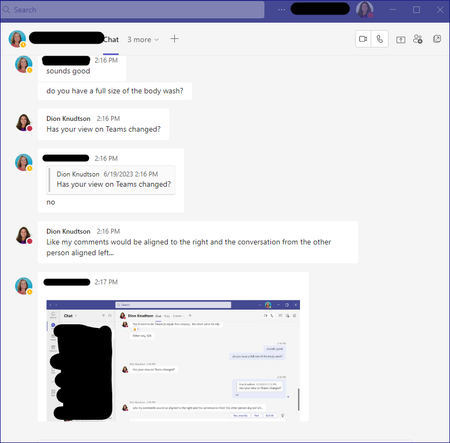
Why is my conversation view left aligned for me and the person I'm talking to
Note - My question is NOT about the Compact view for the left side list of Team conversations. My question is for the conversation area itself. Why is my conversation fully left aligned versus split between my comments on the right and replies on the left? What it is NOW: What is WAS and what I want back. Just an fyi, my screenshot is from someone else, I had to use their screenshot to get the example. Either way, my comments since I'm making them should be right aligned:15KViews0likes10Comments