microsoft teams for education
33 Topics
Unauthorized external user joining Class Team call
On one of our online school days, we had someone asking to join from the lobby with a changed display name with a swear word. We do not allow guest access on our platform. We do not have a log as the person was not admitted into the meeting. However everyone saw the message " so and so" is waiting in the lobby. also next to the name "External" appears. How can we stop this happening again? what should I advice our admin to set up as policies?246Views0likes0CommentsReading Coach, the AI-powered fluency practice tool, is now generally available in 81 languages
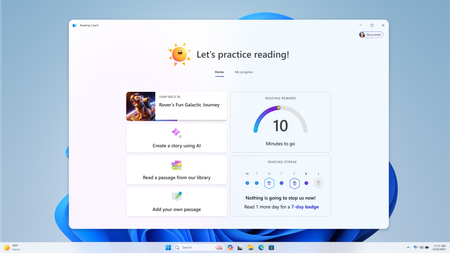
This month's post was written by Anoo Padte, Principal Product Manager, Microsoft Education. Reading Coach blog topics Improve learners' literacy skills with AI-powered Reading Coach What's New Multiple languages supported Reading Streaks and progress data over 30 days and all-time Zero touch deployment How to get started. Reading Coach, Microsoft’s free AI-powered tool provides personalized and engaging reading practice at school and home. It is now generally available in 81 languages through zero-touch deployment. Reading Coach can be used in the classroom or at home with a Microsoft 365 account for Windows, or from any browser-enabled device, including Surface, Surface Pro, Chromebook, or iPad. With a wealth of new enhancements to accelerate literacy, Reading Coach makes reading practice personalized, and engaging for learners of all ages. Improve learners’ literacy skills with AI-powered Reading Coach Reading Coach offers a range of features designed to build engagement and improve literacy for learners of all ages, including: AI-powered features: Reading Coach uses AI to generate stories that provide instant feedback on pronunciation, improve reading fluency, and help learners practice reading content that matches their abilities and interests. Personalized learning: Reading Coach provides personalized and engaging reading practice, detecting challenging words and offering targeted practice to help learners improve their fluency. Inclusive design: Reading Coach is designed to be inclusive and support emerging readers and learners with dyslexia. Built-in support from Immersive Reader makes reading enjoyable for all learners. Engagement and motivation: Reading Coach motivates learners to earn achievements, unlock new story elements as they read, and pick their own path through stories, driving continuous engagement. Learners can also track progress over time, and review reading accuracy insights, time spent reading, and other helpful metrics. What’s new Multiple languages supported The user experience is now available in 81 languages, making Reading Coach accessible to native speakers of all those languages. Learners can add their own content in up to 81 languages. Learners can create AI-powered stories in 14 languages. Picking their own path through each chapter, learners go on an adventure through three or five chapter stories. 14 different English dialects are supported to recognize pronunciations across the globe. See the list of languages supported here. Reading Coach listens to readers in the language of their choice, notes mispronunciations, and coaches them on challenging words. Reading Streaks and progress data over 30 days and all-time To keep learners motivated, Reading Coach offers encouragement through digital badges and rewards. Readers can now earn streak badges for completing three, five, and seven days of reading. As readers progress, Reading Coach displays their growth in a dashboard that they can easily understand. They’ll see information on reading time, accuracy rate, and mispronunciations, as well as goals to reach the next achievement. Learners can also track their growth over a week, a 30-day period, and all-time with summary statistics: Total reading days and time Stories started and completed Average accuracy and words per minute Badges earned and characters unlocked Zero-touch deployment No action is needed to enable Reading Coach, as it’s already enabled in Microsoft 365 through zero-touch deployment. Microsoft Education M365 school and home users can find Reading Coach already pinned and ready to go at www.microsoft365.com once they login. To get started: 1. Go to https://coach.microsoft.com.A computer screen shot of a computer 2. Click the Get started button. 3. Sign in with your Microsoft 365 school or personal account 4. Explore, practice, and enjoy!2.9KViews1like0Comments
Copying complete notebooks in OneNote
I have made a whole resource notebook for the department, complete with sections, subsections, pages & subpages. I am only able to copy this to the content library when I set up a new class Team, and then distribute each page individually to students. Is there a way to copy the entire notebook so that when the new class notebook is made, it copies into the content library and all the student sections at the same time?357Views0likes0Comments
Two teachers and assignments....
It is not uncommon for two teachers to split a course with the same students. I.e. a colleague and I teach different aspects of the same A-Level course. With assignments, I don't need to see their assignments and they don't need to see mine. It's clutter. The kids needs to see them all! Each of us *should* be able to see them if we wish. I don't need to see the details of what my colleague assigns, most of the time. On occasion, and assignment will 'span' both sides of the course (e.g. project work) and for these assignments both of us would want to see the assignment. Simplest thing: Each assignment has a 'set by' with options 'Mrs X, Mr Y, Both teachers' As a teacher, in the assignment view, my default would be 'Me or Both' (though I should be able to select 'All' for an over-view. Same options would be applied to the gradesheet.652Views0likes0CommentsMicrosoft Teams Devices in an Education Environment - New Community Blog!
Just incase you missed it, I wanted to share this recent community blog written by MVP, TheGrahamWalsh, who offers guidance on what to look for in devices for Microsoft Teams as we move into a new school year. Microsoft Teams Devices in an Education Environment - Microsoft Tech Community Enjoy!