microsoft defender for storage
41 TopicsUncover the latest cloud data security capabilities from Microsoft Defender for Cloud
Learn about the latest multicloud data security capabilities from Microsoft Defender for Cloud to strengthen your data security posture and protect your cloud data estate against data breaches and malware distribution.6.8KViews9likes0CommentsMicrosoft Defender for Storage – Price Estimation Dashboard
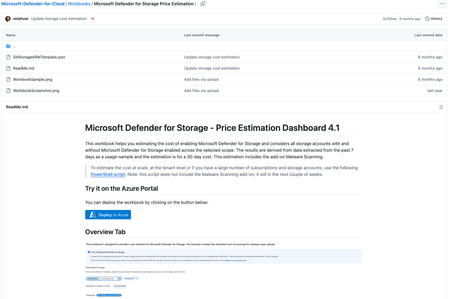
Blog post updated on April 17th, 2024. Blog post updated in September 2025 Estimate the cost of Microsoft Defender for Storage Microsoft Defender for Storage is an Azure-native layer of security intelligence that detects potential threats to your storage accounts. It helps prevent the three major impacts on your data and workload: malicious file uploads, sensitive data exfiltration, and data corruption. This blog post explains how to use a new workbook that helps you estimate the cost of Microsoft Defender for Storage and add-ons, like Malware Scanning, based on your current storage usage. Prerequisites To use the cost estimation workbook, you need the following: At least one Azure subscription with Storage Accounts (Defender for Storage is not required) Access to the Azure portal Subscription or resource-level reader permission At least Workbook Contributor permissions on the targeted resource group to save the workbook Access the cost estimation workbook The workbook is available in the Microsoft Defender for Cloud’s GitHub repository. You can access it directly from this link. Deploy it Go to the Workbook’s location Microsoft-Defender-for-Cloud/Workbooks/Microsoft Defender for Storage Price Estimation at main · Azure/Microsoft-Defender-for-Cloud (github.com) In the ReadMe.md file, click the button “Deploy to Azure” This will take you to the Azure portal and the template settings will display for you to fill them. The subscription, resource group and region are required for you to Review + Create. After clicking on “Review + Create” the workbook will show in your resource group. Click on it and then on “Open Workbook”. How it looks like The workbook will display the following information in the tab “Defender for Storage coverage”: Column name Description Subscription Subscription name in the scope. In trial True/False value if the subscription has a free trial. Is enabled Enabled/Disabled value if there’s a Defender for Storage plan enabled. DF-Storage plan The Defender for Storage plan enabled at the subscription-level or if it’s disabled. Malware scanning enabled True/False value if the Defender for Storage add-on Malware Scanning enabled at the subscription-level. For Classic plans, it will show in blank since this feature is not available there. Malware scanning cap The cap setting value at the subscription level. Sensitive data discovery enabled True/False value if the Defender for Storage add-on Sensitive Data Discovery is enabled at the subscription-level. For Classic plans, it will show in blank since this feature is not available there. The tab “Cost estimation” will display the following information: Column name Description Subscription Subscription name in the scope. Storage account Storage account name in the scope. Estimated monthly transactions Transactions (Azure Files and Azure Blobs) taken from a 7-day usage-sample and then used for a 30-day result. Overage transactions Total transactions (Azure Files and Azure Blobs) that are more or equal to 73M. Storage account cost Cost without considering overage. This is $10 USD. Estimated overage charge Overage transactions cost. Estimated monthly cost (activity monitoring) “Storage account cost” + “Estimated overage charge” Estimated monthly uploaded GBs 7-day ingress bytes taken from microsoft.storage/storageaccounts/blobservices-Transaction-Ingress; then this is extrapolated to estimate the monthly total based on a standard 30-day month, and finally, it converts this monthly total from bytes to gigabytes using the factor 1073741824 (bytes per gigabyte). Only Azure Blobs are pulled because Malware Scanning scans Blobs. The APIs in the filter are: AppendFile, CopyBlob, CreatePathFile, FlushFile, PutBlob, PutBlock, PutBlockFromURL, PutBlockList. Estimated malware scanning cost Cost considering “Estimated monthly uploaded GBs”. Malware Scanning cost is currently $0.15 USD per GB scanned. Note: You can filter the results by subscription and storage account. Workbook estimation limitations This tool estimates malware scanning costs based on the total volume of blobs uploaded, as indicated by Blob Ingress metrics. Please consider the following: Multiple scans: Specific upload methods, such as PutBlockList operations, may trigger multiple scans for a single blob (e.g., when writing logs to the same blob). This tool does not accurately capture the additional costs from multiple scans triggered by such operations. Index Tag costs: Costs associated with blob index tags, which store scan times and results on supported blobs, are not included in these estimates. Learn more on index tags costs in the Azure Storage Blobs Pricing page. Blob size: The estimation accounts for all uploaded blobs; however, only blobs smaller than 2GB are actually scanned. Good to know Note: Resources protected before March 28, 2023, are protected by Defender for Storage (classic) plan. Customers who protected storage accounts prior to this (under the per-transaction or per-storage account plans) are encouraged to migrate to the new plan to enjoy enhanced capabilities. Please note that after March 28, 2023, all new subscriptions created through the Azure portal will enable the new Defender for Storage (per-storage account plan) by default. Learn about migrating to the new plan. The cost of Defender for Storage is based on the number of storage accounts within a subscription. Storage accounts that have less than 73 million monthly transactions, are billed at $10 USD each. Storage accounts with higher transaction volume (above 73M monthly transactions) will experience an overage charge of $0.1492 per additional 1 million transactions. This PowerShell script helps you enumerate all storage accounts in your environment and get the transaction metrics for the last week. Calculating across several large subscriptions or a tenant To pull Blob and File Transactions from each Storage Account in larger subscriptions or across a tenant use this PowerShell script. The Price Estimation used in the script is calculated differently from the workbook described in this blog post. Note that the PowerShell script does not currently estimate the add-on Malware Scanning. This will come in the next couple of weeks. Known Issues Azure Monitor Metrics data backends have limits and probably the number of requests to fetch data across Storage Accounts might time out. To solve this, you will need to narrow the scope (reduce the selected Storage Accounts). Errors might reflect by showing 0 transactions in Files and Blobs. To verify this error, go to Edit Mode and the "Timed out" message will be displayed in the query. If you don’t have permissions to read on the storage accounts, there might be an error like this: Contributors: Eitan Shteinberg, Fernanda Vela, Rogério Barros, Hasan Abo-Shally, Dick Lake, Shay Amar, Daniela Villareal, Reviewer: Yuri Diogenes References: Microsoft-Defender-for-Cloud/Workbooks/Microsoft Defender for Storage Price Estimation at main · Azure/Microsoft-Defender-for-Cloud (github.com) Pricing—Microsoft Defender for Cloud | Microsoft Azure Pricing Calculator | Microsoft Azure Microsoft Defender for Storage - the benefits and features | Microsoft Docs Azure-Security-Center/Powershell scripts/Read Azure Storage Transaction Metrics at main · Azure/Azur... Microsoft-Defender-for-Cloud/Powershell scripts/Storage Price Estimation Script at main · Azure/Micr...Microsoft Defender for Cloud Cost Estimation Dashboard
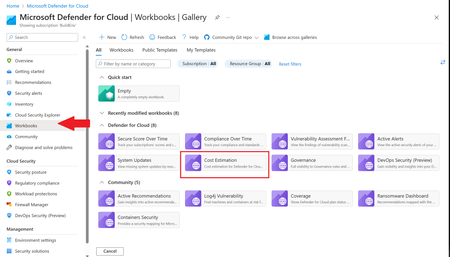
This blog was updated on April 16 th , 2023 to reflect the latest version of the Cost Estimation workbook. Microsoft Defender for Cloud provides advanced threat detection capabilities across your cloud workloads. This includes comprehensive coverage plans for compute, PaaS and data resources in your environment. Before enabling Defender for Cloud across subscriptions, customers are often interested in having a cost estimation to make sure the cost aligns with the team’s budget. We previously released the Microsoft Defender for Storage Price Estimation Workbook, which was widely and positively received by customers. Based on customer feedback, we have extended this offering by creating one comprehensive workbook that covers most Microsoft Defender for Cloud plans. This includes Defender for Containers, App Service, Servers, Storage, Cloud Security Posture Management and Databases. The Cost Estimation workbook is out-of-the box and can be found in the Defender for Cloud portal. After reading this blog and using the workbook, be sure to leave your feedback to be considered for future enhancements. Please remember these numbers are only estimated based on retail prices and do not provide actual billing data. For reference on how these prices are calculated, visit the Pricing—Microsoft Defender | Microsoft Azure. Overview The cost estimation workbook provides a consolidated price estimation for Microsoft Defender for Cloud plans based on the resource telemetry in your organization’s environment. The workbook allows you to select which subscriptions you would like to estimate the price for as well as the Defender Plans. In a single pane of glass, organizations can see the estimated cost per plan on each subscription as well as the grand total for all the selected subscriptions and plans. To see which plans are currently being used on the subscription, consider using the coverage workbook. Defender Cloud Security Posture Management (CSPM) Defender CSPM protects all resources across your subscriptions, but billing only applies to Compute, Databases and Storage accounts. Billable workloads include VMs, Storage accounts, open-source relational databases and SQL PaaS & Servers on machines. See here for more information regarding pricing. On the backend, the workbook checks to see how many billable resources were detected and if any of the above plans are enabled on the subscription. It then takes the number of billable resources and multiplies it by the Defender CSPM price. Defender for App Service The estimation for Defender for App Services is based on the retail price of $14.60 USD per App Service per month. Check out the Defender for App Service Price Estimation Dashboard for a more detailed view on estimated pricing with information such as CPU time and a list of App Services detected. Defender for Containers The estimation for Defender for Containers is calculated based on the average number of worker nodes in the cluster during the past 30 days. For a more detailed view on containers pricing such as average vCores detected and the number of image scans included, consider also viewing the stand-alone Defender for Containers Cost Estimation Workbook. Defender for Databases Pricing for Defender for Databases includes Defender for SQL Databases and Defender for open-source relational databases (OSS DBs). This includes PostgreSQL, MySQL and MariaDB. All estimations are based on the retail price of $15 USD per resource per month. On the backend, the workbook runs a query to find all SQL databases and OSS DBs in the selected subscriptions and multiplies the total amount by 15 to get the estimated monthly cost. Defender for Key Vault Defender for Key Vault cost estimation is not included in the out of the box workbook, however, a stand-alone workbook is available in the Defender for Cloud GitHub. The Defender for Key Vault dashboard considers all Key Vaults with or without Defender for Key Vault enabled on the selected subscriptions. The calculations are based on the retail price of $0.02 USD per 10k transactions. The “Estimated Cost (7 days)” column takes the total Key Vault transactions of the last 7 days, divides them by 10K and multiples them by 0.02. In “Estimated Monthly Price”, the results of “Estimated Cost (7 days)” are multiplied by 4.35 to get the monthly estimate. Defender for Servers Defender for Servers includes two plan options, Plan 1 and Plan 2. The workbook gives you the option to toggle between the two plans to see the difference in how they would effect pricing. Plan 1 is currently charged at $5 per month where as Plan 2 is currently charged at $15. Defender for Storage The Defender for Storage workbook allows you to estimate the cost of the two pricing plans: the legacy per-transaction plan and the new per-storage plan. The workbook looks at historical file and blob transaction data on supported storage types such as Blob Storage, Azure Files, and Azure Data Lake Storage Gen 2. We have released a new version of this workbook, and you can find it here: Microsoft-Defender-for-Cloud/Workbooks/Microsoft Defender for Storage Price Estimation and learn more about the storage workbook in Microsoft Defender for Storage – Price Estimation blog post. Limitations Azure Monitor Metrics data backends have limits and the number of requests to fetch data might time out. To solve this, narrow your scope by reducing the selected subscriptions and Defender plans. The workbook currently only includes Azure resources. Acknowledgements Special thanks to everyone who contributed to different versions of this workbook: Fernanda Vela, Helder Pinto, Lili Davoudian, Sarah Kriwet, Safeena Begum Lepakshi, Tom Janetscheck, Amit Biton, Ahmed Masalha, Keren Damari, Nir Sela, Mark Kendrick, Yaniv Shasha, Mauricio Zaragoza, Kafeel Tahir, Mary Lieb, Chris Tucci, Brian Roosevelt References: What is Microsoft Defender for Cloud? - Microsoft Defender for Cloud | Microsoft Learn Pricing—Microsoft Defender | Microsoft Azure Workbooks gallery in Microsoft Defender for Cloud | Microsoft Docs Pricing Calculator | Microsoft Azure Microsoft Defender for Key Vault Price Estimation Workbook Microsoft Defender for App Services Price Estimation Workbook Microsoft Defender for Containers Cost Estimation Workbook Coverage WorkbookDeploy Microsoft Defender for Cloud via Terraform
Terraform is an Infrastructure as a Code tool created by Hashicorp. It’s used to manage your infrastructure in Azure, as well as other clouds. In this article, we’ll be showing you how to deploy Microsoft Defender for Cloud (MDC) using Terraform from scratch.Microsoft Defender PoC Series – Microsoft Defender for Storage
[Post updated on 06/28/2024] by Fernanda Vela Introduction This Microsoft Defender for Cloud PoC Series provides guidelines on how to perform a proof of concept for a specific Microsoft Defender plan. For a more holistic approach where you need to validate Microsoft Defender for Cloud and Microsoft Defender plans, please read How to Effectively Perform an Microsoft Defender for Cloud PoC article. With the hybrid work model, more people and devices are now accessing corporate data via home networks, raising the risks of cyberattacks and elevating the importance of proper data protection. Data storage is one of the resources most targeted by attackers since they often hold critical business data and sensitive information. With the help of Microsoft Defender for Storage, you can benefit from advanced capabilities of Security AI and Microsoft threat intelligence, to detect and hunt for attacks. To learn more about Microsoft’s Threat Intelligence capabilities, be sure to read this article Planning As part of your Microsoft Defender for Storage PoC, you need to identify the use case scenarios that you want to validate. A common scenario is for customers to identify if their Storage account has any access from suspicious IP addresses, suspicious access patterns, or even if there’s a malicious content upload. Additionally, you may want to see if there’s leakage and abuse of access tokens, or if there's lateral movement because of compromised workloads. If you are interested in a deep dive on how Microsoft Defender alerts customers upon the detection of malicious activities, make sure you read this blog carefully. You can use the alerts identified by Microsoft Defender for Storage as your starting point to plan which actions you want to execute. As of this writing, Microsoft Defender for Storage supports Blob Storage (Standard/Premium StorageV2, including Data Lake Gen2) with the features Activity monitoring, Malware Scanning, Sensitive Data Discovery; it also supports Azure Files (over REST API and SMB) with the feature Activity monitoring. You can enable Microsoft Defender for Storage and its add-ons (Sensitive Data Threat Detection and Malware Scanning) at either the subscription level or resource level. However, it’s a best practice to configure on the subscription level. Preparation Depending on the scenario, you need different levels of permissions to enable Defender for Storage and its features. You can enable and configure Defender for Storage at the subscription level or at the storage account level. You can also use built-in Azure policies to enable Defender for Storage and enforce its enablement on a desired scope. The following table summarizes the permissions you need for each scenario. The permissions are either built-in Azure roles or action sets that you can assign to custom roles. Capability Subscription Level Storage Account Level Activity Monitoring Security Admin or Pricings/read, Pricings/write Security Admin or Microsoft.Security/defenderforstoragesettings/read, Microsoft.Security/defenderforstoragesettings/write Malware Scanning Subscription Owner or action set 1 Storage Account Owner or action set 2 Sensitive Data Threat Detection Subscription Owner or action set 1 Storage Account Owner or action set 2 Action set 1: Subscription level enablement and configuration Microsoft.Security/pricings/write Microsoft.Security/pricings/read Microsoft.Security/pricings/SecurityOperators/read Microsoft.Security/pricings/SecurityOperators/write Microsoft.Authorization/roleAssignments/read Microsoft.Authorization/roleAssignments/write Microsoft.Authorization/roleAssignments/delete Action set 2: Storage account level enablement and configuration Microsoft.Storage/storageAccounts/write Microsoft.Storage/storageAccounts/read Microsoft.Security/defenderforstoragesettings/read Microsoft.Security/defenderforstoragesettings/write Microsoft.EventGrid/eventSubscriptions/read Microsoft.EventGrid/eventSubscriptions/write Microsoft.EventGrid/eventSubscriptions/delete Microsoft.Authorization/roleAssignments/read Microsoft.Authorization/roleAssignments/write Microsoft.Authorization/roleAssignments/delete For more information about roles and privileges, visit this article. If you are conducting this PoC in partnership with the SOC Team, make sure they are familiar with the alerts that may appear once you enable this plan. Review all alerts available at our Alerts Reference Guide. If you want to calculate the cost of Defender for Storage in your environment, make sure to visit this blog post that explains how to use a Workbook for cost estimation and the Microsoft Defender for Cloud GitHub repository that has some PowerShell scripts to help you in the same way. From the readiness perspective, make sure to review the following resources to better understand Microsoft Defender for Storage Webinar on Defender for Storage Microsoft Defender for Storage account Documentation Microsoft Defender for Storage Lab Implementation and validation To test the Security alerts from Microsoft Defender for Storage follow the steps from here to trigger a test alert. Whether an alert is generated by Microsoft Defender for Storage or received by Microsoft Defender from a different Microsoft security solution (MDE for example), you can also export it. To export your alerts to Azure Sentinel, any third-party SIEM, or any other external tool, follow the instructions in Exporting alerts to a SIEM. To investigate Microsoft Defender alerts using Azure Sentinel, make sure to check out this blog to understand how they operate in a better together scenario. To understand how to remediate security alerts using Microsoft Defender for Cloud Enhanced protection plans, make sure you check out this chapter from SC-200 certification exam learning guide. You can also create an automatic response to a specific security alert using an ARM template, read more about it in our documentation. Make sure to check out our Microsoft Defender for Cloud Github repository which gives you access to numerous sample security playbooks that will help you automate in remediating a recommendation. Conclusion By the end of this PoC you should be able to determine the value proposition of Microsoft Defender for Storage and the importance to have this level of threat detection to your workloads. P.S. Subscribe to our Microsoft Defender for Cloud and Microsoft Defender plans Newsletter to stay up to date on helpful tips and new releases and join our Tech Community where you can be one of the first to hear the latest Microsoft Defender for Cloud news, announcements and get your questions answered by Azure Security experts. Reviewer Thank you to @Yuri Diogenes, Principal PM Manager for reviewing this article.
Microsoft Defender for Cloud Onboarding workbook V2
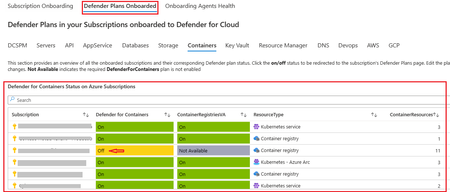
The Defender for Cloud Onboarding Workbook V2 is the latest version of this workbook that was originally published August 2022. You can read more about the purpose of this workbook in this post. What’s New: The Defender Plans Onboarded Tab - displays the subscriptions that are onboarded to a Defender plan, status of the Defender Plan, and the resources deployed in the subscription. You can click on the status of the Defender Plan to On / Off on the subscription. You will be directed to the Defender Plans Blade on your selected Subscription. You can notice the status of each Defender Plan is On/Off, and the Resource quantity column displays the Resources deployed in the subscription. You can edit the status of the selected Defender Plan from here and click on save. Please be noted that Foundational CSPM is by default “On” on all subscriptions. The CSPM Tab - displays the subscriptions that are onboarded to a Defender for Cloud, status of the Defender CSPM Plan on the subscription, and the resources deployed in the subscription. You can click on the status of the Defender Plan to On/Off on the subscription. The Agentless Capabilities covered under Defender CSPM displays the Status is On/Off. “Not Available” indicates the required Defender Plan is not enabled, and hence the capability is not available. You can click on the On/Off status on the subscription to edit the Agentless capability. Edit the Status On/Off, and click “Continue” and “Save” the settings The API Tab - displays the subscriptions that are onboarded to a Defender for Cloud, status of the Defender for APIs Plan on the subscription, and the APIM resources deployed in the subscription. You can click on the status of the Defender Plan to On/Off on the subscription. The APIM resources overview displays the APIM resources deployed in the subscription, and their Public Network Access is Enabled/Disabled, and if the APIM is deployed into a VNET. The Onboard API collections displays if all the API collections in an APIM are onboarded to Defender for APIs. Click on “Not Onboarded” to onboard the API collection. You are directed to the assessment “Azure API Management APIs should be onboarded to Defender for APIs”. Select the API Endpoints under the Unhealthy resources and click on “Fix” The Storage Tab - displays the subscriptions that are onboarded to a Defender for Cloud, status of the Defender for Storage Plan on the subscription, and the Storage Account resources deployed in the subscription. You can click on the status of the Defender Plan to On/Off on the subscription. The Agentless capabilities like Data Sensitivity Discovery, Malware Scanning are only available with the DefenderForStorageV2Plan. “Not Available” indicates that the required plan is not enabled. The Containers Tab - displays the subscriptions that are onboarded to a Defender for Cloud, status of the Defender for Containers Plan on the subscription, and the Container resources deployed in the subscription. You can click on the status of the Defender Plan to On/Off on the subscription. The Agentless capability Container Registries VA is available with both the Defender For Containers Plan and Defender CSPM Plan. “Not Available” indicates that the required plan is not enabled. The Devops Tab - displays the Github Connectors and Azure Devops Connectors onboarded to the subscription The Github repositories that need to be enabled for Code Scanning, Secret scanning, Depandabot scanning are displayed. Click on “Unhealthy” status to enable scanning. You are directed to the relevant Recommendation. Select the Unhealthy resources and assign Owner to remediate the Recommendation. The AWS Tab - displays the the AWS Connectors deployed in the subscription, yhe status of the Defender Plans on the AWS Connector. You can click on the status of the Defender Plan to On/Off on the Connector. AWS Agentless capabilities like "Agentless VM scanning", "Data Sensitivity Discovery" are displayed. You are directed to the AWS Defender plans blade. You can edit the Defender plan on the AWS connector and click on “Configure access” When the Defender Plan settings are edited on the AWS connector, you need to download the cloud formation template and update the AWS environment. This is a required step to reflect your changes on the AWS connector, to the AWS environment. The GCP Tab - displays the the GCP Connectors deployed in the subscription, the status of the Defender Plans on the GCP Connector. You can click on the status of the Defender Plan to On/Off on the Connector. You are directed to the GCP Defender plans blade. You can edit the Defender plan on the GCP connector and click on “Configure access” and “Update” How to Deploy The Defender for Cloud Onboarding Workbook is available in the Microsoft Defender for Cloud GitHub Repo page, under Workbooks and can be accessed directly with its Defender for Cloud Onboarding Workbook V2 The workbook can be deployed quickly in the Azure Commercial and Gov cloud environments by clicking the respective “Deploy to Azure” buttons on the workbook page. Additional Resources To learn more about Microsoft Defender for Cloud, visit: https://aka.ms/ascninja To learn about Microsoft Defender for Cloud workbooks, visit: https://docs.microsoft.com/en-us/azure/security-center/custom-dashboards-azure-workbooks Acknowledgements Many thanks to Yuri Diogenes & Safeena Begum in supporting my initiative and suggesting feedbacks.Automated Remediation for Malware Detection - Defender for Storage
Today, Defender for Storage released, in public preview for Commercial Cloud, the feature Automated Remediation for Malware Detection. This is for both On-upload and On-demand malware scanning. The full documentation can be found in this link. What does it do? Anytime that a blob is found malicious (malicious content was found in the blob), the Automated Remediation feature will kick in and soft-delete the blob. What do you mean by soft-delete? As soon as you enable Automated Remediation for Malware Detection, at the subscription level or storage account level, under “Data Management”, two settings will get automatically configured: Enable soft delete for blobs Keep deleted blobs for (in days): 7 days (if this was not configured. If you had a different retention period, we will not modify it) Enable soft delete for containers Keep deleted containers for (in days): 7 days (if this was not configured. If you had a different retention period, we will not modify it) This configuration will let you “undelete” or “recover” the deleted blobs. How do I enable it? There are two ways: sub-level and resource-level. Besides the User Interface options described in this blog, we have other sub-level and resource-level enablement options like REST API which are documented in this link. Subscription level Go to Microsoft Defender for Cloud Environment Settings Select the subscription Enable Defender for Storage (if not enabled already) Click Settings In Malware Scanning configuration, check the box Soft delete malicious blobs (preview) Save it Note: by default, enabling malware scanning will not automatically enable Automated Remediation for Malware Detection. Storage account level Select the storage account Under Security + networking, click on Microsoft Defender for Cloud If Defender for Storage is already enabled, click on Settings Under the On-upload malware scanning settings, mark the checkbox Soft delete malicious blobs (preview) Save it How does it look like? Note: If you turn on Versioning for Blobs on your storage account, see Manage and restore soft delete for blobs to learn how to restore a soft deleted blob. Try it out and let us know your feedback! 😊