microsoft 365
5037 TopicsAgentCon Hong Kong - Come One Come All for FREE
AgentCon is coming to Hong Kong! 🚀 The AI Agents Developer Conference lands on Saturday, 11 April 2026, at Hong Kong Institute of Information Technology (HKIIT) (VTC Tsing Yi Complex). If you're building with AI agents, automation, or intelligent systems, don't miss this gathering of developers, architects, and AI leaders for a full day of real-world sessions focused on designing, deploying, and scaling AI agents. Secure your spot ➡️ https://aka.ms/AgentconHongKong202616Views0likes0CommentsAgentCon Seoul - Come One Come All for FREE
AgentCon is coming to Seoul! 🚀 The AI Agents Developer Conference lands on Thursday, 16 April 2026, at Seoul National University. If you're building with AI agents, automation, or intelligent systems, don't miss this gathering of developers, architects, and AI leaders for a full day of real-world sessions focused on designing, deploying, and scaling AI agents. Secure your spot ➡️ https://aka.ms/agentconSeoul202616Views0likes0CommentsAgentCon New York - Come One Come All for FREE
On March 9, 2026, #AgentCon lands at Nasdaq, Times Square, bringing together developers, engineers, and innovators shaping the future of AI agents. Expect deep‑dive talks, hands‑on learning, practical demos and plenty of networking with the AI community. This isn’t just another AI event, it’s where builders meet to talk real code. ➡️ Register now!36Views0likes0CommentsQuickly add approval workflows to any list or library in Microsoft 365
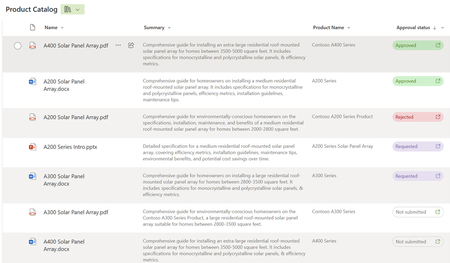
Leverage the power and simplicity of lightweight approvals on any list or library with a few simple clicks! SharePoint and Teams seamlessly integrate across files, lists, loops, and pages. And now, we’re excited to release the latest integration. SharePoint + the Teams Approvals app bringing you fast, easy approval-tracking business solutions – to any list or library. A single toggle gets you started: Create, approve, reject, and cancel – without leaving your content or the context of your conversations. Whether you need to approve a purchase order, a vacation request, project milestones, or a blog post, Approvals in lists and libraries help streamline the process and collaboration among your team members.12KViews6likes23Comments
I can't add an O365 email to Outlook desktop client but I can access it from the web
I can't add a O365 to Outlook desktop client but I can access from the web This a weird thing, whenever I try to add in Outlook from File > Add Account I get the message "Something went wrong and Outlook couldn't set up your account". From Control Panel > Mail > Email accounts > New > Manual Setup > here I put the email and gets stuck at "Searching for... Settings" and then " An encrypted connection to your email is not available, click Next to attempt using an unencrypted connection", so I do that and get the error "We're sorry we couldn't set up your account automatically. To try setting up the account yourself click Next" which is basically the same. Everything works fine in the browser, any ideas on this?19KViews1like11Comments
Assist me with Shared Mailbox Alias Configuration in Outlook 365
We have a shared mailbox with different email alias configurations for various applications. Each application needs to send emails using its respective alias. Shared Mailbox Name: email address removed for privacy reasons Application 1: From email ID – email address removed for privacy reasons Application 2: From email ID – email address removed for privacy reasons Similarly, I need to define aliases for each application. Could you please assist me with setting this up in Outlook 365? Additionally, could you explain if there are any limitations related to using aliases?251Views0likes4CommentsCreate an Internal Support Ticket Hub with Microsoft Lists, Forms & Power Automate
Setting Up the Support Ticket Portal First, we will set up the support ticket portal. This is where ticket requests will populate, be triaged, assigned and managed. It's a central location where the support team members can keep track of their tasks as well as keep the client informed through automated notifications upon status changes. Let's get started! 1. Create the Microsoft List: Navigate to Microsoft Lists from the Microsoft365.com App launcher in the upper left. Select the “+ New list” and choose the “Issue Tracker" template. Fill out the list information (name, description*, color*, icon*, and associate it with a team or save to your lists) and select create to make your form (*optional). In this case, associating the list with a team is required as it is needed for notification purposes later on in the tutorial. Review the list items from the template and customize the list to what your organization needs. Include columns that capture essential details such as issue description, priority level, assigned to, and status. Ensure the list is set up to store all necessary information for managing support tickets. There will be items you need captured from the person submitting the form as well as items to triage, assign, and track the status of the case. 2. Creating the Support Ticket Form In the list menu, select the "Forms" tab to create a new form. Customize the form by removing or unchecking questions that are designed for the support team, leaving only the questions needed from the person submitting the ticket. For example, you’d remove the Priority, Status and Assigned To fields from the form because those items are not determined by the submitter, but by the internal staff triaging the case. Ensure the form captures essential details such as the issue description, associated files, and contact information. 3. Enabling Notifications and Assigning Tickets In the form settings, select the toggle next to "Notify me" so that whenever a new item (support ticket) is submitted, you are immediately notified. This ensures that you don't miss an urgent request. Preview your form Check for changes or adjustments you’d like to make. If everything is good, congratulations! You’ve made your support ticket form! 4. The Workflow Process: Now that your form and list are created you can test out your new form and ticket portal. Grab the link to your new form by selecting the forms button again in the menu. Select the link sign to copy the link. Let's test things out. Fill out the form with information as if you are an employee submitting a ticket about an issue. Refresh and check your Microsoft List to make sure the form responses were automatically added. Triage the case. In the Microsoft List, double click on the form submission list item. Here, the support admin will triage the case by assigning it to a member of the support team, updating the status of the ticket to "In Progress" and assigning it a priority status. When a ticket is assigned, the assigned staff member receives a notification, ensuring they are aware of their new task. If they need to get in contact with the employee that submitted the case, they are able to come to the list item, and check for contact/email details in the email column. Team members can update the status of the ticket to "In Progress" when they start working on it and then to "Completed" once the issue is resolved. These status updates help track the progress of each ticket and ensure timely resolution. Congratulations! You have an internal support ticket portal and form. To further enhance the transparency and efficiency of your internal support ticket system, you can implement additional notifications to keep the requester informed about the status of their ticket. By setting up automated notifications in Power Automate for when a ticket is marked as "In Progress" and "Completed," you ensure that the requester is always aware of the current status of their issue. This not only improves communication but also boosts confidence in the support process, as employees feel assured that their concerns are being actively addressed and resolved. 5. Automating Notifications with Power Automate Create a Flow: From the Microsoft365.com app launcher, open Power Automate. Click "+ Create" and select "Automated Cloud Flow". Choose a flow name and set the trigger to "When an item or file is modified". Configure the Flow: On the canvas, select the trigger to enter the required data. The site address your Microsoft List is attached to and the list or library name. Next, we must add a trigger condition in order for the flow to only trigger when the status column has been changed. In the settings tab add the following trigger condition NOt(equals(triggerOutputs()?['body/Status'], triggerOutputs()?['body/PreviousStatus'])) Return to the canvas to create a new action. Select the + sign under your trigger. In the search menu, search for the condition action. For the value of the condition, we want to choose the Status Value from the dynamic field (the lightning bolt). We want to make sure the condition states “Status Value is equal to In progress”. (Capitalization matters here so make sure the capitalization of “In progress” matches the way it is spelled on your Microsoft List”. In the "True" column of your condition we will add a new action. Select “Send an email (V2) Inside of your action select, “Switch to Advanced Mode” to be able to enter dynamic fields or fields directly associated with your form submission. In the "To" field, select the lightning bolt for a dynamic entry. And select the “Issue logged by Email”. This will add the email address of the form sender to the “To” field and who the notifications will be sent to. In the Subject field type and appropriate title such as “Support Ticket Status Update”. In the Body field type a message to the requester. For example, "Hello, you are receiving this message to notify you that your support ticket for" (dynamically insert the name of the issue) “has been changed to “In Progress”. At this point, the flow now sends notifications for when the status column has been modified to “In Progress. Now, let's do the same and send a notification for when the status has been changed to “Completed”. In the False column, we are going to add another condition. The values for the condition will be the same except where it once said, “In Progress” it will say “Completed”. You want the statement to read “Status value is equal to Completed”. In the true column add the same action for sending an email and fill out the details accordingly. Save and test your flow. Test and Deploy: Test the flow to ensure it works as expected. Select Test and choose Manually. This specific flow is triggered when the status column has been modified to “In Progress” or “Completed”. Test both separately to make sure both works. You will see green check marks and receive a notification to the email you provided earlier when filling out the form with sample data. In this example, I tested the flow by updating the status to “In Progress” so in this case I have green check marks along the left side because that follows the first conditions. The green check marks will follow the right-side path if I choose to test the “Completed” status. Here is a copy of the email that was sent to the inbox. Once satisfied, deploy the flow to automate the notification process, enhancing communication and satisfaction. Conclusion By leveraging Microsoft Lists and Forms, you can create a robust internal support ticket system that streamlines the process of submitting, triaging, and resolving support requests. The integration with Power Automate further enhances this system by automating notifications, ensuring that all parties are kept informed throughout the process. This setup not only improves efficiency but also boosts employee satisfaction by providing a transparent and responsive support system.7.4KViews1like2CommentsShortcuts appearing when using Option+arrow in Outlook on Chrome in Mac
luse Outlook on Chrome in my MacBook Pro. While typing an email, though, if I use Option tarrow left or right (to go back or forth between words), after a few words, the shortcut letters for the menus pop up, and stop what I'm doing. (See image.) It doesn't happen in any other window on Chrome. So it's not a Chrome thing. It's only when Outlook 365 is loaded. (Don't know if it happens in other 365 apps, as I only use Outlook, really.) Anyone experienced that? And, if so, is there a solution? I tried Outlook 365's setting, but nothing there. Thanks!23Views0likes2CommentsPlease clarify the numbering system in Microsoft exams
I am trying to make sense of exam numbers in Microsoft Certification poster. https://arch-center.azureedge.net/Credentials/Certification-Poster_en-us.pdf. For example I notice most azure exam numbers start with 1xx. That gives me the impression that 1xx could be related to Infrastructure. But I am not sure if that is the correct understanding. For example all fundamental exams are numbered 9xx. So are exams numbered differently in role based certifications? What is the numbering pattern and practice in role based certifications? Again one might assume that all architect exams may have the same number pattern but they don’t. Some patterns emerge when it comes to Windows certification - 8xx. Collaboration and communication - 7xx except MB 700. So it appears even under role based certifications the numbering pattern may be different depending on the technology or platform or product. I have not found any authoritative material on the internet form anyone in Microsoft or an MVP on this topic. Some clarification on this topic will help to put at rest years of curiosity and confusion in the community. Thank you.38Views0likes1CommentAutomating Microsoft 365 with PowerShell Second Edition
The Office 365 for IT Pros team are thrilled to announce the availability of Automating Microsoft 365 with PowerShell (2nd edition). This completely revised 350-page book delivers the most comprehensive coverage of how to use Microsoft Graph APIs and the Microsoft Graph PowerShell SDK with Microsoft 365 workloads (Entra ID, Exchange Online, SharePoint Online, Teams, Planner, and more). Existing subscribers can download the second edition now free of charge. https://office365itpros.com/2025/06/30/automating-microsoft-365-with-powershell2/706Views2likes9Comments