microsoft 365
5178 TopicsEmbracing Responsible AI: A Comprehensive Guide and Call to Action
In an age where artificial intelligence (AI) is becoming increasingly integrated into our daily lives, the need for responsible AI practices has never been more critical. From healthcare to finance, AI systems influence decisions affecting millions of people. As developers, organizations, and users, we are responsible for ensuring that these technologies are designed, deployed, and evaluated ethically. This blog will delve into the principles of responsible AI, the importance of assessing generative AI applications, and provide a call to action to engage with the Microsoft Learn Module on responsible AI evaluations. What is Responsible AI? Responsible AI encompasses a set of principles and practices aimed at ensuring that AI technologies are developed and used in ways that are ethical, fair, and accountable. Here are the core principles that define responsible AI: Fairness AI systems must be designed to avoid bias and discrimination. This means ensuring that the data used to train these systems is representative and that the algorithms do not favor one group over another. Fairness is crucial in applications like hiring, lending, and law enforcement, where biased AI can lead to significant societal harm. Transparency Transparency involves making AI systems understandable to users and stakeholders. This includes providing clear explanations of how AI models make decisions and what data they use. Transparency builds trust and allows users to challenge or question AI decisions when necessary. Accountability Developers and organizations must be held accountable for the outcomes of their AI systems. This includes establishing clear lines of responsibility for AI decisions and ensuring that there are mechanisms in place to address any negative consequences that arise from AI use. Privacy AI systems often rely on vast amounts of data, raising concerns about user privacy. Responsible AI practices involve implementing robust data protection measures, ensuring compliance with regulations like GDPR, and being transparent about how user data is collected, stored, and used. The Importance of Evaluating Generative AI Applications Generative AI, which includes technologies that can create text, images, music, and more, presents unique challenges and opportunities. Evaluating these applications is essential for several reasons: Quality Assessment Evaluating the output quality of generative AI applications is crucial to ensure that they meet user expectations and ethical standards. Poor-quality outputs can lead to misinformation, misrepresentation, and a loss of trust in AI technologies. Custom Evaluators Learning to create and use custom evaluators allows developers to tailor assessments to specific applications and contexts. This flexibility is vital in ensuring that the evaluation process aligns with the intended use of the AI system. Synthetic Datasets Generative AI can be used to create synthetic datasets, which can help in training AI models while addressing privacy concerns and data scarcity. Evaluating these synthetic datasets is essential to ensure they are representative and do not introduce bias. Call to Action: Engage with the Microsoft Learn Module To deepen your understanding of responsible AI and enhance your skills in evaluating generative AI applications, I encourage you to explore the Microsoft Learn Module available at this link. What You Will Learn: Concepts and Methodologies: The module covers essential frameworks for evaluating generative AI, including best practices and methodologies that can be applied across various domains. Hands-On Exercises: Engage in practical, code-first exercises that simulate real-world scenarios. These exercises will help you apply the concepts learned tangibly, reinforcing your understanding. Prerequisites: An Azure subscription (you can create one for free). Basic familiarity with Azure and Python programming. Tools like Docker and Visual Studio Code for local development. Why This Matters By participating in this module, you are not just enhancing your skills; you are contributing to a broader movement towards responsible AI. As AI technologies continue to evolve, the demand for professionals who understand and prioritize ethical considerations will only grow. Your engagement in this learning journey can help shape the future of AI, ensuring it serves humanity positively and equitably. Conclusion As we navigate the complexities of AI technology, we must prioritize responsible AI practices. By engaging with educational resources like the Microsoft Learn Module on responsible AI evaluations, we can equip ourselves with the knowledge and skills necessary to create AI systems that are not only innovative but also ethical and responsible. Join the movement towards responsible AI today! Take the first step by exploring the Microsoft Learn Module and become an advocate for ethical AI practices in your community and beyond. Together, we can ensure that AI serves as a force for good in our society. References Evaluate generative AI applications https://learn.microsoft.com/en-us/training/paths/evaluate-generative-ai-apps/?wt.mc_id=studentamb_263805 Azure Subscription for Students https://azure.microsoft.com/en-us/free/students/?wt.mc_id=studentamb_263805 Visual Studio Code https://code.visualstudio.com/?wt.mc_id=studentamb_263805908Views0likes0CommentsMicrosoft 365 PC: The Modern Windows Experience for Work and Business
In today’s workplace, a computer is no longer just a machine used to write documents or browse the internet. Modern businesses need devices that are secure, connected to the cloud, easy to manage remotely, and powerful enough to support hybrid work. That is where the concept of a “Microsoft 365 PC” comes in. https://dellenny.com/microsoft-365-pc-the-modern-windows-experience-for-work-and-business/32Views0likes0CommentsCopilot, Microsoft 365 & Power Platform Community call
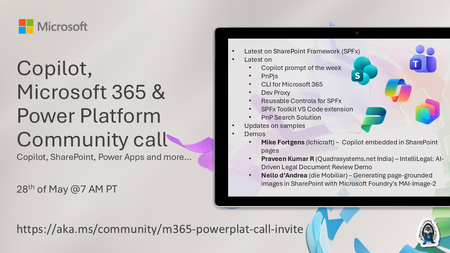
💡 Microsoft 365 & Power Platform Development bi-weekly community call focuses on different use cases and features within the Microsoft 365 and Power Platform - across Microsoft 365 Copilot, Copilot Studio, SharePoint, Power Apps and more. Demos in this call are presented by the community members. 👏 Looking to catch up on the latest news and updates, including cool community demos, this call is for you! 📅 On 28th of May we'll have following agenda: Latest on SharePoint Framework (SPFx) Latest on Copilot prompt of the week PnPjs CLI for Microsoft 365 Dev Proxy Reusable Controls for SPFx SPFx Toolkit VS Code extension PnP Search Solution Demos this time Mike Fortgens (Ichicraft) – Copilot embedded in SharePoint pages Praveen Kumar R (Quadrasystems.net India) – IntelliLegal: AI-Driven Legal Document Review Demo Nello d’Andrea (die Mobiliar) – Generating page-grounded images in SharePoint with Microsoft Foundry's MAI-Image-2 📅 Download recurrent invite from https://aka.ms/community/m365-powerplat-dev-call-invite 📞 & 📺 Join the Microsoft Teams meeting live at https://aka.ms/community/m365-powerplat-dev-call-join 💡 Building something cool for Microsoft 365 or Power Platform (Copilot, SharePoint, Power Apps, etc)? We are always looking for presenters - Volunteer for a community call demo at https://aka.ms/community/request/demo 👋 See you in the call! 📖 Resources: Previous community call recordings and demos from the Microsoft Community Learning YouTube channel at https://aka.ms/community/youtube Microsoft 365 & Power Platform samples from Microsoft and community - https://aka.ms/community/samples Microsoft 365 & Power Platform community details - https://aka.ms/community/home 🧡 Sharing is caring!27Views0likes0CommentsCopilot, Microsoft 365 & Power Platform product updates call
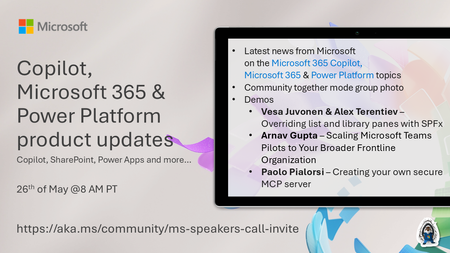
💡Microsoft 365 & Power Platform product updates call concentrates on the different use cases and features within the Microsoft 365 and in Power Platform. Call includes topics like Microsoft 365 Copilot, Copilot Studio, Microsoft Teams, Power Platform, Microsoft Graph, Microsoft Viva, Microsoft Search, Microsoft Lists, SharePoint, Power Automate, Power Apps and more. 👏 Weekly Tuesday call is for all community members to see Microsoft PMs, engineering and Cloud Advocates showcasing the art of possible with Microsoft 365 and Power Platform. 📅 On the 26th of May we'll have following agenda: News and updates from Microsoft Together mode group photo Vesa Juvonen & Alex Terentiev – Overriding list and library panes with SPFx Arnav Gupta – Scaling Microsoft Teams Pilots to Your Broader Frontline Organization Paolo Pialorsi – Creating your own secure MCP server 📞 & 📺 Join the Microsoft Teams meeting live at https://aka.ms/community/ms-speakers-call-join 🗓️ Download recurrent invite for this weekly call from https://aka.ms/community/ms-speakers-call-invite 👋 See you in the call! 💡 Building something cool for Microsoft 365 or Power Platform (Copilot, SharePoint, Power Apps, etc)? We are always looking for presenters - Volunteer for a community call demo at https://aka.ms/community/request/demo 📖 Resources: Previous community call recordings and demos from the Microsoft Community Learning YouTube channel at https://aka.ms/community/youtube Microsoft 365 & Power Platform samples from Microsoft and community - https://aka.ms/community/samples Microsoft 365 & Power Platform community details - https://aka.ms/community/home 🧡 Sharing is caring!33Views0likes0CommentsZoom in or out of forms, tables, and queries when in Form View or Datasheet View
Access now lets you zoom in and out when you’re working with forms, tables, and queries in Form View or Datasheet View. Zoom in for a closer look at your data or zoom out to see more on screen at once. You can adjust the zoom level using the Zoom button on the ribbon, the zoom slider on the status bar, or keyboard shortcuts. Zoom is also available in Print Preview for reports. Zoom isn’t supported in Report View or Design View. This feature is available in Access for Microsoft 365, version 2605 and later. Choose a magnification setting from the ribbon On the Home tab, select Zoom and choose one of the following options: 50%, 75%, 125%, 150%, 175%, 200%, or 500%. To return the view to 100% zoom, click Zoom 100%. If you prefer to use the keyboard, you can press Ctrl + Alt + 0 (zero). Use the zoom slider to quickly zoom in or out On the status bar in the lower right-hand corner of Access, select the zoom slider. Slide to the percentage zoom setting that you want. Press – or + to zoom in gradual increments. Use zoom keyboard shortcuts or mousewheel To zoom in, press Ctrl + Alt + Plus (+). To zoom out, press Ctrl + Alt + Minus (-). To return to 100% magnification, press Ctrl + Alt + 0 (zero). To use the mousewheel and scroll to zoom in or out, press Ctrl + mousewheel. Change your default zoom percentage Access doesn't save zoom settings on closing and reopening a form. Instead, it opens your form using the default zoom setting. To set your zoom default percentage, choose File > Options > Current Database > Application Options and choose the Default Zoom setting. Note Content inside of ActiveX controls, such as the text in a TreeView control, doesn't resize when zoomed. Zooming in Access only affects Access-native controls. If a form uses ActiveX controls, consider replacing them with native Access controls so they scale with the rest of the form.254Views1like3Comments