microsoft 365 copilot
447 TopicsCopilot & agent reporting: Measuring AI adoption and impact
Join us for a focused, fast paced walkthrough of the latest reporting capabilities in Copilot and Agent Analytics. We’ll show you how organizations can track adoption, understand usage patterns, and measure the impact of both M365 Copilot and Agents using our newest reports. This session includes a live demo of the updated Copilot Dashboard, newly added Copilot Chat reporting, enhanced benchmarks, and the all-new Agent Dashboard—designed to give leaders and analysts a unified, actionable view of AI usage and performance across their environment. How do I participate? No registration is required. Select "Add to calendar" to save the date, select "Attend" to receive event reminders, then join us live on February 26th ready to learn and ask questions! Feel free to post questions and comments below. You can post during the live session and/or in advance if the timing doesn't work for you. This session is part of the IT management and security in the AI era. Add it to your calendar, select "Attend" for event reminders, and check out the other sessions! Each session has its own page where the session livestream and discussion space will be available at the start time. You will also be able to view sessions on demand after the event.384Views0likes3CommentsManaging agent inventory and costs
This fast-paced session will showcase how AI admins can confidently manage agents and control costs. You’ll see how Microsoft empowers organizations to govern agent inventories, create billing policies, and gain visibility and control over usage and cost. Whether you're scaling agents across departments or fine-tuning consumption at the department level, this session will demonstrate how Microsoft 365 admin center brings clarity and control to your AI operations. How do I participate? No registration is required. Select "Add to calendar" to save the date, select "Attend" to receive event reminders, then join us live on February 26th ready to learn and ask questions! Feel free to post questions and comments below. You can post during the live session and/or in advance if the timing doesn't work for you. This session is part of the IT management and security in the AI era. Add it to your calendar, select "Attend" for event reminders, and check out the other sessions! Each session has its own page where the session livestream and discussion space will be available at the start time. You will also be able to view sessions on demand after the event.300Views0likes4CommentsIT management and security in the AI era
Join us for insights, demos, and deep dives into the latest features and controls for securing and managing your environment while unlocking AI’s value. Learn how to prepare your environment for Copilot and agents, and deep dive into the latest innovations to secure, manage, and analyze Microsoft 365 Copilot, Copilot Chat, Microsoft Copilot Studio, and agents across your organization. What to expect A breakdown of the built-in protections in the Copilot platform that help proactively safeguard your organization Practical ways to reduce exposure to common attack vectors in an increasingly AI-forward digital work environment Technical guidance for protecting sensitive data while maintaining productivity Best practices for managing agents and controlling costs Insights on measurement, analytics, and usage trends Guidance on enabling users and measuring the impact of M365 Copilot and agents Live AMAs with Microsoft product team members throughout the event Time Session Title Speaker(s) 8:00–8:30 AM PT Copilot trust & safety: Controls to manage AI risk Tanner Briggs 8:30–9:00 AM PT Secure Microsoft 365 Copilot and agents against data loss Erica Toelle, Sophie Ke 9:00–9:30 AM PT Microsoft Baseline Security Mode: Simplify, secure, succeed Adriana Wood 9:30–10:00 AM PT Managing agent inventory and costs Samer Baroudi 10:00 AM–10:30 AM PT Copilot & agent reporting: Measuring AI adoption and impact Mike Walsh, Steph Tung How to Participate Register for the Microsoft Tech Community using your email if you haven’t already. This allows you to post comments and ask questions. Visit each individual session page during its scheduled time to join the conversation. You can post your questions in the comments, and product team members will respond live during the AMA. Watch the session live or catch the recording on demand after the event. Keep the conversation going in the Microsoft 365 Copilot Tech Community discussion space after the sessions conclude. It’s a great place to follow up, share what’s working, and connect with others exploring similar topics. Hope to see you there! Come ready to learn and ask our experts all of your burning questions!4.2KViews5likes10CommentsCopilot trust & safety: Controls to manage AI risk
As generative AI adoption accelerates, IT, security and compliance leaders must balance access to innovation with responsibility and governance. In this session on Copilot trust & safety you’ll learn about the Microsoft-built protections embedded in the platform, see how Copilot safety investments map to real-world risk scenarios, and get a clear understanding of how to proactively safeguard your organization through policy, compliance, and risk management tools while unlocking AI’s value. How do I participate? No registration is required. Select "Add to calendar" to save the date, select "Attend" to receive event reminders, then join us live on February 26th ready to learn and ask questions! Feel free to post questions and comments below. You can post during the live session and/or in advance if the timing doesn't work for you. This session is part of the IT management and security in the AI era. Add it to your calendar, select "Attend" for event reminders, and check out the other sessions! Each session has its own page where the session livestream and discussion space will be available at the start time. You will also be able to view sessions on demand after the event.776Views3likes6CommentsMicrosoft Baseline Security Mode: Simplify, secure, succeed
Ready to take your organization’s security posture to the next level? Join us for an engaging session on Microsoft Baseline Security Mode (BSM)—a powerful framework and tool built on decades of Microsoft’s security expertise. Discover how BSM delivers the right controls, reporting, and settings to reduce risk and strengthen your Microsoft environment. Learn how to simplify security management, enforce secure-by-default configurations, and gain visibility through built-in telemetry—all without sacrificing productivity. How do I participate? No registration is required. Select "Add to calendar" to save the date, select "Attend" to receive event reminders, then join us live on February 26th ready to learn and ask questions! Feel free to post questions and comments below. You can post during the live session and/or in advance if the timing doesn't work for you. This session is part of the IT management and security in the AI era. Add it to your calendar, select "Attend" for event reminders, and check out the other sessions! Each session has its own page where the session livestream and discussion space will be available at the start time. You will also be able to view sessions on demand after the event.408Views0likes3CommentsUpcoming February 2026 Microsoft 365 Champion Community Call
Join our next community call on February 24, 2026, to learn more about Word, Excel and PowerPoint Agents in Microsoft 365 Copilot. Reminder: Our community calls are in the Teams webinar format, so you must register to receive the link to join. The join link will be sent to you in email with your webinar registration confirmation. https://aka.ms/M365ChampionCallAM https://aka.ms/M365ChampionCallPM The calls will still start at 5 minutes past the hour for both sessions (at 8:05 AM and 5:05 PM PT), and it will still end at the top of the hour (9:00 AM and 6:00 PM PT, respectively). While our calls are open to everyone, you must be a member of the Microsoft 365 Champion Program in order to access the presentation materials - the access link is in the initial welcome email and the monthly newsletter emails sent the week before the community calls. An on-demand recording will still be available on our Driving Adoption > Events pages, as well as on our Microsoft Community Learning YouTube channel. If you have not yet joined our Champion community, sign up here to get access to the monthly newsletters, calendar invites, and program assets (e.g., the presentations).167Views0likes1CommentAI in Windows 11
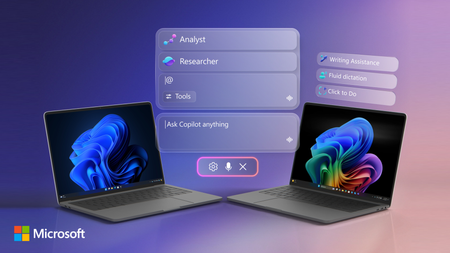
Access Copilot and agents right from the taskbar; find answers across your files, email, and meetings, and turn ideas into polished content using voice or text. AI is right there where you already work, so you can move faster, stay in your flow, and make better decisions without switching context, opening other apps or moving to the browser. And if you do have a Copilot+ PC, you can use fluid voice dictation across apps, find files with natural language search, take action on anything on your screen, and refine writing anywhere, even offline. Jeremy Chapman, Microsoft 365 Director, shows how whether you’re planning projects, collaborating with teammates, or building solutions, you can move faster, stay focused, and turn context into real outcomes. Stop searching across apps. New Copilot capabilities in Windows Search understand your work context and surfaces answers using data from your Microsoft 365 environment. Get started with Copilot experiences in Windows 11. Run AI tasks without interrupting your workflow. Agents stay visible and trackable in the Windows 11 taskbar. Watch here. Interact with content on your screen using Click to Do. Extract text, send content to Microsoft 365 Copilot, or convert a static table into a usable Excel file. Take a look. QUICK LINKS: 00:00 — Ask Copilot 00:55 — Use voice with Copilot 02:30 — Agents on Windows 11 taskbar 04:19 — Copilot in File Explorer 05:19 — Copilot+ PC capabilities 07:04 — Click to Do 07:52 — Writing Assistance with Copilot 09:15 — Wrap up Link References Check out https://aka.ms/Windows11AI Unfamiliar with Microsoft Mechanics? As Microsoft’s official video series for IT, you can watch and share valuable content and demos of current and upcoming tech from the people who build it at Microsoft. Subscribe to our YouTube: https://www.youtube.com/c/MicrosoftMechanicsSeries Talk with other IT Pros, join us on the Microsoft Tech Community: https://techcommunity.microsoft.com/t5/microsoft-mechanics-blog/bg-p/MicrosoftMechanicsBlog Watch or listen from anywhere, subscribe to our podcast: https://microsoftmechanics.libsyn.com/podcast Keep getting this insider knowledge, join us on social: Follow us on Twitter: https://twitter.com/MSFTMechanics Share knowledge on LinkedIn: https://www.linkedin.com/company/microsoft-mechanics/ Enjoy us on Instagram: https://www.instagram.com/msftmechanics/ Loosen up with us on TikTok: https://www.tiktok.com/@msftmechanics Video Transcript: -Windows does a lot more than launch and run apps. Now with built-in AI, it can do much more for you and you don’t need special skills to make that happen. There are capabilities that light up on any hardware that runs Windows 11, and some that go even further on Copilot+ PCs with on‑device AI processing. Let’s go ahead and start with what anyone running Windows 11 can use right now. So to pull up AI experiences with advanced reasoning, you’ll start with the Search box in the Taskbar, where your familiar search still remains the same, but now you can also use it with AI prompts. So here, I’ll type, “When is my performance review due?” And by drawing on information from my Microsoft Teams and Outlook calendar, Copilot identifies my performance review meeting so I can prepare for it. It’s an experience powered by Microsoft 365 Copilot, which uses Work IQ to understand my work context. -Next with AI, it’s often easier just to say what you want and you can now use voice with Microsoft 365 Copilot because of its multi-modal support. You’ll use a long press on the Copilot key or Windows key + C if your device doesn’t have that, to activate voice control. And now I can interact with Copilot to help build a presentation that I’m working on. So for this slide I’ll ask, “Robin sent me a stat about incorporating organic design. I think it was in email, maybe Teams?” And it takes my voice command, it’s using Work IQ with Microsoft 365 Copilot to run intelligent searches, figuring out which Robin I mean while pulling in relevant context and shared information about the meeting from across my Microsoft 365 apps. - [Copilot] Robin mentioned that incorporating organic design has been shown to boost employee creativity by 15%. That’s a pretty cool stat! - Not bad. Can you turn that into a catchy statement on this slide here? - [Copilot] Absolutely. How about this? Creativity matters. Create the space for it. - Love it. I’ll need Amber to sign off on this. So when’s my next meeting with Amber? - [Copilot] Your next one-on-one with Amber is on Thursday at 10:30 in the morning. That should be a great time to review it together. - [Jeremy] Thanks, Copilot. - [Copilot] You got it. Happy to help. Let me know if there’s anything else you want to fine tune before that one on one. -This uses advanced speech‑to‑text and tightly integrates on‑device input with cloud AI, so it works on any connected Windows 11 device. Now let’s try something more challenging. Some AI tasks take longer than a quick prompt‑and‑response, and some need to run in parallel while you keep working. That’s where Agents on the Windows 11 taskbar can help. So I’m going to start by tapping into the new Windows Search box. Now, this uses new Windows shell integration, so that long running agents can be viewed similar to apps. So I just need to start with the @ symbol to pull up my agents Now I can find, open, monitor and work with my agents directly from the taskbar. So in this case, I’m going to choose the Researcher agent. I’ll ask Researcher to compare public sentiment with our design principles. I like the direction it’s thinking, so I’ll go ahead and confirm. And this agent works hard, often for 10 minutes or more to research and generate its content. And you can work on other things or with other agents while each performs their work. -As agents run, there are status indicators directly on the taskbar, similar to when you download large files, where you can track progress and see once it’s complete. So, your agents stay visible and easy to check on as you work, not buried in browser tabs. Now let’s return to our completed Researcher run. The notification tells me that Researcher is finished with this turn and in the taskbar, I can even see a green checkmark on the Researcher icon. When I zoom in, there’s a short summary. And I can tap in to review it. -Now, this actually took around eight or so minutes to process in real time. Everything here was grounded using Work IQ for information that was in my company. And you’ll see its answer is very well-informed and extremely comprehensive using our study for public sentiment vs. core design principles, it’s laying out its reasoning and all of its cited sources. Of course, Windows is also where you can go to find and open your files and now, your SharePoint and OneDrive cloud files will show up right inside the File Explorer. Using File Explorer Home, you can easily get to your recent files, your favorites and files shared with you. -Then the new Copilot control lets you Ask Microsoft 365 Copilot for file insights like summaries, context, or next steps for documents. So for this Design Principles doc here, I’ll ask Copilot to review it and tell me what percentage of employees prefer workspaces that incorporate sustainable materials. And in just a few seconds, based on information deeply nested within that document, it finds that over 70% say they do and even provides supporting context. So, you don’t have to open the file or leave your flow to find the right one, whether that’s local or in the cloud. And everything I’ve shown so far works on any Windows 11 device with a Microsoft 365 work or school account and access to Copilot. -Now let’s look at what’s unique to Copilot+ PCs, where on‑device AI and small language models deliver fast, private processing. So I’ll highlight a few of the capabilities that work on a Copilot + PC even if you don’t have Microsoft 365. First, the new Fluid Dictation works across all apps and uses on-device models for quicker, more natural voice typing as well. You can enable voice access in Settings, which on first run guides you through the experience and what it can do to interact with Windows. -So I’m going to show an experience working across two common text editors, Notepad and Word. You can start it using either the microphone icon in the taskbar, or by saying, “Voice access, wake up. Open Notepad.” It uses powerful AI running on your local device to automatically correct grammar, add punctuation, and, um, even remove filler words that you, uh, speak. Select all. Copy. Open Word. Paste. And that was just scratching the surface for what Voice access with Fluid Dictation can do. And here are some of the common commands that you can use to interact with Windows and your apps. -Second, to help you quickly find your files anywhere, improved Windows search uses semantic understanding across local files and Microsoft 365. You don’t need exact names, just describe what you remember. For example, this broad search here for project updates pulls up relevant files and folders of content using hybrid semantic search, and they might contain the word project or maybe synonyms, or contain related content in context of the files or even images within the files. -Next, Click to Do lets you interact with anything on your screen. You can take actions on content or ask Microsoft 365 Copilot a question about what’s on your screen without needing to switch context. So in this case, I’ll going to pull up this PDF file and you’ll see that it opens the file in the Edge browser. Now, if I scroll down, you can see that I have a stylized table on my screen, which by the way, could be text or an image. So I’ll hit the Windows Key + left mouse click to open Click to Do. And you can also use Windows key + Q. Now you’ll see that it’s recognizing all of the text in the screenshot. I can copy it as a CSV, Save or Share it. I’ll use Convert to table with Excel. And it instantly opens Excel and becomes a usable table and you can work directly with the data. -From here, if you also use Microsoft 365 at work or school with a Copilot+ PC, even more powerful capabilities light up. Writing Assistance with Microsoft 365 Copilot helps you quickly craft content with AI-powered rewriting and proofreading, and because it runs locally, it even works offline. This enables you to use generative AI from any app with text field input. So I’m going to go ahead and use our line-of-business app here for project planning. There’s a description and business justification field, and I’ll add a bit more detail here. -And this works everywhere, kind of like your clipboard, so when I select text, the Writing Assistance button appears. Now with it, I can choose options to rewrite it in different ways. In this case, I’ll choose professional. It rewrites my text entry and then gives me three options. So I’ll go ahead and choose the third option here, I like that one, so I’ll go ahead and replace my previous text with it. And that can be used on any line-of-business or other app without any code changes because it’s just built into Windows. -And finally, if you are a developer, new native support in the Model Context Protocol in Windows gives your agents a standardized way to connect with apps, tools, and files to automate tasks. You can use built-in agent connectors for File Explorer and Windows Settings, allowing your agents to manage local file operations and to modify defined device configurations. -Windows 11’s built-in AI moves the intelligence closer to you right in the flow of your work. To learn more, check out aka.ms/Windows11AI and keep watching Microsoft Mechanics for the latest updates and thanks for watching.56Views0likes0CommentsSecure Microsoft 365 Copilot and agents against data loss
As organizations scale Microsoft 365 Copilot and agents, prompts themselves become a new surface for data loss. In this session, learn how Microsoft Purview Data Loss Prevention safeguards Copilot interactions by detecting sensitive information in user prompts and preventing Copilot or Copilot agents from generating responses or performing grounding and web search. See how DLP for Copilot enables secure Copilot adoption—protecting sensitive data while maintaining productivity. How do I participate? No registration is required. Select "Add to calendar" to save the date, select "Attend" to receive event reminders, then join us live on February 26th ready to learn and ask questions! Feel free to post questions and comments below. You can post during the live session and/or in advance if the timing doesn't work for you. This session is part of the IT management and security in the AI era. Add it to your calendar, select "Attend" for event reminders, and check out the other sessions! Each session has its own page where the session livestream and discussion space will be available at the start time. You will also be able to view sessions on demand after the event.1.1KViews0likes5CommentsCopilot memory works?
Hi I don’t have a Microsoft 365 Business or Premium subscription, only 365 Personal, so I don't have access to the memory on/off toggle in https://m365.cloud.microsoft/. Before considering an upgrade, I'd like to know whether your experience - with memory enabled on https://m365.cloud.microsoft - matches mine when I enable memory on https://copilot.microsoft.com. Last week I asked Copilot to remember (1 week after clearing the memory): Whatever the conversation topic, Copilot must answer in a single paragraph maximum, unless Lorenzo explicitly asks for more When Lorenzo posts code (Excel, Power Query, JavaScript, Office Script…), Copilot must not explain what the code does unless Lorenzo explicitly asks When Lorenzo posts code (Excel, Power Query, JavaScript, Office Script…), Copilot must not make any comment on the code unless Lorenzo explicitly asks When Copilot posts code (Excel, Power Query, JavaScript, Office Script…), Copilot must never say "why it works" Each time, Copilot confirmed the memory was saved. Issue #1: One week later, only the last item appears in the memory panel Issue #2: In a new conversation, I asked for an Excel solution, and the first thing Copilot added after the solution was "why it works" Thanks & any question/clarification let me know17Views0likes0Comments