microsoft 365 apps
182 Topics
Where is the "Microsoft Places" app?
Last year, Microsoft announced "https://www.microsoft.com/en-us/microsoft-365/blog/2022/10/12/introducing-microsoft-places-turn-your-spaces-into-places/" at Ignite, and the https://youtu.be/ndrS8B89uO4 is still online, too. There are even https://learn.microsoft.com/en-us/microsoftsearch/manage-floorplans because of the supposedly imminent arrival of this new app. But somehow, there has been no news anywhere about Micro since October 2022. The about to start beta did not start, and on the https://www.microsoft.com/en-us/microsoft-365/roadmap?filters=&searchterms=places. Or did I miss anything?24KViews10likes14Comments
Update: New upgrade readiness tools for Office 365 ProPlus
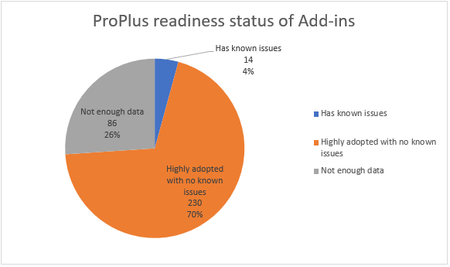
Update: The the Readiness Toolkit for Office add-ins and VBA is now available for download. Read more about it on our new post and download the toolkit and start using it today. We are excited to announce new tools to support the application compatibility readiness for Office 365 ProPlus. Over the next year, we will roll out tools to catalogue your organization’s add-ins, assess the status of VBA applications and deliver an improved support for 64-bit VBA. Customers tell us about the importance of application compatibility in their ProPlus upgrade plans and these tools make planning and execution easier. We are releasing them in limited preview now. Reach out to us at ReadyForOffice@microsoft.com to be part of the preview program. The new tools we are creating for application compatibility include: Updates to the Office Telemetry Dashboard New tools for add-in readiness reporting 64-bit common control support Office add-in reporting in Windows Upgrade Analytics In addition to supporting internal add-ins and VBA applications, we are adding more readiness information for Office add-ins from 3rd party ISVs. Later this year, we will publish a searchable list of ISVs who already support Office 365 ProPlus and we’ll start the validation of those popular 3rd party add-ins in the new Office builds, giving you the confidence that your solutions will continue to work with the latest versions of Office. Office Telemetry Dashboard The Office Telemetry Dashboard is an existing solution that helps you to gather inventory and usage information about add-ins used within your organization. We are now extending the Office Telemetry Dashboard to include readiness information. There are three key pieces of readiness information that this tool provides: ProPlus Ready 32 Bit. The add-in is widely adopted and used by enterprise customers in ProPlus and there are no known problems with the add-in ProPlus Ready 64 Bit. A 64-bit version of the add-in is available and widely adopted by enterprise customers in ProPlus and there are no known problems with the add-in ISV Support. The ISV has committed to support the add-in on ProPlus. This information helps you better plan an upgrade by knowing how many of the add-ins are expected to work seamlessly with ProPlus and how widely add-ins with potential issues are used within your organization and in which specific departments. Example of readiness reports include the following: Office 365 ProPlus readiness for add-ins Detailed view of Office 365 ProPlus readiness for add-ins VBA Macro Readiness For enterprises that rely on macro-enabled Office documents to perform business critical tasks, we are pleased to announce the new VBA Readiness Tool. This tool is designed to help your organization identify the most commonly used documents and determine if you are likely to encounter any compatibility issues. Compatibility issues are rare for most enterprises. The VBA Readiness Tool provides a report to quantify these issues for your enterprise. How it Works The VBA Readiness Tool works by scanning each PC to gather an inventory of the most recently used documents that contain VBA code. Documents that include VBA code, will be analyzed against a list of all known compatibility issues to determine if you are likely to encounter issues with the file after upgrading to ProPlus. The detailed report gives you all the information and confidence you need to plan your upgrade and to remedy any combability issues. 64-bit COM Controls Many Office users rely on the power of macros and forms to get tasks done. Some of these macros use Common Controls to create user interfaces or other such functions for users. Today, these Common Controls only work with the 32-bit version of Office. We're working to ensure a great experience on 64-bit Office and we will be releasing an update to our ProPlus client which brings 64-bit support to the Common Controls. The following nine controls will be included in the update: Once this update is rolled out later this year, taking advantage of 64-bit Common Controls will be seamless for users, with existing solutions continuing to work as they do today (though you may separately need to update your use of things like Declare statements, which you can read more about on MSDN). We are excited to bring 64-bit support to the Common Controls for Office ProPlus. We look forward to hearing your feedback. Office add-in report available in Windows Upgrade Analytics We announced the general availability of Upgrade Analytics in February 2017. Upgrade Analytics is a free tool helping organizations move to Windows 10. Learn more at http://technet.microsoft.com/itpro/windows/deploy/upgrade-readiness-get-started This tool also provides an inventory of Office add-in used within your organization. If your organization is planning a combined Windows 10 and Office ProPlus rollout, this tool is a one-stop shop to access both Windows application and Office add-in readiness. Pilot Program While all the tools listed in this blog are releasing later in 2017, we are accepting a limited number of enterprises into a pilot program. If you’d like to participate in this pilot program and are willing to share feedback with Microsoft, please let us know at ReadyForOffice@microsoft.com.Immersive Reader comes to Outlook on the web and the OneNote for Windows 10 app...
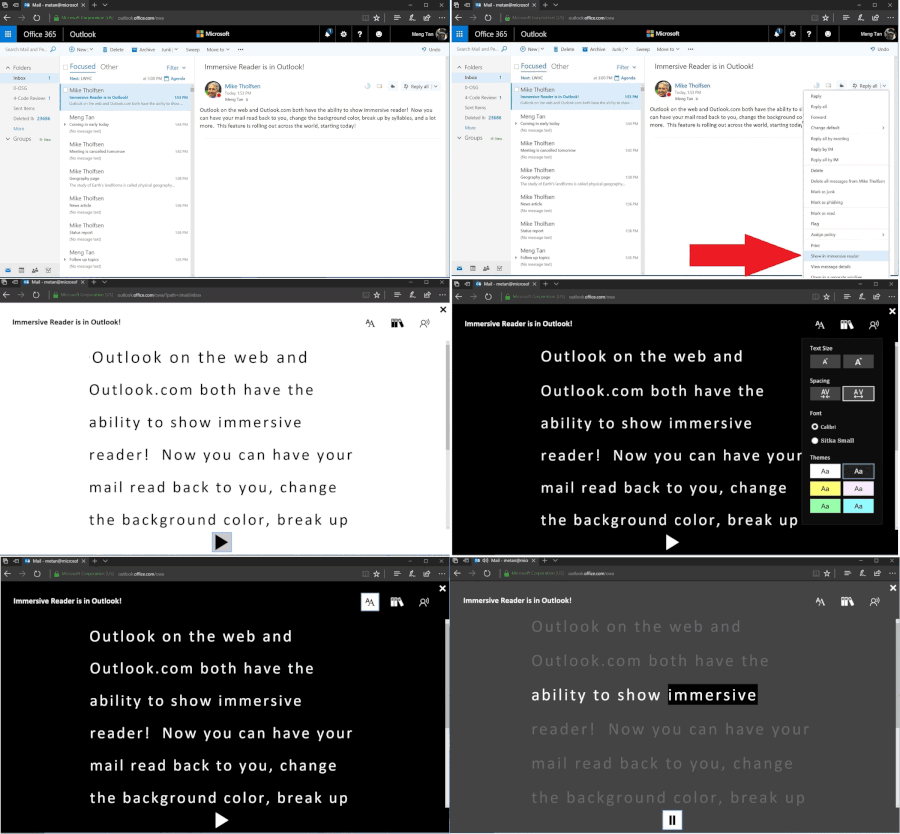
In February, we announced the availability of the Microsoft Learning Tools Immersive Reader on Word Online and OneNote Online. As a result of customer demand, we are pleased to announce that Immersive Reader is now available for Outlook.com, Outlook on the web and the OneNote Windows 10 app. Immersive Reader includes a view that utilizes techniques proven to help people read more effectively, such as: Read Aloud—Reads text out loud with simultaneous highlighting that improves decoding, fluency and comprehension while sustaining the reader’s focus and attention. Spacing—Optimizes font spacing in a narrow column view to improve reading fluency for users with visual crowding issues. Syllables—Shows the breaks between syllables to enhance word recognition and decoding. Parts of Speech—Supports writing instruction and grammar comprehension by identifying verbs, nouns and adjectives. To learn more about this announcement, read the Office BlogWindows Server 2022 adds support for Microsoft 365 Apps
Based on feedback from customers, we are happy to share that we are updating our support policy for Microsoft 365 Apps on Windows Server 2022. Support for on-premises and Azure deployments will be available through October 2026. Learn more about it here: https://techcommunity.microsoft.com/t5/windows-server-insiders/windows-server-2022-adds-support-for-microsoft-365-apps/m-p/36538542.6KViews3likes2CommentsWhat is the maximum number of undos in OneNote for the Windows app?
I ran into an issue this morning within the OneNote Windows 10 app. I went through exploring multiple shades of page colors. And as I tested them all out, I did a CTRL + Z to undo as far back to my original page color. But it stopped undo'ing after a certain point. I was easily able to restore my default color by clicking on "No Fill" under Page Color, off the View tab in the ribbon. But the point is...how many undo's do we have? and how can we increase that amount if we wanted to?2.7KViews3likes0Comments
Office Home & Business 2019 license no longer recognized after reinstall ("No license found")
Hello everyone, I'm looking for some help because Microsoft Support has not been able to solve this issue. I own a genuine perpetual license of Office Home & Business 2019 for Mac, linked to my Microsoft account since August 2019. The license is still listed under Services & Subscriptions, but Office no longer activates. My hardware MacBook Pro (Retina, 13-inch, Late 2012) Model: MacBookPro10,2 Intel Core i5 8 GB RAM macOS Ventura 13.7.8 Installed using OpenCore Legacy Patcher Office version originally working: 16.78 Later tested with 16.101 and 16.93 Same result on every version What happened Office had already been successfully activated and worked normally. I was able to: create documents edit documents save documents After restarting the Mac, Office suddenly requested activation again. Since then it has never activated successfully. Initially Office failed to activate with an unknown error. After completely uninstalling and reinstalling Office using Microsoft's installer, the activation process changed. I can now successfully sign in with my Microsoft account, but after authentication Office displays: "No license found for this account." My Office Home & Business 2019 license is still present in my Microsoft account under Services & Subscriptions. Even though my Microsoft account clearly owns Office Home & Business 2019 for Mac. Microsoft account The license appears correctly under: Services & Subscriptions Office Home & Business 2019 for Mac Added to my account on August 7, 2019. The website instructs me to open an Office application and sign in to activate. Everything I've already tried Uninstalled Office completely Installed Office again using Microsoft's installer Installed Office 16.78 Installed Office 16.93 Updated to Office 16.101 Removed Office containers Removed Group Containers Deleted OneAuth cache Deleted Entrabroker cache Removed activation tokens Cleared Office preferences Signed out and signed back into Microsoft account Deleted Office credentials from Keychain Reinstalled Microsoft AutoUpdate Verified no MDM profile exists Verified Internet Accounts Verified Microsoft account Microsoft Support remotely accessed my Mac and repeated all troubleshooting steps Nothing solved the issue. Additional information Running: defaults read com.microsoft.office returns: OfficeActivationLicense = NoLicense although: OfficeActivationEmailAddress = email address removed for privacy reasons is correctly detected. The activation window successfully reaches Microsoft's login page. Office now asks for my Microsoft account credentials. Authentication completes successfully. After a few seconds Office reports: "No license found for this account." It then offers only two options: Buy Microsoft 365 Use another account Microsoft Support remotely connected to my Mac, completely removed Office, installed a newer official installer, and the problem remained exactly the same. My question Has anyone experienced this after reinstalling Office 2019? Could this be: a licensing server issue? an incompatibility introduced after Office 2019 reached end of support? an activation problem related to OpenCore Legacy Patcher? something else? I would really appreciate any suggestions. Thank you very much. Additional notes: The Office license has been associated with the same Microsoft account since 2019. The same installation was successfully activated and worked normally before the problem started. The issue only appeared after restarting the Mac. Microsoft Support has already remotely accessed my computer and could not resolve the problem.1.6KViews2likes9CommentsMicrosoft 365 Apps SHOULD NOT overwrite Office 2019/2021 one-time retail installs
I want to raise a serious concern about Microsoft 365 Apps being imposed over existing Office 2019/2021 installations that were activated with legitimate one-time installation retail keys. In our case, these are not Microsoft 365 subscriptions and they are not licenses we can simply deactivate and reactivate freely. They are one-time installation retail keys. Once the product has been installed and activated, removing Office and reinstalling it later can make the original key unusable or trigger “already used” activation problems. That is precisely why the current behavior is so damaging. We have PCs with legitimate Office 2019/2021 installations. These machines did not request a migration to Microsoft 365 Apps. However, after internet connection, Office update activity, or Microsoft account interaction, Office appears to silently update, convert, or replace the existing retail installation with the Microsoft 365 Apps version. This is not a minor inconvenience. It creates a serious licensing and operational problem: -A valid one-time Office 2019/2021 installation is replaced by Microsoft 365 Apps without clear, explicit consent. -The original retail installation is no longer cleanly usable. -Fixing the issue requires uninstalling Office, removing Click-to-Run/licensing/account leftovers, and reinstalling the previous Office 2019/2021 version. -But because these keys are one-time installation keys, that reinstall process can render the original key unusable or create activation failures. -In practice, a forced Microsoft 365 conversion can destroy the value of a legitimate one-time Office license. From a user’s perspective, this looks less like a normal software update and more like an exploitative commercial strategy: using Microsoft’s control over Office updates, account sign-ins, Click-to-Run, and activation systems to push already-paid retail users toward Microsoft 365 subscriptions. Even if Microsoft does not intend that result, the practical effect is that users who already paid for Office 2019/2021 can lose practical access to their licensed product and are then nudged toward paying again through a subscription. This should not happen. A perpetual or one-time installation Office license and Microsoft 365 Apps are different products with different licensing models. Microsoft should not silently replace or convert one into the other because a Microsoft 365 account exists on the PC, because the user signs into Office, because OneDrive is present, or because Office updates are enabled. At minimum, Microsoft should provide: -A clear opt-in confirmation before replacing, converting, upgrading, or rebranding Office 2019/2021 retail installations as Microsoft 365 Apps. -A supported way to block Microsoft 365 Apps from taking over one-time installation Office versions. -A clean removal tool that fully removes Microsoft 365 Apps, Click-to-Run leftovers, licensing remnants, and account-based activation conflicts. -A reliable way to restore the original Office 2019/2021 retail installation without invalidating or losing the original one-time key. -Clear separation between Windows account sign-in, OneDrive sign-in, Microsoft 365 entitlement, and local Office retail activation. Users who purchased legitimate one-time installation Office licenses should not be forced into Microsoft 365 Apps by unclear update behavior. If Microsoft wants users to move to Microsoft 365, that should be a deliberate, informed choice — not a silent process that leaves the user cleaning up the installation and losing access to a paid retail license. I am not asking how to install Microsoft 365. I am asking Microsoft to stop Microsoft 365 Apps from taking over valid one-time Office 2019/2021 installations without explicit consent.551Views2likes2Comments
Add filter to Sites list in Office Apps "Save As" dialog
Hi, Currently when saving a file from Office 365 desktop app, like Word or Excel to a Site via "Save As" menu, there are only "Frequent" sites and "Following" sites available, both randomly sorted. Although developers had probably good intentions with that feature, it is extremely user unfriendly, confusing and above all it makes impossible to save a document to newly created teams, because it won't show up on any of these lists. There is a simple way to deal with many sites - just add a filter box, allowing users to write part of site name and show them sites that contain search text. Please have mercy on your customers. Kind regards, Tom.603Views2likes0CommentsThe many ways of debugging office web add-ins (office.js)
Hi everyone, I just released a blog post, a memento of the available techniques for debugging the Office add-ins. The new generation of web based add-ins created with Office.js. This may be useful for developers. https://keluro.com/programming/2016/10/29/the-many-ways-of-office-addins-debugging/ Benoit