mgdc
52 TopicsMGDC for SharePoint: Increased Changes in SizeInBytesWithVersions
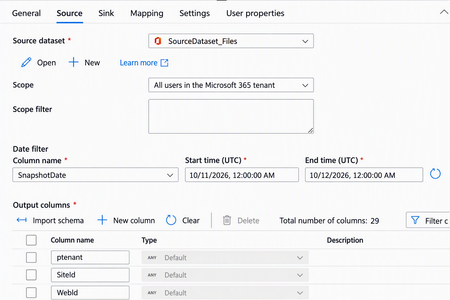
We noticed recently a change in behavior for the SizeInBytesWithVersions column in the SharePoint Files dataset exposed by Microsoft Graph Data Connect (MGDC). This column used to change only when there were changes to the file. It is now possible for this column to be changed when internal processes in the SharePoint infrastructure optimize the storage of file metadata, without a matching change in any other column exposed via the MGDC SharePoint Files dataset. This change is generally not a concern, but it could cause a larger number of SharePoint Files objects to show in MGDC as updated. This would in turn cause an increase in the size of deltas (a feature of MGDC where only changed objects are pulled) and a corresponding increase in cost for pulling SharePoint File deltas. If this becomes a concern, there is a simple workaround. In the copy task definition for the MGDC SharePoint Files dataset, in the Source tab, under the Output columns list, you can delete the SizeInBytesWithVersions column to filter it out of the results. This way, the deltas will see a corresponding reduction.MGDC for SharePoint: Richer data for read-locked and archived sites
We’re improving the Microsoft Graph Data Connect (MGDC) for SharePoint Sites dataset to provide more complete information for read-locked and archived sites. What’s changing Previously, read-locked and archived sites appeared as partial rows, with only a limited number of columns populated. With this update, these sites are fully populated with the same fields and level of detail as other sites in the dataset. What you’ll see in the data 1) Fully populated rows Standard fields that were previously empty for read-locked and archived sites will now contain their actual values. 2) A more accurate ReadLocked signal The ReadLocked field will now reflect the site’s actual lock state independently of its archival status: An archived site reports ReadLocked = false. A genuinely read-locked site reports ReadLocked = true. This makes it easier to distinguish archived sites from sites that are specifically read-locked. What’s not changing No schema changes: The structure of the MGDC SharePoint Sites dataset remains the same. No change in site coverage: The same sites continue to appear, so the row count remains unchanged. No change for normal sites: Sites that are neither archived nor read-locked continue to report the same values. This update only enriches rows that were previously partially populated. What to expect when the update is enabled The first snapshot after enablement will contain a one-time expected delta: Previously sparse rows will become fully populated. Archived sites will report their genuine lock state. For many archived sites, ReadLocked will change from true to false, because archival status will no longer mask the underlying lock state. If you are using MGDC for SharePoint Delta Datasets, note that the SharePoint Sites dataset will show a one-time increase in the Delta due to the changes described here. This will have no impact on other datasets. After this initial snapshot, subsequent snapshots will follow the updated behavior.MGDC for SharePoint: New Columns in September 2026
The MGDC for SharePoint team continues to improve the available datasets. This time around, we are introducing additional columns to some of our existing datasets. Here is a summary based on the different scenarios they support: Archive – Extends support for the SharePoint Archive feature. Includes a site property for size of archived files and a file property to indicate that the file is archived. E-signature – Supports the E-signature by adding a file to indicate there is a digital signature and the provider’s name. Filtering – The RootWebTemplateId was added to SharePoint Groups and SharePoint Permission dataset to facilitate filter by type of site, like it is currently available for Sites, Files and File Actions. Hub Site – Extends support for Hub Sites, introducing a column for ParentHubSiteId, to represent a hub site hierarchy. Restricted – Multiple columns indicating restricted flags in sites, including Restricted Access Control (RAC), Restricted Content Discovery (RCD) and Restricted Content Org-wide Search Policy. Retention – Support a set of file properties about Retention Labels, including label name, type, who applied it and when it was applied. Sharing – Extends the SharePoint Permissions properties to support the new sharing model. This includes information about the Main Link and Variants. Versions – Extends support for versions, including version storage metrics and version history policy. Here is a summary of all 26 columns in 4 datasets (Sites, Groups, Permissions and Files): Dataset Column Data type Description Sites ArchiveStorageUsed Number Total size of all archived storage in bytes Sites IsRestrictContentOrgWide SearchPolicyEnforcedOnSite Boolean Restricted Content Org-wide Search Policy Sites IsRestrictedAccess ControlPolicyEnabled Boolean Restricted Access Control Sites IsRestrictedContentDiscovery forCopilotAndAgentsEnabled Boolean Restricted Content Discovery Sites ParentHubSiteId String, GUID Parent hub site for this hub site Sites StorageMetrics, VersionCount Number Number of versions Sites StorageMetrics, VersionSize Number Total size of versions in bytes Sites StorageMetrics, VersionMetadataSize Number Total size of version metadata in bytes Sites VersionHistoryPolicy String Version history policy. Possible values: None, Automatic, Manual. If manual, uses “major version limit”. Sites MajorVersionLimit Number Limit for number of major versions Groups RootWebTemplateId Number Root web template id Groups Description String Description of the group Permissions RootWebTemplateId Number Root web template id Permissions SharingVariant String Sharing link variant. Possible values include: None, PasswordProtected, TrackLinkUsers, Embeddable, Ephemeral, RestrictToExistingRelationships, MainLink, NonDurableRedeem. Multiple values can be set at once. Permissions MainLinkAudience String Main link audience. Possible values include: Organization, Empty (people with existing access). Permissions MainLinkRole String Main link role. Possible values include View, Edit, others. Files RetentionLabel Object Retention label Files RetentionLabel, AppliedByEmail String Email of user who applied retention label Files RetentionLabel, AppliedByName String Name of user who applied retention label Files RetentionLabel, AppliedTime DateTme Time when retention label was applied Files RetentionLabel, Name String Name of retention label Files RetentionLabel, Type String Type of retention label. Possible values: Normal, Record or Regulatory Record Files HasDigitalSignature Boolean File has a digital signature Files DigitalSignatureProvider String Name of digital signature provider if digital Signature exist Files IsFileArchived Boolean File is Archived These changes are non-breaking, which means that your existing pipelines will continue to run. We also let this change sit for 21 days, so that delta datasets are also not impacted. Anyone starting fresh with MGDC for SharePoint will automatically get the new columns in their pipelines. If you have existing pipelines and want to use the new columns, you will need to update your MGDC application, get that update approved and then update your pipeline to pull the new schema. For more details about updating your pipelines to include new columns, or to see how these can be leveraged in specific scenarios, see these articles: Helpful blog on schema changes: MGDC for SharePoint FAQ: How to deal with schema changes Main MGDC for SharePoint article: https://aka.ms/SharePointData Updated schema for SharePoint datasets in MGDC: https://aka.ms/SharePointDatasetsMGDC for SharePoint: AadObjectId may sometimes be missing in User metadata (fixed)
We identified issues affecting specific Microsoft Graph Data Connect (MGDC) for SharePoint scenarios. In some cases, user identity records in the SharePoint Sharing and SharePoint Groups (SPGroups) datasets lacked the Entra ID object ID (formerly Azure Active Directory Object ID, or AadObjectId). As a result, the same user could appear differently across reports, causing discrepancies in reported user counts. We resolved the issue by improving the identity resolution. The Sharing and SPGroups datasets now use Entra ID identity information to retrieve the complete and accurate AadObjectId values. We also identified a scenario where a user was deleted from Entra Id but still showed in the dataset either with a stale or an empty value for AadObjectId. Going forward, those users will consistently show up with an empty AadObjectId. If you use the Sharing or SPGroups datasets, you may notice more accurate user information and changes in user counts compared with earlier reports. User objects may now include AadObjectId values where these did not show before and stale user objects will show up with empty values for AadObjectId. Delta datasets will also reflect these updated or removed objects as a result of this fix. This update is being rolled out in the next few weeks. It improves the accuracy and consistency of user identities in permissions datasets, giving customers greater confidence when reviewing which users have access to SharePoint and OneDrive content.MGDC for SharePoint FAQ: How to Run a PoC without Pulling Your Entire Tenant
Overview When getting started with SharePoint data in Microsoft Graph Data Connect (MGDC) for SharePoint, many teams want to validate scenarios - such as reporting or analytics before committing to a full production deployment. A common first instinct is to pull a complete dataset from a production tenant. While this delivers the most comprehensive view of SharePoint usage, it also: Requires broad administrative authorization Consumes the most Azure compute and storage resources Increases MGDC extraction and processing costs Adds complexity to early experimentation Fortunately, MGDC for SharePoint provides multiple ways to run low‑cost experiments or proof‑of‑concept (POC) deployments using partial or scoped datasets. This guide presents these options using a uniform comparison model, helping you choose the right approach based on: Cost Representativeness of production behavior Implementation effort Dataset completeness Supported datasets Option 1: Use a Dev or Test Tenant Description Use an existing development or test tenant (or create a new trial tenant) to enable MGDC and run initial experiments. Pros Smaller datasets reduce MGDC and Azure costs Easier to obtain administrative permissions Lower operational impact Cons May not reflect production‑scale usage patterns Some SharePoint features or integrations may be missing Requires simulated user activity to generate meaningful data Trial tenants are time‑limited Learn More Microsoft 365 Trial Options Azure Trial Options Option 2: Start with the SharePoint Sites Dataset Description The Sites dataset is typically the smallest MGDC dataset for SharePoint and provides tenant‑wide metadata for all site collections. Pros Lower cost compared to Files or Permissions datasets Provides organization‑wide coverage Minimal MGDC configuration beyond standard onboarding Small dataset can be handled directly by a variety of analysis tools Cons Does not include permission or file details Limited insight compared to full datasets Learn More How can I estimate my Azure bill? Updated! Gather a detailed dataset on SharePoint Sites Option 3: Sample a Limited Number of Rows Description Some MGDC SharePoint datasets support returning only a subset of rows in query results. This is supported across the top 5 SharePoint datasets in MGDC (Sites, Permissions, Groups, Files and File Actions). Pros Minimal and predictable extraction cost Enables rapid schema inspection Provides total dataset row count in request metadata Cons Rows are not returned in a predictable order Sample is not randomized. It is not reproducible and could be biased Results should not be used to draw tenant‑level conclusions Learn More How can I sample or estimate the number of objects in a dataset? Option 4: Filter by SiteId Description Because SharePoint data is partitioned by site collection, MGDC filtering allows you to extract data from a single site or a small group of representative sites. This supports Sites, Permissions, Groups, Files and File Actions datasets. Pros Enables realistic workload simulation Reduces total extraction volume Simplifies downstream reporting Cons May introduce sampling bias Not suitable for tenant‑wide reporting Learn More How can I filter rows on a dataset? Option 5: Filter by TemplateId Description Instead of selecting individual sites, filter by site template to isolate specific workloads. For example, you could filter for OneDrives or SharePoint Embedded. Pros Consistent dataset scope Useful for workload‑specific analysis Cons Limited dataset support (supported only for Sites, Files and File Actions) May not reflect cross‑workload usage patterns Learn More How can I filter rows on a dataset? Option 6: Use Delta State Datasets Description Delta datasets allow you to retrieve only changes since your last data transfer for supported SharePoint State datasets. Pros Enables recurring analytics with lower extraction costs Supports daily or weekly trend analysis Reduces data movement after initial ingestion Cons Requires an initial full dataset pull Adds complexity to downstream merge processing Learn More How can I use Delta State Datasets? How do I process Deltas? Summary MGDC for SharePoint provides multiple approaches to extract targeted subsets of tenant data, allowing teams to: Run proof‑of‑concept deployments Validate analytics pipelines Test governance or migration scenarios Estimate ongoing MGDC and Azure costs By selecting the right combination of dataset scope, filtering strategy, sampling method or delta tracking, you can balance cost, representativeness, and implementation effort before scaling to a full production deployment. For additional guidance on MGDC for SharePoint, visit SharePoint Data in MGDC.MGDC for SharePoint FAQ: Which regions are supported? Updated in September 2025
1. Overview When gathering SharePoint data through Microsoft Graph Data Connect (MGDC), you need to pay attention to an important detail: regions. That includes both the region of your Microsoft 365 tenant (the data source), the region of the Azure Storage account (the data destination) and the region of your workspace where you run your pipelines. In this blog, we’ll investigate the importance of understanding regions, which regions are supported by SharePoint on MGDC, the requirement to use a matching region in Azure, and how to handle a tenant with data in multiple regions. We will also share the additional regions supported as of September 2025. 2. Regions When you use MGDC to pull data from your SharePoint tenant to an Azure account, you always do this in the context of a region. The region is the geographic location where Microsoft stores your data. MGDC and SharePoint support extracting data from several Microsoft 365 regions. As I write this blog, those regions include all three macro regions (Asia-Pacific, Europe and North America), plus many of the go-local regions (like Australia, Brazil and Canada). 3.Which regions are supported by SharePoint on MGDC? To move data from Microsoft 365 tenant to your Azure account, both must map to a supported region for MGDC. On the Microsoft 365 side, the data location for the SharePoint data must be supported. On the Azure side, the region for your storage account, your Synapse workspace and your Azure Data Factory instance must be supported. Here is the list of Microsoft 365 and Azure regions supported: Microsoft 365 region Azure region SharePoint Datasets* All Other Datasets Asia-Pacific (APC) East Asia Southeast Asia Y Y Australia (AUS) Australia East Australia Southeast Y Y Brazil (BRA) Brazil South Y Y Canada (CAN) Canada Central Canada East Y Y Europe (EUR) North Europe West Europe Y Y France (FRA) France Central Y Y Germany (DEU) Germany West Central Y Y India (IND) South India Central India Y Y Israel (ISR) Israel Central Y N Italy (ITA) Italy North Y N Japan (JPN) Japan West Japan East Y Y Korea (KOR) Korea Central Korea South Y Y Mexico (MEX) Mexico Central Y N North America (NAM) Central US East US East US 2 North Central US South Central US West Central US West US West US 2 Y Y Norway (NOR) Norway East Y Y Poland (POL) Poland Central Y N Qatar (QAT) Qatar Central Y N South Africa (ZAF) South Africa North Y N Spain (ESP) Spain Central Y N Sweden (SWE) Sweden Central Y N Switzerland (CHE) Switzerland North Y Y UAE (UAE) UAE North Y Y United Kingdom (GBR) UK South UK West Y Y Note: Some of the regions (the ones that were added most recently) are supported only for the SharePoint datasets in Microsoft Graph Data Connect. That includes Sites, Groups, Permissions, File and File Actions. These recently added regions are not supported for OneDrive, Exchange, Teams and other Microsoft Graph Data Connect datasets. 4. The regions must match So, you need both your Microsoft 365 (Office) region and your Azure region to be supported (listed in the table above). Beyond that, you must also make sure that the Microsoft 365 regions and the Azure regions match. For instance, if your Office region is Europe, you must use an Azure storage account in either North Europe or West Europe. If you try to pull data for a tenant in the Australia Office region from an Azure account in West US, it will not work. You will basically get no data in this scenario. Even though these are both supported regions, they do not match. Please note that Microsoft 365 offers local regions in certain geographies, like Germany, France and Norway. Although these are countries in Europe, these country-specific Microsoft 365 regions (also known as go-locals) are not included in the Microsoft 365 Europe region. 5. How do I find my Microsoft 365 (Office) region? You can use the Microsoft 365 Admin Center to find the region for your tenant. The URL for the Admin center is https://admin.microsoft.com. You will find this information under “Show all”, “Settings”, “Org settings”. Then select the tab for “Organizational Settings” and select “Data location”. Here are some sample screenshots: If your tenant is not in one of the supported SharePoint on MGDC regions, please reach out to help us prioritize which regions we should add in the future. 6. How do I find my Azure account region? When you create Azure resources like a Storage account, you must specify the region where you want your data to be stored. This also applies to other resources in Azure like your Azure Synapse workspace or your Azure Data Factory instance. See below a list of storage accounts in Azure, showing the region (location): 7. What if my tenant uses multiple regions? It is possible for a Microsoft 365 tenant to have data in multiple regions. This single tenant can choose to have some OneDrive and SharePoint sites in one region and another set of OneDrive and SharePoint sites in a different region. This multi-geo capability is commonly used by large, multi-national companies. For these tenants, MGDC for SharePoint will only allow you to pull data for one region at a time, using an Azure account that matches that region. For instance, if your tenant has sites in North America and Europe, you will need to pull data from an Azure account in North America to get the north American sites and another Azure account in Europe to pull the European sites. The priority is to keep the data from the different regions separate, for compliance reasons. Once the multiple datasets are transferred to the multiple Azure accounts, you could join them into a single account, if your tenant’s compliance requirements allow for that. 8. What kind of error will I see? If you use an unsupported region, you will see an error like this: Operation on target <ActivityName> failed: ErrorCode=UserErrorOffice365DataLoaderError, ‘Type=Microsoft.DataTransfer.Common.Shared.HybridDeliveryException, Message=Office365 data loading failed to execute. office365LoadErrorType: PermanentError. Dataset: <DatasetName> is not available in the region: <UnsupportedRegion>, Source=Microsoft.DataTransfer.ClientLibrary,’ 9. Summary This blog announced additional Microsoft 365 and Azure regions supported in MGDC for SharePoint. For more information about SharePoint Data in MGDC, please visit the collection of links at https://aka.ms/SharePointData.Capacity Template v2 with Microsoft Fabric
1. Capacity Scenario One of the most common scenarios for Microsoft Graph Data Connect (MGDC) for SharePoint is Capacity. This scenario focuses on identifying which sites and files are using the most storage, along with understanding the distribution of these large sites and files by properties like type and age. The MGDC datasets for this scenario are SharePoint Sites and SharePoint Files. If you’re not familiar with these datasets, you can find details in the schema definitions at https://aka.ms/SharePointDatasets. To assist you in using these datasets, the team has developed a Capacity Template. Initially published as a template for Azure Synapse, we now have a new Microsoft Fabric template that is simpler and offers more features. This SharePoint Capacity v2 Template, based on Microsoft Fabric, is now publicly available. 2. Instructions The template comes with a set of detailed instructions at https://aka.ms/fabriccapacitytemplatesteps. These instructions include: How to install the Microsoft Fabric and Microsoft Graph Data Connect prerequisites How to import the pipeline template from the Microsoft Fabric gallery and set it up How to import the Power BI template and configure the data source settings See below some additional details about the template. 3. Microsoft Fabric Pipeline After you import the pipeline template, it will look like this: 4. Pipeline in Microsoft Fabric The Capacity template for Microsoft Fabric includes a few key improvements: The new template uses delta datasets to update the SharePoint Sites and SharePoint Files datasets. It keeps track of the last time the datasets were pulled by this pipeline, requesting just what changed since then. The new template uses views to do calculations and create new properties like size bands or date bands. In our previous template, this was done in Power Query, when importing into Power BI. The new template also uses a view to aggregate file data, grouping the data by file extension. You can find details on how to find and deploy the Microsoft Fabric template in the instructions (see item 3). 5. Microsoft Fabric Report The typical result from this solution is a set of Power BI dashboards pulled from the Microsoft Fabric data source. Here are some examples: These dashboards serve as examples or starting points and can be modified as necessary for various visualizations of the data within these datasets. The instructions (see item 3) include details on how to find and deploy a few sample Power BI Capacity templates. 6. Conclusion I hope this provides a good overview of the Capacity template for Microsoft Fabric. You can read more about the Microsoft Graph Data Connect for SharePoint at https://aka.ms/SharePointData. There you will find many details, including a list of datasets available, other common scenarios and frequently asked questions.Using Copilot (GPT-5) to turn schema into SQL and write queries
This article shows a few ways you can use Copilot to help with Microsoft Graph Data Connect for SharePoint. This includes turning a schema into a SQL CREATE TABLE statement and summarizing data from that. Make sure to use the Copilot option to use GPT-5 for best results. Scenario 1 This first scenario just builds a CREATE TABLE statement from the dataset schema definition in markdown notation. I provide a few instructions on how to handle the flattening of the objects. Me: Given the schema at this URL: https://github.com/microsoftgraph/dataconnect-solutions/blob/main/Datasets/data-connect-dataset-sharepointsites.md, give me a CREATE TABLE statement for a SQL Server. Just include the single SQL command in the output. Each column should have a comment with a short description. Don't include any information about keys or constraints. This dataset is flattened. One column in the table for every row, except those of type object. Column names to be flattened with a prefix. Use an underline to separate the prefix. Copilot: CREATE TABLE SharePointSites ( ptenant NVARCHAR(255) -- Id of the tenant ,Id NVARCHAR(255) -- GUID of the site ,Url NVARCHAR(2048) -- URL for the site ,ArchiveState NVARCHAR(50) -- Archive state of the site: None, Archiving, Archived, or Reactivating ,SiteArchivedBy NVARCHAR(255) -- Who archived the site, null if not archived ,SiteArchivedTime DATETIME -- When the site was archived, null if not archived ,RootWeb_Id NVARCHAR(255) -- Root web id ,RootWeb_Title NVARCHAR(512) -- Root web title ,RootWeb_WebTemplate NVARCHAR(255) -- Root web template name ,RootWeb_WebTemplateId INT -- Root web template id ,RootWeb_Configuration INT -- Root web template configuration id ,RootWeb_LastItemModifiedDate DATETIME -- Date when an item in the root web was last modified ,WebCount BIGINT -- Number of webs (subsites) in the site ,StorageQuota BIGINT -- Total storage in bytes allowed for this site ,StorageUsed BIGINT -- Total storage in bytes used by this site ,StorageMetrics_MetadataSize BIGINT -- Total metadata size for the site in bytes ,StorageMetrics_TotalFileCount BIGINT -- Total number of files for the site ,StorageMetrics_TotalFileStreamSize BIGINT -- Total size of latest version of files in bytes ,StorageMetrics_AdditionalFileStreamSize BIGINT -- Total size of additional file streams in bytes ,StorageMetrics_TotalSize BIGINT -- Total size of all files for the site in bytes ,GroupId NVARCHAR(255) -- Id of the group associated with this site ,GeoLocation NVARCHAR(50) -- Geographic region where the data is stored ,IsInRecycleBin BIT -- Indicates if the site is in the recycle bin ,RecycleBinItemCount BIGINT -- Number of items in the recycle bin ,RecycleBinItemSize BIGINT -- Size of items in the recycle bin ,SecondStageRecycleBinStorageUsage BIGINT -- Size of items in the second stage recycle bin ,IsTeamsConnectedSite BIT -- Indicates if the site is connected to Teams ,IsTeamsChannelSite BIT -- Indicates if the site is a channel site ,TeamsChannelType NVARCHAR(50) -- Type of channel if site is a Teams channel site ,IsHubSite BIT -- Indicates if the site is associated with a hub site ,HubSiteId NVARCHAR(255) -- Id of the hub site for this site ,IsCommunicationSite BIT -- Indicates if the site is a communication site ,IsOneDrive BIT -- Indicates if the site is a OneDrive ,BlockAccessFromUnmanagedDevices BIT -- Site blocks access from unmanaged devices ,BlockDownloadOfAllFilesOnUnmanagedDevices BIT -- Site blocks download of all files from unmanaged devices ,BlockDownloadOfViewableFilesOnUnmanagedDevices BIT -- Site blocks download of viewable files from unmanaged devices ,ShareByEmailEnabled BIT -- Site enables share by e-mail ,ShareByLinkEnabled BIT -- Site enables share by link ,IsExternalSharingEnabled BIT -- Indicates if external sharing is enabled ,SiteConnectedToPrivateGroup BIT -- Indicates if site is connected to a Private Group ,Privacy NVARCHAR(50) -- Privacy of the site: Private or Public ,SensitivityLabelInfo_Id NVARCHAR(255) -- Id of the Sensitivity Label for the site ,SensitivityLabelInfo_DisplayName NVARCHAR(255) -- Display name of the Sensitivity Label for the site ,Classification NVARCHAR(255) -- Classification of the site ,IBMode NVARCHAR(50) -- Information Barriers Mode ,IBSegments NVARCHAR(MAX) -- List of organization segments if IB mode is Explicit ,Owner_AadObjectId NVARCHAR(255) -- AAD Object Id of the owner ,Owner_Email NVARCHAR(320) -- Email of the owner ,Owner_UPN NVARCHAR(320) -- User Principal Name of the owner ,Owner_Name NVARCHAR(255) -- Name of the owner ,SecondaryContact_AadObjectId NVARCHAR(255) -- AAD Object Id of the secondary contact ,SecondaryContact_Email NVARCHAR(320) -- Email of the secondary contact ,SecondaryContact_UPN NVARCHAR(320) -- User Principal Name of the secondary contact ,SecondaryContact_Name NVARCHAR(255) -- Name of the secondary contact ,ReadLocked BIT -- Whether the site is locked for read access ,ReadOnly BIT -- Whether the site is in read-only mode ,CreatedTime DATETIME -- When the site was created (UTC) ,LastSecurityModifiedDate DATETIME -- When security on the site was last changed (UTC) ,LastUserAccessDate DATETIME -- Last access by a real user (UTC) ,LastContentChange DATETIME -- When the site contents were last changed (UTC) ,SnapshotDate DATETIME -- When this site information was captured (UTC) ,Operation NVARCHAR(50) -- Extraction mode of this row ); Scenario 2 Now I use the CREATE TABLE as the base to ask for a SELECT statement. Me: Give me a list of sites that have more than 5GB of files. Give me a single SQL statement using the tables described below. <create table statements included here> Copilot: SELECT Id AS SiteId, Url AS SiteUrl, RootWeb_Title AS SiteTitle, StorageMetrics_TotalSize AS TotalSizeInBytes, CAST(StorageMetrics_TotalSize / (1024.0 * 1024 * 1024) AS DECIMAL(10,2)) AS TotalSizeInGB FROM SharePointSites WHERE StorageMetrics_TotalSize > (5 * 1024 * 1024 * 1024) ORDER BY StorageMetrics_TotalSize DESC; Note: Interesting choice of columns and order, without any specific prompting to that effect. Scenario 3 Now for a more challenging scenario using two tables and a more complex requirement. Me: Given the tables below, write a SELECT statement to give me a list of sites with the name of the site, the total storage size and the top 3 file extensions by size. <create table statements for Sites and Files included here> Copilot: WITH ExtensionTotals AS ( SELECT f.SiteId, f.Extension, SUM(f.SizeInBytes) AS TotalSize FROM SharePointFiles f WHERE f.Extension IS NOT NULL GROUP BY f.SiteId, f.Extension ), RankedExtensions AS ( SELECT et.SiteId, et.Extension, et.TotalSize, ROW_NUMBER() OVER (PARTITION BY et.SiteId ORDER BY et.TotalSize DESC) AS rn FROM ExtensionTotals et ), TopExtensions AS ( SELECT SiteId, STRING_AGG(Extension + ' (' + CAST(TotalSize AS VARCHAR(20)) + ')', ', ') WITHIN GROUP (ORDER BY TotalSize DESC) AS Top3Extensions FROM RankedExtensions WHERE rn <= 3 GROUP BY SiteId ) SELECT s.RootWeb_Title AS SiteName, s.StorageMetrics_TotalSize AS TotalStorageSize, te.Top3Extensions FROM SharePointSites s LEFT JOIN TopExtensions te ON s.Id = te.SiteId ORDER BY s.StorageMetrics_TotalSize DESC; Notes: Scenario is nicely handled, using both the Files and Sites tables. Complex aggregation is coded correctly. Scenario 4 In this one, I skip the step of using a SQL CREATE TABLE statement and go directly from the markdown for the two schemas (Sites and Files) to a SQL SELECT statement. I also let GPT-5 add his comments and notes this time, to make sure it's thinking correctly... Me: Consider a SQL table for SharePoint Sites based on the schema at https://github.com/microsoftgraph/dataconnect-solutions/blob/main/Datasets/data-connect-dataset-sharepointsites.md - This dataset is flattened. There is one column in the SQL table for every row, except those of type object. Column names are flattened with a prefix. Column names use an underline to separate the prefix. Also consider a SQL table for SharePoint Files based on the schema at https://github.com/microsoftgraph/dataconnect-solutions/blob/main/Datasets/data-connect-dataset-sharepointfiles.md - Use the same assumptions as the previous one. Now write a SELECT statement to give me a list of sites with the name of the site, the total storage size and the top 3 file extensions by size. Copilot: Got it — you want to join the flattened SharePoint Sites table with the flattened SharePoint Files table, aggregate storage usage, and then find the top 3 file extensions by size for each site. Here’s a SQL example that works with the flattened column naming convention you described: WITH FileSizeByExtension AS ( SELECT f.SiteId, f.Extension, SUM(f.SizeInBytes) AS TotalExtensionSize FROM SharePointFiles f GROUP BY f.SiteId, f.Extension ), RankedExtensions AS ( SELECT SiteId, Extension, TotalExtensionSize, ROW_NUMBER() OVER (PARTITION BY SiteId ORDER BY TotalExtensionSize DESC) AS rn FROM FileSizeByExtension ), Top3Extensions AS ( SELECT SiteId, STRING_AGG(Extension, ', ' ORDER BY TotalExtensionSize DESC) AS TopExtensions FROM RankedExtensions WHERE rn <= 3 GROUP BY SiteId ) SELECT s.RootWeb_Title AS SiteName, s.StorageMetrics_TotalSize AS TotalStorageBytes, t.TopExtensions FROM SharePointSites s LEFT JOIN Top3Extensions t ON s.Id = t.SiteId ORDER BY s.StorageMetrics_TotalSize DESC; How it works FileSizeByExtension: Groups files by SiteId and Extension to sum their sizes. RankedExtensions: Uses ROW_NUMBER() to rank extensions by size within each site. Top3Extensions: Filters to the top 3 per site and concatenates them into a comma-separated list. Final SELECT: Joins back to the Sites table to get the site name and total storage size. Notes RootWeb_Title comes from flattening the RootWeb object in the Sites dataset. StorageMetrics_TotalSize is the flattened column for total site storage (excluding recycle bin). STRING_AGG works in SQL Server 2017+, Azure SQL, and some other RDBMS. If your SQL dialect doesn’t support it, you’d need a different aggregation method. This query orders sites by total storage size so the largest sites appear first. Note: Nicely done in one prompt with the proper explanations. Conclusion I hope these examples help you see the potential of getting Copilot's help with your queries. This is one more reason to load your MGDC for SharePoint tables directly into Microsoft Fabric, where you can run SQL queries against tables in the OneLake...Microsoft Graph Data Connect for SharePoint is Generally Available
General Availability (GA) for Microsoft Graph Data Connect was announced on August 2023, about two years ago. Details can be found at Microsoft Graph Data Connect updates. At that time, the SharePoint datasets for Microsoft Graph Data Connect entered public preview. As of July 2025, Microsoft Graph Data Connect for SharePoint, which includes datasets for OneDrive and SharePoint, has reached General Availability (GA), following an extended public preview period. There are no changes to the datasets or features at this time. For more information about the datasets, visit https://aka.ms/OneDriveAndSharePointDatasets.MGDC for SharePoint FAQ: How to List SharePoint Webs or Subsites?
1. Introduction SharePoint uses a known object hierarchy to store your files, including, in order: Site Collection (site, SPSite) Web (site, subsite, SPWeb) List (SPList, Document Library, SPDocumentLibrary) Folder (SPFolder) List Item (documents, files, SPListItem, SPFile) If you are not familiar with all those, you can read more about them at What is in the Permissions dataset? 2.What we have in MGDC for SharePoint The SharePoint Sites dataset in Microsoft Graph Data Connect offers a list of all sites (site collections) in your tenant. The SharePoint Files will give you details about each file (document). However, there are no MGDC datasets that will give you one object per SharePoint Web (subsite) or SharePoint List (library). There is a workaround, though. If you pay attention to the schema for the SharePoint Sites and SharePoint Files datasets in MGDC, you will find that Sites includes a few interesting details about the Root Web (the main web in the site collection) and the total number of webs (subsites) in each site. Also, the Files dataset includes details about the web (subsite) and the list (library) where the file lives. You could group on these columns to expose more information about webs and lists. 3. One Web These days, if you create a modern SharePoint site, you will get one web (called the Root Web) and no obvious mechanism to create subsites or additional webs. For any sites created in the last few years, you likely have no additional webs outside the Root Web. Your SharePoint might have existed for many years and your company could have sites using old templates with multiple subsites. If you’re trying to find out if that’s the case for your tenant, the information is available in MGDC, if you are willing to dig a little deeper. 4. Finding Old Subsites The main task here is to create a custom query to join the Sites and Files datasets. You would then group that in a particular way to enumerate each subsites (Webs). You might also tag the Webs that are a Root Web, so that you can identify subsites that are not at the top of the Site hierarchy. If you pulled the Sites and Files datasets into a SQL Server or a Lakehouse in Microsoft Fabric, this is what that query could look like: SELECT Webs.SiteId, Sites.RootWeb.Title AS SiteTitle, Sites.Url AS SiteUrl, Sites.WebCount, Webs.WebId, CASE WHEN Root.RootWeb.Id IS NOT NULL THEN 1 ELSE 0 END AS IsRootWeb, Webs.FileCount, Webs.TotalSize, Webs.TotalSizeWithVersions FROM ( SELECT SiteId, WebId, COUNT(*) AS FileCount, SUM(SizeInBytes) AS TotalSize, SUM(SizeInBytesWithVersions) AS TotalSizeWithVersions FROM Files GROUP BY SiteId, WebId ) AS Webs LEFT JOIN Sites AS Sites ON Webs.SiteId = Sites.Id LEFT JOIN Sites AS Root ON Webs.SiteId = Root.Id AND Webs.WebId = Root.RootWeb.Id 4. Empty Webs, Web properties This technique will get you a nice list of Webs, but there are a few problems. First, if a specific web has no files, we won’t see that web in the Files dataset and therefore the query will fail to list that particular web. You would still see that Web counted in the WebCount property of the Sites dataset, but there would be no listing of that web in the query proposed above, since it has no files. Another problem is that there is no way to find in MGDC the details properties of the Web, like the Title. You get some of those for the Root Web in the Sites dataset, but not for the other Webs. For that, you would have to query the Web object using another source like the Graph API or PowerShell. 5. Conclusion I hope this article helped you find details about enumerating SharePoint Webs using the Microsoft Graph Data Connect. For recent deployments of SharePoint Online, you should have only one web per site and the Sites dataset (with Root Web details) should give you plenty of details. However, this might come in handy if you want to manage some of the old subsites of a slightly older SharePoint deployment. Finally, if you’re looking for a challenge, I would suggest adapting the SQL code above to enumerate all the document libraries using the Files dataset. It can be done following a similar pattern…